radio GMC SIERRA DENALI 2003 User Guide
[x] Cancel search | Manufacturer: GMC, Model Year: 2003, Model line: SIERRA DENALI, Model: GMC SIERRA DENALI 2003Pages: 428, PDF Size: 20.35 MB
Page 187 of 428
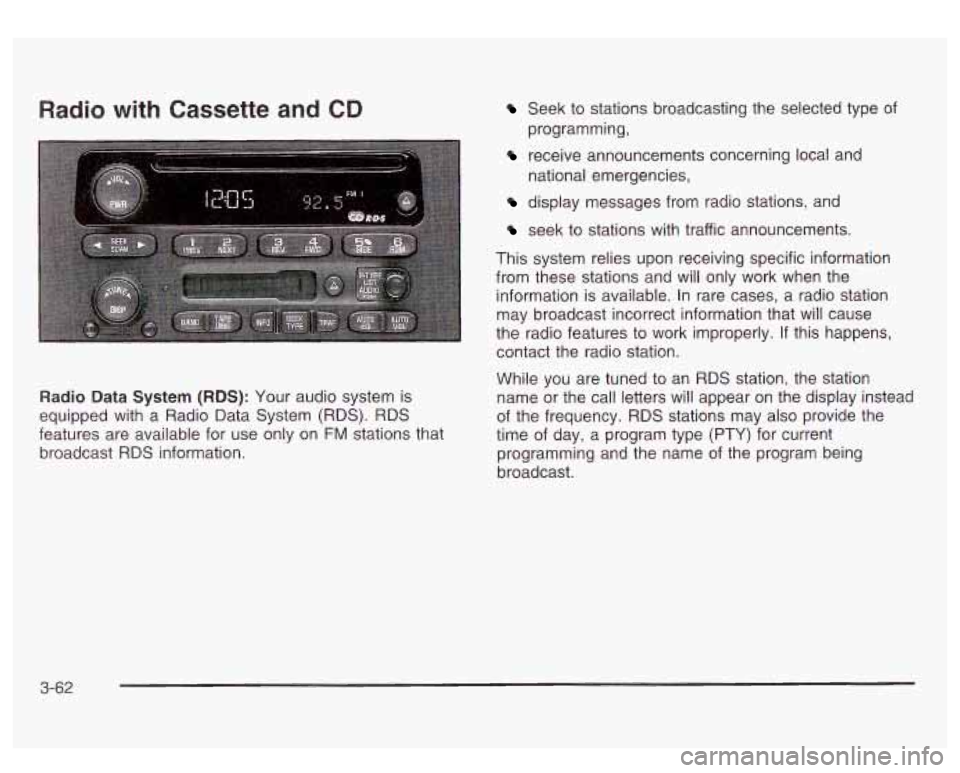
Radio with Cassette and CD
Radio Data System (RDS): Your audio system is
equipped with a Radio Data System (RDS). RDS
features are available for use only on
FM stations that
broadcast RDS information.
Seek to stations broadcasting the selected type of
programming,
receive announcements concerning local and
national emergencies,
display messages from radio stations, and
seek to stations with traffic announcements.
This system relies upon receiving specific information
from these stations and will only work when the
information is available. In rare cases, a radio station
may broadcast incorrect information that will cause
the radio features to work improperly. If this happens,
contact the radio station.
While you are tuned to an RDS station, the station
name or the call letters will appear on the display instead
of the frequency. RDS stations may also provide the
time of day, a program type
(PTY) for current
programming and the name of the program being
broadcast.
3-62
Page 188 of 428
XMTM Radio Satellite Service (USA Only): XMTM is a
continental
U.S. based satellite radio service that
offers 100 coast to coast channels including music,
news, sports, talk and children’s programming. XMTM
provides digital quality audio and text information,
including song title and artist name. A service fee is
required in order to receive the XMTM service. For more
information, contact XMTM at www.xmradio.com or
call 1 -800-852-XMXM
(9696).
Digital Audio Broadcast (DAB) (Canada Only): DAB
is a Canadian land-based radio service that offers
digital quality audio and text information including song
title, artist name, traffic, weather, emergency
announcements and more. Digital Audio Broadcast
transmission services are currently available
in Toronto,
Montreal, Vancouver, Ottawa, and Windsor. In fringe
areas signals may be interrupted by buildings, trees and
other obstructions. Additional services will be added
in the future. For current DAB coverage and other
information consult the GM Canada website at
www.gmcanada.com, your dealer or call
1-800-263-3777.
Playing the Radio
PWR (Power): Press this knob to turn the system on
and off.
VOL (Volume): Turn this knob to increase or to
decrease volume.
AUTO VOL (Automatic Volume): Your audio system
monitors the noise inside your vehicle. To use automatic
volume, press the AUTO VOL button until AVOL
ON
appears on the display. Then, automatic volume
will automatically adjust the volume of your radio
so that
it always sounds the same to you. To turn the
automatic volume off, press the AUTO VOL button until
AVOL
OFF appears on the display.
3-63
Page 189 of 428
DlSP (Display): Push this knob to switch the display
between radio station frequency and time. Time display
is available with the ignition turned off.
For RDS, push this knob to change what appears on
the display while using RDS. The display options
are station name, RDS station frequency, PTY and the
name of the program
(if available).
For XMTM (USA only,
if your radio is equipped with
XMTM Satellite Radio Service), push this knob while in
XM mode to retrieve various pieces of information
related to the current song or channel. By pressing and
releasing this knob, you may retrieve four different
categories of information: Artist, Song Title, Category
or
PTY, Channel NumberKhannel Name.
For DAB (Canada only,
if your radio is equipped with
DAB), pushing this knob switches the display between
channel name and PTY name.
To change the default on the display, push this knob
until you see the display you want, then hold the knob
for two seconds. The radio will produce one beep
and selected display will now be the default.
Finding a Station
BAND: Press this button to switch between AM, FM,
FM2, or XM1, XM2 (USA only,
if your radio is equipped
with XMTM Satellite Radio Service) or DABl, DAB2
(Canada only,
if your radio is equipped with DAB). The
display will show your selection.
TUNE: Turn this knob to choose radio stations.
For DAB (Canada only,
if your radio is equipped with
DAB), the TUNE knob allows
you to navigate the
DAB frequency range. Turning this knob will tune up or
tune down the range. The radio will display the letter
L with a number next to it (1 through 23). Each L number
refers to a frequency and there can be multiple
stations contained in one frequency. It may also take a
few seconds, once you have tuned to a frequency,
for that frequency to gather all of the stations.
Depending on how many stations are within a frequency,
with every tune up or down, you may be tuning to
another station or to another frequency. The display will
show your selections.
4 SEEK b : Press the right or the left arrow to seek
to the next or to the previous station and stay there.
The radio will seek only to stations that are in the
selected band and only to those with a strong signal.
3-64
Page 190 of 428
4 SCAN b : Press and hold one of the arrows for
more than two seconds. The radio will produce
one beep. The radio will scan to a station, play for a few
seconds, then go on to the next station. SCAN will be
displayed. Press one of the arrows again to stop
scanning.
The radio will scan only to stations that are in the
selected band and only to those with a strong signal.
To scan preset stations, press and hold one
of the
arrows for more than four seconds. The radio will
produce two beeps. The radio will scan to the first preset
station, play for a few seconds, then go on to the next
preset station. PSCN will be displayed. Press one of the
arrows again or one of the pushbuttons to stop
scanning.
The radio will scan only to preset stations that are in the
selected band and only to those with a strong signal.
Setting Preset Stations
The six numbered pushbuttons let you return to your
favorite stations. You can set up to
30 stations (six AM,
six FMl and six FM2, six XMI and six XM2 (USA
only,
if your radio is equipped with the XM Satellite
Radio Service) or six DAB1 and six DAB2 (Canada only,
if your radio is equipped with DAB), by performing the
following steps:
1.
2.
3.
4.
5.
6.
Turn the radio on.
Press BAND to select AM, FM1 or FM2, or XMl.
XM2, or DAB1, DAB2.
Tune
in the desired station.
Press AUTO
EQ to select the equalization that best
suits the type of station you are listening to.
Press and hold one of the six numbered
pushbuttons. The radio will produce one beep.
Whenever you press that numbered pushbutton, the
station you set will return and the bass and treble
equalization that you selected will also be
automatically selected for that pushbutton.
Repeat the steps for each pushbutton.
3-65
Page 191 of 428
Setting the Tone (BassTTreble)
AUDIO: Press and release the AUDIO knob until
BASS, MID or TREB appears on the display. Turn the
knob to increase or to decrease. The display will
show the bass, midrange, or treble level. If a station is
weak or noisy, you may want to decrease the treble.
To adjust the bass, midrange, and treble to the middle
position, push and hold the AUDIO knob. The radio
will produce one beep and adjust the display level to the
middle position.
To adjust all tone and speaker controls to the middle
position, push and hold the AUDIO knob when no tone
or speaker control is displayed. The radio will produce
one beep and display ALL with the level display in
the middle position.
AUTO
EQ (Automatic Equalization): Press this button
to choose equalization settings.
Your audio system allows you to choose from four
different equalization settings: normal, driver, rear and
spacious. These settings can be used while listening to
the radio, the cassette tape, or the CD player.
NORMAL: This setting enhances the stereo effect.
DRIVER: This setting gives the driver the best sound
quality.
REAR: This setting gives the rear seat passengers the
best sound quality. SPACIOUS:
This setting makes the listening space
seem larger.
The radio will save seperate
AUTO EQ settings for each
preset and source.
Adjusting the Speakers (Balance/Fade)
AUDIO: To adjust the balance to the right and the
left speakers, push and release the AUDIO knob until
BAL appears on the display. Turn the knob to move the
sound toward the right or the left speakers.
To adjust the fade to the front and the rear speakers,
push and release the AUDIO knob until FADE appears
on the display. Turn the knob to move the sound
toward the front or the rear speakers.
To adjust the balance and fade to the middle position,
push the AUDIO knob then push it again and hold it until
the radio produces one beep. The balance and fade
will be adjusted to the middle position and the display
will show the speaker balance.
To adjust all tone and speaker controls to the middle
position, push and hold the AUDIO knob when no tone
or speaker control is displayed. The radio
will produce
one beep and display ALL with the level display in
the middle position.
3-66
Page 192 of 428
Finding a PTY Station
(RDS,
XMTM and DAB)
To select and find a desired PTY perform the following:
1. Turn the P-TYPE LIST knob. TYPE and a PTY
will appear on the display.
2. Select a category by turning the P-TYPE LIST knob.
3. Once the desired category is displayed, press the
SEEK TYPE button or one of the SEEK arrows to
take you
to the category’s first station.
category and the category is displayed, press the
SEEK TYPE button once. If the category is not
displayed, press the SEEK TYPE button twice to
display the category and then to go to another
station.
4. If you want to go to another station within that
If the radio cannot find the desired program type, NONE
will appear on the display and the radio will return to
the last station you were listening to.
SCAN: You can also scan through the channels within
a category by performing the following:
1. Turn the P-TYPE LIST knob. TYPE and a PTY will
2. Select a category by turning the P-TYPE LIST knob.
appear on the display.
3. Once the desired category
is displayed, press either
SCAN arrow, and the radio will begin scanning
within your chosen category.
4. Press wither SCAN arrow again to stop scanning.
BAND (Alternate Frequency): Alternate frequency
allows the radio to switch to a stronger station with the
same program type. Press and hold BAND for two
seconds to turn alternate frequency on. AF ON will
appear on the display. The radio may switch to stronger
stations. Press and hold BAND again for two seconds to
turn alternate frequency
off. AF OFF will appear on the
display. The radio will not switch to other stations.
This function does not apply for
XMTM or DAB.
Setting Preset PTYs (RDS Only)
The six numbered pushbuttons let you return to your
favorite PTYs. These buttons have factory PTY presets.
You can set up to
12 PTYs (six FMI and six FM2) by
performing the following steps:
1. Press BAND to select FMI or FM2.
2. Turn the P-TYPE LIST knob. TYPE and a PTY will
3. Turn the P-TYPE LIST knob to select a PTY.
4. Press and hold one of the six numbered pushbuttons
until you hear a beep. Whenever you press that
numbered pushbutton, the PTY you set will return.
appear
on the display.
5. Repeat the steps for each pushbutton.
3-67
Page 193 of 428
RDS and DAB Messages
ALERT!: Alert warns of local or national emergencies.
When an alert announcement comes on the current
radio station, ALERT! will appear on the display. You will
hear the announcement, even
if the volume is muted
or a cassette tape or compact disc is playing. If the
cassette tape or compact disc player is playing, play will
stop during the announcement. You will not be able
to turn off alert announcements.
ALERT! will not be affected by tests of the emergency
broadcast system. This feature is not supported by
all RDS stations.
INFO (Information): If the current station has a
message, the information symbol will appear on the
display. Press this button
to see the message. The
message may display the artist and song title, call in
phone numbers, etc. If the whole message is not displayed,
parts of it will
appear every three seconds. To scroll through the
message at your own speed, press the INFO button
repeatedly. A new group
of words will appear on
the display with each press. Once the complete
message has been displayed, the information symbol
will disappear from the display until another new
message is received. The old message can be displayed
by pressing the INFO button until a new message is
received or a different station is tuned to.
When a message is not available from a station, NO
INFO will be displayed.
TRAF (Traffic): Press this button
to receive traffic
announcements. If the current tuned station does not
broadcast traffic announcements, the radio will seek
to a
station that does. When the radio finds a station that
broadcasts traffic announcements, it will stop. TRAF will
appear on the display and when a traffic announcement
comes on you will hear it. If no station is found, NO
TRAF will appear on the display.
3-68
Page 194 of 428
When a traffic announcement comes on the current
station or on a related network station, you will hear
it,
even if the volume is muted or a compact disc is
playing. The traffic symbol and TRAF will appear on the
display while the announcement plays.
If the compact
disc player was being used, play will stop during
the announcement.
For DAB (Canada only,
if your radio is equipped with
DAB), when the TRAF button
is pressed, DAB does not
seek to a station that broadcasts traffic. DAB only
checks the current frequency for traffic support.
This function does not apply to XMTM Satellite Radio
Service. Traffic
Interrupt Feature: Your radio can interrupt the
play of a cassette, CD, or XMTM, or DAB station.
Press the TRAF button. The radio will seek to a station
that broadcasts traffic announcements. When the
radio finds a station that broadcasts traffic
announcements, it will stop. TRAF will appear on the
display. When a traffic announcement comes on
the station that was found, you will hear it. When the
traffic announcement is over, the radio will resume play of the cassette, CD, or XMTM, or DAB station. If no
station is found,
NO TRAF will appear on the display.
Radio Messages
CAL ERR (Calibration Error): This message is
displayed when the radio has not been calibrated
properly for the vehicle. You must return to the
dealership for service.
LOCKED: This message
is displayed when the
THEFTLOCK@ system has locked up. You must return
to the dealership for service.
3-69
Page 195 of 428
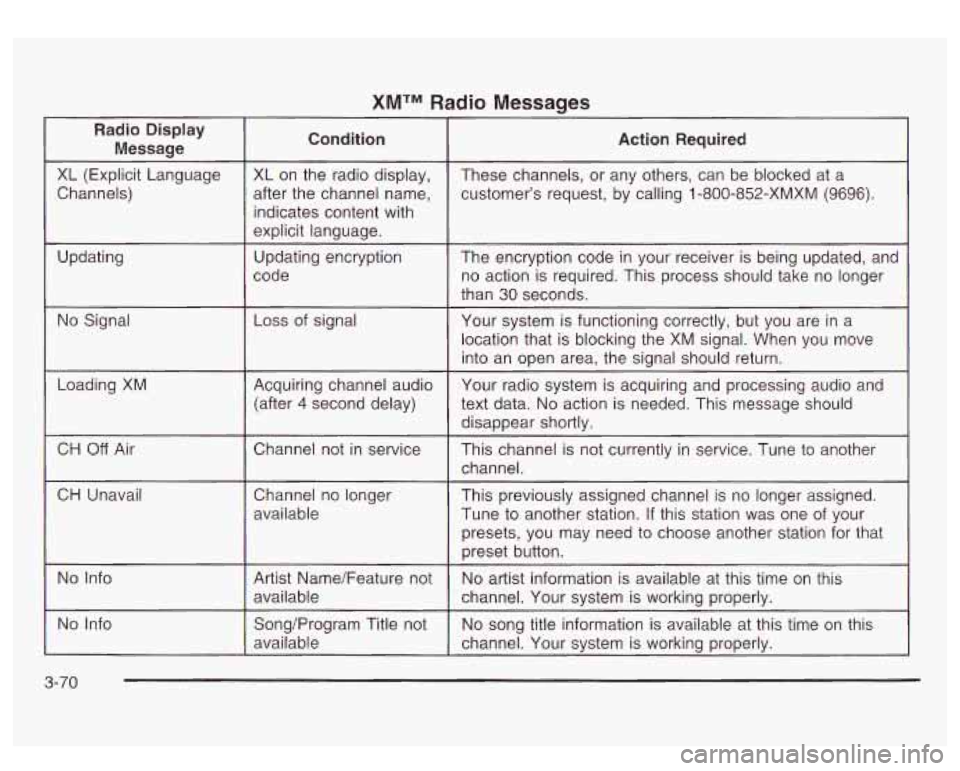
XMTM Radio Messages
Radio Display
Message
XL (Explicit Language
Channels)
Updating
No Signal
Loading
XM
CH Off Air
CH Unavail
No Info
No Info indicates content with
(after
4 second
delay)
3-70
Page 196 of 428
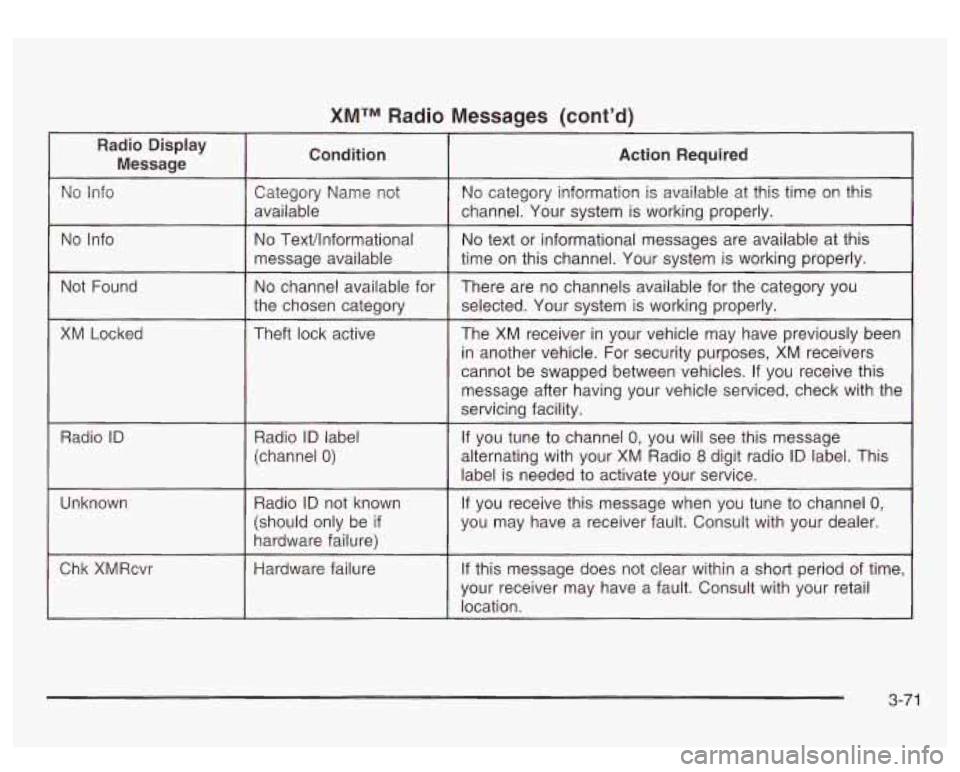
XMTM Radio Messages (cont’d)
No Info
Not Found
XM Locked
Radio
ID
Unknown
Chk XMRcvr
No Text/lnformational
message available
No channel available for
the chosen category
Theft lock active
Radio
ID label
(channel
0)
Radio ID not known
(should only be
if
hardware failure)
Hardware failure
No text or informational messages are available at this
time
on this channel. Your system is working properly.
There are no channels available for the category you
selected. Your system is working properly.
The XM receiver in your vehicle may have previously been
in another vehicle. For security purposes, XM receivers
cannot be swapped between vehicles. If you receive this
message after having your vehicle serviced, check with the
servicing facility.
If you tune to channel
0, you will see this message
alternating with your
XM Radio 8 digit radio ID label. This
label is needed to activate your service.
If you receive this message when you tune to channel 0,
you may have a receiver fault. Consult with your dealer.
If this message does not clear within a short period of time,
your receiver may have a fault. Consult with your retail
location.
3-71