ECO mode GMC SIERRA DENALI 2010 User Guide
[x] Cancel search | Manufacturer: GMC, Model Year: 2010, Model line: SIERRA DENALI, Model: GMC SIERRA DENALI 2010Pages: 550, PDF Size: 4.17 MB
Page 231 of 550
DRIVER DOOR OPEN
This message displays and a chime sounds if the driver
door is not fully closed and the vehicle is shifted out of
P (Park). Stop and turn off the vehicle, check the door
for obstructions, and close the door again. Check to see
if the message still appears on the DIC.
ENGINE HOT A/C (Air Conditioning)
TURNED OFF
This message displays when the engine coolant
becomes hotter than the normal operating temperature.
SeeEngine Coolant Temperature Gage
on page 4‑37.
To avoid added strain on a hot engine, the air
conditioning compressor automatically turns off. When
the coolant temperature returns to normal, the air
conditioning compressor turns back on. You can
continue to drive your vehicle.
If this message continues to appear, have the system
repaired by your dealer/retailer as soon as possible to
avoid damage to the engine.
ENGINE OIL HOT IDLE ENGINE
This message displays when the engine oil becomes
hotter than the normal operating temperature. Stop and
allow the vehicle to idle until it cools down. See Engine
Coolant Temperature Gage
on page 4‑37.
ENGINE OVERHEATED IDLE ENGINE
Notice: If you drive your vehicle while the engine is
overheating, severe engine damage may occur. If an
overheat warning appears on the instrument panel
cluster and/or DIC, stop the vehicle as soon as
possible. See Engine Overheating
on page 6‑34for
more information.
This message displays when the engine coolant
temperature is too hot. Stop and allow the vehicle to
idle until it cools down. See Engine Coolant
Temperature Gage on page 4‑37.
See Overheated Engine Protection Operating Mode
on
page 6‑37for information on driving to a safe place in
an emergency.
ENGINE OVERHEATED STOP ENGINE
Notice: If you drive your vehicle while the engine is
overheating, severe engine damage may occur. If an
overheat warning appears on the instrument panel
cluster and/or DIC, stop the vehicle as soon as
possible. See Engine Overheating
on page 6‑34for
more information.
This message displays and a chime sounds if the
engine cooling system reaches unsafe temperatures for
operation. Stop and turn off the vehicle as soon as it is
safe to do so to avoid severe damage. This message
clears when the engine has cooled to a safe operating
temperature.
4-59
Page 253 of 550
(Information) (AM-FM Radio) :Press to switch the
display between the radio station frequency and the
time. While the ignition is off, press this button to
display the time.
Speed Compensated Volume (SCV) : Radios with
Speed Compensated Volume (SCV) automatically
adjusts the radio volume to compensate for road and
wind noise as the vehicle's speed changes while
driving, so that the volume level stays consistent.
To activate SCV:
1. Set the radio volume to the desired level.
2. Press the MENU button to display the radio setup menu.
3. Press the softkey under the AUTO VOLUM (automatic volume) tab on the radio display.
4. Press the softkey under the desired Speed Compensated Volume setting (OFF, Low, Med,
or High) to select the level of radio volume
compensation. The display times out after
approximately 10 seconds. Each higher setting
allows for more radio volume compensation at
faster vehicle speeds.Finding a Station
BAND : Press to switch between AM, FM, or XM™,
if equipped.
f(Tune): Turn to select radio stations.
©SEEK¨:Press either arrow to go to the previous
or to the next station and stay there. The radio only
seeks and scans stations with a strong signal that are in
the selected band.
To scan stations, press and hold either arrow for a
few seconds until a beep sounds. The radio goes to a
station, plays for a few seconds, then goes to the next
station.
Press either arrow again to stop scanning.
For the AM-FM Radio, the station frequency flashes
while the radio is in the scan mode.
For the AM-FM Radio, scan presets within the current
selected band by pressing and holding either seek
arrow for four seconds until a double beep sounds. The
radio goes to a stored preset, plays for a few seconds if
a strong signal is present, then goes to the next stored
preset. The station frequency flashes while the radio is
in the scan mode.
4-81
Page 266 of 550

O(Power):Press to turn the radio on or off. Turn this
knob clockwise or counterclockwise to increase or
decrease the volume. Press and hold for more than
two seconds to turn off the entire radio and Rear Seat
Entertainment (RSE) system and to start the parental
control feature. Parental control prevents the rear seat
occupant from operating the Rear Seat Audio (RSA)
system or remote control.
A lock symbol displays next to the clock display. The
parental control feature remains on until the knob is
pressed and held for more than two seconds again,
or until the driver turns the ignition off and exits the
vehicle.
f(Tune): Turn to change tracks on a CD or DVD, to
manually tune a radio station, or to change clock or
date settings, while in the clock or date setting mode.
See the information given earlier in this section specific
to the radio, CD, and the DVD. Also, see “Setting the
Time” in the index, for setting the clock and date.
©SEEK (Previous Track/Chapter): Press the left
arrow to return to the start of the current track or
chapter. Press the left arrow again to go to the previous
track or chapter. This button might not work when the
DVD is playing the copyright information or the
previews. SEEK
¨(Next Track/Chapter):
Press the right arrow
to go to the next track or chapter. This button might not
work when the DVD is playing the copyright information
or the previews.
sREV (Fast Reverse): Press to quickly reverse the
CD or DVD at five times the normal speed. The radio
displays the elapsed time while in fast reverse. To stop
fast reversing, press again. This button might not work
when the DVD is playing the copyright information or
the previews.
\FWD (Fast Forward): Press to fast forward the CD
or DVD. The radio displays the elapsed time and fast
forwards five times the normal speed. To stop fast
forwarding, press again. This button might not work
when the DVD is playing the copyright information or
the previews.
Z(Eject): Press to eject a CD or DVD. If a CD or
DVD is ejected, but not removed, the player
automatically pulls it back in after 15 seconds.
If loading and reading of a CD cannot be completed,
because of an unknown format, etc., and the disc fails
to eject, press and hold for more than five seconds to
force the disc to eject.
4-94
Page 267 of 550
DVD-V (Video) Display Buttons
Once a DVD-V is inserted, the radio display menu
shows several tag options for DVD playing. Press the
softkey located under any desired tag option during
DVD playback. See the tag options listed after, for more
information.
The rear seat passenger can navigate the DVD-V
menus and controls through the remote control. See
“Remote Control”, underRear Seat Entertainment
(RSE) System
on page 4‑126for more information. The
Video Screen automatically turns on when the DVD-V is
inserted into the DVD slot.
r/j(Play/Pause): Press either the play or pause
icon displayed on the radio system, to toggle between
pausing or restarting playback of a DVD. If the forward
arrow is showing on display, the system is in pause
mode. If the pause icon is showing on display, the
system is in playback mode. If the DVD screen is off,
press the play button to turn the screen on. Some DVDs begin playing after the previews have
finished, although there could be a delay of up to
30 seconds. If the DVD does not begin playing the
movie automatically, press the softkey located under the
play/pause symbol tag displayed on the radio. If the
DVD still does not play, refer to the on-screen
instructions, if available.
c(Stop):
Press to stop playing, rewinding, or fast
forwarding a DVD.
r(Enter): Press to select the choices that are
highlighted in any menu.
y(Menu): Press to access the DVD menu. The DVD
menu is different on every DVD. Use the softkeys
located under the navigation arrows to navigate the
cursor through the DVD menu. After making a selection
press this button. This button only operates when using
a DVD.
Nav (Navigate) : Press to display directional arrows for
navigating through the menus.
q(Return): Press to exit the current active menu and
return to the previous menu. This button operates only
when a DVD is playing and a menu is active.
4-95
Page 268 of 550
DVD-A (Audio) Display Buttons
Once a DVD-A is inserted, radio display menu shows
several tag options for DVD playing. Press the softkeys
located under any desired tag option during DVD
playback. See the tag options listed after, for more
information.
The rear seat operator can navigate the DVD-A menus
and controls through the remote control. See“Remote
Control”, under Rear Seat Entertainment (RSE) System
on page 4‑126for more information. The Video Screen
does not automatically power on when the DVD-A is
inserted into the DVD slot. It must be manually turned
on by the rear seat occupant through the remote control
power button.
r/j(Play/Pause): Press either the play or pause
icon displayed on the radio system, to toggle between
pausing or restarting playback of a DVD. If the forward
arrow is showing on the display, the system is in pause
mode. If the pause icon is showing on the display, the
system is in playback mode.
qGroupr: Press to cycle through musical
groupings on the DVD-A disc. Nav (Navigate) :
Press to display directional arrows for
navigating through the menus.
e(Audio Stream): Press to cycle through audio
stream formats located on the DVD-A disc. The video
screen shows the audio stream changing.
Inserting a Disc
To play a disc, gently insert the disc, with the label side
up, into the loading slot. The DVD player might not
accept some paper labeled media. The player starts
loading the disc into the system and show “Loading
Disc” on the radio display. At the same time, the radio
displays a softkey menu of option(s). Some discs
automatically play the movie while others default to the
softkey menu display, which requires the Play, Enter,
or Navigation softkeys to be pressed; either by softkey
or by the rear seat passenger using the remote control.
Loading a disc into the system, depending on media
type and format, ranges from 5 to 20 seconds for a CD,
and up to 30 seconds for a DVD.
4-96
Page 271 of 550
Using the USB Port
Radios with a USB port can control a USB storage
device or an iPod®using the radio buttons and knobs.
See Using an MP3 (Radios with CD)on page 4‑99or
Using an MP3 (Radios with CD and DVD)on
page 4‑106for information about how to connect and
control a USB storage device or an iPod.
USB Support
The USB connector is located on the dashboard or in
the center console, and uses the USB 2.0 standard.
USB Supported Devices
.USB Flash Drives
.Portable USB Hard Drives
.Fifth generation or later iPod
.iPod nanos
.iPod touch
.iPod classic
Not all iPods and USB Drives are compatible with the
USB port.
Make sure the iPod has the latest firmware from Apple
®
for proper operation. iPod firmware can be updated
using the latest iTunes®application. See
www.apple.com/itunes. For help with identifying your iPod, go to
www.apple.com/support.
Using an MP3 (Radios with CD)
Format
Radios that have the capability of playing MP3s can
play .mp3 or .wma files that were recorded onto a CD-R
or CD-RW disc. The files can be recorded with the
following fixed bit rates: 32 kbps, 40 kbps, 56 kbps,
64 kbps, 80 kbps, 96 kbps, 112 kbps, 128 kbps,
160 kbps, 192 kbps, 224 kbps, 256 kbps, and 320 kbps
or a variable bit rate.
Radios that have a USB port can play .mp3 and .wma
files that are stored on a USB storage device as well as
AAC files that are stored on an iPod
®.
Compressed Audio or Mixed Mode Discs
The radio can play discs that contain both
uncompressed CD audio and MP3 files. If both formats
are on the disc, the radio reads all MP3 files first, then
the uncompressed CD audio files.
4-99
Page 274 of 550
\FWD (Fast Forward):Press and hold to advance
playback quickly. Sound is heard at a reduced volume
and the elapsed time of the file displays. Release
\FWD to resume playing. The elapsed time of the file
displays.
S c(Previous Folder): Press the softkey belowScto go to the first track in the previous folder.
cT (Next Folder): Press the softkey belowcTto
go to the first track in the next folder.
RDM (Random) : MP3 files on the CD-R or CD-RW can
be listened to in random, rather than sequential order,
on one CD-R or CD-RW or all discs in a six-disc CD
player. To use random, press the softkey under the
RDM tab until Random Current Disc or Randomize All
Discs displays to play songs from the current CD or all
CDs in random order. Press the same softkey again to
turn off random play.
h(Music Navigator): Press the softkey belowhto have the files played in order by artist or album. The
player scans the disc to sort the files by artist and
album ID3 tag information. It can take several minutes
to scan the disc depending on the number of files on
the disc. The radio may begin playing while it is
scanning in the background. When the scan is finished, the disc begins playing files
in order by artist. The current artist playing is shown on
the second line of the display. Once all songs by that
artist are played, the player moves to the next artist in
alphabetical order and begins playing files by that artist.
To listen to files by another artist, press the softkey
located below either arrow tab. The disc goes to the
next or previous artist in alphabetical order. Continue
pressing either softkey below the arrow tab until the
desired artist displays.
To change from playback by artist to playback by
album:
1. Press the softkey located below the Sort By tab.
2. Press one of the softkeys below the album tab from the sort screen.
3. Press the softkey below the back tab to return to the main music navigator screen.
The album name displays on the second line between
the arrows and songs from the current album begins to
play. Once all songs from that album have played, the
player moves to the next album in alphabetical order on
the CD and begins playing MP3 files from that album.
To exit music navigator mode, press the softkey below
the Back tab to return to normal MP3 playback.
4-102
Page 275 of 550
Connecting a USB Storage Device
or iPod®
The USB Port can be used to control an iPod or a USB
storage device.
To connect a USB storage device, connect the device to
the USB port located in the center console or on the
instrument panel.
To connect an iPod, connect one end of the USB cable
that came with the iPod to the iPod’s dock connector
and connect the other end to the USB port located in
the center console or on the instrument panel. If the
vehicle is on and the USB connection works, “OK to
disconnect” and a GM logo may appear on the iPod and
iPod appears on the radio display. The iPod music
appears on the radio’s display and begins playing.
The iPod charges while it is connected to the vehicle if
the vehicle is in the ACC/ACCESSORY or ON/RUN
position. When the vehicle is turned off, the iPod
automatically powers off and will not charge or draw
power from the vehicle's battery.
If you have an older iPod model that is not supported, it
can still be used by connecting it to the Auxiliary Input
Jack using a standard 3.5 mm (1/8 in) stereo cable. See
“Using the Auxiliary Input Jack” earlier for more
information.
Using the Radio to Control a USB
Storage Device or iPod
The radio can control a USB storage device or an iPod
using the radio buttons and knobs and display song
information on the radio’s display.
f(Tune): Turn to select files.
©SEEK:Press to go to the start of the track, if more
than ten seconds have played. Press and hold or press
multiple times to continue moving backward through
tracks.
¨SEEK: Press to go to the next track. Press and hold
or press multiple times to continue moving forward
through tracks.
sREV (Reverse): Press and hold to reverse
playback quickly. Sound is heard at a reduced volume.
Release
sREV to resume playing. The elapsed time
of the file displays.
\FWD (Fast Forward): Press and hold to advance
playback quickly. Sound is heard at a reduced volume.
Release
\FWD to resume playing. The elapsed time
of the file displays.
4(Information): Press to display additional information
about the selected track.
4-103
Page 277 of 550
h(Music Navigator):Press the softkey belowhto view and select a file on an iPod, using the iPod's
menu system. Files are sorted by:
.Playlists
.Artists
.Albums
.Genres
.Songs
.Composers
To select files:
1. Press the softkey below
h.
2. Turn
fto scroll through the list of menus.
3. Press
fto select the desired menu.
4. Turn
fto scroll through the folders or files in the
selected menu.
5. Press
fto select the desired file to be played. To skip through large lists, the five softkeys can be used
to navigate in the following order:
.First softkey, first item in the list.
.Second softkey, 1% through the list each time the
softkey is pressed.
.Third softkey, 5% through the list each time the
softkey is pressed.
.Fourth softkey, 10% through the list each time the
softkey is pressed.
.Fifth softkey, end of the list.
Repeat Functionality
To use Repeat:
Press the softkey below
"or'to select between
Repeat All and Repeat Track.
"(Repeat All): Press the softkey below"to repeat
all tracks. The tab appears lowered when Repeat All is
being used. This is the default mode when a USB
storage device or iPod is first connected.
'(Repeat Track): Press the softkey below'to
repeat one track. The tab appears raised when Repeat
Track is being used.
4-105
Page 278 of 550
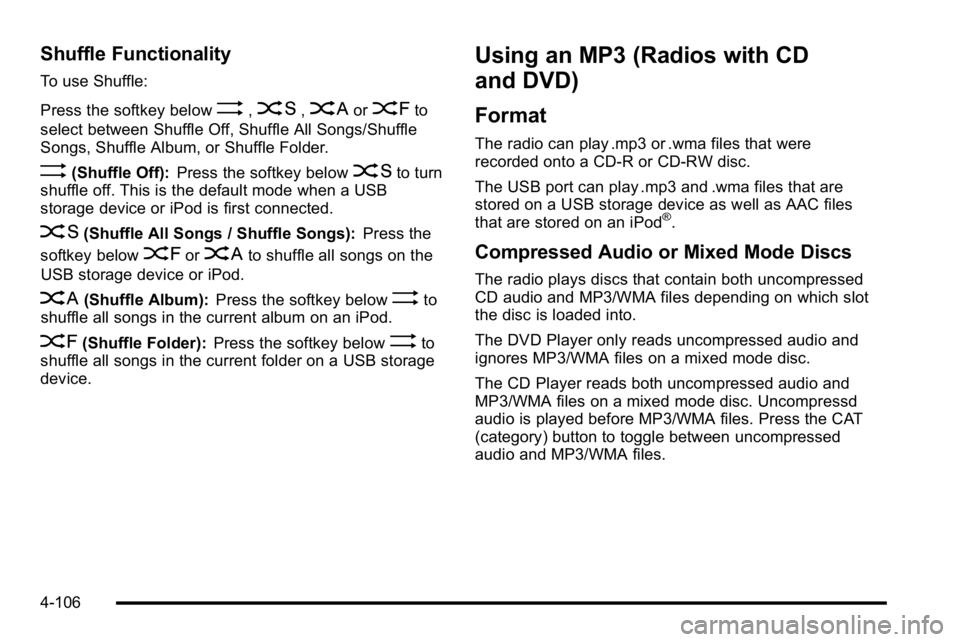
Shuffle Functionality
To use Shuffle:
Press the softkey below
>,2,
Songs, Shuffle Album, or Shuffle Folder.
>(Shuffle Off): Press the softkey below2to turn
shuffle off. This is the default mode when a USB
storage device or iPod is first connected.
2(Shuffle All Songs / Shuffle Songs): Press the
softkey below
=or
<(Shuffle Album): Press the softkey below>to
shuffle all songs in the current album on an iPod.
=(Shuffle Folder): Press the softkey below>to
shuffle all songs in the current folder on a USB storage
device.
Using an MP3 (Radios with CD
and DVD)
Format
The radio can play .mp3 or .wma files that were
recorded onto a CD-R or CD-RW disc.
The USB port can play .mp3 and .wma files that are
stored on a USB storage device as well as AAC files
that are stored on an iPod
®.
Compressed Audio or Mixed Mode Discs
The radio plays discs that contain both uncompressed
CD audio and MP3/WMA files depending on which slot
the disc is loaded into.
The DVD Player only reads uncompressed audio and
ignores MP3/WMA files on a mixed mode disc.
The CD Player reads both uncompressed audio and
MP3/WMA files on a mixed mode disc. Uncompressd
audio is played before MP3/WMA files. Press the CAT
(category) button to toggle between uncompressed
audio and MP3/WMA files.
4-106