USB GMC SIERRA DENALI 2010 Owner's Manual
[x] Cancel search | Manufacturer: GMC, Model Year: 2010, Model line: SIERRA DENALI, Model: GMC SIERRA DENALI 2010Pages: 550, PDF Size: 4.17 MB
Page 285 of 550
To skip through large lists, the five softkeys can be used
to navigate in the following order:
.First softkey, first item in the list.
.Second softkey, 1% through the list each time the
softkey is pressed.
.Third softkey, 5% through the list each time the
softkey is pressed.
.Fourth softkey, 10% through the list each time the
softkey is pressed.
.Fifth softkey, end of the list.
Repeat Functionality
To use Repeat:
Press the softkey below
"or'to select between
Repeat All and Repeat Track.
"(Repeat All): Press the softkey below"to repeat
all tracks. The tab appears lowered when Repeat All is
being used. This is the default mode when a USB
storage device or iPod is first connected.
'(Repeat Track): Press the softkey below'to
repeat one track. The tab appears raised when Repeat
Track is being used.
Shuffle Functionality
To use Shuffle:
Press the softkey below
>,2,
Songs, Shuffle Album, or Shuffle Folder.
>(Shuffle Off): This is the default mode when a USB
storage device or iPod is first connected.
2(Shuffle All Songs / Shuffle Songs): Shuffles all
songs on the USB storage device or iPod.
<(Shuffle Album): Shuffles all songs in the current
album on an iPod.
=(Shuffle Folder): Shuffles all songs in the current
folder on a USB storage device.
4-113
Page 309 of 550
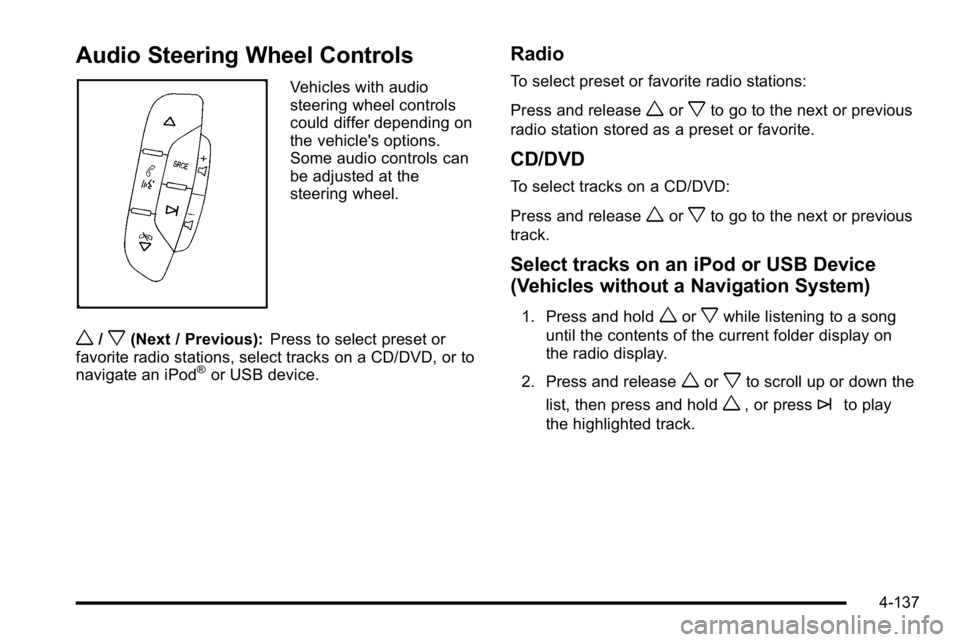
Audio Steering Wheel Controls
Vehicles with audio
steering wheel controls
could differ depending on
the vehicle's options.
Some audio controls can
be adjusted at the
steering wheel.
w/x(Next / Previous):Press to select preset or
favorite radio stations, select tracks on a CD/DVD, or to
navigate an iPod
®or USB device.
Radio
To select preset or favorite radio stations:
Press and release
worxto go to the next or previous
radio station stored as a preset or favorite.
CD/DVD
To select tracks on a CD/DVD:
Press and release
worxto go to the next or previous
track.
Select tracks on an iPod or USB Device
(Vehicles without a Navigation System)
1. Press and holdworxwhile listening to a song
until the contents of the current folder display on
the radio display.
2. Press and release
worxto scroll up or down the
list, then press and hold
w, or press¨to play
the highlighted track.
4-137
Page 310 of 550
Navigating folders on an iPod or USB
Device (Vehicles without a Navigation
System):
1. Press and holdworxwhile listening to a song
until the contents of the current folder display on
the radio display.
2. Press and hold
xto go back to the previous
folder list.
3. Press and release
worxto scroll up or down
the list.
.To select a folder, press and holdw, or press
¨when the folder is highlighted.
.To go back further in the folder list, press and
hold
x.
Navigating an iPod or USB Device on the
Main Audio Screen (Vehicles with a
Navigation System)
Press and releaseworxto select the next or
previous track within the selected category.
Press and hold
worxto move quickly through the
tracks.
Press and release
¨to move up one track within the
selected category.
Navigating an iPod or USB Device on the
Music Navigator Screen (Vehicles with a
Navigation System)
Press and releaseworxto select the next or
previous track within the selected category.
Press and hold
worxto move quickly through the
tracks within the selected category.
Press and release
¨to move up one track within the
selected category.
b g(Mute/Push to Talk): Press to silence the vehicle
speakers only. Press again to turn the sound on.
For vehicles with Bluetooth or OnStar
®systems, press
and hold for longer than two seconds to interact with
those systems. See Bluetooth
®on page 4‑115and the
OnStar Owner's Guide for more information.
c(End): Press to reject an incoming call, or end a
current call.
SRCE (Source/Voice Recognition) : Press to switch
between the radio, CD, and for vehicles with, DVD, front
auxiliary, and rear auxiliary.
For vehicles with the navigation system, press and hold
this button for longer than one second to initiate voice
recognition. See “Voice Recognition” in the Navigation
System manual for more information.
4-138
Page 311 of 550
¨(Seek):Press to go to the next radio station while in
AM, FM, or XM™.
For vehicles with or without a navigation system:
Press
¨to go to the next track or chapter while
sourced to the CD or DVD slot.
Press
¨to select a track or a folder when navigating
folders on an iPod or USB device.
For vehicles with a navigation system:
1. Press and hold
¨until a beep is heard, to place
the radio into SCAN mode, a station will play for
five seconds before moving to the next station.
2. To stop the SCAN function, press
¨again.
While listening to a CD/DVD, press and hold
¨to
quickly move forward through the tracks. Release to
stop on the desired track.
+
e−e(Volume): Press to increase or to decrease
the volume.
Radio Reception
Frequency interference and static can occur during
normal radio reception if items such as cell phone
chargers, vehicle convenience accessories, and
external electronic devices are plugged into the
accessory power outlet. If there is interference or static,
unplug the item from the accessory power outlet.
AM
The range for most AM stations is greater than for FM,
especially at night. The longer range can cause station
frequencies to interfere with each other. For better radio
reception, most AM radio stations boost the power
levels during the day, and then reduce these levels
during the night. Static can also occur when things like
storms and power lines interfere with radio reception.
When this happens, try reducing the treble on the radio.
FM Stereo
FM signals only reach about 10 to 40 miles (16 to 65 km).
Although the radio has a built-in electronic circuit that
automatically works to reduce interference, some static
can occur, especially around tall buildings or hills,
causing the sound to fade in and out.
4-139