buttons GMC SIERRA DENALI 2010 Workshop Manual
[x] Cancel search | Manufacturer: GMC, Model Year: 2010, Model line: SIERRA DENALI, Model: GMC SIERRA DENALI 2010Pages: 550, PDF Size: 4.17 MB
Page 267 of 550
DVD-V (Video) Display Buttons
Once a DVD-V is inserted, the radio display menu
shows several tag options for DVD playing. Press the
softkey located under any desired tag option during
DVD playback. See the tag options listed after, for more
information.
The rear seat passenger can navigate the DVD-V
menus and controls through the remote control. See
“Remote Control”, underRear Seat Entertainment
(RSE) System
on page 4‑126for more information. The
Video Screen automatically turns on when the DVD-V is
inserted into the DVD slot.
r/j(Play/Pause): Press either the play or pause
icon displayed on the radio system, to toggle between
pausing or restarting playback of a DVD. If the forward
arrow is showing on display, the system is in pause
mode. If the pause icon is showing on display, the
system is in playback mode. If the DVD screen is off,
press the play button to turn the screen on. Some DVDs begin playing after the previews have
finished, although there could be a delay of up to
30 seconds. If the DVD does not begin playing the
movie automatically, press the softkey located under the
play/pause symbol tag displayed on the radio. If the
DVD still does not play, refer to the on-screen
instructions, if available.
c(Stop):
Press to stop playing, rewinding, or fast
forwarding a DVD.
r(Enter): Press to select the choices that are
highlighted in any menu.
y(Menu): Press to access the DVD menu. The DVD
menu is different on every DVD. Use the softkeys
located under the navigation arrows to navigate the
cursor through the DVD menu. After making a selection
press this button. This button only operates when using
a DVD.
Nav (Navigate) : Press to display directional arrows for
navigating through the menus.
q(Return): Press to exit the current active menu and
return to the previous menu. This button operates only
when a DVD is playing and a menu is active.
4-95
Page 268 of 550
DVD-A (Audio) Display Buttons
Once a DVD-A is inserted, radio display menu shows
several tag options for DVD playing. Press the softkeys
located under any desired tag option during DVD
playback. See the tag options listed after, for more
information.
The rear seat operator can navigate the DVD-A menus
and controls through the remote control. See“Remote
Control”, under Rear Seat Entertainment (RSE) System
on page 4‑126for more information. The Video Screen
does not automatically power on when the DVD-A is
inserted into the DVD slot. It must be manually turned
on by the rear seat occupant through the remote control
power button.
r/j(Play/Pause): Press either the play or pause
icon displayed on the radio system, to toggle between
pausing or restarting playback of a DVD. If the forward
arrow is showing on the display, the system is in pause
mode. If the pause icon is showing on the display, the
system is in playback mode.
qGroupr: Press to cycle through musical
groupings on the DVD-A disc. Nav (Navigate) :
Press to display directional arrows for
navigating through the menus.
e(Audio Stream): Press to cycle through audio
stream formats located on the DVD-A disc. The video
screen shows the audio stream changing.
Inserting a Disc
To play a disc, gently insert the disc, with the label side
up, into the loading slot. The DVD player might not
accept some paper labeled media. The player starts
loading the disc into the system and show “Loading
Disc” on the radio display. At the same time, the radio
displays a softkey menu of option(s). Some discs
automatically play the movie while others default to the
softkey menu display, which requires the Play, Enter,
or Navigation softkeys to be pressed; either by softkey
or by the rear seat passenger using the remote control.
Loading a disc into the system, depending on media
type and format, ranges from 5 to 20 seconds for a CD,
and up to 30 seconds for a DVD.
4-96
Page 271 of 550
Using the USB Port
Radios with a USB port can control a USB storage
device or an iPod®using the radio buttons and knobs.
See Using an MP3 (Radios with CD)on page 4‑99or
Using an MP3 (Radios with CD and DVD)on
page 4‑106for information about how to connect and
control a USB storage device or an iPod.
USB Support
The USB connector is located on the dashboard or in
the center console, and uses the USB 2.0 standard.
USB Supported Devices
.USB Flash Drives
.Portable USB Hard Drives
.Fifth generation or later iPod
.iPod nanos
.iPod touch
.iPod classic
Not all iPods and USB Drives are compatible with the
USB port.
Make sure the iPod has the latest firmware from Apple
®
for proper operation. iPod firmware can be updated
using the latest iTunes®application. See
www.apple.com/itunes. For help with identifying your iPod, go to
www.apple.com/support.
Using an MP3 (Radios with CD)
Format
Radios that have the capability of playing MP3s can
play .mp3 or .wma files that were recorded onto a CD-R
or CD-RW disc. The files can be recorded with the
following fixed bit rates: 32 kbps, 40 kbps, 56 kbps,
64 kbps, 80 kbps, 96 kbps, 112 kbps, 128 kbps,
160 kbps, 192 kbps, 224 kbps, 256 kbps, and 320 kbps
or a variable bit rate.
Radios that have a USB port can play .mp3 and .wma
files that are stored on a USB storage device as well as
AAC files that are stored on an iPod
®.
Compressed Audio or Mixed Mode Discs
The radio can play discs that contain both
uncompressed CD audio and MP3 files. If both formats
are on the disc, the radio reads all MP3 files first, then
the uncompressed CD audio files.
4-99
Page 273 of 550
File System and Naming
The song name that displays is the song name that is
contained in the ID3 tag. If the song name is not
present in the ID3 tag, then the radio displays the file
name without the extension (such as .mp3) as the
track name.
Track names longer than 32 characters or four pages
are shortened. The display does not show parts of
words on the last page of text and the extension of the
filename is not displayed.
Preprogrammed Playlists
CDs that have preprogrammed playlists that were
created using WinAmp™, MusicMatch™, or Real
Jukebox™software can be accessed, however, there is
no playlist editing capability using the radio. These
playlists are treated as special folders containing
compressed audio song files.
Playlists that have an .m3u or .pls file extension and are
stored on a USB device may be supported by the radio
with a USB port. Playlists can be changed by using the
S
c(previous)
and
c T(next) folder buttons, thefknob, or the
©SEEK¨arrows. MP3 CD-R or CD-RW that have
been recorded without using file folders can be played.
If a CD-R or CD-RW contains more than the maximum
of 50 folders, 15 playlists, and 512 folders and files, the
player allows access and navigates up to the maximum,
but all items over the maximum are not accessible.
Playing a CD-R or CD-RW MP3
f
(Tune): Turn to select MP3 files on the CD currently
playing.
©SEEK: Press to go to the start of the track, if more
than ten seconds have played. Press and hold or press
multiple times to continue moving backward through
tracks.
¨SEEK: Press to go to the next track. Press and hold
or press multiple times to continue moving forward
through tracks.
sREV (Reverse): Press and hold to reverse
playback quickly. Sound is heard at a reduced volume
and the elapsed time of the file displays. Release
sREV to resume playing.
4-101
Page 275 of 550
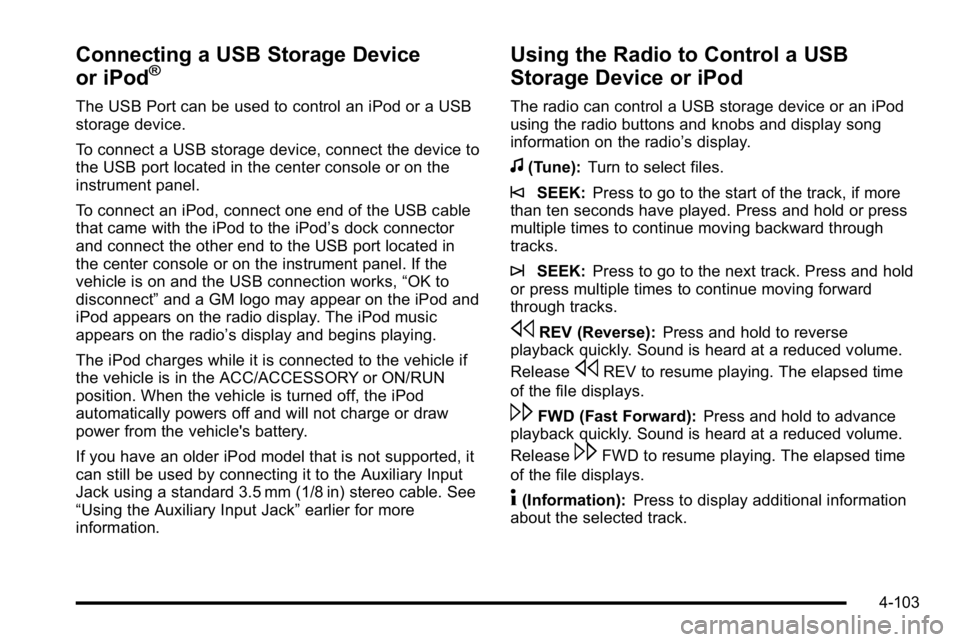
Connecting a USB Storage Device
or iPod®
The USB Port can be used to control an iPod or a USB
storage device.
To connect a USB storage device, connect the device to
the USB port located in the center console or on the
instrument panel.
To connect an iPod, connect one end of the USB cable
that came with the iPod to the iPod’s dock connector
and connect the other end to the USB port located in
the center console or on the instrument panel. If the
vehicle is on and the USB connection works, “OK to
disconnect” and a GM logo may appear on the iPod and
iPod appears on the radio display. The iPod music
appears on the radio’s display and begins playing.
The iPod charges while it is connected to the vehicle if
the vehicle is in the ACC/ACCESSORY or ON/RUN
position. When the vehicle is turned off, the iPod
automatically powers off and will not charge or draw
power from the vehicle's battery.
If you have an older iPod model that is not supported, it
can still be used by connecting it to the Auxiliary Input
Jack using a standard 3.5 mm (1/8 in) stereo cable. See
“Using the Auxiliary Input Jack” earlier for more
information.
Using the Radio to Control a USB
Storage Device or iPod
The radio can control a USB storage device or an iPod
using the radio buttons and knobs and display song
information on the radio’s display.
f(Tune): Turn to select files.
©SEEK:Press to go to the start of the track, if more
than ten seconds have played. Press and hold or press
multiple times to continue moving backward through
tracks.
¨SEEK: Press to go to the next track. Press and hold
or press multiple times to continue moving forward
through tracks.
sREV (Reverse): Press and hold to reverse
playback quickly. Sound is heard at a reduced volume.
Release
sREV to resume playing. The elapsed time
of the file displays.
\FWD (Fast Forward): Press and hold to advance
playback quickly. Sound is heard at a reduced volume.
Release
\FWD to resume playing. The elapsed time
of the file displays.
4(Information): Press to display additional information
about the selected track.
4-103
Page 279 of 550
CD‐R or CD‐RW Supported File and Folder
Structure
The DVD Player supports:
.Up to 255 folders.
.Up to 8 folders in depth.
.Up to 15 playlists.
.Up to 40 sessions.
.Playlists with an .m3u or .wpl extension.
.Files with an .mp3, .wma, or .cda file extension.
The CD Player supports:
.Up to 512 files and folders.
.Up to 8 folders in depth.
.Playlists with an .m3u or .wpl extension.
.Files with an .mp3, .wma, or .cda file extension.
USB Supported File and Folder Structure
The radio supports:
.Up to 700 folders.
.Up to 8 folders in depth.
.Up to 65,535 files.
.Folder and file names up to 64 bytes.
.Files with an .mp3 or .wma file extension.
.AAC files stored on an iPod.
.FAT16
.FAT32
Root Directory
The root directory of the disc is treated as a folder. If the
root directory has compressed audio files, the directory
displays as F1 ROOT on the radio.
If a disc contains both uncompressed CD audio and
MP3/WMA files, a folder under the root directory called
CD accesses all of the CD audio tracks on the disc.
Empty Folder
Folders that do not contain files are skipped, and the
player advances to the next folder that contains files.
No Folder
When the disc contains only compressed files, the files
are located under the root folder. The next and previous
folder function does not function on a disc that was
recorded without folders or playlists. When displaying
the name of the folder the radio displays ROOT.
When the disc contains only playlists and compressed
audio files, but no folders, all files are located under the
root folder. The folder down and the folder up buttons
search playlists first and then goes to the root folder.
When the radio displays the name of the folder the
radio displays ROOT.
4-107
Page 283 of 550
Using the Radio to Control a USB
Storage Device or iPod
The radio can control a USB storage device or an iPod
using the radio buttons and knobs and display song
information on the radio’s display.
f(Tune):Turn to select files.
©SEEK:Press to go to the start of the track, if more
than ten seconds have played. Press and hold or press
multiple times to continue moving backward through
tracks.
¨SEEK: Press to go to the next track. Press and hold
or press multiple times to continue moving forward
through tracks.
sREV (Reverse): Press and hold to reverse
playback quickly. Sound is heard at a reduced volume.
Release
sREV to resume playing. The elapsed time
of the file displays.
\FWD (Fast Forward): Press and hold to advance
playback quickly. Sound is heard at a reduced volume.
Release
\FWD to resume playing. The elapsed time
of the file displays.
4(Information): Press to display additional information
about the selected track.
Using Softkeys to Control a USB
Storage Device or iPod
The five softkeys below the radio display are used to
control the functions listed below.
To use the softkeys:
1. Press the first or fifth softkey below the radio display to display the functions listed below,
or press the softkey below the function if it is
currently displayed.
2. Press the softkey below the tab with the function on it to use that function.
j(Pause): Press the softkey belowjto pause the
track. The tab appears raised when pause is being
used. Press the softkey below
jagain to resume
playback.
Back : Press the softkey below the back tab to go back
to the main display screen on an iPod, or the root
directory on a USB storage device.
4-111
Page 288 of 550
Bluetooth Controls
Use the buttons located on the steering wheel to
operate the in‐vehicle Bluetooth system. SeeAudio
Steering Wheel Controls
on page 4‑137for more
information.
b g(Push To Talk) : Press to answer incoming calls,
to confirm system information, and to start speech
recognition.
c x(Phone On Hook): Press to end a call, reject a
call, or to cancel an operation.
Pairing
A Bluetooth enabled cell phone must be paired to the
in‐vehicle Bluetooth system first and then connected to
the vehicle before it can be used. See the cell phone
manufacturers user guide for Bluetooth functions before
pairing the cell phone. If a Bluetooth phone is not
connected, calls will be made using OnStar
®
Hands‐Free Calling, if available. Refer to the OnStar
owner's guide for more information. Pairing Information:
.Up to five cell phones can be paired to the
in‐vehicle Bluetooth system.
.The pairing process is disabled when the vehicle is
moving.
.The in‐vehicle Bluetooth system automatically links
with the first available paired cell phone in the
order the phone was paired.
.Only one paired cell phone can be connected to
the in‐vehicle Bluetooth system at a time.
.Pairing should only need to be completed once,
unless changes to the pairing information have
been made or the phone is deleted.
To link to a different paired phone, see Linking to a
Different Phone later in this section.
4-116
Page 303 of 550
Remote Control Buttons
O(Power):Press this button to turn the video screen
on and off.
P(Illumination): Press this button to turn the remote
control backlight on. The backlight automatically times
out after seven to ten seconds if no other button is
pressed while the backlight is on.
v(Title): Press this button to return the DVD to the
main menu of the DVD. This function could vary for
each disc.
y(Main Menu): Press this button to access the DVD
menu. The DVD menu is different on every DVD. Use
the navigation arrows to move the cursor around the
DVD menu. After making a selection press the enter
button. This button only operates when using a DVD.
n,q,p,o(Menu Navigation Arrows): Use the
arrow buttons to navigate through a menu.
r(Enter): Press this button to select the choice that
is highlighted in any menu.
z(Display Menu): Press this button to adjust the
brightness, screen display mode (normal, full, or zoom),
and display the language menu.
q(Return): Press this button to exit the current
active menu and return to the previous menu. This
button operates only when the display menu or a DVD
menu is active.
c(Stop): Press this button to stop playing, fast
reversing, or fast forwarding a DVD. Press this button
twice to return to the beginning of the DVD.
s(Play/Pause): Press this button to start playing a
DVD. Press this button while a DVD is playing to pause
it. Press it again to continue playing the DVD.
While the DVD is playing, the DVD can be played
slowly by pressing the play/pause button then pressing
the fast forward button. The DVD continues playing in a
slow play mode. Also, reverse can be played slowly by
pressing the play/pause button and then pressing the
fast reverse button. To cancel slow play mode, press
the play/pause button.
t(Previous Track/Chapter): Press this button to
return to the start of the current track or chapter. Press
this button again to go to the previous track or chapter.
This button might not work when the DVD is playing the
copyright information or the previews.
4-131
Page 308 of 550
SRCE (Source) :Press this button to switch between
the radio (AM/FM), XM™ (if equipped), CD, and if the
vehicle has these features, DVD, front auxiliary, and
rear auxiliary.
© ¨(Seek): When listening to FM, AM, or XM™
(if equipped), press either seek arrow to go to the
previous or to the next station or channels and stay
there. This function is inactive, with some radios, if the
front seat passengers are listening to the radio.
Press and hold either seek arrow until the display
flashes, to tune to an individual station. The display
stops flashing after the buttons have not been pushed
for more than two seconds. This function is inactive,
with some radios, if the front seat passengers are
listening to the radio.
While listening to a disc, press the left seek arrow to go
back to the start of the current track or chapter (if more
than ten seconds have played). Press the right seek
arrow to go to the next track or chapter on the disc. This
function is inactive, with some radios, if the front seat
passengers are listening to the disc.
When a DVD video menu is being displayed, press
either seek arrow to perform a cursor up or down on the
menu. Hold either seek arrow to perform a cursor left or
right on the menu. PROG (Program) :
Press this button to go to the next
preset radio station or channel set on the main radio.
This function is inactive, with some radios, if the front
seat passengers are listening to the radio.
When a CD or DVD audio disc is playing, press this
button to go to the beginning of the CD or DVD audio.
This function is inactive, with some radios, if the front
seat passengers are listening to the disc.
When a disc is playing in the CD or DVD changer, press
this button to select the next disc, if multiple discs are
loaded. This function is inactive, with some radios, if the
front seat passengers are listening to the disc.
When a DVD video menu is being displayed, press the
PROG button to perform the menu function, enter.
Theft-Deterrent Feature
THEFTLOCK®is designed to discourage theft of the
vehicle's radio by learning a portion of the Vehicle
Identification Number (VIN). The radio does not operate
if it is stolen or moved to a different vehicle.
4-136