audio GMC SIERRA DENALI 2017 Service Manual
[x] Cancel search | Manufacturer: GMC, Model Year: 2017, Model line: SIERRA DENALI, Model: GMC SIERRA DENALI 2017Pages: 511, PDF Size: 6.88 MB
Page 225 of 511
GMC Sierra/Sierra Denali Owner Manual (GMNA-Localizing-U.S./Canada/
Mexico-9955992) - 2017 - crc - 4/18/17
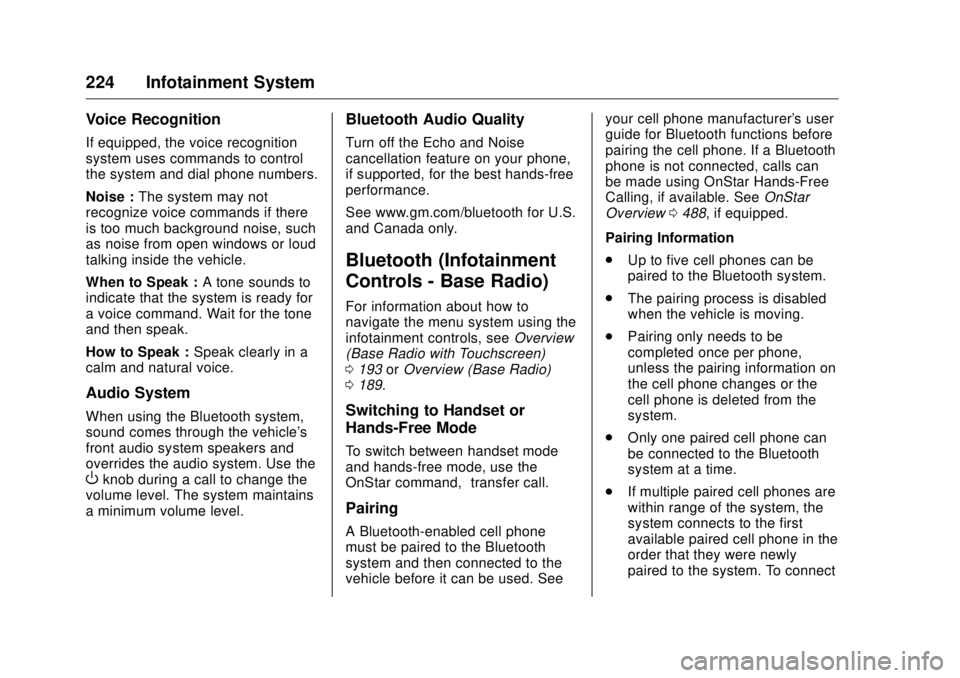
224 Infotainment System Voice Recognition If equipped, the voice recognition
system uses commands to control
the system and dial phone numbers.
Noise : The system may not
recognize voice commands if there
is too much background noise, such
as noise from open windows or loud
talking inside the vehicle.
When to Speak : A tone sounds to
indicate that the system is ready for
a voice command. Wait for the tone
and then speak.
How to Speak : Speak clearly in a
calm and natural voice.
Audio System When using the Bluetooth system,
sound comes through the vehicle's
front audio system speakers and
overrides the audio system. Use the
O knob during a call to change the
volume level. The system maintains
a minimum volume level. Bluetooth Audio Quality Turn off the Echo and Noise
cancellation feature on your phone,
if supported, for the best hands-free
performance.
See www.gm.com/bluetooth for U.S.
and Canada only.
Bluetooth (Infotainment
Controls - Base Radio) For information about how to
navigate the menu system using the
infotainment controls, see Overview
(Base Radio with Touchscreen)
0 193 or Overview (Base Radio)
0 189 .
Switching to Handset or
Hands-Free Mode To switch between handset mode
and hands-free mode, use the
OnStar command, “ transfer call. ”
Pairing
A Bluetooth-enabled cell phone
must be paired to the Bluetooth
system and then connected to the
vehicle before it can be used. See your cell phone manufacturer's user
guide for Bluetooth functions before
pairing the cell phone. If a Bluetooth
phone is not connected, calls can
be made using OnStar Hands-Free
Calling, if available. See OnStar
Overview 0 488 , if equipped.
Pairing Information
.
Up to five cell phones can be
paired to the Bluetooth system.
.
The pairing process is disabled
when the vehicle is moving.
.
Pairing only needs to be
completed once per phone,
unless the pairing information on
the cell phone changes or the
cell phone is deleted from the
system.
.
Only one paired cell phone can
be connected to the Bluetooth
system at a time.
.
If multiple paired cell phones are
within range of the system, the
system connects to the first
available paired cell phone in the
order that they were newly
paired to the system. To connect
Page 231 of 511
GMC Sierra/Sierra Denali Owner Manual (GMNA-Localizing-U.S./Canada/
Mexico-9955992) - 2017 - crc - 4/18/17
230 Infotainment System directions given by the system
to save a name tag for this
number.
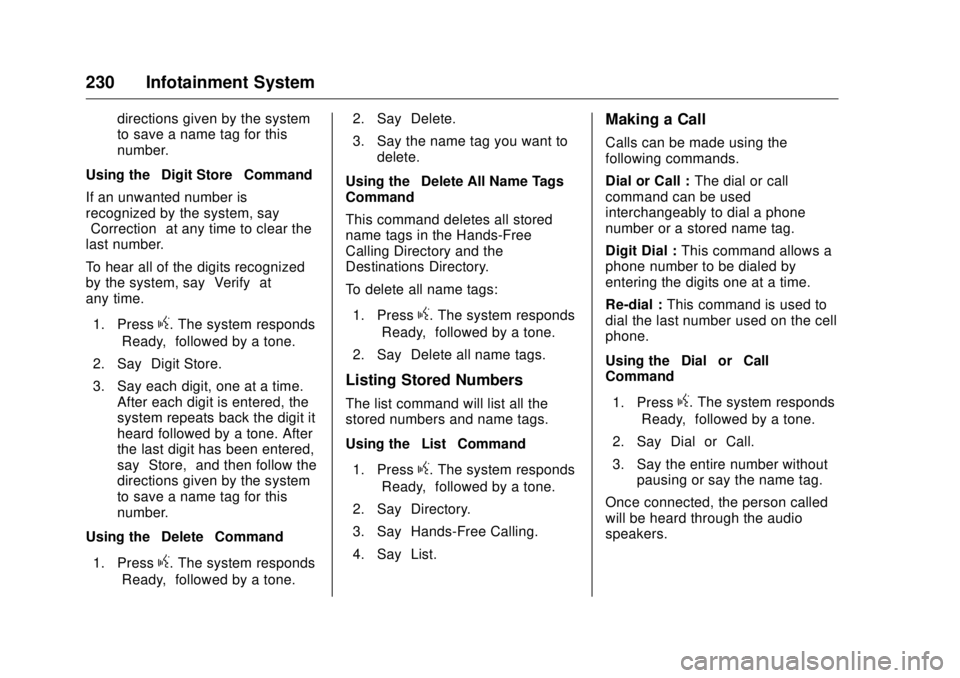
Using the “ Digit Store ” Command
If an unwanted number is
recognized by the system, say
“ Correction ” at any time to clear the
last number.
To hear all of the digits recognized
by the system, say “ Verify ” at
any time.
1. Press
g . The system responds
“ Ready, ” followed by a tone.
2. Say “ Digit Store. ”
3. Say each digit, one at a time.
After each digit is entered, the
system repeats back the digit it
heard followed by a tone. After
the last digit has been entered,
say “ Store, ” and then follow the
directions given by the system
to save a name tag for this
number.
Using the “ Delete ” Command
1. Press
g . The system responds
“ Ready, ” followed by a tone. 2. Say “ Delete. ”
3. Say the name tag you want to
delete.
Using the “ Delete All Name Tags ”
Command
This command deletes all stored
name tags in the Hands-Free
Calling Directory and the
Destinations Directory.
To delete all name tags:
1. Press
g . The system responds
“ Ready, ” followed by a tone.
2. Say “ Delete all name tags. ”
Listing Stored Numbers The list command will list all the
stored numbers and name tags.
Using the “ List ” Command
1. Press
g . The system responds
“ Ready, ” followed by a tone.
2. Say “ Directory. ”
3. Say “ Hands-Free Calling. ”
4. Say “ List. ” Making a Call Calls can be made using the
following commands.
Dial or Call : The dial or call
command can be used
interchangeably to dial a phone
number or a stored name tag.
Digit Dial : This command allows a
phone number to be dialed by
entering the digits one at a time.
Re-dial : This command is used to
dial the last number used on the cell
phone.
Using the “ Dial ” or “ Call ”
Command
1. Press
g . The system responds
“ Ready, ” followed by a tone.
2. Say “ Dial ” or “ Call. ”
3. Say the entire number without
pausing or say the name tag.
Once connected, the person called
will be heard through the audio
speakers.
Page 232 of 511
GMC Sierra/Sierra Denali Owner Manual (GMNA-Localizing-U.S./Canada/
Mexico-9955992) - 2017 - crc - 4/18/17
Infotainment System 231Calling Emergency
1. Press
g . The system responds
“ Ready, ” followed by a tone.
2. Say “ Dial ” or “ Call. ”
3. Say [emergency number].
4. Say “ Dial ” or “ Call. ”
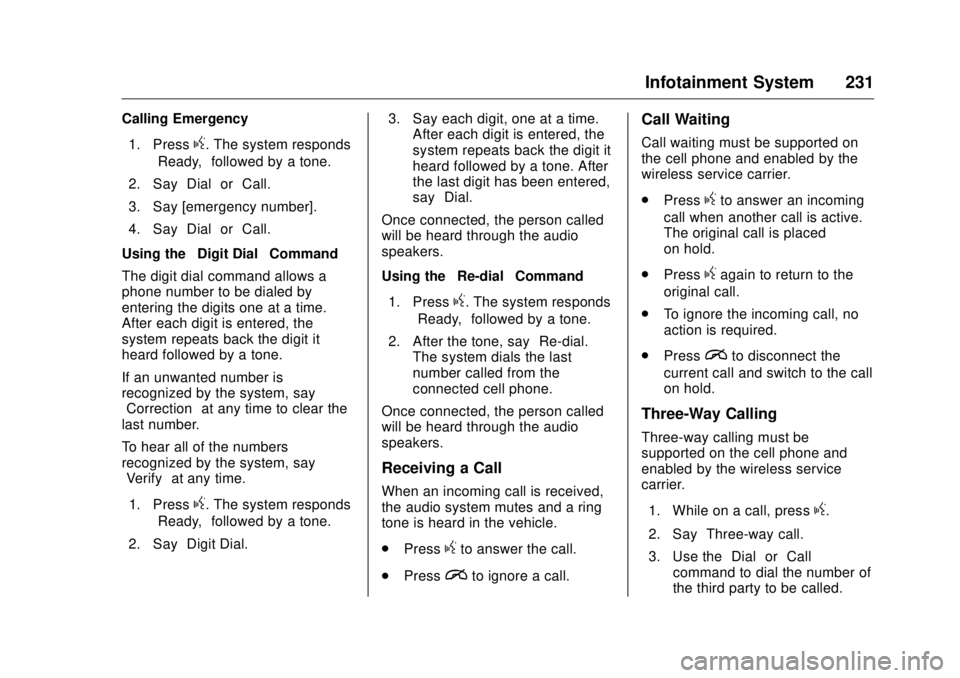
Using the “ Digit Dial ” Command
The digit dial command allows a
phone number to be dialed by
entering the digits one at a time.
After each digit is entered, the
system repeats back the digit it
heard followed by a tone.
If an unwanted number is
recognized by the system, say
“ Correction ” at any time to clear the
last number.
To hear all of the numbers
recognized by the system, say
“ Verify ” at any time.
1. Press
g . The system responds
“ Ready, ” followed by a tone.
2. Say “ Digit Dial. ” 3. Say each digit, one at a time.
After each digit is entered, the
system repeats back the digit it
heard followed by a tone. After
the last digit has been entered,
say “ Dial. ”
Once connected, the person called
will be heard through the audio
speakers.
Using the “ Re-dial ” Command
1. Press
g . The system responds
“ Ready, ” followed by a tone.
2. After the tone, say “ Re-dial. ”
The system dials the last
number called from the
connected cell phone.
Once connected, the person called
will be heard through the audio
speakers.
Receiving a Call
When an incoming call is received,
the audio system mutes and a ring
tone is heard in the vehicle.
.
Press
g to answer the call.
.
Press
i to ignore a call. Call Waiting Call waiting must be supported on
the cell phone and enabled by the
wireless service carrier.
.
Press
g to answer an incoming
call when another call is active.
The original call is placed
on hold.
.
Press
g again to return to the
original call.
.
To ignore the incoming call, no
action is required.
.
Press
i to disconnect the
current call and switch to the call
on hold.
Three-Way Calling Three-way calling must be
supported on the cell phone and
enabled by the wireless service
carrier.
1. While on a call, press
g .
2. Say “ Three-way call. ”
3. Use the “ Dial ” or “ Call ”
command to dial the number of
the third party to be called.
Page 233 of 511
GMC Sierra/Sierra Denali Owner Manual (GMNA-Localizing-U.S./Canada/
Mexico-9955992) - 2017 - crc - 4/18/17
232 Infotainment System 4. Once the call is connected,
press
g to link all callers
together.
Ending a Call Press
i to end a call.
Transferring a Call Audio can be transferred between
the Bluetooth system and the cell
phone.
The cell phone must be paired and
connected with the Bluetooth
system before a call can be
transferred. The connection process
can take up to two minutes after the
ignition is turned to ON/RUN.
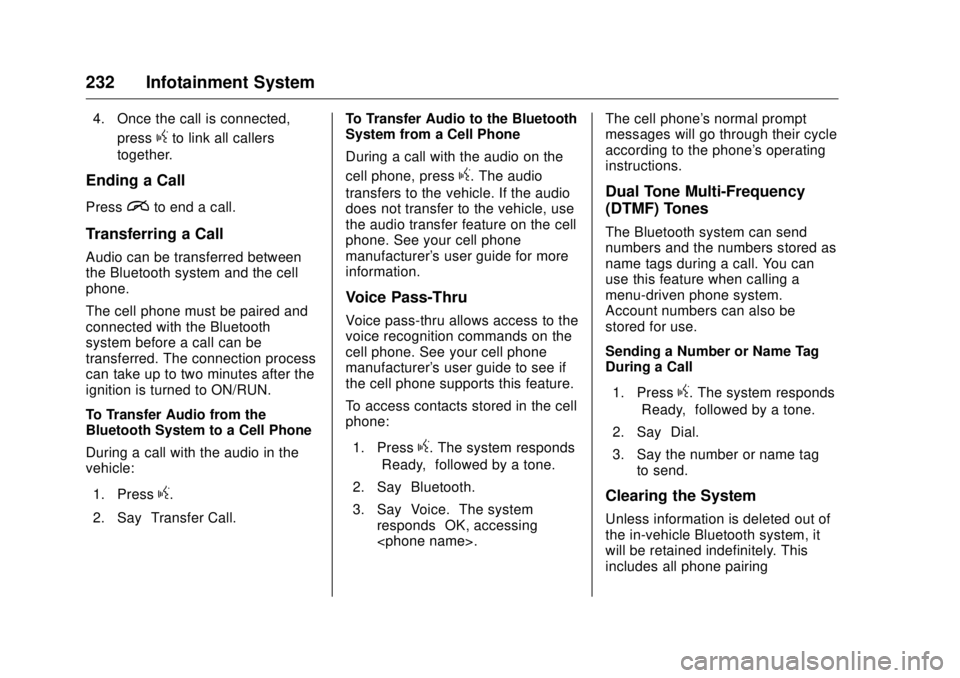
To Transfer Audio from the
Bluetooth System to a Cell Phone
During a call with the audio in the
vehicle:
1. Press
g .
2. Say “ Transfer Call. ” To Transfer Audio to the Bluetooth
System from a Cell Phone
During a call with the audio on the
cell phone, press
g . The audio
transfers to the vehicle. If the audio
does not transfer to the vehicle, use
the audio transfer feature on the cell
phone. See your cell phone
manufacturer's user guide for more
information.
Voice Pass-Thru Voice pass-thru allows access to the
voice recognition commands on the
cell phone. See your cell phone
manufacturer's user guide to see if
the cell phone supports this feature.
To access contacts stored in the cell
phone:
1. Press
g . The system responds
“ Ready, ” followed by a tone.
2. Say “ Bluetooth. ”
3. Say “ Voice. ” The system
responds “ OK, accessing
messages will go through their cycle
according to the phone's operating
instructions.
Dual Tone Multi-Frequency
(DTMF) Tones The Bluetooth system can send
numbers and the numbers stored as
name tags during a call. You can
use this feature when calling a
menu-driven phone system.
Account numbers can also be
stored for use.
Sending a Number or Name Tag
During a Call
1. Press
g . The system responds
“ Ready, ” followed by a tone.
2. Say “ Dial. ”
3. Say the number or name tag
to send.
Clearing the System
Unless information is deleted out of
the in-vehicle Bluetooth system, it
will be retained indefinitely. This
includes all phone pairing
Page 236 of 511
GMC Sierra/Sierra Denali Owner Manual (GMNA-Localizing-U.S./Canada/
Mexico-9955992) - 2017 - crc - 4/18/17
Infotainment System 235are successfully paired,
Z /
5is displayed on the pair device
screen. If no desired device is
available go to Step 5.
5. Touch Search Device to search
for the desired device.
6. Touch the desired device to
pair on the searched list
screen.
7. Input the Personal
Identification Number (PIN)
code (default: 1234) to the
Bluetooth device. When the
Bluetooth device and
infotainment system are
successfully paired,
Z /
5 is
displayed on the pair device
screen.
.
The connected phone is
highlighted by
5 .
.
Z /
5 indicates the hands-free
and phone music functions are
enabled.
.
5 indicates only the hands-free
function is enabled. .
Z indicates only Bluetooth
music is enabled.
Connecting a Paired Bluetooth
Device
1. Press
{ .
2. Touch Settings.
3. Touch Bluetooth, then Device
Management.
4. Touch the device to be
connected.
Checking the Bluetooth
Connection
1. Press
{ .
2. Touch Settings.
3. Touch Bluetooth, then Device
Management.
4. The paired device will show.
Disconnecting a Bluetooth Device
1. Press
{ .
2. Touch Settings.
3. Touch Bluetooth, then Device
Management. 4. Touch the name of the device
to be disconnected.
5. Touch Disconnect.
Deleting a Bluetooth Device
1. Press
{ .
2. Touch Settings.
3. Touch Bluetooth, then Device
Management.
4. Touch the device to delete.
5. Touch
Y .
6. Touch Delete.
Bluetooth Music
Before playing Bluetooth music,
read the following information.
.
A cell phone or Bluetooth device
that supports Advanced Audio
Distribution Profile (A2DP)
versions over 1.2 must be
registered and connected to the
product.
.
From the cell phone or Bluetooth
device, find the Bluetooth device
type to set/connect the item as a
stereo headset.
Page 237 of 511
GMC Sierra/Sierra Denali Owner Manual (GMNA-Localizing-U.S./Canada/
Mexico-9955992) - 2017 - crc - 4/18/17
236 Infotainment System .
e will appear on the screen if
the stereo headset is
successfully connected.
.
The sound played by the
Bluetooth device is delivered
through the infotainment system.
.
Bluetooth music can be played
only when a Bluetooth device
has been connected. To play
Bluetooth music, connect the
Bluetooth phone to the
infotainment system.
.
If the Bluetooth device is
disconnected while playing
phone music, the music is
discontinued. The audio
streaming function may not be
supported in some Bluetooth
phones. Only one function can
be used at a time between the
Bluetooth hands-free or Phone
music function. For example,
if you convert to Bluetooth
hands-free while playing Phone
music, the music is
discontinued. Playing music from
the car is not possible when
there are no music files stored in
the cell phone. Playing Bluetooth Music
1. Press
{ .
2. Touch AUDIO.
3. Touch Source.
4. Touch Bluetooth.
Pause
Touch
j to pause.
Touch
r to resume.
Playing the Next Song
Touch
l .
Playing the Previous Song
Touch
g within two seconds of
playback time to play the
previous song.
Returning to the Beginning of the
Current Song
Touch
g after two seconds of
playback time.
Search
Touch and hold
g or
l to rewind
or fast forward. Playing Music Randomly
Touch
Z during playback. Touch
again to return to normal play.
This function may not be supported
depending on the bluetooth device.
Do not change the track too quickly
when playing Bluetooth music.
Conditions that may occur when
playing Bluetooth music:
.
It takes time to transmit data
from the bluetooth device to the
infotainment system.
.
If the cell phone or Bluetooth
device is not in the waiting
screen mode, it may not
automatically play.
.
The infotainment system
transmits the order to play from
the bluetooth device in the
Bluetooth music play mode.
If this is done in a different
mode, then the device transmits
the order to stop. Depending on
the bluetooth device options, this
order to play/stop may take time
to activate.
Page 238 of 511
GMC Sierra/Sierra Denali Owner Manual (GMNA-Localizing-U.S./Canada/
Mexico-9955992) - 2017 - crc - 4/18/17
Infotainment System 237.
If the Bluetooth music playback
is not functioning, then check to
see if the bluetooth device is in
the waiting screen mode.
.
Sounds may be cut off during
the Bluetooth music playback.
.
The infotainment system outputs
the audio from the cell phone or
Bluetooth device as it is
transmitted.
Apple CarPlay and
Android Auto If equipped, Android Auto ™ and/or
Apple CarPlay ™ capability may be
available through a compatible
smartphone. If available, a
PROJECTION icon will appear on
the Home Page of the infotainment
display.
To use Android Auto and/or Apple
CarPlay:
1. Download the Android Auto
app to your phone from the
Google ™ Play store. There is
no app required for Apple
CarPlay. 2. Connect your Android phone or
Apple iPhone by using the
compatible phone USB cable
and plugging into a USB data
port. For best performance, use
the device ’ s factory-provided
USB cable. Aftermarket or
third-party cables may
not work.
The PROJECTION icon on the
Home Page will change to
ANDROID AUTO or APPLE
CARPLAY depending on the phone.
Android Auto and/or Apple CarPlay
may automatically launch upon USB
connection. If not, press the
ANDROID AUTO and/or APPLE
CARPLAY icon on the Home Page
to launch.
For further information on how to set
up Android Auto and Apple CarPlay
in the vehicle, see my. gmc.com or
see Customer Assistance Offices
0 476 .
Android Auto is provided by Google
and is subject to Google ’ s terms
and privacy policy. CarPlay is
provided by Apple and is subject to
Apple ’ s terms and privacy policy. For Android Auto support see
https://support.google.com/
androidauto or Apple CarPlay
support at https://www.apple.com/
ios/carplay/ for more information.
Apple or Google may change or
suspend availability at any time.
Android Auto is a trademark of
Google Inc.; Apple CarPlay is a
trademark of Apple Inc.
Page 278 of 511
GMC Sierra/Sierra Denali Owner Manual (GMNA-Localizing-U.S./Canada/
Mexico-9955992) - 2017 - crc - 4/18/17
Driving and Operating 277To control the fast idle:
.
To enable the Fast Idle System,
press and release the cruise
control on/off button and ensure
that the switch indicator light
is lit.
.
Press and release the cruise
control SET- button. Engine
speed will be held at
approximately 1200 rpm.
One of the following actions will turn
off the fast idle:
.
Pressing the brake.
.
Selecting the cruise control
cancel button.
.
Releasing the parking brake.
.
Moving the transmission shift
lever out of P (Park) or
N (Neutral).
.
Selecting the cruise control on/
off button when it was
previously on.
.
Pressing the cruise control SET-
button a second time. .
Pressing the accelerator more
than one-quarter of the
way down.
.
Turning the ignition off.
Retained Accessory
Power (RAP) The following vehicle accessories
can be used for up to 10 minutes
after the engine is turned off:
.
Audio System
.
Power Windows
.
OnStar System (if equipped)
.
Sunroof (if equipped)
These features work when the key
is in ON/RUN or ACC/
ACCESSORY. Once the key is
turned from ON/RUN to LOCK/OFF,
the windows and sunroof continue
to work up to 10 minutes or until any
door is opened. The radio continues
to work for up to 10 minutes or until
the driver door is opened. Accessory Power Outlets (APOs)
The vehicle may have Accessory
Power Outlets (APOs) in several
locations. See Power Outlets 0 128 .
The APOs in the console or center
seat position are powered by
Retained Accessory Power (RAP).
They will continue to work for up to
10 minutes after the key is turned
from ON/RUN to LOCK/OFF, or until
the driver door is opened.
The APOs on the center stack come
from the factory powered directly
from the vehicle battery, and supply
accessory power at all times,
regardless of ignition key position.
If electronic items are left plugged
into these APOs for long periods of
time with the vehicle off, the vehicle
battery could be drained. The
vehicle may not start if the battery is
allowed to drain for an extended
period of time.
Page 494 of 511
GMC Sierra/Sierra Denali Owner Manual (GMNA-Localizing-U.S./Canada/
Mexico-9955992) - 2017 - crc - 4/18/17
OnStar 493
OnStar Additional
Information In-Vehicle Audio Messages Audio messages may play important
information at the following times:
.
Prior to vehicle purchase. Press
Q to set up an account.
.
With the OnStar Basic Plan,
every 60 days.
.
After change in ownership and
at 90 days.
Transferring Service Press
Q to request account transfer
eligibility information. The Advisor
can cancel or change account
information.
Selling/Transferring the
Vehicle
Call 1-888-4ONSTAR
(1-888-466-7827) immediately to
terminate your OnStar services if
the vehicle is disposed of, sold,
transferred, or if the lease ends. Reactivation for Subsequent
Owners Press
Q and follow the prompts to
speak to an Advisor as soon as
possible. The Advisor will update
vehicle records and explain OnStar
service options.
How OnStar Service Works Automatic Crash Response,
Emergency Services, Crisis Assist,
Stolen Vehicle Assistance,
Advanced Vehicle Diagnostics,
Remote Services, Roadside
Assistance, Turn-by-Turn
Navigation, and Hands-Free Calling
are available on most vehicles. Not
all OnStar services are available
everywhere or on all vehicles. For
more information, a full description
of OnStar services, system
limitations, and OnStar User Terms,
Privacy Statement, and Software
Terms:
.
Call 1-888-4ONSTAR
(1-888-466-7827).
.
See www.onstar.com (U.S.).
.
See www.onstar.ca (Canada). .
Call TTY 1-877-248-2080.
.
Press
Q to speak with an
Advisor.
OnStar services cannot work unless
the vehicle is in a place where
OnStar has an agreement with a
wireless service provider for service
in that area. The wireless service
provider must also have coverage,
network capacity, reception, and
technology compatible with OnStar
services. Service involving location
information about the vehicle cannot
work unless GPS signals are
available, unobstructed, and
compatible with the OnStar
hardware. OnStar services may not
work if the OnStar equipment is not
properly installed or it has not been
properly maintained. If equipment or
software is added, connected,
or modified, OnStar services may
not work. Other problems beyond
the control of OnStar — such as
hills, tall buildings, tunnels, weather,
electrical system design and
architecture of the vehicle, damage
Page 500 of 511

GMC Sierra/Sierra Denali Owner Manual (GMNA-Localizing-U.S./Canada/
Mexico-9955992) - 2017 - crc - 4/18/17
Index 499Antilock Brake System
(ABS) (cont'd)
Warning Light . . . . . . . . . . . . . . . . . 146
Appearance Care
Exterior . . . . . . . . . . . . . . . . . . . . . . . 444
Interior . . . . . . . . . . . . . . . . . . . . . . . . 449
Apple CarPlay and
Android Auto . . . . . . . . . . . . . . . . . . 237
Assistance Program,
Roadside . . . . . . . . . . . . . . . . . . . . . . 478
Assistance Systems for
Driving . . . . . . . . . . . . . . . . . . . . . . . . 308
Assistance Systems for
Parking and Backing . . . . . . . . . . 306
Audio
Bluetooth . . . . . . . . . . . . . . . . . . . . . 215
Theft-Deterrent Feature . . . . . . . 189
Audio Players
CD . . . . . . . . . . . . . . . . . . . . . . . . . . . 203
Automatic
Dimming Mirrors . . . . . . . . . . . . . . . . 49
Door Locks . . . . . . . . . . . . . . . . . . . . . 40
Forward Braking . . . . . . . . . . . . . . 310
Headlamp System . . . . . . . . . . . . 181
Transmission . . . . . . . . . . . . . . . . . 283
Transmission Fluid . . . . . . 368, 371
Automatic Transmission
Manual Mode . . . . . . . . . . . . . . . . . 286 Automatic Transmission (cont'd)
Shift Lock Control Function
Check . . . . . . . . . . . . . . . . . . . . . . . 387
Auxiliary
Roof Mounted Lamp . . . . . . . . . . 183
Auxiliary Jack . . . . . . . . . . . . . . . . . . . 214
Axle, Front . . . . . . . . . . . . . . . . . . . . . . 384
Axle, Rear . . . . . . . . . . . . . . . . . . . . . . 385
B Battery
Load Management . . . . . . . . . . . . 186
Power Protection . . . . . . . . . . . . . 187
Voltage and Charging
Messages . . . . . . . . . . . . . . . . . . . 157
Battery - North America . . . . 383, 435
Blade Replacement, Wiper . . . . . 388
Blind Spot Mirrors . . . . . . . . . . . . . . . 49
Bluetooth
Overview . . . . . . . . 222, 224,
228, 233
Bluetooth Audio . . . . . . . . . . . . . . . . 215
Brake
Pedal and Adjustable
Throttle . . . . . . . . . . . . . . . . . . . . . . 273
System Warning Light . . . . . . . . 145
Brakes . . . . . . . . . . . . . . . . . . . . . . . . . . 381
Antilock . . . . . . . . . . . . . . . . . . . . . . . 297
Assist . . . . . . . . . . . . . . . . . . . . . . . . . 298 Brakes (cont'd)
Fluid . . . . . . . . . . . . . . . . . . . . . . . . . . 381
Parking . . . . . . . . . . . . . . . . . . . . . . . 297
System Messages . . . . . . . . . . . . 158
Braking . . . . . . . . . . . . . . . . . . . . . . . . . 254
Automatic Forward . . . . . . . . . . . 310
Break-In, New Vehicle . . . . . . . . . . 273
Bulb Replacement . . . . . . . . . . . . . . 392
Center High-Mounted
Stoplamp (CHMSL) and
Cargo Lamp . . . . . . . . . . . . . . . . . 391
Halogen Bulbs . . . . . . . . . . . . . . . . 389
Headlamp Aiming . . . . . . . . . . . . . 389
Headlamps . . . . . . . . . . . . . . . . . . . 389
High Intensity Discharge
(HID) Lighting . . . . . . . . . . . . . . . 390
Taillamps, Turn Signal,
Stoplamps, and Back-up
Lamps . . . . . . . . . . . . . . . . . . . . . . 390
Buying New Tires . . . . . . . . . . . . . . . 418
C Calibration . . . . . . . . . . . . . . . . . . . . . . 126
California
Fuel Requirements . . . . . . . . . . . 316