infotainment GMC SIERRA DENALI 2018 User Guide
[x] Cancel search | Manufacturer: GMC, Model Year: 2018, Model line: SIERRA DENALI, Model: GMC SIERRA DENALI 2018Pages: 505, PDF Size: 8.27 MB
Page 167 of 505
GMC Sierra/Sierra Denali Owner Manual (GMNA-Localizing-U.S./Canada/
Mexico-11349177) - 2018 - CRC - 10/17/17
166 Instruments and Controls The selected language will display
on the system, and voice
recognition will reflect the selected
language.
Video Voice-Over Select Off or On.
Valet Mode This will lock the infotainment
system and steering wheel controls.
It may also limit access to vehicle
storage locations, if equipped.
To enable valet mode:
1. Enter a four-digit code on the
keypad.
2. Select Enter to go to the
confirmation screen.
3. Re-enter the four-digit code.
Touch Lock or Unlock to lock or
unlock the system. Touch Back to
go back to the previous menu.
Teen Driver
See “ Teen Driver ” under “ Settings ”
in the infotainment manual. Radio Select and the following may
display:
.
Manage Favorites
.
Number of Favorites Shown
.
Audible Touch Feedback
.
Text Scroll
.
Tone Settings
.
Auto Volume
.
Maximum Startup Volume
.
Audio Cue Volume
Manage Favorites
This allows favorites to be edited.
See “ Manage Favorites ” in “ Radio
Setup ” under Home Page 0 189 or
“ Manage Favorites ” in “ Settings ”
under “ Radio ” in the infotainment
manual.
Number of Favorites Shown
Select to set the number of favorites
to display. Select the desired number or select
Auto and the infotainment system
will automatically adjust the number
of favorites shown.
Audible Touch Feedback
This allows Audible Touch
Feedback to be turned on or off.
Select Off or On.
Text Scroll
Select to see text scroll on the
screen.
Select Off or On.
Tone Settings
Select to adjust the radio tone. See
“ Tone Settings ” in AM-FM Radio
0 190 .
Auto Volume
This feature adjusts the volume
based on vehicle speed and
ambient noise.
Select Off, Low, Medium-Low,
Medium, Medium-High, or High.
Page 171 of 505

GMC Sierra/Sierra Denali Owner Manual (GMNA-Localizing-U.S./Canada/
Mexico-11349177) - 2018 - CRC - 10/17/17
170 Instruments and Controls Pair New Device
Select to pair a new device. See
“ Pairing ” under Bluetooth
(Overview) 0 211 or Bluetooth
(Infotainment Controls) 0 213 or
“ Pairing ” in “ Infotainment Controls ”
under Bluetooth in the infotainment
manual.
Discoverable
This allows the system to find a
device.
Select Off or On.
Device Management
Select to connect to a different
phone source, disconnect a phone,
or delete a phone.
Ringtones
Select to change the ring tone for
the specific phone. The phone does
not need to be connected to change
the ring tones. Voice Mail Numbers
This feature displays the voice mail
number for all connected phones.
To change the voice mail number,
select EDIT. Type a new number,
then select Save.
Text Message Alerts
This allows the feature to be turned
on or off.
Select Off or On.
Apple CarPlay Select and the following may
display:
.
Apple CarPlay
.
Manage Apple CarPlay Devices
Apple CarPlay
This feature allows Apple devices to
be connected to the infotainment
system through a USB port.
Select Off or On.
Manage Apple CarPlay Devices
Select to manage Apple devices.
Apple CarPlay must be on for this
feature to be accessed. Android Auto Select and the following may
display:
.
Android Auto
.
Manage Android Auto Devices
Android Auto
This feature allows Android devices
to be connected to the infotainment
system through a USB port.
Select Off or On.
Manage Android Auto Devices
Select to manage Android devices.
Android Auto must be on for this
feature to be accessed.
USB Auto Launch This allows Android and Apple
CarPlay devices to automatically
connect when plugged into the
USB port.
Select Off or On.
Page 172 of 505
GMC Sierra/Sierra Denali Owner Manual (GMNA-Localizing-U.S./Canada/
Mexico-11349177) - 2018 - CRC - 10/17/17
Instruments and Controls 171Voice Select and the following may
display:
.
Confidence Threshold
.
Prompt Length
.
Audio Feedback Speed
.
Display “ What Can I Say? ” Tips
Confidence Threshold
This feature allows the adjustment
of the sensitivity of the speech
recognition system.
Select Confirm More or
Confirm Less.
Prompt Length
This feature adjusts the voice
prompt length.
Select Short or Long.
Audio Feedback Speed
This feature adjusts the audio
feedback speed.
Select Slow, Medium, or Fast. Display “ What Can I Say? ” Tips
This feature gives voice
command tips.
Select Off or On.
Display Select and the following may
display:
.
Calibrate Touchscreen
.
Turn Display Off
Calibrate Touchscreen
Select to calibrate the touchscreen,
then follow the prompts.
Turn Display Off
Select to turn the display off. Touch
anywhere on the infotainment
display area or press any controls
on the radio center stack to turn the
display on.
Rear Camera
Select and the following may
display:
.
Guidance Lines
.
Rear Park Assist Symbols Guidance Lines
Select to turn Off or On. See
Assistance Systems for Parking or
Backing 0 289 .
Rear Park Assist Symbols
Select to turn Off or On. See
Assistance Systems for Parking or
Backing 0 289 .
Return to Factory Settings Select and the following may
display:
.
Restore Vehicle Settings
.
Clear All Private Data
.
Restore Radio Settings
Restore Vehicle Settings
This allows selection of restoring
vehicle settings.
Select Restore or Cancel.
Clear All Private Data
This allows selection to clear all
private information from the vehicle.
Select Delete or Cancel.
Page 173 of 505
GMC Sierra/Sierra Denali Owner Manual (GMNA-Localizing-U.S./Canada/
Mexico-11349177) - 2018 - CRC - 10/17/17
172 Instruments and Controls Restore Radio Settings
This allows selection to restore
radio settings.
Select Restore or Cancel.
Software Information Select to view the infotainment
system current software information.
Wi-Fi Select and the following may
display:
.
Wi-Fi
.
Manage Wi-Fi Networks
Wi-Fi
This feature allows Wi-Fi networks
to be turned off or on.
Select Off or On.
Manage Wi-Fi Networks
Select to manage Wi-Fi networks.
Wi-Fi must be on for this feature to
be accessed. Universal Remote
System See Radio Frequency Statement
0 475 .
Universal Remote System
Programming
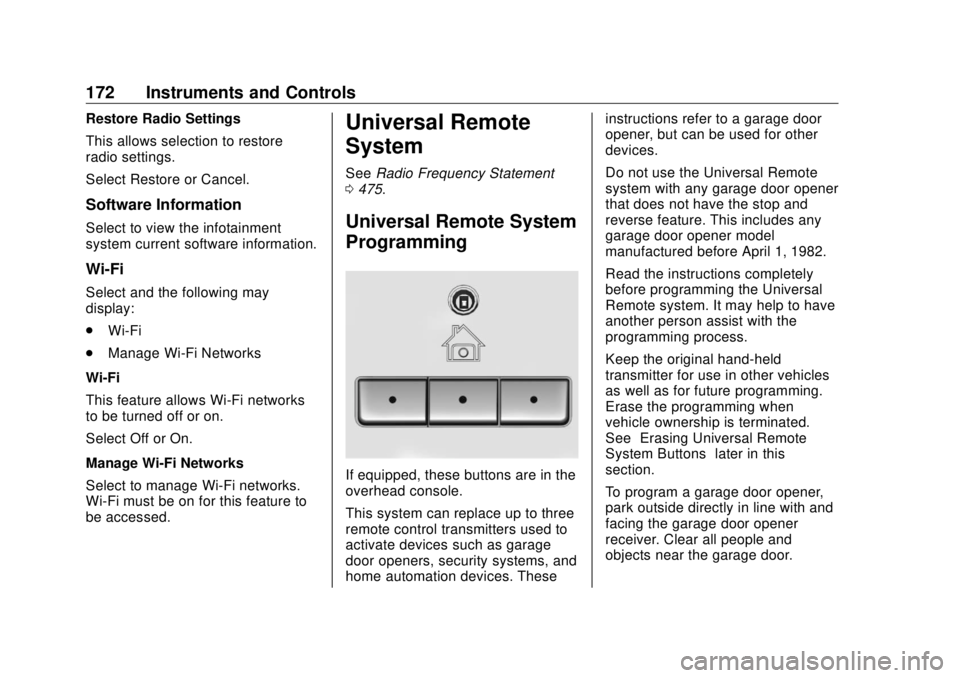
If equipped, these buttons are in the
overhead console.
This system can replace up to three
remote control transmitters used to
activate devices such as garage
door openers, security systems, and
home automation devices. These instructions refer to a garage door
opener, but can be used for other
devices.
Do not use the Universal Remote
system with any garage door opener
that does not have the stop and
reverse feature. This includes any
garage door opener model
manufactured before April 1, 1982.
Read the instructions completely
before programming the Universal
Remote system. It may help to have
another person assist with the
programming process.
Keep the original hand-held
transmitter for use in other vehicles
as well as for future programming.
Erase the programming when
vehicle ownership is terminated.
See “ Erasing Universal Remote
System Buttons ” later in this
section.
To program a garage door opener,
park outside directly in line with and
facing the garage door opener
receiver. Clear all people and
objects near the garage door.
Page 187 of 505
GMC Sierra/Sierra Denali Owner Manual (GMNA-Localizing-U.S./Canada/
Mexico-11349177) - 2018 - CRC - 10/17/17
186 Infotainment System
Infotainment
System Introduction Infotainment . . . . . . . . . . . . . . . . . . 186
Theft-Deterrent Feature . . . . . . 187
Overview . . . . . . . . . . . . . . . . . . . . . 188
Home Page . . . . . . . . . . . . . . . . . . 189
Software Updates . . . . . . . . . . . . 189
Radio AM-FM Radio . . . . . . . . . . . . . . . . 190
Satellite Radio . . . . . . . . . . . . . . . . 192
Radio Reception . . . . . . . . . . . . . . 193
Fixed Mast Antenna . . . . . . . . . . 194
Multi-Band Antenna . . . . . . . . . . 194
Audio Players Avoiding Untrusted Media
Devices . . . . . . . . . . . . . . . . . . . . . 195
CD Player . . . . . . . . . . . . . . . . . . . . 195
USB Port . . . . . . . . . . . . . . . . . . . . . 197
Auxiliary Jack . . . . . . . . . . . . . . . . 203
Bluetooth Audio . . . . . . . . . . . . . . 204
Voice Recognition
Voice Recognition . . . . . . . . . . . . 205 Phone Bluetooth (Overview) . . . . . . . . . 211
Bluetooth (Infotainment
Controls) . . . . . . . . . . . . . . . . . . . . 213
Apple CarPlay and
Android Auto . . . . . . . . . . . . . . . . 217
Trademarks and License
Agreements Trademarks and License
Agreements . . . . . . . . . . . . . . . . . 218
Introduction Infotainment Base radio information is included in
this manual. See the infotainment
manual for information on other
available infotainment systems.
Read the following pages to
become familiar with the features.
{ WarningTaking your eyes off the road for
too long or too often while using
any infotainment feature can
cause a crash. You or others
could be injured or killed. Do not
give extended attention to
infotainment tasks while driving.
Limit your glances at the vehicle
displays and focus your attention
on driving. Use voice commands
whenever possible.
Page 188 of 505
GMC Sierra/Sierra Denali Owner Manual (GMNA-Localizing-U.S./Canada/
Mexico-11349177) - 2018 - CRC - 10/17/17
Infotainment System 187The infotainment system has built-in
features intended to help avoid
distraction by disabling some
functions when driving. These
functions may gray out when they
are unavailable. Many infotainment
features are also available through
the instrument cluster and steering
wheel controls.
Before driving:
.
Become familiar with the
operation, center stack controls,
and infotainment display
controls. .
Set up the audio by presetting
favorite stations, setting the
tone, and adjusting the
speakers.
.
Set up phone numbers in
advance so they can be called
easily by pressing a single
control or by using a single voice
command if equipped with
Bluetooth phone capability.
See Defensive Driving 0 236 .
To play the infotainment system with
the ignition off, see Retained
Accessory Power (RAP) 0 260 .Theft-Deterrent Feature TheftLock is designed to discourage
theft of the vehicle's radio by
learning a portion of the Vehicle
Identification Number (VIN). The
radio does not operate if it is stolen
or moved to a different vehicle.
Page 189 of 505
GMC Sierra/Sierra Denali Owner Manual (GMNA-Localizing-U.S./Canada/
Mexico-11349177) - 2018 - CRC - 10/17/17
188 Infotainment System
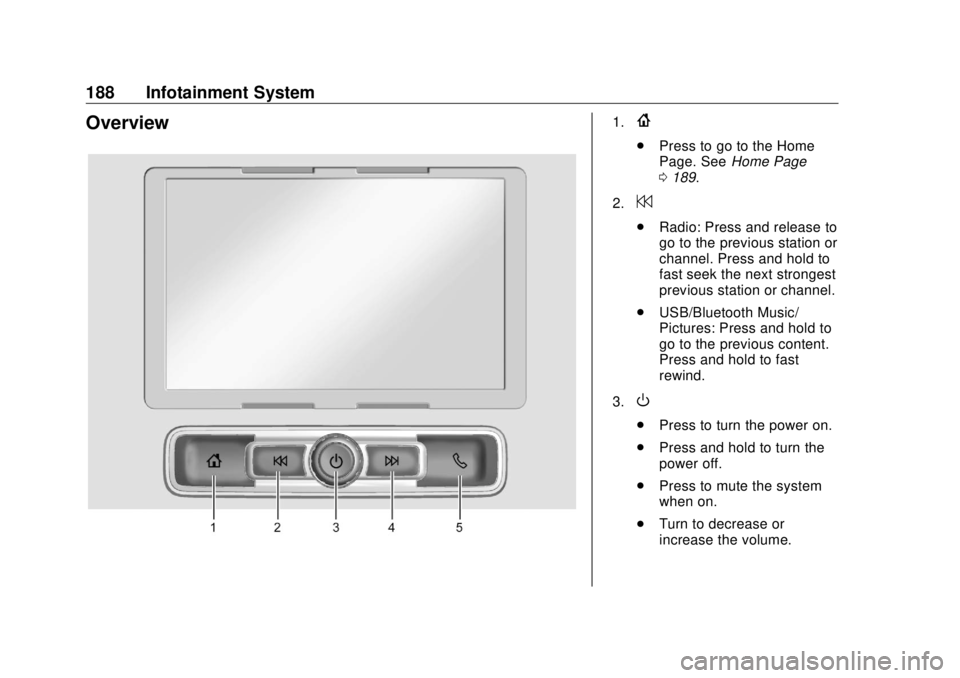
Overview 1.
{ .
Press to go to the Home
Page. See Home Page
0 189 .
2.
7 .
Radio: Press and release to
go to the previous station or
channel. Press and hold to
fast seek the next strongest
previous station or channel.
.
USB/Bluetooth Music/
Pictures: Press and hold to
go to the previous content.
Press and hold to fast
rewind.
3.
O .
Press to turn the power on.
.
Press and hold to turn the
power off.
.
Press to mute the system
when on.
.
Turn to decrease or
increase the volume.
Page 190 of 505
GMC Sierra/Sierra Denali Owner Manual (GMNA-Localizing-U.S./Canada/
Mexico-11349177) - 2018 - CRC - 10/17/17
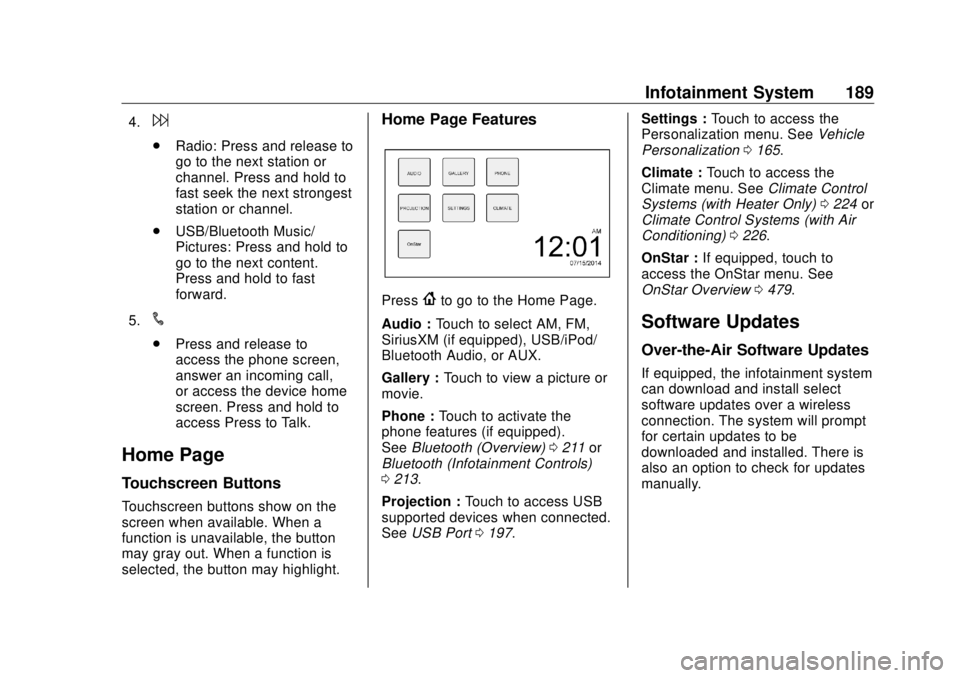
Infotainment System 1894.
6 .
Radio: Press and release to
go to the next station or
channel. Press and hold to
fast seek the next strongest
station or channel.
.
USB/Bluetooth Music/
Pictures: Press and hold to
go to the next content.
Press and hold to fast
forward.
5.
# .
Press and release to
access the phone screen,
answer an incoming call,
or access the device home
screen. Press and hold to
access Press to Talk.
Home Page Touchscreen Buttons
Touchscreen buttons show on the
screen when available. When a
function is unavailable, the button
may gray out. When a function is
selected, the button may highlight. Home Page Features
Press
{ to go to the Home Page.
Audio : Touch to select AM, FM,
SiriusXM (if equipped), USB/iPod/
Bluetooth Audio, or AUX.
Gallery : Touch to view a picture or
movie.
Phone : Touch to activate the
phone features (if equipped).
See Bluetooth (Overview) 0 211 or
Bluetooth (Infotainment Controls)
0 213 .
Projection : Touch to access USB
supported devices when connected.
See USB Port 0 197 . Settings : Touch to access the
Personalization menu. See Vehicle
Personalization 0 165 .
Climate : Touch to access the
Climate menu. See Climate Control
Systems (with Heater Only) 0 224 or
Climate Control Systems (with Air
Conditioning) 0 226 .
OnStar : If equipped, touch to
access the OnStar menu. See
OnStar Overview 0 479 .
Software Updates Over-the-Air Software Updates If equipped, the infotainment system
can download and install select
software updates over a wireless
connection. The system will prompt
for certain updates to be
downloaded and installed. There is
also an option to check for updates
manually.
Page 191 of 505
GMC Sierra/Sierra Denali Owner Manual (GMNA-Localizing-U.S./Canada/
Mexico-11349177) - 2018 - CRC - 10/17/17
190 Infotainment System To manually check for updates,
touch SETTINGS on the Home
Page, followed by Software
Information, and then System
Update. Follow the on-screen
prompts. Steps for downloading and
installing updates may vary by
vehicle.
Downloading Over-the-Air vehicle
software updates requires Internet
connectivity, which can be accessed
through the vehicle ’ s built-in OnStar
4G LTE connection, if equipped and
active. If required, data plans are
provided by a third party. Optionally,
a secure Wi-Fi hotspot such as a
compatible mobile device hotspot,
home hotspot or public hotspot can
be used. Applicable data rates may
apply. To connect the infotainment system
to a secured mobile device hotspot,
home hotspot, or a public hotspot,
touch SETTINGS on the Home
Page, followed by Wi-Fi, and then
Manage Wi-Fi Networks. Select the
appropriate Wi-Fi network, and
follow the on-screen prompts.
Download speeds may vary.
On most compatible mobile devices,
activation of the Wi-Fi hotspot is in
the Settings menu under Mobile
Network Sharing, Personal Hotspot,
Mobile Hotspot or similar.
Availability of Over-the-Air vehicle
software updates varies by vehicle
and country. For more information
on this feature, see my.gmc.com/
learn. Radio AM-FM Radio Playing the Radio Audio Source Menu
{ : Press to go to the Home Page.
O : Press to turn on, mute,
or unmute the system. Press and
hold to turn off the system.
Selecting a Band Press
{ , then touch AUDIO,
Source, then select AM, FM,
or SXM, if equipped. The last station
that was playing starts playing
again.
System Settings
Auto Volume
This feature automatically adjusts
the radio volume to compensate for
road and wind noise.
The level of volume compensation
can be selected, or the feature can
be turned off.
Page 192 of 505
GMC Sierra/Sierra Denali Owner Manual (GMNA-Localizing-U.S./Canada/
Mexico-11349177) - 2018 - CRC - 10/17/17
Infotainment System 1911. Touch MENU from a source
screen.
2. Select Auto Volume.
3. Select the desired setting.
4. Touch
3 to go back to the
source screen.
Tone Settings
The tone settings can be set for
each radio band and each audio
player source.
Preset Tone Settings
.
Touch MENU.
.
Touch Tone Settings.
.
Select a preset tone setting.
.
Bass, Midrange, or Treble:
Touch − or +.
.
Fader or Balance: Adjust the
front/rear or left/right speakers
by dragging the dot in the
vehicle image on the screen.
Custom Tone Settings
.
Touch MENU.
.
Touch Tone Settings. .
Touch Custom.
.
Bass, Midrange, or Treble:
Touch − or +.
.
Fader or Balance: Adjust the
front/rear or left/right speakers
by dragging the dot in the
vehicle image on the screen.
Touch
3 to go back to the source
screen.
Selecting an Auxiliary Device Connect the auxiliary device to the
AUX input terminal. Play will begin
when the system has finished
reading the information on the
device.
If the AUX device is already
connected, press
{ , AUDIO,
Source, then select the device.
Selecting a Station
Seek Tuning
If the radio station is not known:
Press
7 or
6 to automatically
search for available radio stations. Manual Tuning
Continue touching
t or
u to
manually change the radio station.
Direct Tune
From the AM or FM menu:
.
Touch Tune.
.
Enter the station number.
.
Touch Go or
t or
u to go to
the previous or next station.
Favorite
.
Touch
S or
T to scroll through
the favorites.
.
Touch on the station to select it.
Station List
.
From the AM or FM menu,
touch MENU.
.
Select Station List.
.
Touch
Q or
R to scroll through
the list. Touch the station to
select it.