radio controls GMC SIERRA DENALI 2018 User Guide
[x] Cancel search | Manufacturer: GMC, Model Year: 2018, Model line: SIERRA DENALI, Model: GMC SIERRA DENALI 2018Pages: 505, PDF Size: 8.27 MB
Page 173 of 505
GMC Sierra/Sierra Denali Owner Manual (GMNA-Localizing-U.S./Canada/
Mexico-11349177) - 2018 - CRC - 10/17/17
172 Instruments and Controls Restore Radio Settings
This allows selection to restore
radio settings.
Select Restore or Cancel.
Software Information Select to view the infotainment
system current software information.
Wi-Fi Select and the following may
display:
.
Wi-Fi
.
Manage Wi-Fi Networks
Wi-Fi
This feature allows Wi-Fi networks
to be turned off or on.
Select Off or On.
Manage Wi-Fi Networks
Select to manage Wi-Fi networks.
Wi-Fi must be on for this feature to
be accessed. Universal Remote
System See Radio Frequency Statement
0 475 .
Universal Remote System
Programming
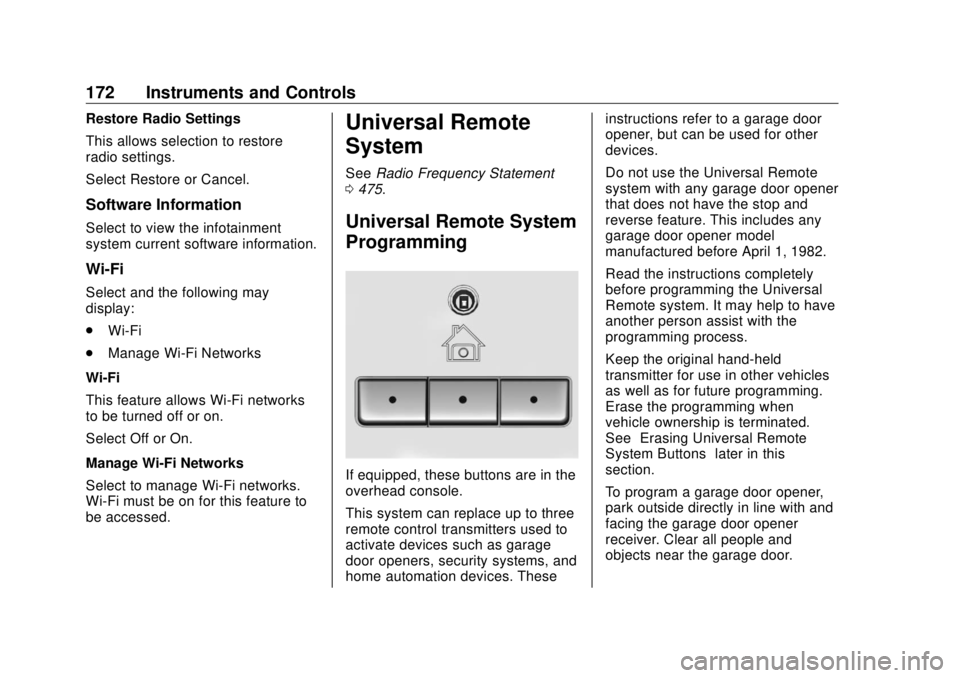
If equipped, these buttons are in the
overhead console.
This system can replace up to three
remote control transmitters used to
activate devices such as garage
door openers, security systems, and
home automation devices. These instructions refer to a garage door
opener, but can be used for other
devices.
Do not use the Universal Remote
system with any garage door opener
that does not have the stop and
reverse feature. This includes any
garage door opener model
manufactured before April 1, 1982.
Read the instructions completely
before programming the Universal
Remote system. It may help to have
another person assist with the
programming process.
Keep the original hand-held
transmitter for use in other vehicles
as well as for future programming.
Erase the programming when
vehicle ownership is terminated.
See “ Erasing Universal Remote
System Buttons ” later in this
section.
To program a garage door opener,
park outside directly in line with and
facing the garage door opener
receiver. Clear all people and
objects near the garage door.
Page 174 of 505
GMC Sierra/Sierra Denali Owner Manual (GMNA-Localizing-U.S./Canada/
Mexico-11349177) - 2018 - CRC - 10/17/17
Instruments and Controls 173Make sure the hand-held transmitter
has a new battery for quick and
accurate transmission of the
radio-frequency signal.
Programming the Universal
Remote System For questions or programming help,
see www.homelink.com/gm or call
1-800-355-3515.
Programming involves
time-sensitive actions, and may time
out causing the procedure to be
repeated.
To program up to three devices:
1. Hold the end of the hand-held
transmitter about 3 to 8 cm (1
to 3 in) away from the
Universal Remote system
buttons with the indicator light
in view. The hand-held
transmitter was supplied by the
manufacturer of the garage
door opener receiver.
2. At the same time, press and
hold both the hand-held
transmitter button and one of
the three Universal Remote system buttons to be used to
operate the garage door. Do
not release either button until
the indicator light goes from a
slow to a rapid flashing light.
Then release both buttons.
Some garage door openers
may require substitution of
Step 2 with the procedure
under “ Radio Signals for
Canada and Some Gate
Operators ” later in this section.
3. Press and hold the newly
programmed Universal Remote
system button for five seconds
while watching the indicator
light and garage door
activation.
.
If the indicator light stays on
continuously or the garage
door moves when the
button is pressed, then
programming is complete.
There is no need to
complete Steps 4 – 6.
.
If the indicator light does
not come on or the garage
door does not move, a second button press may
be required. For a second
time, press and hold the
newly programmed button
for five seconds. If the light
stays on or the garage door
moves, programming is
complete.
.
If the indicator light blinks
rapidly for two seconds,
then changes to a solid light
and the garage door does
not move, continue with
programming Steps 4 – 6.
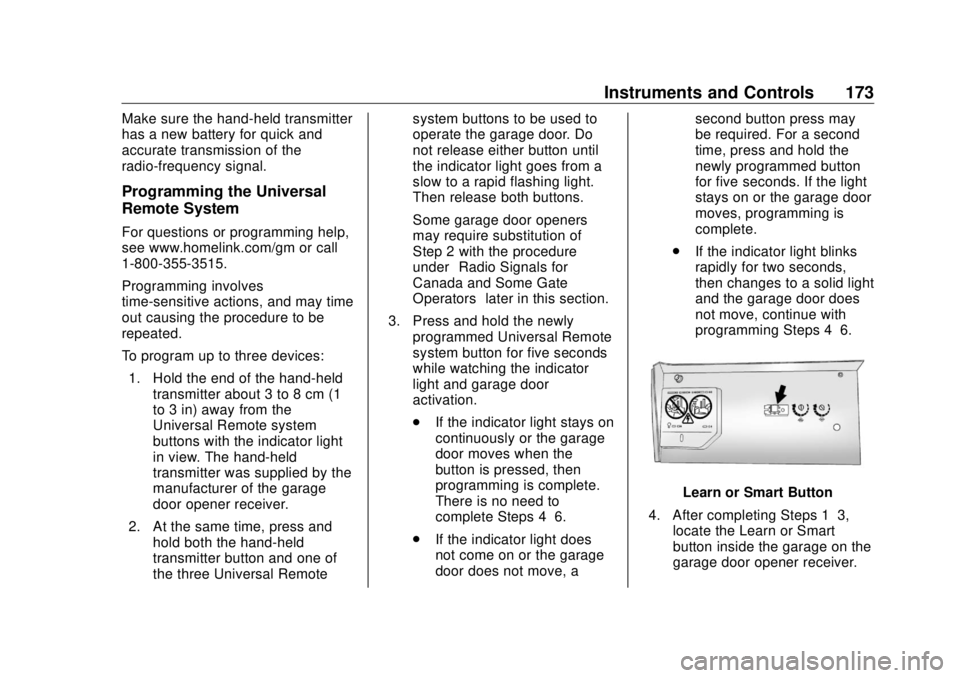
Learn or Smart Button
4. After completing Steps 1 – 3,
locate the Learn or Smart
button inside the garage on the
garage door opener receiver.
Page 175 of 505
GMC Sierra/Sierra Denali Owner Manual (GMNA-Localizing-U.S./Canada/
Mexico-11349177) - 2018 - CRC - 10/17/17
174 Instruments and Controls The name and color of the
button may vary by
manufacturer.
5. Press and release the Learn or
Smart button. Step 6 must be
completed within 30 seconds of
pressing this button.
6. Inside the vehicle, press and
hold the newly programmed
Universal Remote system
button for two seconds and
then release it. If the garage
door does not move or the
lamp on the garage door
opener receiver does not flash,
press and hold the same
button a second time for
two seconds, then release it.
Again, if the door does not
move or the garage door lamp
does not flash, press and hold
the same button a third time for
two seconds, then release it.
The Universal Remote system
should now activate the
garage door. Repeat the process for
programming the two remaining
buttons.
Radio Signals for Canada and
Some Gate Operators For questions or programming help,
see www.homelink.com/gm or call
1-800-355-3515.
Canadian radio-frequency laws and
some U.S. gate operators require
transmitter signals to time out or quit
after several seconds of
transmission. This may not be long
enough for the Universal Remote
system to pick up the signal during
programming.
If the programming did not work,
replace Step 2 under “ Programming
the Universal Remote System ” with
the following:
Press and hold the Universal
Remote system button while
pressing and releasing the
hand-held transmitter button every
two seconds until the signal has
been successfully accepted by the
Universal Remote system. The
Universal Remote system indicator light will flash slowly at first and then
rapidly. Proceed with Step 3 under
“ Programming the Universal Remote
System ” to complete.
Universal Remote System
Operation Using the Universal Remote
System Press and hold the appropriate
Universal Remote system button for
at least one-half second. The
indicator light will come on while the
signal is being transmitted.
Erasing Universal Remote
System Buttons Erase all programmed buttons when
vehicle ownership is terminated.
To erase:
1. Press and hold the two outside
buttons until the indicator light
begins to flash. This should
take about 10 seconds.
2. Release both buttons.
Page 187 of 505
GMC Sierra/Sierra Denali Owner Manual (GMNA-Localizing-U.S./Canada/
Mexico-11349177) - 2018 - CRC - 10/17/17
186 Infotainment System
Infotainment
System Introduction Infotainment . . . . . . . . . . . . . . . . . . 186
Theft-Deterrent Feature . . . . . . 187
Overview . . . . . . . . . . . . . . . . . . . . . 188
Home Page . . . . . . . . . . . . . . . . . . 189
Software Updates . . . . . . . . . . . . 189
Radio AM-FM Radio . . . . . . . . . . . . . . . . 190
Satellite Radio . . . . . . . . . . . . . . . . 192
Radio Reception . . . . . . . . . . . . . . 193
Fixed Mast Antenna . . . . . . . . . . 194
Multi-Band Antenna . . . . . . . . . . 194
Audio Players Avoiding Untrusted Media
Devices . . . . . . . . . . . . . . . . . . . . . 195
CD Player . . . . . . . . . . . . . . . . . . . . 195
USB Port . . . . . . . . . . . . . . . . . . . . . 197
Auxiliary Jack . . . . . . . . . . . . . . . . 203
Bluetooth Audio . . . . . . . . . . . . . . 204
Voice Recognition
Voice Recognition . . . . . . . . . . . . 205 Phone Bluetooth (Overview) . . . . . . . . . 211
Bluetooth (Infotainment
Controls) . . . . . . . . . . . . . . . . . . . . 213
Apple CarPlay and
Android Auto . . . . . . . . . . . . . . . . 217
Trademarks and License
Agreements Trademarks and License
Agreements . . . . . . . . . . . . . . . . . 218
Introduction Infotainment Base radio information is included in
this manual. See the infotainment
manual for information on other
available infotainment systems.
Read the following pages to
become familiar with the features.
{ WarningTaking your eyes off the road for
too long or too often while using
any infotainment feature can
cause a crash. You or others
could be injured or killed. Do not
give extended attention to
infotainment tasks while driving.
Limit your glances at the vehicle
displays and focus your attention
on driving. Use voice commands
whenever possible.
Page 188 of 505
GMC Sierra/Sierra Denali Owner Manual (GMNA-Localizing-U.S./Canada/
Mexico-11349177) - 2018 - CRC - 10/17/17
Infotainment System 187The infotainment system has built-in
features intended to help avoid
distraction by disabling some
functions when driving. These
functions may gray out when they
are unavailable. Many infotainment
features are also available through
the instrument cluster and steering
wheel controls.
Before driving:
.
Become familiar with the
operation, center stack controls,
and infotainment display
controls. .
Set up the audio by presetting
favorite stations, setting the
tone, and adjusting the
speakers.
.
Set up phone numbers in
advance so they can be called
easily by pressing a single
control or by using a single voice
command if equipped with
Bluetooth phone capability.
See Defensive Driving 0 236 .
To play the infotainment system with
the ignition off, see Retained
Accessory Power (RAP) 0 260 .Theft-Deterrent Feature TheftLock is designed to discourage
theft of the vehicle's radio by
learning a portion of the Vehicle
Identification Number (VIN). The
radio does not operate if it is stolen
or moved to a different vehicle.
Page 190 of 505
GMC Sierra/Sierra Denali Owner Manual (GMNA-Localizing-U.S./Canada/
Mexico-11349177) - 2018 - CRC - 10/17/17
Infotainment System 1894.
6 .
Radio: Press and release to
go to the next station or
channel. Press and hold to
fast seek the next strongest
station or channel.
.
USB/Bluetooth Music/
Pictures: Press and hold to
go to the next content.
Press and hold to fast
forward.
5.
# .
Press and release to
access the phone screen,
answer an incoming call,
or access the device home
screen. Press and hold to
access Press to Talk.
Home Page Touchscreen Buttons
Touchscreen buttons show on the
screen when available. When a
function is unavailable, the button
may gray out. When a function is
selected, the button may highlight. Home Page Features
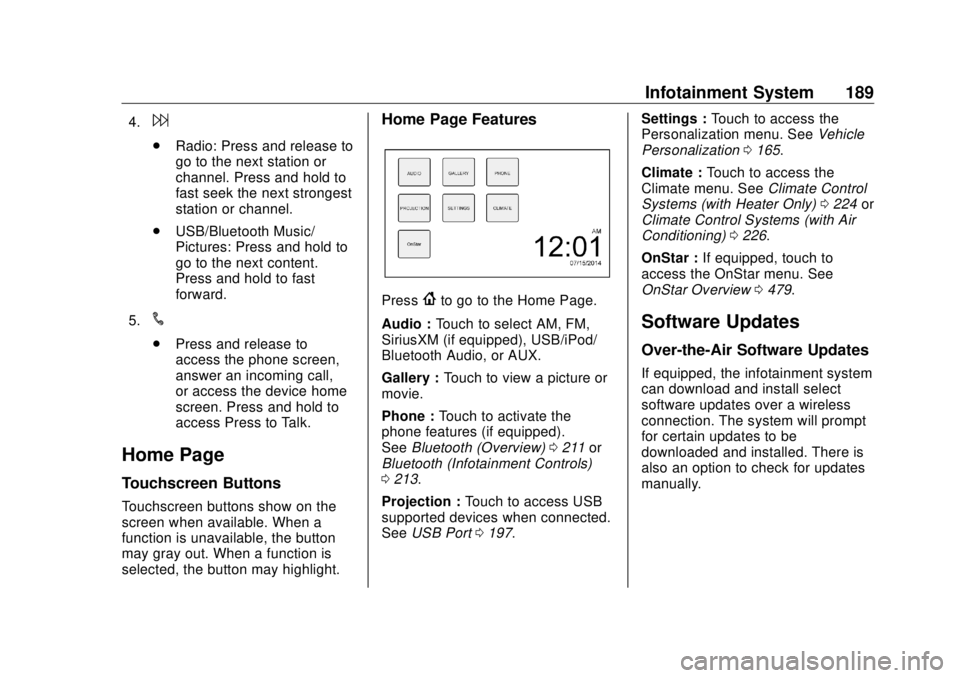
Press
{ to go to the Home Page.
Audio : Touch to select AM, FM,
SiriusXM (if equipped), USB/iPod/
Bluetooth Audio, or AUX.
Gallery : Touch to view a picture or
movie.
Phone : Touch to activate the
phone features (if equipped).
See Bluetooth (Overview) 0 211 or
Bluetooth (Infotainment Controls)
0 213 .
Projection : Touch to access USB
supported devices when connected.
See USB Port 0 197 . Settings : Touch to access the
Personalization menu. See Vehicle
Personalization 0 165 .
Climate : Touch to access the
Climate menu. See Climate Control
Systems (with Heater Only) 0 224 or
Climate Control Systems (with Air
Conditioning) 0 226 .
OnStar : If equipped, touch to
access the OnStar menu. See
OnStar Overview 0 479 .
Software Updates Over-the-Air Software Updates If equipped, the infotainment system
can download and install select
software updates over a wireless
connection. The system will prompt
for certain updates to be
downloaded and installed. There is
also an option to check for updates
manually.
Page 205 of 505
GMC Sierra/Sierra Denali Owner Manual (GMNA-Localizing-U.S./Canada/
Mexico-11349177) - 2018 - CRC - 10/17/17
204 Infotainment System Playing Music
To play the music from the device,
if the device is already connected:
1. Press
{ .
2. Touch AUDIO.
3. Touch Source.
4. Touch AUX.
To adjust the tone settings. See
“ Audio Settings ” in “ System
Settings ” under AM-FM Radio
0 190 .
Bluetooth Audio If equipped, music may be played
from a paired Bluetooth device. See
“ Pairing ” under Bluetooth
(Overview) 0 211 or Bluetooth
(Infotainment Controls) 0 213 for
help pairing a device.
Volume and song selection may be
controlled by using the infotainment
controls or the phone/device.
If Bluetooth Audio is selected and
nothing is heard, check the volume
setting on both the phone/device
and the infotainment system. Launch music by touching MEDIA
on the Home Page.
To play music via Bluetooth:
1. Power on the device, and pair
to connect the device.
2. Once paired, go into the audio
application from the Home
Page or via the application tray.
Select MEDIA until Bluetooth
displays.
Bluetooth Audio Menu
Press the MENU screen button to
display the Bluetooth Audio menu.
The following may be available:
Tone: Turn the MENU knob to
adjust the tone settings.
Press
o BACK to go back to the
previous menu.
Manage Bluetooth Devices: Select
to go to the Bluetooth page to add
or delete devices.
When selecting Bluetooth Audio, the
radio may not be able to launch the
audio player on the connected device to start playing. When the
vehicle is not moving, use the
phone to begin playback.
All devices launch audio differently.
When selecting Bluetooth Audio as
a source, the radio may show as
paused on the screen. Press play
on the device or press
r to begin
playback.
Some phones support sending
Bluetooth music information to
display on the radio. When the radio
receives this information, it will
check to see if any is available and
display it. For more information
about supported Bluetooth features,
see www.gm.com/bluetooth for U.S.
and Canada only.
Page 208 of 505
GMC Sierra/Sierra Denali Owner Manual (GMNA-Localizing-U.S./Canada/
Mexico-11349177) - 2018 - CRC - 10/17/17
Infotainment System 207For example, if the prompt
seems to be taking too long to
finish, or if what is being
prompted causes a need for an
immediate reply, press
g again
and wait for the beep.
.
Speak the command naturally,
not too fast, not too slow. Use
direct commands without a lot of
extra words.
.
Usually Phone and Audio
commands can be spoken in a
single command.
For example, “ Call Dave Smith
at work, ” “ Play ” followed by the
artist or song name, or “ Tune ”
followed by the radio station
number.
There is no need to memorize
specific command words. Direct
commands might be more clearly
understood by the system. An
example of a direct command would
be “ Call 555-1212. ” Examples of
these direct commands are
displayed on most of the screens
while a voice session is active.
If “ Phone ” or “ Phone Commands, ” is stated, the system understands that
a phone call is requested and will
respond with questions until enough
details are gathered.
If the phone number has been
saved with a name and a place, the
direct command should include
both, for example “ Call Dave Smith
at work. ”
Using Voice Recognition for
List Options When a list is displayed, a voice
prompt will ask to confirm or select
an option from that list. A selection
can be made by manually selecting
the item, or by speaking the line
number for the item to select.
When a screen contains a list,
options may be available but not
displayed. The list on a voice
recognition screen functions the
same as a list on other screens.
Scrolling can be used to help
display other entries from the list.
Manually scrolling or paging the list
on a screen during a voice
recognition session suspends the
current voice recognition event and plays the prompt “ Make your
selection from the list using the
manual controls or press the Back
button to try again. ”
If manual selection takes more than
15 seconds, the session terminates
and prompts that it has timed out.
The screen returns back to the
screen where voice recognition was
initiated.
The Back Command
Say “ Back ” or press the Back button
to go to the previous screen.
If in voice recognition, and “ Back ” is
stated all the way through to the
initial screen, then “ Back ” is stated
one more time, the voice recognition
session will cancel.
Help
Say “ Help ” on any voice recognition
screen and the help prompt for the
screen is played. Additionally, a
pop-up displays a text version of the
help prompt. Depending on how
voice recognition was initiated, the
Help pop-up will either display on
the instrument cluster or the
Page 212 of 505
GMC Sierra/Sierra Denali Owner Manual (GMNA-Localizing-U.S./Canada/
Mexico-11349177) - 2018 - CRC - 10/17/17
Infotainment System 211Bluetooth Speech Recognition
(If Equipped) Voice Pass-Thru allows access to
the speech recognition commands
on the cell phone. See your cell
phone manufacturer ’ s user guide to
see if the cell phone supports this
feature.
Activating this function will start the
Bluetooth Speech Recognition on a
connected phone.
The steering wheel controls are
used to operate this function.
Press and hold
g to activate.
A voice session begins so that voice
commands can be given to Siri ®
or
many other controls provided by the
cell phone.
Press
@ to exit or press
i to
close and return to the previous
application prior to the start of Voice
Pass-Thru. Phone Bluetooth (Overview) Instructions for using the cell phone
may differ between infotainment
systems. The base radio and base
radio with touchscreen instructions
are included in this manual. See the
infotainment manual for instructions
on the uplevel radios.
Bluetooth-capable systems can
interact with many cell phones,
allowing:
.
Placement and receipt of calls in
a hands-free mode.
.
Sharing of the cell phone ’ s
address book or contact list with
the vehicle.
To minimize driver distraction,
before driving, and with the vehicle
parked:
.
Become familiar with the
features of the cell phone.
Organize the phone book and
contact lists clearly and delete duplicate or rarely used entries.
If possible, program speed dial
or other shortcuts.
.
Review the controls and
operation of the infotainment
system.
.
Pair cell phone(s) to the vehicle.
The system may not work with
all cell phones. See “ Pairing ” in
this section.
.
If the cell phone has voice
dialing capability, learn to use
that feature to access the
address book or contact list.
.
See “ Deleting a Bluetooth
Device ” in this section.
{ Warning
When using a cell phone, it can
be distracting to look too long or
too often at the screen of the
phone or the infotainment system.
Taking your eyes off the road too
long or too often could cause a
crash resulting in injury or death.
Focus your attention on driving.
Page 387 of 505
GMC Sierra/Sierra Denali Owner Manual (GMNA-Localizing-U.S./Canada/
Mexico-11349177) - 2018 - CRC - 10/17/17
386 Vehicle Care Fuses Usage
2 Accessory power
outlet 4
7 Body control module 4
8 Body control module 8
9 Rear seat
entertainment
10 Cargo lamp
15 Steering wheel
controls
18 Radio
19 –
20 Sunroof
23 Airbag/Info
26 Export/Power take off/
Special equipment
option/Battery 1
27 Obstacle detection/
USB ports
28 Body control module 2
32 Special equipment
option/Battery 2 Fuses Usage
35 Air conditioning
inverter
36 Amplifier
37 Battery system
39 Rear sliding window
42 Right door window
motor
43 Front blower
44 Special equipment
option
45 Body control module 6
46 Body control module 7
47 Passenger seat
Relays Usage
50 Retained accessory
power
51 Rear sliding
window open
52 Rear sliding window
close Instrument Panel Fuse
Block (Left)
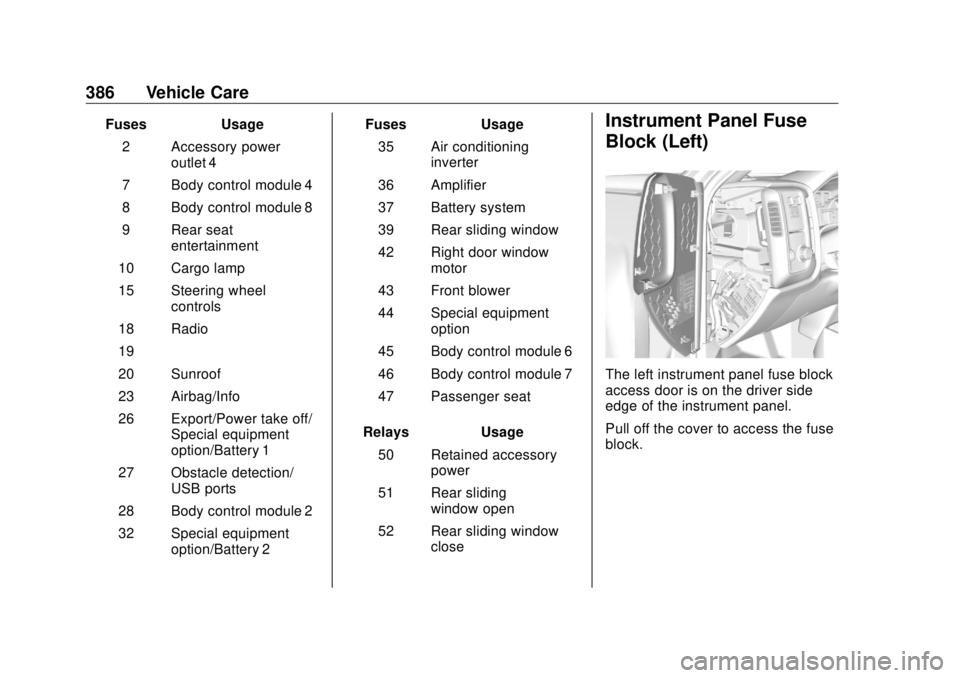
The left instrument panel fuse block
access door is on the driver side
edge of the instrument panel.
Pull off the cover to access the fuse
block.