audio GMC SIERRA DENALI 2018 Owner's Manual
[x] Cancel search | Manufacturer: GMC, Model Year: 2018, Model line: SIERRA DENALI, Model: GMC SIERRA DENALI 2018Pages: 505, PDF Size: 8.27 MB
Page 201 of 505
GMC Sierra/Sierra Denali Owner Manual (GMNA-Localizing-U.S./Canada/
Mexico-11349177) - 2018 - CRC - 10/17/17
200 Infotainment System
.
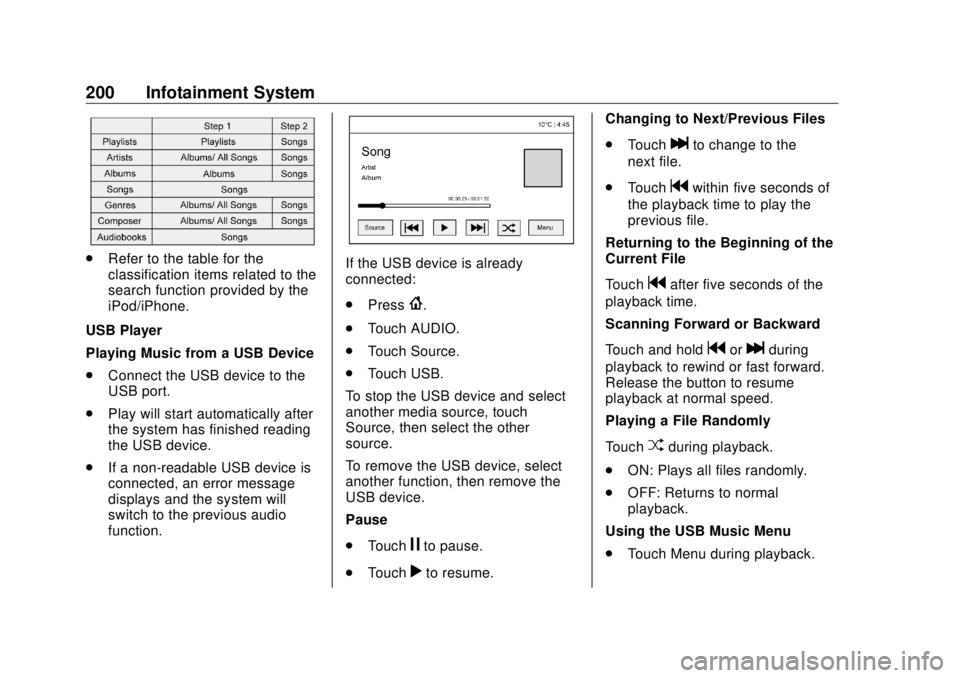
Refer to the table for the
classification items related to the
search function provided by the
iPod/iPhone.
USB Player
Playing Music from a USB Device
.
Connect the USB device to the
USB port.
.
Play will start automatically after
the system has finished reading
the USB device.
.
If a non-readable USB device is
connected, an error message
displays and the system will
switch to the previous audio
function. If the USB device is already
connected:
.
Press
{ .
.
Touch AUDIO.
.
Touch Source.
.
Touch USB.
To stop the USB device and select
another media source, touch
Source, then select the other
source.
To remove the USB device, select
another function, then remove the
USB device.
Pause
.
Touch
j to pause.
.
Touch
r to resume. Changing to Next/Previous Files
.
Touch
l to change to the
next file.
.
Touch
g within five seconds of
the playback time to play the
previous file.
Returning to the Beginning of the
Current File
Touch
g after five seconds of the
playback time.
Scanning Forward or Backward
Touch and hold
g or
l during
playback to rewind or fast forward.
Release the button to resume
playback at normal speed.
Playing a File Randomly
Touch
Z during playback.
.
ON: Plays all files randomly.
.
OFF: Returns to normal
playback.
Using the USB Music Menu
.
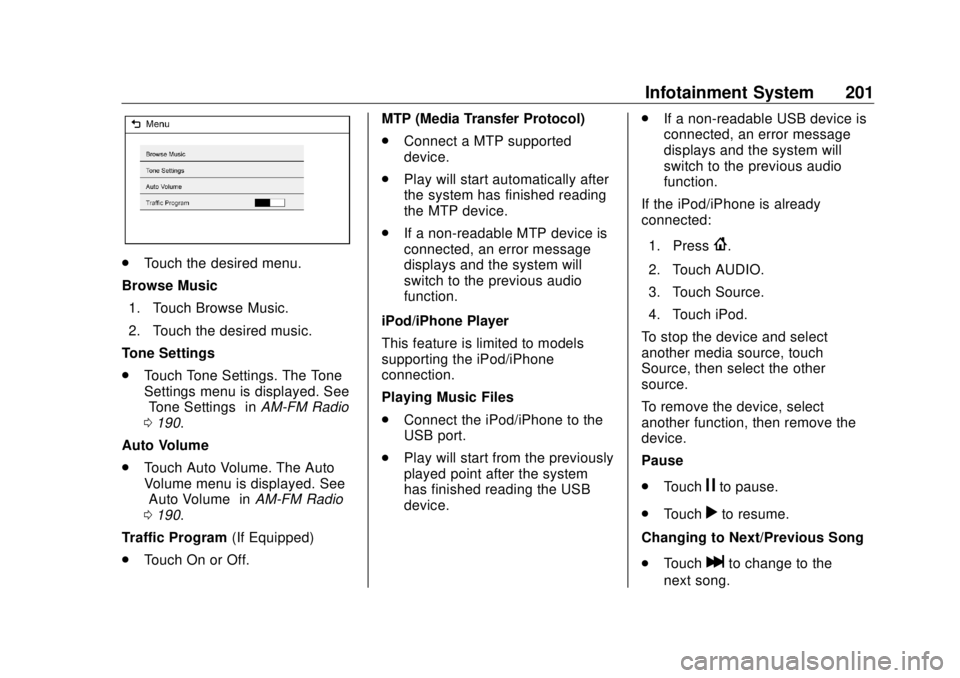
Touch Menu during playback.
Page 202 of 505
GMC Sierra/Sierra Denali Owner Manual (GMNA-Localizing-U.S./Canada/
Mexico-11349177) - 2018 - CRC - 10/17/17
Infotainment System 201
.
Touch the desired menu.
Browse Music
1. Touch Browse Music.
2. Touch the desired music.
Tone Settings
.
Touch Tone Settings. The Tone
Settings menu is displayed. See
“ Tone Settings ” in AM-FM Radio
0 190 .
Auto Volume
.
Touch Auto Volume. The Auto
Volume menu is displayed. See
“ Auto Volume ” in AM-FM Radio
0 190 .
Traffic Program (If Equipped)
.
Touch On or Off. MTP (Media Transfer Protocol)
.
Connect a MTP supported
device.
.
Play will start automatically after
the system has finished reading
the MTP device.
.
If a non-readable MTP device is
connected, an error message
displays and the system will
switch to the previous audio
function.
iPod/iPhone Player
This feature is limited to models
supporting the iPod/iPhone
connection.
Playing Music Files
.
Connect the iPod/iPhone to the
USB port.
.
Play will start from the previously
played point after the system
has finished reading the USB
device. .
If a non-readable USB device is
connected, an error message
displays and the system will
switch to the previous audio
function.
If the iPod/iPhone is already
connected:
1. Press
{ .
2. Touch AUDIO.
3. Touch Source.
4. Touch iPod.
To stop the device and select
another media source, touch
Source, then select the other
source.
To remove the device, select
another function, then remove the
device.
Pause
.
Touch
j to pause.
.
Touch
r to resume.
Changing to Next/Previous Song
.
Touch
l to change to the
next song.
Page 204 of 505
GMC Sierra/Sierra Denali Owner Manual (GMNA-Localizing-U.S./Canada/
Mexico-11349177) - 2018 - CRC - 10/17/17
Infotainment System 203Rotating a Picture
Touch
w from the picture screen.
Enlarging a Picture
Touch
x from the picture screen.
Using the USB Picture Menu
1. Touch MENU from the picture
screen.
2. Touch the appropriate menu:
.
Slide Show Time: Allows
selection of the slide show
interval.
.
Clock, Temp. Display:
Allows selection of On or
Off to show the clock and
temperature on the full
screen.
.
Display Settings: Adjusts
for Brightness and Contrast.
3. Touch
0 to exit.
Auxiliary Jack This vehicle may have an AUX jack
in the center console or armrest.
See Center Console Storage 0 125 . Possible auxiliary audio sources
include:
.
Laptop computer
.
Audio music player
This jack is not an audio output. Do
not plug headphones into the
auxiliary input jack. Auxiliary
devices should be set up while the
vehicle is in P (Park).
Connect a 3.5 mm (1/8 in) cable
from the auxiliary device to the
auxiliary input jack.
If an auxiliary device has already
been connected, but a different
source is currently active, press the
MEDIA faceplate button repeatedly
to scroll through all of the available
audio source screens, until the AUX
source screen is shown.
Base Radio
Playing from the AUX Jack
An auxiliary device is played
through the audio system and
controlled through the device itself. AUX Menu
Press the MENU knob to display the
AUX menu and the following may
display:
Tone Settings : Select to adjust
Bass, Midrange, Treble, Balance,
Fade, and EQ (Equalizer). See
“ Tone Settings ” in AM-FM Radio
0 190 .
Auto Volume : If equipped, see
“ Playing an Audio CD. ”
DSP : If equipped, this feature
adjusts the pre-defined settings.
See “ DSP ” in AM-FM Radio 0 190 .
EQ (Equalizer) : If equipped, this
feature adjusts the pre-defined
equalizer settings. See “ EQ
(Equalizer) ” in AM-FM Radio 0 190 .
Base Radio with Touchscreen
Play will begin when the system has
finished reading the information on
the device.
Page 205 of 505
GMC Sierra/Sierra Denali Owner Manual (GMNA-Localizing-U.S./Canada/
Mexico-11349177) - 2018 - CRC - 10/17/17
204 Infotainment System Playing Music
To play the music from the device,
if the device is already connected:
1. Press
{ .
2. Touch AUDIO.
3. Touch Source.
4. Touch AUX.
To adjust the tone settings. See
“ Audio Settings ” in “ System
Settings ” under AM-FM Radio
0 190 .
Bluetooth Audio If equipped, music may be played
from a paired Bluetooth device. See
“ Pairing ” under Bluetooth
(Overview) 0 211 or Bluetooth
(Infotainment Controls) 0 213 for
help pairing a device.
Volume and song selection may be
controlled by using the infotainment
controls or the phone/device.
If Bluetooth Audio is selected and
nothing is heard, check the volume
setting on both the phone/device
and the infotainment system. Launch music by touching MEDIA
on the Home Page.
To play music via Bluetooth:
1. Power on the device, and pair
to connect the device.
2. Once paired, go into the audio
application from the Home
Page or via the application tray.
Select MEDIA until Bluetooth
displays.
Bluetooth Audio Menu
Press the MENU screen button to
display the Bluetooth Audio menu.
The following may be available:
Tone: Turn the MENU knob to
adjust the tone settings.
Press
o BACK to go back to the
previous menu.
Manage Bluetooth Devices: Select
to go to the Bluetooth page to add
or delete devices.
When selecting Bluetooth Audio, the
radio may not be able to launch the
audio player on the connected device to start playing. When the
vehicle is not moving, use the
phone to begin playback.
All devices launch audio differently.
When selecting Bluetooth Audio as
a source, the radio may show as
paused on the screen. Press play
on the device or press
r to begin
playback.
Some phones support sending
Bluetooth music information to
display on the radio. When the radio
receives this information, it will
check to see if any is available and
display it. For more information
about supported Bluetooth features,
see www.gm.com/bluetooth for U.S.
and Canada only.
Page 206 of 505
GMC Sierra/Sierra Denali Owner Manual (GMNA-Localizing-U.S./Canada/
Mexico-11349177) - 2018 - CRC - 10/17/17
Infotainment System 205
Voice Recognition If equipped, voice recognition allows
for hands-free operation within the
audio and phone applications. This
feature can be started by pressing
either the
g button on the steering
wheel or by selecting the
g on the
screen display.
However, not all features within
these areas are supported by voice
commands. Generally, only complex
tasks that require multiple manual
interactions to complete are
supported by voice commands.
For example, tasks that take more
than one or two button presses such
as selecting a song or artist to play
from a media device would be
supported by voice commands.
Other tasks, like adjusting the
volume or seeking up or down are
audio features that are easily
performed by pressing one or two
buttons, and are not supported by
voice commands. In general there are flexible ways to
speak commands for completing the
tasks. Most of them, except
destination entry and voice keypad,
can be completed in a single
command. If the task takes more
than one command to complete, the
first command would be to indicate
the kind of task that is to be
performed. The system replies with
prompts that lead through a dialog
to enter the necessary information.
Voice recognition can be used when
the ignition is on or when Retained
Accessory Power (RAP) is active.
See Retained Accessory Power
(RAP) 0 260 .
Using Voice Recognition Voice recognition becomes available
once the system has been
initialized. This begins when the
ignition is turned on. Initialization
may take a few moments. 1. Press
g on the steering wheel
control to activate voice
recognition, or select
g on the
infotainment screen on the
center stack.
.
If voice recognition is
started from the steering
wheel control, the
instrument cluster displays
the selections and visual
dialog content.
.
If voice recognition is
started from the
infotainment screen, the
selections and visual dialog
content are displayed on
both the center stack
display and the instrument
cluster display.
2. The audio system mutes and
the system plays a prompt
followed by a beep.
3. Wait until after the beep
completes, then clearly speak
one of the commands
described in this section.
Page 208 of 505
GMC Sierra/Sierra Denali Owner Manual (GMNA-Localizing-U.S./Canada/
Mexico-11349177) - 2018 - CRC - 10/17/17
Infotainment System 207For example, if the prompt
seems to be taking too long to
finish, or if what is being
prompted causes a need for an
immediate reply, press
g again
and wait for the beep.
.
Speak the command naturally,
not too fast, not too slow. Use
direct commands without a lot of
extra words.
.
Usually Phone and Audio
commands can be spoken in a
single command.
For example, “ Call Dave Smith
at work, ” “ Play ” followed by the
artist or song name, or “ Tune ”
followed by the radio station
number.
There is no need to memorize
specific command words. Direct
commands might be more clearly
understood by the system. An
example of a direct command would
be “ Call 555-1212. ” Examples of
these direct commands are
displayed on most of the screens
while a voice session is active.
If “ Phone ” or “ Phone Commands, ” is stated, the system understands that
a phone call is requested and will
respond with questions until enough
details are gathered.
If the phone number has been
saved with a name and a place, the
direct command should include
both, for example “ Call Dave Smith
at work. ”
Using Voice Recognition for
List Options When a list is displayed, a voice
prompt will ask to confirm or select
an option from that list. A selection
can be made by manually selecting
the item, or by speaking the line
number for the item to select.
When a screen contains a list,
options may be available but not
displayed. The list on a voice
recognition screen functions the
same as a list on other screens.
Scrolling can be used to help
display other entries from the list.
Manually scrolling or paging the list
on a screen during a voice
recognition session suspends the
current voice recognition event and plays the prompt “ Make your
selection from the list using the
manual controls or press the Back
button to try again. ”
If manual selection takes more than
15 seconds, the session terminates
and prompts that it has timed out.
The screen returns back to the
screen where voice recognition was
initiated.
The Back Command
Say “ Back ” or press the Back button
to go to the previous screen.
If in voice recognition, and “ Back ” is
stated all the way through to the
initial screen, then “ Back ” is stated
one more time, the voice recognition
session will cancel.
Help
Say “ Help ” on any voice recognition
screen and the help prompt for the
screen is played. Additionally, a
pop-up displays a text version of the
help prompt. Depending on how
voice recognition was initiated, the
Help pop-up will either display on
the instrument cluster or the
Page 209 of 505
GMC Sierra/Sierra Denali Owner Manual (GMNA-Localizing-U.S./Canada/
Mexico-11349177) - 2018 - CRC - 10/17/17
208 Infotainment System infotainment screen. Press the
Dismiss button to make the pop-up
go away.
Pressing
g while the help prompt is
playing will terminate the prompt
and a beep will be heard. Doing this
will stop the help prompt so that a
voice command can be used.
Voice Recognition for the
Radio Select the
g screen button to
launch audio voice recognition.
If the voice button is pressed in a
radio screen, the voice commands
for radio and media features are
available.
“ Switch to AM ” : Switch bands to
AM and tune to the last AM radio
station.
“ Switch to FM ” : Switch bands to
FM and tune to the last FM radio
station.
“ Switch to SXM ” : Switch bands to
SiriusXM (if equipped) and tune to
the last SiriusXM channel. “ Tune to
Tune to the radio station whose
frequency is identified in the
command (like “ nine fifty ” ).
“ Tune to
Tune to the radio station whose
frequency is identified in the
command (like “ one o one
point one ” ).
“ Tune to SXM
equipped) radio station whose
channel number is identified in the
command.
“ Tune to SXM
equipped) radio station whose
channel name is identified in the
command.
Voice Recognition for Audio
My Media
If browsing My Media when the
voice button is selected, the voice
recognition commands for My Media
features are available.
“ Play Artist ” : Begin a dialog to
enter a specific Artist name. “ Play Artist
Begin playback of the media
selection identified in the command.
“ Play Album ” : Begin a dialog to
enter a specific album name.
“ Play Album
Begin playback of the identified
album name in the command.
“ Play Song ” : Begin a dialog to
enter a specific song name.
“ Play Song
playback of the identified song
name in the command.
“ Play Genre ” : Begin a dialog to
enter a specific genre.
“ Play Genre
Begin playback of the media
selection identified in the command.
“ Play Playlist ” : Begin a dialog to
enter a specific playlist name.
“ Play Playlist
Begin playback of the identified
playlist in the command.
“ Play
music from a specific device
identified by name. The device
Page 210 of 505
GMC Sierra/Sierra Denali Owner Manual (GMNA-Localizing-U.S./Canada/
Mexico-11349177) - 2018 - CRC - 10/17/17
Infotainment System 209name is the name displayed on the
screen when the device is first
selected as an audio source.
“ Play Chapter ” : Begin a dialog to
enter a specific name.
“ Play Chapter
Begin playback of the media
selection identified in the command.
“ Play Audiobook ” : Begin a dialog
to enter a specific name.
“ Play Audiobook
media selection identified in the
command.
“ Play CD Track
CD at the track identified in the
command.
“ Play Episode ” : Begin a dialog to
enter a specific name.
“ Play Episode
media selection identified in the
command.
“ Play Podcast ” : Begin a dialog to
enter a specific name. “ Play Podcast
media selection identified in the
command.
“ Play Video ” : Begin a dialog to
enter a specific name.
“ Play Video
Page 213 of 505
GMC Sierra/Sierra Denali Owner Manual (GMNA-Localizing-U.S./Canada/
Mexico-11349177) - 2018 - CRC - 10/17/17
212 Infotainment System Vehicles with a Bluetooth system
can use a Bluetooth-capable cell
phone with a Hands-Free Profile to
make and receive phone calls. The
infotainment system and voice
recognition are used to control the
system. The system can be used
with the ignition on or in ACC/
ACCESSORY. The range of the
Bluetooth system can be up to 9.1 m
(30 ft). Not all phones support all
functions and not all phones work
with the Bluetooth system. For U.S.
and Canada only, see www.gm.com/
bluetooth for more information about
compatible phones.
Bluetooth Controls Use the buttons on the center stack,
infotainment display, and the
steering wheel to operate the
Bluetooth system.
Steering Wheel Controls
g : Press to answer incoming calls,
confirm system information, and
start voice recognition. i : Press to end a call, reject a
call, or cancel an operation. Press
to mute or unmute the infotainment
system.
Infotainment System Controls
For information about how to
navigate the menu system using the
infotainment controls, see Overview
0 188 .
MENU : Turn to scroll through a list.
Press to select the highlighted list
option.
{ : Press to go to the Home Page.
See Home Page 0 189 .
PHONE or
# : Select to enter the
phone main menu. See Bluetooth
(Overview) 0 211 or Bluetooth
(Infotainment Controls) 0 213 .
Voice Recognition
If equipped, the voice recognition
system uses commands to control
the system and dial phone numbers. Noise : The system may not
recognize voice commands if there
is too much background noise, such
as noise from open windows or loud
talking inside the vehicle.
When to Speak : A tone sounds to
indicate that the system is ready for
a voice command. Wait for the tone
and then speak.
How to Speak : Speak clearly in a
calm and natural voice.
Audio System When using the Bluetooth system,
sound comes through the vehicle's
front audio system speakers and
overrides the audio system. Use the
O knob during a call to change the
volume level. The system maintains
a minimum volume level.
Bluetooth Audio Quality
Turn off the Echo and Noise
cancellation feature on your phone,
if supported, for the best hands-free
performance.
See www.gm.com/bluetooth for U.S.
and Canada only.
Page 216 of 505
GMC Sierra/Sierra Denali Owner Manual (GMNA-Localizing-U.S./Canada/
Mexico-11349177) - 2018 - CRC - 10/17/17
Infotainment System 2153. Touch Bluetooth, then Device
Management.
4. Touch the desired device to
pair. When the Bluetooth
device and infotainment system
are successfully paired,
Z /
5is displayed on the pair device
screen. If no desired device is
available go to Step 5.
5. Touch Search Device to search
for the desired device.
6. Touch the desired device to
pair on the searched list
screen.
7. Input the Personal
Identification Number (PIN)
code (default: 1234) to the
Bluetooth device. When the
Bluetooth device and
infotainment system are
successfully paired,
Z /
5 is
displayed on the pair device
screen.
.
The connected phone is
highlighted by
5 . .
Z /
5 indicates the hands-free
and phone music functions are
enabled.
.
5 indicates only the hands-free
function is enabled.
.
Z indicates only Bluetooth
music is enabled.
Connecting a Paired Bluetooth
Device
1. Press
{ .
2. Touch Settings.
3. Touch Bluetooth, then Device
Management.
4. Touch the device to be
connected.
Checking the Bluetooth
Connection
1. Press
{ .
2. Touch Settings.
3. Touch Bluetooth, then Device
Management.
4. The paired device will show. Disconnecting a Bluetooth Device
1. Press
{ .
2. Touch Settings.
3. Touch Bluetooth, then Device
Management.
4. Touch the name of the device
to be disconnected.
5. Touch Disconnect.
Deleting a Bluetooth Device
1. Press
{ .
2. Touch Settings.
3. Touch Bluetooth, then Device
Management.
4. Touch the device to delete.
5. Touch
Y .
6. Touch Delete.
Bluetooth Music
Before playing Bluetooth music,
read the following information.
.
A cell phone or Bluetooth device
that supports Advanced Audio
Distribution Profile (A2DP)