audio GMC SONOMA 2004 User Guide
[x] Cancel search | Manufacturer: GMC, Model Year: 2004, Model line: SONOMA, Model: GMC SONOMA 2004Pages: 412, PDF Size: 4.16 MB
Page 146 of 412
AUTO TONE (Automatic Tone):Press this button to
select customized equalization settings designed
for country/western, jazz, talk, pop, rock, and classical.
To return the bass and treble to the manual mode,
push and release the AUDIO knob until MANUAL
appears on the display.
Adjusting the Speakers (Balance/Fade)
AUDIO:To adjust the balance between the right
and the left speakers, push and release the AUDIO
knob until BAL appears on the display. Turn the knob to
move the sound toward the right or the left speakers.
To adjust the fade between the front and the rear
speakers, push and release the AUDIO knob until FADE
appears on the display. Turn the knob to move the
sound toward the front or the rear speakers.
To adjust the balance and the fade to the middle
position, push the AUDIO knob, then push it again and
hold it until you hear one beep. The balance and the
fade will be adjusted to the middle position.
To adjust all tone and speaker controls to the middle
position, push and hold the AUDIO knob when no tone
or speaker control is displayed. ALL will appear on
the display and you will hear a beep with the level
display in the middle position.
Finding a Program Type (PTY) Station
(RDS and XM™)
To select and find a desired PTY perform the following:
1. Press the P-TYPE LIST knob to activate program
type select mode. TYPE and a PTY will appear on
the display.
2. Turn the P-TYPE LIST knob to select a PTY.
3. Once the desired PTY is displayed, press the SEEK
TYPE button to take you to the PTY’s first station.
4. If you want to go to another station within that PTY
and the PTY is displayed, press the SEEK TYPE
button once. If the PTY is not displayed, press
the SEEK TYPE button twice to display the PTY and
then to go to another station.
5. Press P-TYPE LIST to exit program type
select mode.
If PTY times out and is no longer on the display, go
back to Step 1.
If both PTY and TRAF are on, the radio will search for
stations with the selected PTY and traffic
announcements.
If the radio cannot find the desired program type, NONE
will appear on the display and the radio will return to
the last station you were listening to.
3-42
Page 148 of 412
TRAF (Traffic):If TRAF appears on the display, the
tuned station broadcasts traffic announcements
and when a traffic announcement comes on the tuned
radio station you will hear it.
If the current tuned station does not broadcast traffic
announcements, press the TRAF button and the
radio will seek to a station that does. When the radio
finds a station that broadcasts traffic announcements, it
will stop and TRAF will be displayed. When a traffic
announcement comes on the tuned radio station you will
hear it. If no station is found, NO TRAF will appear on
the display.
If TRAF is on the display you can press the TRAF
button to turn off the traffic announcements.
Your radio will play the traffic announcement even if the
volume is low. Your radio will interrupt the play of a
CD if the last tuned station broadcasts traffic
announcements.
This function does not apply to XM™ Satellite Radio
Service.Radio Messages
CAL ERR (Calibration Error):Your audio system has
been calibrated for your vehicle from the factory. If
CAL ERR appears on the display it means that your
radio has not been configured properly for your vehicle
and must be returned to the dealer for service.
LOCKED:This message is displayed when the
THEFTLOCK
®system has locked up. You must return
to the dealer for service.
If any error occurs repeatedly or if an error cannot be
corrected, contact your dealer.
3-44
Page 149 of 412
XM™ Radio Messages
Radio Display
MessageCondition Action Required
XL (Explicit Language
Channels)XL on the radio display,
after the channel name,
indicates content with
explicit language.These channels, or any others, can be blocked at a
customer’s request, by calling 1-800-852-XMXM (9696).
Updating Updating encryption
codeThe encryption code in your receiver is being updated, and
no action is required. This process should take no longer
than 30 seconds.
No Signl Loss of signal Your system is functioning correctly, but you are in a
location that is blocking the XM signal. When you move into
an open area, the signal should return.
Loading Acquiring channel audio
(after 4 second delay)Your radio system is acquiring and processing audio and
text data. No action is needed. This message should
disappear shortly.
Off Air Channel not in service This channel is not currently in service. Tune to another
channel.
CH Unavl Channel no longer
availableThis previously assigned channel is no longer assigned.
Tune to another station. If this station was one of your
presets, you may need to choose another station for that
preset button.
No Info Artist Name/Feature not
availableNo artist information is available at this time on this channel.
Your system is working properly.
3-45
Page 151 of 412
Playing a CD
Insert a CD partway into the slot, label side up. The
player will pull it in and the CD should begin playing. The
CD symbol will appear on the display. If you want to
insert a CD with the ignition off, first press the EJT
button or the DISP knob.
If you turn off the ignition or radio with a CD in the
player, it will stay in the player. When you turn on the
ignition or the radio, the CD will start playing, if it was the
last selected audio source.
As each new track starts to play, the track number will
appear on the display.
The CD player can play the smaller 8cm single CDs
with an adapter ring. Full-size CDs and the smaller CDs
are loaded in the same manner.
If playing a CD-R the sound quality may be reduced
due to CD-R quality, the method of recording, the quality
of the music that has been recorded, and the way the
CD-R has been handled. You may experience an
increase in skipping, difficulty in finding tracks and/or
difficulty in loading and ejecting. If these problems occur
try a known good CD.
Do not add paper labels to CDs, they could get caught
in the CD player.
Do not play 3 inch CDs without a standard adapter CD.
If an error appears on the display, see “CD Messages”
later in this section.1 PREV (Previous):Press this pushbutton to go to the
beginning of the current track if it has been playing
for more than eight seconds. TRACK and the track
number will appear on the display. If you hold this
pushbutton or press it more than once, the player will
continue moving backward through the CD.
2 NEXT:Press this pushbutton to go to the next track.
TRACK and the track number will appear on the
display. If you hold this pushbutton or press it more than
once, the player will continue moving forward through
the CD.
3 REV (Reverse):Press and hold this pushbutton to
reverse quickly within a track. Press and hold this
pushbutton for less than two seconds to reverse at six
times the normal playing speed. Press and hold it
for more than two seconds to reverse at 17 times the
normal playing speed. Release it to play the passage.
The display will show ET and the elapsed time of
the track.
4 FWD (Forward):Press and hold this pushbutton to
advance quickly within a track. Press and hold this
pushbutton for less than two seconds to advance at six
times the normal playing speed. Press and hold it for
more than two seconds to advance at 17 times the
normal playing speed. Release it to play the passage.
The display will show ET and the elapsed time of
the track.
3-47
Page 153 of 412
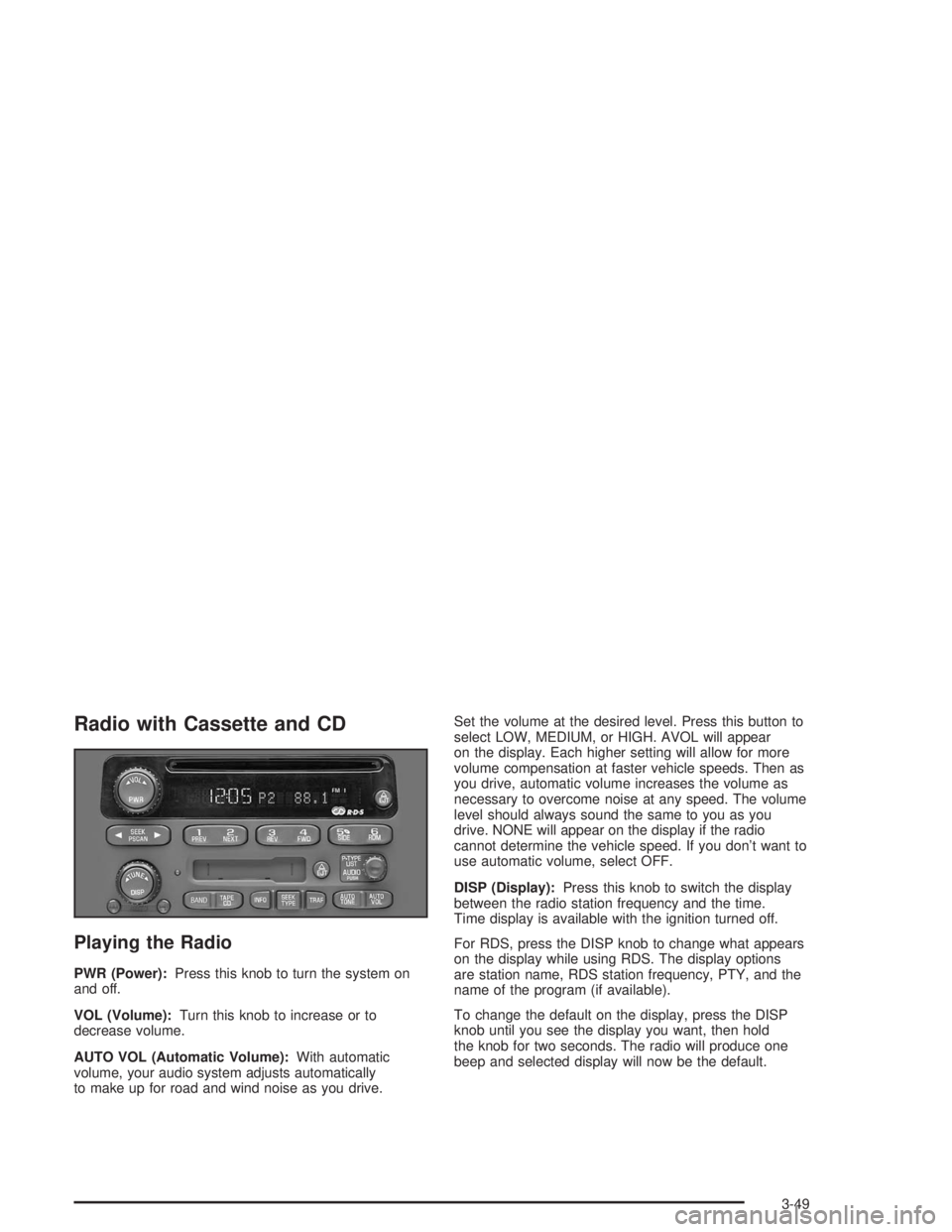
Radio with Cassette and CD
Playing the Radio
PWR (Power):Press this knob to turn the system on
and off.
VOL (Volume):Turn this knob to increase or to
decrease volume.
AUTO VOL (Automatic Volume):With automatic
volume, your audio system adjusts automatically
to make up for road and wind noise as you drive.Set the volume at the desired level. Press this button to
select LOW, MEDIUM, or HIGH. AVOL will appear
on the display. Each higher setting will allow for more
volume compensation at faster vehicle speeds. Then as
you drive, automatic volume increases the volume as
necessary to overcome noise at any speed. The volume
level should always sound the same to you as you
drive. NONE will appear on the display if the radio
cannot determine the vehicle speed. If you don’t want to
use automatic volume, select OFF.
DISP (Display):Press this knob to switch the display
between the radio station frequency and the time.
Time display is available with the ignition turned off.
For RDS, press the DISP knob to change what appears
on the display while using RDS. The display options
are station name, RDS station frequency, PTY, and the
name of the program (if available).
To change the default on the display, press the DISP
knob until you see the display you want, then hold
the knob for two seconds. The radio will produce one
beep and selected display will now be the default.
3-49
Page 155 of 412
Setting the Tone (Bass/Treble)
AUDIO:Push and release the AUDIO knob until BASS
or TREB appears on the display. Turn the knob to
increase or to decrease. The display will show the bass
or the treble level. If a station is weak or noisy, you
may want to decrease the treble.
To adjust bass and treble to the middle position, push
and hold the AUDIO knob. The radio will produce
one beep and adjust the display level to the middle
position.
To adjust all tone and speaker controls to the middle
position, push and hold the AUDIO knob when no tone
or speaker control is displayed. ALL will appear on
the display and you will hear a beep with the level
display in the middle position.
AUTO TONE (Automatic Tone):Press this button to
select customized equalization settings designed
for country/western, jazz, talk, pop, rock, and classical.
To return the bass and treble to the manual mode,
push and release the AUDIO knob until MANUAL
is displayed.
Adjusting the Speakers (Balance/Fade)
AUDIO:To adjust the balance between the right
and the left speakers, push and release the AUDIO
knob until BAL appears on the display. Turn the knob to
move the sound toward the right or the left speakers.
To adjust the fade between the front and the rear
speakers, push and release the AUDIO knob until FADE
appears on the display. Turn the knob to move the
sound toward the front or the rear speakers.
To adjust the balance and fade to the middle position,
push the AUDIO knob then push it again and hold it until
you hear one beep. The balance and the fade will be
adjusted to the middle position.
To adjust all tone and speaker controls to the middle
position, push and hold the AUDIO knob when no tone
or speaker control is displayed. ALL will appear on
the display and you will hear a beep with the level
display in the middle position.
3-51
Page 156 of 412
Radio Data System (RDS)
Your audio system is equipped with a Radio Data
System (RDS). RDS features are available for use only
on FM stations that broadcast RDS information.
With RDS, your radio can do the following:
•Seek to stations broadcasting the selected type of
programming
•Receive announcements concerning local and
national emergencies
•Display messages from radio stations
•Seek to stations with traffic announcements
This system relies upon receiving specific information
from these stations and will only work when the
information is available. In rare cases, a radio station
may broadcast incorrect information that will cause
the radio features to work improperly. If this happens,
contact the radio station.
While you are tuned to an RDS station, the station
name or the call letters will appear on the display instead
of the frequency. RDS stations may also provide the
time of day, a program type (PTY) for current
programming, and the name of the program being
broadcast.
Finding a Program Type (PTY) Station
To select and find a desired PTY perform the
following:
1. Press the P-TYPE LIST knob to activate program
type select mode. TYPE and a PTY will appear on
the display.
2. Turn the P-TYPE LIST knob to select a PTY.
3. Once the desired PTY is displayed, press the SEEK
TYPE button to take you to the PTY’s first station.
4. If you want to go to another station within that PTY
and the PTY is displayed, press the SEEK TYPE
button once. If the PTY is not displayed, press
the SEEK TYPE button twice to display the PTY and
then to go to another station.
5. Press P-TYPE LIST to exit program type
select mode.
If PTY times out and is no longer on the display, go
back to Step 1.
If both PTY and TRAF are on, the radio will search for
stations with the selected PTY and traffic
announcements.
3-52
Page 158 of 412
TRAF (Traffic):If TRAF appears on the display, the
tuned station broadcasts traffic announcements
and when a traffic announcement comes on the tuned
radio station you will hear it.
If the current tuned station does not broadcast traffic
announcements, press the TRAF button and the
radio will seek to a station that does. When the radio
finds a station that broadcasts traffic announcements,
the radio will stop and TRAF will be displayed. When a
traffic announcement comes on the tuned radio
station you will hear it. If no station is found, NO TRAF
will appear on the display.
If TRAF is on the display you can press the TRAF
button to turn off the traffic announcements.
Your radio will play the traffic announcement even if the
volume is muted or interrupt the play of a cassette
tape or CD if the last tuned station broadcasts traffic
announcements.
Radio Messages
CAL ERR (Calibration Error):Your audio system has
been calibrated for your vehicle from the factory. If
CAL ERR appears on the display it means that your
radio has not been configured properly for your vehicle
and must be returned to the dealer for service.LOCKED:This message is displayed when the
THEFTLOCK
®system has locked up. You must return
to the dealer for service.
If any error occurs repeatedly or if an error cannot be
corrected, contact your dealer.
Playing a Cassette Tape
Your tape player is built to work best with tapes that are
up to 30 to 45 minutes long on each side. Tapes
longer than that are so thin they may not work well in
this player. The longer side with the tape visible should
face to the right. If the ignition is on, but the radio is
off, the tape can be inserted and will begin playing. A
tape symbol is shown on the display whenever a tape is
inserted. If you hear nothing or hear a garbled sound,
the tape may not be in squarely. Press EJT to remove
the tape and start over.
While the tape is playing, use the VOL, AUDIO, and
SEEK controls just as you do for the radio. The display
will show TAPE and an arrow showing which side of
the tape is playing.
If you want to insert a tape while the ignition is off, first
press the EJT button or the DISP knob.
If an error appears on the display, see “Cassette Tape
Messages” later in this section.
3-54
Page 161 of 412
Playing a CD
Insert a CD partway into the slot, label side up. The
player will pull it in and the CD should begin playing. The
CD symbol will appear on the display. If you want to
insert a CD with the ignition off, first press the EJT
button or the DISP knob.
If you turn off the ignition or radio with a CD in the
player, it will stay in the player. When you turn on the
ignition or the radio, the CD will start playing, if it was the
last selected audio source.
As each new track starts to play, the track number will
appear on the display.
The CD player can play the smaller 8cm single CDs
with an adapter ring. Full-size CDs and the smaller CDs
are loaded in the same manner.
If playing a CD-R the sound quality may be reduced
due to CD-R quality, the method of recording, the quality
of the music that has been recorded, and the way the
CD-R has been handled. You may experience an
increase in skipping, difficulty in finding tracks and/or
difficulty in loading and ejecting. If these problems occur
try a known good CD.
Do not add paper labels to CDs, they could get caught
in the CD player.
Do not play 3 inch CDs without a standard adapter CD.
If an error appears on the display, see “CD Messages”
later in this section.1 PREV (Previous):Press this pushbutton to go to the
beginning of the current track if it has been playing
for more than eight seconds. TRACK and the track
number will appear on the display. If you hold this
pushbutton or press it more than once, the player will
continue moving backward through the CD.
2 NEXT:Press this pushbutton to go to the next track.
TRACK and the track number will appear on the
display. If you hold this pushbutton or press it more than
once, the player will continue moving forward through
the CD.
3 REV (Reverse):Press and hold this pushbutton to
reverse quickly within a track. Press and hold this
pushbutton for less than two seconds to reverse at six
times the normal playing speed. Press and hold it
for more than two seconds to reverse at 17 times the
normal playing speed. Release it to play the passage.
The display will show ET and the elapsed time of
the track.
4 FWD (Forward):Press and hold this pushbutton to
advance quickly within a track. Press and hold this
pushbutton for less than two seconds to advance at six
times the normal playing speed. Press and hold it for
more than two seconds to advance at 17 times the
normal playing speed. Release it to play the passage.
The display will show ET and the elapsed time of
the track.
3-57
Page 163 of 412
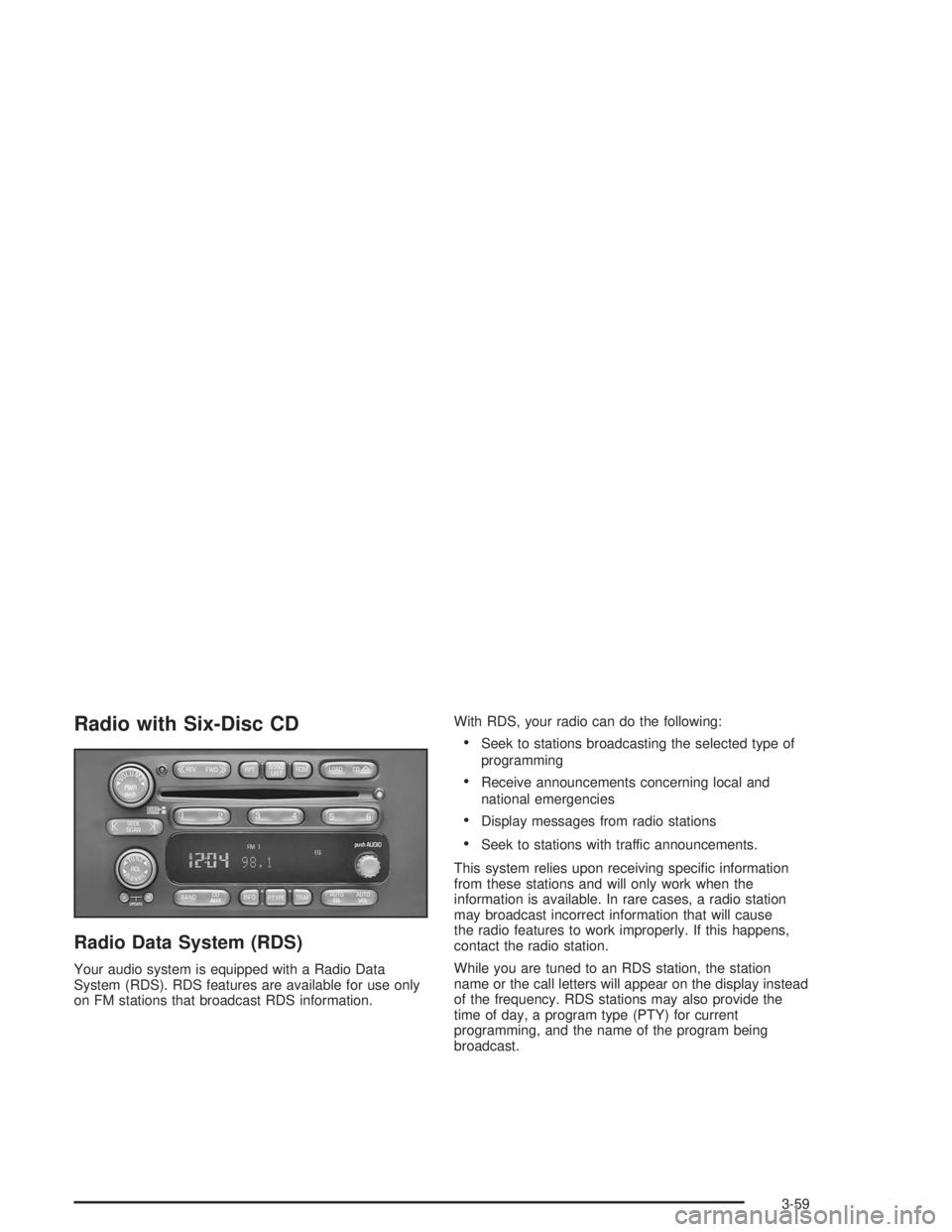
Radio with Six-Disc CD
Radio Data System (RDS)
Your audio system is equipped with a Radio Data
System (RDS). RDS features are available for use only
on FM stations that broadcast RDS information.With RDS, your radio can do the following:
•Seek to stations broadcasting the selected type of
programming
•Receive announcements concerning local and
national emergencies
•Display messages from radio stations
•Seek to stations with traffic announcements.
This system relies upon receiving specific information
from these stations and will only work when the
information is available. In rare cases, a radio station
may broadcast incorrect information that will cause
the radio features to work improperly. If this happens,
contact the radio station.
While you are tuned to an RDS station, the station
name or the call letters will appear on the display instead
of the frequency. RDS stations may also provide the
time of day, a program type (PTY) for current
programming, and the name of the program being
broadcast.
3-59