change time GMC TERRAIN 2011 User Guide
[x] Cancel search | Manufacturer: GMC, Model Year: 2011, Model line: TERRAIN, Model: GMC TERRAIN 2011Pages: 426, PDF Size: 5.58 MB
Page 174 of 426

Black plate (16,1)GMC Terrain Owner Manual - 2011
7-16 Infotainment System
Storing an XM Channel as a
Favorite
Channels from all bands can be
stored in any order in the favorite
pages.
Up to six channels can be stored in
each favorite page and the number
of available favorite pages can
be set.
Storing a Channel as a Favorite
To store the channel to a position
in the list, press and hold the
corresponding 1 to 6 button until the
channel can be heard again.
Retrieving Channels
Press the FAV button to open a
favorite page or to change to
another favorite page. Briefly press
one of the 1 to 6 buttons to retrieve
the channel.
Time Shifting (Radio with CD/
DVD and MEM)
The radio with MEM time shift
feature can rewind 20 minutes of
XM content. While listening to the
radio, the content from the current
channel is always being buffered.
Press
kto pause the radio. The
radio displays the time shift status
bar. The status bar shows the
amount of content stored in the
buffer and the current pause point.
To resume playback from the
current pause point, press
kagain.
The radio is no longer live, but
played from the time shift buffer.
A status bar displays below the
channel number.
Press and hold
gSEEK or
lSEEK to fast forward or rewind
through the time shift buffer. Hold
lSEEK until the end of the
recorded buffer resumes live
playback. Press and release
gSEEK or
lSEEK to go to the next or
previous song in the time shift
buffer.
When the channel is changed, the
buffer is cleared and automatically
restarted for the current channel.
Content from a previously tuned
station is no longer available.
The time shift feature is not
available while recording or with
other sources of playback.
Pausing XM with the Vehicle
Turned Off
If XM is paused when the vehicle is
turned off, the radio continues to
buffer the current radio station for
up to 20 minutes. If the vehicle is
turned back on within 20 minutes,
the radio resumes playback from the
paused point.
Page 181 of 426

Black plate (23,1)GMC Terrain Owner Manual - 2011
Infotainment System 7-23
Searching for MP3s on a CD
or DVD
It is normal for the search feature
to take some time to display the
information after reading the disc
due to the amount of information
stored on the disc. The infotainment
system automatically switches to
FM while the disc is being read.
Files that do not have any meta
data stored in the ID3 tag display as
Unknown.
Tracks can be searched for by:
.Playlists
.Artists
.Albums
.Song Titles
.Genres
The number of objects in each
category is shown in parentheses
after the category. To search for tracks:
1. Press the MENU/SEL knob.
2. Select Search.
3. Select: Playlists, Artists, Albums,
Song Titles, or Genres.
4. Select the track. The search rate increases if the menu MENU/
SEL knob is continuously turned
while searching in a list.
Playing MP3 Tracks in Random
Order
Press the MENU/SEL knob and
then set Shuffle Songs to On.
Recording an Audio or MP3
CD to MEM
See Mass Storage Media (MEM) on
page 7‑24 for more information.
Playing a DVD‐V
SeeRear Seat Entertainment (RSE)
System on page 7‑33 for information
about how to control a Video DVD
using the wireless remote control. Selecting a Chapter
Using the control buttons:
.PressgSEEK orlSEEK to
select the previous or next track.
.Turn the MENU/SEL knob.
Using DVD Menu:
1. Press the MENU/SEL knob.
2. Select Chapter List.
3. Select the chapter.
Selecting a Title
1. Press the MENU/SEL knob.
2. Select Title List.
3. Select the title.
Changing the Audio Stream
1. Press the MENU/SEL knob.
2. Select Audio Stream.
3. Select Change Audio Stream.
4. Press MENU/SEL to change the selection.
5. Select Cancel to exit the menu.
Page 193 of 426
Black plate (35,1)GMC Terrain Owner Manual - 2011
Infotainment System 7-35
to the A/V jacks. The headphones
are used to listen to various
multi‐media. The wireless
headphones have an On/Off button,
channel 1/2 switch, and a volume
control. Turn the headphones off
when not in use.
Push the On/Off button to turn on
the headphones. A light on the
headphones comes on. If the light
does not come on, check the
batteries. Intermittent sound or static
can also indicate weak batteries.
See“Battery Replacement” later in
this section for more information.
Infrared transmitters are on the
top of the left seatback video
screen. The headphones shut off
automatically to save the battery
power if the RSE system is shut off
or if the headphones are out of
range of the transmitters for more
than three minutes. Moving too
far forward or stepping out of the
vehicle can cause the headphones
to lose the signal or have static. To adjust the volume on the
headphones, use the volume
control.
For optimal audio performance, the
headphones must be worn correctly.
Headphones should be worn with
the headband over the top of the
head for best audio reception. The
symbol L (Left) appears on the
outside bottom edge of the ear cup
and should be positioned on the left
ear. The symbol R (Right) appears
on the outside bottom edge of the
ear cup and should be positioned on
the right ear.
Notice:
Do not store the
headphones in heat or direct
sunlight. This could damage the
headphones and repairs will
not be covered by the warranty.
Storage in extreme cold can
weaken the batteries. Keep the
headphones stored in a cool, dry
place. If the foam ear pads attached to
the headphones become worn or
damaged, the pads can be replaced
separately from the headphone set.
To purchase replacement ear pads,
call 1‐888‐293‐3332, then prompt
zero (0), or contact your dealer.
Battery Replacement
To change the batteries:
1. Loosen the screw to the battery
door located on the left side of
the headphones.
2. Slide the battery door open.
3. Replace the two AAA batteries.
4. Replace the battery door and tighten the screw.
Remove the batteries if the
headphones are not going to be
used for a long period of time.
Page 194 of 426
Black plate (36,1)GMC Terrain Owner Manual - 2011
7-36 Infotainment System
Audio/Video (A/V) Jacks
If available, the A/V jacks are
located on the rear of the floor
console. They allow audio or
video cables to be connected
from an auxiliary device such as a
camcorder or a video game system.
The A/V jacks are color coded:
.Yellow for video input.
.White for left audio input.
.Red for right audio input.
Power for auxiliary devices is not
supplied by the radio system.
To use the auxiliary inputs of the
RSE system:
1. Connect the auxiliary device cables to the A/V jacks.
2. Power on both the auxiliary device and the RSE video
screen. Changing the Source on the Video
Display Screens
The image from the auxiliary device
can be switched between the video
display screens.
To change the display:
1. Press the AUX button on the
remote control to change the
source of both video screens
from the DVD player to the
auxiliary device.
2. Press the AUX button a second time to change the left video
screen source to the DVD player
and the right video screen to the
auxiliary device.
3. Press the AUX button a third time to change the left video
screen source to the auxiliary
device and the right video
screen to the DVD player. 4. Press the AUX button a fourth
time to change the source of
both video screens to the DVD
player.
Changing the RSE Video Screen
Settings
The screen display mode,
brightness, and language can be
changed from the setup menu using
the remote control. To change a
setting:
1. Pressz.
2. Use
n,q,p,o, andrto
select the settings.
3. Press
zagain to exit the
setup menu.
Page 198 of 426
Black plate (40,1)GMC Terrain Owner Manual - 2011
7-40 Infotainment System
The AUX button also controls the
source display between the left and
right video screens as described in
the table below:Aux
Button
Press Left
Screen Right
Screen
Default
State (No
Press) DVD
Media DVD
Media
First
Press Aux Video
Source Aux Video
Source
Second Press DVD
Media Aux Video
Source
Third
Press Aux Video
Source DVD
Media
Fourth Press Return to
DefaultState Return to
DefaultState2(Camera): Press to change the
camera angle on DVDs that have
this feature when the DVD is
playing.
\(Clear) (If Available): Press this
button within three seconds after
inputting a numeric selection, to
clear all numeric inputs.
}10 (Double Digit Entries)
(If Available): Press this button to
select chapter or track numbers
greater than 9. Press this button
before inputting the number.
1 through 0 (Numeric Keypad):
The numbered keypad provides the
capability of direct chapter or track
number selection. Replacing the Remote Control
If the remote control becomes lost
or damaged, a new universal
remote control can be purchased.
Use a Toshiba
®code set for
replacement universal remote
controls.
Battery Replacement
To change the remote control
batteries:
1. Slide back the rear cover on the remote control.
2. Replace the two batteries in the compartment.
3. Replace the battery cover.
Remove the batteries from the
remote control if unused for an
extended period of time.
Page 204 of 426
Black plate (46,1)GMC Terrain Owner Manual - 2011
7-46 Infotainment System
$/i(Mute/End Call):Press to
end a call, reject a call, or to cancel
an operation.
Infotainment System Controls
For information about how to
navigate the menu system using the
infotainment controls, see Operation
on page 7‑7.
5/>(Phone): Press to enter the
Phone main menu.
Voice Recognition
The voice recognition system uses
commands to control the system
and dial phone numbers.
Noise: The system may not
recognize voice commands if there
is too much background noise.
When to Speak: A tone sounds to
indicate that the system is ready for
a voice command. Wait for the tone
and then speak.
How to Speak: Speak clearly in a
calm and natural voice.
Audio System
When using the Bluetooth system,
sound comes through the vehicle's
front audio system speakers and
overrides the audio system. Use
the VOL/
Oknob during a call to
change the volume level. The
adjusted volume level remains in
memory for later calls. The system
maintains a minimum volume level.
Other Information
The Bluetooth®word mark and
logos are owned by the Bluetooth®
SIG, Inc. and any use of such marks
by General Motors is under license.
Other trademarks and trade names
are those of their respective owners.
See Radio Frequency Statement on
page 13‑18 for FCC information
for Federal Communications
Commission and Industry Canada
information.
Bluetooth (Infotainment
Controls)
For information about how to
navigate the menu system using the
infotainment controls, see Operation
on page 7‑7.
Pairing
A Bluetooth‐enabled cell phone
must be paired to the Bluetooth
system first and then connected to
the vehicle before it can be used.
See the cell phone manufacturer
user guide for Bluetooth functions
before pairing the cell phone. If a
Bluetooth phone is not connected,
calls will be made using OnStar
®
Hands‐Free Calling, if available.
Refer to the OnStar Owner's Guide
for more information.
A Bluetooth phone with MP3
capability can not be connected to
the vehicle as a phone and an MP3
player at the same time.
Page 205 of 426
Black plate (47,1)GMC Terrain Owner Manual - 2011
Infotainment System 7-47
The pairing process can be started
by using the voice recognition
system or the controls on the
infotainment system.
Pairing Information:
.Up to five cell phones can be
paired to the Bluetooth system.
.The pairing process is disabled
when the vehicle is moving.
.The Bluetooth system links with
the first available paired cell
phone in the order the phone
was paired.
.Only one paired cell phone can
be connected to the Bluetooth
system at a time.
.Pairing should only need to be
completed once, unless changes
to the pairing information have
been made or the phone is
deleted.
To link to a different paired phone,
see “Linking to a Different Phone”
later in this section. Pairing a Phone
1. Press the CONFIG button.
2. Select Phone Settings.
3. Select Bluetooth.
4. Select Pair Device (Phone).
A four‐digit Personal
Identification Number (PIN)
appears on the display.
5. Start the pairing process on the cell phone that will be paired to
the vehicle. Reference the cell
phone manufacturers user guide
for information on this process.
Locate the device named “Your
Vehicle” in the list on the cell
phone and follow the instructions
on the cell phone to enter the
PIN provided by the system.
6. The system prompts for a name for the phone and confirms the
name provided. This name is
used to indicate which phone is
connected. 7. The system responds with
“
successfully paired” after the
pairing process is complete.
8. Repeat Steps 1 through 7 to pair additional phones.
Listing All Paired and Connected
Phones
1. Press the CONFIG button.
2. Select Phone Settings.
3. Select Bluetooth.
4. Select Device List.
Deleting a Paired Phone
1. Press the CONFIG button.
2. Select Phone Settings.
3. Select Bluetooth.
4. Select Device List.
5. Select the phone to delete and follow the on screen prompts.
Page 209 of 426
Black plate (51,1)GMC Terrain Owner Manual - 2011
Infotainment System 7-51
Bluetooth (Voice
Recognition)
Pairing
A Bluetooth cell phone must be
paired to the Bluetooth system and
then connected to the vehicle before
it can be used. See the cell phone
manufacturer's user guide for
Bluetooth functions before pairing
the cell phone. If a Bluetooth phone
is not connected, calls will be made
using OnStar
®Hands‐Free Calling,
if available. Refer to the OnStar
owner's guide for more information.
The pairing process can be started
by using the voice recognition
system or the controls on the
infotainment system.
Pairing Information:
.Up to five cell phones can be
paired to the Bluetooth system.
.The pairing process is disabled
when the vehicle is moving.
.The Bluetooth system links with
the first available paired cell
phone in the order the phone
was paired.
.Only one paired cell phone can
be connected to the Bluetooth
system at a time.
.Pairing only needs to be
completed once, unless the
pairing information changes or
the phone is deleted.
To link to a different paired phone,
see “Linking to a Different Phone”
later in this section.
Pairing a Phone
1. Press
b/g.
.For vehicles without a
navigation system, the
system responds “Ready,”
followed by a tone.
.For vehicles with a
navigation system, the
system responds with a
tone. After the tone say “Hands Free.”
The system
responds “Ready,”followed
by a tone.
2. Say “Bluetooth.” The system
responds “Bluetooth ready,”
followed by a tone.
3. Say “Pair.”The system responds
with instructions and a four‐digit
Personal Identification Number
(PIN). The PIN will be used in
Step 4.
4. Start the pairing process on the cell phone that will be paired to
the vehicle. Reference the cell
phone manufacturer's user guide
for information on this process.
Locate the device named “Your
Vehicle” in the list on the cell
phone and follow the instructions
on the cell phone to enter the
four‐digit PIN number that was
provided in Step 3.
Page 233 of 426

Black plate (7,1)GMC Terrain Owner Manual - 2011
Driving and Operating 9-7
While driving on a surface with
reduced traction, try to avoid
sudden steering, acceleration,
or braking, including reducing
vehicle speed by shifting to a lower
gear. Any sudden changes could
cause the tires to slide. You might
not realize the surface is slippery
until the vehicle is skidding. Learn to
recognize warning clues—such as
enough water, ice, or packed snow
on the road to make a mirrored
surface —and slow down when you
have any doubt.
Remember: Antilock brakes help
avoid only the braking skid.
Off-Road Driving
Vehicles with all‐wheel drive can be
used for off‐road driving. Vehicles
without all‐wheel drive should not be
driven off-road except on a level,
solid surface. Many of the vehicle design features
that help make the vehicle more
responsive on paved roads during
poor weather conditions also help
make it better suited for off‐road
use than conventional passenger
vehicles. The vehicle does not
have features usually thought to be
necessary for extended or severe
off‐road use such as special
underbody shielding and transfer
case low gear range.
The airbag system is designed to
work properly under a wide range of
conditions, including off‐road usage.
Always wear your safety belt and
observe safe driving speeds,
especially on rough terrain.
Drinking and driving can be very
dangerous on any road and this is
certainly true for off-road driving.
At the very time you need special
alertness and driving skills, your
reflexes, perceptions, and judgment
can be affected by even a smallamount of alcohol. You could have a
serious
—or even fatal —accident
if you drink and drive or ride with a
driver who has been drinking.
Off-roading can be great fun but has
some definite hazards. The greatest
of these is the terrain itself. When
off-road driving, traffic lanes are not
marked, curves are not banked, and
there are no road signs. Surfaces
can be slippery, rough, uphill,
or downhill.
Avoid sharp turns and abrupt
maneuvers. Failure to operate the
vehicle correctly off‐road could
result in loss of vehicle control or
vehicle rollover.
Off-roading involves some new
skills. That is why it is very
important that you read these
driving tips and suggestions to help
make off-road driving safer and
more enjoyable.
Page 264 of 426
Black plate (38,1)GMC Terrain Owner Manual - 2011
9-38 Driving and Operating
As the brakes are applied, the
computer keeps receiving updates
on wheel speed and controls
braking pressure accordingly.
Remember: ABS does not change
the time needed to get a foot up to
the brake pedal or always decrease
stopping distance. If you get too
close to the vehicle in front of you,
there will not be enough time to
apply the brakes if that vehicle
suddenly slows or stops. Always
leave enough room up ahead to
stop, even with ABS.
Using ABS
Do not pump the brakes. Just hold
the brake pedal down firmly and let
ABS work. You might hear the ABS
pump or motor operating and feel
the brake pedal pulsate, but this is
normal.
Braking in Emergencies
ABS allows the driver to steer and
brake at the same time. In many
emergencies, steering can help
more than even the very best
braking.
Parking Brake
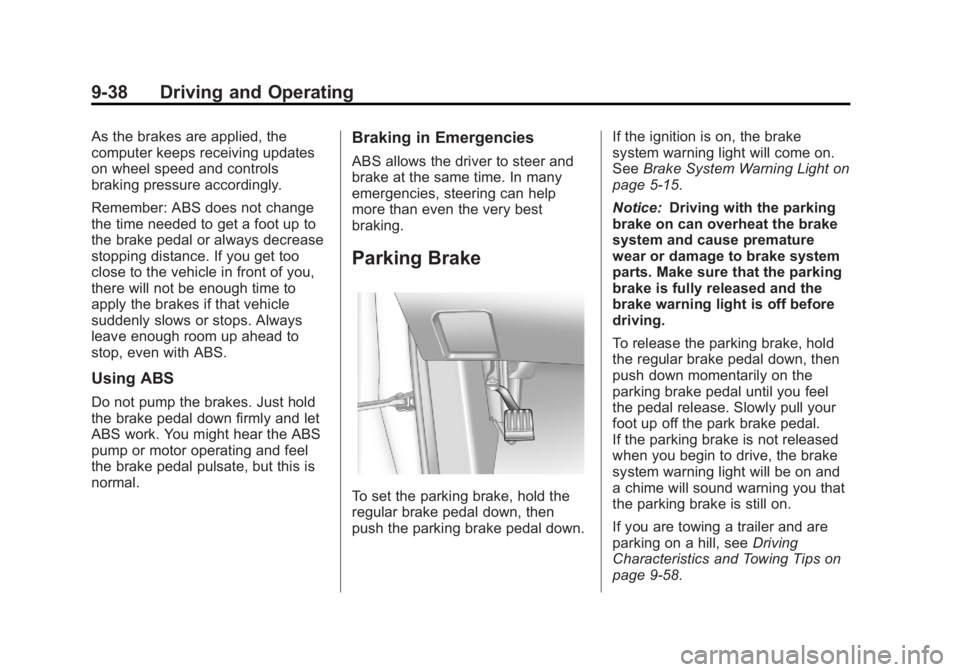
To set the parking brake, hold the
regular brake pedal down, then
push the parking brake pedal down.If the ignition is on, the brake
system warning light will come on.
See
Brake System Warning Light on
page 5‑15.
Notice: Driving with the parking
brake on can overheat the brake
system and cause premature
wear or damage to brake system
parts. Make sure that the parking
brake is fully released and the
brake warning light is off before
driving.
To release the parking brake, hold
the regular brake pedal down, then
push down momentarily on the
parking brake pedal until you feel
the pedal release. Slowly pull your
foot up off the park brake pedal.
If the parking brake is not released
when you begin to drive, the brake
system warning light will be on and
a chime will sound warning you that
the parking brake is still on.
If you are towing a trailer and are
parking on a hill, see Driving
Characteristics and Towing Tips on
page 9‑58.