radio controls GMC TERRAIN 2011 User Guide
[x] Cancel search | Manufacturer: GMC, Model Year: 2011, Model line: TERRAIN, Model: GMC TERRAIN 2011Pages: 426, PDF Size: 5.58 MB
Page 186 of 426
Black plate (28,1)GMC Terrain Owner Manual - 2011
7-28 Infotainment System
Auxiliary Devices
(Radio with CD)
The auxiliary input allows portable
devices to be connected using the
3.5 mm (1/8 in) input jack or the
optional USB port.
Portable devices are controlled by
using the menu system described in
Operation on page 7‑7.
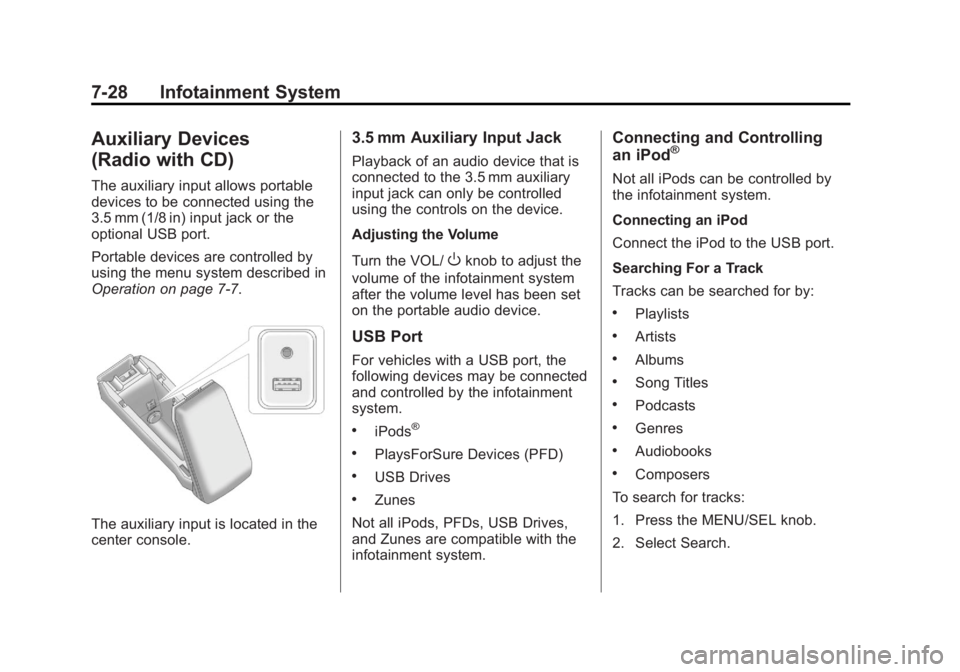
The auxiliary input is located in the
center console.
3.5 mm Auxiliary Input Jack
Playback of an audio device that is
connected to the 3.5 mm auxiliary
input jack can only be controlled
using the controls on the device.
Adjusting the Volume
Turn the VOL/
Oknob to adjust the
volume of the infotainment system
after the volume level has been set
on the portable audio device.
USB Port
For vehicles with a USB port, the
following devices may be connected
and controlled by the infotainment
system.
.iPods®
.PlaysForSure Devices (PFD)
.USB Drives
.Zunes
Not all iPods, PFDs, USB Drives,
and Zunes are compatible with the
infotainment system.
Connecting and Controlling
an iPod®
Not all iPods can be controlled by
the infotainment system.
Connecting an iPod
Connect the iPod to the USB port.
Searching For a Track
Tracks can be searched for by:
.Playlists
.Artists
.Albums
.Song Titles
.Podcasts
.Genres
.Audiobooks
.Composers
To search for tracks:
1. Press the MENU/SEL knob.
2. Select Search.
Page 189 of 426
Black plate (31,1)GMC Terrain Owner Manual - 2011
Infotainment System 7-31
Auxiliary Devices (Radio
with CD/DVD/MEM)
The auxiliary input allows portable
devices to be connected using the
3.5 mm (1/8 in) input jack or the
optional USB port.
Portable devices are controlled by
using the menu system described in
Operation on page 7‑7.
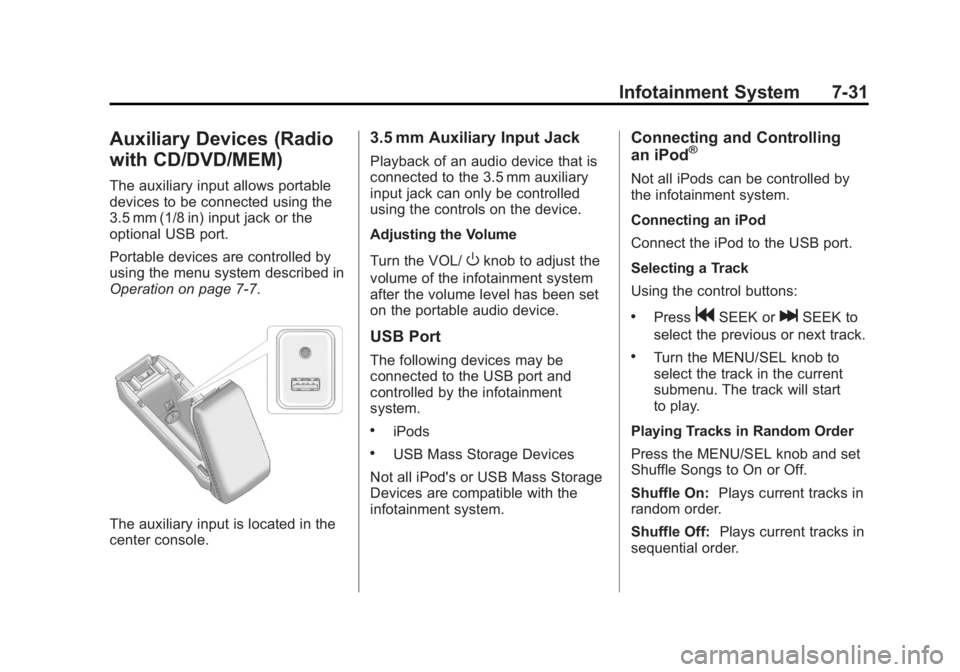
The auxiliary input is located in the
center console.
3.5 mm Auxiliary Input Jack
Playback of an audio device that is
connected to the 3.5 mm auxiliary
input jack can only be controlled
using the controls on the device.
Adjusting the Volume
Turn the VOL/
Oknob to adjust the
volume of the infotainment system
after the volume level has been set
on the portable audio device.
USB Port
The following devices may be
connected to the USB port and
controlled by the infotainment
system.
.iPods
.USB Mass Storage Devices
Not all iPod's or USB Mass Storage
Devices are compatible with the
infotainment system.
Connecting and Controlling
an iPod®
Not all iPods can be controlled by
the infotainment system.
Connecting an iPod
Connect the iPod to the USB port.
Selecting a Track
Using the control buttons:
.PressgSEEK orlSEEK to
select the previous or next track.
.Turn the MENU/SEL knob to
select the track in the current
submenu. The track will start
to play.
Playing Tracks in Random Order
Press the MENU/SEL knob and set
Shuffle Songs to On or Off.
Shuffle On: Plays current tracks in
random order.
Shuffle Off: Plays current tracks in
sequential order.
Page 201 of 426
Black plate (43,1)GMC Terrain Owner Manual - 2011
Infotainment System 7-43
DVD Distortion
Video distortion can occur when
operating cellular phones, scanners,
CB radios, Global Position Systems
(GPS)*, two-way radios, mobile fax,
or walkie talkies.
It might be necessary to turn off the
DVD player when operating one of
these devices in or near the vehicle.
*Excludes the OnStar
®System.
Cleaning the RSE Seatback
Console
Use only a clean cloth dampened
with clean water to clean the RSE
seatback console surface.
Cleaning the Video Screen
Use only a clean cloth dampened
with clean water. Use care when
touching or cleaning the screen as
damage could result.
Rear Seat Audio (RSA)
System
Vehicles with this feature allow the
rear seat passengers to listen to
and control any of the music
sources: radio, CDs, DVDs, or
other auxiliary sources. RSA can
only control music sources that
the front seat passengers are not
listening to, except on radios where
dual control is allowed.
RSA can function when the front
radio is off.
Xdisplays on the
infotainment system when RSA
is on.
Audio can be heard through
wired headphones (not included)
plugged into the jacks on the RSA.
If the vehicle has a Rear Seat
Entertainment system with wireless
headphones, audio can also be
heard on Channel 2 of the wireless
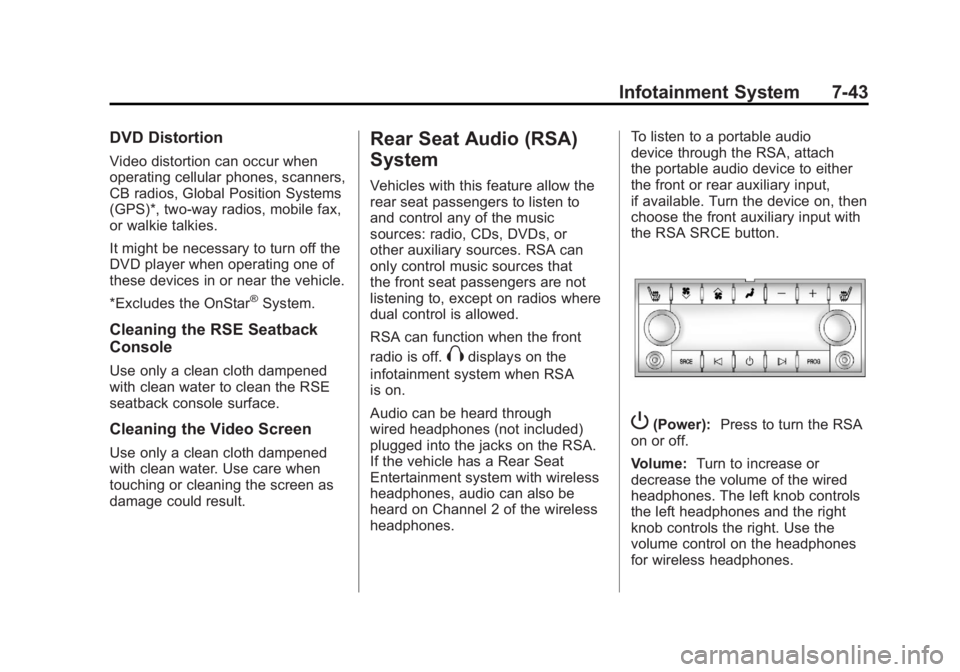
headphones. To listen to a portable audio
device through the RSA, attach
the portable audio device to either
the front or rear auxiliary input,
if available. Turn the device on, then
choose the front auxiliary input with
the RSA SRCE button.
P(Power):
Press to turn the RSA
on or off.
Volume: Turn to increase or
decrease the volume of the wired
headphones. The left knob controls
the left headphones and the right
knob controls the right. Use the
volume control on the headphones
for wireless headphones.
Page 204 of 426
Black plate (46,1)GMC Terrain Owner Manual - 2011
7-46 Infotainment System
$/i(Mute/End Call):Press to
end a call, reject a call, or to cancel
an operation.
Infotainment System Controls
For information about how to
navigate the menu system using the
infotainment controls, see Operation
on page 7‑7.
5/>(Phone): Press to enter the
Phone main menu.
Voice Recognition
The voice recognition system uses
commands to control the system
and dial phone numbers.
Noise: The system may not
recognize voice commands if there
is too much background noise.
When to Speak: A tone sounds to
indicate that the system is ready for
a voice command. Wait for the tone
and then speak.
How to Speak: Speak clearly in a
calm and natural voice.
Audio System
When using the Bluetooth system,
sound comes through the vehicle's
front audio system speakers and
overrides the audio system. Use
the VOL/
Oknob during a call to
change the volume level. The
adjusted volume level remains in
memory for later calls. The system
maintains a minimum volume level.
Other Information
The Bluetooth®word mark and
logos are owned by the Bluetooth®
SIG, Inc. and any use of such marks
by General Motors is under license.
Other trademarks and trade names
are those of their respective owners.
See Radio Frequency Statement on
page 13‑18 for FCC information
for Federal Communications
Commission and Industry Canada
information.
Bluetooth (Infotainment
Controls)
For information about how to
navigate the menu system using the
infotainment controls, see Operation
on page 7‑7.
Pairing
A Bluetooth‐enabled cell phone
must be paired to the Bluetooth
system first and then connected to
the vehicle before it can be used.
See the cell phone manufacturer
user guide for Bluetooth functions
before pairing the cell phone. If a
Bluetooth phone is not connected,
calls will be made using OnStar
®
Hands‐Free Calling, if available.
Refer to the OnStar Owner's Guide
for more information.
A Bluetooth phone with MP3
capability can not be connected to
the vehicle as a phone and an MP3
player at the same time.