turn signal GMC TERRAIN 2011 User Guide
[x] Cancel search | Manufacturer: GMC, Model Year: 2011, Model line: TERRAIN, Model: GMC TERRAIN 2011Pages: 426, PDF Size: 5.58 MB
Page 123 of 426

Black plate (5,1)GMC Terrain Owner Manual - 2011
Instruments and Controls 5-5
SeeMulti-Band Antenna on
page 7‑18 for the location of the
vehicle's antenna. The compass
system is designed to operate for a
certain number of miles or degrees
of turn before needing a signal
from the GPS satellites. When the
compass display shows CAL, drive
the vehicle for a short distance in an
open area where it can receive a
GPS signal. The compass system
will automatically determine when a
GPS signal is restored and provide
a heading again. See Compass
Messages on page 5‑24 for more
information on the messages that
may be displayed for the compass.
Clock (With Date Display)
The infotainment system controls,
located on the instrument panel, are
used to access the time and date
settings through the menu system.
See Operation on page 7‑7 for
information about how to use the
menu system.
Setting the Time and Date
1. Turn the infotainment system ON.
2. Press the CONFIG button and select Time and Date Settings.
3. Select Set Time or Set Date.
4. Turn the MENU/SEL knob to adjust the highlighted value.
5. Press the MENU/SEL knob to select the next value.
6. To save the time or date and return to the Time and
Date Settings menu, press
the
}BACK button at any time
or press the MENU/SEL knob
after adjusting the minutes
or year.
Setting the 12/24 Hour Format
1. Turn the infotainment system ON.
2. Press the CONFIG button and select Time and Date Settings.
3. Highlight 12/24 Hour Format. 4. Press the MENU/SEL knob to
select the 12 hour or 24 hour
display format.
Setting the Month and Day
Format
1. Turn the infotainment
system ON.
2. Press the CONFIG button and select Time and Date Settings.
3. Highlight Month and Day Format.
4. Press the MENU/SEL knob to select MM/DD (month/day) or
DD/MM (day/month).
Setting the Auto Time Adjust
(If Equipped)
1. Turn the infotainmentsystem ON.
2. Press the CONFIG button and select Time and Date Settings.
3. Highlight Auto Time Adjust.
4. Press the MENU/SEL knob to turn Auto Time Adjust on or off.
Page 153 of 426
Black plate (1,1)GMC Terrain Owner Manual - 2011
Lighting 6-1
Lighting
Exterior Lighting
Exterior Lamp Controls . . . . . . . . 6-1
Headlamp High/Low-BeamChanger . . . . . . . . . . . . . . . . . . . . . 6-2
Flash-to-Pass . . . . . . . . . . . . . . . . . 6-2
Daytime Running Lamps (DRL) . . . . . . . . . . . . . . . . 6-2
Automatic Headlamp System . . . . . . . . . . . . . . . . . . . . . . 6-3
Hazard Warning Flashers . . . . . 6-3
Turn and Lane-Change Signals . . . . . . . . . . . . . . . . . . . . . . 6-3
Fog Lamps . . . . . . . . . . . . . . . . . . . . 6-4
Interior Lighting
Instrument Panel Illumination Control . . . . . . . . . . . . . . . . . . . . . . 6-4
Dome Lamps . . . . . . . . . . . . . . . . . 6-4
Reading Lamps . . . . . . . . . . . . . . . 6-5
Lighting Features
Entry Lighting . . . . . . . . . . . . . . . . . 6-5
Battery Load Management . . . . 6-5
Exterior Lighting
Exterior Lamp Controls
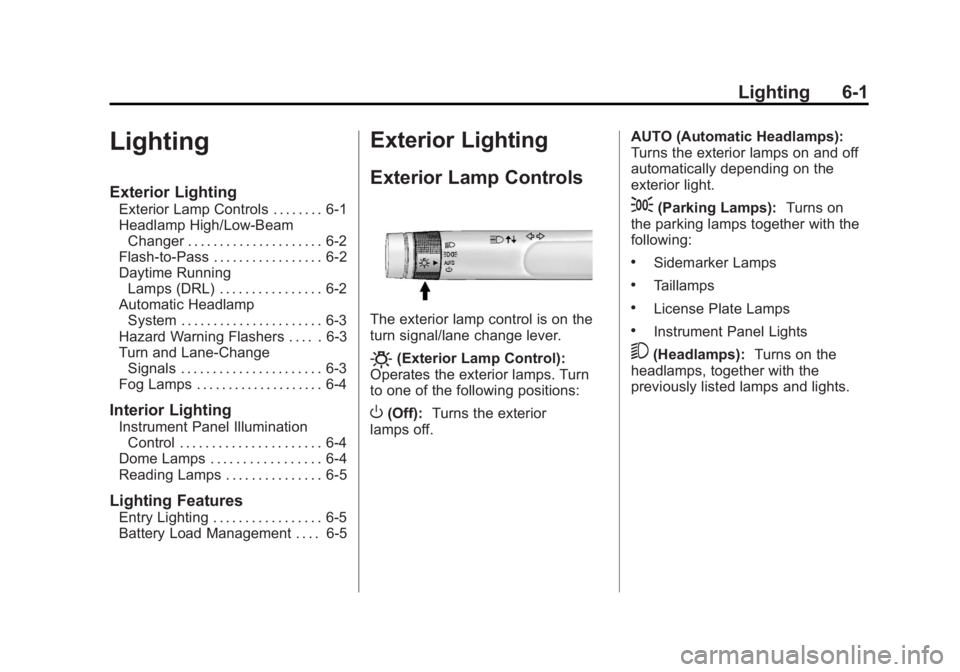
The exterior lamp control is on the
turn signal/lane change lever.
O(Exterior Lamp Control):
Operates the exterior lamps. Turn
to one of the following positions:
O(Off): Turns the exterior
lamps off. AUTO (Automatic Headlamps):
Turns the exterior lamps on and off
automatically depending on the
exterior light.
;(Parking Lamps):
Turns on
the parking lamps together with the
following:
.Sidemarker Lamps
.Taillamps
.License Plate Lamps
.Instrument Panel Lights
5(Headlamps): Turns on the
headlamps, together with the
previously listed lamps and lights.
Page 154 of 426
Black plate (2,1)GMC Terrain Owner Manual - 2011
6-2 Lighting
Headlamp High/
Low-Beam Changer
2 3
Headlamp High/Low‐Beam
Changer: Push the turn/lane
change lever away from you to turn
the high beams on.
Pull the lever toward you to return to
low beams.
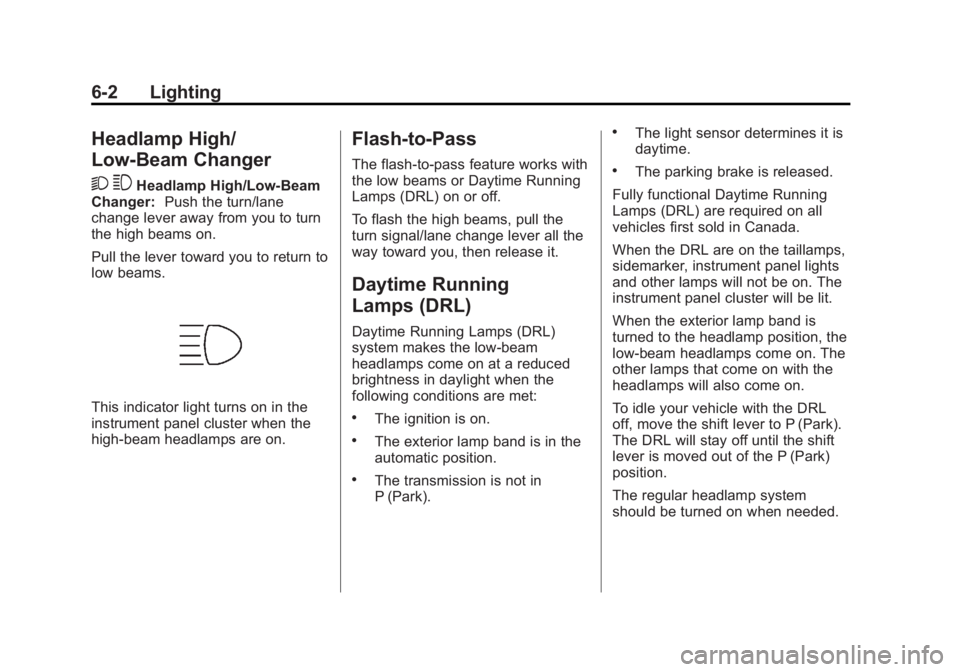
This indicator light turns on in the
instrument panel cluster when the
high‐beam headlamps are on.
Flash-to-Pass
The flash‐to‐pass feature works with
the low beams or Daytime Running
Lamps (DRL) on or off.
To flash the high beams, pull the
turn signal/lane change lever all the
way toward you, then release it.
Daytime Running
Lamps (DRL)
Daytime Running Lamps (DRL)
system makes the low-beam
headlamps come on at a reduced
brightness in daylight when the
following conditions are met:
.The ignition is on.
.The exterior lamp band is in the
automatic position.
.The transmission is not in
P (Park).
.The light sensor determines it is
daytime.
.The parking brake is released.
Fully functional Daytime Running
Lamps (DRL) are required on all
vehicles first sold in Canada.
When the DRL are on the taillamps,
sidemarker, instrument panel lights
and other lamps will not be on. The
instrument panel cluster will be lit.
When the exterior lamp band is
turned to the headlamp position, the
low-beam headlamps come on. The
other lamps that come on with the
headlamps will also come on.
To idle your vehicle with the DRL
off, move the shift lever to P (Park).
The DRL will stay off until the shift
lever is moved out of the P (Park)
position.
The regular headlamp system
should be turned on when needed.
Page 155 of 426

Black plate (3,1)GMC Terrain Owner Manual - 2011
Lighting 6-3
Automatic Headlamp
System
When it is dark enough outside, the
headlamps come on automatically.
Do not cover the light sensor on
top of the instrument panel or the
headlamps will come on when they
are not needed.
The system may also turn on the
headlamps when driving through a
parking garage or tunnel.
Hazard Warning Flashers
|(Hazard Warning Flasher):
Press this button, on the center of
the instrument panel, to make the
front and rear turn signal lamps
flash on and off. This warns others
that you are having trouble.
Press
|again to turn the
flashers off.
Turn and Lane-Change
Signals
An arrow on the instrument panel
cluster will flash in the direction of
the turn or lane change.
Move the lever all the way up or
down to signal a turn.
Raise or lower the lever until the
arrow starts to flash to signal a lane
change. Hold it there until the lane
change is complete.
The lever returns to its starting
position when it is released.
Page 156 of 426
Black plate (4,1)GMC Terrain Owner Manual - 2011
6-4 Lighting
If after signaling a turn or a lane
change the arrows flash rapidly or
do not come on, a signal bulb may
be burned out.
Have the bulbs replaced. If the bulb
is not burned out, check the fuse;
seeFuses on page 10‑39 for more
information.
Fog Lamps
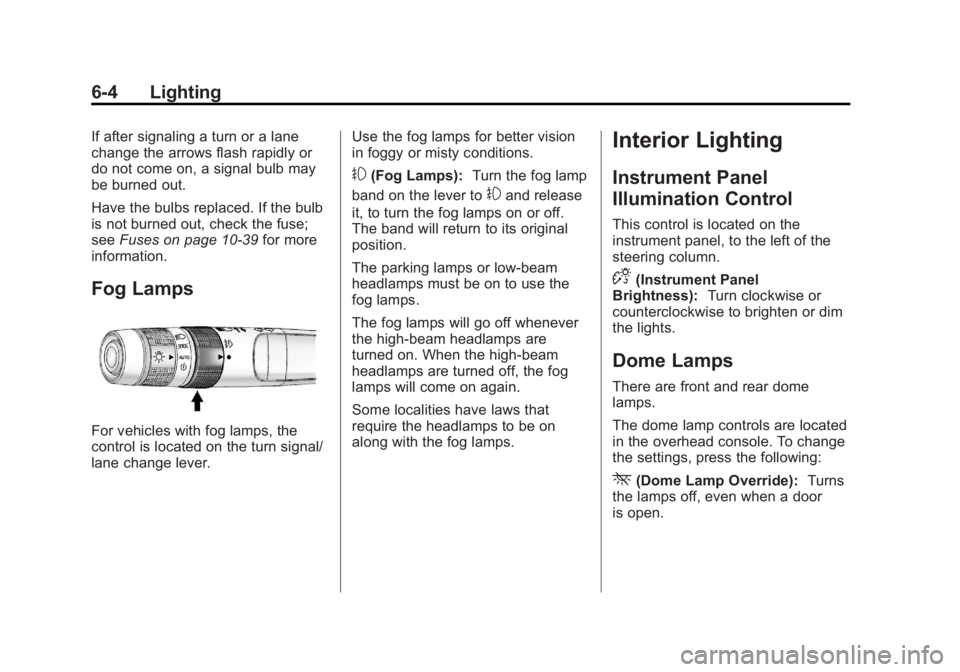
For vehicles with fog lamps, the
control is located on the turn signal/
lane change lever. Use the fog lamps for better vision
in foggy or misty conditions.
#(Fog Lamps):
Turn the fog lamp
band on the lever to
#and release
it, to turn the fog lamps on or off.
The band will return to its original
position.
The parking lamps or low‐beam
headlamps must be on to use the
fog lamps.
The fog lamps will go off whenever
the high-beam headlamps are
turned on. When the high‐beam
headlamps are turned off, the fog
lamps will come on again.
Some localities have laws that
require the headlamps to be on
along with the fog lamps.
Interior Lighting
Instrument Panel
Illumination Control
This control is located on the
instrument panel, to the left of the
steering column.
D(Instrument Panel
Brightness): Turn clockwise or
counterclockwise to brighten or dim
the lights.
Dome Lamps
There are front and rear dome
lamps.
The dome lamp controls are located
in the overhead console. To change
the settings, press the following:
*(Dome Lamp Override): Turns
the lamps off, even when a door
is open.
Page 175 of 426
Black plate (17,1)GMC Terrain Owner Manual - 2011
Infotainment System 7-17
XM Messages
XL (Explicit Language
Channels):These channels, or any
others, can be blocked by request,
by calling 1-800-929-2100 in the
U.S. and 1-877-438-9677 in
Canada.
XM Updating: The encryption code
in the receiver is being updated, no
action is required. This process
should take no longer than
30 seconds.
Loading XM: The audio system is
acquiring and processing audio and
text data; no action is needed. This
message should disappear shortly.
Channel Off Air: This channel is
not currently in service. Tune in to
another channel.
Channel Unauth: This channel is
blocked or cannot be received with
your XM Subscription package.
Channel Unavailable: This
previously assigned channel is no
longer assigned. Tune to another
station. No Artist Info:
The system is
working properly. No artist
information is available at this time
on this channel.
No Title Info: The system is
working properly. No song title
information is available at this time
on this channel.
No CAT Info: The system is
working properly. No category
information is available at this time
on this channel.
No Information: The system
is working properly. No text or
informational messages are
available at this time on this
channel.
No Subscription Please Renew:
XM subscription needs to be
reactivated. Contact XM at
www.xmradio.com or call
1-800-929-2100 in the U.S.
and www.xmradio.ca or call
1-877-438-9677 in Canada. No XM Signal:
The system is
working properly. The vehicle may
be in a location where the XM signal
is being blocked. When the vehicle
is moved into an open area, the
signal should return.
CAT Not Found: The system is
working properly. There are no
channels available for the selected
category.
XM Radio ID: If tuned to channel 0,
this message alternates with the XM
Radio 8‐digit radio ID label. This
label is needed to activate the
service.
Unknown: If this message is
received when tuned to channel 0,
there could be a receiver fault.
Consult with your dealer.
Check Antenna: If this message
does not clear within a short period
of time, the receiver could have a
fault. Consult with your dealer.
Page 193 of 426
Black plate (35,1)GMC Terrain Owner Manual - 2011
Infotainment System 7-35
to the A/V jacks. The headphones
are used to listen to various
multi‐media. The wireless
headphones have an On/Off button,
channel 1/2 switch, and a volume
control. Turn the headphones off
when not in use.
Push the On/Off button to turn on
the headphones. A light on the
headphones comes on. If the light
does not come on, check the
batteries. Intermittent sound or static
can also indicate weak batteries.
See“Battery Replacement” later in
this section for more information.
Infrared transmitters are on the
top of the left seatback video
screen. The headphones shut off
automatically to save the battery
power if the RSE system is shut off
or if the headphones are out of
range of the transmitters for more
than three minutes. Moving too
far forward or stepping out of the
vehicle can cause the headphones
to lose the signal or have static. To adjust the volume on the
headphones, use the volume
control.
For optimal audio performance, the
headphones must be worn correctly.
Headphones should be worn with
the headband over the top of the
head for best audio reception. The
symbol L (Left) appears on the
outside bottom edge of the ear cup
and should be positioned on the left
ear. The symbol R (Right) appears
on the outside bottom edge of the
ear cup and should be positioned on
the right ear.
Notice:
Do not store the
headphones in heat or direct
sunlight. This could damage the
headphones and repairs will
not be covered by the warranty.
Storage in extreme cold can
weaken the batteries. Keep the
headphones stored in a cool, dry
place. If the foam ear pads attached to
the headphones become worn or
damaged, the pads can be replaced
separately from the headphone set.
To purchase replacement ear pads,
call 1‐888‐293‐3332, then prompt
zero (0), or contact your dealer.
Battery Replacement
To change the batteries:
1. Loosen the screw to the battery
door located on the left side of
the headphones.
2. Slide the battery door open.
3. Replace the two AAA batteries.
4. Replace the battery door and tighten the screw.
Remove the batteries if the
headphones are not going to be
used for a long period of time.
Page 195 of 426

Black plate (37,1)GMC Terrain Owner Manual - 2011
Infotainment System 7-37
Audio Output
Audio from the DVD player or
auxiliary inputs can be heard
through the following:
.Wireless Headphones
.Vehicle Speakers
The RSE system transmits the
audio signal to the wireless
headphones if an audio signal is
available. See “Headphones” earlier
in this section for more information.
The front seat passengers are able
to listen to playback from the A/V
jacks through the vehicle speakers
by selecting Rear A/V as the source
on the radio.
Video Screens
The video screens are located in the
back of the driver and front
passenger seats.
To use the video screen:
1. Push the release button located on the seatback console.
2. Move the screen to the desired viewing position.
Push the video screen down into its
locked position when it is not in use.
The screen turns off automatically. Only the left RSE seatback console
contains the infrared transmitters
for the wireless headphones. They
may be visible as eight illuminated
LEDs. These LEDs are not on the
right video screen. Both seatback
consoles contain an infrared
receiver for the remote control.
They are located at the top of each
console.
Notice:
Avoid directly touching
the video screen, as damage may
occur. See “Cleaning the Video
Screen” later in this section for
more information.
Video Screen Input Jack
Each video screen is equipped
with a video input jack to allow
video cables to be connected
from an auxiliary device such as a
camcorder or a video game system.
This signal will override any video
provided by the RSE system; either
the DVD or auxiliary A/V jack
source. The RSE system must be
on for this input to operate.
Page 196 of 426
Black plate (38,1)GMC Terrain Owner Manual - 2011
7-38 Infotainment System
Remote Control
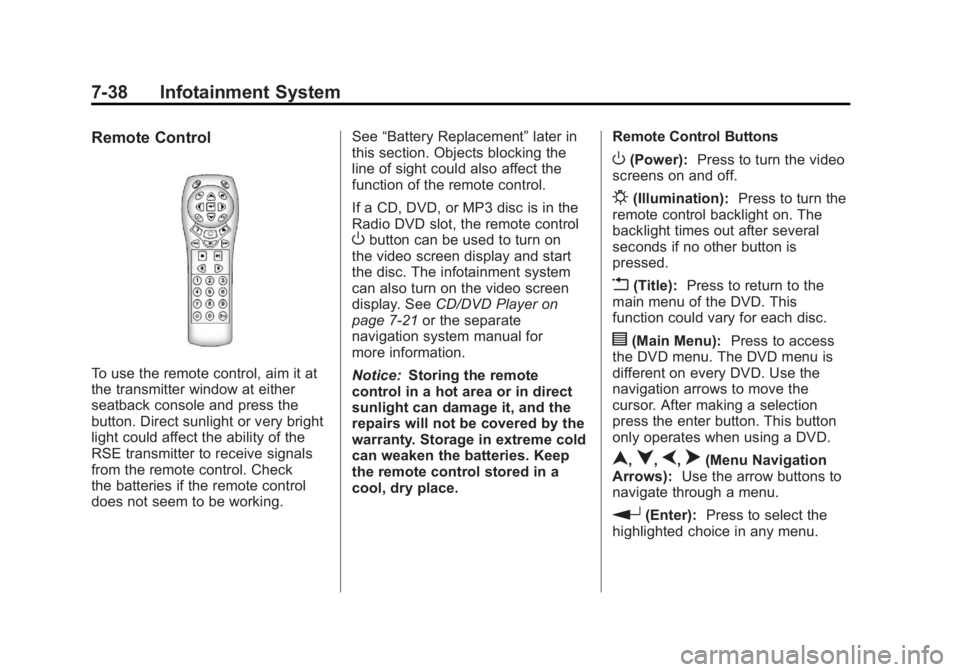
To use the remote control, aim it at
the transmitter window at either
seatback console and press the
button. Direct sunlight or very bright
light could affect the ability of the
RSE transmitter to receive signals
from the remote control. Check
the batteries if the remote control
does not seem to be working.See
“Battery Replacement” later in
this section. Objects blocking the
line of sight could also affect the
function of the remote control.
If a CD, DVD, or MP3 disc is in the
Radio DVD slot, the remote control
Obutton can be used to turn on
the video screen display and start
the disc. The infotainment system
can also turn on the video screen
display. See CD/DVD Player on
page 7‑21 or the separate
navigation system manual for
more information.
Notice: Storing the remote
control in a hot area or in direct
sunlight can damage it, and the
repairs will not be covered by the
warranty. Storage in extreme cold
can weaken the batteries. Keep
the remote control stored in a
cool, dry place. Remote Control Buttons
O(Power):
Press to turn the video
screens on and off.
P(Illumination): Press to turn the
remote control backlight on. The
backlight times out after several
seconds if no other button is
pressed.
v(Title): Press to return to the
main menu of the DVD. This
function could vary for each disc.
y(Main Menu): Press to access
the DVD menu. The DVD menu is
different on every DVD. Use the
navigation arrows to move the
cursor. After making a selection
press the enter button. This button
only operates when using a DVD.
n,q,p,o(Menu Navigation
Arrows): Use the arrow buttons to
navigate through a menu.
r(Enter): Press to select the
highlighted choice in any menu.
Page 236 of 426

Black plate (10,1)GMC Terrain Owner Manual - 2011
9-10 Driving and Operating
.The vehicle has more bounce
when driving over obstacles.
.More braking distance is
needed, especially on an
unpaved surface.
{WARNING
When you are driving off-road,
bouncing and quick changes in
direction can easily throw you out
of position. This could cause you
to lose control and crash. So,
whether you are driving on
or off the road, you and your
passengers should wear safety
belts.
Scanning the Terrain
Off-road driving can take you over
many different kinds of terrain. Be
familiar with the terrain and its many
different features.
Surface Conditions:Off-roading
surfaces can be hard-packed dirt,
gravel, rocks, grass, sand, mud, snow, or ice. Each of these surfaces
affects the vehicle's steering,
acceleration, and braking in different
ways. Depending on the surface,
slipping, sliding, wheel spinning,
delayed acceleration, poor traction,
and longer braking distances can
occur.
Surface Obstacles:
Unseen or
hidden obstacles can be hazardous.
A rock, log, hole, rut, or bump can
startle you if you are not prepared
for them. Often these obstacles are
hidden by grass, bushes, snow,
or even the rise and fall of the
terrain itself.
Some things to consider:
.Is the path ahead clear?
.Will the surface texture change
abruptly up ahead?
.Does the travel take you uphill or
downhill?
.Will you have to stop suddenly
or change direction quickly? When driving over obstacles or
rough terrain, keep a firm grip on
the steering wheel. Ruts, troughs,
or other surface features can jerk
the wheel out of your hands.
When driving over bumps, rocks,
or other obstacles, the wheels can
leave the ground. If this happens,
even with one or two wheels, you
cannot control the vehicle as well or
at all.
Because you will be on an unpaved
surface, it is especially important to
avoid sudden acceleration, sudden
turns, or sudden braking.
Off-roading requires a different kind
of alertness from driving on paved
roads and highways. There are no
road signs, posted speed limits,
or signal lights. Use good judgment
about what is safe and what is not.