light GMC TERRAIN 2011 Repair Manual
[x] Cancel search | Manufacturer: GMC, Model Year: 2011, Model line: TERRAIN, Model: GMC TERRAIN 2011Pages: 426, PDF Size: 5.58 MB
Page 162 of 426
Black plate (4,1)GMC Terrain Owner Manual - 2011
7-4 Infotainment System
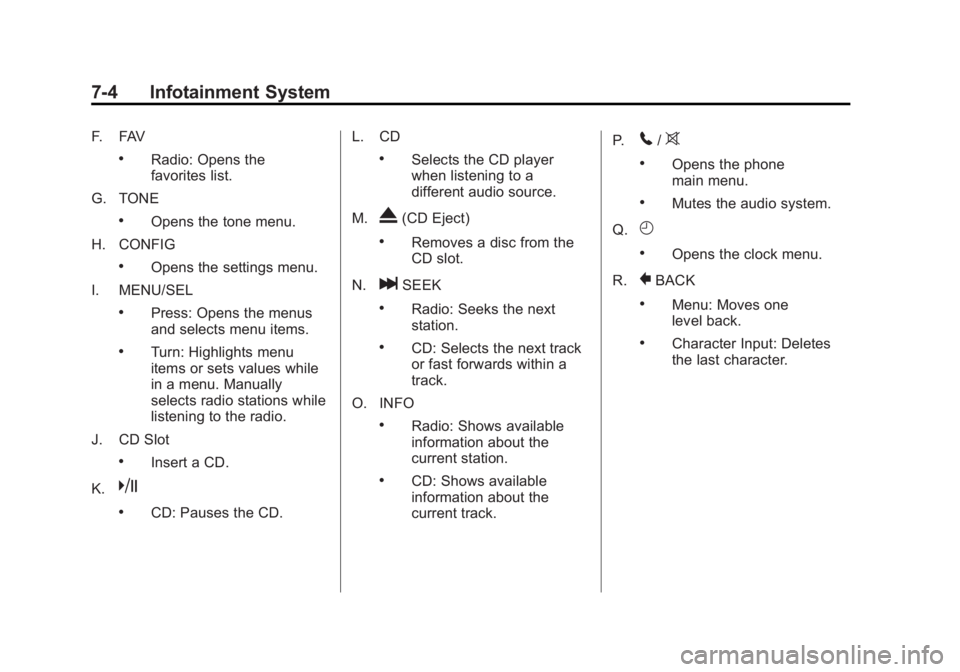
F. FAV
.Radio: Opens the
favorites list.
G. TONE
.Opens the tone menu.
H. CONFIG
.Opens the settings menu.
I. MENU/SEL
.Press: Opens the menus
and selects menu items.
.Turn: Highlights menu
items or sets values while
in a menu. Manually
selects radio stations while
listening to the radio.
J. CD Slot
.Insert a CD.
K.
k
.CD: Pauses the CD. L. CD
.Selects the CD player
when listening to a
different audio source.
M.
X(CD Eject)
.Removes a disc from the
CD slot.
N.
lSEEK
.Radio: Seeks the next
station.
.CD: Selects the next track
or fast forwards within a
track.
O. INFO
.Radio: Shows available
information about the
current station.
.CD: Shows available
information about the
current track. P.
5/>
.Opens the phone
main menu.
.Mutes the audio system.
Q.
H
.Opens the clock menu.
R.
}BACK
.Menu: Moves one
level back.
.Character Input: Deletes
the last character.
Page 164 of 426

Black plate (6,1)GMC Terrain Owner Manual - 2011
7-6 Infotainment System
E. Buttons 1 to 6
.Radio: Saves and selects
favorite stations.
.MEM: Saves and selects
favorite tracks and
playlists.
F. FAV
.Radio: Opens the
favorites list.
.MEM: Opens the
favorites list.
G. TONE
.Opens the tone menu.
H. CONFIG
.Opens the settings menu.
I. MENU/SEL
.Press: Opens menus and
selects menu items.
.Turn: Highlights menu
items or sets values while
in a menu. Manually
selects radio stations while
listening to the radio. J. CD/DVD Slot
.Insert a disc.
K.
k(Play/Pause)
.Radio: Pauses time shifted
content.
.CD/DVD: Pauses CD/
DVD‐A and DVD‐V
playback. Stops DVD‐V
playback.
.MEM: Pauses MEM
playback.
L.
OREC
.CD/DVD: Records content
from audio CDs and
MP3/WMA CDs.
.AUX: Records content
from USB mass storage
devices.
M.
X(CD Eject)
.Removes a disc from the
CD/DVD slot. N.
lSEEK
.Radio: Seeks the next
station.
.CD/DVD: Selects the next
track or fast forwards
within a track.
.MEM: Selects the next
track or fast forwards
within a track.
O. INFO
.Radio: Shows available
information about the
current station.
.CD/DVD: Shows available
information about the
current track.
.MEM: Shows available
information about the
current track.
P.
5/>(Phone/Mute)
.Opens the phone
main menu.
.Mutes the audio system.
Page 165 of 426

Black plate (7,1)GMC Terrain Owner Manual - 2011
Infotainment System 7-7
Q. DEL
.MEM: Deletes the current
track from MEM.
R.
}BACK
.Menu: Moves one
level back.
.Character Input: Deletes
the last character.
Operation
Controls
The infotainment system is
operated by using the pushbuttons,
multifunction knobs, display menus,
and steering wheel controls,
if equipped.
Turning the System On or Off
VOL/O(Volume/Power): Press to
turn the system on and off. Automatic Switch‐Off
If the infotainment system has
been turned on after the ignition is
turned off, the system will turn off
automatically after 10 minutes.
Volume Control
VOL/O(Volume/Power):
Turn to
adjust the volume.
5/>(Mute): For vehicles with
OnStar, press and hold
5/>to
mute the infotainment system. Press
and hold
5/>again, or turn the
VOL/
Oknob to cancel mute.
For vehicles without OnStar,
press
5/>to mute the
infotainment system.
Press
5/>again, or turn
the VOL/
Oknob to cancel mute.
Menu System
Controls
The MENU/SEL knob and
the
}BACK button are used to
navigate the menu system.
MENU/SEL (Menu/Select):
Press to:
.Enter the menu system.
.Select or activate the highlighted
menu option.
.Confirm a set value.
.Turn a system setting on or off.
Turn to:
.Highlight a menu option.
.Select a value.
}BACK: Press to:
.Exit a menu.
.Return from a submenu screen
to the previous menu screen.
.Delete the last character in a
sequence.
Page 166 of 426
Black plate (8,1)GMC Terrain Owner Manual - 2011
7-8 Infotainment System
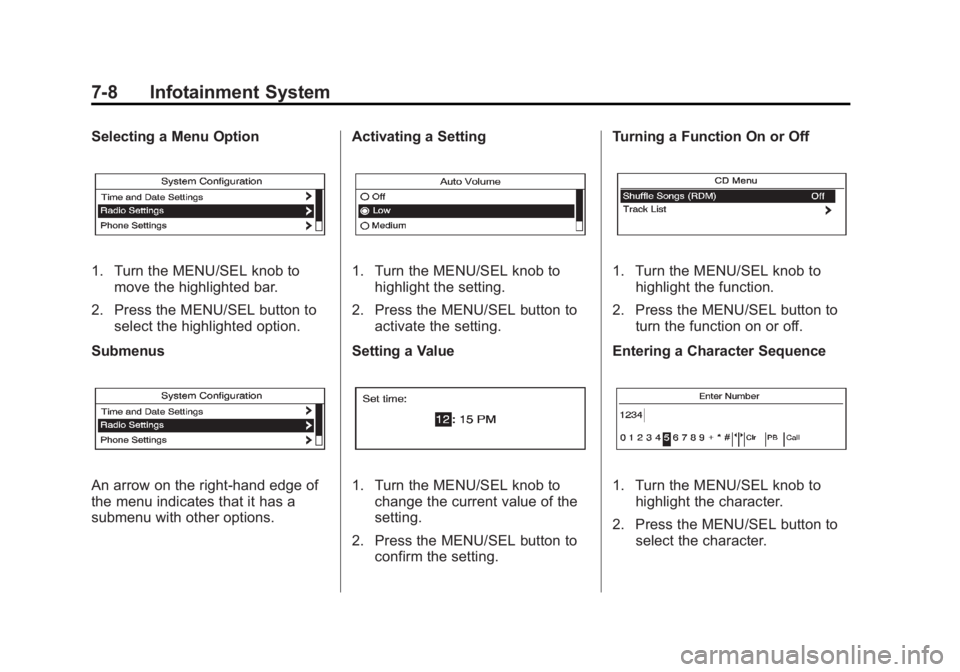
Selecting a Menu Option
1. Turn the MENU/SEL knob tomove the highlighted bar.
2. Press the MENU/SEL button to select the highlighted option.
Submenus
An arrow on the right‐hand edge of
the menu indicates that it has a
submenu with other options. Activating a Setting
1. Turn the MENU/SEL knob to
highlight the setting.
2. Press the MENU/SEL button to activate the setting.
Setting a Value
1. Turn the MENU/SEL knob to change the current value of the
setting.
2. Press the MENU/SEL button to confirm the setting. Turning a Function On or Off
1. Turn the MENU/SEL knob to
highlight the function.
2. Press the MENU/SEL button to turn the function on or off.
Entering a Character Sequence
1. Turn the MENU/SEL knob to highlight the character.
2. Press the MENU/SEL button to select the character.
Page 173 of 426

Black plate (15,1)GMC Terrain Owner Manual - 2011
Infotainment System 7-15
Selecting the XM Band
Press the RADIO/BAND button to
choose between the AM, FM, and
XM bands. The last channel played
in that band begins to play when
that band is selected.
XM Categories
XM channels are organized in
categories.
Removing or Adding Categories
Channels in a category that have
been removed can still be accessed
by using the
gSEEK orlSEEK
buttons, or the MENU/SEL knob.
To add or remove categories:
1. Press the CONFIG button.
2. Select Radio Settings.
3. Select XM Categories.
4. Turn the MENU/SEL knob to highlight the category.
5. Press the MENU/SEL knob to remove or add the category.
Selecting an XM Channel
XM channels can be selected by
using
gSEEK,lSEEK, the
MENU/SEL knob, or the menu
system.
Selecting a Channel Using
gSEEK orlSEEK (Radio
with CD)
.Press and releasegSEEK
or
lSEEK to go to the
previous or next channel.
.Press and holdgSEEK or
lSEEK to scroll through the
previous or next channel until
the channel is reached.
Selecting a Channel Using
gSEEK orlSEEK (Radio with
CD/DVD and MEM)
Press and release
gSEEK or
lSEEK to go to the previous or
next channel. Selecting a Channel Using the
MENU/SEL Knob
To select an XM channel using the
MENU/SEL knob:
Turn the MENU/SEL knob to
highlight an XM channel. The
channel is selected after a short
delay.
To select a channel using the menu:
1. Turn the MENU/SEL knob and
select Channel List.
2. Select the desired channel.
Selecting a Channel Using the
Menu System
1. Turn the MENU/SEL knob.
2. Select XM Category List.
3. Select the category.
4. Select the channel.
Page 177 of 426
Black plate (19,1)GMC Terrain Owner Manual - 2011
Infotainment System 7-19
Audio Players
CD Player
The CD player can play audio CDs
and MP3 CDs.
The CD player will not play
8 cm (3 in) CDs.
Care of CDs
Sound quality can be reduced due
to disc quality, recording method,
quality of the music recorded, and
how the disc has been handled.
Handle discs carefully and store
them in their original cases or other
protective cases away from direct
sunlight and dust. If the bottom
surface of a disc is damaged, the
disc may not play properly or at all.
Do not touch the bottom surface of
a disc while handling it; this could
damage the surface. Pick up discs
by grasping the outer edges or the
edge of the hole and the outer edge.If the bottom surface of a disc is
dirty, take a soft lint‐free cloth,
or dampen a clean soft cloth in a
mild neutral detergent solution
mixed with water, and clean it. Wipe
the disc from the center to the
outer edge.
Care of the CD Player
Do not add a label to a disc, as it
could get caught in the CD player.
If a label is needed, label the
top of the recorded disc with a
marking pen.
Do not use disc lens cleaners
because they could contaminate the
lens of the disc optics and damage
the CD player.
Notice:
If a label is added to a
CD, more than one CD is inserted
into the slot at a time, or an
attempt is made to play scratched
or damaged CDs, the CD player
could be damaged. While using
the CD player, use only CDs in
good condition without any label, load one CD at a time, and keep
the CD player and the loading slot
free of foreign materials, liquids,
and debris.Control Buttons
The buttons used to control the CD
player are:
CD:
Press to choose between the
CD and AUX player.
lSEEK orgSEEK: Press to
select tracks or to fast forward or
rewind within a track.
INFO: Press to display additional
information about the CD that may
be available.
MENU/SEL: Turn to select tracks.
X(Eject):Press to remove
the CD.
k: Press to pause a CD or MP3
track; press again to resume
playback.
Page 179 of 426

Black plate (21,1)GMC Terrain Owner Manual - 2011
Infotainment System 7-21
3. Select: Playlists, Artists, Albums,Song Titles, Genres,
or Folder View.
4. Select the track.
CD/DVD Player
The CD/DVD player can play CDs,
DVD‐As, MP3/WMA CDs, MP3/
WMA DVDs, and DVD‐Vs.
The CD/DVD player will not play
8 cm (3 in) discs.
Care of CDs and DVDs
Sound quality can be reduced due
to disc quality, recording method,
quality of the music recorded, and
how the disc has been handled.
Handle discs carefully and store
them in their original cases or other
protective cases away from direct
sunlight and dust. If the bottom
surface of a disc is damaged, the
disc may not play properly or at all.
Do not touch the bottom surface of
a disc while handling it; this could damage the surface. Pick up discs
by grasping the outer edges or the
edge of the hole and the outer edge.
If the bottom surface of a disc is
dirty, take a soft lint‐free cloth,
or dampen a clean soft cloth in a
mild neutral detergent solution
mixed with water, and clean it. Wipe
the disc from the center to the
outer edge.
Care of the CD/DVD Player
Do not add a label to a disc, as it
could get caught in the CD/DVD
player. If a label is needed, label
the top of the recorded disc with a
marking pen.
Do not use disc lens cleaners
because they could contaminate the
lens of the disc optics and damage
the CD/DVD player.
Notice:
If a label is added to a
CD, more than one CD is inserted
into the slot at a time, or an
attempt is made to play scratched
or damaged CDs, the CD player
could be damaged. While using the CD player, use only CDs in
good condition without any label,
load one CD at a time, and keep
the CD player and the loading slot
free of foreign materials, liquids,
and debris.Control Buttons
The buttons used to control the
CD/DVD player are:
MEM/DVD/AUX:
Press to choose
between the MEM, CD/DVD,
and AUX.
lSEEK orgSEEK: Press to
select tracks or to fast forward or
rewind within a track.
INFO: Press to display additional
information about the disc that may
be available.
MENU/SEL: Turn to select tracks.
X(Eject):Press to remove a disc.
k:Press to pause a CD, DVD‐A,
or DVD‐V; press again to resume
playback. Press and hold to stop a
DVD‐V disc.
Page 183 of 426

Black plate (25,1)GMC Terrain Owner Manual - 2011
Infotainment System 7-25
Recording From Audio CDs
The infotainment system can record
the current song playing or all songs
from an audio CD to MEM. A status
bar appears on the top of the
display when the recording process
starts and disappears when the
process has ended. Copy protected
CDs cannot be recorded to MEM.
Recording to MEM
Press
OREC, then select Record
Current Song or Record All Songs
on Disc. If the track has started
playing, the system will restart the
track and begin recording from the
beginning of the track. When the
song recording is completed, the
message Song Recorded to MEM
displays, and there may be a slight
pause.
Songs recorded to MEM are stored
as the current date, disc, and track
number. Re-recording a Previously
Recorded Disc
If the disc or track has already been
recorded to MEM, the message
The Song(s) is Already Recorded
displays.
Stopping the Recording
Press the
OREC button while
recording from an audio CD to
display the stop recording option.
Select Stop Recording Song
to MEM.
Renaming Recorded Discs
Discs that have been recorded to
MEM can be renamed.
1. Press the MENU/SEL knob.
2. Select Rename Recorded Discs.
3. Select the disc.
4. Select Album or Artist to rename either one.
5. Use the menu knob to enter the character sequence. See
Operation on page 7‑7 for more
information.
Recording From MP3/WMA
Discs or USB Storage Devices
USB Host Support
The USB connector uses the USB
standards, 1.1 and 2.0.
USB Supported Devices
.USB Flash Drives
.Portable USB Hard Drives
Recording to MEM
Press
OREC, then select Record
Current Song or Record Current
Folder.
The information stored by MEM is
titled according to the ID3 tag
associated with it.
Re-recording a Previously
Recorded Disc
If the disc or track has already been
recorded to MEM, the message
The Song(s) is Already Recorded
displays.
Page 192 of 426

Black plate (34,1)GMC Terrain Owner Manual - 2011
7-34 Infotainment System
In severe or extreme weather
conditions, the RSE system may not
work until the temperature is within
the operating range. The operating
range is above−20°C (−4°F)
and below 60°C (140°F). If the
temperature is outside of this range,
heat or cool the vehicle until it is
within the operating range.
Global Off
Depending on the infotainment
system, the RSE system may
have a Global Off feature. The
Global Off feature disables all RSE
system features. Press and hold
the radio power button for more
than three seconds for Global
Off to disable the RSE features. On some infotainment systems, the
Global Off feature can be turned off
by performing one of the following:
.Press and hold the radio power
button for more than
three seconds.
.Insert or eject any disc.
.Insert a DVD video disc.
.Press the remote control power
button.
.Press the MEM/DVD/AUX button
or
kwhen a DVD video disc is
in the player.
.Press the SRC button on the
steering wheel when a DVD
video disc is in the player.
.Cycle the ignition.
Headphones
A. Battery Cover
B. Channel 1 or 2 Switch
C. Power Button
D. Volume Control
E. Power Indicator Light
RSE includes two 2-channel
wireless headphones. Channel 1 is
dedicated to the DVD player, and
Channel 2 is dedicated to any
external auxiliary device connected
Page 193 of 426
Black plate (35,1)GMC Terrain Owner Manual - 2011
Infotainment System 7-35
to the A/V jacks. The headphones
are used to listen to various
multi‐media. The wireless
headphones have an On/Off button,
channel 1/2 switch, and a volume
control. Turn the headphones off
when not in use.
Push the On/Off button to turn on
the headphones. A light on the
headphones comes on. If the light
does not come on, check the
batteries. Intermittent sound or static
can also indicate weak batteries.
See“Battery Replacement” later in
this section for more information.
Infrared transmitters are on the
top of the left seatback video
screen. The headphones shut off
automatically to save the battery
power if the RSE system is shut off
or if the headphones are out of
range of the transmitters for more
than three minutes. Moving too
far forward or stepping out of the
vehicle can cause the headphones
to lose the signal or have static. To adjust the volume on the
headphones, use the volume
control.
For optimal audio performance, the
headphones must be worn correctly.
Headphones should be worn with
the headband over the top of the
head for best audio reception. The
symbol L (Left) appears on the
outside bottom edge of the ear cup
and should be positioned on the left
ear. The symbol R (Right) appears
on the outside bottom edge of the
ear cup and should be positioned on
the right ear.
Notice:
Do not store the
headphones in heat or direct
sunlight. This could damage the
headphones and repairs will
not be covered by the warranty.
Storage in extreme cold can
weaken the batteries. Keep the
headphones stored in a cool, dry
place. If the foam ear pads attached to
the headphones become worn or
damaged, the pads can be replaced
separately from the headphone set.
To purchase replacement ear pads,
call 1‐888‐293‐3332, then prompt
zero (0), or contact your dealer.
Battery Replacement
To change the batteries:
1. Loosen the screw to the battery
door located on the left side of
the headphones.
2. Slide the battery door open.
3. Replace the two AAA batteries.
4. Replace the battery door and tighten the screw.
Remove the batteries if the
headphones are not going to be
used for a long period of time.