AUX GMC TERRAIN 2012 User Guide
[x] Cancel search | Manufacturer: GMC, Model Year: 2012, Model line: TERRAIN, Model: GMC TERRAIN 2012Pages: 428, PDF Size: 5.45 MB
Page 181 of 428
Black plate (23,1)GMC Terrain Owner Manual (Include Mex) - 2012
Infotainment System 7-23
Before Driving
The RSE is for rear seat
passengers only. The driver cannot
safely view the video screen while
driving.
In severe or extreme weather
conditions, the RSE system may not
work until the temperature is within
the operating range. The operating
range is above−20°C (−4°F) and
below 60°C (140°F). If the
temperature is outside of this range,
heat or cool the vehicle until it is
within the operating range.
Global Off
Depending on the infotainment
system, the RSE system may have
a Global Off feature. The Global Off
feature disables all RSE system
features. Press and hold the radio
power button for more than
three seconds for Global Off to
disable the RSE features. On some infotainment systems, the Global Off
feature can be turned off by
performing one of the following:
.Press and hold the radio power
button for more than
three seconds.
.Insert or eject any disc.
.Insert a DVD video disc.
.Press the remote control power
button.
.Press the SOURCE button ork
when a DVD video disc is in the
player.
.Press the SRC button on the
steering wheel when a DVD
video disc is in the player.
.Cycle the ignition.
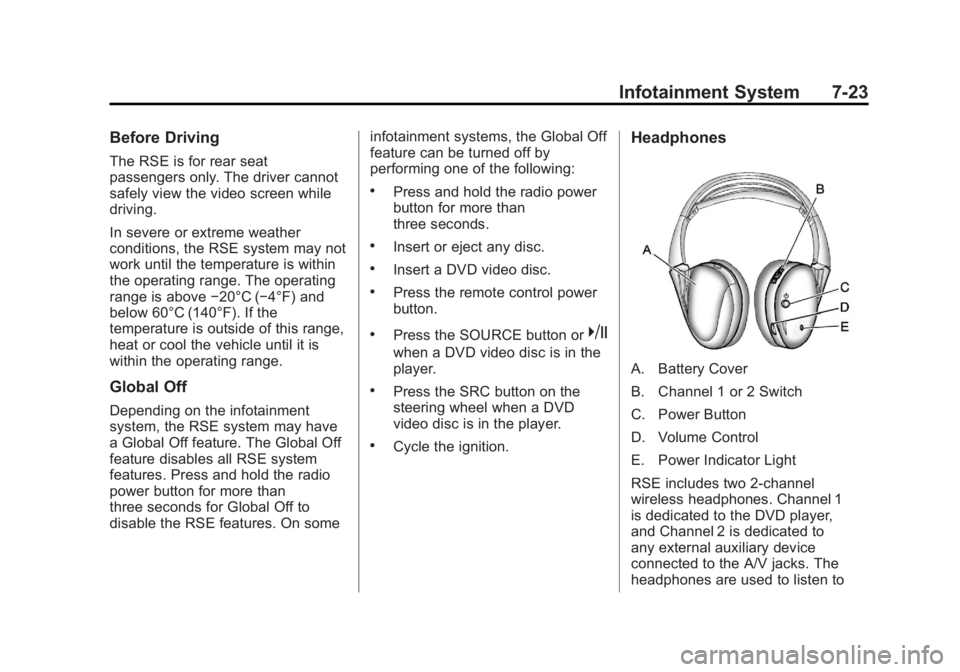
Headphones
A. Battery Cover
B. Channel 1 or 2 Switch
C. Power Button
D. Volume Control
E. Power Indicator Light
RSE includes two 2-channel
wireless headphones. Channel 1
is dedicated to the DVD player,
and Channel 2 is dedicated to
any external auxiliary device
connected to the A/V jacks. The
headphones are used to listen to
Page 183 of 428
Black plate (25,1)GMC Terrain Owner Manual (Include Mex) - 2012
Infotainment System 7-25
Audio/Video (A/V) Jacks
If available, the A/V jacks are
located on the rear of the floor
console. They allow audio or video
cables to be connected from an
auxiliary device such as a
camcorder or a video game system.
The A/V jacks are color coded:
.Yellow for video input.
.White for left audio input.
.Red for right audio input.
Power for auxiliary devices is not
supplied by the radio system.
To use the auxiliary inputs of the
RSE system:
1. Connect the auxiliary device cables to the A/V jacks.
2. Power on both the auxiliary device and the RSE video
screen. Changing the Source on the Video
Display Screens
The image from the auxiliary device
can be switched between the video
display screens.
To change the display:
1. Press the AUX button on the
remote control to change the
source of both video screens
from the DVD player to the
auxiliary device.
2. Press the AUX button a second time to change the left video
screen source to the DVD player
and the right video screen to the
auxiliary device.
3. Press the AUX button a third time to change the left video
screen source to the auxiliary
device and the right video
screen to the DVD player.
4. Press the AUX button a fourth time to change the source of
both video screens to the DVD
player. Changing the RSE Video Screen
Settings
The screen display mode,
brightness, and language can be
changed from the setup menu using
the remote control. To change a
setting:
1. Press
z.
2. Use
n,q,p,o, andrto
select the settings.
3. Press
zagain to exit the
setup menu.
Page 184 of 428

Black plate (26,1)GMC Terrain Owner Manual (Include Mex) - 2012
7-26 Infotainment System
Audio Output
Audio from the DVD player or
auxiliary inputs can be heard
through the following:
.Wireless Headphones
.Vehicle Speakers
The RSE system transmits the
audio signal to the wireless
headphones if an audio signal is
available. See “Headphones” earlier
in this section for more information.
The front seat passengers are able
to listen to playback from the A/V
jacks through the vehicle speakers
by selecting Rear A/V as the source
on the radio.
Video Screens
The video screens are located in the
back of the driver and front
passenger seats.
To use the video screen:
1. Push the release button located on the seatback console.
2. Move the screen to the desired viewing position.
Push the video screen down into its
locked position when it is not in use.
The screen turns off automatically.
Only the left RSE seatback console
contains the infrared transmitters for
the wireless headphones. They may
be visible as eight illuminated LEDs.
These LEDs are not on the right
video screen. Both seatback consoles contain an infrared
receiver for the remote control. They
are located at the top of each
console.
Notice:
Avoid directly touching
the video screen, as damage may
occur. See “Cleaning the Video
Screens” later in this section for
more information.
Video Screen Input Jack
Each video screen is equipped with
a video input jack to allow video
cables to be connected from an
auxiliary device such as a
camcorder or a video game system.
This signal will override any video
provided by the RSE system; either
the DVD or auxiliary A/V jack
source. The RSE system must be
on for this input to operate.
Page 187 of 428
Black plate (29,1)GMC Terrain Owner Manual (Include Mex) - 2012
Infotainment System 7-29
AUX (Auxiliary):Press to switch
the video display between the DVD
player and an auxiliary source.
The AUX button also controls the
source display between the left and
right video screens as described in
the table below:
Aux
Button
Press Left
Screen Right
Screen
Default
State (No Press) DVD
Media DVD
Media
First
Press Aux Video
Source Aux Video
Source
Second Press DVD
Media Aux Video
Source
Third
Press Aux Video
Source DVD
Media
Fourth Press Return to
DefaultState Return to
DefaultState2(Camera): Press to change the
camera angle on DVDs that have
this feature when the DVD is
playing.
\(Clear) (If Available): Press this
button within three seconds after
inputting a numeric selection, to
clear all numeric inputs.
}10 (Double Digit Entries) (If
Available): Press this button to
select chapter or track numbers
greater than 9. Press this button
before inputting the number.
1 through 0 (Numeric Keypad):
The numbered keypad provides the
capability of direct chapter or track
number selection. Replacing the Remote Control
If the remote control becomes lost
or damaged, a new universal
remote control can be purchased.
Use a Toshiba
®code set for
replacement universal remote
controls.
Battery Replacement
To change the remote control
batteries:
1. Slide back the rear cover on the remote control.
2. Replace the two batteries in the compartment.
3. Replace the battery cover.
Remove the batteries from the
remote control if unused for an
extended period of time.
Page 188 of 428
Black plate (30,1)GMC Terrain Owner Manual (Include Mex) - 2012
7-30 Infotainment System
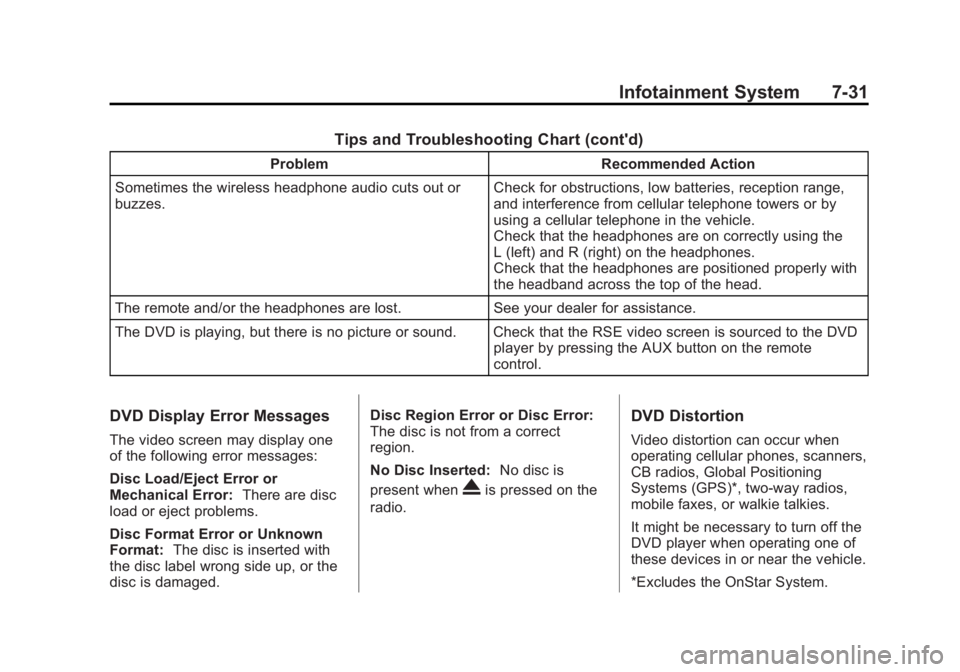
Tips and Troubleshooting Chart
ProblemRecommended Action
No power. The ignition might not be turned to ON/RUN or ACC/
ACCESSORY.
The picture does not fill the screen. There are black
borders on the top and bottom or on both sides, or it
looks stretched out. Check the display mode settings in the setup menu by
pressing the display menu button on the remote control.
In auxiliary mode, the picture moves or scrolls. Check the auxiliary input connections at both devices.
The remote control does not work. Check to make sure there is no obstruction between the
remote control and the transmitter window.
Check the batteries to make sure they are not dead or
installed incorrectly.
After stopping the player, the pushing play, sometimes
the DVD starts where it left off and sometimes at the
beginning. If the Stop button was pressed one time, the DVD player
resumes playing where the DVD was stopped. If the
Stop button was pressed two times, the DVD player
begins to play from the beginning of the DVD.
The auxiliary source is running but there is no picture or
sound. Check that the RSE video screen is in the auxiliary
source mode by pressing the AUX button on the remote
control.
Check the auxiliary input connections at both devices.
Page 189 of 428
Black plate (31,1)GMC Terrain Owner Manual (Include Mex) - 2012
Infotainment System 7-31
Tips and Troubleshooting Chart (cont'd)
ProblemRecommended Action
Sometimes the wireless headphone audio cuts out or
buzzes. Check for obstructions, low batteries, reception range,
and interference from cellular telephone towers or by
using a cellular telephone in the vehicle.
Check that the headphones are on correctly using the
L (left) and R (right) on the headphones.
Check that the headphones are positioned properly with
the headband across the top of the head.
The remote and/or the headphones are lost. See your dealer for assistance.
The DVD is playing, but there is no picture or sound. Check that the RSE video screen is sourced to the DVD player by pressing the AUX button on the remote
control.
DVD Display Error Messages
The video screen may display one
of the following error messages:
Disc Load/Eject Error or
Mechanical Error:There are disc
load or eject problems.
Disc Format Error or Unknown
Format: The disc is inserted with
the disc label wrong side up, or the
disc is damaged. Disc Region Error or Disc Error:
The disc is not from a correct
region.
No Disc Inserted:
No disc is
present when
Xis pressed on the
radio.
DVD Distortion
Video distortion can occur when
operating cellular phones, scanners,
CB radios, Global Positioning
Systems (GPS)*, two-way radios,
mobile faxes, or walkie talkies.
It might be necessary to turn off the
DVD player when operating one of
these devices in or near the vehicle.
*Excludes the OnStar System.
Page 190 of 428
Black plate (32,1)GMC Terrain Owner Manual (Include Mex) - 2012
7-32 Infotainment System
Cleaning the RSE Seatback
Console
Use only a clean cloth dampened
with clean water to clean the RSE
seatback console surface.
Cleaning the Video Screen
Use only a clean cloth dampened
with clean water. Use care when
touching or cleaning the screen as
damage could result.
Rear Seat Audio (RSA)
System
Vehicles with this feature allow the
rear seat passengers to listen to
and control any of the music
sources: radio, CDs, DVDs, or other
auxiliary sources. RSA can only
control music sources that the front
seat passengers are not listening to,
except on radios where dual control
is allowed.RSA can function when the front
radio is off.
Xdisplays on the
infotainment system when RSA
is on.
Audio can be heard through wired
headphones (not included) plugged
into the jacks on the RSA. If the
vehicle has a Rear Seat
Entertainment system with wireless
headphones, audio can also be
heard on Channel 2 of the wireless
headphones.
To listen to a portable audio device
through the RSA, attach the
portable audio device to either the
front or rear auxiliary input,
if available. Turn the device on, then
choose the front auxiliary input with
the RSA SRCE button.
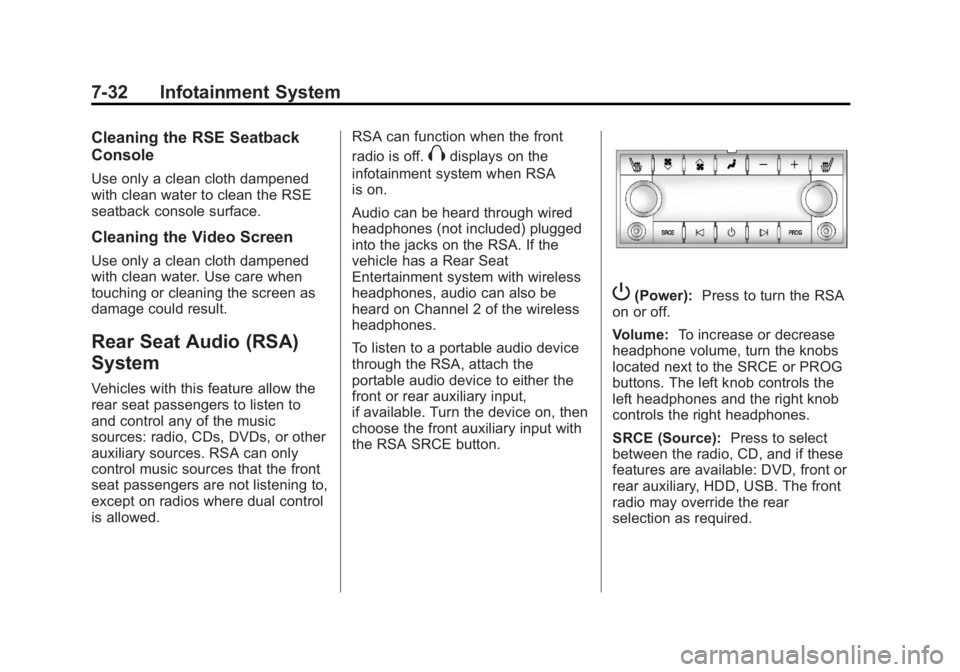
P(Power): Press to turn the RSA
on or off.
Volume: To increase or decrease
headphone volume, turn the knobs
located next to the SRCE or PROG
buttons. The left knob controls the
left headphones and the right knob
controls the right headphones.
SRCE (Source): Press to select
between the radio, CD, and if these
features are available: DVD, front or
rear auxiliary, HDD, USB. The front
radio may override the rear
selection as required.
Page 308 of 428
Black plate (34,1)GMC Terrain Owner Manual (Include Mex) - 2012
10-34 Vehicle Care
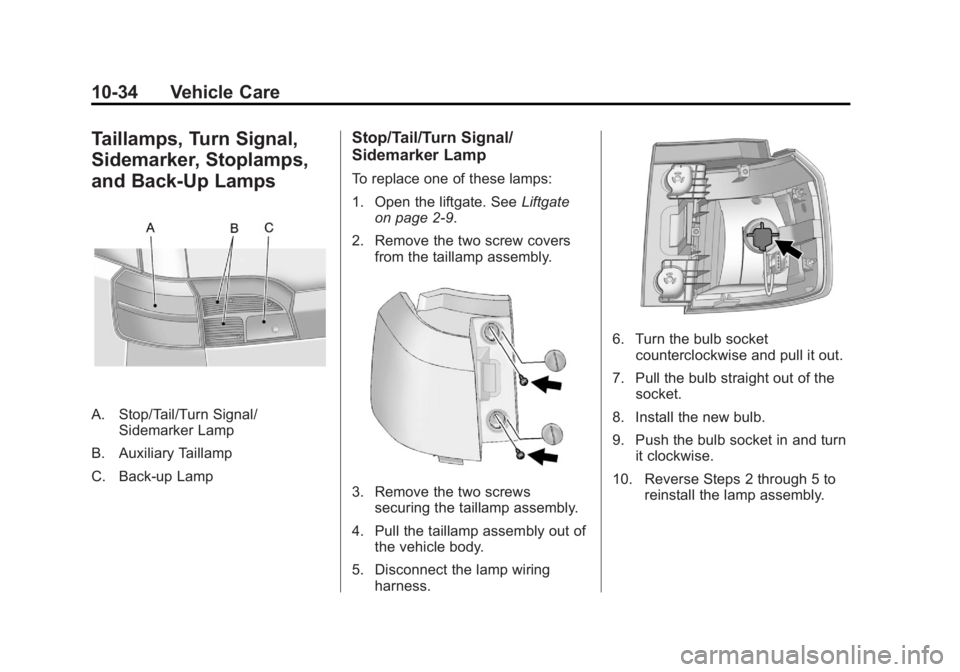
Taillamps, Turn Signal,
Sidemarker, Stoplamps,
and Back-Up Lamps
A. Stop/Tail/Turn Signal/Sidemarker Lamp
B. Auxiliary Taillamp
C. Back-up Lamp
Stop/Tail/Turn Signal/
Sidemarker Lamp
To replace one of these lamps:
1. Open the liftgate. See Liftgate
on page 2‑9.
2. Remove the two screw covers from the taillamp assembly.
3. Remove the two screwssecuring the taillamp assembly.
4. Pull the taillamp assembly out of the vehicle body.
5. Disconnect the lamp wiring harness.
6. Turn the bulb socketcounterclockwise and pull it out.
7. Pull the bulb straight out of the socket.
8. Install the new bulb.
9. Push the bulb socket in and turn it clockwise.
10. Reverse Steps 2 through 5 to reinstall the lamp assembly.
Page 309 of 428
Black plate (35,1)GMC Terrain Owner Manual (Include Mex) - 2012
Vehicle Care 10-35
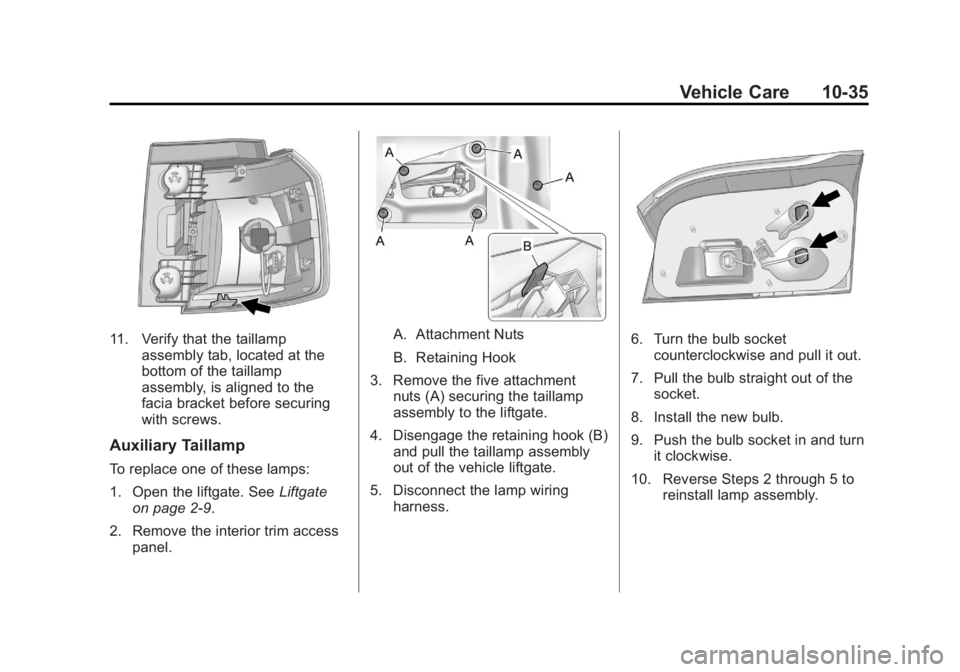
11. Verify that the taillampassembly tab, located at the
bottom of the taillamp
assembly, is aligned to the
facia bracket before securing
with screws.
Auxiliary Taillamp
To replace one of these lamps:
1. Open the liftgate. See Liftgate
on page 2‑9.
2. Remove the interior trim access panel.
A. Attachment Nuts
B. Retaining Hook
3. Remove the five attachment nuts (A) securing the taillamp
assembly to the liftgate.
4. Disengage the retaining hook (B) and pull the taillamp assembly
out of the vehicle liftgate.
5. Disconnect the lamp wiring harness.6. Turn the bulb socket
counterclockwise and pull it out.
7. Pull the bulb straight out of the socket.
8. Install the new bulb.
9. Push the bulb socket in and turn it clockwise.
10. Reverse Steps 2 through 5 to reinstall lamp assembly.
Page 311 of 428

Black plate (37,1)GMC Terrain Owner Manual (Include Mex) - 2012
Vehicle Care 10-37
A. Bulb Socket
B. Bulb
C. Lamp Assembly
4. Turn the bulb socket (A) counterclockwise to remove it
from the lamp assembly (C).
5. Pull the bulb (B) straight out of the bulb socket. 6. Push the replacement bulb
straight into the bulb socket and
turn the bulb socket clockwise to
install into lamp assembly.
7. Turn the lamp assembly into the liftgate engaging the clip side
first.
8. Push on the lamp side opposite the clip until the lamp assembly
snaps into place.
Replacement Bulbs
Exterior Lamp Bulb
Number
Auxiliary Taillamp 161
Back-Up Lamp 921LL
Fog Lamp H11
Headlamp
High Beam 9005LL
Headlamp
Low Beam H11Exterior Lamp
Bulb
Number
License Plate Lamp 168LL
(W5WLL)
Parking Lamp/Turn
Signal Front 7444NA
Sidemarker Front 194
Taillamp/Turn Signal
Lamp/Stop Lamp/
Sidemarker 3057K
For replacement bulbs not listed
here, contact your dealer.