radio GMC TERRAIN 2012 User Guide
[x] Cancel search | Manufacturer: GMC, Model Year: 2012, Model line: TERRAIN, Model: GMC TERRAIN 2012Pages: 428, PDF Size: 5.45 MB
Page 137 of 428

Black plate (23,1)GMC Terrain Owner Manual (Include Mex) - 2012
Instruments and Controls 5-23
Information Displays
Driver Information
Center (DIC)
The vehicle may have a Driver
Information Center (DIC). It displays
information about the vehicle and
warning messages if there is a
system problem detected. DIC
messages display in the center of
the instrument panel cluster. See
Vehicle Messages on page 5‑26for
more information.
The vehicle may also have features
that can be customized through the
controls on the radio. See Vehicle
Personalization on page 5‑33 for
more information.
DIC Operation and Displays
Use the DIC buttons located in the
center of the instrument panel to
access different displays. The DIC
displays trip, fuel, vehicle system
information, and warning messages. It also shows the shift lever position,
the odometer, and the direction the
vehicle is driving.
DIC Buttons
MENU:
Press this button to get to
the Trip/Fuel Menu and the Vehicle
Information Menu.
QorR: Use these buttons to
scroll through the items in each
menu. A small marker will move
along the page as you scroll through
the items. This shows where each
page is in the menu. SET/CLR (Set/Clear):
Use this
button to set or clear the menu item
when it is displayed.
Trip/Fuel Menu Items
Press the MENU button until Trip/
Fuel Information Menu is displayed.
Then press
Rto scroll through the
following menu items:
.Trip 1
.Trip 2
.Fuel Range
.Average Fuel Economy
.Instantaneous Fuel Economy
.Average Vehicle Speed
.Timer
.Digital Speedometer
.Turn-by-Turn
.Blank Display
Page 159 of 428
Black plate (1,1)GMC Terrain Owner Manual (Include Mex) - 2012
Infotainment System 7-1
Infotainment
System
Introduction
Infotainment . . . . . . . . . . . . . . . . . . . 7-1
Theft-Deterrent Feature . . . . . . . 7-2
Overview . . . . . . . . . . . . . . . . . . . . . . 7-3
Radio
AM-FM Radio . . . . . . . . . . . . . . . . . 7-8
Satellite Radio . . . . . . . . . . . . . . . 7-11
Radio Reception . . . . . . . . . . . . . 7-13
Multi-Band Antenna . . . . . . . . . . 7-14
Audio Players
CD Player . . . . . . . . . . . . . . . . . . . 7-14
MP3 . . . . . . . . . . . . . . . . . . . . . . . . . 7-16
Auxiliary Devices . . . . . . . . . . . . 7-18
Rear Seat Infotainment
Rear Seat Entertainment(RSE) System . . . . . . . . . . . . . . 7-22
Rear Seat Audio (RSA) System . . . . . . . . . . . . . . . . . . . . . 7-32
Phone
Bluetooth (Overview) . . . . . . . . 7-34
Bluetooth (InfotainmentControls) . . . . . . . . . . . . . . . . . . . 7-36
Bluetooth (Voice Recognition) . . . . . . . . . . . . . . . 7-39
Trademarks and License
Agreements
Trademarks and License
Agreements . . . . . . . . . . . . . . . . 7-46
Introduction
Infotainment
Read the following pages to
become familiar with the audio
system's features.
{WARNING
Taking your eyes off the road for
extended periods could cause a
crash resulting in injury or death
to you or others. Do not give
extended attention to
entertainment tasks while driving.
This system provides access to
many audio and non‐audio listings.
Page 160 of 428

Black plate (2,1)GMC Terrain Owner Manual (Include Mex) - 2012
7-2 Infotainment System
To minimize taking your eyes off the
road while driving, do the following
while the vehicle is parked:
.Become familiar with the
operation and controls of the
audio system.
.Set up the tone, speaker
adjustments, and preset radio
stations.
For more information, see Defensive
Driving on page 9‑3.
This vehicle's infotainment system
may be equipped with a noise
reduction system which can work
improperly if the audio amplifier,
engine calibrations, exhaust system,
microphones, radio, or speakers are
modified or replaced. This could
result in more noticeable engine
noise at certain speeds. Notice:
Contact your dealer
before adding any equipment.
Adding audio or communication
equipment could interfere with
the operation of the engine, radio,
or other systems, and could
damage them. Follow federal
rules covering mobile radio and
telephone equipment.
The vehicle has Retained
Accessory Power (RAP). With RAP,
the audio system can be played
even after the ignition is turned off.
See Retained Accessory Power
(RAP) on page 9‑25 for more
information.
Navigation System
For vehicles with a navigation
system, see the separate navigation
manual.
Theft-Deterrent Feature
The theft-deterrent feature works by
learning a portion of the Vehicle
Identification Number (VIN) to the
infotainment system. The
infotainment system does not
operate if it is stolen or moved to a
different vehicle.
Page 163 of 428
Black plate (5,1)GMC Terrain Owner Manual (Include Mex) - 2012
Infotainment System 7-5
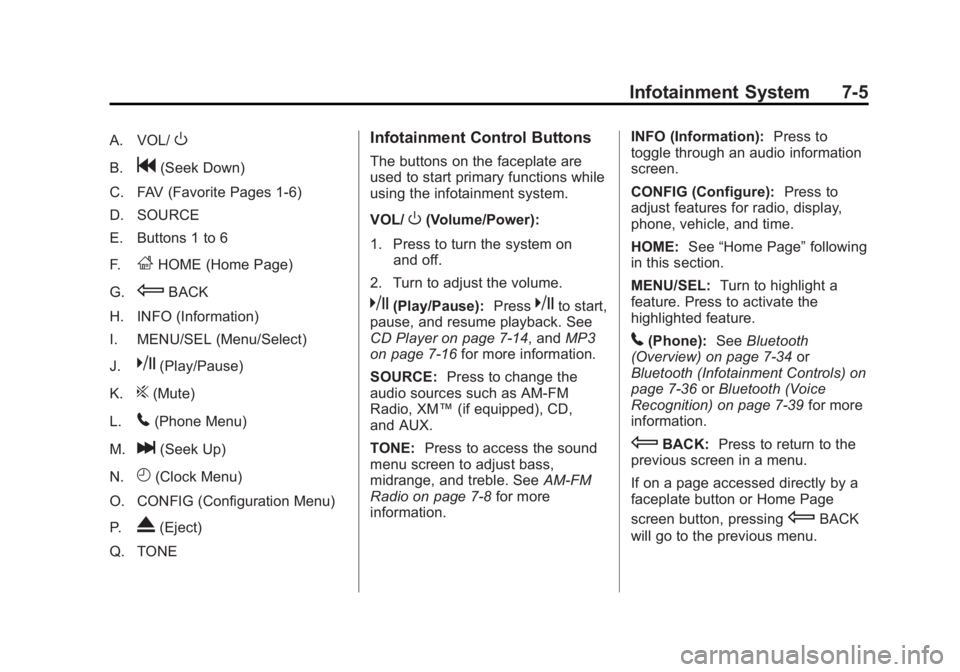
A. VOL/O
B.g(Seek Down)
C. FAV (Favorite Pages 1-6)
D. SOURCE
E. Buttons 1 to 6
F.
FHOME (Home Page)
G.
EBACK
H. INFO (Information)
I. MENU/SEL (Menu/Select)
J.
k(Play/Pause)
K.
?(Mute)
L.
5(Phone Menu)
M.
l(Seek Up)
N.
H(Clock Menu)
O. CONFIG (Configuration Menu)
P.
X(Eject)
Q. TONE
Infotainment Control Buttons
The buttons on the faceplate are
used to start primary functions while
using the infotainment system.
VOL/
O(Volume/Power):
1. Press to turn the system on and off.
2. Turn to adjust the volume.
k(Play/Pause): Presskto start,
pause, and resume playback. See
CD Player on page 7‑14, and MP3
on page 7‑16 for more information.
SOURCE: Press to change the
audio sources such as AM-FM
Radio, XM™ (if equipped), CD,
and AUX.
TONE: Press to access the sound
menu screen to adjust bass,
midrange, and treble. See AM-FM
Radio on page 7‑8 for more
information. INFO (Information):
Press to
toggle through an audio information
screen.
CONFIG (Configure): Press to
adjust features for radio, display,
phone, vehicle, and time.
HOME: See“Home Page” following
in this section.
MENU/SEL: Turn to highlight a
feature. Press to activate the
highlighted feature.
5(Phone): SeeBluetooth
(Overview) on page 7‑34 or
Bluetooth (Infotainment Controls) on
page 7‑36 orBluetooth (Voice
Recognition) on page 7‑39 for more
information.
EBACK: Press to return to the
previous screen in a menu.
If on a page accessed directly by a
faceplate button or Home Page
screen button, pressing
EBACK
will go to the previous menu.
Page 165 of 428
Black plate (7,1)GMC Terrain Owner Manual (Include Mex) - 2012
Infotainment System 7-7
Info:Press to toggle through an
audio information screen.
The Home Page Menu lists the
options Customize Home Page and
Restore Home Page Defaults.
Out of all available Home Page
icons, up to eight icons can be
selected and sorted for the first
Home Page screen.
Home Page Features
Various functions are disabled when
the vehicle is moving.
Press the Now Playing screen
button to display the active source
page. The sources available are
AM, FM, XM (if equipped), CD,
USB/iPod, and AUX.
See AM-FM Radio on page 7‑8,
Satellite Radio on page 7‑11, CD
Player on page 7‑14, and Auxiliary
Devices on page 7‑18. Press the Phone screen button to
display the Phone main page. See
Bluetooth (Overview) on page 7‑34
or
Bluetooth (Infotainment Controls)
on page 7‑36 orBluetooth (Voice
Recognition) on page 7‑39.
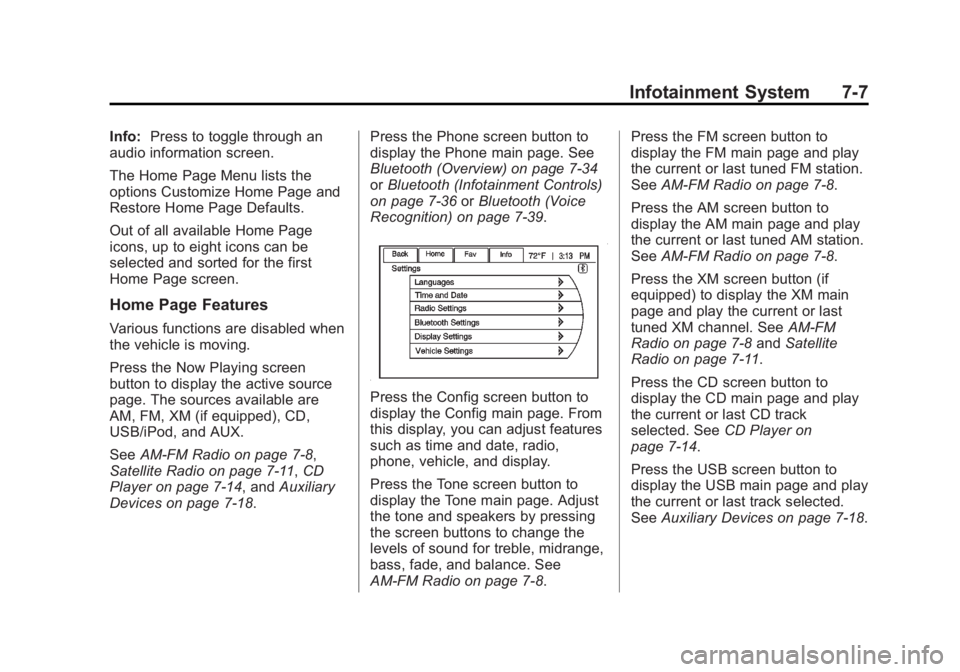
Press the Config screen button to
display the Config main page. From
this display, you can adjust features
such as time and date, radio,
phone, vehicle, and display.
Press the Tone screen button to
display the Tone main page. Adjust
the tone and speakers by pressing
the screen buttons to change the
levels of sound for treble, midrange,
bass, fade, and balance. See
AM-FM Radio on page 7‑8. Press the FM screen button to
display the FM main page and play
the current or last tuned FM station.
See
AM-FM Radio on page 7‑8.
Press the AM screen button to
display the AM main page and play
the current or last tuned AM station.
See AM-FM Radio on page 7‑8.
Press the XM screen button (if
equipped) to display the XM main
page and play the current or last
tuned XM channel. See AM-FM
Radio on page 7‑8 andSatellite
Radio on page 7‑11.
Press the CD screen button to
display the CD main page and play
the current or last CD track
selected. See CD Player on
page 7‑14.
Press the USB screen button to
display the USB main page and play
the current or last track selected.
See Auxiliary Devices on page 7‑18.
Page 166 of 428
Black plate (8,1)GMC Terrain Owner Manual (Include Mex) - 2012
7-8 Infotainment System
Press the AUX screen button to
access any connected auxiliary
device. SeeAuxiliary Devices on
page 7‑18.
Languages
The vehicle supports English,
French (Canadian), and Spanish.
The default language is English.
To change the display language,
see Vehicle Personalization on
page 5‑33 for more information.
English and Metric Unit
Conversion
To change the display units between
English and metric units, see Driver
Information Center (DIC) on
page 5‑23 for more information.
Cleaning the Display
Notice:Using abrasive cleaners
when cleaning glass surfaces
could scratch the glass. Use only
a soft cloth and do not spray
cleaner directly on the system as
it could affect the mechanical
parts.
Do not wipe the panel with a hard
cloth or use a volatile liquid such as
paint thinner; it could scratch the
surface or erase the characters on
the buttons.
Radio
AM-FM Radio
Playing the Radio
For vehicles equipped with the
MyLink or IntelliLink infotainment
system, see the separate MyLink/
IntelliLink Features and Functions
Guide for more information.
Audio Source
VOL/
O(Power/Volume):
1. Press to turn the radio on or off.
2. Turn to increase or decrease the volume of the active source
(i.e., current audio source, active
navigation voice guidance,
or traffic prompts).
The steering wheel controls can
also be used to adjust the volume.
See “Steering Wheel Controls” in
the vehicle owner manual for more
information.
Page 167 of 428
Black plate (9,1)GMC Terrain Owner Manual (Include Mex) - 2012
Infotainment System 7-9
To access the radio main page,
press the SOURCE button on the
faceplate, the Now Playing screen
button, or one of the audio screen
buttons on the Home Page.
While on the audio main page,
press the Source button repeatedly
to display and cycle through the
available sources (AM, FM, and XM
(if equipped), CD, USB/iPod,
and AUX).
Infotainment System Menus
Tone Settings
To access the tone settings, press
the Home Page Tone button or the
TONE button on the faceplate.
Use the tone settings to adjust the
following features:
.Setting the tone
.Adjusting the speakersSetting the Tone
To adjust the tone:
.Treble: Press + or
−to change
the level.
.Middle (Midrange): Press + or −
to change the level.
.Bass: Press + or −to change
the level.
Adjusting the Speakers
To adjust the speaker balance:
.Press the left arrow on the
bottom for more sound from the
left speakers or the right arrow
on the bottom for more sound
from the right speakers. The
middle position balances the
sound between the left and right
speakers. To adjust the speaker fade:
.Press the upper arrow for more
sound from the front speakers
and the lower arrow for more
sound from the rear speakers.
The middle position balances
the sound between the front and
rear speakers.
EQ Settings
The EQ settings are selected
through the tone menu. Press the
left or right arrows to cycle through
the EQ options. The available
choices are Pop, Rock, Jazz,
Classical, and Talk.
Finding a Station
To select the band, see “Audio
Source” earlier in this section.
Turn the MENU/SEL knob to find a
radio station. To select a preset
station, touch the FAV button and
choose a preset station.
Page 168 of 428
Black plate (10,1)GMC Terrain Owner Manual (Include Mex) - 2012
7-10 Infotainment System
Seeking a Station
Press
gorlto search for a
station.
AM
1. Press the AM screen button on the Home Page or select AM
from the source pop-up to
display the AM main page.
2. From the AM screen, press the Menu screen button to display
the AM stations.
3. Press to select the desired option. To update the station list,
touch Refresh.
FM
1. Press the FM screen button on the Home Page or select FM
from the source pop-up to
display the FM main page.
2. From the FM screen, press the Menu screen button to display
the FM stations. 3. Press to select the desired
option. To update the station list,
touch Refresh.
XM (If Equipped)
1. Press the XM screen button on the Home Page or select XM
from the source pop-up to
display the XM main page.
2. From the XM screen, press the Menu screen button to display
the XM categories.
3. Touch a desired category and then turn the TUNE/MENU knob
to scroll the station list.
Changing the Sources
To change audio sources from any
of the audio main pages (AM, FM,
XM, CD, USB/iPod, or AUX), press
the SOURCE button on the
faceplate or the Source screen
button to display a pop-up of
available audio sources. Touch-tap
or press the SOURCE button on the
faceplate repeatedly to change the
desired source.
Storing Radio Station Presets
There are a few ways to store
presets.
Up to 36 preset stations can be
stored. AM, FM, and XM,
if equipped, can be mixed.
1. From the AM, FM, or XM main page, press and hold one of the
preset screen buttons located at
the bottom of the screen. After a
few seconds, a beep will be
heard and the new preset
information will display on that
screen button.
2. Touch and hold a preset button to store the currently active
station. After a few seconds, a
beep will be heard and the new
preset information will display on
a small pop-up display at the
bottom of the screen.
3. Repeat the steps for each preset.
To change the number of preset
pages, see “Mixed-Band Presets”
following for more information.
Page 169 of 428
Black plate (11,1)GMC Terrain Owner Manual (Include Mex) - 2012
Infotainment System 7-11
Recalling a Preset Station
To recall a preset station from a FAV
page, do the following:
.Press the FAV button on the
faceplate to display the FAV
pop-up. Select the desired
preset from the pop-up.
.Press the FAV screen button at
the top bar to display the preset
pop-up that appears at the
bottom of the page. Press one of
the preset screen buttons to go
to the selected preset station.
.In the AM, FM, or XM (if
equipped) main page, press one
of the preset screen buttons to
go to the selected preset station.
Mixed-Band Presets
Each page can store six preset
stations. The presets within a page
can be from different radio bands.
To scroll through the pages, press
the FAV button located on the
faceplate or the FAV screen button
on the top bar. The current page
number displays above the preset
buttons. The stored stations for
each FAV page display on the
preset buttons at the bottom of the
screen. The number of FAV pages
displayed can be changed in the
Radio Settings in the
Configuration Menu.
Satellite Radio
For vehicles equipped with the
MyLink or IntelliLink infotainment
system, see the separate MyLink/
IntelliLink Features and Functions
Guide for more information.
Vehicles with an XM™Satellite
Radio tuner and a valid XM Satellite
Radio subscription can receive XM
programming.
XM Satellite Radio Service
XM is a satellite radio service based
in the 48 contiguous United States
and 10 Canadian provinces. XM
Satellite Radio has a wide variety of
programming and commercial-free
music, coast to coast, and in
digital-quality sound. If XM service
needs to be reactivated, the radio
will display “No Subscription Please
Renew on channel XM1.” A service
fee is required to receive the XM
service. For more information,
contact XM at www.xmradio.com or
call 1-800-929-2100 in the U.S. and
www.xmradio.ca or call
1-877-438-9677 in Canada.
XM Categories
XM stations are organized in
categories.
To customize which XM categories
are used and displayed in the
system, see “Adding or Removing
XM Categories” following.
Page 170 of 428
Black plate (12,1)GMC Terrain Owner Manual (Include Mex) - 2012
7-12 Infotainment System
Adding or Removing
Categories
1. From the Home Page press theConfig screen button or the
CONFIG button on the faceplate.
2. Select Radio Settings from the Config Menu list.
3. Select Add/Remove XM Categories.
4. From the Add/Remove XM Categories screen, select or
deselect any category to be
used in XM mode. A checkmark
will indicate that the category is
selected.
Turning XM Album Art On
or Off
1. From the Home Page press theConfig screen button or the
CONFIG button on the faceplate.
2. Select Radio Settings from the Config Menu list.
3. Select XM Album Art to turn on or off.
XM Messages
XL (Explicit Language
Channels): These channels, or any
others, can be blocked by request,
by calling 1-800-929-2100 in the
U.S. and 1-877-438-9677 in
Canada.
XM Updating: The encryption code
in the receiver is being updated, no
action is required. This process
should take no longer than
30 seconds.
Loading XM: The audio system is
acquiring and processing audio and
text data; no action is needed. This
message should disappear shortly.
Channel Off Air: This channel is
not currently in service. Tune in to
another channel.
Channel Unauth: This channel is
blocked or cannot be received with
your XM subscription package. Channel Unavailable:
This
previously assigned channel is no
longer assigned. Tune to another
station.
No Artist Info: The system is
working properly. No artist
information is available at this time
on this channel.
No Title Info: The system is
working properly. No song title
information is available at this time
on this channel.
No CAT Info: The system is
working properly. No category
information is available at this time
on this channel.
No Information: The system is
working properly. No text or
informational messages are
available at this time on this
channel.