Page 36 GMC TERRAIN 2020 Owner's Manual
[x] Cancel search | Manufacturer: GMC, Model Year: 2020, Model line: TERRAIN, Model: GMC TERRAIN 2020Pages: 425, PDF Size: 6.59 MB
Page 5 of 425
GMC Terrain/Terrain Denali Owner Manual (GMNA-Localizing-U.S./Canada/
Mexico-13556230) - 2020 - CRC - 9/4/19
2 Introduction
Introduction
The names, logos, emblems,
slogans, vehicle model names, and
vehicle body designs appearing in
this manual including, but not limited
to, GM, the GM logo, GMC, the
GMC Truck Emblem, TERRAIN, and
DENALI are trademarks and/or
service marks of General Motors
LLC, its subsidiaries, affiliates,
or licensors.
For vehicles first sold in Canada,
substitute the name“General
Motors of Canada Company” for
GMC Motor Division wherever it
appears in this manual. This manual describes features that
may or may not be on the vehicle
because of optional equipment that
was not purchased on the vehicle,
model variants, country
specifications, features/applications
that may not be available in your
region, or changes subsequent to
the printing of this owner
’s manual.
Refer to the purchase
documentation relating to your
specific vehicle to confirm the
features.
Keep this manual in the vehicle for
quick reference.
Canadian Vehicle Owners
A French language manual can be
obtained from your dealer, at
www.helminc.com, or from:
Propriétaires Canadiens
On peut obtenir un exemplaire de
ce guide en français auprès du
concessionnaire ou à l'adresse
suivante:
Helm, Incorporated
Attention: Customer Service
47911 Halyard Drive
Plymouth, MI 48170
USA
Using this Manual
To quickly locate information about
the vehicle, use the Index in the
back of the manual. It is an
alphabetical list of what is in the
manual and the page number where
it can be found.
Litho in U.S.A.
Part No. 84314746 B Second Printing©2019 General Motors LLC. All Rights Reserved.
Page 6 of 425
GMC Terrain/Terrain Denali Owner Manual (GMNA-Localizing-U.S./Canada/
Mexico-13556230) - 2020 - CRC - 9/4/19
Introduction 3
About Driving the Vehicle
As with other vehicles of this type,
failure to operate this vehicle
correctly may result in loss of
control or a crash. Be sure to read
the driving guidelines in this manual
in the section called“Driving and
Operating” and specifically Driver
Behavior 0162, Driving
Environment 0163, and Vehicle
Design 0163.
Danger, Warning, and
Caution
Warning messages found on vehicle
labels and in this manual describe
hazards and what to do to avoid or
reduce them.
{Danger
Danger indicates a hazard with a
high level of risk which will result
in serious injury or death.
{Warning
Warning indicates a hazard that
could result in injury or death.
Caution
Caution indicates a hazard that
could result in property or vehicle
damage.
A circle with a slash through it is a
safety symbol which means “Do
not,” “Do not do this,” or“Do not let
this happen.”
Symbols
The vehicle has components and
labels that use symbols instead of
text. Symbols are shown along with
the text describing the operation or
information relating to a specific
component, control, message,
gauge, or indicator.
M: Shown when the owner ’s
manual has additional instructions
or information.
*: Shown when the service
manual has additional instructions
or information.
0: Shown when there is more
information on another page —
“see page.”
Vehicle Symbol Chart
Here are some additional symbols
that may be found on the vehicle
and what they mean. See the
features in this manual for
information.
u: Air Conditioning System
G:Air Conditioning Refrigerant Oil
9:Airbag Readiness Light
Page 108 of 425
GMC Terrain/Terrain Denali Owner Manual (GMNA-Localizing-U.S./Canada/
Mexico-13556230) - 2020 - CRC - 9/4/19
Instruments and Controls 105
Cluster Menu (Midlevel)
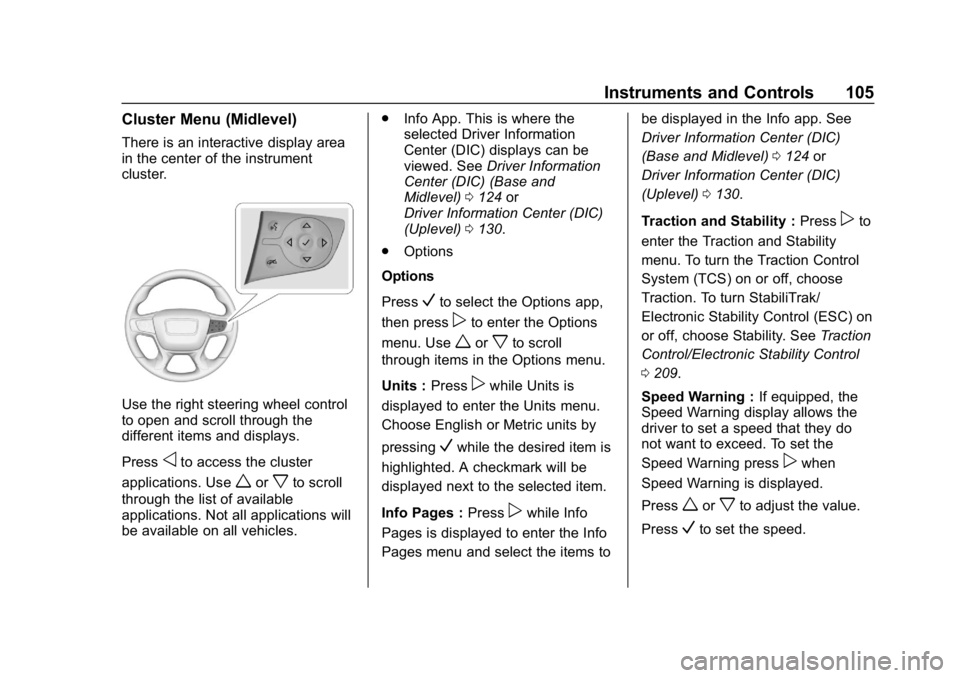
There is an interactive display area
in the center of the instrument
cluster.
Use the right steering wheel control
to open and scroll through the
different items and displays.
Press
oto access the cluster
applications. Use
worxto scroll
through the list of available
applications. Not all applications will
be available on all vehicles. .
Info App. This is where the
selected Driver Information
Center (DIC) displays can be
viewed. See Driver Information
Center (DIC) (Base and
Midlevel) 0124 or
Driver Information Center (DIC)
(Uplevel) 0130.
. Options
Options
Press
Vto select the Options app,
then press
pto enter the Options
menu. Use
worxto scroll
through items in the Options menu.
Units : Press
pwhile Units is
displayed to enter the Units menu.
Choose English or Metric units by
pressing
Vwhile the desired item is
highlighted. A checkmark will be
displayed next to the selected item.
Info Pages : Press
pwhile Info
Pages is displayed to enter the Info
Pages menu and select the items to be displayed in the Info app. See
Driver Information Center (DIC)
(Base and Midlevel)
0124 or
Driver Information Center (DIC)
(Uplevel) 0130.
Traction and Stability : Press
pto
enter the Traction and Stability
menu. To turn the Traction Control
System (TCS) on or off, choose
Traction. To turn StabiliTrak/
Electronic Stability Control (ESC) on
or off, choose Stability. See Traction
Control/Electronic Stability Control
0 209.
Speed Warning : If equipped, the
Speed Warning display allows the
driver to set a speed that they do
not want to exceed. To set the
Speed Warning press
pwhen
Speed Warning is displayed.
Press
worxto adjust the value.
Press
Vto set the speed.
Page 109 of 425

GMC Terrain/Terrain Denali Owner Manual (GMNA-Localizing-U.S./Canada/
Mexico-13556230) - 2020 - CRC - 9/4/19
106 Instruments and Controls
Once the speed is set, this feature
can be turned off by pressing
V
while viewing this page. If the
selected speed limit is exceeded, a
pop-up warning is displayed with a
chime.
Page 112 of 425

GMC Terrain/Terrain Denali Owner Manual (GMNA-Localizing-U.S./Canada/
Mexico-13556230) - 2020 - CRC - 9/4/19
Instruments and Controls 109
Uplevel Cluster Menu
There is an interactive display area
in the center of the instrument
cluster.
Use the right steering wheel control
to open and scroll through the
different items and displays.
Press
oorpto change between
the cluster applications. Press
wor
xto scroll through the list of
available features within each
application. Press
Vto select. Not
all applications will be available on
all vehicles. Some may be temporarily restricted when the
vehicle is off or in ACC/
ACCESSORY.
.
Home Page
. Info App. This is where the
selected Driver Information
Center (DIC) displays can be
viewed. See “Driver Information
Center (DIC) (Uplevel)” in the
Index.
. Audio
. Navigation
. Phone
. Options
Home
Information displayed here can be
customized from the Options menu.
Speedometer : Displays how fast
the vehicle is moving in either
kilometers per hour (km/h) or miles
per hour (mph).
Speed Sign : Shows sign
information, which comes from a
roadway database in the onboard
navigation, if equipped. Time :
Displays the current time.
Active Safety : If equipped,
displays information for Lane Keep
Assist (LKA) and Forward Collision
Alert (FCA).
Fuel Range : Displays the
approximate distance the vehicle
can be driven without refueling. The
fuel range estimate is based on an
average of the vehicle’s fuel
economy over recent driving history
and the amount of fuel remaining in
the fuel tank. Fuel range cannot be
reset.
Audio
Pressworxto scroll through
options, browse for music, select
from favorites, or change the audio
source. In the main view, scroll to
change the station or go to the next
or previous track.
Navigation
In the Navigation menu, if there is
no active route, press
Vto access
Recents or Favorites. If there is an
active route, press the thumbwheel
Page 113 of 425

GMC Terrain/Terrain Denali Owner Manual (GMNA-Localizing-U.S./Canada/
Mexico-13556230) - 2020 - CRC - 9/4/19
110 Instruments and Controls
to cancel or resume route guidance,
mute or unmute voice guidance,
or access Recents or Favorites.
Phone
In the Phone menu, if there is no
active phone call, view recent calls,
scroll through contacts, select from
the favorites, or change the phone
source. If there is an active call,
mute the phone or switch to handset
operation.
Options
Pressworxto scroll through
items in the Options menu. Press
V
to select the item. Pressoto exit
the item.
Traction and Stability : To turn the
Traction Control System (TCS) on
or off, choose Traction. To turn
StabiliTrak/Electronic Stability
Control (ESC) on or off, choose
Stability. See Traction Control/
Electronic Stability Control 0209.
Units : Choose US or metric units.
A selected mark will be displayed
next to the selected item. Info Page Options :
Select the
items to be displayed in the Info
app. A selected mark will be
displayed next to the selected item.
Home Page Options : Select the
available elements to display. Not all
elements will be available on all
vehicles: Speedometer, Active
Safety, Speed Sign, Time, and Fuel
Range.
Speed Warning : Allows the driver
to set a speed that they do not want
to exceed. To set the Speed
Warning, press
Vwhen Speed
Warning is displayed. Use
worx
to adjust the value. PressVto set
the speed. Once the speed is set,
this feature can be turned off by
pressing the thumbwheel while
viewing this page. If the selected
speed limit is exceeded, a pop-up
warning is displayed with a chime.
Software Information : Displays
open source software information.
Speedometer
The speedometer shows the
vehicle's speed in either kilometers
per hour (km/h) or miles per
hour (mph).
Odometer
The odometer shows how far the
vehicle has been driven, in either
kilometers or miles.
Trip Odometer
The trip odometer shows how far
the vehicle has been driven since
the trip odometer was last reset.
The trip odometer is accessed and
reset through the Driver Information
Center (DIC). See Driver
Information Center (DIC) (Base and
Midlevel) 0124 or
Driver Information Center (DIC)
(Uplevel) 0130.
Tachometer
The tachometer displays the engine
speed in revolutions per
minute (rpm).
Page 130 of 425
GMC Terrain/Terrain Denali Owner Manual (GMNA-Localizing-U.S./Canada/
Mexico-13556230) - 2020 - CRC - 9/4/19
Instruments and Controls 127
the selected distance. The selected
distance is displayed at the top of
the page as“last xxx mi/km.” Press
Vto select the distance or reset
best value.
The display provides information on
how current driving behavior affects
the running average and how well
recent driving compares to the best
that has been achieved for the
selected distance.
Economy Trend : Shows history of
the Average Fuel Economy from the
last 50 km (30 mi). Each bar
represents about 5 km (3 mi) of
driving. During driving the bars will
shift to always reflect the most
recent distance on the right side.
Press and hold
Vto clear the graph
or press
Vto reset through
the menu.
Midlevel DIC
Info Page Options
The info pages on the DIC can be
turned on or off through the
Options menu. 1. Press
oto access the cluster
applications.
2. Press
worxto scroll to the
Options application.
3. Press
Vto enter the
Options menu.
4. Scroll to Info Pages and press
p.
5. Press
worxto move
through the list of possible
information displays.
6. Press
Vwhile an item is
highlighted to select or
deselect that item. When an
item is selected, a checkmark
will appear next to it.
Info Pages
The following is the list of all
possible DIC info page displays.
Some may not be available for your
particular vehicle. Some items may
not be turned on by default but can
be turned on through the Options
app. See “Info Page Options” earlier
in this section. Speed :
Shows the vehicle speed in
either kilometers per hour (km/h) or
miles per hour (mph).
Trip A or Trip B : Shows the
current distance traveled, in either
kilometers (km) or miles (mi), since
the trip odometer was last reset.
This also shows the
approximate average liters per
100 kilometers (L/100 km) or miles
per gallon (mpg). This number is
calculated based on the number of
L/100 km (mpg) recorded since the
last time this menu item was reset.
This number reflects only the
approximate average fuel economy
that the vehicle has right now, and
will change as driving conditions
change.
Press and hold
Vwhile this display
is active to reset the trip odometer
and the average fuel economy. Trip
A and Trip B can also be reset by
pressing
pand choosing reset.
Page 132 of 425
GMC Terrain/Terrain Denali Owner Manual (GMNA-Localizing-U.S./Canada/
Mexico-13556230) - 2020 - CRC - 9/4/19
Instruments and Controls 129
average speed. Average speed can
also be reset by pressing
pand
choosing reset.
Fuel Economy : The center
displays the approximate
instantaneous fuel economy as a
number and bar graph. Displayed
above the bar graph is a running
average of fuel economy for the
most recently traveled selected
distance. Displayed below the bar
graph is the best average fuel
economy that has been achieved for
the selected distance. The selected
distance is displayed at the top of
the page as “last xxx mi/km.”
Press
pto select the distance or
reset best value. Use
wandxto
choose the distance and press
V.
Press
wandxto select “Reset
Best Score.” Press
Vto reset the
best average fuel economy. After
reset, the best value displays “-,-”
until the selected distance has been
traveled. The display provides information on
how current driving behavior affects
the running average and how well
recent driving compares to the best
that has been achieved for the
selected distance.
Economy Trend :
Shows history of
the Average Fuel Economy from the
last 50 km (30 mi). Each bar
represents about 5 km (3 mi) of
driving. During driving the bars will
shift to always reflect the most
recent distance on the right side.
Press and hold
Vto clear the graph
or press
pto reset through
the menu.
Timer : This display can be used as
a timer. To start the timer, press
V
to open the menu while this display
is active. The display will show the
amount of time that has passed
since the timer was last reset. To
stop the timer, press
Vbriefly while
this display is active and the timer is
running. To reset the timer to zero, press and hold
Vwhile this display
is active, or press
pand select
reset.
Follow Distance : If equipped, the
current follow time to the vehicle
ahead is displayed as a time value
on this page.
Battery Voltage : Displays the
current battery voltage, if equipped.
Battery voltage changes are normal
while driving. See Charging System
Light 0115. If there is a problem
with the battery charging system, a
DIC will display a message.
Coolant Temperature : Displays
the coolant temperature in degrees
Celsius (°C) or degrees Fahrenheit
(°F).
Diesel Exhaust Fluid (DEF) Level
(Diesel Engine Only) : If equipped,
the DEF level will be displayed as
either OK, XX%, or LOW. When
LOW appears on the display, add
DEF as soon as possible. See
Diesel Exhaust Fluid 0195.
Page 133 of 425
GMC Terrain/Terrain Denali Owner Manual (GMNA-Localizing-U.S./Canada/
Mexico-13556230) - 2020 - CRC - 9/4/19
130 Instruments and Controls
Oil Pressure :Oil pressure is
displayed in either kilopascal (kPa)
or in pounds per square inch (psi).
Oil pressure can vary with engine
speed, outside temperature, and oil
viscosity. On some models, the oil
pump will vary engine oil pressure
according to engine needs. Oil
pressure may change quickly as the
engine speed or load varies. This is
normal. If the oil pressure warning
light or Driver Information Center
(DIC) message indicates oil
pressure outside the normal
operating range, check the vehicle's
oil as soon as possible.
Driver Information Center
(DIC) (Uplevel)
The DIC displays are shown in the
center of the instrument cluster in
the Info App. See Instrument Cluster
(Base and Midlevel) 0103 or
Instrument Cluster (Uplevel) 0107.
The displays show the status of
many vehicle systems.
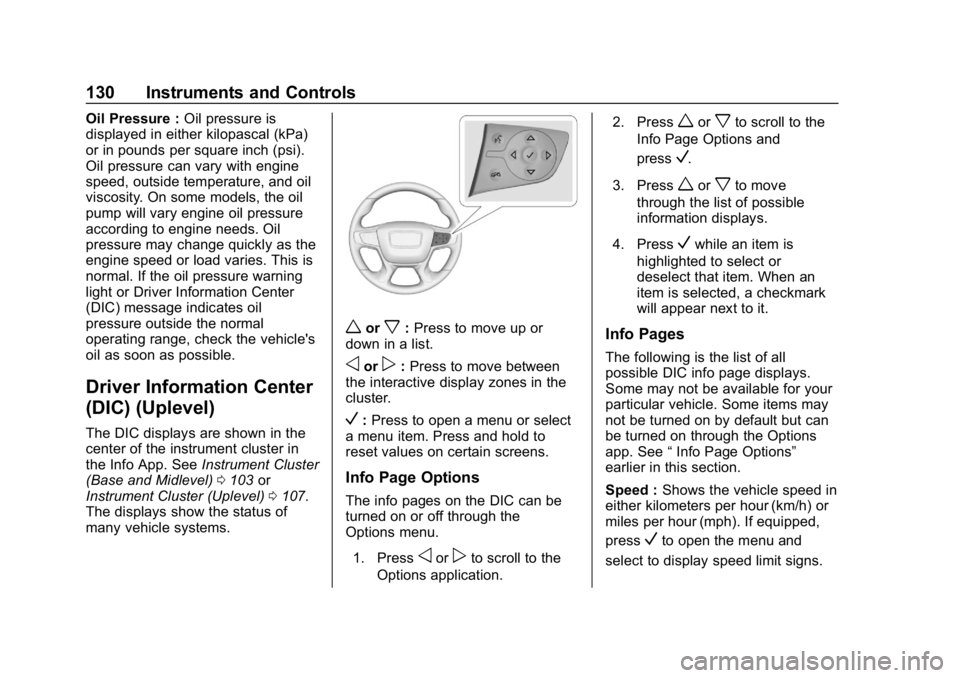
worx: Press to move up or
down in a list.
oorp: Press to move between
the interactive display zones in the
cluster.
V: Press to open a menu or select
a menu item. Press and hold to
reset values on certain screens.
Info Page Options
The info pages on the DIC can be
turned on or off through the
Options menu.
1. Press
oorpto scroll to the
Options application. 2. Press
worxto scroll to the
Info Page Options and
press
V.
3. Press
worxto move
through the list of possible
information displays.
4. Press
Vwhile an item is
highlighted to select or
deselect that item. When an
item is selected, a checkmark
will appear next to it.
Info Pages
The following is the list of all
possible DIC info page displays.
Some may not be available for your
particular vehicle. Some items may
not be turned on by default but can
be turned on through the Options
app. See “Info Page Options”
earlier in this section.
Speed : Shows the vehicle speed in
either kilometers per hour (km/h) or
miles per hour (mph). If equipped,
press
Vto open the menu and
select to display speed limit signs.
Page 135 of 425
GMC Terrain/Terrain Denali Owner Manual (GMNA-Localizing-U.S./Canada/
Mexico-13556230) - 2020 - CRC - 9/4/19
132 Instruments and Controls
When the remaining fuel filter life is
low, the CHANGE FUEL FILTER
message will appear on the display.
Change the fuel filter as soon as
possible.
The Fuel Filter Life display must be
reset after each Fuel Filter change.
It will not reset itself. Do not reset
the Fuel Filter Life display at any
time other than when the fuel filter
has just been changed. To reset the
Fuel Filter Life system press
V
while the display is active to show a
confirmation window to reset. Press
oorpto select yes or no and
press
V. See Fuel Filter
Replacement (Diesel) 0256.
Tire Pressure : Shows the
approximate pressures of all four
tires. Tire pressure is displayed in
either kilopascal (kPa) or in pounds
per square inch (psi). If the pressure
is low, the value for that tire is
shown in amber. See Tire Pressure
Monitor System 0323 and
Tire Pressure Monitor Operation
0 324. Average Speed :
Displays the
average vehicle speed of the
vehicle in kilometers per hour (km/h)
or miles per hour (mph). This
average is based on the various
vehicle speeds recorded since the
last reset. Reset the average speed
by pressing
Vwhile this display is
active to show a confirmation
window to select yes or no and
press
V.
Fuel Economy : The center
displays the approximate
instantaneous fuel economy as a
number and bar graph. Displayed
above the bar graph is a running
average of fuel economy for the
most recently traveled selected
distance. Displayed below the bar
graph is the best average fuel
economy that has been achieved for
the selected distance. The selected
distance is displayed at the top of
the page as “last xxx mi/km.”
Press
Vto select the distance or
reset best value. Use
wandxto
choose the distance and press
V. Press
wandxto select
“Reset
Best Score.” Press
Vto reset the
best average fuel economy. After
reset, the best value displays “-,-”
until the selected distance has been
traveled.
The display provides information on
how current driving behavior affects
the running average and how well
recent driving compares to the best
that has been achieved for the
selected distance.
Follow Distance/Gap Setting :
If equipped, the current follow time
to the vehicle ahead is displayed as
a time value on this page. When
Adaptive Cruise Control (ACC) has
been engaged, the display switches
to the gap setting page. This page
shows the current gap setting along
with the vehicle ahead indicator.
Driver Assistance : If equipped,
shows information for Lane Keep
Assist (LKA), Lane Departure
Warning (LDW), and Forward
Collision Alert (FCA).