ignition GMC YUKON 2009 Repair Manual
[x] Cancel search | Manufacturer: GMC, Model Year: 2009, Model line: YUKON, Model: GMC YUKON 2009Pages: 576, PDF Size: 3.06 MB
Page 278 of 576
Playing a CD(s) (Six-Disc CD Player)
LOAD^:Press this button to load CDs into the CD
player. This CD player holds up to six CDs.
To insert one CD:
1. Press and release the
^button.
2. Wait for the message to insert the disc.
3. Load a CD. Insert the CD partway into the slot,
label side up. The player pulls the CD in.
To insert multiple CDs:
1. Press and hold the
^button for two seconds.
A beep sounds and Load All Discs displays.
2. Follow the displayed instruction on when to insert
the discs. The CD player takes up to six CDs.
3. Press the
^button again to cancel loading
more CDs.
Insert a CD partway into the slot, label side up. The
player pulls it in and the CD should begin playing.
To insert a CD while the ignition is off, rst press the
Zbutton or the DISP knob.
If the ignition or radio is turned off while a CD is in the
player, it stays in the player. When the ignition or
radio is turned on, the CD starts to play where it
stopped, if it was the last selected audio source.When the CD is inserted, the CD symbol displays. As
each new track starts to play, the track number displays.
The CD player can play the smaller 3 inch (8 cm)
single CDs with an adapter ring. Full-size CDs and the
smaller CDs are loaded in the same manner.
Playing a CD (In Either the DVD or
CD Slot)
Insert a CD partway into the slot, label side up. The
player pulls it in and the CD should begin playing
in 5 to 20 seconds for a CD, and in 30 seconds for a
DVD, depending on media type and format ranges.
If the ignition or radio is turned off, while a CD is in the
player, it stays in the player. When the ignition or radio is
turned on, the CD starts playing where it stopped, if it was
the last selected audio source. The CD is controlled by
the buttons on the radio faceplate or by the RSA unit.
SeeRear Seat Audio (RSA) on page 3-134for more
information. The DVD/CD decks, (upper slot is the DVD
deck and the lower slot is the CD deck) of the radio are
compatible with most audio CDs, CD-R, CD-RW,
and MP3s.
When a CD is inserted, the text label DVD or CD symbol
displays on the left side of the radio display. As each new
track starts to play, the track number displays.
The CD player can play the smaller 3 inch (8 cm) single
CDs with an adapter ring. Full-size CDs and the
smaller CDs are loaded in the same manner.
3-92
Page 283 of 576
Using the DVD Player
The DVD player is controlled by the buttons on the
remote control, or by the RSA system, or by the buttons
on the radio faceplate. See “Remote Control”, under
Rear Seat Entertainment (RSE) System on page 3-125
andRear Seat Audio (RSA) on page 3-134for more
information.
The DVD player is only compatible with DVDs of the
appropriate region code that is printed on the jacket of
most DVDs.
The DVD slot of the radio is compatible with most
audio CDs, CD-R, CD-RW, DVD-Video, DVD-Audio,
DVD-R/RW, DVD+R/RW media along with MP3
and WMA formats.
If an error message displays on the video screen or
the radio, see “DVD Display Error Messages” under,
Rear Seat Entertainment (RSE) System on page 3-125
and “DVD Radio Error Messages” in this section for
more information.
Playing a DVD
DVD/CD AUX (Auxiliary):Press this button to cycle
through DVD, CD, or Auxiliary when listening to the radio.
The DVD/CD text label and a message showing track or
chapter number displays when a disc is in either slot.
Press this button again and the system automatically
searches for an auxiliary input device, such as a portableaudio player. If a portable audio player is not connected,
“No Aux Input Device” displays. If a disc is in both the
DVD slot and the CD slot the DVD/CD AUX button cycles
between the two sources and does not indicate “No Aux
Input Device”. If a front auxiliary device is connected, the
DVD/CD AUX button cycles through all available options,
such as: DVD slot, CD slot, Front Auxiliary, and Rear
Auxiliary (if available). See “Using the Auxiliary Input
Jack(s)” later in this section, or “Audio/Video (A/V) Jacks”
under,Rear Seat Entertainment (RSE) System on
page 3-125for more information.
O(Power):Press to turn the radio on or off. Turn
clockwise or counterclockwise to increase or decrease
the volume. Press and hold for more than two seconds to
turn off the radio and Rear Seat Entertainment (RSE)
system, and to start the parental control feature. Parental
control prevents the rear seat occupant from operating
the Rear Seat Audio (RSA) system or remote control.
A lock symbol displays next to the clock display. The
parental control feature remains on until this knob is
pressed and held for more than two seconds again, or
until the driver turns the ignition off and exits the vehicle.
f(Tune):Turn to change tracks on a CD or DVD, to
manually tune a radio station, or to change clock or date
settings, while in the clock or date setting mode. See
the information given earlier in this section specic to the
radio, CD, and the DVD. Also, see “Setting the Clock”
in the index, for setting the clock and date.
3-97
Page 291 of 576
Preprogrammed Playlists
Preprogrammed playlists that were created using
WinAmp™, MusicMatch™, or Real Jukebox™ software
can be accessed, however, they cannot be edited
using the radio. These playlists are treated as special
folders containing compressed audio song les.
Playing an MP3
Insert a CD-R or CD-RW partway into the slot (Single CD
Player), or press the load button and wait for the
message to insert disc (Six-Disc CD Player), label side
up. The player pulls it in, and the CD-R or CD-RW should
begin playing.
If the ignition or radio is turned off with a CD-R or
CD-RW in the player it stays in the player. When the
ignition or radio is turned on, the CD-R or CD-RW starts
to play where it stopped, if it was the last selected
audio source.
As each new track starts to play, the track number and
song title displays.
ZEJECT:Press this button to eject CD-R(s) or
CD-RW(s). To eject the CD-R or CD-RW that is currently
playing, press and release this button. A beep sounds
and Ejecting Disc displays. Once the disc is ejected,
Remove Disc displays. The CD-R or CD-RW can
be removed. If the CD-R or CD-RW is not removed,
after several seconds, the CD-R or CD-RW
automatically pulls back into the player and begins
playing. For the Six-Disc CD player, press and hold
this button for two seconds to eject all discs.
f(Tune):Turn this knob to select MP3 les on the
CD-R currently playing.
©SEEK¨:Press the left SEEK arrow to go to the
start of the current MP3 le, if more than ten seconds
have played. Press the right SEEK arrow to go to
the next MP3 le. If either SEEK arrow is held or
pressed multiple times, the player continues moving
backward or forward through MP3 les on the CD.
Sc(Previous Folder):Press the pushbutton
positioned under the Folder label to go to the rst track
in the previous folder.
3-105
Page 296 of 576
Preprogrammed Playlists
Preprogrammed playlists that were created using
WinAmp™, MusicMatch™, or Real Jukebox™ software
can be accessed, however, they cannot be edited
using the radio. These playlists are treated as special
folders containing compressed audio song les.
Playing an MP3/WMA (In Either the DVD or
CD Slot)
Insert a CD-R or CD-RW partway into either the top or
bottom slot, label side up. The player pulls it in, and
the CD-R or CD-RW should begin playing.
Depending on the format of the disc, a softkey menu
appears and allows navigation of the disc. The menu
reads left to right as RDM (Randomize song play order),
a Folder icon with left and right arrows (to move up or
down through available folders), a PL tag if the disc has a
Playlist available, and a Music Navigator tag. If a Playlist
tag is shown, toggling this key brings up a Folder softkey
only or the menu as previously described.
If the ignition or radio is turned off with a CD-R or CD-RW
in the player it stays in the player. When the ignition or
radio is turned back on, the CD-R starts to play where it
stopped, if it was the last selected audio source.
As each new track starts to play, the track number and
song title displays.
ZCD (Eject):Press and release this button to eject
the CD-R or CD-RW that is currently playing in the
bottom slot. A beep sounds and Ejecting Disc displays.
Once the disc is ejected, Remove Disc displays. The
CD-R or CD-RW can be removed. If the CD-R or
CD-RW is not removed, after several seconds, the CD-R
or CD-RW automatically pulls back into the player.
If loading and reading of a CD cannot be completed,
such as unknown format, etc., and the disc fails to eject,
press and hold this button for more than ve seconds
to force the disc to eject.
ZDVD (Eject):Press and release this button to eject
the CD-R or CD-RW that is currently playing in the top
slot. A beep sounds and Ejecting Disc displays. Once the
disc is ejected, Remove Disc displays. The CD-R or
CD-RW can be removed. If the CD-R or CD-RW is not
removed, after several seconds, the CD-R automatically
pulls back into the player. If loading and reading of a CD
cannot be completed, such as unknown format, etc., and
the disc fails to eject, press and hold this button for more
than ve seconds to force the disc to eject.
f(Tune):Turn this knob to select MP3/WMA les on
the CD-R or CD-RW that is currently playing.
3-110
Page 311 of 576
Rear Seat Entertainment (RSE)
System
The vehicle may have a DVD Rear Seat Entertainment
(RSE) system. The RSE system works with the vehicle’s
audio system. The DVD player is part of the front radio.
The RSE system includes a radio with a DVD player, a
video display screen, audio/video jacks, two wireless
headphones, a remote control, and if the vehicle has a
third row seat, it may have a second video display screen
and two additional wireless headphones. SeeRadio(s) on
page 3-86for more information on the vehicle’s audio/
DVD system.
Before Driving
The RSE is designed for rear seat passengers only.
The driver cannot safely view the video screen
while driving and should not try to do so.
In severe or extreme weather conditions the RSE
system might not work until the temperature is within the
operating range. The operating range for the RSE system
is above−4°F (−20°C) or below 140°F (60°C). If the
temperature of the vehicle is outside of this range, heat or
cool the vehicle until the temperature is within the
operating range of the RSE system.
Parental Control
The RSE system may have a Parental Control feature,
depending on which radio the vehicle has. To enable
Parental Control, press and hold the radio power button
for more than two seconds to stop all system features
such as: radio, video screen, RSA, DVD and/or CD.
While Parental Control is on, a padlock icon displays.
The radio can be turned back on with a single press of
the power button, but the RSE system will remain
under Parental Control.
To turn Parental Control off, press and hold the radio
power button for more than two seconds. The RSE
returns from where it was previously left and the padlock
icon disappears from the radio display.
Parental Control can also be turned off by inserting or
ejecting any disc, pressing the play icon on the
radio DVD display menu, or changing an ignition
position.
3-125
Page 319 of 576
Problem Recommended Action
No power. The ignition might not be
turned ON/RUN or in
ACC/ACCESSORY.
The picture does not
ll the screen. There
are black borders on
the top and bottom or
on both sides or it looks
stretched out.Check the display mode
settings in the setup menu
by pressing the display
menu button on the
remote control.
In auxiliary mode, the
picture moves or scrolls.Check the auxiliary input
connections at both
devices.
The remote control does
not work.Check to make sure there
is no obstruction between
the remote control and the
transmitter window.
Check the batteries to
make sure they are not
dead or installed
incorrectly.
After stopping the player,
I push Play but sometimes
the DVD starts where I left
off and sometimes at the
beginning.If the stop button was
pressed one time, the DVD
player resumes playing
where the DVD was
stopped. If the stop button
was pressed two times the
DVD player begins to play
from the beginning of
the DVD.Problem Recommended Action
The auxiliary source is
running but there is no
picture or sound.Check that the RSE video
screen is in the auxiliary
source mode.
Check the auxiliary input
connections at both
devices.
Sometimes the wireless
headphone audio cuts out
or buzzes.Check for obstructions,
low batteries, reception
range, and interference
from cellular telephone
towers or by using a
cellular telephone in the
vehicle.
Check that the
headphones are on
correctly using the L (left)
and R (right) on the
headphones.
I lost the remote and/or
the headphones.See your dealer/retailer
for assistance.
The DVD is playing, but
there is no picture or
sound.Check that the RSE video
screen is sourced to the
DVD player.
3-133
Page 329 of 576
Antilock Brake System (ABS)
This vehicle has the Antilock Brake System (ABS), an
advanced electronic braking system that will help
prevent a braking skid.
When the engine is started and the vehicle begins to
drive away, ABS checks itself. A momentary motor
or clicking noise might be heard while this test is going
on. This is normal.
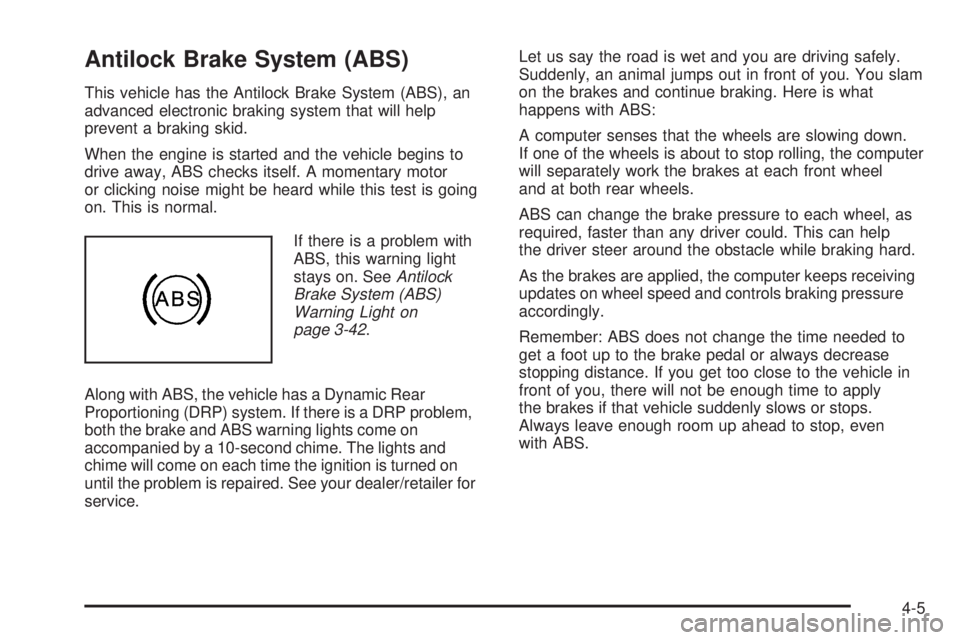
If there is a problem with
ABS, this warning light
stays on. SeeAntilock
Brake System (ABS)
Warning Light on
page 3-42.
Along with ABS, the vehicle has a Dynamic Rear
Proportioning (DRP) system. If there is a DRP problem,
both the brake and ABS warning lights come on
accompanied by a 10-second chime. The lights and
chime will come on each time the ignition is turned on
until the problem is repaired. See your dealer/retailer for
service.Let us say the road is wet and you are driving safely.
Suddenly, an animal jumps out in front of you. You slam
on the brakes and continue braking. Here is what
happens with ABS:
A computer senses that the wheels are slowing down.
If one of the wheels is about to stop rolling, the computer
will separately work the brakes at each front wheel
and at both rear wheels.
ABS can change the brake pressure to each wheel, as
required, faster than any driver could. This can help
the driver steer around the obstacle while braking hard.
As the brakes are applied, the computer keeps receiving
updates on wheel speed and controls braking pressure
accordingly.
Remember: ABS does not change the time needed to
get a foot up to the brake pedal or always decrease
stopping distance. If you get too close to the vehicle in
front of you, there will not be enough time to apply
the brakes if that vehicle suddenly slows or stops.
Always leave enough room up ahead to stop, even
with ABS.
4-5
Page 348 of 576
Driving in Water
{CAUTION:
Driving through rushing water can be dangerous.
Deep water can sweep your vehicle downstream
and you and your passengers could drown. If it is
only shallow water, it can still wash away the
ground from under your tires, and you could lose
traction and roll the vehicle over. Do not drive
through rushing water.
Heavy rain can mean ash ooding, and ood waters
demand extreme caution.
Find out how deep the water is before driving through it.
Do not try it if it is deep enough to cover the wheel
hubs, axles, or exhaust pipe — you probably will not get
through. Deep water can damage the axle and other
vehicle parts.If the water is not too deep, drive slowly through it. At
faster speeds, water splashes on the ignition system and
the vehicle can stall. Stalling can also occur if you get the
tailpipe under water. If the tailpipe is under water, you will
never be able to start the engine. When going through
water, remember that when the brakes get wet, it might
take longer to stop. SeeDriving in Rain and on Wet
Roads on page 4-26.
After Off-Road Driving
Remove any brush or debris that has collected on the
underbody, chassis, or under the hood. These
accumulations can be a re hazard.
After operation in mud or sand, have the brake linings
cleaned and checked. These substances can cause
glazing and uneven braking. Check the body structure,
steering, suspension, wheels, tires, and exhaust system
for damage and check the fuel lines and cooling system
for any leakage.
The vehicle requires more frequent service due to
off-road use. Refer to the Maintenance Schedule for
additional information.
4-24
Page 352 of 576
Hill and Mountain Roads
Driving on steep hills or through mountains is different
than driving on at or rolling terrain. Tips for driving
in these conditions include:
Keep the vehicle serviced and in good shape.
Check all uid levels and brakes, tires, cooling
system, and transmission.
Going down steep or long hills, shift to a
lower gear.
{CAUTION:
If you do not shift down, the brakes could get so
hot that they would not work well. You would then
have poor braking or even none going down a hill.
You could crash. Shift down to let the engine
assist the brakes on a steep downhill slope.
{CAUTION:
Coasting downhill in N (Neutral) or with the ignition
off is dangerous. The brakes will have to do all the
work of slowing down and they could get so hot
that they would not work well. You would then
have poor braking or even none going down a hill.
You could crash. Always have the engine running
and the vehicle in gear when going downhill.
Stay in your own lane. Do not swing wide or cut
across the center of the road. Drive at speeds
that let you stay in your own lane.
Top of hills: Be alert — something could be in your
lane (stalled car, accident).
Pay attention to special road signs (falling rocks
area, winding roads, long grades, passing or
no-passing zones) and take appropriate action.
SeeOff-Road Driving on page 4-12for information
about driving off-road.
4-28
Page 370 of 576
Four-Wheel-Drive Vehicles
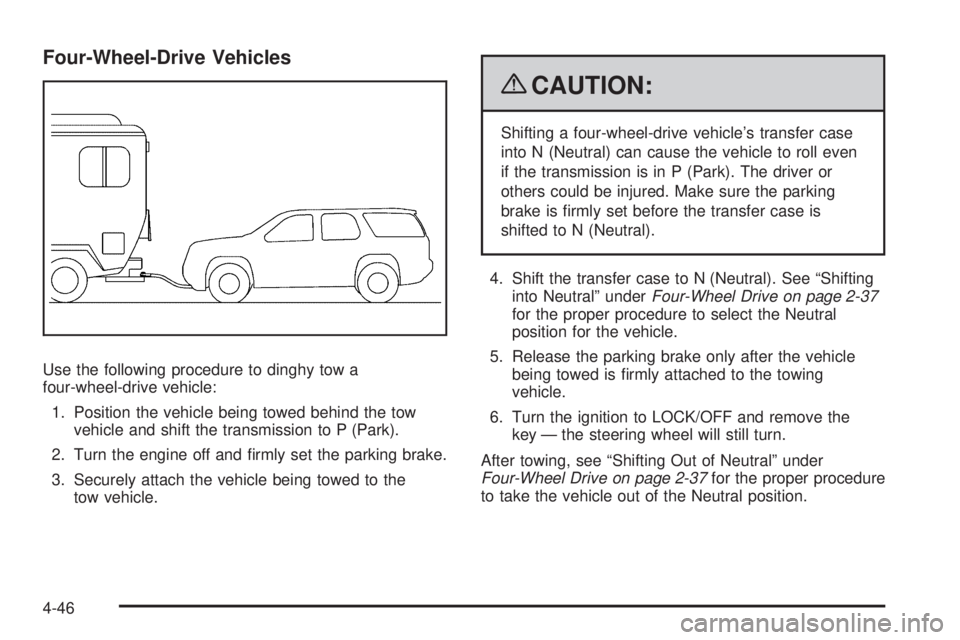
Use the following procedure to dinghy tow a
four-wheel-drive vehicle:
1. Position the vehicle being towed behind the tow
vehicle and shift the transmission to P (Park).
2. Turn the engine off and rmly set the parking brake.
3. Securely attach the vehicle being towed to the
tow vehicle.
{CAUTION:
Shifting a four-wheel-drive vehicle’s transfer case
into N (Neutral) can cause the vehicle to roll even
if the transmission is in P (Park). The driver or
others could be injured. Make sure the parking
brake is rmly set before the transfer case is
shifted to N (Neutral).
4. Shift the transfer case to N (Neutral). See “Shifting
into Neutral” underFour-Wheel Drive on page 2-37
for the proper procedure to select the Neutral
position for the vehicle.
5. Release the parking brake only after the vehicle
being towed is rmly attached to the towing
vehicle.
6. Turn the ignition to LOCK/OFF and remove the
key — the steering wheel will still turn.
After towing, see “Shifting Out of Neutral” under
Four-Wheel Drive on page 2-37for the proper procedure
to take the vehicle out of the Neutral position.
4-46