radio controls GMC YUKON 2011 User Guide
[x] Cancel search | Manufacturer: GMC, Model Year: 2011, Model line: YUKON, Model: GMC YUKON 2011Pages: 528, PDF Size: 6.36 MB
Page 160 of 528

Black plate (20,1)GMC Yukon/Yukon XL Owner Manual - 2011
5-20 Instruments and Controls
Then, after several more seconds,
the status indicator will light either
ON or OFF, or either the on or off
symbol to let you know the status of
the right front passenger frontal
airbag.
If the word ON or the on symbol is
lit on the passenger airbag status
indicator, it means that the right
front passenger frontal airbag is
enabled (may inflate).
If the word OFF or the off symbol is
lit on the airbag status indicator, it
means that the passenger sensing
system has turned off the right front
passenger frontal airbag.
If, after several seconds, both
status indicator lights remain on,
or if there are no lights at all, there
may be a problem with the lights
or the passenger sensing system.
See your dealer for service.{WARNING
If the airbag readiness light ever
comes on and stays on, it means
that something may be wrong
with the airbag system. To help
avoid injury to yourself or others,
have the vehicle serviced right
away. SeeAirbag Readiness
Light on page 5‑18 for more
information, including important
safety information.
Charging System Light
This light comes on briefly when
the ignition key is turned to START,
but the engine is not running, as a
check to show it is working. If it does not, have the vehicle
serviced by your dealer.
The light should go out once
the engine starts. If it stays on,
or comes on while driving, there
could be a problem with the
charging system. A charging
system message in the Driver
Information Center (DIC) can
also appear. See
Battery Voltage
and Charging Messages on
page 5‑38 for more information.
This light could indicate that there
are problems with a generator drive
belt, or that there is an electrical
problem. Have it checked right
away. If the vehicle must be driven a
short distance with the light on, turn
off accessories, such as the radio
and air conditioner.
If the vehicle is a hybrid, see
the hybrid supplement for more
information.
Page 195 of 528
Black plate (55,1)GMC Yukon/Yukon XL Owner Manual - 2011
Instruments and Controls 5-55
Press the customization button until
FACTORY SETTINGS appears on
the DIC display. Press the set/reset
button once to access the settings
for this feature. Then press the
customization button to scroll
through the following settings:
RESTORE ALL (default):The
customization features will be set to
their factory default settings.
DO NOT RESTORE: The
customization features will not
be set to their factory default
settings.
To select a setting, press the
set/reset button while the desired
setting is displayed on the DIC.
EXIT FEATURE SETTINGS
This feature allows you to exit the
feature settings menu.
Press the customization button
until PRESS
VTO EXIT FEATURE
SETTINGS appears in the DIC
display. Press the set/reset button
once to exit the menu. If you do not exit, pressing the
customization button again will
return you to the beginning of the
feature settings menu.
Exiting the Feature
Settings Menu
The feature settings menu will be
exited when any of the following
occurs:
.The vehicle is no longer in
ON/RUN.
.The trip/fuel or vehicle
information DIC buttons are
pressed.
.The end of the feature settings
menu is reached and exited.
.A 40 second time period has
elapsed with no selection made.
Universal Remote
System
See
Radio Frequency Statement on
page 13‑16 for information
regarding Part 15 of the Federal
Communications Commission (FCC)
rules and Industry Canada
Standards RSS-210/220/310.
Universal Remote System
Programming
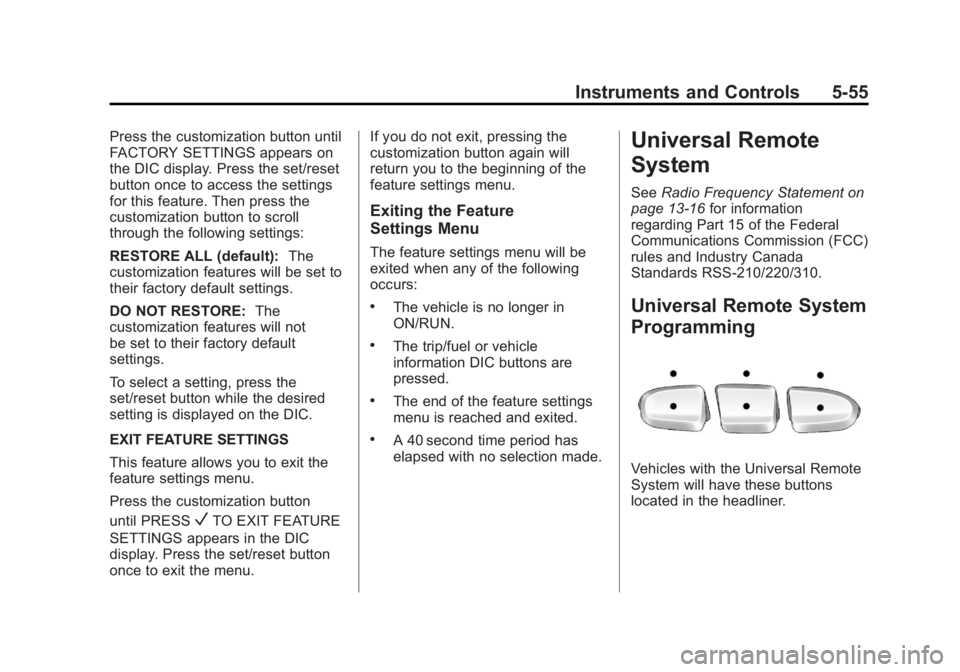
Vehicles with the Universal Remote
System will have these buttons
located in the headliner.
Page 214 of 528

Black plate (2,1)GMC Yukon/Yukon XL Owner Manual - 2011
7-2 Infotainment System
To minimize taking your eyes off the
road while driving, do the following
while the vehicle is parked:
.Become familiar with the
operation and controls of the
audio system.
.Set up the tone, speaker
adjustments, and preset radio
stations.
For more information, see Defensive
Driving on page 9‑2. This vehicle's audio system may be
equipped with a noise reduction
system which can work improperly
if the audio amplifier, engine
calibrations, exhaust system,
microphones, radio, or speakers are
modified or replaced. This could
result in more noticeable engine
noise at certain speeds.
Notice:
Contact your dealer
before adding any equipment.
Adding audio or communication
equipment could interfere with
the operation of the engine, radio,
or other systems, and could
damage them. Follow federal
rules covering mobile radio and
telephone equipment. The vehicle has Retained
Accessory Power (RAP). With RAP,
the audio system can be played
even after the ignition is turned off.
See
Retained Accessory Power
(RAP) on page 9‑33 for more
information.Navigation/Radio System
For vehicles with a navigation radio
system, see the separate Navigation
System manual.
Page 217 of 528
Black plate (5,1)GMC Yukon/Yukon XL Owner Manual - 2011
Infotainment System 7-5
XM station; or CD, MP3, or WMA
song. If information is available
during XM, CD, MP3, or WMA
playback, the song title information
displays on the top line of the
display and artist information
displays on the bottom line. When
information is not available,
“NO INFO”displays.
Speed Compensated Volume
(SCV): Radios with Speed
Compensated Volume (SCV)
automatically adjusts the radio
volume to compensate for road and
wind noise as the vehicle's speed
changes while driving, so that the
volume level stays consistent.
To activate SCV:
1. Set the radio volume to the desired level.
2. Press the MENU button to display the radio setup menu.
3. Press the softkey under the AUTO VOLUM (automatic
volume) tab on the radio display. 4. Press the softkey under the
desired Speed Compensated
Volume setting (OFF, Low, Med,
or High) to select the level of
radio volume compensation.
The display times out after
approximately 10 seconds. Each
higher setting allows for more
radio volume compensation at
faster vehicle speeds.
Setting the Tone
(Bass/Midrange/Treble)
BASS/MID/TREB (Bass, Midrange,
or Treble): To adjust the bass,
midrange, or treble:
1. Press the
fknob until the tone
control tabs display.
2. Highlight the desired tone control tab by doing one of the
following:
.Pressing thefknob.
.Press the softkey under the
desired tab. 3. Adjust the setting by doing one
of the following:
.Turn thefknob clockwise
or counterclockwise.
.Press the¨SEEK,
or
©SEEK button.
.Press the\FWD,
or
sREV button.
If a station's frequency is weak or if
there is static, decrease the treble.
To quickly adjust bass, midrange,
or treble to the middle position,
press the softkey positioned under
the BASS, MID, or TREB tab for
more than 2 seconds. A beep
sounds and the level adjusts to
the middle position.
To quickly adjust all tone and
speaker controls to the middle
position, press the
fknob for more
than 2 seconds until a beep sounds.
Page 218 of 528
Black plate (6,1)GMC Yukon/Yukon XL Owner Manual - 2011
7-6 Infotainment System
EQ (Equalization):Press this
button to choose bass and treble
equalization settings designed for
different types of music. Selecting
MANUAL or changing bass or
treble, returns the EQ to the manual
bass and treble settings.
Unique EQ settings can be saved
for each source.
If the radio has a Bose
®audio
system, the EQ settings are either
MANUAL or TALK.
Adjusting the Speakers
(Balance/Fade)
BAL/FADE (Balance/Fade): To
adjust the balance or fade:
1. Press the
fknob until the
speaker control tabs display. 2. Highlight the desired speaker
control tab by doing one of the
following:
.Pressing thefknob.
.Press the softkey under the
desired tab.
3. Adjust the setting by doing one of the following:
.Turn thefknob clockwise
or counterclockwise.
.Press the¨SEEK,
or
©SEEK button.
.Press the\FWD,
or
sREV button.
To quickly adjust all speaker and
tone controls to the middle position,
press the
fknob for more than
2 seconds.
If the Rear Seat Audio (RSA) is
turned on, the radio disables FADE
and mutes the rear speakers.
Radio Messages
Calibration Error: The audio
system has been calibrated
for the vehicle from the factory.
If Calibration Error displays, it
means that the radio has not been
configured properly for the vehicle
and it must be returned to your
dealer for service.
Locked or Loc: One of these
messages will display when the
TheftLock
®system has locked up
the radio. Take the vehicle to your
dealer for service.
If any error occurs repeatedly or
if an error cannot be corrected,
contact your dealer.
Page 219 of 528
Black plate (7,1)GMC Yukon/Yukon XL Owner Manual - 2011
Infotainment System 7-7
Radio
AM-FM Radio
Radio Data System (RDS)
For radios with the Radio Data
System (RDS) feature, it only works
with FM stations that broadcast
RDS information. This system relies
upon receiving specific information
from these stations and only works
when the information is available.
While the radio is tuned to an
FM-RDS station, the station name
or call letters displays. In rare
cases, a radio station could
broadcast incorrect information
that causes the radio features to
work improperly. If this happens,
contact the radio station.
4(Information) (RDS Features):
For vehicles with RDS features,
press
4to display additional text
information related to the current
FM-RDS station. If information is
available, the song title information
displays on the top line of the display and artist information
displays on the bottom line.
When information is not available,
“NO INFO”
displays.
Finding a Station
BAND:Press to switch between
AM, FM, or XM™, if equipped.
f(Tune): Turn to manually select
radio stations.
©SEEK: Press to seek the
previous radio station. Press and
hold for a few seconds until a
beep sounds to scan for radio
stations in descending order,
press the
©SEEK button again to
stop scanning radio stations. The
radio only seeks and scans stations
with a strong signal that are in the
selected band.
¨SEEK: Press to seek the next
radio station. Press and hold for a
few seconds until a beep sounds to
scan for radio stations in ascending
order, press the
©SEEK button
again to stop scanning radio stations. The radio only seeks and
scans stations with a strong signal
that are in the selected band.
sREV:
Press to manually tune to
a radio station in descending order.
\FWD: Press to manually tune to
a radio station in ascending order.
FAV (Favorites): Press to select
different favorite pages for stored
radio stations.
Storing Radio Stations
Drivers are encouraged to store
radio station while the vehicle is
parked, see Defensive Driving on
page 9‑2. Tune to stored radio
stations using the presets, favorites
button, and steering wheel controls,
if the vehicle has this feature.
Up to 36 stations can be
programmed as favorites using the
6 softkeys below the radio station
frequency tabs and by using the
FAV button. Press the FAV button
to go through up to 6 pages of
favorites, each having 6 favorite
stations available per page.
Page 222 of 528
Black plate (10,1)GMC Yukon/Yukon XL Owner Manual - 2011
7-10 Infotainment System
Adding and Removing Categories
Categories cannot be added or
removed while the vehicle is moving
faster than 8 km/h (5 mph).
To add or remove a category:
1. Press the MENU button.
2. Press the softkey located belowthe XM CAT tab.
3. Turn the
fknob to display the
category to add or remove.
4. Press the softkey located under the Add or Remove tab.
To restore all removed
categories, press the softkey
under the Restore All tab.
5. Repeat the steps to remove more categories.
Storing XM Channels
Drivers are encouraged to store
XM channels while the vehicle is
parked; see Defensive Driving on
page 9‑2. Tune to stored radio
stations using the presets, favorites
button, and steering wheel controls,
if the vehicle has this feature.
Up to 36 stations can be
programmed as favorites using
the six softkeys below the radio
station frequency tabs and by
using the FAV button. Press the FAV
button to go through up to six pages
of favorites, each having six favorite
stations available per page. Each
page of favorites can contain any
combination of AM, FM, or XM,
if equipped, stations.
Storing an XM Channel as a
Favorite
To store a station as a favorite:
1. Tune to an XM channel.
2. Press the FAV button to display the page where the station will
be stored. 3. Press and hold one of the
six softkeys until a beep sounds.
4. Repeat Steps 1 through 3 to store additional radio stations.
The number of favorites pages can
be set up using the MENU button.
To set up the number of favorites
pages:
1. Press the MENU button.
2. Press the softkey located below the FAV 1-6 tab.
3. Select the number of favorites pages by pressing the softkey
located below the displayed
page numbers.
4. Press the FAV button, or let the menu time out, to return to
the original main radio screen
showing the radio station
frequency tabs and to begin
the process of programming
favorites.
Page 240 of 528
Black plate (28,1)GMC Yukon/Yukon XL Owner Manual - 2011
7-28 Infotainment System
If the forward arrow is showing on
the display, the system is in pause
mode. If the Pause tab is showing
on the display, the system is in
playback mode. If the DVD screen
is off, press the play button to turn
the screen on.
Some DVDs begin playing after the
previews have finished, although
there could be a delay of up to
30 seconds. If the DVD does
not begin playing the movie
automatically, press the softkey
located under the play/pause
symbol tag displayed on the radio.
If the DVD still does not play, refer
to the on-screen instructions,
if available.
c(Stop):Press to stop playing,
rewinding, or fast forwarding a DVD.
r(Enter): Press to select the
choices that are highlighted in
any menu.
y(Menu): Press to access the
DVD menu. The DVD menu is
different on every DVD. Use the
softkeys located under the
navigation arrows to navigate the
cursor through the DVD menu.
After making a selection press this
button. This button only operates
when using a DVD.
Nav (Navigate): Press to display
directional arrows for navigating
through the menus.
q(Return): Press to exit the
current active menu and return to
the previous menu. This button
operates only when a DVD is
playing and a menu is active.
The rear seat passenger can
navigate the DVD-V and DVD-A
menus and controls through the
remote control. See “Remote
Control” underRear Seat
Entertainment (RSE) System on
page 7‑35 for more information. The video screen automatically
turns on when the DVD-V is
inserted into the DVD slot, and
does not automatically power on
when the DVD-A is inserted into
the DVD slot. It must be manually
turned on by the rear seat occupant
through the remote control power
button.
Using Softkeys to Play a DVD-A
(Audio)
Once a DVD-A is inserted, the radio
display menu shows several tab
options for playback. Press the
softkey located under any tab option
during DVD-A playback.
r/j(Play/Pause):
Press either
the play or pause icon displayed on
the radio, to toggle between pausing
or restarting playback of a DVD.
If the forward arrow is showing on
the display, the system is in pause
mode. If the pause tab is showing
on the display, the system is in
playback mode.
Page 241 of 528
Black plate (29,1)GMC Yukon/Yukon XL Owner Manual - 2011
Infotainment System 7-29
qGroupr:Press to cycle
through musical groupings on the
DVD-A disc.
Nav (Navigate): Press to display
directional arrows for navigating
through the menus.
e(Audio Stream): Press to cycle
through audio stream formats
located on the DVD-A disc. The
video screen shows the audio
stream changing.
The rear seat passenger can
navigate the DVD-V and DVD-A
menus and controls through the
remote control. See “Remote
Control” underRear Seat
Entertainment (RSE) System on
page 7‑35 for more information.
The video screen automatically
turns on when the DVD-V is
inserted into the DVD slot, and
does not automatically power on
when the DVD-A is inserted into
the DVD slot. It must be manually
turned on by the rear seat occupant
through the remote control power
button.
Stopping and Resuming
Playback
To stop playing a DVD without
turning off the system, press
the
cbutton on the remote control,
or press the softkey located under
the
cor ther/jtabs displayed
on the radio. If the radio is sourced
to something other than DVD-V,
press the DVD/CD AUX button to
make DVD-V the active source.
To resume DVD playback, press
the
r/jbutton on the remote
control, or press the softkey located
under the
r/jtab on the radio.
The DVD should resume play from
where it last stopped if the disc
has not been ejected and the stop
button has not been pressed twice
on the remote control. If the disc
has been ejected or the stop button
has been pressed twice on the
remote control, the disc resumes
playing at the beginning of the disc.
CD/DVD Player Messages
Disc Format Error: This message
displays if the disc is inserted with
the disc label wrong side up, or if
the disc is damaged.
Disc Region Error: This message
displays if the disc is not from a
correct region.
No Disc Inserted: This message
displays if no disc is present when
the
Zor DVD/CD AUX button is
pressed on the radio.
Optical Error: This message
displays if the disc was inserted
upside down.
Disk Read Error: This message
displays if a disc was inserted with
an invalid or unknown format.
Page 257 of 528
Black plate (45,1)GMC Yukon/Yukon XL Owner Manual - 2011
Infotainment System 7-45
Cleaning the RSE Overhead
Console
When cleaning the RSE overhead
console surface, use only a clean
cloth dampened with clean water.
Cleaning the Video Screen
When cleaning the video screen,
use only a clean cloth dampened
with clean water. Use care when
directly touching or cleaning the
screen, as damage could result.
Rear Seat Audio (RSA)
System
Vehicles with this feature allow
the rear seat passengers to listen
to and control any of the music
sources: radio, CDs, DVDs, or
other auxiliary sources. However,
the rear seat passengers can
only control the music sources
the front seat passengers are not
listening to (except on some radios
where dual control is allowed).For example, rear seat passengers
can control and listen to a CD
through the headphones, while the
driver listens to the radio through
the front speakers. The rear seat
passengers have control of the
volume for each set of headphones.
The radio functionality is controlled
by both the RSA and the front radio.
Only one band can be tuned to at
one time. Changing the band on the
RSA or the front radio will change
the band on the other system,
if they are both sourced to the radio.
The RSA functions operate even
when the main radio is off. The
front audio system will display the
headphone icon when the RSA is
on, and will disappear from the
display when it is off.
Audio can be heard through wired
headphones (not included) plugged
into the jacks on the RSA. If the
vehicle has this feature, audio can
also be heard on Channel 2 of the
wireless headphones.The audio system mutes the rear
speakers when the RSA audio is
active through the headphones.
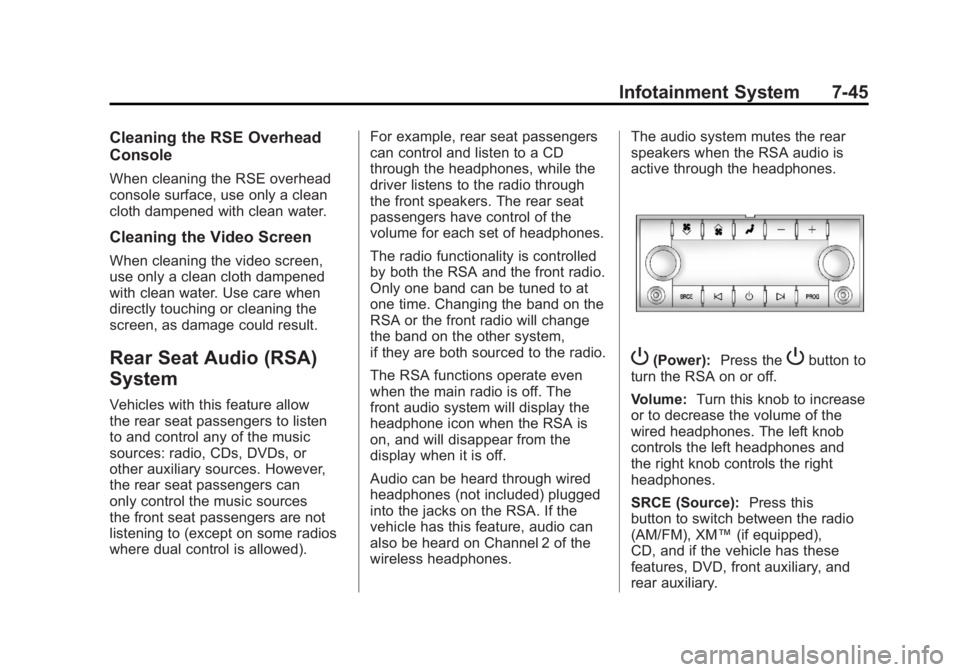
P(Power):
Press thePbutton to
turn the RSA on or off.
Volume: Turn this knob to increase
or to decrease the volume of the
wired headphones. The left knob
controls the left headphones and
the right knob controls the right
headphones.
SRCE (Source): Press this
button to switch between the radio
(AM/FM), XM™ (if equipped),
CD, and if the vehicle has these
features, DVD, front auxiliary, and
rear auxiliary.