ignition GMC YUKON 2011 Workshop Manual
[x] Cancel search | Manufacturer: GMC, Model Year: 2011, Model line: YUKON, Model: GMC YUKON 2011Pages: 528, PDF Size: 6.36 MB
Page 211 of 528

Black plate (9,1)GMC Yukon/Yukon XL Owner Manual - 2011
Lighting 6-9
Lighting Features
Entry Lighting
The vehicle has an illuminated entry
feature.
When the doors are opened, the
dome lamps will come on if the
dome override button is in the
extended position. If the dome
override button is pressed in, the
lamps will not come on.
Exit Lighting
The interior lamps come on when
the key is removed from the ignition.
They turn off automatically in
20 seconds. The lights do not come
on if the dome override button is
pressed in.
Battery Load
Management
The vehicle has Electric Power
Management (EPM) that estimates
the battery's temperature and state
of charge. It then adjusts the voltage
for best performance and extended
life of the battery.
When the battery's state of charge
is low, the voltage is raised slightly
to quickly bring the charge back up.
When the state of charge is high,
the voltage is lowered slightly to
prevent overcharging. If the vehicle
has a voltmeter gauge or a voltage
display on the Driver Information
Center (DIC), you may see the
voltage move up or down. This is
normal. If there is a problem, an
alert will be displayed.The battery can be discharged at
idle if the electrical loads are very
high. This is true for all vehicles.
This is because the generator
(alternator) may not be spinning fast
enough at idle to produce all the
power that is needed for very high
electrical loads.
A high electrical load occurs when
several of the following are on,
such as: headlamps, high beams,
fog lamps, rear window defogger,
climate control fan at high speed,
heated seats, engine cooling fans,
trailer loads, and loads plugged into
accessory power outlets.
EPM works to prevent excessive
discharge of the battery. It does this
by balancing the generator's output
and the vehicle's electrical needs.
It can increase engine idle speed
to generate more power, whenever
needed. It can temporarily reduce
the power demands of some
accessories.
Page 212 of 528
Black plate (10,1)GMC Yukon/Yukon XL Owner Manual - 2011
6-10 Lighting
Normally, these actions occur in
steps or levels, without being
noticeable. In rare cases at the
highest levels of corrective action,
this action may be noticeable to the
driver. If so, a Driver Information
Center (DIC) message might be
displayed, such as BATTERY LOW
START VEHICLE . If this message
displays, it is recommended that the
driver reduce the electrical loads as
much as possible and restart the
vehicle. SeeBattery Voltage and
Charging Messages on page 5‑38.Battery Power Protection
This feature shuts off the dome, and
reading lamps if they are left on for
more than 10 minutes when the
ignition is off. This will keep the
battery from running down.
Page 214 of 528

Black plate (2,1)GMC Yukon/Yukon XL Owner Manual - 2011
7-2 Infotainment System
To minimize taking your eyes off the
road while driving, do the following
while the vehicle is parked:
.Become familiar with the
operation and controls of the
audio system.
.Set up the tone, speaker
adjustments, and preset radio
stations.
For more information, see Defensive
Driving on page 9‑2. This vehicle's audio system may be
equipped with a noise reduction
system which can work improperly
if the audio amplifier, engine
calibrations, exhaust system,
microphones, radio, or speakers are
modified or replaced. This could
result in more noticeable engine
noise at certain speeds.
Notice:
Contact your dealer
before adding any equipment.
Adding audio or communication
equipment could interfere with
the operation of the engine, radio,
or other systems, and could
damage them. Follow federal
rules covering mobile radio and
telephone equipment. The vehicle has Retained
Accessory Power (RAP). With RAP,
the audio system can be played
even after the ignition is turned off.
See
Retained Accessory Power
(RAP) on page 9‑33 for more
information.Navigation/Radio System
For vehicles with a navigation radio
system, see the separate Navigation
System manual.
Page 216 of 528
Black plate (4,1)GMC Yukon/Yukon XL Owner Manual - 2011
7-4 Infotainment System
Radio with USB, CD, and DVD (MP3)
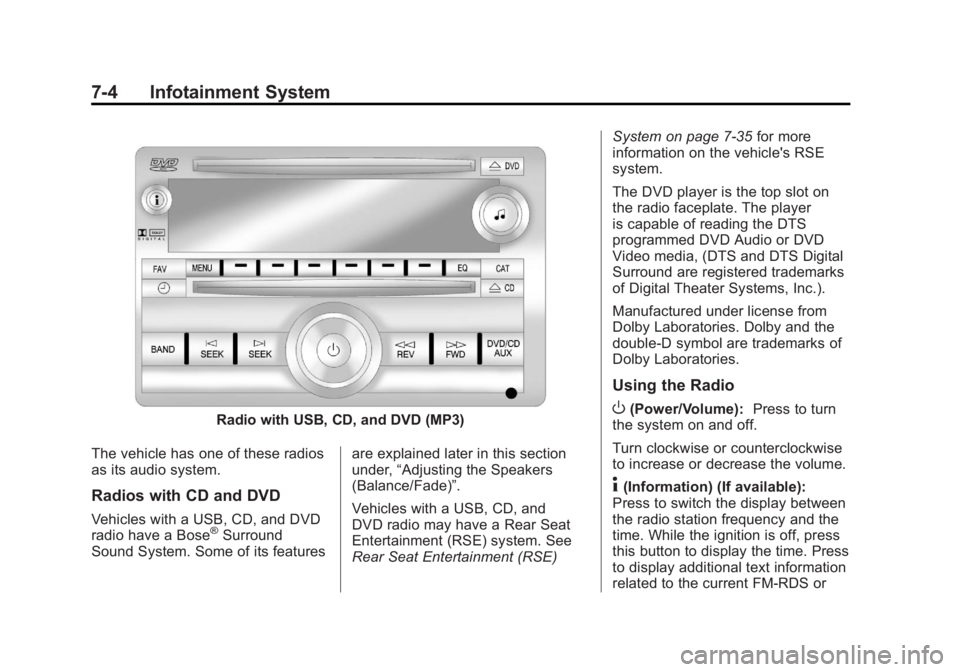
The vehicle has one of these radios
as its audio system.
Radios with CD and DVD
Vehicles with a USB, CD, and DVD
radio have a Bose®Surround
Sound System. Some of its features are explained later in this section
under,
“Adjusting the Speakers
(Balance/Fade)”.
Vehicles with a USB, CD, and
DVD radio may have a Rear Seat
Entertainment (RSE) system. See
Rear Seat Entertainment (RSE) System on page 7‑35
for more
information on the vehicle's RSE
system.
The DVD player is the top slot on
the radio faceplate. The player
is capable of reading the DTS
programmed DVD Audio or DVD
Video media, (DTS and DTS Digital
Surround are registered trademarks
of Digital Theater Systems, Inc.).
Manufactured under license from
Dolby Laboratories. Dolby and the
double-D symbol are trademarks of
Dolby Laboratories.
Using the Radio
O(Power/Volume): Press to turn
the system on and off.
Turn clockwise or counterclockwise
to increase or decrease the volume.
4(Information) (If available):
Press to switch the display between
the radio station frequency and the
time. While the ignition is off, press
this button to display the time. Press
to display additional text information
related to the current FM-RDS or
Page 226 of 528
Black plate (14,1)GMC Yukon/Yukon XL Owner Manual - 2011
7-14 Infotainment System
Audio Players
CD Player
Care of the CD Player
Do not add any label to a CD.
It could get caught in the CD. If a
CD is recorded on a personal
computer and a description label is
needed, try labeling the top of the
recorded CD with a marking pen.
The use of CD lens cleaners for
CDs is not advised, due to the risk
of contaminating the lens of the CD
optics with lubricants internal to the
CD player mechanism.
Notice:If a label is added to a
CD, more than one CD is inserted
into the slot at a time, or an
attempt is made to play scratched
or damaged CDs, the CD player
could be damaged. While using
the CD player, use only CDs in
good condition without any label,
load one CD at a time, and keep the CD player and the loading slot
free of foreign materials, liquids,
and debris.
If an error displays, see
“
Messages” later in this section.Care of CDs
If playing a CD-R, the sound quality
can be reduced due to CD-R or
CD-RW quality, the method of
recording, the quality of the music
that has been recorded, and the
way the CD-R or CD-RW has been
handled. Handle them carefully.
Store CD-R(s) or CD-RW(s) in their
original cases or other protective
cases and away from direct sunlight
and dust. The CD player scans the
bottom surface of the disc. If the
surface of a CD is damaged, such
as cracked, broken, or scratched,
the CD does not play properly or not
at all. Do not touch the bottom side
of a CD while handling it; this could
damage the surface. Pick up CDs
by grasping the outer edges or the
edge of the hole and the outer edge. If the surface of a CD is soiled,
clean it with a soft, lint free cloth or
dampen a clean, soft cloth in a mild,
neutral detergent solution mixed
with water. Make sure the wiping
process starts from the center to
the edge.Inserting a CD
Insert a CD partway into the slot,
label side up. The player pulls it in
and the CD should begin playing.
Ejecting a CD
ZEJECT:
Press and release to
eject the disc. Remove the CD
when Remove Disc displays. If the
disc is not removed, after several
seconds, the disc is automatically
pulled back into the player.
Playing a CD
If the ignition or radio is turned off,
with a CD in the player, it stays in
the player. When the ignition or
radio is turned on, the CD starts
playing where it stopped, if it was
the last selected audio source.
Page 233 of 528
Black plate (21,1)GMC Yukon/Yukon XL Owner Manual - 2011
Infotainment System 7-21
Ejecting a Disc
ZCD (Eject):Press and
release to eject the disc that is
currently playing. The CD ejects
from the bottom slot. A beep
sounds and Ejecting Disc displays.
Once the disc is ejected, Remove
Disc displays. The disc can be
removed. If the disc is not removed,
after several seconds the disc
automatically pulls back into the
player.
ZDVD (Eject): Press and
release to eject the disc that is
currently playing in the top slot.
A beep sounds and Ejecting Disc
displays.
If loading and reading of a disc
cannot be completed, due to
unknown format, etc., and the disc
fails to eject, press and hold for
more than five seconds to force the
disc to eject.
Playing a CD (in Either the
DVD or CD Slot)
If the ignition or radio is turned off
with a CD in the player, it stays in
the player. When the ignition or
radio is turned on, the CD starts
playing where it stopped, if it was
the last selected audio source. The
CD is controlled by the buttons on
the radio faceplate or by the RSA
unit. See Rear Seat Audio (RSA)
System on page 7‑45 for more
information. The DVD/CD decks
(the upper slot is the DVD deck
and the lower slot is the CD deck)
of the radio are compatible with
most audio CDs, CD-Rs, CD-RWs,
and MP3s.
When a CD is inserted, the text tab
DVD or CD symbol displays on the
left side of the radio display. As
each new track starts to play, the
track number displays. The CD player can play the smaller
8 cm (3 in) single CDs with an
adapter ring. Full-size CDs and the
smaller CDs are loaded in the same
manner.
DVD/CD AUX (Auxiliary):
Press to
cycle through DVD, CD, or Auxiliary
when listening to the radio. The
DVD/CD text tab and a message
showing the track or chapter
number will display when a disc is in
either slot. Press the DVD/CD AUX
button again and the system
automatically searches for an
auxiliary input device; see Auxiliary
Devices on page 7‑30 for more
information. If a portable audio
player is not connected, “No Aux
Input Device” displays. If a disc is in
both the DVD slot and the CD slot,
the DVD/CD AUX button cycles
between the two sources and does
not indicate “No Aux Input Device.”
Page 239 of 528
Black plate (27,1)GMC Yukon/Yukon XL Owner Manual - 2011
Infotainment System 7-27
If a front auxiliary device is
connected, the DVD/CD AUX
button cycles through all available
options, such as: DVD slot, CD
slot, front auxiliary, and rear
auxiliary (if available). See“Using
the Auxiliary Input Jack” inAuxiliary
Devices on page 7‑30 or“Audio/
Video (A/V) Jacks” underRear Seat
Entertainment (RSE) System on
page 7‑35 for more information.
If a disc is inserted into the top DVD
slot, the rear seat operator can turn
on the video screen and use the
remote control to navigate the CD
(tracks only) through the remote
control.
O(Power): Press to turn the
radio on or off. Turn clockwise or
counterclockwise to increase or
decrease the volume. Press and
hold for more than two seconds to
turn off the entire radio and Rear
Seat Entertainment (RSE) system
and to start the Parental Control
feature. Parental Control prevents the rear seat occupant from
operating the Rear Seat Audio
(RSA) system or remote control.
A lock symbol displays next to the
clock display. The Parental Control
feature remains on until the knob is
pressed and held for more than
two seconds again, or until the
driver turns the ignition off and exits
the vehicle.
f(Tune):
Turn to select tracks on
a CD or DVD.
©SEEK: Press to return to the
start of the current track or chapter.
Press again to go to the previous
track or chapter. This button might
not work when the DVD is playing
the copyright information or the
previews.
¨SEEK: Press to go to the next
track or chapter. This button might
not work when the DVD is playing
the copyright information or the
previews.
sREV (Fast Reverse): Press to
quickly reverse the CD or DVD at
five times the normal speed. To stop
fast reversing, press again. This
button might not work when the
DVD is playing the copyright
information or the previews.
\FWD (Fast Forward): Press
to fast forward the CD or DVD at
five times the normal speed. To stop
fast forwarding, press again. This
button might not work when the
DVD is playing the copyright
information or the previews.
Using Softkeys to Play a DVD-V
(Video)
Once a DVD-V is inserted, the radio
display menu shows several tab
options for playback. Press the
softkey located under any tab option
during DVD-V playback.
r/j(Play/Pause): Press either
the Play or Pause tab displayed on
the radio, to toggle between pausing
or restarting playback of a DVD.
Page 248 of 528
Black plate (36,1)GMC Yukon/Yukon XL Owner Manual - 2011
7-36 Infotainment System
The radio can be turned back on
with a single press of the power
button, but the RSE system will
remain under Parental Control.
To turn Parental Control off, press
and hold the radio power button for
more than two seconds. The RSE
returns from where it was previously
left and the padlock icon disappears
from the radio display.
Parental Control can also be turned
off by inserting or ejecting any disc,
pressing the play icon on the radio
DVD display menu, or changing an
ignition position.Headphones
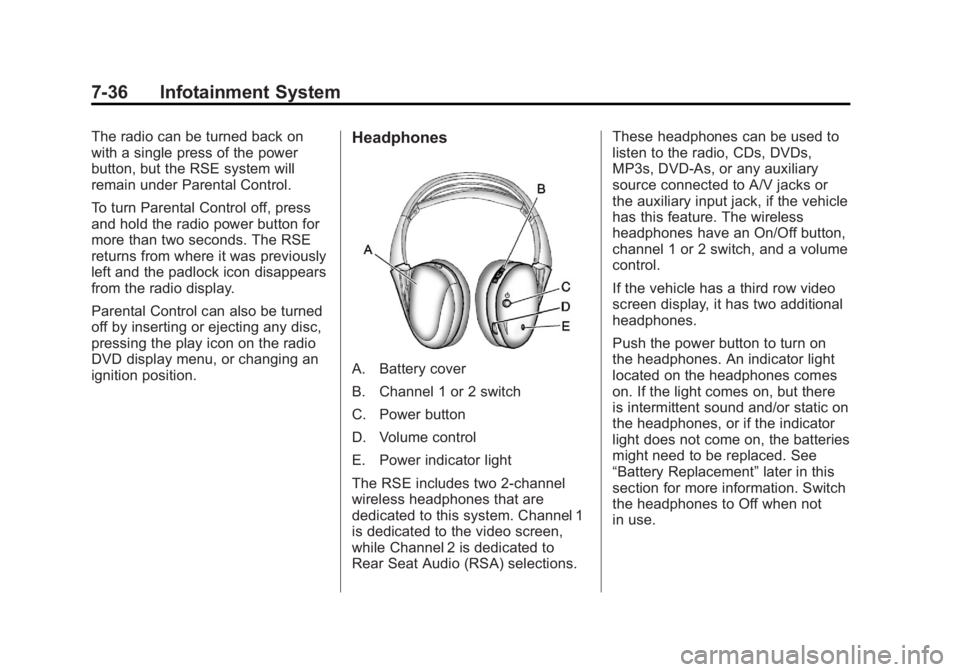
A. Battery cover
B. Channel 1 or 2 switch
C. Power button
D. Volume control
E. Power indicator light
The RSE includes two 2-channel
wireless headphones that are
dedicated to this system. Channel 1
is dedicated to the video screen,
while Channel 2 is dedicated to
Rear Seat Audio (RSA) selections.These headphones can be used to
listen to the radio, CDs, DVDs,
MP3s, DVD‐As, or any auxiliary
source connected to A/V jacks or
the auxiliary input jack, if the vehicle
has this feature. The wireless
headphones have an On/Off button,
channel 1 or 2 switch, and a volume
control.
If the vehicle has a third row video
screen display, it has two additional
headphones.
Push the power button to turn on
the headphones. An indicator light
located on the headphones comes
on. If the light comes on, but there
is intermittent sound and/or static on
the headphones, or if the indicator
light does not come on, the batteries
might need to be replaced. See
“Battery Replacement”
later in this
section for more information. Switch
the headphones to Off when not
in use.
Page 255 of 528
Black plate (43,1)GMC Yukon/Yukon XL Owner Manual - 2011
Infotainment System 7-43
Tips and Troubleshooting Chart
ProblemRecommended Action
There is no power. The ignition might not be turned to ON/RUN or
ACC/ACCESSORY.
The picture does not fill the screen. There are black
borders on the top and bottom or on both sides, or the
picture looks stretched out. Check the display mode settings in the setup menu by
pressing the display menu button on the remote control.
In auxiliary mode, the picture moves or scrolls. Check the auxiliary input connections at both devices.
The remote control does not work. Check to make sure there is no obstruction between
the remote control and the transmitter window.
Check the batteries to make sure they are not dead or
installed incorrectly.
After stopping the player, and pushing Play, sometimes
the DVD starts where it left off and sometimes at the
beginning. If the stop button was pressed one time, the DVD player
resumes playing where the DVD was stopped. If the
stop button was pressed two times, the DVD player
begins to play from the beginning of the DVD.
The auxiliary source is running, but there is no picture or
sound. Check that the RSE video screen is in the auxiliary
source mode.
Check the auxiliary input connections at both devices.
Page 264 of 528
Black plate (52,1)GMC Yukon/Yukon XL Owner Manual - 2011
7-52 Infotainment System
Receiving a Call
When an incoming call is received,
the audio system mutes and a ring
tone is heard in the vehicle.
.Pressbgto answer the call.
.Pressc xto ignore a call.
Call Waiting
Call waiting must be supported on
the cell phone and enabled by the
wireless service carrier.
.Pressbgto answer an
incoming call when another call
is active. The original call is
placed on hold.
.Pressb gagain to return to the
original call.
.To ignore the incoming call, no
action is required.
.Pressc xto disconnect the
current call and switch to the call
on hold.
Three‐Way Calling
Three‐way calling must be
supported on the cell phone and
enabled by the wireless service
carrier.
1. While on a call, press
b g.
2. Say “Three‐way call.”
3. Use the dial or call command to dial the number of the third party
to be called.
4. Once the call is connected, press
bgto link all callers
together.
Ending a Call
Pressc xto end a call.
Muting a Call
During a call, all sounds from inside
the vehicle can be muted so that the
person on the other end of the call
cannot hear them.
.To mute a call, pressbg, and
then say “Mute call.”
.To cancel mute, pressbg, and
then say “Un‐mute call.”
Transferring a Call
Audio can be transferred between
the Bluetooth system and the cell
phone.
The cell phone must be paired
and connected with the Bluetooth
system before a call can be
transferred. The connection process
can take up to two minutes after the
ignition is turned to ON/RUN.