manual radio set GMC YUKON 2011 Owner's Manual
[x] Cancel search | Manufacturer: GMC, Model Year: 2011, Model line: YUKON, Model: GMC YUKON 2011Pages: 528, PDF Size: 6.36 MB
Page 27 of 528
Black plate (21,1)GMC Yukon/Yukon XL Owner Manual - 2011
In Brief 1-21
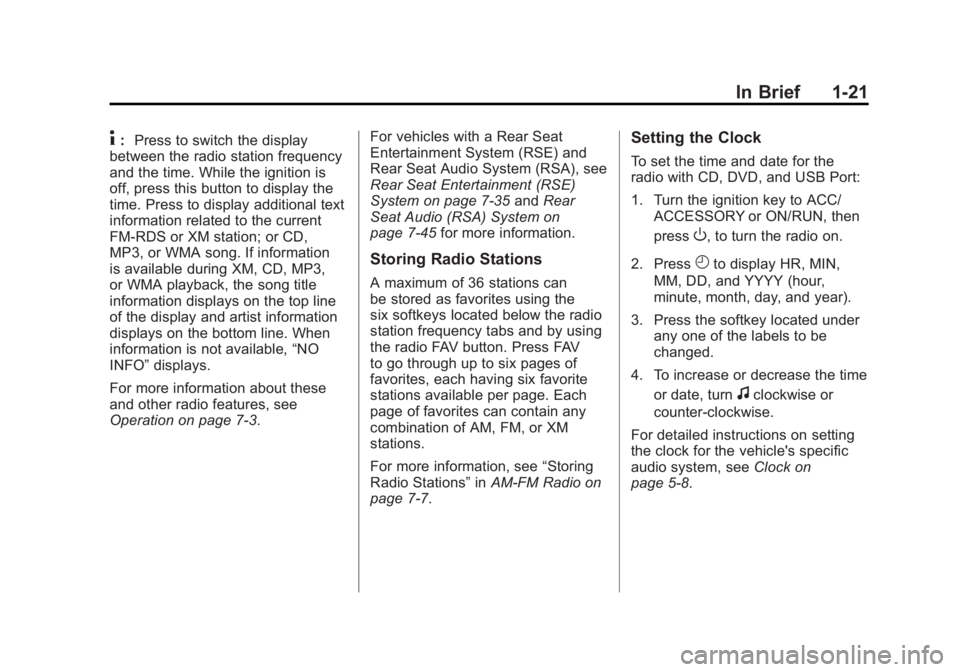
4:Press to switch the display
between the radio station frequency
and the time. While the ignition is
off, press this button to display the
time. Press to display additional text
information related to the current
FM-RDS or XM station; or CD,
MP3, or WMA song. If information
is available during XM, CD, MP3,
or WMA playback, the song title
information displays on the top line
of the display and artist information
displays on the bottom line. When
information is not available, “NO
INFO” displays.
For more information about these
and other radio features, see
Operation on page 7‑3. For vehicles with a Rear Seat
Entertainment System (RSE) and
Rear Seat Audio System (RSA), see
Rear Seat Entertainment (RSE)
System on page 7‑35
andRear
Seat Audio (RSA) System on
page 7‑45 for more information.
Storing Radio Stations
A maximum of 36 stations can
be stored as favorites using the
six softkeys located below the radio
station frequency tabs and by using
the radio FAV button. Press FAV
to go through up to six pages of
favorites, each having six favorite
stations available per page. Each
page of favorites can contain any
combination of AM, FM, or XM
stations.
For more information, see “Storing
Radio Stations” inAM-FM Radio on
page 7‑7.
Setting the Clock
To set the time and date for the
radio with CD, DVD, and USB Port:
1. Turn the ignition key to ACC/ ACCESSORY or ON/RUN, then
press
O, to turn the radio on.
2. Press
Hto display HR, MIN,
MM, DD, and YYYY (hour,
minute, month, day, and year).
3. Press the softkey located under any one of the labels to be
changed.
4. To increase or decrease the time or date, turn
fclockwise or
counter‐clockwise.
For detailed instructions on setting
the clock for the vehicle's specific
audio system, see Clock on
page 5‑8.
Page 28 of 528
Black plate (22,1)GMC Yukon/Yukon XL Owner Manual - 2011
1-22 In Brief
Satellite Radio
XM is a satellite radio service
based in the 48 contiguous United
States and 10 Canadian provinces.
XM satellite radio has a wide
variety of programming and
commercial-free music, coast to
coast, and in digital-quality sound.
A fee is required to receive the
XM service.
For more information, refer to:
.www.xmradio.com or call
1-800-929-2100 (U.S.)
.www.xmradio.ca or call
1-877-438-9677 (Canada)
See Satellite Radio on page 7‑8.
Portable Audio Devices
This vehicle has an auxiliary input,
located on the audio faceplate,
and a USB port located on the
instrument panel or in the center
console. External devices such
as iPod
®, laptop computers, MP3 players, CD changers, USB
storage device, etc. can be
connected to the auxiliary port using
a 3.5 mm (1/8 in) input jack or the
USB port depending on the audio
system.
See
Auxiliary Devices on page 7‑30
for further information.
Bluetooth®
For vehicles with a Bluetooth
system, it allows users with a
Bluetooth‐enabled cell phone to
make and receive hands-free calls
using the vehicle’ s audio system
and controls.
The Bluetooth‐enabled cell phone
must be paired with the Bluetooth
system before it can be used in the
vehicle. Not all phones will support
all functions. For more information,
visit www.gm.com/bluetooth.
For more information, see Bluetooth
on page 7‑47.
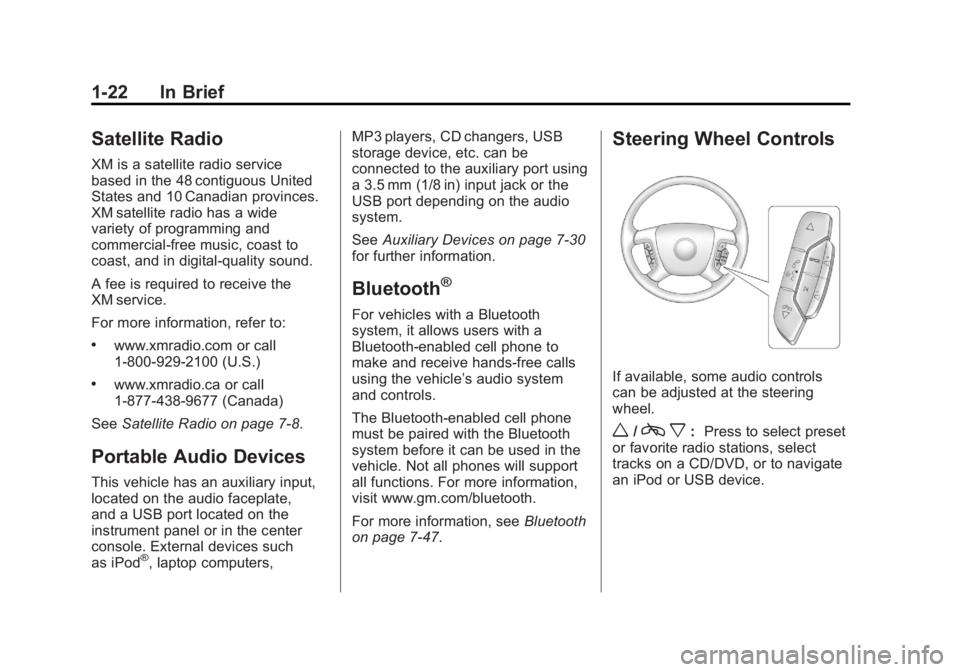
Steering Wheel Controls
If available, some audio controls
can be adjusted at the steering
wheel.
w/c x:Press to select preset
or favorite radio stations, select
tracks on a CD/DVD, or to navigate
an iPod or USB device.
Page 29 of 528
Black plate (23,1)GMC Yukon/Yukon XL Owner Manual - 2011
In Brief 1-23
bg: Press to silence the vehicle
speakers only. Press again to turn
the sound on. Press and hold longer
than two seconds to interact with
OnStar
®or Bluetooth systems,
if equipped.
+
e−e: Press to increase or
decrease volume.
c x:Press to reject an
incoming call, or to end a call.
SRCE: Press to switch between
the radio and CD, and for equipped
vehicles, the DVD, front auxiliary,
and rear auxiliary.
¨: Press to seek the next radio
station, the next track or chapter
while sourced to the CD or DVD
slot, or to select tracks and folders
on an iPod or USB device.
For more information, see Steering
Wheel Controls on page 5‑2.
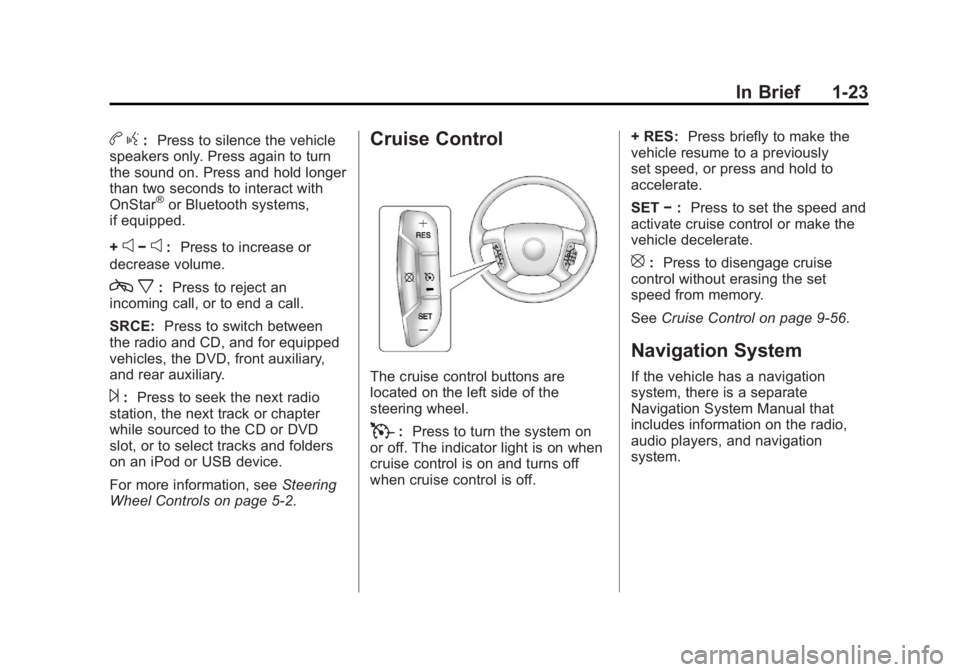
Cruise Control
The cruise control buttons are
located on the left side of the
steering wheel.
T: Press to turn the system on
or off. The indicator light is on when
cruise control is on and turns off
when cruise control is off. + RES:
Press briefly to make the
vehicle resume to a previously
set speed, or press and hold to
accelerate.
SET −: Press to set the speed and
activate cruise control or make the
vehicle decelerate.
[: Press to disengage cruise
control without erasing the set
speed from memory.
See Cruise Control on page 9‑56.
Navigation System
If the vehicle has a navigation
system, there is a separate
Navigation System Manual that
includes information on the radio,
audio players, and navigation
system.
Page 30 of 528

Black plate (24,1)GMC Yukon/Yukon XL Owner Manual - 2011
1-24 In Brief
The navigation system provides
detailed maps of most major
freeways and roads. After a
destination has been set, the
system provides turn-by-turn
instructions for reaching the
destination. In addition, the system
can help locate a variety of points
of interest (POIs), such as banks,
airports, restaurants, and more.
See the Navigation System Manual
for more information.
Side Blind Zone
Alert (SBZA)
If available, this feature will alert you
to vehicles located in the vehicle's
side blind zone. When the system
detects a vehicle in the side blind
zone, an amber SBZA display will
light up in the corresponding outside
side mirror.
The system is enabled at every
vehicle startup. It can be disabled
through the Driver Information
Center (DIC).If the message SIDE BLIND ZONE
SYSTEM UNAVAILABLE appears
on the DIC, the system has been
disabled because the sensor is
blocked and cannot detect vehicles
in the blind zone. The sensor may
be blocked by mud, dirt, snow, ice,
slush, or even heavy rainstorms.
This message may also activate
during heavy rain or due to road
spray. The vehicle does not need
service.
See
Side Blind Zone Alert (SBZA)
on page 9‑60 for more information.Rear Vision
Camera (RVC)
If available, the rear vision camera
displays a view of the area behind
the vehicle when the vehicle is
shifted into R (Reverse). The
display will appear on either the
inside rearview mirror or navigation
screen, if equipped. To clean the camera lens, located
above the license plate, rinse it with
water and wipe it with a soft cloth.
See
Rear Vision Camera (RVC) on
page 9‑63.
Ultrasonic Parking Assist
If available, Ultrasonic Rear Parking
Assist (URPA) uses sensors on the
rear bumper to detect objects while
parking the vehicle. URPA comes
on automatically when the shift lever
is moved into R (Reverse) and
operates at speeds less than 8 km/h
(5 mph). URPA uses audio beeps
to provide distance and system
information.
Keep the sensors on the vehicle's
rear bumper clean to ensure proper
operation.
The system can be disabled by
pressing the rear park aid disable
button located next to the radio.
See Ultrasonic Parking Assist on
page 9‑58 for more information.
Page 51 of 528
Black plate (15,1)GMC Yukon/Yukon XL Owner Manual - 2011
Keys, Doors and Windows 2-15
Your vehicle's headlamps will flash
and the horn will sound for about
30 seconds, then will turn off to save
the battery power.
The theft-deterrent system will not
activate if the doors are locked with
the vehicle's key or the manual door
lock. It activates only if you use the
power door lock switch with the door
open or the RKE transmitter. You
should also remember that you can
start your vehicle with the correct
ignition key if the alarm has been
set off.
To avoid setting off the alarm by
accident:
.If you do not want to activate
the theft-deterrent system, the
vehicle should be locked with
the door key after the doors are
closed.
.Always unlock the doors with the
RKE transmitter. Unlocking a
door any other way will set off
the alarm if it is armed.If you set off the alarm by accident,
press unlock on the RKE transmitter
or place the key in the ignition and
turn it to START to turn off the
alarm. The alarm will not stop if you
try to unlock a door any other way.
Testing the Alarm
To test the alarm:
1. From inside the vehicle, lower
the driver window and open the
driver door.
2. Activate the system by locking the doors with the power door
lock switch while the door
is open, or with the RKE
transmitter.
3. Get out of the vehicle, close the door and wait for the security
light to go out.
4. Then reach in through the window, unlock the door with
the manual door lock and open
the door. This should set off the
alarm. While the alarm is set, the power
door unlock switch will not work.
If the alarm does not sound when
it should but the headlamps flash,
check to see if the horn works. The
horn fuse may be blown. To replace
the fuse, see
Fuses and Circuit
Breakers on page 10‑40.
If the alarm does not sound or the
headlamps do not flash, the vehicle
should be serviced by your dealer.
Immobilizer
See Radio Frequency Statement on
page 13‑16 for information
regarding Part 15 of the Federal
Communications Commission (FCC)
rules and Industry Canada
Standards RSS-210/220/310.
Page 142 of 528
Black plate (2,1)GMC Yukon/Yukon XL Owner Manual - 2011
5-2 Instruments and Controls
Transmission Messages . . . . . 5-46
Vehicle ReminderMessages . . . . . . . . . . . . . . . . . . 5-46
Washer Fluid Messages . . . . . 5-47
Vehicle Personalization
Vehicle Personalization (With DIC Buttons) . . . . . . . . . . . . . . . 5-47
Universal Remote System
Universal Remote System . . . 5-55
Universal Remote SystemProgramming . . . . . . . . . . . . . . . 5-55
Universal Remote System Operation . . . . . . . . . . . . . . . . . . 5-61
Controls
Steering Wheel
Adjustment
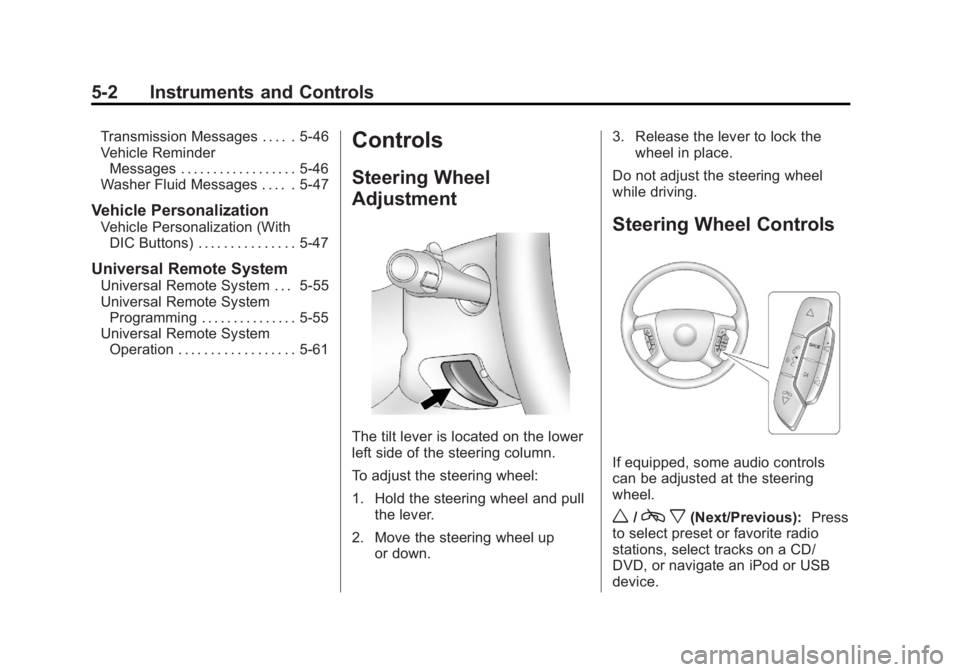
The tilt lever is located on the lower
left side of the steering column.
To adjust the steering wheel:
1. Hold the steering wheel and pull
the lever.
2. Move the steering wheel up or down. 3. Release the lever to lock the
wheel in place.
Do not adjust the steering wheel
while driving.
Steering Wheel Controls
If equipped, some audio controls
can be adjusted at the steering
wheel.
w/c x(Next/Previous): Press
to select preset or favorite radio
stations, select tracks on a CD/
DVD, or navigate an iPod or USB
device.
Page 143 of 528
Black plate (3,1)GMC Yukon/Yukon XL Owner Manual - 2011
Instruments and Controls 5-3
Radio
To select preset or favorite radio
stations:
Press and release
worcxto
go to the next or previous radio
station stored as a preset or
favorite.
CD/DVD
To select tracks on a CD/DVD:
Press and release
worc xto
go to the next or previous track.
Selecting Tracks on an iPod or
USB Device (Vehicles without a
Navigation System)
1. Press and hold
worc x
while listening to a song until the
contents of the current folder
display on the radio display.
2. Press and release
worc x
to scroll up or down the list, then
press and hold
w, or press¨to
play the highlighted track. Navigating Folders on an iPod or
USB Device (Vehicles without a
Navigation System):
1. Press and hold
worc
x
while listening to a song until the
contents of the current folder
display on the radio display.
2. Press and hold
c xto go
back to the previous folder list.
3. Press and release
worc x
to scroll up or down the list.
.To select a folder,
press and hold
w, or
press
¨when the folder is
highlighted.
.To go back further in
the folder list, press and
hold
c x. Navigating an iPod or USB
Device on the Main Audio Screen
(Vehicles with a Navigation
System)
1. Press and release
worc
x
to select the next or previous
track within the selected
category.
2. Press and hold
worc xto
move quickly through the tracks.
3. Press and release
¨to move up
one track within the selected
category.
Navigating an iPod or USB Device
on the Music Navigator Screen
(Vehicles with a Navigation
System)
1. Press and release
worc x
to select the next or previous
track within the selected
category.
2. Press and hold
worc xto
move quickly through the tracks
within the selected category.
Page 148 of 528
Black plate (8,1)GMC Yukon/Yukon XL Owner Manual - 2011
5-8 Instruments and Controls
3. Press the set/reset button tostart the compass calibration.
Or, if the vehicle does not have
DIC buttons, press and hold the
trip odometer reset stem for
two seconds to start the
compass calibration.
4. The DIC will display CALIBRATING: DRIVE IN
CIRCLES. Drive the vehicle
in tight circles at less than
8 km/h (5 mph) to complete
the calibration. The DIC
will display CALIBRATION
COMPLETE for a few seconds
when the calibration is complete.
The DIC display will then return
to the previous menu.Clock
To set the time and date:
1. Turn the ignition key to ACC/ACCESSORY or ON/RUN, then
press the
Obutton to turn the
radio on.
2. Press the
Hbutton to display
HR, MIN, MM, DD, YYYY (hour,
minute, month, day, and year).
3. Press the softkey located under any one of the tabs to change
that setting.
4. To increase the time or date, do one of the following:
.Press the softkey below the
selected tab.
.Press the¨SEEK button.
.Press the\FWD button.
.Turn thefknob clockwise. 5. To decrease the time or date, do
one of the following:
.Press the©SEEK button.
.Press thesREV button.
.Turn thefknob
counterclockwise.
To change the time default setting
from 12 hour to 24 hour or to change
the date default setting from month/
day/year to day/month/year:
1. Press the
Hbutton and then
the softkey located below the
forward arrow tab. 12H, 24H, the
date MM/DD (month and day),
and DD/MM/ (day and month)
displays.
2. Press the softkey located below the desired option.
3. Press the
Hbutton again to
apply the desired option, or let
the screen time out.
Page 195 of 528
Black plate (55,1)GMC Yukon/Yukon XL Owner Manual - 2011
Instruments and Controls 5-55
Press the customization button until
FACTORY SETTINGS appears on
the DIC display. Press the set/reset
button once to access the settings
for this feature. Then press the
customization button to scroll
through the following settings:
RESTORE ALL (default):The
customization features will be set to
their factory default settings.
DO NOT RESTORE: The
customization features will not
be set to their factory default
settings.
To select a setting, press the
set/reset button while the desired
setting is displayed on the DIC.
EXIT FEATURE SETTINGS
This feature allows you to exit the
feature settings menu.
Press the customization button
until PRESS
VTO EXIT FEATURE
SETTINGS appears in the DIC
display. Press the set/reset button
once to exit the menu. If you do not exit, pressing the
customization button again will
return you to the beginning of the
feature settings menu.
Exiting the Feature
Settings Menu
The feature settings menu will be
exited when any of the following
occurs:
.The vehicle is no longer in
ON/RUN.
.The trip/fuel or vehicle
information DIC buttons are
pressed.
.The end of the feature settings
menu is reached and exited.
.A 40 second time period has
elapsed with no selection made.
Universal Remote
System
See
Radio Frequency Statement on
page 13‑16 for information
regarding Part 15 of the Federal
Communications Commission (FCC)
rules and Industry Canada
Standards RSS-210/220/310.
Universal Remote System
Programming
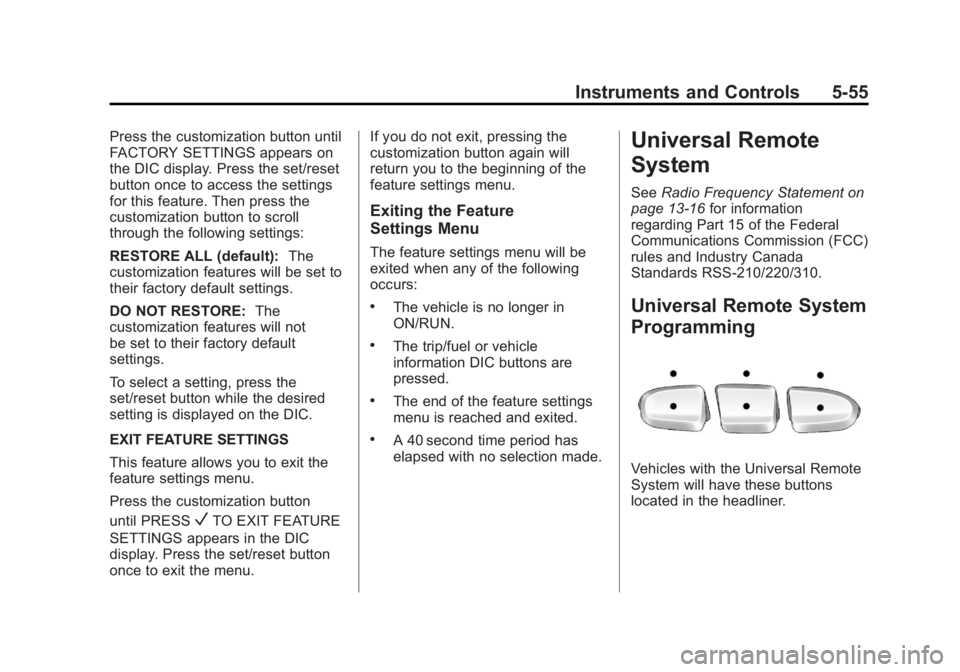
Vehicles with the Universal Remote
System will have these buttons
located in the headliner.
Page 214 of 528

Black plate (2,1)GMC Yukon/Yukon XL Owner Manual - 2011
7-2 Infotainment System
To minimize taking your eyes off the
road while driving, do the following
while the vehicle is parked:
.Become familiar with the
operation and controls of the
audio system.
.Set up the tone, speaker
adjustments, and preset radio
stations.
For more information, see Defensive
Driving on page 9‑2. This vehicle's audio system may be
equipped with a noise reduction
system which can work improperly
if the audio amplifier, engine
calibrations, exhaust system,
microphones, radio, or speakers are
modified or replaced. This could
result in more noticeable engine
noise at certain speeds.
Notice:
Contact your dealer
before adding any equipment.
Adding audio or communication
equipment could interfere with
the operation of the engine, radio,
or other systems, and could
damage them. Follow federal
rules covering mobile radio and
telephone equipment. The vehicle has Retained
Accessory Power (RAP). With RAP,
the audio system can be played
even after the ignition is turned off.
See
Retained Accessory Power
(RAP) on page 9‑33 for more
information.Navigation/Radio System
For vehicles with a navigation radio
system, see the separate Navigation
System manual.