buttons GMC YUKON 2014 Owner's Guide
[x] Cancel search | Manufacturer: GMC, Model Year: 2014, Model line: YUKON, Model: GMC YUKON 2014Pages: 490, PDF Size: 7.46 MB
Page 147 of 490
Black plate (27,1)GMC Yukon/Yukon XL Owner Manual (GMNA-Localizing-U.S./Canada-
6081505) - 2014 - crc - 4/23/13
Instruments and Controls 5-27
U(Customization):Press to
customize the feature settings on
your vehicle. See Vehicle
Personalization (With DIC Buttons)
on page 5-44 for more information.
V(Set/Reset):Press to set or
reset certain functions and to turn
off or acknowledge messages on
the DIC.
Trip/Fuel Menu Items (With DIC
Buttons)
3(Trip/Fuel): Press to scroll
through the following menu items:
Odometer
Press the trip/fuel button until
ODOMETER displays. This display
shows the distance the vehicle has
been driven in either kilometers (km)
or miles (mi). Pressing the trip
odometer reset stem will also
display the odometer.
To switch between English and
metric measurements, see “Units”
later in this section. Trip Odometer
Press the trip/fuel button until TRIP
displays. This display shows the
current distance traveled in either
kilometers (km) or miles (mi) since
the last reset for the trip odometer.
Pressing the trip odometer reset
stem will also display the trip
odometer.
The trip odometer can be reset to
zero by pressing the set/reset
button while the trip odometer is
displayed. You can also reset the
trip odometer while it is displayed by
pressing and holding the trip
odometer reset stem.
The trip odometer has a feature
called the retroactive reset. This can
be used to set the trip odometer to
the number of kilometers (miles)
driven since the ignition was last
turned on. This can be used if the
trip odometer is not reset at the
beginning of the trip.
To use the retroactive reset feature,
press and hold the set/reset button
for at least four seconds. The tripodometer will display the number of
kilometers (km) or miles (mi) driven
since the ignition was last turned on
and the vehicle was moving. Once
the vehicle begins moving, the trip
odometer will accumulate mileage.
For example, if the vehicle was
driven 8 km (5 mi) before it is started
again, and then the retroactive reset
feature is activated, the display will
show 8 km (5 mi). As the vehicle
begins moving, the display will then
increase to 8.2 km (5.1 mi), 8.4 km
(5.2 mi), etc.
Fuel Range
Press the trip/fuel button until FUEL
RANGE displays. This display
shows the approximate number of
remaining kilometers (km) or
miles (mi) the vehicle can be driven
without refueling. The display will
show LOW if the fuel level is low.
The fuel range estimate is based on
an average of the vehicle's fuel
economy over recent driving history
and the amount of fuel remaining in
the fuel tank. This estimate will
Page 149 of 490
Black plate (29,1)GMC Yukon/Yukon XL Owner Manual (GMNA-Localizing-U.S./Canada-
6081505) - 2014 - crc - 4/23/13
Instruments and Controls 5-29
particular moment and will change
frequently as driving conditions
change. This display shows the
instantaneous fuel economy in liters
per 100 kilometers (L/100 km) or
miles per gallon (mpg). Unlike
average economy, this screen
cannot be reset.
An Active Fuel Management
indicator will display on the right
side of the DIC, while INST ECON
displays on the left side. Active Fuel
Management allows the engine to
operate on either four or eight
cylinders, depending on your driving
demands. When Active Fuel
Management is active, V4 will
display on the DIC. When Active
Fuel Management is inactive, V8
will display. SeeActive Fuel
Management
®on page 9-27 for
more information.
Blank Display
This display shows no information.
Vehicle Information Menu
Items (With DIC Buttons)
T(Vehicle Information): Press
to scroll through the following menu
items:
Oil Life
Press the vehicle information button
until OIL LIFE REMAINING
displays. This display shows an
estimate of the oil's remaining useful
life. If you see 99% OIL LIFE
REMAINING on the display, that
means 99% of the current oil life
remains. The engine oil life system
will alert you to change the oil on a
schedule consistent with your
driving conditions.
When the remaining oil life is low,
the CHANGE ENGINE OIL SOON
message will appear on the display.
See “CHANGE ENGINE OIL SOON”
under Engine Oil Messages on
page 5-37. You should change the
oil as soon as you can. See Engine
Oil on page 10-6. In addition to the
engine oil life system monitoring the
oil life, additional maintenance is recommended in the Maintenance
Schedule in this manual. See
Maintenance Schedule on
page 11-2
for more information.
Remember, you must reset the OIL
LIFE display yourself after each oil
change. It will not reset itself. Also,
be careful not to reset the OIL LIFE
display accidentally at any time
other than when the oil has just
been changed. It cannot be reset
accurately until the next oil change.
To reset the engine oil life system,
see Engine Oil Life System on
page 10-9.
Side Blind Zone Alert
If your vehicle has the Side Blind
Zone Alert (SBZA) system, this
display allows the system to be
turned on or off. Once in this
display, press the set/reset button to
select between ON or OFF. If you
choose ON, the system will be
turned on. If you choose OFF, the
system will be turned off. When the
SBZA system is turned off, the DIC
will display the SIDE BLIND ZONE
Page 151 of 490
Black plate (31,1)GMC Yukon/Yukon XL Owner Manual (GMNA-Localizing-U.S./Canada-
6081505) - 2014 - crc - 4/23/13
Instruments and Controls 5-31
Compass Recalibration
This display allows for calibrating
the compass. SeeCompass on
page 5-5
Blank Display
This display shows no information.
Trip Odometer Reset Stem
Menu Items (With DIC Buttons)
Use the trip odometer reset stem to
view the odometer and trip
odometer. The Language selection
and Engine Hours display can also
be accessed with the trip odometer
reset stem.
Odometer
Press the trip odometer reset stem
until ODOMETER displays. This
display shows the distance the
vehicle has been driven in either
kilometers (km) or miles (mi).
Trip Odometer
Press the trip odometer reset stem
until TRIP displays. This display
shows the current distance traveled in either kilometers (km) or
miles (mi) since the last reset for the
trip odometer.
The trip odometer can be reset to
zero by pressing and holding the trip
odometer reset stem while the trip
odometer is displayed.
The trip odometer has a feature
called the retroactive reset. This can
be used to set the trip odometer to
the number of kilometers (miles)
driven since the ignition was last
turned on. This can be used if the
trip odometer is not reset at the
beginning of the trip.
To use the retroactive reset feature,
press and hold the trip odometer
reset stem for at least four seconds.
The trip odometer will display the
number of kilometers (km) or
miles (mi) driven since the ignition
was last turned on and the vehicle
was moving. Once the vehicle
begins moving, the trip odometer
will accumulate mileage. For
example, if the vehicle was driven
8 km (5 mi) before it is started again,
and then the retroactive reset
feature is activated, the display will
show 8 km (5 mi). As the vehicle
begins moving, the display will then
increase to 8.2 km (5.1 mi), 8.4 km
(5.2 mi), etc.
Language
This display allows you to select the
language in which the DIC
messages will appear. To select a
language:
1. Press the trip odometer reset
stem until ODOMETER displays.
2. While in the ODOMETER display, press and hold the trip
odometer reset stem for
three seconds until the currently
set language displays.
3. Continue to press and hold the trip odometer reset stem to scroll
through all of the available
languages.
The available selections are
ENGLISH (default), FRANCAIS
(French), ESPANOL (Spanish),
and NO CHANGE.
Page 152 of 490
Black plate (32,1)GMC Yukon/Yukon XL Owner Manual (GMNA-Localizing-U.S./Canada-
6081505) - 2014 - crc - 4/23/13
5-32 Instruments and Controls
4. Once the desired language isdisplayed, release the trip
odometer reset stem to set your
choice.
Engine Hours
To display the ENGINE HOURS,
place the ignition in LOCK/OFF or
ACC/ACCESSORY, then press and
hold the trip odometer reset stem for
four seconds while viewing the
ODOMETER. This display shows
the total number of hours the engine
has run.
Trip Odometer Reset Stem
Menu Items (Without DIC
Buttons)
Language
This display allows you to select the
language in which the DIC
messages will appear. To select a
language:
1. Press the trip odometer reset stem until ODOMETER displays. 2. While in the ODOMETER
display, press and hold the trip
odometer reset stem for
three seconds until the currently
set language displays.
3. Continue to press and hold the trip odometer reset stem to scroll
through all of the available
languages.
The available languages are
ENGLISH (default), FRANCAIS
(French), ESPANOL (Spanish),
and NO CHANGE.
4. Once the desired language is displayed, release the trip
odometer reset stem to set your
choice.
Trip Odometer
Press the trip odometer reset stem
until TRIP displays. This display
shows the current distance traveled
in either kilometers (km) or
miles (mi) since the last reset for the
trip odometer. The trip odometer can be reset to
zero by pressing and holding the trip
odometer reset stem while the trip
odometer is displayed.
The trip odometer has a feature
called the retroactive reset. This can
be used to set the trip odometer to
the number of kilometers (miles)
driven since the ignition was last
turned on. This can be used if the
trip odometer is not reset at the
beginning of the trip.
To use the retroactive reset feature,
press and hold the trip odometer
reset stem for at least four seconds.
The trip odometer will display the
number of kilometers (km) or
miles (mi) driven since the ignition
was last turned on and the vehicle
was moving. Once the vehicle
begins moving, the trip odometer
will accumulate mileage. For
example, if the vehicle was driven
8 km (5 mi) before it is started again,
and then the retroactive reset
feature is activated, the display will
show 8 km (5 mi). As the vehicle
Page 164 of 490
Black plate (44,1)GMC Yukon/Yukon XL Owner Manual (GMNA-Localizing-U.S./Canada-
6081505) - 2014 - crc - 4/23/13
5-44 Instruments and Controls
Vehicle
Personalization
Vehicle Personalization
(With DIC Buttons)
Your vehicle may have
customization capabilities that allow
you to program certain features to
one preferred setting. Customization
features can only be programmed to
one setting on the vehicle and
cannot be programmed to a
preferred setting for two different
drivers.
All of the customization options may
not be available on your vehicle.
Only the options available will be
displayed on the DIC.
The default settings for the
customization features were set
when your vehicle left the factory,
but may have been changed from
their default state since then.
The customization preferences are
automatically recalled.To change customization
preferences, use the following
procedure.
Entering the Feature
Settings Menu
1. Turn the ignition on and place
the vehicle in P (Park).
To avoid excessive drain on the
battery, it is recommended that
the headlamps are turned off.
2. Press the customization button to scroll through the available
customizable options.
Feature Settings Menu Items
The following are customization
features that allow you to program
settings to the vehicle:
DISPLAY IN ENGLISH
This feature will only display if a
language other than English has
been set. This feature allows you to
change the language in which the
DIC messages appear to English. Press the customization button until
the PRESS
VTO DISPLAY IN
ENGLISH screen appears on the
DIC display. Press the set/reset
button once to display all DIC
messages in English.
DISPLAY LANGUAGE
This feature allows you to select the
language in which the DIC
messages will appear.
Press the customization button until
the DISPLAY LANGUAGE screen
appears on the DIC display. Press
the set/reset button once to access
the settings for this feature. Then
press the customization button to
scroll through the following settings:
ENGLISH (default): All messages
will appear in English.
FRANCAIS: All messages will
appear in French.
ESPANOL: All messages will
appear in Spanish.
Page 165 of 490
Black plate (45,1)GMC Yukon/Yukon XL Owner Manual (GMNA-Localizing-U.S./Canada-
6081505) - 2014 - crc - 4/23/13
Instruments and Controls 5-45
NO CHANGE:No change will be
made to this feature. The current
setting will remain.
To select a setting, press the set/
reset button while the desired
setting is displayed on the DIC.
You can also change the language
by pressing the trip odometer reset
stem. See “Language” under DIC
Operation and Displays (Without
DIC Buttons) earlier in this section
for more information.
AUTO DOOR LOCK
This feature allows you to select
when the vehicle's doors will
automatically lock. See Automatic
Door Locks on page 2-8 for more
information. Press the customization button until
AUTO DOOR LOCK appears on the
DIC display. Press the set/reset
button once to access the settings
for this feature. Then press the
customization button to scroll
through the following settings:
SHIFT OUT OF PARK (default):
The doors will automatically lock
when the vehicle is shifted out of
P (Park).
AT VEHICLE SPEED:
The doors
will automatically lock when the
vehicle speed is above 8 mph
(13 km/h) for 3 seconds.
NO CHANGE: No change will be
made to this feature. The current
setting will remain.
To select a setting, press the set/
reset button while the desired
setting is displayed on the DIC.
AUTO DOOR UNLOCK
This feature allows you to select
whether or not to turn off the
automatic door unlocking feature.
It also allows you to select which doors and when the doors will
automatically unlock. See
Automatic
Door Locks on page 2-8 for more
information.
Press the customization button until
AUTO DOOR UNLOCK appears on
the DIC display. Press the set/reset
button once to access the settings
for this feature. Then press the
customization button to scroll
through the following settings:
OFF: None of the doors will
automatically unlock.
DRIVER AT KEY OUT: Only the
driver door will unlock when the key
is taken out of the ignition.
DRIVER IN PARK: Only the driver
door will unlock when the vehicle is
shifted into P (Park).
ALL AT KEY OUT: All of the doors
will unlock when the key is taken
out of the ignition.
ALL IN PARK (default): All of the
doors will unlock when the vehicle is
shifted into P (Park).
Page 171 of 490

Black plate (51,1)GMC Yukon/Yukon XL Owner Manual (GMNA-Localizing-U.S./Canada-
6081505) - 2014 - crc - 4/23/13
Instruments and Controls 5-51
ON (default):The remote start
feature will be enabled.
NO CHANGE: No change will be
made to this feature. The current
setting will remain.
To select a setting, press the set/
reset button while the desired
setting is displayed on the DIC.
FACTORY SETTINGS
This feature allows you to set all of
the customization features back to
their factory default settings.
Press the customization button until
FACTORY SETTINGS appears on
the DIC display. Press the set/reset
button once to access the settings
for this feature. Then press the
customization button to scroll
through the following settings:
RESTORE ALL (default): The
customization features will be set to
their factory default settings. DO NOT RESTORE:
The
customization features will not be
set to their factory default settings.
To select a setting, press the set/
reset button while the desired
setting is displayed on the DIC.
EXIT FEATURE SETTINGS
This feature allows you to exit the
feature settings menu.
Press the customization button until
PRESS
VTO EXIT FEATURE
SETTINGS appears in the DIC
display. Press the set/reset button
once to exit the menu.
If you do not exit, pressing the
customization button again will
return you to the beginning of the
feature settings menu.
Exiting the Feature
Settings Menu
The feature settings menu will be
exited when any of the following
occurs:
.The vehicle is no longer in
ON/RUN.
.The trip/fuel or vehicle
information DIC buttons are
pressed.
.The end of the feature settings
menu is reached and exited.
.A 40 second time period has
elapsed with no selection made.
Page 172 of 490

Black plate (52,1)GMC Yukon/Yukon XL Owner Manual (GMNA-Localizing-U.S./Canada-
6081505) - 2014 - crc - 4/23/13
5-52 Instruments and Controls
Universal Remote
System
SeeRadio Frequency Statement on
page 13-15.
Universal Remote System
Programming
Vehicles with the Universal Remote
System will have these buttons
located in the headliner.
This system provides a way to
replace up to three remote control
transmitters used to activate
devices such as garage door
openers, security systems, and
home automation devices. Do not use this system with any
garage door opener that does not
have the stop and reverse feature.
This includes any garage door
opener model manufactured before
April 1, 1982.
Read the instructions completely
before attempting to program the
transmitter. Because of the steps
involved, it may be helpful to have
another person assist with
programming the transmitter.
Be sure to keep the original remote
control transmitter for use in other
vehicles, as well as for future
programming. Only the original
remote control transmitter is needed
for Fixed Code programming. The
programmed buttons should be
erased when the vehicle is sold or
the lease ends. See
“Erasing
Universal Home Remote Buttons” in
this section. Park the vehicle outside of the
garage when programming a garage
door. Be sure that people and
objects are clear of the garage door
or gate that is being programmed.
Programming Universal Home
Remote
—Rolling Code
For questions or help programming
the Universal Home Remote
System, call 1-866-572-2728 or go
to www.learcar2u.com.
Most garage door openers sold
after 1996 are Rolling Code units.
Programming a garage door opener
involves time-sensitive actions, so
read the entire procedure before
starting. Otherwise, the device will
time out and the procedure will have
to be repeated.
Page 173 of 490

Black plate (53,1)GMC Yukon/Yukon XL Owner Manual (GMNA-Localizing-U.S./Canada-
6081505) - 2014 - crc - 4/23/13
Instruments and Controls 5-53
To program up to three devices:
1. From inside the vehicle, pressthe two outside buttons at the
same time for one to
two seconds, and immediately
release them.
2. In the garage, locate the garagedoor opener receiver
(motor-head unit). Find the
“Learn” or“Smart” button. It can
usually be found where the
hanging antenna wire is
attached to the motor-head unit
and may be a colored button.
Press this button. After pressing
this button, complete the
following steps in less than
30 seconds. 3. Immediately return to the
vehicle. Press and hold the
Universal Home Remote button
that will be used to control the
garage door until the garage
door moves. The indicator light,
above the selected button,
should slowly blink. This button
may need to be held for up to
20 seconds.
4. Immediately, within one second, release the button when the
garage door moves. The
indicator light will blink rapidly
until programming is complete.
5. Press and release the same button again. The garage door
should move, confirming that
programming is successful and
complete.
To program another Rolling Code
device such as an additional garage
door opener, a security device,
or home automation device, repeat
Steps 1 through 5, choosing a different function button in Step 3
than what was used for the garage
door opener.
If these instructions do not work, the
garage door opener is probably a
Fixed Code unit. Follow the
programming instructions that follow
for a Fixed Code garage door
opener.
Programming Universal Home
Remote
—Fixed Code
For questions or help programming
the Universal Home Remote
System, call 1-866-572-2728 or go
to www.learcar2u.com.
Most garage door openers sold
before 1996 are Fixed Code units.
Programming a garage door opener
involves time-sensitive actions, so
read the entire procedure before
starting. Otherwise, the device will
time out and the procedure will have
to be repeated.
Page 175 of 490
Black plate (55,1)GMC Yukon/Yukon XL Owner Manual (GMNA-Localizing-U.S./Canada-
6081505) - 2014 - crc - 4/23/13
Instruments and Controls 5-55
.A switch in the down
position could be labeled as
Down,−, or Off.
.A switch in the middle
position could be labeled as
Middle, 0, or Neutral.
2. Write down the 8 to 12 switch settings from left to right as
follows:
.When a switch is in the up
position, write “Left.”
.When a switch is in the
down position, write “Right.”
.If a switch is set between
the up and down position,
write“Middle.”
The switch settings written
down in Step 2 now
become the button strokes
to be entered into the
Universal Home Remote in
Step 4. Be sure to enter the
switch settings written down
in Step 2, in order from left to right, into the Universal
Home Remote, when
completing Step 4.
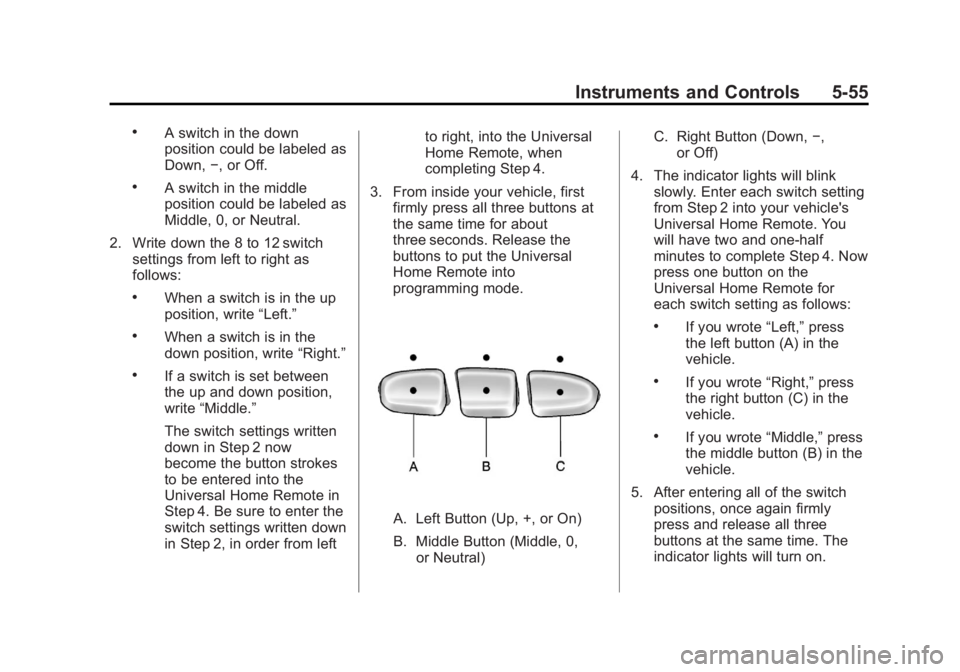
3. From inside your vehicle, first firmly press all three buttons at
the same time for about
three seconds. Release the
buttons to put the Universal
Home Remote into
programming mode.
A. Left Button (Up, +, or On)
B. Middle Button (Middle, 0,or Neutral) C. Right Button (Down,
−,
or Off)
4. The indicator lights will blink slowly. Enter each switch setting
from Step 2 into your vehicle's
Universal Home Remote. You
will have two and one-half
minutes to complete Step 4. Now
press one button on the
Universal Home Remote for
each switch setting as follows:
.If you wrote “Left,”press
the left button (A) in the
vehicle.
.If you wrote “Right,”press
the right button (C) in the
vehicle.
.If you wrote “Middle,”press
the middle button (B) in the
vehicle.
5. After entering all of the switch positions, once again firmly
press and release all three
buttons at the same time. The
indicator lights will turn on.