ECU GMC YUKON 2018 Workshop Manual
[x] Cancel search | Manufacturer: GMC, Model Year: 2018, Model line: YUKON, Model: GMC YUKON 2018Pages: 431, PDF Size: 6.08 MB
Page 361 of 431
GMC Yukon/Yukon XL/Denali Owner Manual (GMNA-Localizing-U.S./
Canada/Mexico-11349262) - 2018 - CRC - 11/3/17
360 Vehicle Care
Caution
If the jumper cables are
connected or removed in the
wrong order, electrical shorting
may occur and damage the
vehicle. The repairs would not be
covered by the vehicle warranty.
Always connect and remove the
jumper cables in the correct order,
making sure that the cables do
not touch each other or other
metal.
Jumper Cable Removal
Reverse the sequence exactly when
removing the jumper cables.
After starting the disabled vehicle
and removing the jumper cables,
allow it to idle for several minutes.
Towing the Vehicle
Caution
Incorrectly towing a disabled
vehicle may cause damage. The
damage would not be covered by
the vehicle warranty.
Do not lash or hook to
suspension components. Use the
proper straps around the tires to
secure the vehicle.
Use only a flatbed tow truck for
towing a disabled vehicle. Never
use a sling type lift or damage will
occur. Use ramps to help reduce
approach angles if necessary.
A towed vehicle should have its
drive wheels off the ground.
Consult a professional towing
service if the disabled vehicle must
be towed.
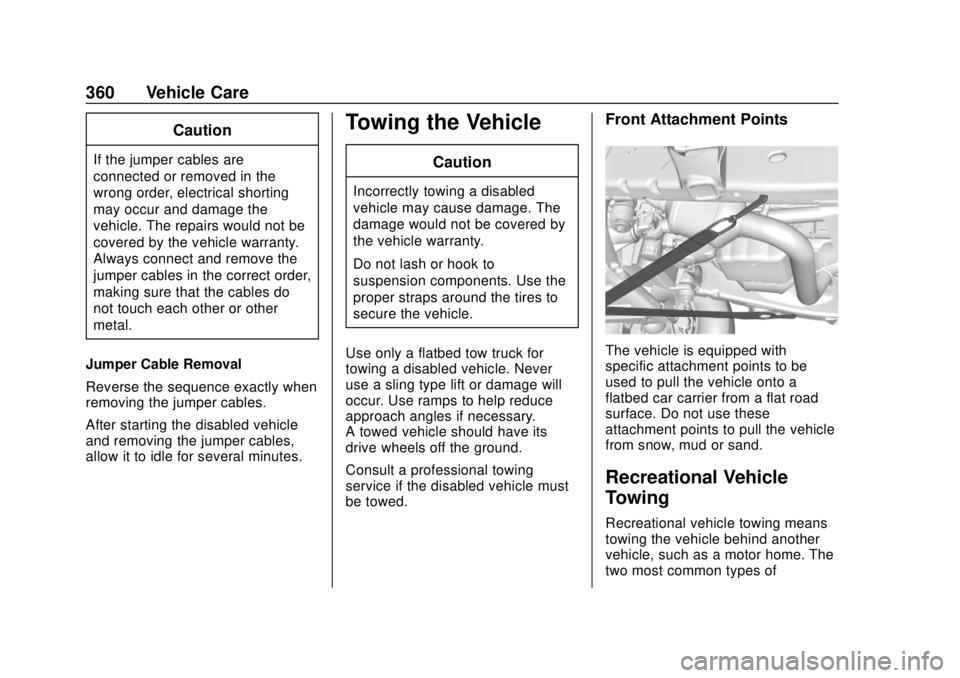
Front Attachment Points
The vehicle is equipped with
specific attachment points to be
used to pull the vehicle onto a
flatbed car carrier from a flat road
surface. Do not use these
attachment points to pull the vehicle
from snow, mud or sand.
Recreational Vehicle
Towing
Recreational vehicle towing means
towing the vehicle behind another
vehicle, such as a motor home. The
two most common types of
Page 363 of 431

GMC Yukon/Yukon XL/Denali Owner Manual (GMNA-Localizing-U.S./
Canada/Mexico-11349262) - 2018 - CRC - 11/3/17
362 Vehicle Care
To dinghy tow:1. Position the vehicle being towed behind the tow vehicle,
facing forward and on a level
surface.
2. Securely attach the vehicle being towed to the tow vehicle.
3. Apply the parking brake and start the engine.
4. Shift the transfer case to N (Neutral). See “Shifting into
N (Neutral)” underFour-Wheel
Drive 0226. Check that the
vehicle is in N (Neutral) by
starting the engine and shifting
the transmission to
R (Reverse) and then to D
(Drive). There should be no
movement of the vehicle while
shifting.
5. Shift the transmission into D (Drive). Turn the engine off.Caution
Failure to disconnect the negative
battery cable or to have it contact
the terminals can cause damage
to the vehicle.
6. Disconnect the negative battery cable at the battery and
secure the nut and bolt. Cover
the negative battery post with a
non-conductive material to
prevent any contact with the
negative battery terminal.
7. Shift the transmission to P (Park).
Caution
If the steering column is locked,
vehicle damage may occur.
8. Move the steering wheel to make sure the steering column
is unlocked. 9. With a foot on the brake pedal,
release the parking brake.
10. Keep the ignition key in the towed vehicle in ACC/
ACCESSORY to prevent the
steering column from locking.
If equipped with Keyless
Access, keep the RKE
transmitter outside of the
vehicle, and manually lock the
doors. Access the vehicle as if
it has a dead RKE transmitter
battery, by using the key in the
door lock.
Disconnecting the Towed Vehicle
Before disconnecting the towed
vehicle: 1. Park on a level surface.
2. Set the parking brake, then shift the transmission to
P (Park).
3. Connect the battery.
4. Apply the brake pedal.
Page 365 of 431
GMC Yukon/Yukon XL/Denali Owner Manual (GMNA-Localizing-U.S./
Canada/Mexico-11349262) - 2018 - CRC - 11/3/17
364 Vehicle Care
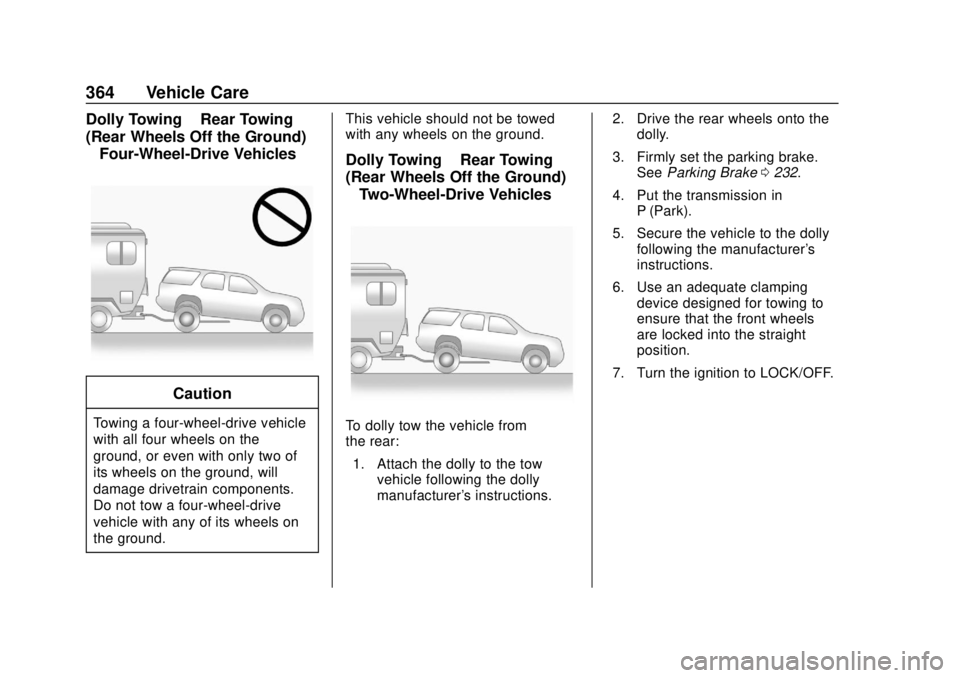
Dolly Towing–Rear Towing
(Rear Wheels Off the Ground)
– Four-Wheel-Drive Vehicles
Caution
Towing a four-wheel-drive vehicle
with all four wheels on the
ground, or even with only two of
its wheels on the ground, will
damage drivetrain components.
Do not tow a four-wheel-drive
vehicle with any of its wheels on
the ground. This vehicle should not be towed
with any wheels on the ground.
Dolly Towing
–Rear Towing
(Rear Wheels Off the Ground)
– Two-Wheel-Drive Vehicles
To dolly tow the vehicle from
the rear:
1. Attach the dolly to the tow vehicle following the dolly
manufacturer's instructions. 2. Drive the rear wheels onto the
dolly.
3. Firmly set the parking brake. See Parking Brake 0232.
4. Put the transmission in P (Park).
5. Secure the vehicle to the dolly following the manufacturer's
instructions.
6. Use an adequate clamping device designed for towing to
ensure that the front wheels
are locked into the straight
position.
7. Turn the ignition to LOCK/OFF.
Page 374 of 431
GMC Yukon/Yukon XL/Denali Owner Manual (GMNA-Localizing-U.S./
Canada/Mexico-11349262) - 2018 - CRC - 11/3/17
Vehicle Care 373
Floor Mats
{Warning
If a floor mat is the wrong size or
is not properly installed, it can
interfere with the pedals.
Interference with the pedals can
cause unintended acceleration
and/or increased stopping
distance which can cause a crash
and injury. Make sure the floor
mat does not interfere with the
pedals.
Use the following guidelines for
proper floor mat usage:
. The original equipment floor
mats were designed for your
vehicle. If the floor mats need
replacing, it is recommended
that GM certified floor mats be
purchased. Non-GM floor mats
may not fit properly and may
interfere with the pedals. Always
check that the floor mats do not
interfere with the pedals. .
Do not use a floor mat if the
vehicle is not equipped with a
floor mat retainer on the driver
side floor.
. Use the floor mat with the
correct side up. Do not turn
it over.
. Do not place anything on top of
the driver side floor mat.
. Use only a single floor mat on
the driver side.
. Do not place one floor mat on
top of another.
Removing and Replacing the
Floor Mats
Pull up on the rear of the driver side
floor mat to unlock each retainer
and remove.
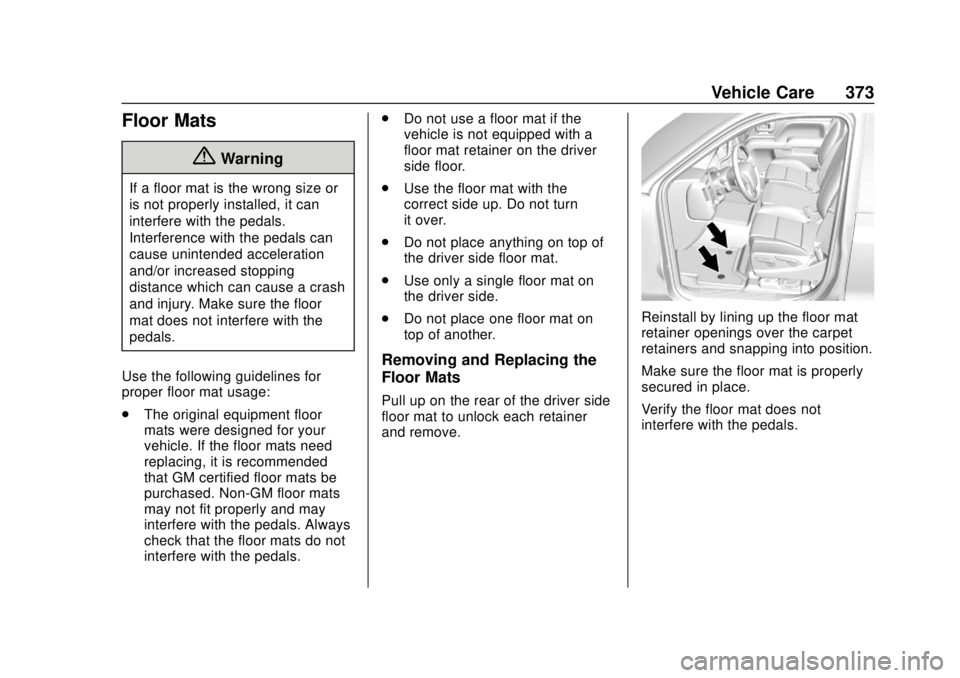
Reinstall by lining up the floor mat
retainer openings over the carpet
retainers and snapping into position.
Make sure the floor mat is properly
secured in place.
Verify the floor mat does not
interfere with the pedals.
Page 398 of 431
GMC Yukon/Yukon XL/Denali Owner Manual (GMNA-Localizing-U.S./
Canada/Mexico-11349262) - 2018 - CRC - 11/3/17
Customer Information 397
.Lock-Out Service: Service to
unlock the vehicle if you are
locked out. A remote unlock may
be available if you have OnStar.
For security reasons, the driver
must present identification
before this service is given.
. Emergency Tow from a Public
Road or Highway: Tow to the
nearest GMC dealer for warranty
service, or if the vehicle was in a
crash and cannot be driven.
Assistance is not given when the
vehicle is stuck in the sand,
mud, or snow.
. Flat Tire Change: Service to
change a flat tire with the spare
tire. The spare tire, if equipped,
must be in good condition and
properly inflated. It is the owner's
responsibility for the repair or
replacement of the tire if it is not
covered by the warranty.
. Battery Jump Start: Service to
jump start a dead battery. .
Trip Interruption Benefits and
Assistance: If your trip is
interrupted due to a warranty
event, incidental expenses may
be reimbursed within the
Powertrain warranty period.
Items considered are reasonable
and customary hotel, meals,
rental car, or a vehicle being
delivered back to the customer,
up to 500 miles.
Services Not Included in
Roadside Assistance
. Impound towing caused by
violation of any laws
. Legal fines
. Mounting, dismounting,
or changing of snow tires,
chains, or other traction devices
Service is not provided if a vehicle
is in an area that is not accessible
to the service vehicle or is not a
regularly traveled or maintained
public road, which includes ice and
winter roads. Off-road use is not
covered.
Services Specific to
Canadian-Purchased Vehicles
. Fuel Delivery: Reimbursement
is up to 7 L. Diesel fuel delivery
may be restricted. Propane and
other fuels are not provided
through this service.
. Lock-Out Service: Vehicle
registration is required.
. Trip Interruption Benefits and
Assistance: Must be over
150 km from where your trip was
started to qualify.
Pre-authorization, original
detailed receipts, and a copy of
the repair orders are required.
Once authorization has been
received, the Roadside
Assistance advisor will help to
make arrangements and explain
how to receive payment.
. Alternative Service: If
assistance cannot be provided
right away, the Roadside
Assistance advisor may give
permission to get local
emergency road service. You will
receive payment, up to $100,
Page 407 of 431
GMC Yukon/Yukon XL/Denali Owner Manual (GMNA-Localizing-U.S./
Canada/Mexico-11349262) - 2018 - CRC - 11/3/17
406 OnStar
OnStar
OnStar Overview
OnStar Overview . . . . . . . . . . . . . 406
OnStar Services
Emergency . . . . . . . . . . . . . . . . . . . 407
Security . . . . . . . . . . . . . . . . . . . . . . 408
Navigation . . . . . . . . . . . . . . . . . . . . 408
Connections . . . . . . . . . . . . . . . . . . 409
Diagnostics . . . . . . . . . . . . . . . . . . . 411
OnStar Additional Information
OnStar AdditionalInformation . . . . . . . . . . . . . . . . . . 412
OnStar Overview
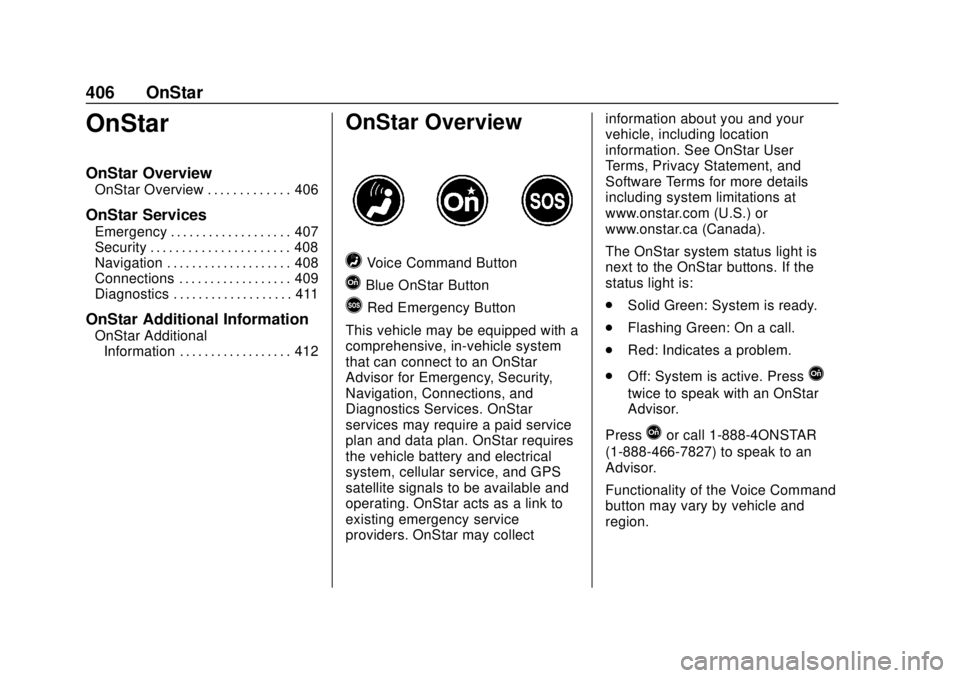
=Voice Command Button
QBlue OnStar Button
>Red Emergency Button
This vehicle may be equipped with a
comprehensive, in-vehicle system
that can connect to an OnStar
Advisor for Emergency, Security,
Navigation, Connections, and
Diagnostics Services. OnStar
services may require a paid service
plan and data plan. OnStar requires
the vehicle battery and electrical
system, cellular service, and GPS
satellite signals to be available and
operating. OnStar acts as a link to
existing emergency service
providers. OnStar may collect information about you and your
vehicle, including location
information. See OnStar User
Terms, Privacy Statement, and
Software Terms for more details
including system limitations at
www.onstar.com (U.S.) or
www.onstar.ca (Canada).
The OnStar system status light is
next to the OnStar buttons. If the
status light is:
.
Solid Green: System is ready.
. Flashing Green: On a call.
. Red: Indicates a problem.
. Off: System is active. Press
Q
twice to speak with an OnStar
Advisor.
Press
Qor call 1-888-4ONSTAR
(1-888-466-7827) to speak to an
Advisor.
Functionality of the Voice Command
button may vary by vehicle and
region.
Page 409 of 431
GMC Yukon/Yukon XL/Denali Owner Manual (GMNA-Localizing-U.S./
Canada/Mexico-11349262) - 2018 - CRC - 11/3/17
408 OnStar
Security
If equipped, OnStar provides these
services:
.With Stolen Vehicle Assistance,
OnStar Advisors can use GPS to
pinpoint the vehicle and help
authorities quickly recover it.
. With Remote Ignition Block,
if equipped, OnStar can block
the engine from being restarted.
. With Stolen Vehicle Slowdown,
if equipped, OnStar can work
with law enforcement to
gradually slow the vehicle down.
Theft Alarm Notification
If equipped, if the doors are locked
and the vehicle alarm sounds, a
notification by text, e-mail, or phone
call will be sent. If the vehicle is
stolen, an OnStar Advisor can work
with authorities to recover the
vehicle.
Navigation
OnStar navigation requires a
specific OnStar service plan. Press
Qto receive Turn-by-Turn
directions or have them sent to the
vehicle’s navigation screen,
if equipped.
Turn-by-Turn Navigation
1. PressQto connect to an
Advisor.
2. Request directions to be downloaded to the vehicle.
3. Follow the voice-guided commands.
Using Voice Commands
During a Planned Route
Functionality of the Voice Command
button may vary by vehicle and
region. For some vehicles, press
=
to open the OnStar app on the
infotainment display. For other
vehicles press
=as follows.
Cancel Route
1. Press
=. System responds:
“OnStar ready,” then a tone. 2. Say
“Cancel route.” System
responds: “Do you want to
cancel directions?”
3. Say “Yes.”System responds:
“OK, request completed, thank
you, goodbye.”
Route Preview
1. Press
=. System responds:
“OnStar ready,” then a tone.
2. Say “Route preview.” System
responds with the next three
maneuvers.
Repeat
1. Press
=. System responds:
“OnStar ready,” then a tone.
2. Say “Repeat.” System
responds with the last direction
given, then responds with
“OnStar ready,” then a tone.
Get My Destination
1. Press
=. System responds:
“OnStar ready,” then a tone.
Page 410 of 431
GMC Yukon/Yukon XL/Denali Owner Manual (GMNA-Localizing-U.S./
Canada/Mexico-11349262) - 2018 - CRC - 11/3/17
OnStar 409
2. Say“Get my destination.”
System responds with the
address and distance to the
destination, then responds with
“OnStar ready,” then a tone.
Send Destination to Vehicle
Directions can be sent to the
vehicle’s navigation screen,
if equipped.
Press
Q, then ask the Advisor to
download directions to the vehicle’s
navigation system, if equipped. After
the call ends, the navigation screen
will provide prompts to begin driving
directions. Routes that are sent to
the navigation screen can only be
canceled through the navigation
system.
See www.onstar.com (U.S.) or
www.onstar.ca (Canada).
Connections
The following OnStar services help
with staying connected.
For coverage maps, see
www.onstar.com (U.S.) or
www.onstar.ca (Canada). Ensuring Security
.
Change the default passwords
for the Wi-Fi hotspot and
myGMC mobile application.
Make these passwords different
from each other and use a
combination of letters, numbers,
and symbols to increase the
security.
. Change the default name of the
SSID (Service Set Identifier).
This is your network’s name that
is visible to other wireless
devices. Choose a unique name
and avoid family names or
vehicle descriptions.
OnStar Wi-Fi Hotspot (If Equipped)
The vehicle may have a built-in
Wi-Fi hotspot that provides access
to the Internet and web content at
4G LTE speed. Up to seven mobile
devices can be connected. A data
plan is required. Use the in-vehicle
controls only when it is safe to
do so. 1. To retrieve Wi-Fi hotspot
information, press
=to open
the OnStar app on the
infotainment display, then
select Wi-Fi Hotspot. On some
vehicles, touch Wi-Fi or Wi-Fi
Settings on the screen.
2. The Wi-Fi settings will display the Wi-Fi hotspot name (SSID),
password, and on some
vehicles, the connection type
(no Internet connection, 3G,
4G, 4G LTE), and signal quality
(poor, good, excellent).
3. To change the SSID or password, press
Qor call
1-888-4ONSTAR to connect
with an Advisor. On some
vehicles, the SSID and
password can be changed in
the Wi-Fi Hotspot menu.
After initial set-up, your vehicle’s
Wi-Fi hotspot will connect
automatically to your mobile
devices. Manage data usage by
turning Wi-Fi on or off on your
mobile device, using the myGMC
mobile app, or by contacting an
Page 415 of 431
GMC Yukon/Yukon XL/Denali Owner Manual (GMNA-Localizing-U.S./
Canada/Mexico-11349262) - 2018 - CRC - 11/3/17
414 OnStar
Global Positioning
System (GPS)
.Obstruction of the GPS can
occur in a large city with tall
buildings; in parking garages;
around airports; in tunnels and
underpasses; or in an area with
very dense trees. If GPS signals
are not available, the OnStar
system should still operate to
call OnStar. However, OnStar
could have difficulty identifying
the exact location.
. In emergency situations, OnStar
can use the last stored GPS
location to send to emergency
responders.
A temporary loss of GPS can cause
loss of the ability to send a
Turn-by-Turn Navigation route. The
Advisor may give a verbal route or
may ask for a call back after the
vehicle is driven into an open area.
Cellular and GPS Antennas
Cellular reception is required for
OnStar to send remote signals to
the vehicle. Do not place items over or near the antenna to prevent
blocking cellular and GPS signal
reception.
Unable to Connect to OnStar
Message
If there is limited cellular coverage
or the cellular network has reached
maximum capacity, this message
may come on. Press
Qto try the
call again or try again after driving a
few miles into another cellular area.
Vehicle and Power Issues
OnStar services require a vehicle
electrical system, wireless service,
and GPS satellite technologies to be
available and operating for features
to function properly. These systems
may not operate if the battery is
discharged or disconnected.
Add-on Electrical Equipment
The OnStar system is integrated
into the electrical architecture of the
vehicle. Do not add any electrical
equipment. See Add-On Electrical
Equipment 0279. Added electrical equipment may interfere with the
operation of the OnStar system and
cause it to not operate.
Vehicle Software Updates
OnStar or GM may remotely deliver
software updates or changes to the
vehicle without further notice or
consent. These updates or changes
may enhance or maintain safety,
security, or the operation of the
vehicle or the vehicle systems.
Software updates or changes may
affect or erase data or settings that
are stored in the vehicle, such as
OnStar Hands-Free Calling name
tags, saved navigation destinations,
or pre-set radio stations. Neither
OnStar nor GM is responsible for
any affected or erased data or
settings. These updates or changes
may also collect personal
information. Such collection is
described in the OnStar privacy
statement or separately disclosed at
the time of installation. These
updates or changes may also cause
a system to automatically
communicate with GM servers to
collect information about vehicle
Page 417 of 431
GMC Yukon/Yukon XL/Denali Owner Manual (GMNA-Localizing-U.S./
Canada/Mexico-11349262) - 2018 - CRC - 11/3/17
416 OnStar
unzip:
This is version 2005-Feb-10 of the
Info-ZIP copyright and license.
The definitive version of this
document should be available
at ftp://ftp.info-zip.org/pub/infozip/
license.html indefinitely.
Copyright (c) 1990-2005 Info-ZIP. All
rights reserved.
For the purposes of this copyright
and license,“Info-ZIP”is defined as
the following set of individuals:
Mark Adler, John Bush, Karl Davis,
Harald Denker, Jean-Michel Dubois,
Jean-loup Gailly, Hunter Goatley, Ed
Gordon, Ian Gorman, Chris
Herborth, Dirk Haase, Greg Hartwig,
Robert Heath, Jonathan Hudson,
Paul Kienitz, David Kirschbaum,
Johnny Lee, Onno van der Linden,
Igor Mandrichenko, Steve P. Miller,
Sergio Monesi, Keith Owens,
George Petrov, Greg Roelofs, Kai
Uwe Rommel, Steve Salisbury,
Dave Smith, Steven M. Schweda,
Christian Spieler, Cosmin Truta,
Antoine Verheijen, Paul von Behren,
Rich Wales, Mike White. This software is provided
“as is,”
without warranty of any kind,
express or implied. In no event shall
Info-ZIP or its contributors be held
liable for any direct, indirect,
incidental, special or consequential
damages arising out of the use of or
inability to use this software.
Permission is granted to anyone to
use this software for any purpose,
including commercial applications,
and to alter it and redistribute it
freely, subject to the following
restrictions:
1. Redistributions of source code must retain the above copyright
notice, definition, disclaimer,
and this list of conditions.
2. Redistributions in binary form (compiled executables) must
reproduce the above copyright
notice, definition, disclaimer,
and this list of conditions in
documentation and/or other
materials provided with the
distribution. The sole exception
to this condition is redistribution
of a standard UnZipSFX binary
(including SFXWiz) as part of a self-extracting archive; that is
permitted without inclusion of
this license, as long as the
normal SFX banner has not
been removed from the binary
or disabled.
3. Altered versions–including, but not limited to, ports to new
operating systems, existing
ports with new graphical
interfaces, and dynamic,
shared, or static library
versions–must be plainly
marked as such and must not
be misrepresented as being
the original source. Such
altered versions also must not
be misrepresented as being
Info-ZIP releases–including,
but not limited to, labeling of
the altered versions with the
names “Info-ZIP” (or any
variation thereof, including, but
not limited to, different
capitalizations), “Pocket
UnZip,” “WiZ” or“MacZip”
without the explicit permission
of Info-ZIP. Such altered
versions are further prohibited
from misrepresentative use of