steering GMC YUKON 2018 Workshop Manual
[x] Cancel search | Manufacturer: GMC, Model Year: 2018, Model line: YUKON, Model: GMC YUKON 2018Pages: 431, PDF Size: 6.08 MB
Page 231 of 431

GMC Yukon/Yukon XL/Denali Owner Manual (GMNA-Localizing-U.S./
Canada/Mexico-11349262) - 2018 - CRC - 11/3/17
230 Driving and Operating
9. Place the transmission shiftlever in P (Park). See
Recreational Vehicle Towing
0360.
10. Turn the ignition off.
Shifting Out of N (Neutral)
To shift out of N (Neutral): 1. Set the parking brake and apply the brake pedal.
2. Turn the ignition on with the engine off.
3. Shift the transmission to N (Neutral).
4. Turn the transfer case knob to the desired setting.
After the transfer case has
shifted out of N (Neutral), the
N (Neutral) light will go out.
5. Release the parking brake.
6. Start the engine and shift the transmission to the
desired gear.Single Speed Automatic
Transfer Case
Use the transfer case knob, next to
the steering wheel, to shift into and
out of four-wheel drive for extra
traction.
All of the lights will blink on then off
momentarily when the ignition is
turned on. The light that remains on
will indicate the state of the
transfer case. If the indicator mark on the switch
does not match up with the light
then that likely means the switch
was moved when the ignition
was off.
The indicator mark on the switch
must line up with the indicator light
before a shift can be commanded.
To command a shift rotate the
transfer case switch to the new
desired position. The light will blink
meaning that the shift is in progress.
When the shift is completed the new
position will be illuminated. If the
transfer case can not complete a
shift command, it will go back to its
last chosen setting.
The settings are:
2
m(Two-Wheel Drive High) :
Use
for driving on most streets and
highways. The front axle is not
engaged. This setting provides the
best fuel economy.
Page 233 of 431
GMC Yukon/Yukon XL/Denali Owner Manual (GMNA-Localizing-U.S./
Canada/Mexico-11349262) - 2018 - CRC - 11/3/17
232 Driving and Operating
If driving safely on a wet road and it
becomes necessary to slam on the
brakes and continue braking to
avoid a sudden obstacle, a
computer senses the wheels are
slowing down. If one of the wheels
is about to stop rolling, the computer
will separately work the brakes at
each wheel.
ABS can change the brake pressure
to each wheel, as required, faster
than any driver could. This can help
you steer around the obstacle while
braking hard.
As the brakes are applied, the
computer keeps receiving updates
on wheel speed and controls
braking pressure accordingly.Remember: ABS does not change
the time needed to get a foot up to
the brake pedal or always decrease
stopping distance. If you get too
close to the vehicle in front of you,
there will not be enough time to
apply the brakes if that vehicle
suddenly slows or stops. Always
leave enough room up ahead to
stop, even with ABS.
Using ABS
Do not pump the brakes. Just hold
the brake pedal down firmly and let
ABS work. You may hear the ABS
pump or motor operating and feel
the brake pedal pulsate. This is
normal.
Braking in Emergencies
ABS allows you to steer and brake
at the same time. In many
emergencies, steering can help
more than even the very best
braking.
Parking Brake
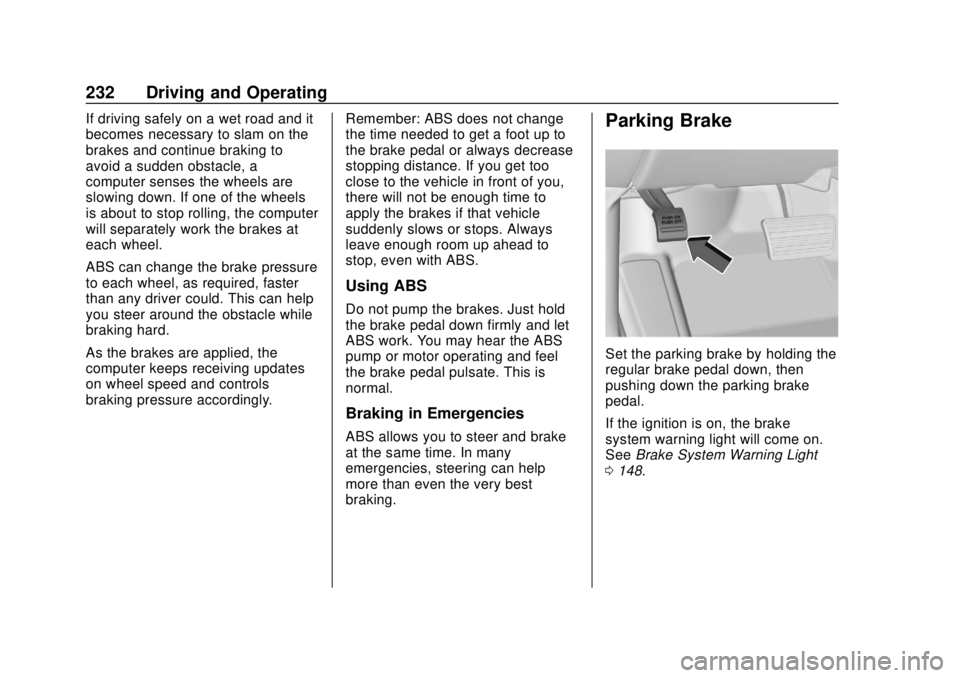
Set the parking brake by holding the
regular brake pedal down, then
pushing down the parking brake
pedal.
If the ignition is on, the brake
system warning light will come on.
See
Brake System Warning Light
0 148.
Page 236 of 431
GMC Yukon/Yukon XL/Denali Owner Manual (GMNA-Localizing-U.S./
Canada/Mexico-11349262) - 2018 - CRC - 11/3/17
Driving and Operating 235
indicate that the system is inactive
and is not assisting the driver in
maintaining control. The vehicle is
safe to drive, but driving should be
adjusted accordingly.
If
dcomes on and stays on:
1. Stop the vehicle.
2. Turn the engine off and wait 15 seconds.
3. Start the engine.
Drive the vehicle. If
dcomes on
and stays on, the vehicle may need
more time to diagnose the problem.
If the condition persists, see your
dealer.
Turning the Systems Off
and On
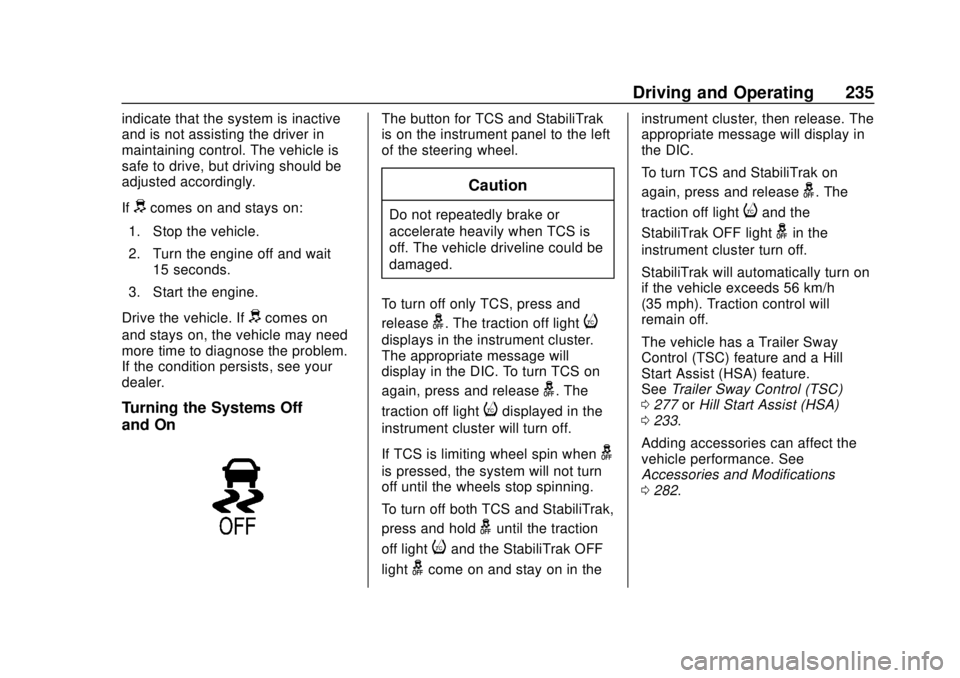
The button for TCS and StabiliTrak
is on the instrument panel to the left
of the steering wheel.
Caution
Do not repeatedly brake or
accelerate heavily when TCS is
off. The vehicle driveline could be
damaged.
To turn off only TCS, press and
release
g. The traction off lighti
displays in the instrument cluster.
The appropriate message will
display in the DIC. To turn TCS on
again, press and release
g. The
traction off light
idisplayed in the
instrument cluster will turn off.
If TCS is limiting wheel spin when
g
is pressed, the system will not turn
off until the wheels stop spinning.
To turn off both TCS and StabiliTrak,
press and hold
guntil the traction
off light
iand the StabiliTrak OFF
light
gcome on and stay on in the instrument cluster, then release. The
appropriate message will display in
the DIC.
To turn TCS and StabiliTrak on
again, press and release
g. The
traction off light
iand the
StabiliTrak OFF light
gin the
instrument cluster turn off.
StabiliTrak will automatically turn on
if the vehicle exceeds 56 km/h
(35 mph). Traction control will
remain off.
The vehicle has a Trailer Sway
Control (TSC) feature and a Hill
Start Assist (HSA) feature.
See Trailer Sway Control (TSC)
0 277 orHill Start Assist (HSA)
0 233.
Adding accessories can affect the
vehicle performance. See
Accessories and Modifications
0 282.
Page 237 of 431

GMC Yukon/Yukon XL/Denali Owner Manual (GMNA-Localizing-U.S./
Canada/Mexico-11349262) - 2018 - CRC - 11/3/17
236 Driving and Operating
Hill Descent
Control (HDC)
If equipped, Hill Descent Control
(HDC) sets and maintains vehicle
speed while driving down steep
grades in a forward or reverse gear.
The HDC switch is on the center
stack, below the climate controls.
Press
5to enable or disable HDC.
Vehicle speed must be below
50 km/h (31 mph).
When enabled, the HDC light
displays on the instrument cluster.
A blinking HDC light indicates the
system is actively applying the
brakes to maintain vehicle speed.
HDC can maintain vehicle speeds
between 1 and 30 km/h (1 and
19 mph) on grades greater than or
equal to 10%. If HDC is to be used for more than
three minutes or on grades steeper
than 25%, the transfer case should
be put into Four-Wheel Drive Low
(4
n) to reduce the possibility of
brake overheating.
Noise from the hydraulic brake
control module is normal when HDC
is active.
When HDC is activated, the initial
HDC speed is set to the current
driving speed. It can be increased or
decreased by pressing +RES or
SET- on the steering wheel, or by
applying the accelerator or brake
pedal. This adjusted speed
becomes the new set speed.
HDC will remain enabled between
30 and 60 km/h (19 and 37 mph);
however, vehicle speed cannot be
set or maintained in this range. HDC
will automatically disable if the
vehicle speed is above 80 km/h
(50 mph) or above 60 km/h
(37 mph) for at least 30 seconds.
5must be pressed again to
re-enable HDC. HDC may disable
after an extended period of use. If this happens, HDC will require
time to cool down. The length of
time HDC remains active depends
on road conditions, grade, set
speed, vehicle loading, and outside
temperature.
When enabled, if the vehicle speed
is above 30 km/h (19 mph) and
below 60 km/h (37 mph), a DIC
message will display.
Magnetic Ride Control
This vehicle may have a semi-active
damping system called Magnetic
Ride Control. With this feature,
improved vehicle ride and handling
is provided under a variety of
passenger and loading conditions.
Magnetic Ride Control is fully
automatic and uses a computer
controller to continuously monitor
vehicle speed, wheel to body
position, lift/dive, and steering
position of the vehicle. The
controller then sends signals to
each shock absorber to
Page 243 of 431
GMC Yukon/Yukon XL/Denali Owner Manual (GMNA-Localizing-U.S./
Canada/Mexico-11349262) - 2018 - CRC - 11/3/17
242 Driving and Operating
The ACC indicator displays on the
Driver Information Center (DIC) in
the instrument cluster and Head-Up
display (HUD), if equipped. When
ACC is active, the indicator turns
green.
Be mindful of speed limits,
surrounding traffic speeds, and
weather conditions when selecting
the set speed.
Resuming a Set Speed
If the ACC is set at a desired speed
and then the brakes are applied,
ACC is disengaged without erasing
the set speed from memory.
To begin using ACC again, press
+RES on the steering wheel. The
vehicle returns to the previous set
speed.Increasing Speed While ACC is at
a Set Speed
Do one of the following:
.
Use the accelerator to get to the
higher speed. Press SET– .
Release the control and the
accelerator pedal. The vehicle
will now cruise at the higher
speed.
When the accelerator pedal is
pressed, ACC will not brake
because it is overridden.
A warning message will appear
on the Driver Information Center
(DIC) and HUD, if equipped. See
Vehicle Messages 0161.
. Press and hold +RES until the
desired set speed appears on
the display, then release it.
. To increase vehicle speed in
small increments, briefly press
+RES. For each press, the
vehicle goes to the next 1 km/h
(1 mph) faster mark on the
speedometer. .
To increase speed in larger
increments, press and briefly
hold +RES. For each press, the
vehicle speed goes to next
5 km/h (5 mph) faster mark on
the speedometer.
When it is determined that there is
no vehicle ahead or the vehicle
ahead is beyond the selected
following gap, then the vehicle
speed will increase to the set speed.
Reducing Speed While ACC is at a
Set Speed
Do one of the following:
. Use the brake to get to the
desired lower speed. Release
the brake and press SET– . The
vehicle will now cruise at the
lower speed.
. Press and hold SET– until the
desired lower speed is reached,
then release it.
. To decrease the vehicle speed in
small increments, briefly press
SET−. For each press, the
Page 244 of 431
GMC Yukon/Yukon XL/Denali Owner Manual (GMNA-Localizing-U.S./
Canada/Mexico-11349262) - 2018 - CRC - 11/3/17
Driving and Operating 243
vehicle speed goes to the next
1 km/h (1 mph) slower mark on
the speedometer.
. To decrease speed in larger
increments, press and briefly
hold SET−. For each press, the
vehicle speed goes to the next
5 km/h (5 mph) slower mark on
the speedometer.
Selecting the Follow Distance Gap
When a slower moving vehicle is
detected ahead within the selected
following gap, ACC will adjust the
vehicle's speed and attempt to
maintain the follow distance gap
selected.
Press
3on the steering wheel to
adjust the following gap. When
pressed, the current gap setting
displays briefly on the instrument
cluster and HUD, if equipped.
Subsequent presses cycle the
3
button through three settings: Far,
Medium, or Near. The gap setting
will be maintained until it is
changed. Since each gap setting corresponds
to a following time (Far, Medium,
or Near), the following distance will
vary based on vehicle speed. The
faster the vehicle speed, the further
back your vehicle will follow a
vehicle detected ahead. Consider
traffic and weather conditions when
selecting the following gap. The
range of selectable gaps may not be
appropriate for all drivers and
driving conditions.
Changing the gap setting
automatically changes the alert
timing sensitivity (Far, Medium,
or Near) for the Forward Collision
Alert (FCA) feature. See
Forward
Collision Alert (FCA) System 0250.
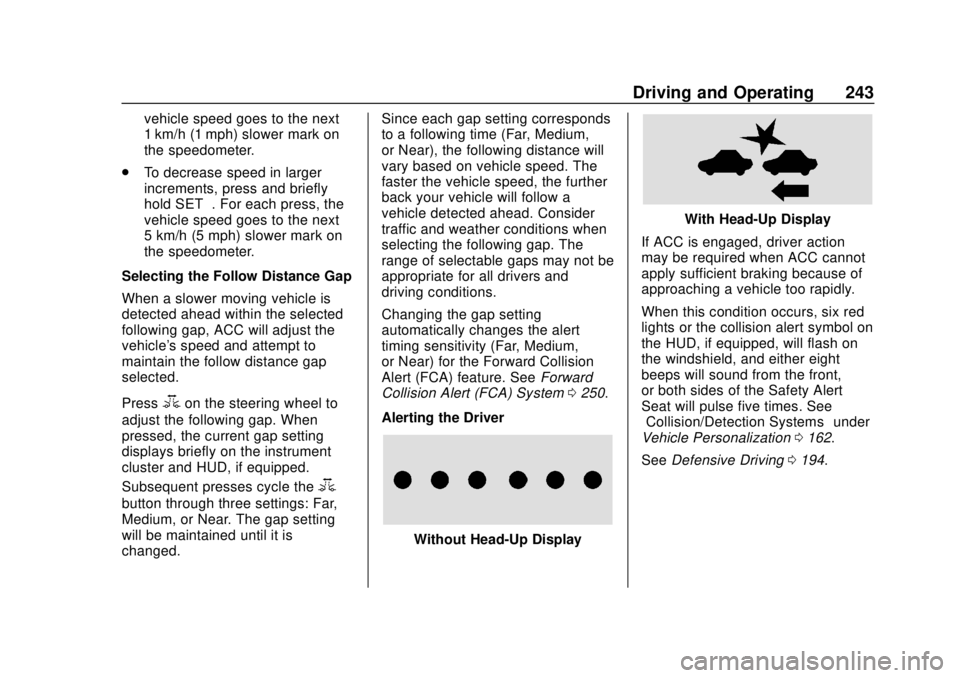
Alerting the Driver
Without Head-Up Display
With Head-Up Display
If ACC is engaged, driver action
may be required when ACC cannot
apply sufficient braking because of
approaching a vehicle too rapidly.
When this condition occurs, six red
lights or the collision alert symbol on
the HUD, if equipped, will flash on
the windshield, and either eight
beeps will sound from the front,
or both sides of the Safety Alert
Seat will pulse five times. See
“Collision/Detection Systems” under
Vehicle Personalization 0162.
See Defensive Driving 0194.
Page 251 of 431
GMC Yukon/Yukon XL/Denali Owner Manual (GMNA-Localizing-U.S./
Canada/Mexico-11349262) - 2018 - CRC - 11/3/17
250 Driving and Operating
on the left or right side, depending
on the direction of the detected
vehicle.
Use caution while backing up when
towing a trailer, as the RCTA
detection zones that extend out
from the back of the vehicle do not
move further back when a trailer is
towed.
Turning the Features On or Off
TheXbutton to the left of the
steering wheel is used to turn on or
off the Front and Rear Parking
Assist. The indicator light in the
button comes on when the features
are on and turns off when the
features have been disabled. Front and Rear Parking Assist can
be turned off, on, or on with towbar
through vehicle personalization. See
“Parking Assist”
underVehicle
Personalization 0162. If the parking
assist is turned off through vehicle
personalization, the parking assist
button will be disabled. To turn the
parking assist on again, select On in
vehicle personalization. The On with
Towbar setting allows for the
parking assist to work properly with
an attached trailer hitch. Turn off
parking assist when towing a trailer.
To turn the rear parking assist
symbols, guidance lines, or Rear
Cross Traffic Alert on or off, see
“Rear Camera” and“Collision/
Detection Systems” underVehicle
Personalization 0162.
Assistance Systems for
Driving
If equipped, when driving the
vehicle in a forward gear, Forward
Collision Alert (FCA), Lane
Departure Warning (LDW), Lane
Keep Assist (LKA), Side Blind Zone
Alert (SBZA), Lane Change Alert (LCA), and/or Forward Automatic
Braking (FAB) can help to avoid a
crash or reduce crash damage.
Forward Collision Alert
(FCA) System
If equipped, the FCA system may
help to avoid or reduce the harm
caused by front-end crashes. When
approaching a vehicle ahead too
quickly, FCA provides a red flashing
alert on the windshield and rapidly
beeps or pulses the driver seat.
FCA also lights an amber visual
alert if following another vehicle
much too closely.
FCA detects vehicles within a
distance of approximately 60 m
(197 ft) and operates at speeds
above 8 km/h (5 mph). If the vehicle
has Adaptive Cruise Control (ACC),
it can detect vehicles to distances of
approximately 110 m (360 ft) and
operates at all speeds. See
Adaptive Cruise Control
0240.
Page 252 of 431
GMC Yukon/Yukon XL/Denali Owner Manual (GMNA-Localizing-U.S./
Canada/Mexico-11349262) - 2018 - CRC - 11/3/17
Driving and Operating 251
{Warning
FCA is a warning system and
does not apply the brakes. When
approaching a slower-moving or
stopped vehicle ahead too rapidly,
or when following a vehicle too
closely, FCA may not provide a
warning with enough time to help
avoid a crash. It also may not
provide any warning at all. FCA
does not warn of pedestrians,
animals, signs, guardrails,
bridges, construction barrels,
or other objects. Be ready to take
action and apply the brakes. See
Defensive Driving0194.
FCA can be disabled with either the
FCA steering wheel control or,
if equipped, through vehicle
personalization. See “Collision/
Detection Systems” underVehicle
Personalization 0162.
Detecting the Vehicle Ahead
FCA warnings will not occur unless
the FCA system detects a vehicle
ahead. When a vehicle is detected,
the vehicle ahead indicator will
display green. Vehicles may not be
detected on curves, highway exit
ramps, or hills, due to poor visibility;
or if a vehicle ahead is partially
blocked by pedestrians or other
objects. FCA will not detect another
vehicle ahead until it is completely
in the driving lane.
{Warning
FCA does not provide a warning
to help avoid a crash, unless it
detects a vehicle. FCA may not
detect a vehicle ahead if the FCA
sensor is blocked by dirt, snow,
(Continued)
Warning (Continued)
or ice, or if the windshield is
damaged. It may also not detect a
vehicle on winding or hilly roads,
or in conditions that can limit
visibility such as fog, rain,
or snow, or if the headlamps or
windshield are not cleaned or in
proper condition. Keep the
windshield, headlamps, and FCA
sensors clean and in good repair.
Collision Alert
With Head-Up Display
Page 253 of 431
GMC Yukon/Yukon XL/Denali Owner Manual (GMNA-Localizing-U.S./
Canada/Mexico-11349262) - 2018 - CRC - 11/3/17
252 Driving and Operating
Without Head-Up Display
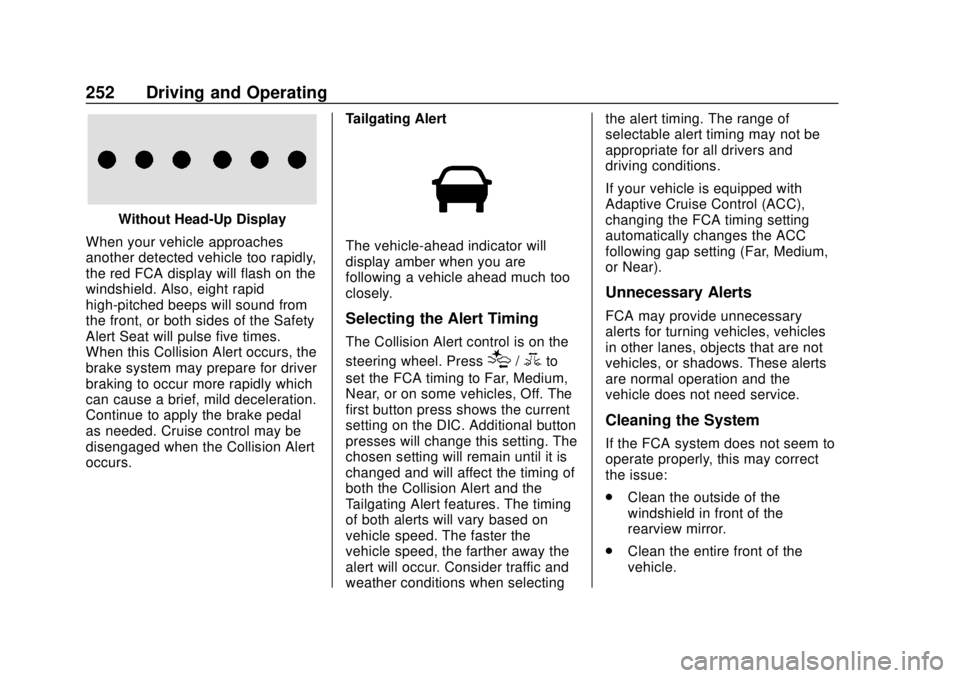
When your vehicle approaches
another detected vehicle too rapidly,
the red FCA display will flash on the
windshield. Also, eight rapid
high-pitched beeps will sound from
the front, or both sides of the Safety
Alert Seat will pulse five times.
When this Collision Alert occurs, the
brake system may prepare for driver
braking to occur more rapidly which
can cause a brief, mild deceleration.
Continue to apply the brake pedal
as needed. Cruise control may be
disengaged when the Collision Alert
occurs. Tailgating Alert
The vehicle-ahead indicator will
display amber when you are
following a vehicle ahead much too
closely.
Selecting the Alert Timing
The Collision Alert control is on the
steering wheel. Press
[/3to
set the FCA timing to Far, Medium,
Near, or on some vehicles, Off. The
first button press shows the current
setting on the DIC. Additional button
presses will change this setting. The
chosen setting will remain until it is
changed and will affect the timing of
both the Collision Alert and the
Tailgating Alert features. The timing
of both alerts will vary based on
vehicle speed. The faster the
vehicle speed, the farther away the
alert will occur. Consider traffic and
weather conditions when selecting the alert timing. The range of
selectable alert timing may not be
appropriate for all drivers and
driving conditions.
If your vehicle is equipped with
Adaptive Cruise Control (ACC),
changing the FCA timing setting
automatically changes the ACC
following gap setting (Far, Medium,
or Near).
Unnecessary Alerts
FCA may provide unnecessary
alerts for turning vehicles, vehicles
in other lanes, objects that are not
vehicles, or shadows. These alerts
are normal operation and the
vehicle does not need service.
Cleaning the System
If the FCA system does not seem to
operate properly, this may correct
the issue:
.
Clean the outside of the
windshield in front of the
rearview mirror.
. Clean the entire front of the
vehicle.
Page 258 of 431
GMC Yukon/Yukon XL/Denali Owner Manual (GMNA-Localizing-U.S./
Canada/Mexico-11349262) - 2018 - CRC - 11/3/17
Driving and Operating 257
direction. Since this system is part
of the Lane Keep Assist (LKA)
system, read the entire LKA section
before using this feature.
Lane Keep Assist (LKA)
If equipped, LKA may help avoid
crashes due to unintentional lane
departures. It may assist by gently
turning the steering wheel if the
vehicle approaches a detected lane
marking without using a turn signal
in that direction. It may also provide
a Lane Departure Warning (LDW)
system alert as the lane marking is
crossed. The LKA system will not
assist or provide an LDW alert if it
detects that you are actively
steering. Override LKA by turning
the steering wheel. LKA uses a
camera to detect lane markings
between 60 km/h (37 mph) and
180 km/h (112 mph).
{Warning
The LKA system does not
continuously steer the vehicle.
It may not keep the vehicle in the
lane or give a Lane Departure
Warning (LDW) alert, even if a
lane marking is detected.
The LKA and LDW systems
may not:. Provide an alert or enough
steering assist to avoid a
lane departure or crash.
. Detect lane markings under
poor weather or visibility
conditions. This can occur if
the windshield or
headlamps are blocked by
dirt, snow, or ice, if they are
not in proper condition, or if
the sun shines directly into
the camera.
. Detect road edges.
. Detect lanes on winding or
hilly roads.
(Continued)
Warning (Continued)
If LKA only detects lane markings
on one side of the road, it will
only assist or provide an LDW
alert when approaching the lane
on the side where it has detected
a lane marking. Even with LKA
and LDW, you must steer the
vehicle. Always keep your
attention on the road and
maintain proper vehicle position
within the lane, or vehicle
damage, injury, or death could
occur. Always keep the
windshield, headlamps, and
camera sensors clean and in
good repair. Do not use LKA in
bad weather conditions.
{Warning
Using LKA while towing a trailer
or on slippery roads could cause
loss of control of the vehicle and
a crash. Turn the system off.