DLNA GMC YUKON 2020 Infotainment System Manual
[x] Cancel search | Manufacturer: GMC, Model Year: 2020, Model line: YUKON, Model: GMC YUKON 2020Pages: 116, PDF Size: 1.32 MB
Page 42 of 116
GMC Infotainment System (U.S./Canada 2.6) (GMNA-Localizing-U.S./Canada-
13583174) - 2020 - CRC - 4/15/19
Rear Seat Infotainment 41
If the foam ear pads become worn
or damaged, the pads can be
replaced separately. To purchase
replacement ear pads, contact your
dealer.
Battery Replacement
To change the batteries:1. Loosen the screw to the battery door on the left side of the
headphones.
2. Slide the battery door open.
3. Replace the two AAA batteries.
4. Replace the battery door and tighten the screw.
Remove the batteries if the
headphones will not be used for a
long time.
Rear Seat Infotainment (RSI)
Wi-Fi (If Equipped)
The RSI Wi-Fi allows the user to
access music, videos and pictures
that are saved or taken with a smart
device to the RSI system through
Digital Living Network Alliance (DLNA) applications. Only one
smart device can be connected to
the RSI at one time.
Placement for Optimal
Performance
The RSI Wi-Fi antenna is near the
RSI disc player. The smart device
connection is stronger when it is
near the Wi-Fi antenna.
If the network is not operating at its
maximum effectiveness, try the
following:
.
Disconnect the smart device
from any other connected
network to improve the audio/
video performance.
. Switch the band. While in any
Wi-Fi screen, select Menu, then
select Switch Band to access a
band that is available. Some
marketing regions will only
support 2.4 GHz.
Digital Living Network Alliance
(DLNA) (If Equipped)
To establish an initial connection:
1. From the RSI Wireless Display menu, select DLNA. The RSI
screen will display a Wi-Fi
network name, such as
“DIRECT-xx-Rear Seat”, as
well as the required password
necessary to complete the
connection.
2. Make sure the smart device’s Wi-Fi is enabled, and open the
device’s Wi-Fi menu.
3. From the smart device’s Wi-Fi menu, select the network.
If this network is not shown at
the smart device, it will be
necessary to re-scan for
available networks.
4. Enter the RSI Password at the smart device to complete the
connection. Once entered, the
selected network will display as
connected.
Page 43 of 116
GMC Infotainment System (U.S./Canada 2.6) (GMNA-Localizing-U.S./Canada-
13583174) - 2020 - CRC - 4/15/19
42 Rear Seat Infotainment
5. From the smart device’s DLNAapplication, select Rear Seat 1
or 2 as the screen to display
the desired video, audio,
or picture files on the RSI.
Once the connection process is
done for the first time, the Wi-Fi
connection will be made whenever
the device is within Wi-Fi range or
the smart device Wi-Fi is turned on.
Select Menu from the remote control
to access the options to switch
Wi-Fi band, disconnect the smart
device from the RSI Wi-Fi, or to
remove all DLNA passwords that
have been saved.
Supported DLNA media types are:
. Video: .mp4 and .mpg
. Audio: .mp3 and .aac
. Picture: .jpeg and .jpg
Viewing the Other Display
While the left or right screen is
connected by DLNA, the other
screen can access the same source by selecting View Screen 1 or View
Screen 2 in the Wireless
Display menu.
Connecting Wireless Android
Devices
Many Android devices come with
pre-installed audio and video
players that support WiFi streaming;
consult your smart device manual
for more information. Android
devices will also support various
DLNA applications to allow the
device to connect to the RSI
wirelessly. Search the Google Play
store for DLNA applications to install
on the Android device.
Connecting Wireless Apple
Devices
Apple will support various DLNA
apps to allow the device to connect
to the RSI wirelessly. Search the
App Store for DLNA applications to
install on the Apple device.Auxiliary Inputs
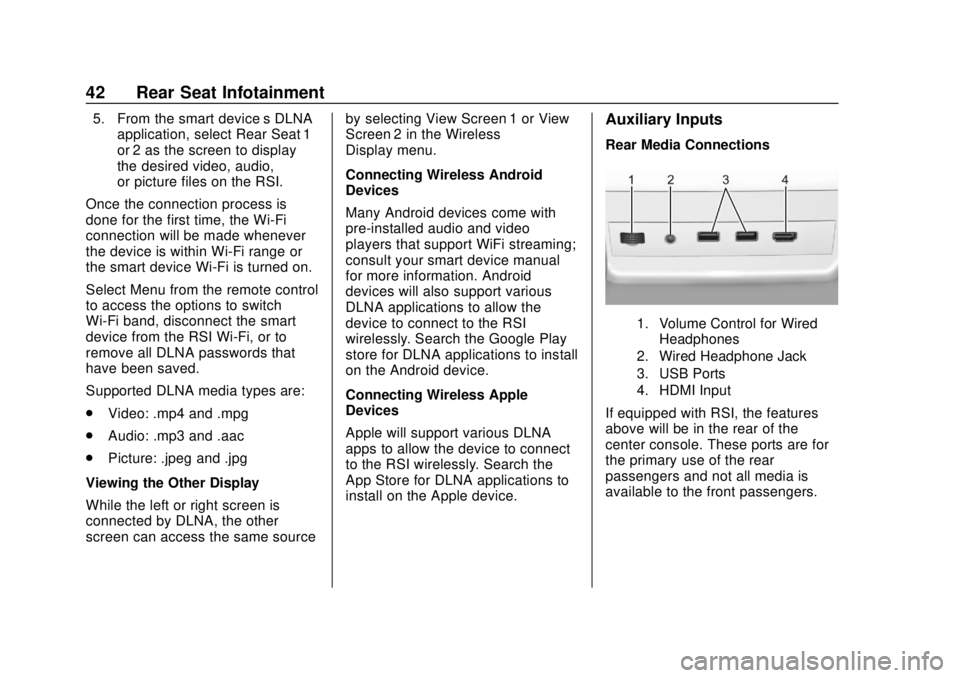
Rear Media Connections
1. Volume Control for Wired
Headphones
2. Wired Headphone Jack
3. USB Ports
4. HDMI Input
If equipped with RSI, the features
above will be in the rear of the
center console. These ports are for
the primary use of the rear
passengers and not all media is
available to the front passengers.
Page 48 of 116
GMC Infotainment System (U.S./Canada 2.6) (GMNA-Localizing-U.S./Canada-
13583174) - 2020 - CRC - 4/15/19
Rear Seat Infotainment 47
programmed to the correct screen
and on the correct channel for the
screen being viewed.
The HDMI source is running but
there is no picture or sound :
Check that the RSI video screen is
in the HDMI mode by pressing
MEDIA on the remote control.
Check the HDMI connections at
both devices.
Sometimes the wireless
headphone audio cuts out or
buzzes :Check for obstructions,
low batteries, reception range, and
interference from cell phone towers
or from cellular telephone use in the
vehicle. Check that the headphones
are on correctly using the L (Left)
and R (Right) on the headphones.
Check that the headphones are
positioned properly with the
headband across the top of
the head.
I lost the remote and/or the
headphones : See your dealer for
assistance. The Blu-ray/DVD is playing, but
there is no picture or sound :
Check that the RSI video screen is
sourced to the Blu-ray/DVD player
by pressing MEDIA on the remote
control.
Videos from my phone are played
back sideways or upside-down
when the phone is connected via
DLNA :
This cannot be corrected by
the RSI system. While playing
through DLNA, the RSI will only play
back videos in the orientation in
which they were recorded.
Video Display Error Messages
The video screen may display one
of the following:
Disc Error : There are disc load or
eject problems, the disc is inserted
with the disc label wrong side up,
the disc is damaged, or the disc is
not from the correct region. No Disc Inserted :
No disc is
present.
Disc Player Error : The
temperature is outside the operating
range of the RSI system. If the
temperature is within range, see
your dealer.
Video Distortion
Video distortion can occur when
operating cellular phones, scanners,
CB radios, Global Positioning
Systems (GPSs), two-way radios,
mobile faxes, or walkie talkies.
It might be necessary to turn off the
video player when operating one of
these devices in or near the vehicle.
Page 112 of 116

GMC Infotainment System (U.S./Canada 2.6) (GMNA-Localizing-U.S./Canada-
13583174) - 2020 - CRC - 4/15/19
Index 111
Index4
4G LTE . . . . . . . . . . . . . . . . . . . . . . . . . . 27
A
Accepting or Declining a Call . . . . 89
AgreementsTrademarks and License . . . . . . 100
AM . . . . . . . . . . . . . . . . . . . . . . . . . . . . . . 17
AM-FM Categories . . . . . . . . . . . . . . 14
AM-FM Radio . . . . . . . . . . . . . . . . . . . . 12
Antenna Fixed Mast . . . . . . . . . . . . . . . . . . . . . . 18
Multi-band. . . . . . . . . . . . . . . . . . . . . . . 18
Apple CarPlay and Android Auto . . . . . . . . . . . . . . . . . . . 91
Applications Tray . . . . . . . . . . . . . . . . 10
Audio Bluetooth. . . . . . . . . . . . . . . . . . . . . . . . 25
Audio Output . . . . . . . . . . . . . . . . . . . . 43
Audio Players CD . . . . . . . . . . . . . . . . . . . . . . . . . . . . . . 19
Audio System . . . . . . . . . . . . . . . . . . . . 86
Auxiliary Inputs . . . . . . . . . . . . . . . . . . 42
Auxiliary Jack . . . . . . . . . . . . . . . . . . . . 24
Avoiding Untrusted Media Devices . . . . . . . . . . . . . . . . . . . . . . . . 19
B
Bluetooth . . . . . . . . . . . . . . . . . . . . . . . . 94Overview. . . . . . . . . . . . . . . . . . . . 86, 87
Bluetooth Audio . . . . . . . . . . . . . . . . . 25
Bluetooth Controls . . . . . . . . . . . . . . . 86
C
Call Waiting . . . . . . . . . . . . . . . . . . . . . . 89
Canceling Voice Recognition . . . . 79
CD Player . . . . . . . . . . . . . . . . . . . . . . . 19
Cleaning High Gloss Surfaces and Vehicle Information and
Radio Displays . . . . . . . . . . . . . . . . . 11
Controls Steering Wheel. . . . . . . . . . . . . . . . . . . 8
Coverage Explanations . . . . . . . . . . 77
D
Database Coverage Explanations . . . . . . . . . . . . . . . . . . . 77
Destination . . . . . . . . . . . . . . . . . . . . . . 57
Detailed Areas . . . . . . . . . . . . . . . . . . . 56
Digital Living Network Alliance
(DLNA) (If Equipped) . . . . . . . . . . . 41
Display . . . . . . . . . . . . . . . . . . . . . . . . . . 95
Driver
Teen . . . . . . . . . . . . . . . . . . . . . . . . . . . . 96
Dual Tone Multi-Frequency (DTMF) Tones . . . . . . . . . . . . . . . . . . 90