high GMC YUKON 2020 Infotainment System Manual
[x] Cancel search | Manufacturer: GMC, Model Year: 2020, Model line: YUKON, Model: GMC YUKON 2020Pages: 116, PDF Size: 1.32 MB
Page 5 of 116

GMC Infotainment System (U.S./Canada 2.6) (GMNA-Localizing-U.S./Canada-
13583174) - 2020 - CRC - 4/15/19
4 Introduction
.TurnOto increase or
decrease the volume.
2. MEDIA
. Press to scroll through
the USB, Bluetooth, CD
(if equipped), and AUX
Input audio sources.
3. RADIO
.Press to scroll through
the AM and FM audio
sources.
4.gord
.AM or FM: Press to
seek to the previous or
next strong station. See
AM-FM Radio 012.
. USB, CD (if equipped),
AUX, or Bluetooth
Audio: Press to seek to
the beginning of the
current or previous
track, or press to seek
to the next track.
. USB, CD (if equipped),
AUX. or Bluetooth
Audio: Press and hold
to quickly reverse through a track,
or quickly go forward
through a track.
Release to return to
playing speed. See
USB
Port 021, Auxiliary Jack
0 24, or Bluetooth Audio
0 25.
5.P(Screen)
. Press
Pto open.
There is a USB port
inside. Press
Pagain
to close. Keep the
storage area closed
when not in use. See
the owner ’s manual.
6.Y(Eject)
. Press to eject the audio
disc from the CD player.
7.{(Home Page)
. Press to go to the Home
Page. See “Home Page”
later in this section.
8.oBACK
. Press to return to the
previous display in
a menu.
9. CD Slot
.Place an audio disc
into the CD slot to
launch playback.
10. MENU
.Turn the knob to
highlight a feature.
Press to activate the
highlighted feature.
Page 7 of 116

GMC Infotainment System (U.S./Canada 2.6) (GMNA-Localizing-U.S./Canada-
13583174) - 2020 - CRC - 4/15/19
6 Introduction
3. RADIO
.Press to scroll through
the AM and FM audio
sources.
4.gord(Seek
Previous/Next)
. AM or FM: Press to
seek to the previous or
next strong station. See
AM-FM Radio 012.
. USB, CD (if equipped),
AUX, or Bluetooth
Audio: Press to seek to
the beginning of the
current or previous
track, or press to seek
forward to the next
track.
. USB, CD (if equipped),
AUX. or Bluetooth
Audio: Press and hold
to quickly reverse
through a track,
or quickly go forward
through the next track.
Release to return to playing speed. See
USB
Port 021, Auxiliary Jack
0 24, or Bluetooth Audio
0 25.5.Y(Eject)
. Press to eject the audio
disc from the CD player.
6.{(Home Page)
. Press to go to the Home
Page. See “Home Page”
later in this section.
7.oBACK
. Press to return to the
previous display in
a menu.
8. CD Slot
.Place an audio disc into
the CD slot to launch
playback.
9. MENU
.Turn the knob to
highlight a feature.
Press to activate the
highlighted feature.
Page 9 of 116
GMC Infotainment System (U.S./Canada 2.6) (GMNA-Localizing-U.S./Canada-
13583174) - 2020 - CRC - 4/15/19
8 Introduction
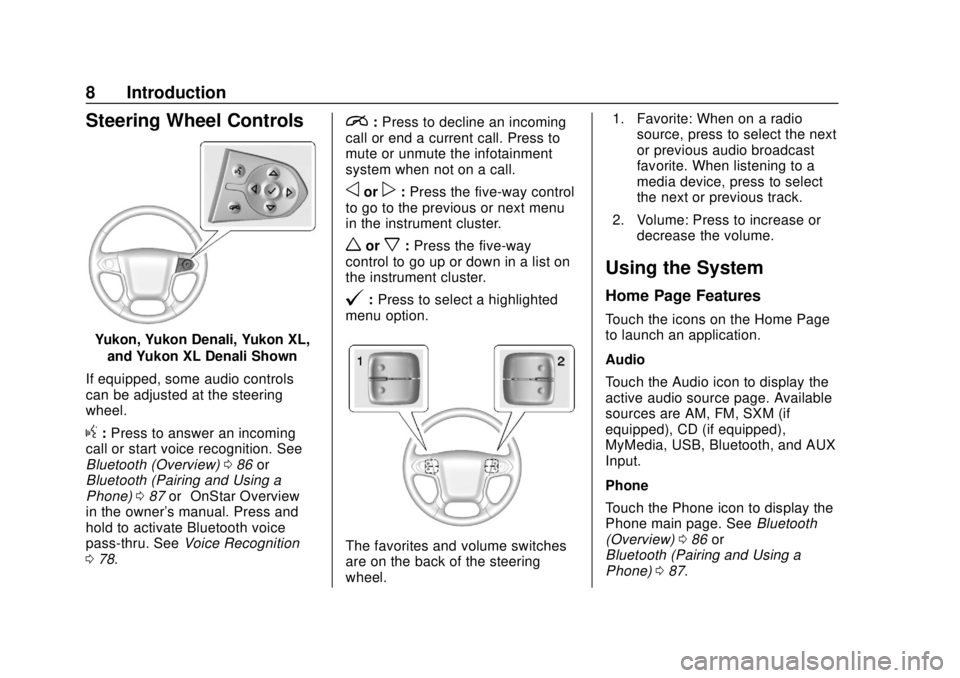
Steering Wheel Controls
Yukon, Yukon Denali, Yukon XL,and Yukon XL Denali Shown
If equipped, some audio controls
can be adjusted at the steering
wheel.
g: Press to answer an incoming
call or start voice recognition. See
Bluetooth (Overview) 086 or
Bluetooth (Pairing and Using a
Phone) 087 or“OnStar Overview”
in the owner's manual. Press and
hold to activate Bluetooth voice
pass-thru. See Voice Recognition
0 78.
i:Press to decline an incoming
call or end a current call. Press to
mute or unmute the infotainment
system when not on a call.
oorp: Press the five-way control
to go to the previous or next menu
in the instrument cluster.
worx: Press the five-way
control to go up or down in a list on
the instrument cluster.
@: Press to select a highlighted
menu option.
The favorites and volume switches
are on the back of the steering
wheel. 1. Favorite: When on a radio
source, press to select the next
or previous audio broadcast
favorite. When listening to a
media device, press to select
the next or previous track.
2. Volume: Press to increase or decrease the volume.
Using the System
Home Page Features
Touch the icons on the Home Page
to launch an application.
Audio
Touch the Audio icon to display the
active audio source page. Available
sources are AM, FM, SXM (if
equipped), CD (if equipped),
MyMedia, USB, Bluetooth, and AUX
Input.
Phone
Touch the Phone icon to display the
Phone main page. See Bluetooth
(Overview) 086 or
Bluetooth (Pairing and Using a
Phone) 087.
Page 11 of 116
GMC Infotainment System (U.S./Canada 2.6) (GMNA-Localizing-U.S./Canada-
13583174) - 2020 - CRC - 4/15/19
10 Introduction
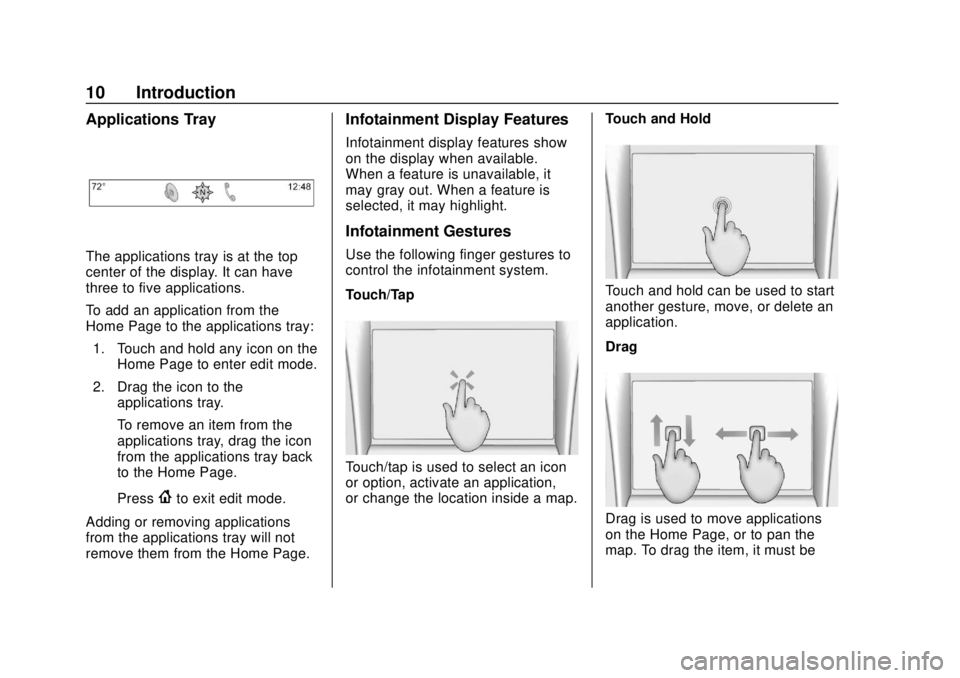
Applications Tray
The applications tray is at the top
center of the display. It can have
three to five applications.
To add an application from the
Home Page to the applications tray:1. Touch and hold any icon on the Home Page to enter edit mode.
2. Drag the icon to the applications tray.
To remove an item from the
applications tray, drag the icon
from the applications tray back
to the Home Page.
Press
{to exit edit mode.
Adding or removing applications
from the applications tray will not
remove them from the Home Page.
Infotainment Display Features
Infotainment display features show
on the display when available.
When a feature is unavailable, it
may gray out. When a feature is
selected, it may highlight.
Infotainment Gestures
Use the following finger gestures to
control the infotainment system.
Touch/Tap
Touch/tap is used to select an icon
or option, activate an application,
or change the location inside a map. Touch and Hold
Touch and hold can be used to start
another gesture, move, or delete an
application.
Drag
Drag is used to move applications
on the Home Page, or to pan the
map. To drag the item, it must be
Page 12 of 116
GMC Infotainment System (U.S./Canada 2.6) (GMNA-Localizing-U.S./Canada-
13583174) - 2020 - CRC - 4/15/19
Introduction 11
held and moved along the display to
the new location. This can be done
up, down, right, or left.
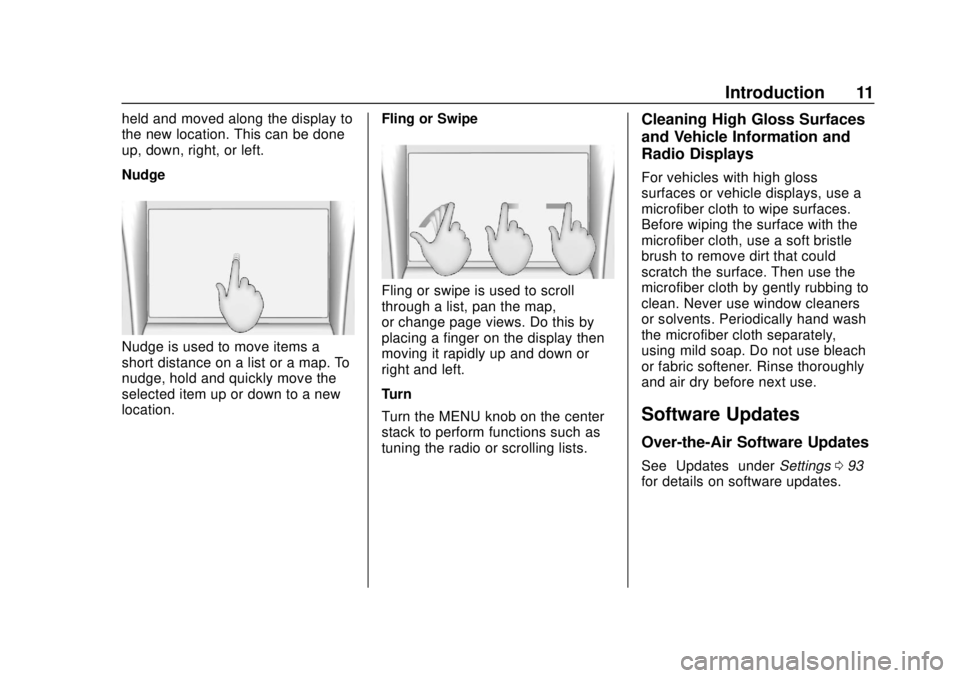
Nudge
Nudge is used to move items a
short distance on a list or a map. To
nudge, hold and quickly move the
selected item up or down to a new
location.Fling or Swipe
Fling or swipe is used to scroll
through a list, pan the map,
or change page views. Do this by
placing a finger on the display then
moving it rapidly up and down or
right and left.
Turn
Turn the MENU knob on the center
stack to perform functions such as
tuning the radio or scrolling lists.
Cleaning High Gloss Surfaces
and Vehicle Information and
Radio Displays
For vehicles with high gloss
surfaces or vehicle displays, use a
microfiber cloth to wipe surfaces.
Before wiping the surface with the
microfiber cloth, use a soft bristle
brush to remove dirt that could
scratch the surface. Then use the
microfiber cloth by gently rubbing to
clean. Never use window cleaners
or solvents. Periodically hand wash
the microfiber cloth separately,
using mild soap. Do not use bleach
or fabric softener. Rinse thoroughly
and air dry before next use.
Software Updates
Over-the-Air Software Updates
See
“Updates” underSettings 093
for details on software updates.
Page 14 of 116
GMC Infotainment System (U.S./Canada 2.6) (GMNA-Localizing-U.S./Canada-
13583174) - 2020 - CRC - 4/15/19
Radio 13
Categories :Touch Categories
under the Audio menu to access the
categories list for AM, FM, or SXM
(if equipped). The list contains
names associated with the AM, FM,
and SXM, if equipped, stations or
channels. Touch a category name to
display a list of stations or channels
for that category. Touching a station
or channel from the list tunes the
radio to that station or channel and
returns the display to Now Playing.
EQ : If equipped with a Bose sound
system, the Equalizer settings are
selected through the tone settings
menu. Touch the left or right arrows
to cycle through the EQ options.
The available choices are Manual
and Talk.
Auto Volume (If Equipped) : This
feature adjusts the volume based on
vehicle speed. The options are Off,
Low, Medium - Low, Medium,
Medium - High, or High. Touch the
Back icon on the infotainment
display to go to the previous menu. Bose AudioPilot Noise
Compensation Technology (If
Equipped) :
When turned on,
AudioPilot technology detects noise
and vehicle speed to continuously
adjust the audio signal so that music
will sound the same at a set volume
level. This feature is most effective
at lower radio volume settings
where background noise can affect
how well the music is being played.
See www.boseautomotive.com. This
feature can be turned on or off.
Touch the Back icon on the
infotainment display to go back to
the previous menu.
HD Radio (If Equipped) : For AM,
FM, and SXM (if equipped) only,
touch to turn HD Radio (if equipped)
reception on or off. Touch the Back
icon on the infotainment display to
go back to the previous menu.
Update Station List : For AM, FM,
and SXM (if equipped), touch to
update the station channel list.
Touch the Back icon on the
infotainment display to go back to
the previous menu.Finding a Station
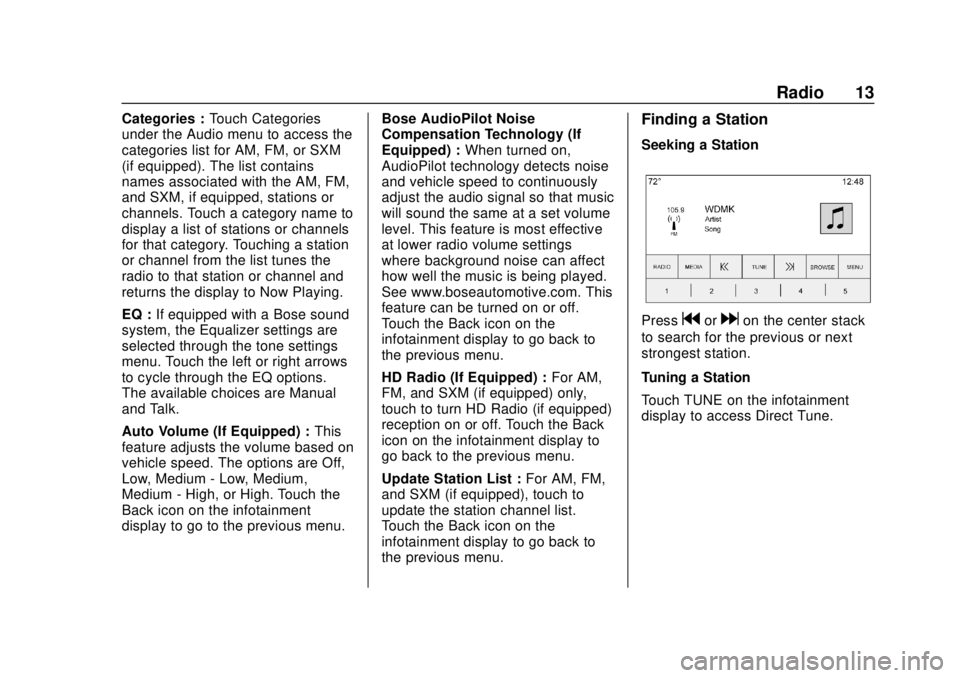
Seeking a Station
Pressgordon the center stack
to search for the previous or next
strongest station.
Tuning a Station
Touch TUNE on the infotainment
display to access Direct Tune.
Page 21 of 116
GMC Infotainment System (U.S./Canada 2.6) (GMNA-Localizing-U.S./Canada-
13583174) - 2020 - CRC - 4/15/19
20 Audio Players
Use the following controls to play
the disc:
g:
. Press to seek to the beginning of
the current or previous track.
If the track has been playing for
less than five seconds, it seeks
to the previous track. If longer
than five seconds, the current
track starts from the beginning.
. Press and hold to fast reverse
through a track. Release to
return to playing speed. Elapsed
time displays.
d:
. Press to seek to the next track.
. Press and hold to fast forward
through a track. Release to
return to playing speed. Elapsed
time displays.
Z:Touch the shuffle icon near the
bottom of the infotainment display to
shuffle through the available media.
/: Touch the replay icon near the
bottom of the infotainment display to
show the time bar. Move the time
bar to interact with the currently
playing song.
Tone : Touch Tone near the bottom
of the infotainment display to access
the Tone Settings display. Set the
Bass, Midrange, Treble, Balance,
and Fade.
For vehicles equipped with Rear
Seat Infotainment (RSI), use the
Video application to play Blu-ray or
DVD discs.
Error Messages
If Disc Error displays and/or the disc
comes out, it could be for one of the
following reasons:
. The disc has an invalid or
unknown format.
. The road is very rough. Try the
disc again when the road is
smoother.
. The disc is dirty, scratched, wet,
or upside down. .
The air is very humid. Try the
disc again later.
. There was a problem while
burning the disc.
. The label is caught in the CD
player.
If Disc Player Error displays, it could
be for one of the following reasons:
. The player temperature is
too high.
. There are load or eject errors.
If the CD is not playing correctly, for
any other reason, try a known
good CD.
If any error continues, contact your
dealer.
Playing an MP3 CD
To play an MP3 CD, follow the same
instructions as “Playing an
Audio CD.”
Page 28 of 116
GMC Infotainment System (U.S./Canada 2.6) (GMNA-Localizing-U.S./Canada-
13583174) - 2020 - CRC - 4/15/19
OnStar System 27
OnStar System
4G LTE
If equipped with 4G LTE, up to
seven devices, such as
smartphones, tablets, and laptops,
can be connected to high-speed
Internet through the vehicle’s built-in
Wi-Fi hotspot.
Call 1-888-4ONSTAR
(1-888-466-7827) to connect to an
OnStar Advisor for assistance. See
www.onstar.com for vehicle
availability, details, and system
limitations. Service and connectivity
may vary by make, model, year,
carrier, availability, and conditions.
4G LTE service is available in select
markets. 4G LTE performance is
based on industry averages and
vehicle systems design. Some
services require a data plan.
The OnStar App
If equipped, the infotainment system
has OnStar controls in the
embedded OnStar app on the Home
Page. All OnStar functions that can
be performed with the buttons can
be done using the app. To open the
app, select the OnStar icon on the
Home Page. Features vary by
region and model. Features are
subject to change. For more
information on this feature, see
my.gmc.com/learn.
Page 32 of 116
GMC Infotainment System (U.S./Canada 2.6) (GMNA-Localizing-U.S./Canada-
13583174) - 2020 - CRC - 4/15/19
Rear Seat Infotainment 31
Press COLOR to display the four
color options: blue, yellow, red, and
green. Highlight a color and press
ENTER and the appropriate action
will be carried out. Press
0
(Back) or MENU, or wait for the
15-second time out to close the
menu. Press the down arrow on the
yellow color to keep the overlay
menu up, but close the color menu.
The color menu is disc dependent;
selecting colors for discs that do not
support this feature will have no
function.
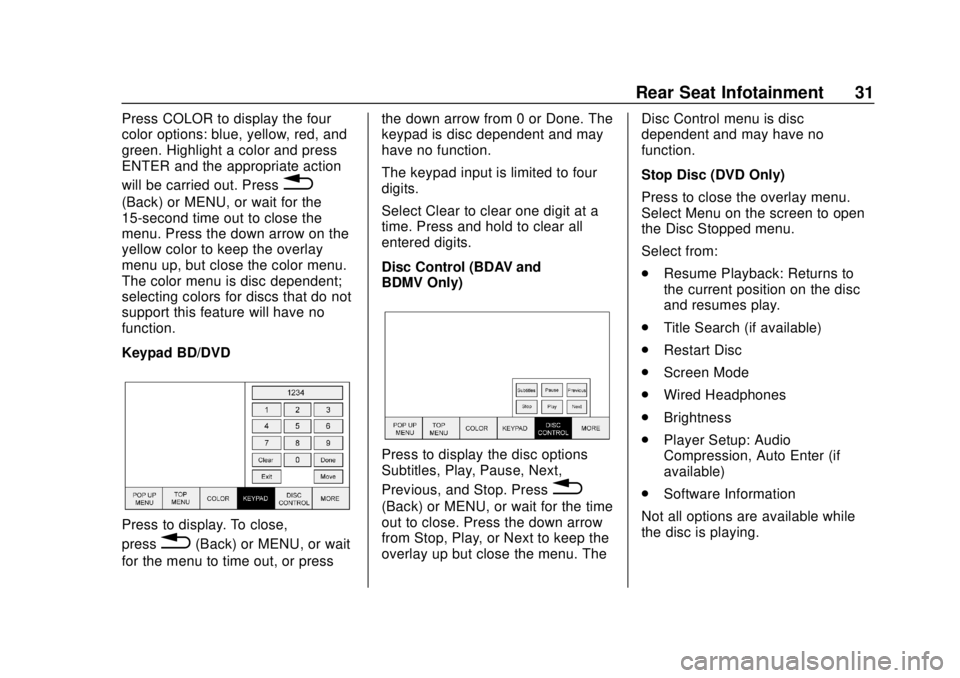
Keypad BD/DVD
Press to display. To close,
press
0(Back) or MENU, or wait
for the menu to time out, or press the down arrow from 0 or Done. The
keypad is disc dependent and may
have no function.
The keypad input is limited to four
digits.
Select Clear to clear one digit at a
time. Press and hold to clear all
entered digits.
Disc Control (BDAV and
BDMV Only)
Press to display the disc options
Subtitles, Play, Pause, Next,
Previous, and Stop. Press
0
(Back) or MENU, or wait for the time
out to close. Press the down arrow
from Stop, Play, or Next to keep the
overlay up but close the menu. The
Disc Control menu is disc
dependent and may have no
function.
Stop Disc (DVD Only)
Press to close the overlay menu.
Select Menu on the screen to open
the Disc Stopped menu.
Select from:
.
Resume Playback: Returns to
the current position on the disc
and resumes play.
. Title Search (if available)
. Restart Disc
. Screen Mode
. Wired Headphones
. Brightness
. Player Setup: Audio
Compression, Auto Enter (if
available)
. Software Information
Not all options are available while
the disc is playing.
Page 33 of 116
GMC Infotainment System (U.S./Canada 2.6) (GMNA-Localizing-U.S./Canada-
13583174) - 2020 - CRC - 4/15/19
32 Rear Seat Infotainment
Browse Media (AVCREC, BDAV,
DVD-A, DVD-VR discs only) allows
the media on the disc to be
searched in a list format.
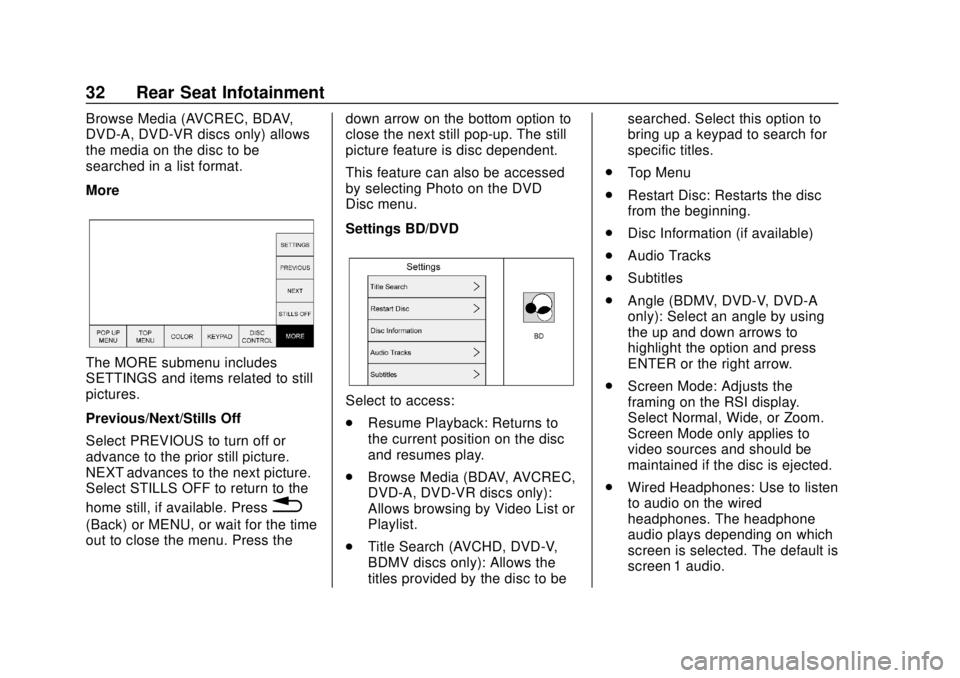
More
The MORE submenu includes
SETTINGS and items related to still
pictures.
Previous/Next/Stills Off
Select PREVIOUS to turn off or
advance to the prior still picture.
NEXT advances to the next picture.
Select STILLS OFF to return to the
home still, if available. Press
0
(Back) or MENU, or wait for the time
out to close the menu. Press thedown arrow on the bottom option to
close the next still pop-up. The still
picture feature is disc dependent.
This feature can also be accessed
by selecting Photo on the DVD
Disc menu.
Settings BD/DVD
Select to access:
.
Resume Playback: Returns to
the current position on the disc
and resumes play.
. Browse Media (BDAV, AVCREC,
DVD-A, DVD-VR discs only):
Allows browsing by Video List or
Playlist.
. Title Search (AVCHD, DVD-V,
BDMV discs only): Allows the
titles provided by the disc to be searched. Select this option to
bring up a keypad to search for
specific titles.
. Top Menu
. Restart Disc: Restarts the disc
from the beginning.
. Disc Information (if available)
. Audio Tracks
. Subtitles
. Angle (BDMV, DVD-V, DVD-A
only): Select an angle by using
the up and down arrows to
highlight the option and press
ENTER or the right arrow.
. Screen Mode: Adjusts the
framing on the RSI display.
Select Normal, Wide, or Zoom.
Screen Mode only applies to
video sources and should be
maintained if the disc is ejected.
. Wired Headphones: Use to listen
to audio on the wired
headphones. The headphone
audio plays depending on which
screen is selected. The default is
screen 1 audio.