change wheel GMC YUKON 2022 User Guide
[x] Cancel search | Manufacturer: GMC, Model Year: 2022, Model line: YUKON, Model: GMC YUKON 2022Pages: 422, PDF Size: 8.2 MB
Page 132 of 422
GMC Yukon/Yukon XL/Denali Owner Manual (GMNA-Localizing-U.S./
Canada/Mexico-15555988) - 2022 - CRC - 12/3/21
Instruments and Controls 131
To access the vehicle personalization menu:1. Touch the Settings icon on the Home Page of the infotainment display.
2. Touch Vehicle to display a list of available options.
3. Touch to select the desired feature setting.
4. Touch
9orRto turn a feature off or on.
The menu may contain the following:
Rear Seat Reminder
This allows for a chime and a message when
the rear door has been opened before or
during operation of the vehicle.
Touch Off or On.
Climate and Air Quality
Touch and the following may display:
.Auto Fan Speed
.Auto Cooled Seats
.Auto Heated Seats
.Auto Defog
.Auto Rear Defog Auto Fan Speed
This setting specifies the amount of airflow
when the climate control fan setting is
Auto Fan.
Touch Low, Medium, or High.
Auto Cooled Seats
This setting automatically turns on and
regulates the ventilated seats when the
cabin temperature is warm. See
Heated and
Ventilated Front Seats 043.
Touch Off or On.
Auto Heated Seats
This setting automatically turns on and
regulates the heated seats when the cabin
temperature is cool. The auto heated seats
can be turned off by using the heated seat
buttons on the center stack. See Heated and
Ventilated Front Seats 043.
If equipped with the auto heated steering
wheel, this feature will turn on when the
auto heated seats turn on.
Touch Off or On.
Auto Defog
This setting automatically directs air to the
windshield to assist in defogging, based on
temperature and humidity conditions. Touch Off or On.
Auto Rear Defog
This setting automatically turns the rear
defogger on based on temperature and
humidity conditions.
Touch Off or On.
Collision/Detection Systems
Touch and the following may display:
.Alert Type
.Automatic Emergency Braking
.Front Pedestrian Braking
.Adaptive Cruise Go Notifier
.Lane Change Alert
.Park Assist
.Rear Camera Park Assist Symbols
.Rear Cross Traffic Alert
.Rear Pedestrian Detection
Alert Type
This feature sets the type of alert from the
driver assistance systems to help avoid
crashes.
Touch Beeps or Safety Alert Seat.
Page 133 of 422

GMC Yukon/Yukon XL/Denali Owner Manual (GMNA-Localizing-U.S./
Canada/Mexico-15555988) - 2022 - CRC - 12/3/21
132 Instruments and Controls
Automatic Emergency Braking
This setting can alert of a potential crash
with a detected vehicle ahead and can apply
brakes to help reduce a collision’s severity.
Touch Off, Alert, or Alert and Brake.
Front Pedestrian Braking
This feature may help avoid or reduce the
harm caused by front-end crashes with
nearby pedestrians. SeeFront Pedestrian
Braking (FPB) System 0257.
Touch Off, Alert, or Alert and Brake.
Adaptive Cruise Go Notifier
This setting determines if an alert will
appear when Adaptive Cruise Control brings
the vehicle to a complete stop and the
vehicle ahead of you starts moving again.
See Adaptive Cruise Control (Advanced)
0 232.
Touch Off or On.
Lane Change Alert
This allows the feature to be turned on or
off. See Lane Change Alert (LCA) 0259.
Touch Off or On. Park Assist
This allows the feature to be turned on or
off. See
Assistance Systems for Parking or
Backing 0243.
Select Off or On.
Rear Camera Park Assist Symbols
This setting enables the Rear Camera Park
Assist Symbols. See Assistance Systems for
Parking or Backing 0243.
Touch Off or On.
Rear Cross Traffic Alert
This allows the Rear Cross Traffic Alert
feature to be turned on or off. See
Assistance Systems for Parking or Backing
0 243.
Touch Off or On.
Rear Pedestrian Braking
This setting specifies if alerts will display
when the vehicle detects pedestrians behind
when in R (Reverse). See Rear Pedestrian
Alert 0252.
Touch Off, Alert, or Alert and Brake.Comfort and Convenience
Touch and the following may display:
.Chime Volume
.Reverse Tilt Mirror
.Remote Mirror Folding
.Rain Sense Wipers
.Auto Wipe in Reverse Gear
Chime Volume
This determines the chime volume level.
Touch the controls on the infotainment
display to adjust the volume.
Reverse Tilt Mirror
When on, the driver, passenger, or both
driver and passenger outside mirrors will tilt
downward when the vehicle is shifted into
R (Reverse) to improve visibility of the
ground near the rear wheels. They may
move from their tilted position when the
vehicle is shifted out of R (Reverse) or
turned off. See Reverse Tilt Mirrors 029.
Touch Off, On - Driver and Passenger, On -
Driver, or On - Passenger.
Page 136 of 422
GMC Yukon/Yukon XL/Denali Owner Manual (GMNA-Localizing-U.S./
Canada/Mexico-15555988) - 2022 - CRC - 12/3/21
Instruments and Controls 135
Automatic Power Assist Steps
This feature specifies the position and use of
the running boards. SeePower Assist Steps
0 24.
Touch Off or On.
Move Power Assist Steps
This feature moves the running boards to a
deployed position so they can be used with
the doors closed.
Touch Off or Deploy.
Seating Position
Touch and the following may display:
.Seat Entry Memory
.Seat Exit Memory
Seat Entry Memory
This feature automatically recalls the
previously stored 1 or 2 button positions
when the ignition is changed from off to on
or ACC/ACCESSORY. See Memory Seats041.
Touch Off or On. Seat Exit Memory
This feature automatically recalls the
previously stored exit button position when
the ignition is changed from on or ACC/
ACCESSORY to off and the driver door is
open. See
Memory Seats 041.
Touch Off or On.
Suspension
Touch and the following may display:
.Service Mode
.Alignment Mode
Service Mode
This feature disables the air suspension
system and is used to prevent unintended
raising or lowering of the suspension..
Touch Off or On.
Alignment Mode
This feature will optimize the vehicle height
to provide the most accurate wheel
alignment.
Touch Off or On.
Teen Driver
See “Teen Driver” underSettings 0173.
Universal Remote System
See Radio Frequency Statement 0398.
Universal Remote System
Programming
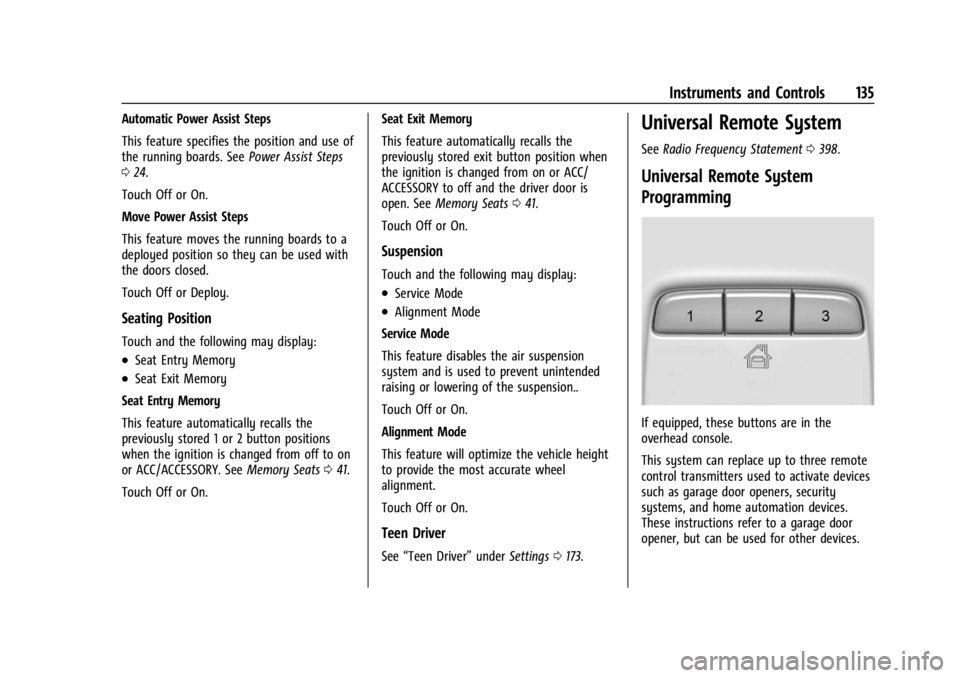
If equipped, these buttons are in the
overhead console.
This system can replace up to three remote
control transmitters used to activate devices
such as garage door openers, security
systems, and home automation devices.
These instructions refer to a garage door
opener, but can be used for other devices.
Page 139 of 422
GMC Yukon/Yukon XL/Denali Owner Manual (GMNA-Localizing-U.S./
Canada/Mexico-15555988) - 2022 - CRC - 12/3/21
138 Lighting
Lighting
Exterior Lighting
Exterior Lamp Controls . . . . . . . . . . . . . . . . 138
Exterior Lamps Off Reminder . . . . . . . . . . 140
Headlamp High/Low-Beam Changer . . . 140
Flash-to-Pass . . . . . . . . . . . . . . . . . . . . . . . . . . . 140
Daytime Running Lamps (DRL) . . . . . . . . 140
Automatic Headlamp System . . . . . . . . . . 140
Hazard Warning Flashers . . . . . . . . . . . . . . . 141
Turn and Lane-Change Signals . . . . . . . . . 142
Fog Lamps . . . . . . . . . . . . . . . . . . . . . . . . . . . . . 142
Interior Lighting
Instrument Panel IlluminationControl . . . . . . . . . . . . . . . . . . . . . . . . . . . . . . 143
Dome Lamps . . . . . . . . . . . . . . . . . . . . . . . . . . 143
Reading Lamps . . . . . . . . . . . . . . . . . . . . . . . . 143
Lighting Features
Entry Lighting . . . . . . . . . . . . . . . . . . . . . . . . . 144
Exit Lighting . . . . . . . . . . . . . . . . . . . . . . . . . . . 144
Battery Load Management . . . . . . . . . . . . 144
Battery Power Protection . . . . . . . . . . . . . . 145
Exterior Lighting Battery Saver . . . . . . . . 145
Exterior Lighting
Exterior Lamp Controls
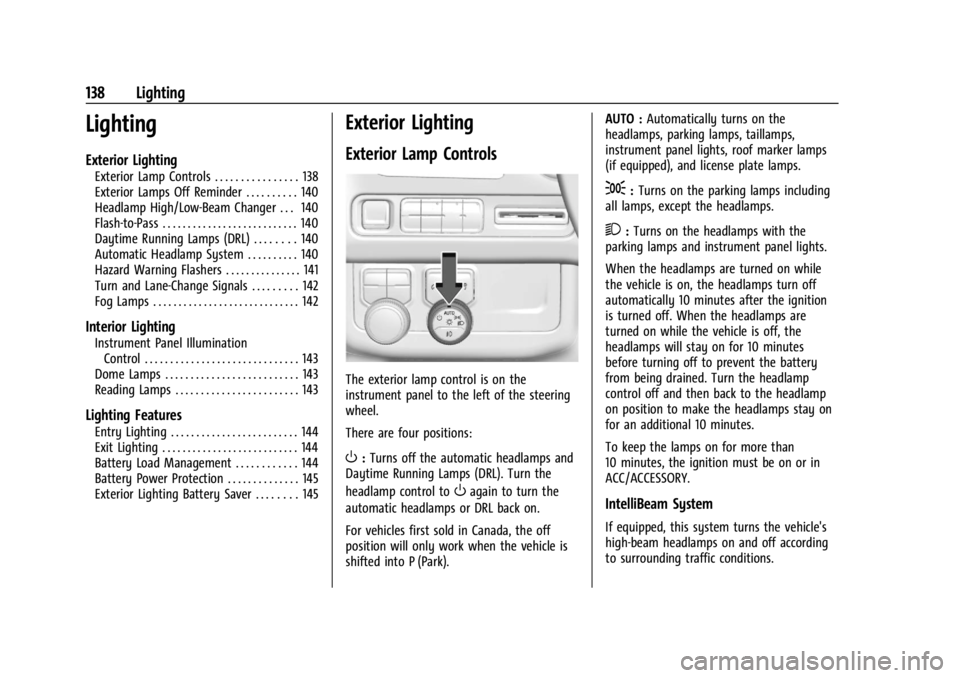
The exterior lamp control is on the
instrument panel to the left of the steering
wheel.
There are four positions:
O: Turns off the automatic headlamps and
Daytime Running Lamps (DRL). Turn the
headlamp control to
Oagain to turn the
automatic headlamps or DRL back on.
For vehicles first sold in Canada, the off
position will only work when the vehicle is
shifted into P (Park). AUTO :
Automatically turns on the
headlamps, parking lamps, taillamps,
instrument panel lights, roof marker lamps
(if equipped), and license plate lamps.
;: Turns on the parking lamps including
all lamps, except the headlamps.
2: Turns on the headlamps with the
parking lamps and instrument panel lights.
When the headlamps are turned on while
the vehicle is on, the headlamps turn off
automatically 10 minutes after the ignition
is turned off. When the headlamps are
turned on while the vehicle is off, the
headlamps will stay on for 10 minutes
before turning off to prevent the battery
from being drained. Turn the headlamp
control off and then back to the headlamp
on position to make the headlamps stay on
for an additional 10 minutes.
To keep the lamps on for more than
10 minutes, the ignition must be on or in
ACC/ACCESSORY.
IntelliBeam System
If equipped, this system turns the vehicle's
high-beam headlamps on and off according
to surrounding traffic conditions.
Page 149 of 422

GMC Yukon/Yukon XL/Denali Owner Manual (GMNA-Localizing-U.S./
Canada/Mexico-15555988) - 2022 - CRC - 12/3/21
148 Infotainment System
.USB/Bluetooth: Press and hold to
fast reverse the current song if
supported by the device. Release
to return to playing speed. See
USB Port0155 or
Bluetooth Audio 0156.
3.{
.Press to go to the Home Page. See
“Home Page” later in this section.
.Press to exit Android Auto or Apple
CarPlay. To enter back into Android
Auto or Apple CarPlay, press and
hold. SeeApple CarPlay and
Android Auto 0172.
4.6
.Radio: Press and release to go to
the next strong station or channel.
Press and hold to scroll through
the stations or channels. Release to
stop at the next strong station or
channel.
.USB/Bluetooth: Press and hold to
fast forward the current song if
supported by the device. Release
to return to playing speed. See
USB Port 0155 or
Bluetooth Audio 0156.
5.oBACK
.Press to return to the previous
display in a menu.
6.V
.Turn to change tuner sources only
(AM/FM/SXM/DAB where
available), while in the audio app.
Does not support non-tuner
sources. Turn to scroll through
selections in phone
projection apps.
Home Page
The Home Page is where vehicle application
icons are accessed. Some applications are
disabled when the vehicle is moving.
Swipe left or right across the display to
access the pages of icons.
Managing Home Page Icons 1. Touch and hold any of the Home Page icons to enter edit mode.
2. Continue holding the icon and drag it to the desired position.
3. Release your finger to drop the icon in the desired position. Move an Icon to Another Page
1. Drag the icon to the edge of the display toward the desired page.
2. Continue dragging and dropping application icons as desired.
Move an Icon to the Application Tray
For uplevel radio only:
To move an icon to the application tray on
the left side of the screen, drag the icon to
the applications tray.
Steering Wheel Controls
If equipped, some audio controls can be
adjusted at the steering wheel.
Page 167 of 422
GMC Yukon/Yukon XL/Denali Owner Manual (GMNA-Localizing-U.S./
Canada/Mexico-15555988) - 2022 - CRC - 12/3/21
166 Infotainment System
.The route prohibits the entry of a vehicle
due to a regulation by time or season or
any other regulation which may be given.
.Some routes might not be searched.
.The route to the destination might not be
shown if there are new roads, if roads
have recently changed, or if certain roads
are not listed in Maps.
To recalibrate the vehicle's position on the
map, park with the vehicle running for two
to five minutes, until the vehicle position
updates. Make sure the vehicle is parked in
a location that is safe and has a clear view
of the sky and away from large
obstructions.
Voice Recognition
If equipped, Google Assistant allows for
hands-free use of, media and messaging,
navigation and climate control functionality
in the vehicle. This feature can be started by
pressing
gon the steering wheel, touching
Google Assistant on the Home screen, or by
using the wake up words “Hey Google”or
“OK Google.” However, not all features within these areas
are supported by voice commands and
requires the user to have a data subscription
in order to use the Google Assistant feature.
Using Voice Recognition
Voice recognition becomes available once
the system is initialized. This begins when
the vehicle is turned on. Initialization may
take a few moments.
1. Press
gon the steering wheel controls,
touch Google Assistant on the Home
screen, or use the wake up words “Hey
Google” or“OK Google” to activate voice
recognition.
2. Clearly speak one of the commands described later in this section.
Canceling Google Assistant
.Presscon the steering wheel controls
to cancel the Google Assistant request.
Helpful Hints for Speaking Commands
Voice recognition identifies commands that
are naturally stated in sentence form,
or direct commands that state the
application and the task. For best results:
.Speak the command naturally, not too
fast, not too slow.
.Use direct commands without a lot of
extra words. For example,
“Call
at work,” “Play” followed by the artist or
song name, or “Play”followed by the
radio station number.
Direct commands are more clearly
understood by the system. An example of a
direct command is “Dial
If a cell phone number was saved with a
name and a place, the direct command
should include both. For example “Call
Voice Recognition for the Radio
If browsing the audio sources when voice is
touched, the voice recognition commands
for AM, FM, and SiriusXM (if equipped) are
available.
“Play
radio station frequency identified in the
command (like “nine fifty”).
“Play
radio station frequency identified in the
command (like “one oh one point one”).
Page 169 of 422
GMC Yukon/Yukon XL/Denali Owner Manual (GMNA-Localizing-U.S./
Canada/Mexico-15555988) - 2022 - CRC - 12/3/21
168 Infotainment System
system. The system can be used while the
vehicle is on. The range of the Bluetooth
system can be up to 9.1 m (30 ft). Not all
mobile devices support all functions and not
all mobile devices work with the Bluetooth
system. See my.gmc.com for more
information about compatible mobile
devices.
Controls
Use the controls on the infotainment display
and the steering wheel to operate the
Bluetooth system.
Steering Wheel Controls
g:Press and release to answer incoming
calls on your connected Bluetooth mobile
device. Press and hold for mobile device
assistant.
c: Press to end a call, decline a call,
or cancel an operation. Press to mute or
unmute the infotainment system when not
on a call.
Infotainment System Controls
For information about how to navigate the
menu system using the infotainment
controls, see Using the System 0149.
Audio System
When using the Bluetooth mobile device
system, sound comes through the vehicle's
front audio system speakers and overrides
the audio system. The volume level while on
a mobile device call can be adjusted by
pressing the steering wheel controls or the
volume control on the center stack. The
adjusted volume level remains in memory
for later calls. The volume cannot be
lowered beyond a certain level.
Bluetooth (Pairing and Using a
Phone)
Pairing
A Bluetooth-enabled mobile device must be
paired to the Bluetooth system and then
connected to the vehicle before it can be
used. See the mobile device manufacturer's
user guide for Bluetooth functions before
pairing the device.
Pairing Information
.Touch the Phone icon on the home page
of the infotainment display.
.If no mobile device has been paired, a
message on the infotainment display will
show the Manage Phones option. Touch this option and the Phones screen will
display. See
“Pairing a Phone” later in this
section.
.A Bluetooth smartphone with music
capability can be paired to the vehicle as
a smartphone and a music player at the
same time.
.Up to 10 devices can be paired to the
Bluetooth system.
.The pairing process is disabled when the
vehicle is moving.
.Pairing only needs to be completed once,
unless the pairing information on the cell
phone changes or the cell phone is
deleted from the system.
.If multiple paired cell phones are within
range of the system, the system connects
to the paired cell phone that is set to
First to Connect. If there is no cell phone
set to First to Connect, it will link to the
cell phone which was used last. To link to
a different paired cell phone, see “Linking
to a Different Phone” later in this section.
Pairing a Phone 1. Make sure Bluetooth has been enabled on the cell phone before starting the
pairing process.
2. Touch the Phone icon on the Home Page.
Page 172 of 422
GMC Yukon/Yukon XL/Denali Owner Manual (GMNA-Localizing-U.S./
Canada/Mexico-15555988) - 2022 - CRC - 12/3/21
Infotainment System 171
To make a call using the Contacts menu:1. Touch the Phone icon on the Home Page or on the shortcut tray near the left of
the display.
2. Touch Contacts.
3. There are two methods to search for contacts:
.Search bar –Touch the search icon
on the top right of the Phones
window and type the name or
number of the contact on the
keyboard. Search results will be
displayed corresponding to the user
input. Touch the name to call.
.Scroll –Touch the list and scroll,
or use the scrollbar on the left side
of the Phones window. Touch the
name to call.
Making a Call Using the Recents Menu
The Recents menu accesses the recents call
list from your cell phone.
To make a call using the Recents menu:
1. Touch the Phone icon on the Home Page or on the shortcut tray near the left of
the display.
2. Touch Recents.
3. Touch the name or number to call.
Making a Call Using the Keypad
To make a call by dialing the numbers: 1. Touch the Phone icon on the Home Page or on the shortcut tray near the left of
the display.
2. Touch Keypad and enter a phone number.
3. Touch the phone icon on the infotainment display to start dialing the
number.
Searching Contacts Using the Keypad
To search for contacts using the keypad:
1. Touch the Phone icon on the Home Page.
2. Touch Keypad and enter partial phone numbers or contact names using the
digits on the keypad to search.
Results appear on the right side of the
display. Touch one to place a call.
Accepting or Declining a Call
When an incoming call is received, the
infotainment system mutes and a ring tone
is heard in the vehicle.
Accepting a Call
There are two ways to accept a call:
.Pressgon the steering wheel controls.
.Touch Answer on the infotainment
display.
Declining a Call
There are two ways to decline a call:
.Presscon the steering wheel controls.
.Touch Decline on the infotainment
display.
Call Waiting
Call waiting must be supported on the
Bluetooth cell phone and enabled by the
wireless service carrier to work.
Accepting a Call
Press
gto answer, then touch Switch on
the infotainment display.
Declining a Call
Press
cto decline, then touch Decline on
the infotainment display.
Switching Between Calls (Call Waiting
Calls Only)
To switch between calls, touch Phone on the
Home Page to display Call View. While in
Call View, touch the call information of the
call on hold to change calls.
Page 173 of 422

GMC Yukon/Yukon XL/Denali Owner Manual (GMNA-Localizing-U.S./
Canada/Mexico-15555988) - 2022 - CRC - 12/3/21
172 Infotainment System
Ending a Call
.Presscon the steering wheel controls.
.Touch#on the infotainment display,
next to a call, to end only that call.
Dual Tone Multi-Frequency (DTMF) Tones
The in-vehicle Bluetooth system can send
numbers during a call. This is used when
calling a menu-driven phone system. Use the
Keypad to enter the number.
Apple CarPlay and Android Auto
If equipped, Android Auto and/or Apple
CarPlay capability may be available through
a compatible smartphone. If available, the
Android Auto and Apple CarPlay icons will
change from gray to color on the Home
Page of the infotainment display.
To use Android Auto and/or Apple CarPlay:
For Wired Phone Projection
1. Download the Android Auto app to your smartphone from Google Play for phones
running Android 9 and below. There is
no app required for Apple CarPlay or
newer versions of Android. 2. Connect your Android phone or Apple
iPhone by using the factory-provided
phone USB cable and plugging into a
USB data port. For best performance, it is
highly recommended to use the device’s
factory-provided USB cable, which should
be replaced after significant wear to
maintain connection quality. Aftermarket
or third-party cables may not work.
3. When the phone is first connected to activate Apple CarPlay or Android Auto,
accept the terms and conditions on both
the infotainment system and the phone.
4. Follow the instructions on the phone.
The Android Auto and Apple CarPlay icons
on the Home Page will illuminate depending
on the smartphone. Android Auto and/or
Apple CarPlay may automatically launch the
next time the USB is connected. If not,
touch the Android Auto or Apple CarPlay
icon on the Home Page to launch.
Press
{on the center stack to return to the
Home Page.
For Wireless Phone Projection
Verify your phone is wireless compatible by
visiting the Android Auto or Apple CarPlay
support page. 1. Download the Android Auto app to your
smartphone from Google Play for phones
running Android 9 and below. There is
no app required for Apple CarPlay or
newer versions of Android.
2. For first time connection, there are two ways to set up wireless projection:
.Connect your Android phone or Apple
iPhone by using the factory-provided
phone USB cable and plugging into a
USB data port. For best performance,
it is highly recommended to use the
device’s factory-provided USB cable,
which should be replaced after
significant wear to maintain
connection quality. Aftermarket or
third-party cables may not work.
.Connecting the phone over Bluetooth.
See Bluetooth (Overview) 0167 or
Bluetooth (Pairing and Using a Phone)
0 168.
3. Make sure Wi-Fi and Bluetooth is turned on the phone for wireless projection
to work.
4. When the phone is first connected to activate Apple CarPlay or Android Auto,
agree to the terms and conditions on
both the infotainment system and the
phone.
Page 191 of 422
GMC Yukon/Yukon XL/Denali Owner Manual (GMNA-Localizing-U.S./
Canada/Mexico-15555988) - 2022 - CRC - 12/3/21
190 Driving and Operating
Driving and Operating
Driving Information
Driving for Better Fuel Economy . . . . . . . 191
Distracted Driving . . . . . . . . . . . . . . . . . . . . . . 191
Defensive Driving . . . . . . . . . . . . . . . . . . . . . . 192
Impaired Driving . . . . . . . . . . . . . . . . . . . . . . . 192
Control of a Vehicle . . . . . . . . . . . . . . . . . . . 192
Braking . . . . . . . . . . . . . . . . . . . . . . . . . . . . . . . . 192
Steering . . . . . . . . . . . . . . . . . . . . . . . . . . . . . . . 193
Off-Road Recovery . . . . . . . . . . . . . . . . . . . . . 193
Loss of Control . . . . . . . . . . . . . . . . . . . . . . . . 194
Off-Road Driving . . . . . . . . . . . . . . . . . . . . . . . 194
Driving on Wet Roads . . . . . . . . . . . . . . . . . 198
Hill and Mountain Roads . . . . . . . . . . . . . . 198
Winter Driving . . . . . . . . . . . . . . . . . . . . . . . . 199
If the Vehicle Is Stuck . . . . . . . . . . . . . . . . . 200
Vehicle Load Limits . . . . . . . . . . . . . . . . . . . . 201
Starting and Operating
New Vehicle Break-In . . . . . . . . . . . . . . . . . . 205
Ignition Positions . . . . . . . . . . . . . . . . . . . . . . 205
Starting the Engine . . . . . . . . . . . . . . . . . . . . 207
Stop/Start System . . . . . . . . . . . . . . . . . . . . 208
Retained Accessory Power (RAP) . . . . . . 209
Shifting Into Park . . . . . . . . . . . . . . . . . . . . . 209
Shifting out of Park . . . . . . . . . . . . . . . . . . . 210
Parking over Things That Burn . . . . . . . . . 210
Dynamic Fuel Management . . . . . . . . . . . 210
Extended Parking . . . . . . . . . . . . . . . . . . . . . . 210
Engine Exhaust
Engine Exhaust . . . . . . . . . . . . . . . . . . . . . . . . . 211
Running the Vehicle While Parked . . . . . 211
Automatic Transmission
Automatic Transmission . . . . . . . . . . . . . . . . 211
Manual Mode . . . . . . . . . . . . . . . . . . . . . . . . . 214
Drive Systems
Four-Wheel Drive . . . . . . . . . . . . . . . . . . . . . . 215
Brakes
Electric Brake Boost . . . . . . . . . . . . . . . . . . . . 219
Antilock Brake System (ABS) . . . . . . . . . . . 219
Electric Parking Brake . . . . . . . . . . . . . . . . . . 219
Brake Assist . . . . . . . . . . . . . . . . . . . . . . . . . . . . 221
Hill Start Assist (HSA) . . . . . . . . . . . . . . . . . . 221
Ride Control Systems
Traction Control/Electronic StabilityControl . . . . . . . . . . . . . . . . . . . . . . . . . . . . . . . 221
Hill Descent Control (HDC) . . . . . . . . . . . . . 223
Driver Mode Control . . . . . . . . . . . . . . . . . . . 224
Magnetic Ride Control . . . . . . . . . . . . . . . . . 227
Locking Rear Axle . . . . . . . . . . . . . . . . . . . . . . 227
Four Corner Air Suspension System . . . . 227
Cruise Control
Cruise Control . . . . . . . . . . . . . . . . . . . . . . . . . 230
Adaptive Cruise Control (Advanced) . . . . 232
Driver Assistance Systems
Driver Assistance Systems . . . . . . . . . . . . . 241
Assistance Systems for Parking or Backing . . . . . . . . . . . . . . . . . . . . . . . . . . . . . . 243
Rear Vision Camera (RVC) . . . . . . . . . . . . . 243
Surround Vision System . . . . . . . . . . . . . . . 244
Park Assist . . . . . . . . . . . . . . . . . . . . . . . . . . . . 250
Reverse Automatic Braking (RAB) . . . . . . 251
Rear Pedestrian Alert . . . . . . . . . . . . . . . . . . 252
Rear Cross Traffic Alert (RCTA) System . . . . . . . . . . . . . . . . . . . . . . . . . . . . . . 253
Assistance Systems for Driving . . . . . . . . 254
Forward Collision Alert (FCA) System . . . . . . . . . . . . . . . . . . . . . . . . . . . . . . 254
Automatic Emergency Braking (AEB) . . . . . . . . . . . . . . . . . . . . . . . . 256
Front Pedestrian Braking (FPB) System . . . . . . . . . . . . . . . . . . . . . . . . . . . . . . 257
Side Blind Zone Alert (SBZA) . . . . . . . . . . 259
Lane Change Alert (LCA) . . . . . . . . . . . . . . . 259
Lane Keep Assist (LKA) . . . . . . . . . . . . . . . . . 261
Fuel
Top Tier Fuel . . . . . . . . . . . . . . . . . . . . . . . . . . 263
Recommended Fuel (5.3L Engine) . . . . . . 264
Recommended Fuel (6.2L Engine) . . . . . . 264
Prohibited Fuels . . . . . . . . . . . . . . . . . . . . . . . 264
Fuels in Foreign Countries . . . . . . . . . . . . . 265
Fuel Additives . . . . . . . . . . . . . . . . . . . . . . . . . 265
Filling the Tank . . . . . . . . . . . . . . . . . . . . . . . . 265