radio GMC YUKON 2022 Owner's Manual
[x] Cancel search | Manufacturer: GMC, Model Year: 2022, Model line: YUKON, Model: GMC YUKON 2022Pages: 422, PDF Size: 8.2 MB
Page 157 of 422
GMC Yukon/Yukon XL/Denali Owner Manual (GMNA-Localizing-U.S./
Canada/Mexico-15555988) - 2022 - CRC - 12/3/21
156 Infotainment System
g:
.Press to seek to the beginning of the
current or previous track.
d:
.Press to seek to the next track.
USB Browse Menu
Touch the Now Playing Icon in the upper
left of the now playing screen to Browse
USB content. While in Browse Mode you can
view media sorted by Playlists, Artists,
Songs, or Albums.
Bluetooth Audio
Music may be played from a connected
Bluetooth device.
Volume and song selection may be
controlled by using the infotainment
controls or the mobile device. If Bluetooth is
selected and no volume is present, check the
volume setting on the infotainment system.
To play music via Bluetooth: 1. Power on the device.
2. Touch Audio on the infotainment display home page.
3. Touch Bluetooth from the Audio home page. 4. Touch Add Device if there is no device
connected and follow the screen prompts
to pair the device.
Browse content from the Bluetooth device.
Use the infotainment controls to start/stop
or select previous/next track.
Manage Bluetooth Devices 1. Touch the Bluetooth App setting icon on the upper right of the page.
2. Touch Devices to switch, add, or disconnect other devices.
A Bluetooth device can only be paired when
the vehicle is parked.
When touching Bluetooth Audio, a browse
screen will appear. Touch the infotainment
controls on the lower part of the display to
begin playing audio if the audio is paused.
Some smartphones support sending
Bluetooth music information to display on
the radio. When the radio receives this
information, it will check to see if any is
available and display it. For more
information about supported Bluetooth
features, visit your brand website. See
Online Owner Center 0392 for details.
See Radio Frequency Statement 0398.
Rear Seat Infotainment
Rear Seat Infotainment (RSI)
System
If equipped, the system includes two HDMI
ports, two Bluetooth headphones, and video
touchscreen displays in back of the driver
and passenger seats.
The RSI system may not operate properly
until the temperature is above −20 °C (−4 °F)
and below 55 °C (131 °F).
System Operation
To use:
1. Double-tap anywhere on either screen to power on and view the Home screen.
2. Touch
}on the status bar to turn the
screen off.
The screens can be turned on and off
through each individual touchscreen,
independently from the other, and through
front seat control.
Playback of any media playing through that
specific screen is paused when the screen is
turned off.
Page 163 of 422
GMC Yukon/Yukon XL/Denali Owner Manual (GMNA-Localizing-U.S./
Canada/Mexico-15555988) - 2022 - CRC - 12/3/21
162 Infotainment System
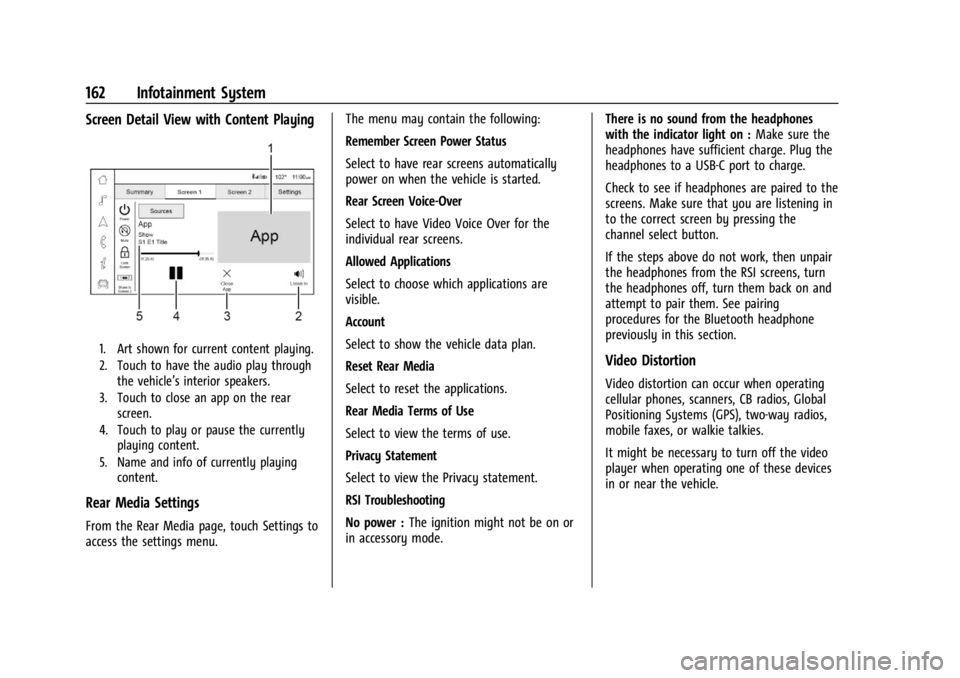
Screen Detail View with Content Playing
1. Art shown for current content playing.
2. Touch to have the audio play throughthe vehicle’s interior speakers.
3. Touch to close an app on the rear screen.
4. Touch to play or pause the currently playing content.
5. Name and info of currently playing content.
Rear Media Settings
From the Rear Media page, touch Settings to
access the settings menu. The menu may contain the following:
Remember Screen Power Status
Select to have rear screens automatically
power on when the vehicle is started.
Rear Screen Voice-Over
Select to have Video Voice Over for the
individual rear screens.
Allowed Applications
Select to choose which applications are
visible.
Account
Select to show the vehicle data plan.
Reset Rear Media
Select to reset the applications.
Rear Media Terms of Use
Select to view the terms of use.
Privacy Statement
Select to view the Privacy statement.
RSI Troubleshooting
No power :
The ignition might not be on or
in accessory mode. There is no sound from the headphones
with the indicator light on :
Make sure the
headphones have sufficient charge. Plug the
headphones to a USB-C port to charge.
Check to see if headphones are paired to the
screens. Make sure that you are listening in
to the correct screen by pressing the
channel select button.
If the steps above do not work, then unpair
the headphones from the RSI screens, turn
the headphones off, turn them back on and
attempt to pair them. See pairing
procedures for the Bluetooth headphone
previously in this section.
Video Distortion
Video distortion can occur when operating
cellular phones, scanners, CB radios, Global
Positioning Systems (GPS), two-way radios,
mobile faxes, or walkie talkies.
It might be necessary to turn off the video
player when operating one of these devices
in or near the vehicle.
Page 167 of 422
GMC Yukon/Yukon XL/Denali Owner Manual (GMNA-Localizing-U.S./
Canada/Mexico-15555988) - 2022 - CRC - 12/3/21
166 Infotainment System
.The route prohibits the entry of a vehicle
due to a regulation by time or season or
any other regulation which may be given.
.Some routes might not be searched.
.The route to the destination might not be
shown if there are new roads, if roads
have recently changed, or if certain roads
are not listed in Maps.
To recalibrate the vehicle's position on the
map, park with the vehicle running for two
to five minutes, until the vehicle position
updates. Make sure the vehicle is parked in
a location that is safe and has a clear view
of the sky and away from large
obstructions.
Voice Recognition
If equipped, Google Assistant allows for
hands-free use of, media and messaging,
navigation and climate control functionality
in the vehicle. This feature can be started by
pressing
gon the steering wheel, touching
Google Assistant on the Home screen, or by
using the wake up words “Hey Google”or
“OK Google.” However, not all features within these areas
are supported by voice commands and
requires the user to have a data subscription
in order to use the Google Assistant feature.
Using Voice Recognition
Voice recognition becomes available once
the system is initialized. This begins when
the vehicle is turned on. Initialization may
take a few moments.
1. Press
gon the steering wheel controls,
touch Google Assistant on the Home
screen, or use the wake up words “Hey
Google” or“OK Google” to activate voice
recognition.
2. Clearly speak one of the commands described later in this section.
Canceling Google Assistant
.Presscon the steering wheel controls
to cancel the Google Assistant request.
Helpful Hints for Speaking Commands
Voice recognition identifies commands that
are naturally stated in sentence form,
or direct commands that state the
application and the task. For best results:
.Speak the command naturally, not too
fast, not too slow.
.Use direct commands without a lot of
extra words. For example,
“Call
at work,” “Play” followed by the artist or
song name, or “Play”followed by the
radio station number.
Direct commands are more clearly
understood by the system. An example of a
direct command is “Dial
If a cell phone number was saved with a
name and a place, the direct command
should include both. For example “Call
Voice Recognition for the Radio
If browsing the audio sources when voice is
touched, the voice recognition commands
for AM, FM, and SiriusXM (if equipped) are
available.
“Play
radio station frequency identified in the
command (like “nine fifty”).
“Play
radio station frequency identified in the
command (like “one oh one point one”).
Page 168 of 422
GMC Yukon/Yukon XL/Denali Owner Manual (GMNA-Localizing-U.S./
Canada/Mexico-15555988) - 2022 - CRC - 12/3/21
Infotainment System 167
“Play channel
SiriusXM”:Tune to the SiriusXM radio
station channel number identified in the
command. This command may require an
online connection.
“Play
Tune to the SiriusXM radio station channel
name identified in the command. This
command may require an online connection.
Voice Recognition for the Phone
Make sure the phone is paired using
Bluetooth to use the phone related voice
commands.
“Call
stored contact. The command may include
location if the contact has location numbers
stored.
“Call < phone number>” :Initiate a call to a
phone number of seven digits or 10 digits.
“Send a message to
a message to a stored contact.
Voice Recognition for Navigation
Navigation commands can be used to start,
cancel route, or add way points/POI. “Navigate to
:
Initiate navigation to the address in the
command.
“Add
way-point to the current route.
“Take me home” :Starts navigation to
Home location set in Google maps.
Onboard Vehicle Commands
These commands can be used to adjust
vehicle temperature, control window
defrosters and obtain fuel information.
“Turn on the A/C” :Turns on the air
conditioning.
“How much gas do I have left” :Find out
how much fuel your vehicle has left.
“Set temperature to
degrees” :Set to a specific temperature
inside your vehicle.
Phone Assistant Voice Recognition
While a device is connected via Bluetooth,
press and hold
gon the steering wheel
controls to pass through and launch Google
assistant on the phone or Siri.
Phone
Bluetooth (Overview)
The Bluetooth-capable system can interact
with many mobile devices to:
.Place and receive calls in a
hands-free mode.
.Share the device’s address book or
contact list with the vehicle.
.Stream audio (music, podcasts).
.Notify receipt of text messages.
To minimize driver distraction, before
driving, and with the vehicle parked:
.Become familiar with the features of the
mobile device. Organize the phone book
and contact lists clearly and delete
duplicate or rarely used entries.
.Review the controls and operation of the
infotainment system.
.Pair mobile device(s) to the vehicle. The
system may not work with all mobile
devices. See “Pairing”later in this section.
Vehicles with a Bluetooth system can use a
Bluetooth-capable mobile device with a
Hands-Free Profile to make and receive
phone calls. The infotainment system and
voice recognition are used to control the
Page 176 of 422

GMC Yukon/Yukon XL/Denali Owner Manual (GMNA-Localizing-U.S./
Canada/Mexico-15555988) - 2022 - CRC - 12/3/21
Infotainment System 175
Display
Touch and the following may display:
.Mode: This adjusts the appearance of the
navigation map view and any
downloaded apps optimized for day or
night time conditions. Set to Auto for the
display to automatically adjust based on
bright/dark conditions.
Touch Auto, Light, or Dark to adjust the
display.
.Turn Display Off: Touch to turn the
display off. Touch anywhere on the
infotainment display to turn the
display on.
Sounds
Touch and the following may display:
.Maximum Startup Volume: This feature
limits the volume of the infotainment
system when the vehicle is started. To set
the maximum startup volume, touch the
controls on the infotainment display to
increase or decrease.
.Audible Touch Feedback: This setting
determines if a sound plays when
touching the infotainment display or
radio controls. This feature can be turned
off or on.
Users
You can create multiple user profiles on the
vehicle. Most settings will be shared with
other user profiles on the vehicle. Settings
that are personalized to the user’s profile
include Accounts, Apps and Permissions,
Display, Google Settings (if applicable), and
various Vehicle settings. Between drive
cycles, the settings for the last logged in
user will remain active until a different user
profile is selected.
Touch and the following may display:
.You (Driver)
.Guest
Touch Add user to add another person to
the system.
Accounts
Touch to show Accounts for Driver and the
following may display:
.Accounts
.Automatically sync data: This feature can
be turned off or on.
Touch Add account to add a Google or
vehicle account and follow the on-screen
prompts.
Privacy
Touch and the following may display:
Location Services
.Location Services for Android: Touch to
show Recent Location Requests, App level
permissions, and Location Services.
.Location Services for OnStar: This feature
can be turned off or on.
App permissions
Activity controls
Autofill service from Google
Usage and diagnostics
GM Privacy Statement
Google legal
Storage
Touch to show the storage info for Music &
audio, Other apps, Files, and System.
Security
Touch and the following may display:
Choose a lock type
Touch and the following may display:
.None: Touch to have no screen lock.
Page 179 of 422
GMC Yukon/Yukon XL/Denali Owner Manual (GMNA-Localizing-U.S./
Canada/Mexico-15555988) - 2022 - CRC - 12/3/21
178 Infotainment System
Manage Settings or Teen Driver Settings
Depending on the options of your vehicle,
the following menu items may be displayed:
Buckle to Drive :When turned ON, Buckle to
Drive prevents the driver from shifting out
of P (Park) for a period of time after the
brake pedal is pressed if driver, or on some
vehicles the detected passenger, has not
buckled their seat belt. On some vehicles,
Buckle to Drive is always ON when Teen
Driver is active and is not configurable. See
Buckle To Drive 054.
Audio Volume Limit : Allows a maximum
audio volume to be set. Turn the audio
volume limit on or off. Use the arrows to
choose the maximum allowable level for the
audio volume. On some infotainment
systems, touch Set Audio Volume Limit to
choose the maximum allowable audio
volume level.
Set Audio Volume Limit : Use the arrows to
choose the maximum allowable level for the
audio volume.
Teen Driver Speed Limiter : Limits the
maximum speed of the vehicle. When the
speed limiter is turned on and the vehicle is started with a Teen Driver key, the DIC
displays a message that the top speed is
limited.
On certain vehicles, when the Speed Limiter
is turned ON, the vehicle’s maximum
acceleration will be limited. The DIC will
display a message that the acceleration is
limited.
Teen Driver Speed Warning :
Displays a
warning in the DIC when exceeding a
selectable speed. Turn the speed warning on
or off and choose the desired speed warning
level. The speed warning does not limit the
speed of the vehicle. On some infotainment
systems, touch Set Teen Driver Speed
Warning to set the warning speed.
Set Teen Driver Speed Warning : Choose the
desired speed warning level. The speed
warning does not limit the speed of the
vehicle.
SiriusXM Explicit Content Filter (if
equipped) : Allows the SiriusXM Explicit
Content Filter to be turned ON or OFF.
When ON, the teen driver will not be able
to listen to SiriusXM stations that contain
explicit content, and the Explicit Content
Filter selection in the Audio Settings will be
unavailable for change. When Teen Driver is Active:
.The radio will mute when the driver seat
belt, and in some vehicles the front
passenger seat belt, is not buckled. The
audio from any device paired to the
vehicle will also be muted.
.An object placed on the front passenger
seat, such as a briefcase, handbag,
grocery bag, laptop, or other electronic
device, could cause the passenger sensing
system to falsely sense an unbuckled
front passenger and mute the radio.
If this happens, remove the object from
the seat. See
Passenger Sensing System
0 66.
.Some safety systems, such as Automatic
Emergency Braking, if equipped, cannot
be turned off.
.The gap setting for Adaptive Cruise
Control and the alert timing setting for
Forward Collision Alert, if equipped,
cannot be changed.
.When trying to change a safety feature
that is not configurable in Teen Driver,
the DIC displays a message indicating
that Teen Driver is active and the action
is not available.
.Super Cruise, if equipped, is not available.
Page 181 of 422
GMC Yukon/Yukon XL/Denali Owner Manual (GMNA-Localizing-U.S./
Canada/Mexico-15555988) - 2022 - CRC - 12/3/21
180 Infotainment System
Trademarks and License
Agreements
FCC Information
SeeRadio Frequency Statement 0398.
If you decide to continue service after your
trial, your selected subscription plan will
automatically renew thereafter. You will be
charged at then-current rates. Fees and taxes
apply. Please see the SiriusXM Customer
Agreement at siriusxm.com for complete
terms and how to cancel, which includes
calling SiriusXM at 1-866-635-2349. All fees
and programming are subject to change.
Fees and Taxes: Subscription fee, taxes, one
time activation fee, and other fees may
apply. Subscription fee is consumer only. All
fees and programming subject to change.
Subscriptions subject to Customer
Agreement available at www.siriusxm.com.
SiriusXM service is only available in the
48 contiguous United States and Canada. In Canada: Some deterioration of service
may occur in extreme northern latitudes.
This is beyond the control of SiriusXM
Satellite Radio.
Explicit Language Notice: Channels with
frequent explicit language are indicated with
an
“XL” preceding the channel name.
Channel blocking is available for SiriusXM
Satellite Radio receivers by notifying
SiriusXM:
.USA Customers —See www.siriusxm.com
or call 1-888-601–6296.
.Canada Customers —See
www.siriusxm.ca or call 1-877-438-9677.
It is prohibited to copy, decompile,
disassemble, reverse engineer, hack,
manipulate, or otherwise make available any
technology or software incorporated in
receivers compatible with the SiriusXM
Satellite Radio System or that support the
SiriusXM website, the Online Service or any
of its content. Furthermore, the AMBER voice
compression software included in this
product is protected by intellectual property
rights including patent rights, copyrights,
and trade secrets of Digital Voice
Systems, Inc. General Requirements:
1. A License Agreement from SiriusXM is required for any product that
incorporates SiriusXM Technology and/or
for use of any of the SiriusXM marks to
be manufactured, distributed,
or marketed in the SiriusXM
Service Area.
2. For products to be distributed, marketed, and/or sold in Canada, a separate
agreement is required with Canadian
Satellite Radio Inc. (operating as SiriusXM
Canada).
TouchSense Technology and TouchSense
System 1000 Series Licensed from
Immersion Corporation. TouchSense System
1000 protected under one or more of the
U.S. Patents at the following address
www.immersion.com/patent-marking.html
and other patents pending.
Page 192 of 422
GMC Yukon/Yukon XL/Denali Owner Manual (GMNA-Localizing-U.S./
Canada/Mexico-15555988) - 2022 - CRC - 12/3/21
Driving and Operating 191
Filling a Portable Fuel Container . . . . . . 266
Trailer Towing
General Towing Information . . . . . . . . . . . 267
Driving Characteristics andTowing Tips . . . . . . . . . . . . . . . . . . . . . . . . . 267
Trailer Towing . . . . . . . . . . . . . . . . . . . . . . . . . 271
Towing Equipment . . . . . . . . . . . . . . . . . . . . 274
Trailer Sway Control (TSC) . . . . . . . . . . . . . 283
Trailering App . . . . . . . . . . . . . . . . . . . . . . . . . 285
Conversions and Add-Ons
Add-On Electrical Equipment . . . . . . . . . . 294
Driving Information
Driving for Better Fuel Economy
Driving habits can affect fuel mileage. Here
are some driving tips to get the best fuel
economy possible:
.Set the climate controls to the desired
temperature after the engine is started,
or turn them off when not required.
.Avoid fast starts and accelerate smoothly.
.Brake gradually and avoid abrupt stops.
.Avoid idling the engine for long periods
of time.
.When road and weather conditions are
appropriate, use cruise control.
.Always follow posted speed limits or
drive more slowly when conditions
require.
.Keep vehicle tires properly inflated.
.Combine several trips into a single trip.
.Replace the vehicle's tires with the same
TPC Spec number molded into the tire's
sidewall near the size.
.Follow recommended scheduled
maintenance.
Distracted Driving
Distraction comes in many forms and can
take your focus from the task of driving.
Exercise good judgment and do not let other
activities divert your attention away from
the road. Many local governments have
enacted laws regarding driver distraction.
Become familiar with the local laws in
your area.
To avoid distracted driving, keep your eyes
on the road, keep your hands on the
steering wheel, and focus your attention on
driving.
.Do not use a phone in demanding driving
situations. Use a hands-free method to
place or receive necessary phone calls.
.Watch the road. Do not read, take notes,
or look up information on phones or
other electronic devices.
.Designate a front seat passenger to
handle potential distractions.
.Become familiar with vehicle features
before driving, such as programming
favorite radio stations and adjusting
climate control and seat settings. Program
all trip information into any navigation
device prior to driving.
Page 206 of 422
GMC Yukon/Yukon XL/Denali Owner Manual (GMNA-Localizing-U.S./
Canada/Mexico-15555988) - 2022 - CRC - 12/3/21
Driving and Operating 205
Starting and Operating
New Vehicle Break-In
Caution
The vehicle does not need an elaborate
break-in. But it will perform better in the
long run if you follow these guidelines:
.Do not drive at any one constant
speed, fast or slow, for the first
800 km (500 mi). Do not make
full-throttle starts. Avoid downshifting
to brake or slow the vehicle.
.Avoid making hard stops for the first
300 km (200 mi) or so. During this
time the new brake linings are not yet
broken in. Hard stops with new linings
can mean premature wear and earlier
replacement. Follow this breaking-in
guideline every time you get new
brake linings.
.Do not tow a trailer during break-in.
SeeTrailer Towing 0271 for the trailer
towing capabilities of the vehicle and
more information.
Following break-in, engine speed and load
can be gradually increased. On new vehicles, the various mechanical and
electrical systems experience a
“break-in”
period during the first 6 400 km (4,000 mi)
of routine driving. As the vehicle is driven,
the mechanical systems adjust to provide
optimal fuel economy and transmission shift
performance.
Electrical systems will adapt and calibrate
during the break-in period. A one-time
occurrence of clicks and similar vehicle
noises is normal during this process.
Normal driving charges the vehicle’s battery
to achieve the best operation of the vehicle,
including fuel economy and the Stop/Start
System. See Stop/Start System 0208.
Ignition Positions
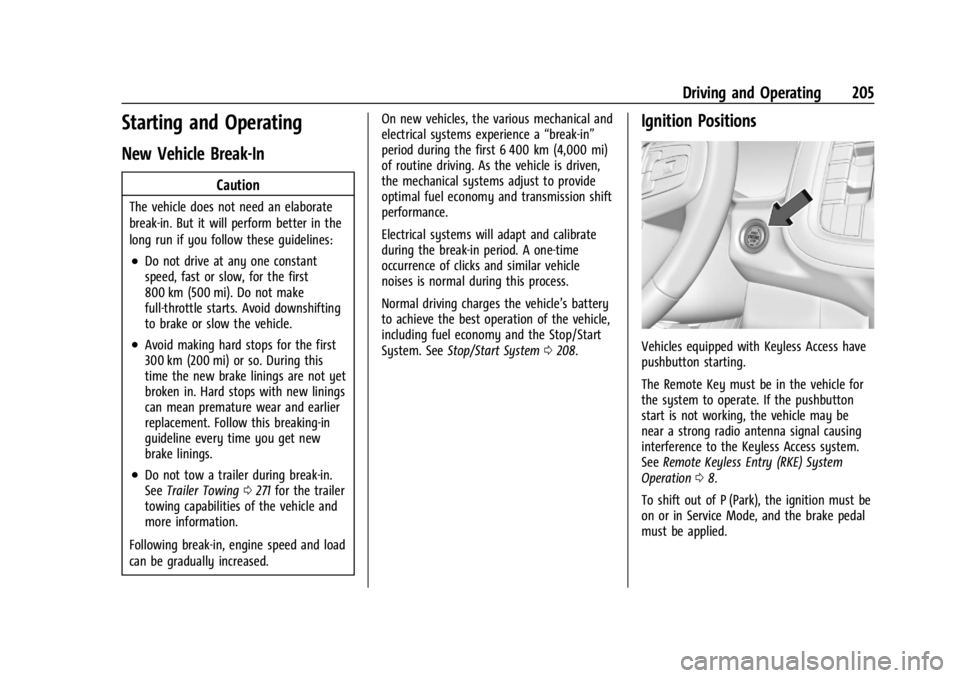
Vehicles equipped with Keyless Access have
pushbutton starting.
The Remote Key must be in the vehicle for
the system to operate. If the pushbutton
start is not working, the vehicle may be
near a strong radio antenna signal causing
interference to the Keyless Access system.
See Remote Keyless Entry (RKE) System
Operation 08.
To shift out of P (Park), the ignition must be
on or in Service Mode, and the brake pedal
must be applied.
Page 233 of 422
GMC Yukon/Yukon XL/Denali Owner Manual (GMNA-Localizing-U.S./
Canada/Mexico-15555988) - 2022 - CRC - 12/3/21
232 Driving and Operating
the release to override cruise control, briefly
pressing SET–will result in cruise control set
to the current vehicle speed.
Using Cruise Control on Hills
How well the cruise control works on hills
depends on the vehicle speed, the load, and
the steepness of the hills. When going up
steep hills, pressing the accelerator pedal
may be necessary to maintain vehicle speed.
While going downhill, cruise braking helps
maintain driver selected speed.
Cruise Grade Braking is enabled when the
vehicle is started and cruise control is active.
It is not enabled in Range Selection Mode.
It assists in maintaining driver selected
speed when driving on downhill grades by
using the engine and transmission to slow
the vehicle.
For other forms of descent control, see Hill
Descent Control (HDC) 0223, Automatic
Transmission 0211, and Tow/Haul Mode, see
Driver Mode Control 0224.
Ending Cruise Control
There are four ways to end cruise control:
.Step lightly on the brake pedal.
.Press*.
.Shift the transmission to N (Neutral).
.To turn off cruise control, press5.
Erasing Speed Memory
The cruise control set speed is erased from
memory if
5is pressed or the ignition is
turned off.
Adaptive Cruise Control
(Advanced)
If equipped with Adaptive Cruise Control
(ACC), it allows for selecting the cruise
control set speed and following gap. Read
this entire section before using this system.
ACC uses a camera and radar sensor(s) to
detect other vehicles. See Radio Frequency
Statement 0398.
The following gap is the following time (or
distance) between your vehicle and a vehicle
detected directly ahead in your path,
moving in the same direction. If no vehicle
is detected in your path, ACC works like
regular cruise control.
If a vehicle is detected in your path, ACC can
apply acceleration or limited, moderate
braking to maintain the selected following
gap. To disengage ACC, apply the brake.
If ACC is controlling the vehicle speed when the Traction Control System (TCS) or
StabiliTrak/Electronic Stability Control (ESC)
system activates, ACC may automatically
disengage. See
Traction Control/Electronic
Stability Control 0221. When road
conditions allow ACC to be safely used, ACC
can be turned back on.
Disabling the TCS or StabiliTrak/ESC system
will disengage and prevent engagement
of ACC.
ACC can reduce the need for you to
frequently brake and accelerate, especially
when used on expressways, freeways, and
interstate highways. When used on other
roads, you may need to take over the
control of braking or acceleration more
often.
ACC automatically slows the vehicle down
while navigating the curve and may increase
speed out of the curve, but will not exceed
the set speed.
{Warning
ACC has limited braking ability and may
not have time to slow the vehicle down
enough to avoid a collision with another
vehicle you are following. This can occur
(Continued)