service GMC YUKON 2022 Owner's Manual
[x] Cancel search | Manufacturer: GMC, Model Year: 2022, Model line: YUKON, Model: GMC YUKON 2022Pages: 422, PDF Size: 8.2 MB
Page 119 of 422

GMC Yukon/Yukon XL/Denali Owner Manual (GMNA-Localizing-U.S./
Canada/Mexico-15555988) - 2022 - CRC - 12/3/21
118 Instruments and Controls
This indicator will also display if AEB or FPB
is unavailable due to malfunction, weather
conditions, or if the windshield is not clean.
SeeAutomatic Emergency Braking (AEB)
0 256.
See Front Pedestrian Braking (FPB) System
0 257.
Vehicle Ahead Indicator
If equipped, this indicator will display green
when a vehicle is detected ahead and amber
when you are following a vehicle ahead
much too closely.
See Forward Collision Alert (FCA) System
0 254.
Pedestrian Ahead Indicator
If equipped, this indicator will display amber
when a nearby pedestrian is detected in
front of the vehicle.
See Front Pedestrian Braking (FPB) System
0 257.
Traction Off Light
This light comes on briefly when the vehicle
is turned on. If it does not, have the vehicle
serviced by your dealer. If the system is
working normally, the indicator light then
turns off. The traction off light comes on when the
Traction Control System (TCS) has been
turned off. If StabiliTrak/Electronic Stability
Control (ESC) is turned off, TCS is also
turned off. To turn TCS and ESC off and on,
see
Traction Control/Electronic Stability
Control 0221.
If TCS is off, wheel spin is not limited unless
necessary to help protect the driveline from
damage. Adjust driving accordingly.
StabiliTrak OFF Light
This light comes on briefly when the vehicle
is turned on. If the light does not come on,
have the vehicle serviced by your dealer.
If the system is working normally, the
indicator light then turns off.
This light comes on when the StabiliTrak/
Electronic Stability Control (ESC) system is
turned off. If StabiliTrak/ESC is off, the
Traction Control System (TCS) is also off. To
turn ESC off and on, see Traction Control/
Electronic Stability Control 0221.
Page 120 of 422

GMC Yukon/Yukon XL/Denali Owner Manual (GMNA-Localizing-U.S./
Canada/Mexico-15555988) - 2022 - CRC - 12/3/21
Instruments and Controls 119
If ESC and TCS are off, the systems do not
assist in controlling the vehicle. Adjust
driving accordingly.
Traction Control System (TCS)/
StabiliTrak Light
This light comes on briefly when the vehicle
is turned on.
If the light does not come on, have the
vehicle serviced by your dealer. If the
system is working normally, the indicator
light turns off.
If the light is on and not flashing, the TCS
and potentially the StabiliTrak/ESC system
are not fully operational and may not assist
in maintaining control. Adjust driving
accordingly. If the condition persists, see
your dealer as soon as possible. A Driver
Information Center (DIC) message may
display.
The light flashes when the TCS and/or the
StabiliTrak/ESC system is actively working.See
Traction Control/Electronic Stability
Control 0221.
The light may also flash when ABS is active.
See Antilock Brake System (ABS) 0219.
Trailer Sway Control Light (Uplevel
Cluster)
This light will flash when Trailer Sway
Control is active. See Trailer Sway Control
(TSC) 0283.
Engine Coolant Temperature
Warning Light
This light comes on briefly while starting
the vehicle. If it does not, have the vehicle serviced by
your dealer. If the system is working
normally the indicator light goes off.
Caution
The engine coolant temperature warning
light indicates that the vehicle has
overheated. Driving with this light on can
damage the engine and it may not be
covered by the vehicle warranty. See
Engine Overheating
0309.
The engine coolant temperature warning
light comes on when the engine has
overheated.
If this happens, pull over and turn off the
engine as soon as possible. See Engine
Overheating 0309.
Driver Mode Control Light
This light comes on when Normal Mode is
selected.
Page 122 of 422

GMC Yukon/Yukon XL/Denali Owner Manual (GMNA-Localizing-U.S./
Canada/Mexico-15555988) - 2022 - CRC - 12/3/21
Instruments and Controls 121
This light comes on when the vehicle is
changing to a higher ride height.
This light comes on when the vehicle is
changing to a lower ride height.
This light comes on when the air suspension
is in Service Mode or Alignment Mode.
SeeFour Corner Air Suspension System
0 227.
Tire Pressure Light
For vehicles with the Tire Pressure Monitor
System (TPMS), this light comes on briefly
when the vehicle is started. It provides
information about tire pressures and
the TPMS.
When the Light Is On Steady
This indicates that one or more of the tires
are significantly underinflated.
A Driver Information Center (DIC) tire
pressure message may also display. Stop as
soon as possible, and inflate the tires to the
pressure value shown on the Tire and
Loading Information label. See Tire Pressure
0 333.
When the Light Flashes First and Then Is On
Steady
If the light flashes for about a minute and
then stays on, there may be a problem with
the TPMS. If the problem is not corrected, the light will come on at every ignition
cycle. See
Tire Pressure Monitor Operation
0 337.
Engine Oil Pressure Light
Caution
Lack of proper engine oil maintenance
can damage the engine. Driving with the
engine oil low can also damage the
engine. The repairs would not be covered
by the vehicle warranty. Check the oil
level as soon as possible. Add oil if
required, but if the oil level is within the
operating range and the oil pressure is
still low, have the vehicle serviced.
Always follow the maintenance schedule
for changing engine oil.
This light should come on briefly as the
engine is started. If it does not come on,
have the vehicle serviced by your dealer.
Page 123 of 422

GMC Yukon/Yukon XL/Denali Owner Manual (GMNA-Localizing-U.S./
Canada/Mexico-15555988) - 2022 - CRC - 12/3/21
122 Instruments and Controls
If the light comes on and stays on, it means
that oil is not flowing through the engine
properly. The vehicle could be low on oil
and might have some other system
problem. See your dealer.
Low Fuel Warning Light
A Low Fuel Warning Light near the fuel
gauge comes on briefly when the ignition is
turned on as a check to show it is working.
For vehicles with a reconfigurable cluster,
this light is in the display area and may not
come on when the ignition is turned on.
It also comes on when the fuel gauge
indicator nears empty. The light turns off
when fuel is added. If it does not, have the
vehicle serviced.
Security Light
The security light should come on briefly as
the engine is started. If it does not come on,
have the vehicle serviced by your dealer.
If the system is working normally, the
indicator light turns off.
If the light stays on and the engine does
not start, there could be a problem with the
theft-deterrent system. SeeImmobilizer
Operation 026.
High-Beam On Light
This light comes on when the high-beam
headlamps are in use. See Headlamp High/
Low-Beam Changer 0140.
IntelliBeam Light
This light comes on when the IntelliBeam
system, if equipped, is enabled. See Exterior
Lamp Controls 0138.
Front Fog Lamp Light
For vehicles with fog lamps, this light comes
on when the fog lamps are turned on.
The light goes out when the fog lamps are
turned off. See Fog Lamps0142.
Page 131 of 422

GMC Yukon/Yukon XL/Denali Owner Manual (GMNA-Localizing-U.S./
Canada/Mexico-15555988) - 2022 - CRC - 12/3/21
130 Instruments and Controls
The windshield is part of the HUD system.
SeeWindshield Replacement 0317.
Vehicle Messages
Messages displayed on the DIC indicate the
status of the vehicle or some action that
may be needed to correct a condition.
Multiple messages may appear one after
another.
The messages that do not require
immediate action can be acknowledged and
cleared by pressing
V. The messages that
require immediate action cannot be cleared
until that action is performed.
All messages should be taken seriously;
clearing the message does not correct the
problem.
If a SERVICE message appears, see your
dealer.
Follow the instructions given in the
messages. The system displays messages
regarding the following topics:
.Service Messages
.Fluid Levels
.Vehicle Security
.Brakes
.Steering
.Ride Control Systems
.Driver Assistance Systems
.Cruise Control
.Lighting and Bulb Replacement
.Wiper/Washer Systems
.Doors and Windows
.Seat Belts
.Airbag Systems
.Engine and Transmission
.Tire Pressure
.Battery
.Four Corner Air Suspension System
Engine Power Messages
REDUCED ACCELERATION DRIVE
WITH CARE
This message displays when the vehicle's
propulsion power is reduced. A reduction in
propulsion power can affect the vehicle's
ability to accelerate. If this message is on,
but there is no observed reduction in
performance, proceed to your destination.
Under certain conditions the performance
may be reduced the next time the vehicle is
driven. The vehicle may be driven while this
message is on, but maximum acceleration
and speed may be reduced. Anytime this message stays on, or displays repeatedly,
the vehicle should be taken to your dealer
for service as soon as possible.
Under certain operating conditions,
propulsion will be disabled. Try restarting
after the ignition has been off for
two minutes.
Vehicle Speed Messages
SPEED LIMITED TO XXX KM/H (MPH)
This message shows that the vehicle speed
has been limited to the speed displayed. The
limited speed is a protection for various
propulsion and vehicle systems, such as
lubrication, thermal, brakes, suspension,
Teen Driver if equipped, or tires.
(If equipped with a diesel engine, see the
Duramax Diesel supplement.)
–For Diesel
Vehicle Personalization
The following are all possible vehicle
personalization features. Depending on the
vehicle, some may not be available.
For System, Apps, and Personal features and
functions, see Settings0173.
Page 136 of 422
GMC Yukon/Yukon XL/Denali Owner Manual (GMNA-Localizing-U.S./
Canada/Mexico-15555988) - 2022 - CRC - 12/3/21
Instruments and Controls 135
Automatic Power Assist Steps
This feature specifies the position and use of
the running boards. SeePower Assist Steps
0 24.
Touch Off or On.
Move Power Assist Steps
This feature moves the running boards to a
deployed position so they can be used with
the doors closed.
Touch Off or Deploy.
Seating Position
Touch and the following may display:
.Seat Entry Memory
.Seat Exit Memory
Seat Entry Memory
This feature automatically recalls the
previously stored 1 or 2 button positions
when the ignition is changed from off to on
or ACC/ACCESSORY. See Memory Seats041.
Touch Off or On. Seat Exit Memory
This feature automatically recalls the
previously stored exit button position when
the ignition is changed from on or ACC/
ACCESSORY to off and the driver door is
open. See
Memory Seats 041.
Touch Off or On.
Suspension
Touch and the following may display:
.Service Mode
.Alignment Mode
Service Mode
This feature disables the air suspension
system and is used to prevent unintended
raising or lowering of the suspension..
Touch Off or On.
Alignment Mode
This feature will optimize the vehicle height
to provide the most accurate wheel
alignment.
Touch Off or On.
Teen Driver
See “Teen Driver” underSettings 0173.
Universal Remote System
See Radio Frequency Statement 0398.
Universal Remote System
Programming
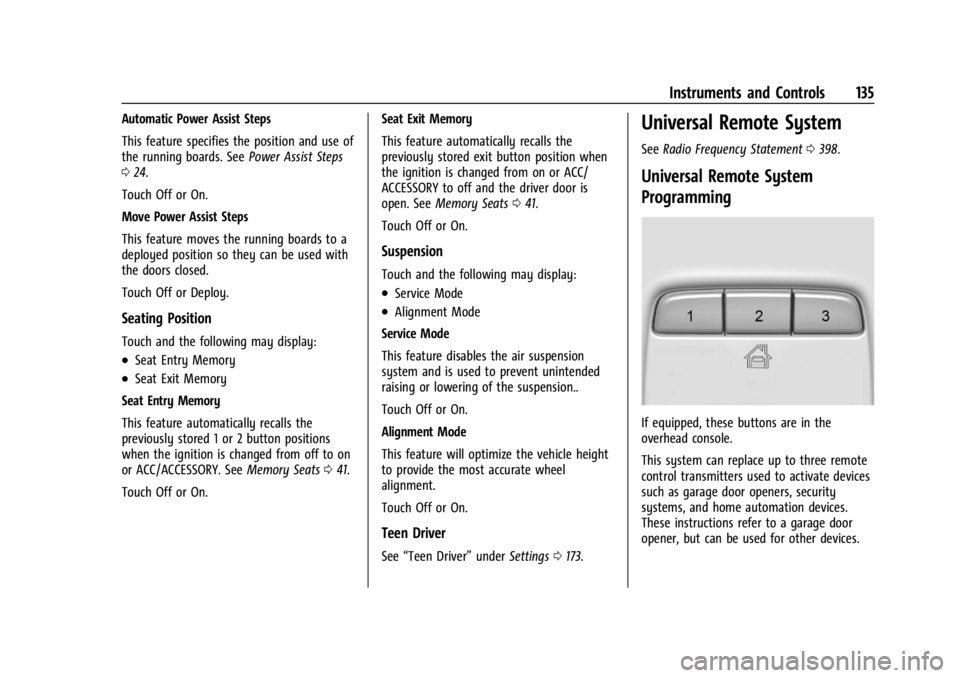
If equipped, these buttons are in the
overhead console.
This system can replace up to three remote
control transmitters used to activate devices
such as garage door openers, security
systems, and home automation devices.
These instructions refer to a garage door
opener, but can be used for other devices.
Page 150 of 422

GMC Yukon/Yukon XL/Denali Owner Manual (GMNA-Localizing-U.S./
Canada/Mexico-15555988) - 2022 - CRC - 12/3/21
Infotainment System 149
g:Press to answer an incoming call or
start voice recognition. See Bluetooth
(Overview) 0167 or
Bluetooth (Pairing and Using a Phone)
0 168.
c:Press to decline an incoming call or
end a current call. Press to mute or unmute
the infotainment system when not on a call.
The favorites and volume switches are on
the back of the steering wheel.
1. Favorite: When on a radio source, press to select the next or previous audio
broadcast favorite. When listening to a
media device, press to select the next or
previous track. 2. Volume: Press to increase or decrease
the volume.
Using the System
Audio
Touch the Audio icon to display the active
audio source page. Examples of available
sources may include AM, FM, SXM (if
equipped), USB, AUX, and Bluetooth.
Phone
Touch the Phone icon to display the Phone
main page. See Bluetooth (Overview) 0167
or
Bluetooth (Pairing and Using a Phone)
0 168.
Maps
If equipped, touch the Maps icon to display
the navigation map. See Using the
Navigation System 0163.
Google Assistant
If equipped, touch the Google Assistant icon
to open the Google Assistant app. See Voice
Recognition 0166.
Google Play
If equipped, touch to download some of
your favorite apps in your vehicle.
Downloading apps on Google Play require
you to sign into a Google Account with an
active service plan with data. Some
third-party apps require a separate account
and, in some cases, a paid subscription for
in-vehicle access.
Settings
Touch the Settings icon to display the
Settings menu. See Settings0173.
Apple CarPlay
If equipped, touch the Apple CarPlay icon to
activate Apple CarPlay after a supported
device is connected. See Apple CarPlay and
Android Auto 0172.
Android Auto
If equipped, touch the Android Auto icon to
activate Android Auto after a supported
device is connected. See Apple CarPlay and
Android Auto 0172.
Page 154 of 422
GMC Yukon/Yukon XL/Denali Owner Manual (GMNA-Localizing-U.S./
Canada/Mexico-15555988) - 2022 - CRC - 12/3/21
Infotainment System 153
‐Driver: Adjusts the audio to provide the
best sound for the driver.
‐ Centerpoint: This setting creates a
surround sound from nearly any audio
source.
‐ Rear: Adjusts the audio to provide the
best sound for the rear seat passengers.
Bose AudioPilot : This feature adjusts the
volume based on the noise in the vehicle
and the speed.
Touch Off or On.
Manage Favorites : Touch to display a list of
Audio favorites.
Favorites can be moved or deleted.
To move, touch and hold the move icon, and
then drag up or down to rearrange the
position.
Radio Text (RDS) : This allows Radio Text
(RDS) to be turned on or off.
Touch Off or On.
AM Station Update : Touch to update the
AM station list. This is only shown when
tuned to AM.Radio Data System (RDS)
If equipped, RDS features are available for
use only on FM stations that broadcast RDS
information. With RDS, the radio can:
.Display a Station Name
.Display messages from radio stations.
This system relies on receiving specific
information from these stations and only
works when the information is available.
It is possible that a radio station could
broadcast incorrect information that causes
the radio features to work improperly.
When information is broadcast from a RDS
station, the station name or call letters
display on the audio screen. Radio text
supporting the currently playing broadcast
may also appear.
To turn this feature on or off, see “Audio
Settings” underAM-FM Radio 0152.
Satellite Radio
SiriusXM Radio Service
If equipped, vehicles with a valid SiriusXM
radio subscription can receive SiriusXM
programming. SiriusXM radio has a wide variety of
programming and commercial-free music,
coast to coast, in digital-quality sound. In
the U.S., see www.siriusxm.com or call
1-888-601-6296. In Canada, see
www.siriusxm.ca or call 1-877-438-9677.
When SiriusXM is active, the channel name,
number, song title, and artist appear on the
display.
SiriusXM with 360L
SiriusXM with 360L interface has enhanced
in-vehicle listening experience for
subscribers. The experience now offers more
categories and system learned
recommendations toward discovering more
personalized content.
To use the full SiriusXM 360L program,
including streaming content and listening
recommendations, OnStar Connected Access
is required. Connected vehicle services vary
by model and require a complete working
electrical system, cell reception, and GPS
signal. An active connected plan is required.
Reference the SiriusXM user guide for use
and subscription information.
Page 155 of 422
GMC Yukon/Yukon XL/Denali Owner Manual (GMNA-Localizing-U.S./
Canada/Mexico-15555988) - 2022 - CRC - 12/3/21
154 Infotainment System
Finding a Channel
Seeking a Channel
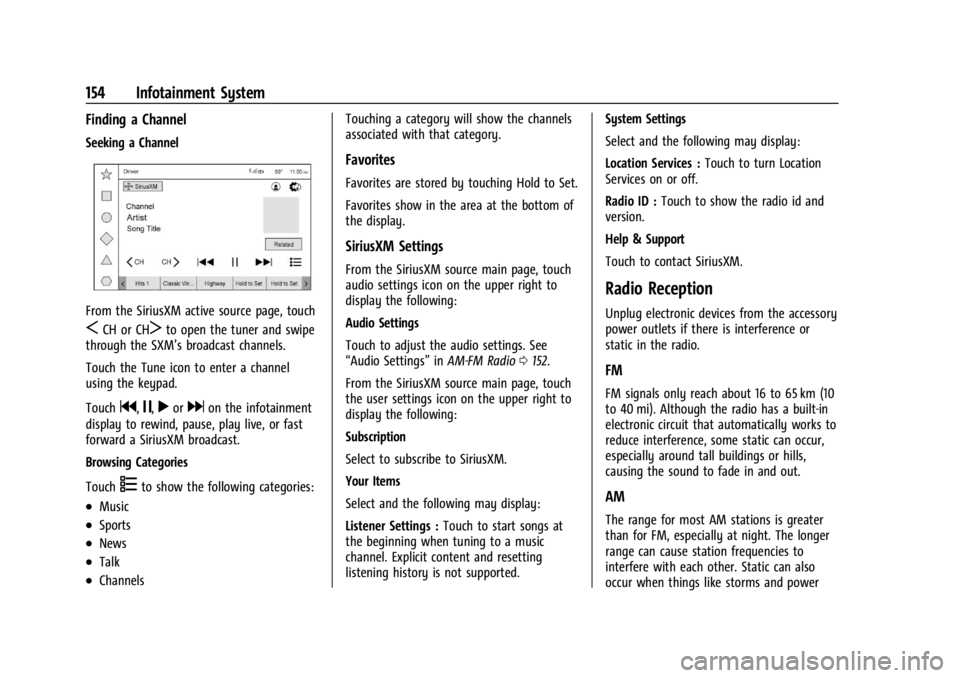
From the SiriusXM active source page, touch
SCH or CHTto open the tuner and swipe
through the SXM’s broadcast channels.
Touch the Tune icon to enter a channel
using the keypad.
Touch
g,j,rordon the infotainment
display to rewind, pause, play live, or fast
forward a SiriusXM broadcast.
Browsing Categories
Touch
(to show the following categories:
.Music
.Sports
.News
.Talk
.Channels Touching a category will show the channels
associated with that category.
Favorites
Favorites are stored by touching Hold to Set.
Favorites show in the area at the bottom of
the display.
SiriusXM Settings
From the SiriusXM source main page, touch
audio settings icon on the upper right to
display the following:
Audio Settings
Touch to adjust the audio settings. See
“Audio Settings”
inAM-FM Radio 0152.
From the SiriusXM source main page, touch
the user settings icon on the upper right to
display the following:
Subscription
Select to subscribe to SiriusXM.
Your Items
Select and the following may display:
Listener Settings : Touch to start songs at
the beginning when tuning to a music
channel. Explicit content and resetting
listening history is not supported. System Settings
Select and the following may display:
Location Services :
Touch to turn Location
Services on or off.
Radio ID : Touch to show the radio id and
version.
Help & Support
Touch to contact SiriusXM.
Radio Reception
Unplug electronic devices from the accessory
power outlets if there is interference or
static in the radio.
FM
FM signals only reach about 16 to 65 km (10
to 40 mi). Although the radio has a built-in
electronic circuit that automatically works to
reduce interference, some static can occur,
especially around tall buildings or hills,
causing the sound to fade in and out.
AM
The range for most AM stations is greater
than for FM, especially at night. The longer
range can cause station frequencies to
interfere with each other. Static can also
occur when things like storms and power
Page 156 of 422
GMC Yukon/Yukon XL/Denali Owner Manual (GMNA-Localizing-U.S./
Canada/Mexico-15555988) - 2022 - CRC - 12/3/21
Infotainment System 155
lines interfere with radio reception. When
this happens, try reducing the treble on the
radio.
SiriusXM Satellite Radio Service
If equipped, SiriusXM Satellite Radio Service
provides digital radio reception. Tall
buildings or hills can interfere with satellite
radio signals, causing the sound to fade in
and out. In addition, traveling or standing
under heavy foliage, bridges, garages,
or tunnels may cause loss of the SiriusXM
signal for a period of time. Some cellular
services may interfere with SXM reception
causing loss of signal.
Mobile Device Usage
Mobile device usage, such as making or
receiving calls, charging, or just having the
mobile device on may cause static
interference in the radio. Unplug the mobile
device or turn it off if this happens.
Multi-Band Antenna
The roof antenna may be used for radio,
navigation, and OnStar, depending on the
equipped options. Keep clear of obstructions
for clear reception. If the vehicle has a
sunroof, and it is open, reception can also
be affected.
Audio Players
Avoiding Untrusted Media Devices
When using media devices such as USB and
mobile devices, consider the source.
Untrusted media devices could contain files
that affect system operation or performance
and should be avoided.
USB Port
The vehicle may be equipped with two USB
ports in the center console under the
armrest and another two on the center
stack. These ports are for data and charging.
There may also be two USB ports at the
rear of the center console and a USB port on
each side of the third row seats for
charging only.
Caution
To avoid vehicle damage, unplug all
accessories and disconnect all accessory
cables from the vehicle when not in use.
Accessory cables left plugged into the
vehicle, unconnected to a device, could be
damaged or cause an electrical short if
(Continued)
Caution (Continued)
the unconnected end comes in contact
with liquids or another power source such
as the accessory power outlet.
Playing from a USB
A USB mass storage device can be connected
to the USB port.
USB MP3 Player and USB Devices
The USB MP3 players and USB devices
connected must comply with the USB Mass
Storage Class specification (USB MSC).
To play a USB device:1. Connect the USB.
2. Touch Audio.
3. Touch More from the top left of the main audio page.
4. Touch USB.
Use the following infotainment controls
when playing an active USB source:
r: Touch to play the current media source.
j: Touch to pause playback of the current
media source.