trailer GMC YUKON 2022 Owner's Manual
[x] Cancel search | Manufacturer: GMC, Model Year: 2022, Model line: YUKON, Model: GMC YUKON 2022Pages: 422, PDF Size: 8.2 MB
Page 229 of 422
GMC Yukon/Yukon XL/Denali Owner Manual (GMNA-Localizing-U.S./
Canada/Mexico-15555988) - 2022 - CRC - 12/3/21
228 Driving and Operating
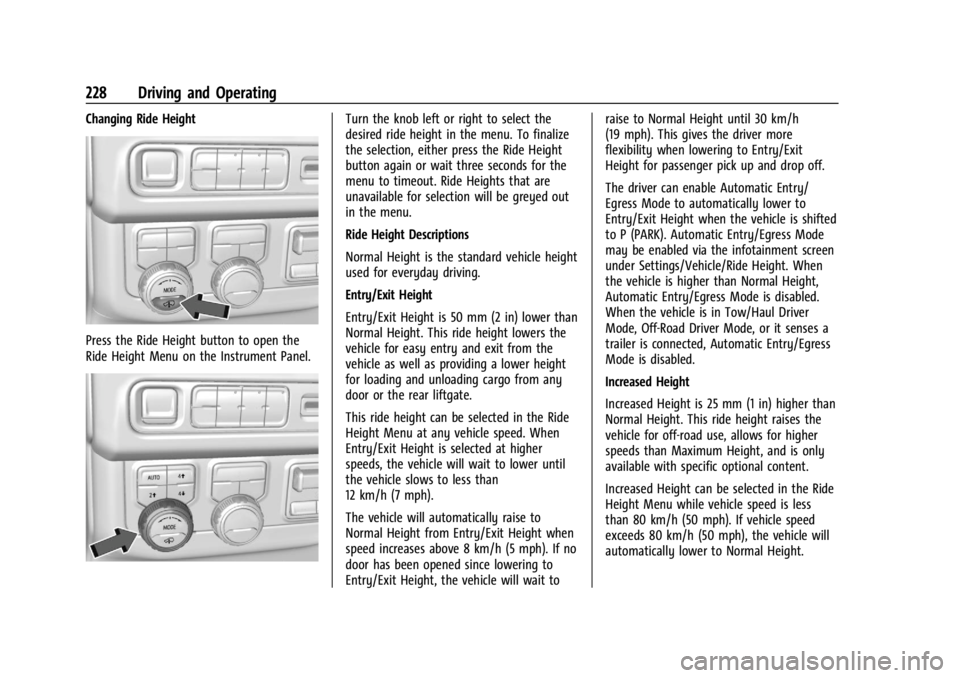
Changing Ride Height
Press the Ride Height button to open the
Ride Height Menu on the Instrument Panel.
Turn the knob left or right to select the
desired ride height in the menu. To finalize
the selection, either press the Ride Height
button again or wait three seconds for the
menu to timeout. Ride Heights that are
unavailable for selection will be greyed out
in the menu.
Ride Height Descriptions
Normal Height is the standard vehicle height
used for everyday driving.
Entry/Exit Height
Entry/Exit Height is 50 mm (2 in) lower than
Normal Height. This ride height lowers the
vehicle for easy entry and exit from the
vehicle as well as providing a lower height
for loading and unloading cargo from any
door or the rear liftgate.
This ride height can be selected in the Ride
Height Menu at any vehicle speed. When
Entry/Exit Height is selected at higher
speeds, the vehicle will wait to lower until
the vehicle slows to less than
12 km/h (7 mph).
The vehicle will automatically raise to
Normal Height from Entry/Exit Height when
speed increases above 8 km/h (5 mph). If no
door has been opened since lowering to
Entry/Exit Height, the vehicle will wait toraise to Normal Height until 30 km/h
(19 mph). This gives the driver more
flexibility when lowering to Entry/Exit
Height for passenger pick up and drop off.
The driver can enable Automatic Entry/
Egress Mode to automatically lower to
Entry/Exit Height when the vehicle is shifted
to P (PARK). Automatic Entry/Egress Mode
may be enabled via the infotainment screen
under Settings/Vehicle/Ride Height. When
the vehicle is higher than Normal Height,
Automatic Entry/Egress Mode is disabled.
When the vehicle is in Tow/Haul Driver
Mode, Off-Road Driver Mode, or it senses a
trailer is connected, Automatic Entry/Egress
Mode is disabled.
Increased Height
Increased Height is 25 mm (1 in) higher than
Normal Height. This ride height raises the
vehicle for off-road use, allows for higher
speeds than Maximum Height, and is only
available with specific optional content.
Increased Height can be selected in the Ride
Height Menu while vehicle speed is less
than 80 km/h (50 mph). If vehicle speed
exceeds 80 km/h (50 mph), the vehicle will
automatically lower to Normal Height.
Page 230 of 422
GMC Yukon/Yukon XL/Denali Owner Manual (GMNA-Localizing-U.S./
Canada/Mexico-15555988) - 2022 - CRC - 12/3/21
Driving and Operating 229
Off-Road Driver Mode and Terrain Driver
Mode will automatically set Increased
Height when vehicle speed is less than
80 km/h (50 mph). If vehicle speed exceeds
80 km/h (50 mph), the vehicle will lower to
Normal Height. Normal Height will be
maintained until vehicle speed is slowed to
less than 16 km/h (10 mph) and then the
vehicle will automatically raise back to
Increased Height.
The vehicle will automatically lower from
Increased Height to Normal Height to
provide improved stability if aggressive
maneuvers are detected.
Maximum Height
Maximum Height is 50 mm (2 in) higher
than Normal Height. This ride height raises
the vehicle for off-road use and is only
available with specific optional content.
To raise the vehicle to Maximum Height,
first shift the transfer case to 4
n. Once the
transfer case is in 4
nand vehicle speed is
less than 48 km/hr (30 mph), select
Maximum Height in the Ride Height Menu.
If vehicle speed exceeds 48 km/h, the
vehicle will automatically lower to Increased
Height. The vehicle will automatically lower from
Maximum Height to Normal Height to
provide improved stability if aggressive
maneuvers are detected.
Aerodynamic Height
Aerodynamic Height is 20 mm (0.75 in)
lower than Normal Height. This ride height
lowers the vehicle at higher vehicle speeds
to improve aerodynamics.
The vehicle will lower to Aerodynamic
Height when vehicle speed exceeds
105 km/h (65 mph) for a period of time. The
vehicle will raise to Normal Height when the
vehicle slows to less than 48 km/h
(30 mph).
Aerodynamic Height is automatically
disabled when a trailer is connected to the
vehicle or Tow/Haul Driver Mode is active.
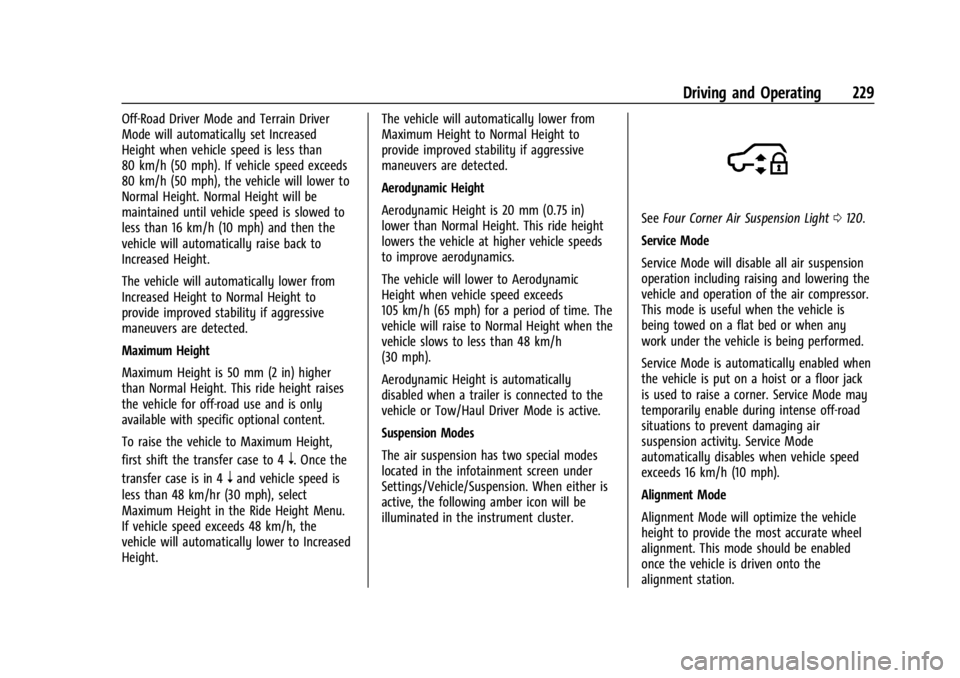
Suspension Modes
The air suspension has two special modes
located in the infotainment screen under
Settings/Vehicle/Suspension. When either is
active, the following amber icon will be
illuminated in the instrument cluster.
See
Four Corner Air Suspension Light 0120.
Service Mode
Service Mode will disable all air suspension
operation including raising and lowering the
vehicle and operation of the air compressor.
This mode is useful when the vehicle is
being towed on a flat bed or when any
work under the vehicle is being performed.
Service Mode is automatically enabled when
the vehicle is put on a hoist or a floor jack
is used to raise a corner. Service Mode may
temporarily enable during intense off-road
situations to prevent damaging air
suspension activity. Service Mode
automatically disables when vehicle speed
exceeds 16 km/h (10 mph).
Alignment Mode
Alignment Mode will optimize the vehicle
height to provide the most accurate wheel
alignment. This mode should be enabled
once the vehicle is driven onto the
alignment station.
Page 237 of 422
GMC Yukon/Yukon XL/Denali Owner Manual (GMNA-Localizing-U.S./
Canada/Mexico-15555988) - 2022 - CRC - 12/3/21
236 Driving and Operating
Selecting the Follow Distance Gap
When a slower moving vehicle is detected
ahead within the selected following gap,
ACC will adjust the vehicle's speed and
attempt to maintain the follow distance gap
selected.
Press
[on the steering wheel to adjust
the following gap. Each press cycles the gap
button through three settings: Far, Medium,
or Near.
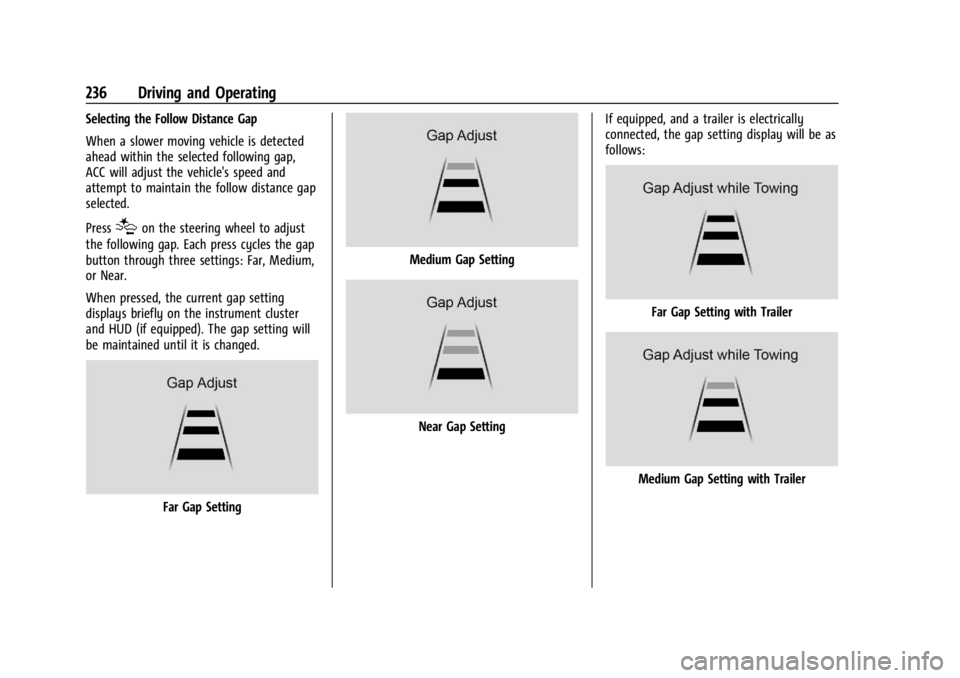
When pressed, the current gap setting
displays briefly on the instrument cluster
and HUD (if equipped). The gap setting will
be maintained until it is changed.
Far Gap Setting
Medium Gap Setting
Near Gap Setting If equipped, and a trailer is electrically
connected, the gap setting display will be as
follows:
Far Gap Setting with Trailer
Medium Gap Setting with Trailer
Page 238 of 422
GMC Yukon/Yukon XL/Denali Owner Manual (GMNA-Localizing-U.S./
Canada/Mexico-15555988) - 2022 - CRC - 12/3/21
Driving and Operating 237
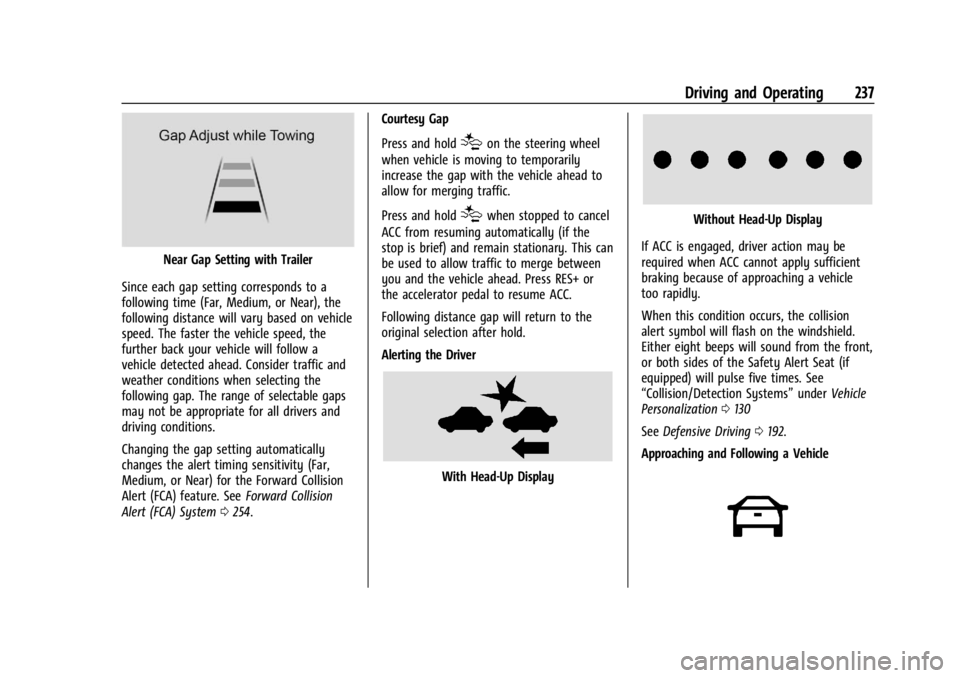
Near Gap Setting with Trailer
Since each gap setting corresponds to a
following time (Far, Medium, or Near), the
following distance will vary based on vehicle
speed. The faster the vehicle speed, the
further back your vehicle will follow a
vehicle detected ahead. Consider traffic and
weather conditions when selecting the
following gap. The range of selectable gaps
may not be appropriate for all drivers and
driving conditions.
Changing the gap setting automatically
changes the alert timing sensitivity (Far,
Medium, or Near) for the Forward Collision
Alert (FCA) feature. See Forward Collision
Alert (FCA) System 0254. Courtesy Gap
Press and hold
[on the steering wheel
when vehicle is moving to temporarily
increase the gap with the vehicle ahead to
allow for merging traffic.
Press and hold
[when stopped to cancel
ACC from resuming automatically (if the
stop is brief) and remain stationary. This can
be used to allow traffic to merge between
you and the vehicle ahead. Press RES+ or
the accelerator pedal to resume ACC.
Following distance gap will return to the
original selection after hold.
Alerting the Driver
With Head-Up Display
Without Head-Up Display
If ACC is engaged, driver action may be
required when ACC cannot apply sufficient
braking because of approaching a vehicle
too rapidly.
When this condition occurs, the collision
alert symbol will flash on the windshield.
Either eight beeps will sound from the front,
or both sides of the Safety Alert Seat (if
equipped) will pulse five times. See
“Collision/Detection Systems” underVehicle
Personalization 0130
See Defensive Driving 0192.
Approaching and Following a Vehicle
Page 242 of 422
GMC Yukon/Yukon XL/Denali Owner Manual (GMNA-Localizing-U.S./
Canada/Mexico-15555988) - 2022 - CRC - 12/3/21
Driving and Operating 241
Towing with ACC
Towing a trailer with ACC is not
recommended with an aftermarket brake
controller. Aftermarket brake controllers may
not integrate properly with the ACC system.
When towing a trailer, certain characteristics
such as following gap, acceleration rates and
braking rates may be modified to provide a
better towing experience.
If equipped when towing a trailer, ACC
driving characteristics such as following gap,
acceleration rates and braking rates may be
modified to provide a better towing
experience.
ACC should not be used while towing a
trailer with an aftermarket trailer brake
controller. Aftermarket trailer brake
controllers may not function properly with
the ACC system.
ACC may be used when towing a trailer
when trailer attached is within GM-approved
allowable size and weight limits. SeeTrailer
Towing 0271.
When towing a trailer with ACC, it is
important to properly set the Trailer Gain.
See “Integrated Trailer Brake Control
System” inTowing Equipment 0274 for
Trailer Gain Adjustment Procedure. Use Tow/Haul mode when driving down
steep hills or mountain grades, or when
hauling heavy loads. See
Driver Mode
Control 0224.
Disengaging ACC
There are three ways to disengage ACC:
.Step lightly on the brake pedal.
.Press*.
.PressJ.
Erasing Speed Memory
The ACC set speed is erased from memory if
Jis pressed or if the ignition is turned off.
Weather Conditions Affecting ACC
System operation may be limited under
snow, heavy rain, or road spray conditions.
Accessory Installations and Vehicle
Modifications
Do not install or place any object around
the front camera windshield area that would
obstruct the front camera view.
Do not install objects on top of the vehicle
that overhang and obstruct the front
camera, such as a canoe, kayak, or other
items that can be transported on a roof rack
system. See Roof Rack System 094. Do not modify the hood, headlamps, or fog
lamps, as this may limit the camera’s ability
to detect an object.
Cleaning the Sensing System
The camera sensor on the windshield behind
the rearview mirror, and the sensors on the
front of the vehicle can become blocked by
snow, ice, dirt, mud, or debris. This area
needs to be cleaned for ACC to operate
properly.
If ACC will not operate, regular cruise control
may be available. See
“Switching Between
ACC and Regular Cruise Control” previously
in this section. Always consider driving
conditions before using either cruise control
system.
For cleaning instructions, see “Washing the
Vehicle” underExterior Care 0364.
Driver Assistance Systems
This vehicle may have features that work
together to help avoid crashes or reduce
crash damage while driving, backing, and
parking. Read this entire section before
using these systems.
Page 246 of 422

GMC Yukon/Yukon XL/Denali Owner Manual (GMNA-Localizing-U.S./
Canada/Mexico-15555988) - 2022 - CRC - 12/3/21
Driving and Operating 245
Touch the camera view buttons along the
bottom of the infotainment display to
access each view (if equipped):
1. Front/Rear Standard View
Displays an image of the area in front
or behind the vehicle. To select, touch
Front/Rear Standard View on the
infotainment display when a camera
view is active.
When the hitch guidance is selected,
Rear Standard View will remain visible
across gear changes, otherwise the
view will toggle between Front and
Rear Standard View based on gear
position.
If equipped, the front view camera
also displays when the Park Assist
system detects an object within
30 cm (12 in).
To access this view when in a forward
gear above 12 km/h (8 mph), select
CAMERA on the infotainment display
and select Rear Standard View. The
view will close after 8 seconds and
can be closed early by selecting X,
Home or Back.
2. Front/Rear Top-Down View
Displays a front or rear overhead view
of the vehicle. To view, select Front/
Rear Top-Down View on the
infotainment display when the camera
app is active.
3. Front/Rear side View
Displays a view that shows objects
next to the front or rear sides of the
vehicle. To select, touch Front/Rear
Side View on the infotainment display
when a camera view is active. Touch
the button to toggle between front
and rear camera views. Park Assist and
RCTA overlays are not available when
Front/Rear Side View is active.
4. Hitch View
Displays a zoomed-in view of the hitch
area to assist with aligning the
vehicle’s hitch ball with the trailer
coupler and monitoring the trailer
connection. To view, select Hitch View
on the infotainment display when the
Camera App is active. To access this
view when in a forward gear above
12 km/h (8 mph), select CAMERA on
the infotainment display and select
Hitch View. The view will close after
eight seconds and can be closed earlyby selecting X, Home or Back. Shifting
into P (Park) while in this view will
automatically engage the Electric
Parking Brake (EPB).
5. Surround View
Displays an image of the area
surrounding the vehicle. Surround
View is displayed alongside the
currently selected view when below
12 kph (8 mph). Surround View is
disabled when above 12 kph (8 mph).
6. Camera App Guidance Lines
The Camera App supports three
possible guidance modes: No
Guidance, Vehicle Guidance and
Trailering Guidance. To change
guidance mode, select the appropriate
guidance icon. Depending on the
guidance mode and view selected,
different guidance lines may appear.
A grayed-out icon indicates that
guidance lines are not available.
Certain views do not support Guidance
lines.
.Standard Guidance Lines are
available in Front/Rear Standard
Views, Front/Rear Top-Down Views
and Surround View when the
Page 247 of 422

GMC Yukon/Yukon XL/Denali Owner Manual (GMNA-Localizing-U.S./
Canada/Mexico-15555988) - 2022 - CRC - 12/3/21
246 Driving and Operating
vehicle guidance mode is selected.
Standard Guidance Lines show
current and intended vehicle path.
.Hitch Guidance Line is available in
Rear Standard View when the
Trailering Guidance mode is
selected. Hitch Guidance displays a
single centered guidance line on
the infotainment display to assist
with aligning the vehicle’s hitch
with a trailer coupler. Align the
Hitch Guidance Line with the
trailer coupler by continuously
steering the vehicle to keep the
guidance line centered on the
coupler when backing. Park Assist
overlays will not display when the
Hitch Guidance Line is active.
.Rear Trailer Guidance Lines are
available in the Rear Trailer View
when the Trailering Guidance
mode is selected and the rear
trailer camera calibration has been
successfully completed. Rear Trailer
Guidance Lines show the intended
path (yellow) and the current path
(blue) of the trailer. The current
path guidance lines will converge
with the intended path guidance
lines.
7. Camera App Guidance Lines
Duplicate of item 6.
8. Interior Trailer View
Displays a view of the interior of the
trailer. The feature is available when a
trailer is connected. The feature
requires user installation of an
accessory trailer camera on the
interior of the trailer per the accessory
trailer camera installation instructions
(see your dealer for accessory trailer
camera(s) and information). To view,
select Interior Trailer View on the
infotainment display when the Camera
App is active. To access this view
when in a forward gear above
12 km/h (8 mph), select CAMERA on
the infotainment display and select
Interior Trailer View. The view will
close after 8 seconds and can be
closed early by selecting X, Home
or Back.
9. Transparent Trailer View
Displays a view that allows the driver
to virtually“see through” the trailer.
The feature is available when a
compatible trailer is connected, a valid
profile is selected and the vehicle is
not in Reverse. The feature requires user installation of an accessory trailer
camera on the rear exterior surface of
the trailer per the accessory trailer
camera installation instructions (see
your dealer for accessory trailer
camera(s) and information). To view,
select Transparent Trailer View on the
infotainment display when the Camera
App is active. To access this view
when in a forward gear above
12 km/h (8 mph), select CAMERA on
the infotainment display and select
Transparent Trailer View. The view can
be closed by selecting X, Home
or Back.
When the system is calibrated and
trailer position is known one of three
views will be shown; Transparent
Trailer View, Left Transparent Trailer
View or Right Transparent Trailer
View. The Transparent Trailer View is
shown when the position of the trailer
is relatively straight behind the
vehicle. The Left or Right Transparent
Trailer view is shown when the
position of the trailer is too far to the
left or right. When the system is not
calibrated or trailer position is not
known the Transparent Trailer
Picture-in-Picture View will be shown.
Page 248 of 422
GMC Yukon/Yukon XL/Denali Owner Manual (GMNA-Localizing-U.S./
Canada/Mexico-15555988) - 2022 - CRC - 12/3/21
Driving and Operating 247
10. Rear Trailer Views
.Rear Trailer View
Displays a view of the area behind
the trailer when a trailer is
connected. The feature requires
user installation of an accessory
trailer camera on the rear exterior
surface of the trailer per the
accessory trailer camera
installation instructions (see your
dealer for accessory trailer
camera(s) and information). To
view, select Rear Trailer View on
the infotainment display when the
Camera App is active. To access
this view when in a forward gear
above 12 km/h (8 mph), select
CAMERA on the infotainment
display and select Rear Trailer
View. The view can be closed by
selecting X, Home or Back.
.Rear Side View with Available
Articulation Functionality
Displays a rearward split view of
the left and right sides of the
vehicle and trailer, when a trailer is
connected. The view will
automatically pan to show more of
the left or right side based on theposition of the trailer when a
compatible profile is configured
and selected via the Trailering App.
To view, select Rear Side View with
Available Articulation Functionality
on the infotainment display when
the Camera App is active. To access
this view when in a forward gear
above 12 km/h (8 mph), select
CAMERA on the infotainment
display and select Rear Side View
with Available Articulation
Functionality. The view can be
closed by selecting X, Home
or Back.
.Picture-in-Picture Side View
Displays a rearward split view of
the left and right sides of the
vehicle and trailer with an overlay
view of the area behind the trailer
when a trailer is connected. The
feature requires user installation of
an accessory trailer camera on the
rear exterior surface of the trailer
per the accessory trailer camera
installation instructions (see your
dealer for accessory trailer
camera(s) and information). To
view, select Picture-in-Picture Side
View on the infotainment displaywhen the Camera App is active. To
access this view when in a forward
gear above 12 km/h (8 mph), select
CAMERA on the infotainment
display and select Picture-in-Picture
Side View. The view can be closed
by selecting X, Home or Back.
Additional Views and Alerts
.Turn Signal Activated Views
Displays a rearward view of the left or
right side of the vehicle and trailer when
a trailer is connected. Views are provided
based on turn signal activation with the
right-side view being shown when the
right turn signal is active and the left side
view being shown when the left turn
signal is active. The feature can be
enabled or disabled. See Vehicle
Personalization 0130. The view can be
closed early by selecting X, Home or Back.
A Trailer Length Indicator Overlay is
available in the Turn Signal Activated
Views when the trailer is relatively
straight behind the vehicle and a
compatible profile is configured and
selected via the Trailering App. The
overlay will not be visible when the
position of the trailer is too far to the left
Page 249 of 422
GMC Yukon/Yukon XL/Denali Owner Manual (GMNA-Localizing-U.S./
Canada/Mexico-15555988) - 2022 - CRC - 12/3/21
248 Driving and Operating
or right. The overlay can be enabled or
disabled. SeeVehicle Personalization
0 130.
.Jack-Knife Detection and Alert
The vehicle may be equipped with
Jack-Knife Detection. The system will track
the position of the trailer relative to the
vehicle. As the front of the trailer
approaches the rear of the vehicle, a
warning or an alert will be displayed.
A warning indicates to the driver to
proceed with caution, an alert indicates
that a collision is imminent. Based on
vehicle equipment and user settings, the
visual warning or alert may be
accompanied by audible or safety alert
seat notifications. See Vehicle
Personalization 0130.
.Trailer Angle Indicator
The vehicle may be equipped with a
Trailer Angle Indicator. The Trailer Angle
Indicator gives the driver a visual
representation of the trailer’s position
relative to the vehicle. (Available only in
Reverse, Guidelines On, Rear Trailering
Views).
{Warning
Use Hitch Guidance only to help back the
vehicle to a trailer hitch or, when
traveling above 12 km/h (8 mph), to
briefly check the status of your trailer. Do
not use for any other purpose, such as
making lane change decisions. Before
making a lane change, always check the
mirrors and glance over your shoulder.
Improper use could result in serious
injury to you or others.
HD Surround Vision with Trailer Camera
Provisions
If equipped, this feature provides additional
views to aid in trailering/towing. The
system shows multiple views in the
infotainment display using five cameras
mounted around the vehicle and up to two
additional accessory cameras that can be
mounted on or in a trailer. The front camera
is in the grille under the front emblem, the
side cameras are on the bottom of the
outside mirrors, the rear camera is in the
tailgate handle and the bed camera is
mounted on the rear of the cab.
Additionally, up to two accessory cameras
can be mounted to the rear and/or interior of the trailer. See your dealer for accessory
trailer cameras. To access, touch CAMERA on
the infotainment display or shift to
R (Reverse). To return to the previous screen
when not in reverse, touch the Home or
Back buttons on the infotainment display.
Certain trailer views require a compatible
trailer profile be configured and selected.
A compatible trailer is a box type trailer
(cargo, camper, etc.) with a conventional
hitch.
Available camera views:
.Front/Rear Standard View
.Front/Rear Top-Down View
.Front/Rear Side View
.Hitch View
.Rear trailer View
.Rear Side view with a available
articulation functionality
.Picture-in-Picture Side View
.Interior Trailer View
.Transparent trailer View
.Surround View
.Guidance Lines
.Hitch Guidance
Page 250 of 422
GMC Yukon/Yukon XL/Denali Owner Manual (GMNA-Localizing-U.S./
Canada/Mexico-15555988) - 2022 - CRC - 12/3/21
Driving and Operating 249
Surround Vision (360 Degrees)
If equipped, the Surround Vision system can
display various views surrounding the
vehicle in the infotainment display using
four cameras mounted around the vehicle.
The front camera is in the grille under the
front emblem, the side cameras are on the
bottom of the outside mirrors, and the rear
camera is in the tailgate handle.
The Surround Vision system can be accessed
by selecting CAMERA in the infotainment
display or when the vehicle is shifted into
R (Reverse). To return to the previous screen
sooner, when not in R (Reverse), press the
Home or Back button on the infotainment
system, shift into P (Park), or, while in D
(Drive), reach a vehicle speed of
approximately 12 km/h (8 mph).
Available camera views:
.Front/Rear Standard View
.Front/Rear Top-Down View
.Front/Rear Side View
.Hitch View
.Surround View
.Guidance Lines
.Hitch GuidanceSurround Vision
If equipped, this feature provides, additional
views to aid in trailering/towing. The Front
Vision Camera and Surround Vision cameras
are not supported. The system can show
various views in the infotainment display
using cameras mounted in and around the
vehicle and trailer. The rear camera is in the
tailgate handle and the cargo bed camera is
mounted on the rear of the cab. Up to two
accessory cameras can be mounted to the
rear and/or interior of the trailer. See your
dealer for these accessory cameras.
The system can be accessed by selecting
CAMERA in the infotainment display or
when the vehicle is shifted into R (Reverse).
To return to the previous screen sooner,
when not in R (Reverse), press the Home or
Back button on the infotainment system or
shift into P (Park).
Available camera views:
.Rear Standard View
.Hitch View
.Bed View
.Rear Trailer View
.Interior Trailer View
.Guidance Lines
.Hitch GuidanceTroubleshooting
The Transparent Trailer calibration may take
longer than expected or not calibrate if:
.The vehicle is driven too fast during
calibration. Speed should be maintained
below 50 km/h (31 mph).
.The vehicle is not driven straight during
calibration. Steering should be maintained
as straight as possible, excessive steering
during calibration may extend
calibration time.
.The calibration is attempted in low light.
Calibration should be attempted when
there is enough light.
.The calibration is attempted during
adverse weather conditions. Calibration
during conditions such as snow or heavy
rain should be avoided.
.The road surface is not ideal for
calibration. Calibration should be
attempted on an alternate road surface.
.The accessory trailer cameras are
swapped at the hitch connector. Ensure
that the camera mounted to the rear of
the trailer is connected to the rear trailer
camera input.