info display GMC YUKON 2022 Owner's Guide
[x] Cancel search | Manufacturer: GMC, Model Year: 2022, Model line: YUKON, Model: GMC YUKON 2022Pages: 422, PDF Size: 8.2 MB
Page 147 of 422

GMC Yukon/Yukon XL/Denali Owner Manual (GMNA-Localizing-U.S./
Canada/Mexico-15555988) - 2022 - CRC - 12/3/21
146 Infotainment System
Infotainment System
Introduction
Introduction . . . . . . . . . . . . . . . . . . . . . . . . . . . 146
Overview . . . . . . . . . . . . . . . . . . . . . . . . . . . . . . 147
Steering Wheel Controls . . . . . . . . . . . . . . . 148
Using the System . . . . . . . . . . . . . . . . . . . . . 149
Software Updates . . . . . . . . . . . . . . . . . . . . . . 151
Radio
AM-FM Radio . . . . . . . . . . . . . . . . . . . . . . . . . . 152
Radio Data System (RDS) . . . . . . . . . . . . . . 153
Satellite Radio . . . . . . . . . . . . . . . . . . . . . . . . . 153
Radio Reception . . . . . . . . . . . . . . . . . . . . . . . 154
Multi-Band Antenna . . . . . . . . . . . . . . . . . . . 155
Audio Players
Avoiding Untrusted Media Devices . . . . . 155
USB Port . . . . . . . . . . . . . . . . . . . . . . . . . . . . . . . 155
Bluetooth Audio . . . . . . . . . . . . . . . . . . . . . . . 156
Rear Seat Infotainment
Rear Seat Infotainment (RSI)System . . . . . . . . . . . . . . . . . . . . . . . . . . . . . . 156
Navigation
Using the Navigation System . . . . . . . . . . 163
Maps . . . . . . . . . . . . . . . . . . . . . . . . . . . . . . . . . . 163
Navigation Symbols . . . . . . . . . . . . . . . . . . . 164
Destination . . . . . . . . . . . . . . . . . . . . . . . . . . . . 164 Global Positioning System (GPS) . . . . . . . 165
Vehicle Positioning . . . . . . . . . . . . . . . . . . . . 165
Problems with Route Guidance . . . . . . . . 165
Voice Recognition
Voice Recognition . . . . . . . . . . . . . . . . . . . . . 166
Phone
Bluetooth (Overview) . . . . . . . . . . . . . . . . . . 167
Bluetooth (Pairing and Using a
Phone) . . . . . . . . . . . . . . . . . . . . . . . . . . . . . . . 168
Apple CarPlay and Android Auto . . . . . . . 172
Settings
Settings . . . . . . . . . . . . . . . . . . . . . . . . . . . . . . . . 173
Teen Driver . . . . . . . . . . . . . . . . . . . . . . . . . . . . 176
Trademarks and License Agreements
Trademarks and License Agreements . . . . . . . . . . . . . . . . . . . . . . . . . 180
Introduction
Read the following pages to become familiar
with the features.
{Warning
Taking your eyes off the road for too
long or too often while using any
infotainment feature can cause a crash.
You or others could be injured or killed.
Do not give extended attention to
infotainment tasks while driving. Limit
your glances at the vehicle displays and
focus your attention on driving. Use voice
commands whenever possible.
The infotainment system has built-in
features intended to help avoid distraction
by disabling some features when driving.
These features may gray out when they are
unavailable. Many infotainment features are
also available through the instrument cluster
and steering wheel controls.
Page 148 of 422
GMC Yukon/Yukon XL/Denali Owner Manual (GMNA-Localizing-U.S./
Canada/Mexico-15555988) - 2022 - CRC - 12/3/21
Infotainment System 147
Before driving:
.Become familiar with the operation,
center stack controls, steering wheel
controls, and infotainment display.
.Set up the audio by presetting favorite
stations, setting the tone, and adjusting
the speakers.
.Set up phone numbers in advance so they
can be called easily by pressing a single
control or by using a single voice
command.
See Distracted Driving 0191.
Active Noise Cancellation (ANC)
If equipped, ANC reduces engine noise in the
vehicle’s interior. ANC requires the
factory-installed audio system, radio,
speakers, amplifier (if equipped), induction
system, and exhaust system to work
properly. Deactivation is required by your
dealer if related aftermarket equipment is
installed.
Overview
Infotainment System
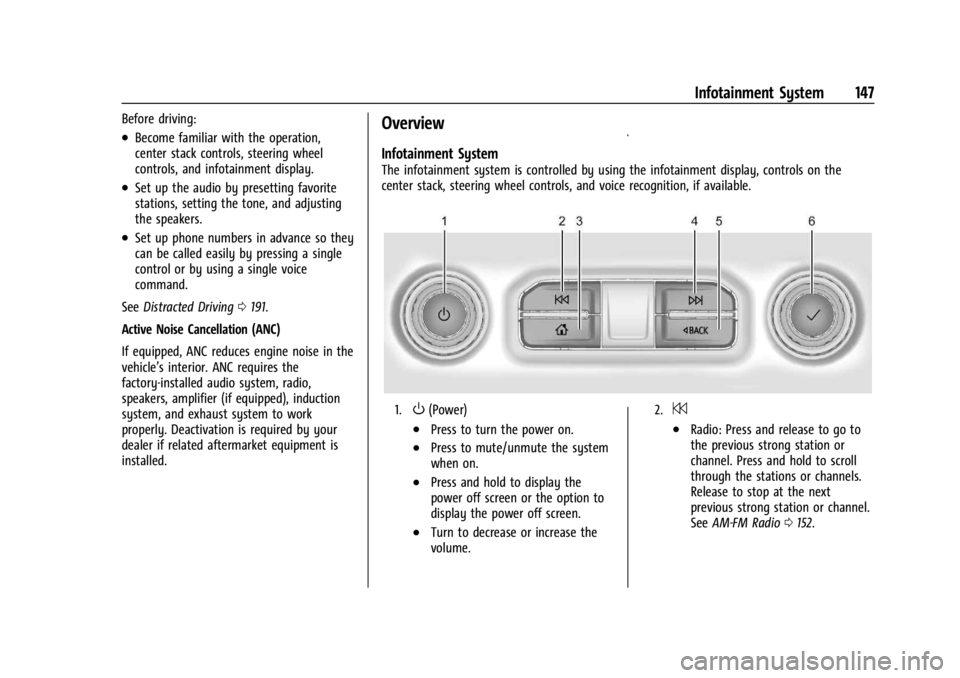
The infotainment system is controlled by using the infotainment display, controls on the
center stack, steering wheel controls, and voice recognition, if available.
1.O(Power)
.Press to turn the power on.
.Press to mute/unmute the system
when on.
.Press and hold to display the
power off screen or the option to
display the power off screen.
.Turn to decrease or increase the
volume.
2.7
.Radio: Press and release to go to
the previous strong station or
channel. Press and hold to scroll
through the stations or channels.
Release to stop at the next
previous strong station or channel.
See AM-FM Radio 0152.
Page 149 of 422

GMC Yukon/Yukon XL/Denali Owner Manual (GMNA-Localizing-U.S./
Canada/Mexico-15555988) - 2022 - CRC - 12/3/21
148 Infotainment System
.USB/Bluetooth: Press and hold to
fast reverse the current song if
supported by the device. Release
to return to playing speed. See
USB Port0155 or
Bluetooth Audio 0156.
3.{
.Press to go to the Home Page. See
“Home Page” later in this section.
.Press to exit Android Auto or Apple
CarPlay. To enter back into Android
Auto or Apple CarPlay, press and
hold. SeeApple CarPlay and
Android Auto 0172.
4.6
.Radio: Press and release to go to
the next strong station or channel.
Press and hold to scroll through
the stations or channels. Release to
stop at the next strong station or
channel.
.USB/Bluetooth: Press and hold to
fast forward the current song if
supported by the device. Release
to return to playing speed. See
USB Port 0155 or
Bluetooth Audio 0156.
5.oBACK
.Press to return to the previous
display in a menu.
6.V
.Turn to change tuner sources only
(AM/FM/SXM/DAB where
available), while in the audio app.
Does not support non-tuner
sources. Turn to scroll through
selections in phone
projection apps.
Home Page
The Home Page is where vehicle application
icons are accessed. Some applications are
disabled when the vehicle is moving.
Swipe left or right across the display to
access the pages of icons.
Managing Home Page Icons 1. Touch and hold any of the Home Page icons to enter edit mode.
2. Continue holding the icon and drag it to the desired position.
3. Release your finger to drop the icon in the desired position. Move an Icon to Another Page
1. Drag the icon to the edge of the display toward the desired page.
2. Continue dragging and dropping application icons as desired.
Move an Icon to the Application Tray
For uplevel radio only:
To move an icon to the application tray on
the left side of the screen, drag the icon to
the applications tray.
Steering Wheel Controls
If equipped, some audio controls can be
adjusted at the steering wheel.
Page 150 of 422

GMC Yukon/Yukon XL/Denali Owner Manual (GMNA-Localizing-U.S./
Canada/Mexico-15555988) - 2022 - CRC - 12/3/21
Infotainment System 149
g:Press to answer an incoming call or
start voice recognition. See Bluetooth
(Overview) 0167 or
Bluetooth (Pairing and Using a Phone)
0 168.
c:Press to decline an incoming call or
end a current call. Press to mute or unmute
the infotainment system when not on a call.
The favorites and volume switches are on
the back of the steering wheel.
1. Favorite: When on a radio source, press to select the next or previous audio
broadcast favorite. When listening to a
media device, press to select the next or
previous track. 2. Volume: Press to increase or decrease
the volume.
Using the System
Audio
Touch the Audio icon to display the active
audio source page. Examples of available
sources may include AM, FM, SXM (if
equipped), USB, AUX, and Bluetooth.
Phone
Touch the Phone icon to display the Phone
main page. See Bluetooth (Overview) 0167
or
Bluetooth (Pairing and Using a Phone)
0 168.
Maps
If equipped, touch the Maps icon to display
the navigation map. See Using the
Navigation System 0163.
Google Assistant
If equipped, touch the Google Assistant icon
to open the Google Assistant app. See Voice
Recognition 0166.
Google Play
If equipped, touch to download some of
your favorite apps in your vehicle.
Downloading apps on Google Play require
you to sign into a Google Account with an
active service plan with data. Some
third-party apps require a separate account
and, in some cases, a paid subscription for
in-vehicle access.
Settings
Touch the Settings icon to display the
Settings menu. See Settings0173.
Apple CarPlay
If equipped, touch the Apple CarPlay icon to
activate Apple CarPlay after a supported
device is connected. See Apple CarPlay and
Android Auto 0172.
Android Auto
If equipped, touch the Android Auto icon to
activate Android Auto after a supported
device is connected. See Apple CarPlay and
Android Auto 0172.
Page 151 of 422
GMC Yukon/Yukon XL/Denali Owner Manual (GMNA-Localizing-U.S./
Canada/Mexico-15555988) - 2022 - CRC - 12/3/21
150 Infotainment System
Camera
If equipped, touch the Camera icon to access
the camera application. SeeAssistance
Systems for Parking or Backing 0243.
Shortcut Tray
For uplevel radios, the shortcut tray is left
of the display. It shows up to five
applications.
For base radios, the shortcut tray is near the
bottom of the display. It shows up to four
applications.
Infotainment Display Features
Infotainment display features show on the
display when available. When a feature is
unavailable, it may gray out. When a
feature is touched, it may highlight.
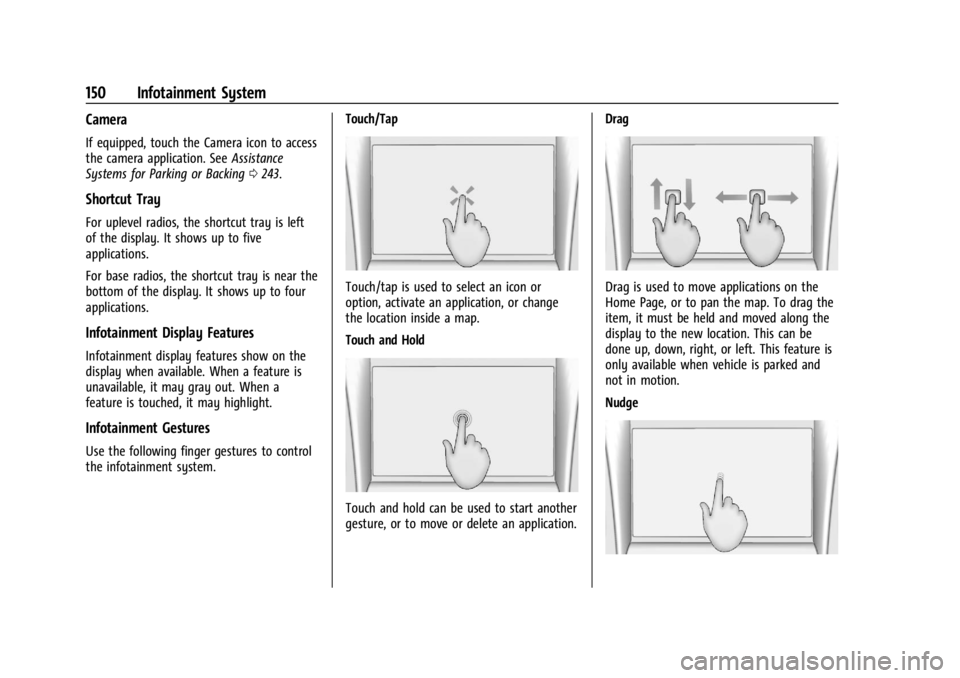
Infotainment Gestures
Use the following finger gestures to control
the infotainment system. Touch/Tap
Touch/tap is used to select an icon or
option, activate an application, or change
the location inside a map.
Touch and Hold
Touch and hold can be used to start another
gesture, or to move or delete an application.Drag
Drag is used to move applications on the
Home Page, or to pan the map. To drag the
item, it must be held and moved along the
display to the new location. This can be
done up, down, right, or left. This feature is
only available when vehicle is parked and
not in motion.
Nudge
Page 152 of 422
GMC Yukon/Yukon XL/Denali Owner Manual (GMNA-Localizing-U.S./
Canada/Mexico-15555988) - 2022 - CRC - 12/3/21
Infotainment System 151
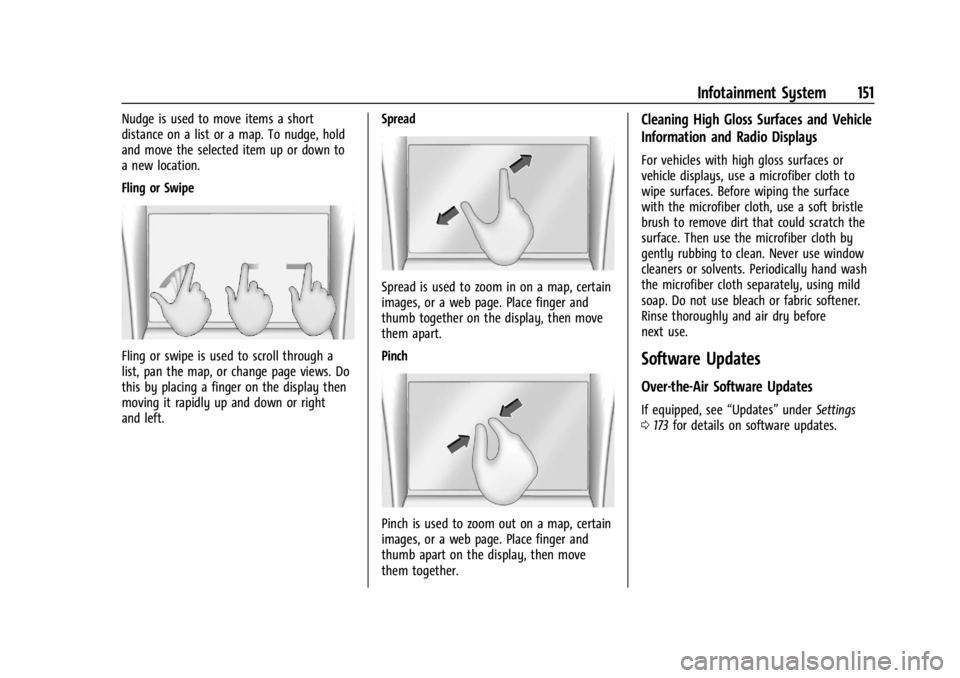
Nudge is used to move items a short
distance on a list or a map. To nudge, hold
and move the selected item up or down to
a new location.
Fling or Swipe
Fling or swipe is used to scroll through a
list, pan the map, or change page views. Do
this by placing a finger on the display then
moving it rapidly up and down or right
and left.Spread
Spread is used to zoom in on a map, certain
images, or a web page. Place finger and
thumb together on the display, then move
them apart.
Pinch
Pinch is used to zoom out on a map, certain
images, or a web page. Place finger and
thumb apart on the display, then move
them together.
Cleaning High Gloss Surfaces and Vehicle
Information and Radio Displays
For vehicles with high gloss surfaces or
vehicle displays, use a microfiber cloth to
wipe surfaces. Before wiping the surface
with the microfiber cloth, use a soft bristle
brush to remove dirt that could scratch the
surface. Then use the microfiber cloth by
gently rubbing to clean. Never use window
cleaners or solvents. Periodically hand wash
the microfiber cloth separately, using mild
soap. Do not use bleach or fabric softener.
Rinse thoroughly and air dry before
next use.
Software Updates
Over-the-Air Software Updates
If equipped, see
“Updates”underSettings
0 173 for details on software updates.
Page 153 of 422
GMC Yukon/Yukon XL/Denali Owner Manual (GMNA-Localizing-U.S./
Canada/Mexico-15555988) - 2022 - CRC - 12/3/21
152 Infotainment System
Radio
AM-FM Radio
Playing the Radio
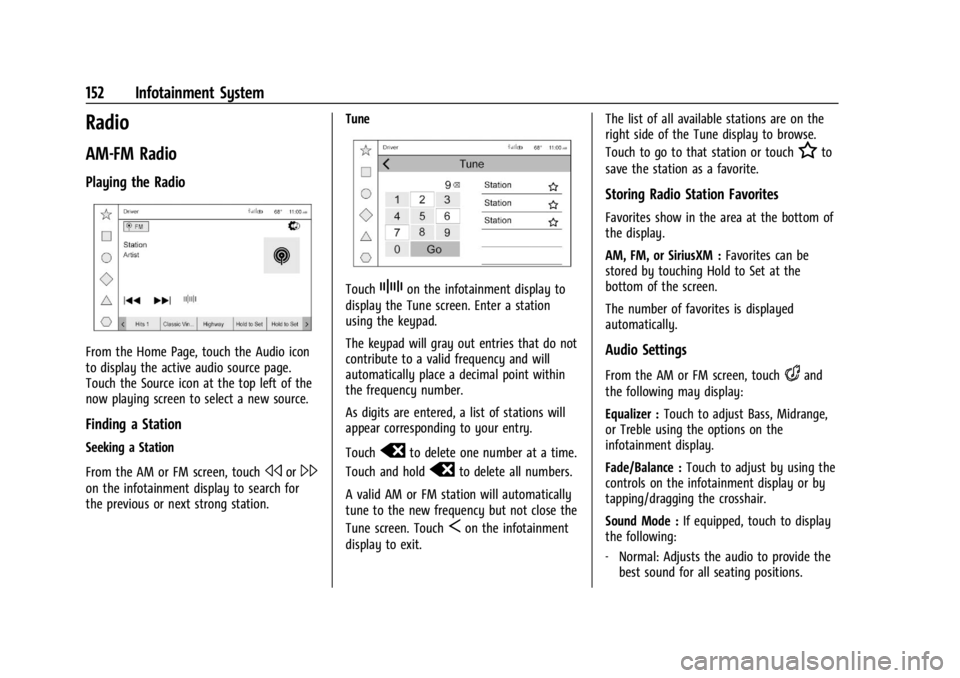
From the Home Page, touch the Audio icon
to display the active audio source page.
Touch the Source icon at the top left of the
now playing screen to select a new source.
Finding a Station
Seeking a Station
From the AM or FM screen, touch
sor\
on the infotainment display to search for
the previous or next strong station.Tune
TouchZon the infotainment display to
display the Tune screen. Enter a station
using the keypad.
The keypad will gray out entries that do not
contribute to a valid frequency and will
automatically place a decimal point within
the frequency number.
As digits are entered, a list of stations will
appear corresponding to your entry.
Touch
oto delete one number at a time.
Touch and hold
oto delete all numbers.
A valid AM or FM station will automatically
tune to the new frequency but not close the
Tune screen. Touch
Son the infotainment
display to exit. The list of all available stations are on the
right side of the Tune display to browse.
Touch to go to that station or touch
Hto
save the station as a favorite.
Storing Radio Station Favorites
Favorites show in the area at the bottom of
the display.
AM, FM, or SiriusXM : Favorites can be
stored by touching Hold to Set at the
bottom of the screen.
The number of favorites is displayed
automatically.
Audio Settings
From the AM or FM screen, touchkand
the following may display:
Equalizer : Touch to adjust Bass, Midrange,
or Treble using the options on the
infotainment display.
Fade/Balance : Touch to adjust by using the
controls on the infotainment display or by
tapping/dragging the crosshair.
Sound Mode : If equipped, touch to display
the following:
‐ Normal: Adjusts the audio to provide the
best sound for all seating positions.
Page 154 of 422
GMC Yukon/Yukon XL/Denali Owner Manual (GMNA-Localizing-U.S./
Canada/Mexico-15555988) - 2022 - CRC - 12/3/21
Infotainment System 153
‐Driver: Adjusts the audio to provide the
best sound for the driver.
‐ Centerpoint: This setting creates a
surround sound from nearly any audio
source.
‐ Rear: Adjusts the audio to provide the
best sound for the rear seat passengers.
Bose AudioPilot : This feature adjusts the
volume based on the noise in the vehicle
and the speed.
Touch Off or On.
Manage Favorites : Touch to display a list of
Audio favorites.
Favorites can be moved or deleted.
To move, touch and hold the move icon, and
then drag up or down to rearrange the
position.
Radio Text (RDS) : This allows Radio Text
(RDS) to be turned on or off.
Touch Off or On.
AM Station Update : Touch to update the
AM station list. This is only shown when
tuned to AM.Radio Data System (RDS)
If equipped, RDS features are available for
use only on FM stations that broadcast RDS
information. With RDS, the radio can:
.Display a Station Name
.Display messages from radio stations.
This system relies on receiving specific
information from these stations and only
works when the information is available.
It is possible that a radio station could
broadcast incorrect information that causes
the radio features to work improperly.
When information is broadcast from a RDS
station, the station name or call letters
display on the audio screen. Radio text
supporting the currently playing broadcast
may also appear.
To turn this feature on or off, see “Audio
Settings” underAM-FM Radio 0152.
Satellite Radio
SiriusXM Radio Service
If equipped, vehicles with a valid SiriusXM
radio subscription can receive SiriusXM
programming. SiriusXM radio has a wide variety of
programming and commercial-free music,
coast to coast, in digital-quality sound. In
the U.S., see www.siriusxm.com or call
1-888-601-6296. In Canada, see
www.siriusxm.ca or call 1-877-438-9677.
When SiriusXM is active, the channel name,
number, song title, and artist appear on the
display.
SiriusXM with 360L
SiriusXM with 360L interface has enhanced
in-vehicle listening experience for
subscribers. The experience now offers more
categories and system learned
recommendations toward discovering more
personalized content.
To use the full SiriusXM 360L program,
including streaming content and listening
recommendations, OnStar Connected Access
is required. Connected vehicle services vary
by model and require a complete working
electrical system, cell reception, and GPS
signal. An active connected plan is required.
Reference the SiriusXM user guide for use
and subscription information.
Page 155 of 422
GMC Yukon/Yukon XL/Denali Owner Manual (GMNA-Localizing-U.S./
Canada/Mexico-15555988) - 2022 - CRC - 12/3/21
154 Infotainment System
Finding a Channel
Seeking a Channel
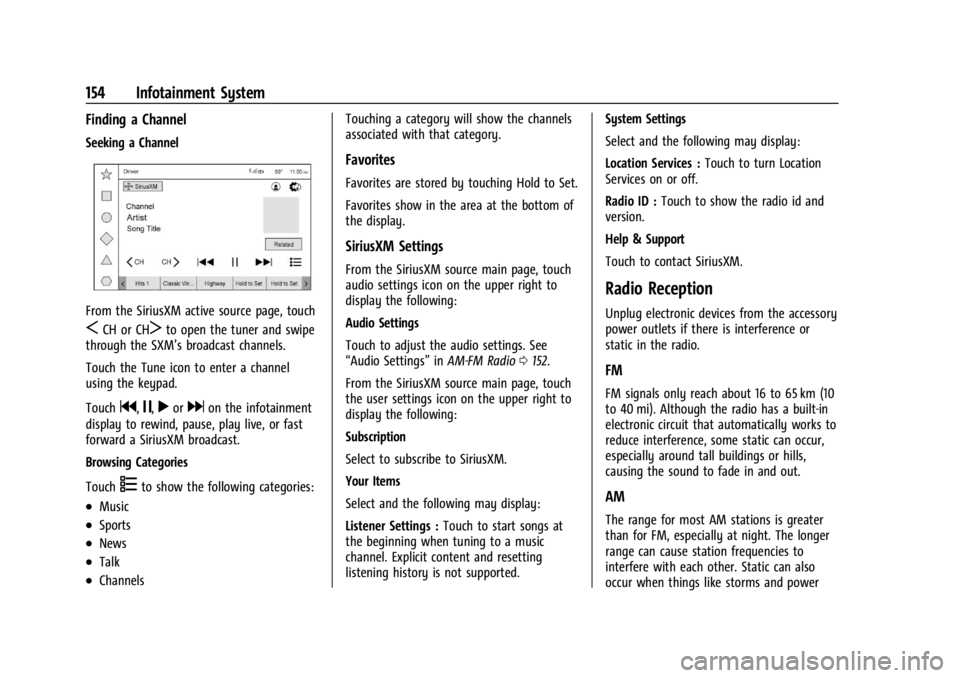
From the SiriusXM active source page, touch
SCH or CHTto open the tuner and swipe
through the SXM’s broadcast channels.
Touch the Tune icon to enter a channel
using the keypad.
Touch
g,j,rordon the infotainment
display to rewind, pause, play live, or fast
forward a SiriusXM broadcast.
Browsing Categories
Touch
(to show the following categories:
.Music
.Sports
.News
.Talk
.Channels Touching a category will show the channels
associated with that category.
Favorites
Favorites are stored by touching Hold to Set.
Favorites show in the area at the bottom of
the display.
SiriusXM Settings
From the SiriusXM source main page, touch
audio settings icon on the upper right to
display the following:
Audio Settings
Touch to adjust the audio settings. See
“Audio Settings”
inAM-FM Radio 0152.
From the SiriusXM source main page, touch
the user settings icon on the upper right to
display the following:
Subscription
Select to subscribe to SiriusXM.
Your Items
Select and the following may display:
Listener Settings : Touch to start songs at
the beginning when tuning to a music
channel. Explicit content and resetting
listening history is not supported. System Settings
Select and the following may display:
Location Services :
Touch to turn Location
Services on or off.
Radio ID : Touch to show the radio id and
version.
Help & Support
Touch to contact SiriusXM.
Radio Reception
Unplug electronic devices from the accessory
power outlets if there is interference or
static in the radio.
FM
FM signals only reach about 16 to 65 km (10
to 40 mi). Although the radio has a built-in
electronic circuit that automatically works to
reduce interference, some static can occur,
especially around tall buildings or hills,
causing the sound to fade in and out.
AM
The range for most AM stations is greater
than for FM, especially at night. The longer
range can cause station frequencies to
interfere with each other. Static can also
occur when things like storms and power
Page 157 of 422
GMC Yukon/Yukon XL/Denali Owner Manual (GMNA-Localizing-U.S./
Canada/Mexico-15555988) - 2022 - CRC - 12/3/21
156 Infotainment System
g:
.Press to seek to the beginning of the
current or previous track.
d:
.Press to seek to the next track.
USB Browse Menu
Touch the Now Playing Icon in the upper
left of the now playing screen to Browse
USB content. While in Browse Mode you can
view media sorted by Playlists, Artists,
Songs, or Albums.
Bluetooth Audio
Music may be played from a connected
Bluetooth device.
Volume and song selection may be
controlled by using the infotainment
controls or the mobile device. If Bluetooth is
selected and no volume is present, check the
volume setting on the infotainment system.
To play music via Bluetooth: 1. Power on the device.
2. Touch Audio on the infotainment display home page.
3. Touch Bluetooth from the Audio home page. 4. Touch Add Device if there is no device
connected and follow the screen prompts
to pair the device.
Browse content from the Bluetooth device.
Use the infotainment controls to start/stop
or select previous/next track.
Manage Bluetooth Devices 1. Touch the Bluetooth App setting icon on the upper right of the page.
2. Touch Devices to switch, add, or disconnect other devices.
A Bluetooth device can only be paired when
the vehicle is parked.
When touching Bluetooth Audio, a browse
screen will appear. Touch the infotainment
controls on the lower part of the display to
begin playing audio if the audio is paused.
Some smartphones support sending
Bluetooth music information to display on
the radio. When the radio receives this
information, it will check to see if any is
available and display it. For more
information about supported Bluetooth
features, visit your brand website. See
Online Owner Center 0392 for details.
See Radio Frequency Statement 0398.
Rear Seat Infotainment
Rear Seat Infotainment (RSI)
System
If equipped, the system includes two HDMI
ports, two Bluetooth headphones, and video
touchscreen displays in back of the driver
and passenger seats.
The RSI system may not operate properly
until the temperature is above −20 °C (−4 °F)
and below 55 °C (131 °F).
System Operation
To use:
1. Double-tap anywhere on either screen to power on and view the Home screen.
2. Touch
}on the status bar to turn the
screen off.
The screens can be turned on and off
through each individual touchscreen,
independently from the other, and through
front seat control.
Playback of any media playing through that
specific screen is paused when the screen is
turned off.