light GMC YUKON 2022 Repair Manual
[x] Cancel search | Manufacturer: GMC, Model Year: 2022, Model line: YUKON, Model: GMC YUKON 2022Pages: 422, PDF Size: 8.2 MB
Page 144 of 422
GMC Yukon/Yukon XL/Denali Owner Manual (GMNA-Localizing-U.S./
Canada/Mexico-15555988) - 2022 - CRC - 12/3/21
Lighting 143
Interior Lighting
Instrument Panel Illumination
Control
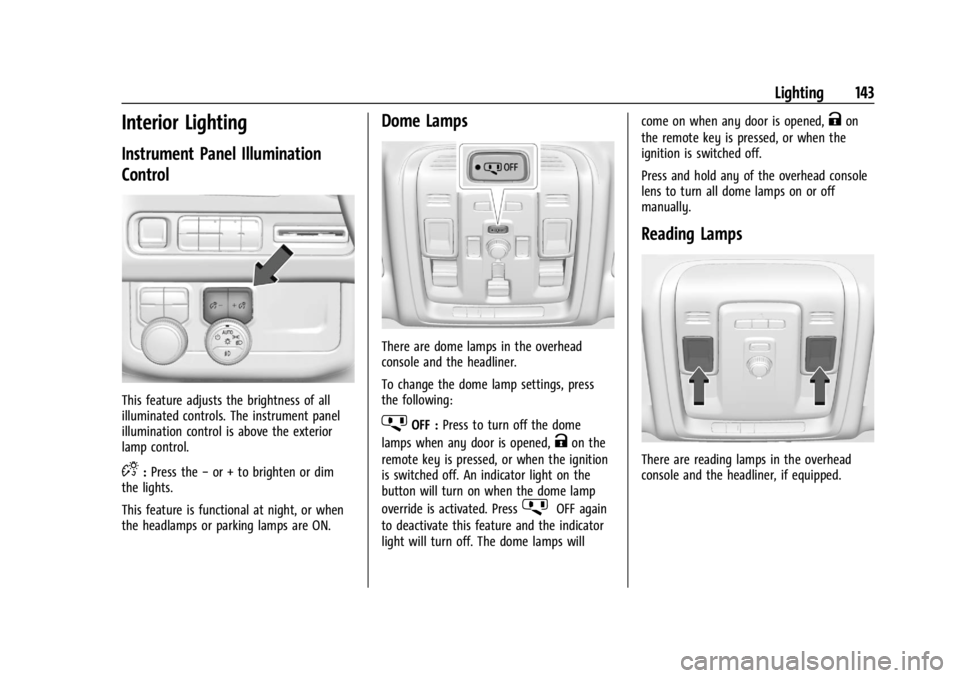
This feature adjusts the brightness of all
illuminated controls. The instrument panel
illumination control is above the exterior
lamp control.
D:Press the −or + to brighten or dim
the lights.
This feature is functional at night, or when
the headlamps or parking lamps are ON.
Dome Lamps
There are dome lamps in the overhead
console and the headliner.
To change the dome lamp settings, press
the following:
jOFF : Press to turn off the dome
lamps when any door is opened,
Kon the
remote key is pressed, or when the ignition
is switched off. An indicator light on the
button will turn on when the dome lamp
override is activated. Press
jOFF again
to deactivate this feature and the indicator
light will turn off. The dome lamps will come on when any door is opened,
Kon
the remote key is pressed, or when the
ignition is switched off.
Press and hold any of the overhead console
lens to turn all dome lamps on or off
manually.
Reading Lamps
There are reading lamps in the overhead
console and the headliner, if equipped.
Page 145 of 422
GMC Yukon/Yukon XL/Denali Owner Manual (GMNA-Localizing-U.S./
Canada/Mexico-15555988) - 2022 - CRC - 12/3/21
144 Lighting
With Sunroof
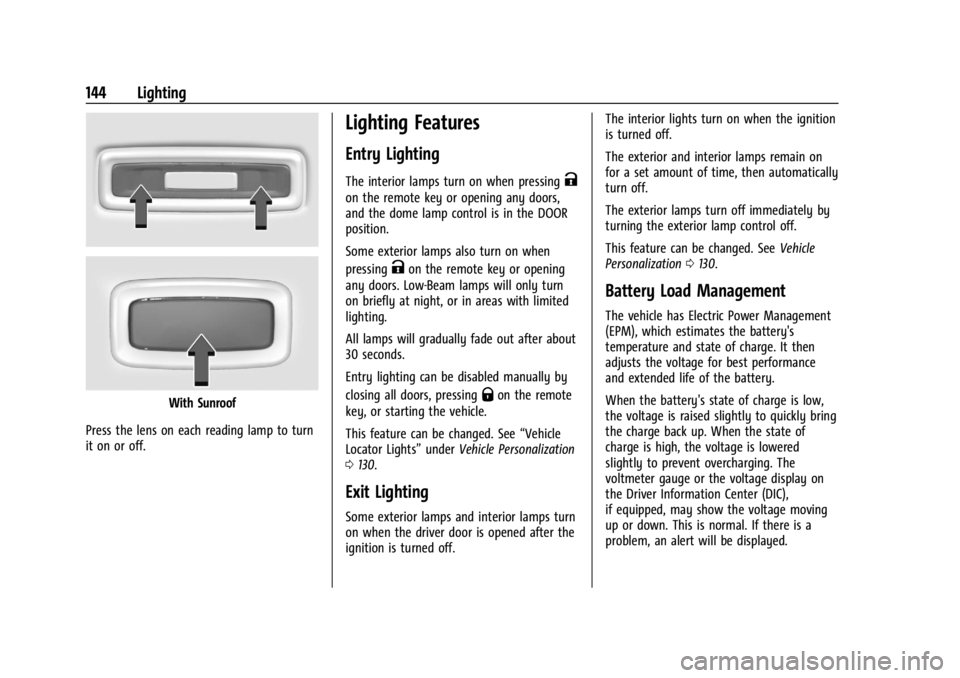
Press the lens on each reading lamp to turn
it on or off.
Lighting Features
Entry Lighting
The interior lamps turn on when pressingK
on the remote key or opening any doors,
and the dome lamp control is in the DOOR
position.
Some exterior lamps also turn on when
pressing
Kon the remote key or opening
any doors. Low-Beam lamps will only turn
on briefly at night, or in areas with limited
lighting.
All lamps will gradually fade out after about
30 seconds.
Entry lighting can be disabled manually by
closing all doors, pressing
Qon the remote
key, or starting the vehicle.
This feature can be changed. See “Vehicle
Locator Lights” underVehicle Personalization
0 130.
Exit Lighting
Some exterior lamps and interior lamps turn
on when the driver door is opened after the
ignition is turned off. The interior lights turn on when the ignition
is turned off.
The exterior and interior lamps remain on
for a set amount of time, then automatically
turn off.
The exterior lamps turn off immediately by
turning the exterior lamp control off.
This feature can be changed. See
Vehicle
Personalization 0130.
Battery Load Management
The vehicle has Electric Power Management
(EPM), which estimates the battery's
temperature and state of charge. It then
adjusts the voltage for best performance
and extended life of the battery.
When the battery's state of charge is low,
the voltage is raised slightly to quickly bring
the charge back up. When the state of
charge is high, the voltage is lowered
slightly to prevent overcharging. The
voltmeter gauge or the voltage display on
the Driver Information Center (DIC),
if equipped, may show the voltage moving
up or down. This is normal. If there is a
problem, an alert will be displayed.
Page 146 of 422
GMC Yukon/Yukon XL/Denali Owner Manual (GMNA-Localizing-U.S./
Canada/Mexico-15555988) - 2022 - CRC - 12/3/21
Lighting 145
The battery can be discharged at idle if the
electrical loads are very high. This is true for
all vehicles. This is because the generator
(alternator) may not be spinning fast
enough at idle to produce all the power that
is needed for very high electrical loads.
A high electrical load occurs when several of
the following are on, such as: headlamps,
high beams, fog lamps, rear window
defogger, climate control fan at high speed,
heated seats, engine cooling fans, trailer
loads, and loads plugged into accessory
power outlets.
EPM works to prevent excessive discharge of
the battery. It does this by balancing the
generator's output and the vehicle's
electrical needs. It can increase engine idle
speed to generate more power, whenever
needed. It can temporarily reduce the power
demands of some accessories.
Normally, these actions occur in steps or
levels, without being noticeable. In rare
cases at the highest levels of corrective
action, this action may be noticeable to the
driver. If so, a DIC message might be
displayed and it is recommended that the
driver reduce the electrical loads as much as
possible.Battery Power Protection
This feature helps prevent the battery from
being drained, if the interior courtesy lamps
or reading lamps are accidentally left on.
If any of these lamps are left on, they
automatically turn off after 10 minutes,
if the ignition is off. The lamps will not
come back on again until one of the
following occurs:
.The ignition is turned on.
.The doors are closed and then re-opened.
Exterior Lighting Battery Saver
The exterior lamps turn off about 10 minutes
after the ignition is turned off, if the parking
lamps or headlamps have been manually
left on. This protects against draining the
battery. To restart the 10-minute timer, turn
the exterior lamp control to the
Oposition
and then back to the
;or2position.
To keep the lamps on for more than
10 minutes, the ignition must be on or in
ACC/ACCESSORY.
Page 151 of 422
GMC Yukon/Yukon XL/Denali Owner Manual (GMNA-Localizing-U.S./
Canada/Mexico-15555988) - 2022 - CRC - 12/3/21
150 Infotainment System
Camera
If equipped, touch the Camera icon to access
the camera application. SeeAssistance
Systems for Parking or Backing 0243.
Shortcut Tray
For uplevel radios, the shortcut tray is left
of the display. It shows up to five
applications.
For base radios, the shortcut tray is near the
bottom of the display. It shows up to four
applications.
Infotainment Display Features
Infotainment display features show on the
display when available. When a feature is
unavailable, it may gray out. When a
feature is touched, it may highlight.
Infotainment Gestures
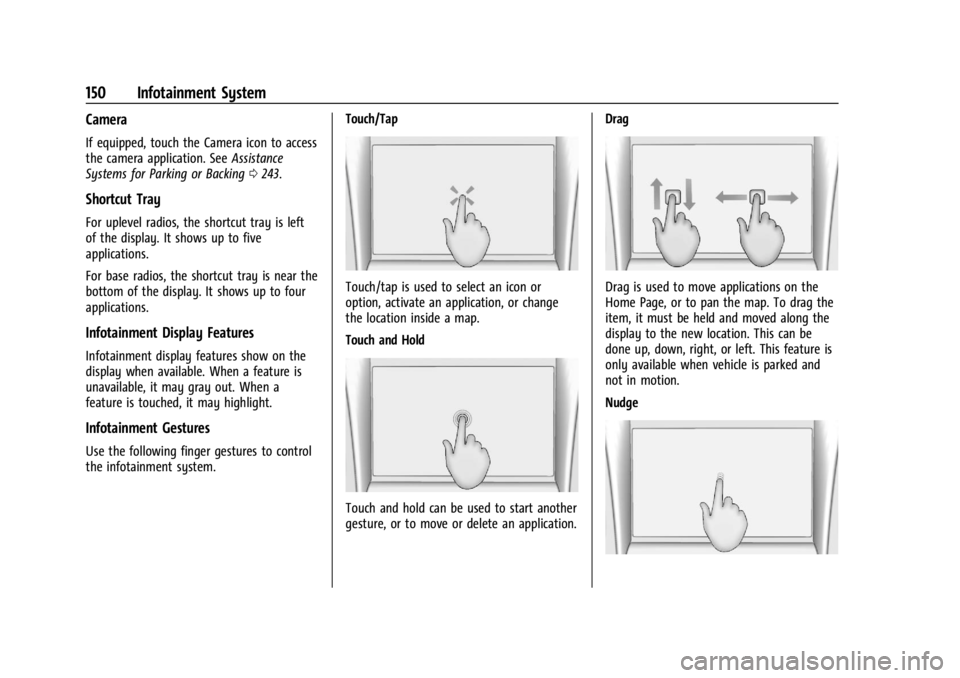
Use the following finger gestures to control
the infotainment system. Touch/Tap
Touch/tap is used to select an icon or
option, activate an application, or change
the location inside a map.
Touch and Hold
Touch and hold can be used to start another
gesture, or to move or delete an application.Drag
Drag is used to move applications on the
Home Page, or to pan the map. To drag the
item, it must be held and moved along the
display to the new location. This can be
done up, down, right, or left. This feature is
only available when vehicle is parked and
not in motion.
Nudge
Page 159 of 422
GMC Yukon/Yukon XL/Denali Owner Manual (GMNA-Localizing-U.S./
Canada/Mexico-15555988) - 2022 - CRC - 12/3/21
158 Infotainment System
Customer Owned Bluetooth Headphones
The RSI system supports Bluetooth
headphones. Up to four Bluetooth
headphones can be paired to each REAR
SCREEN. This screen provides a list of all
Bluetooth headphones that have been paired
to the RSI system, as well as control over
their use and settings. New Bluetooth
headphones can be connected, or the
Bluetooth headphone settings can be
changed from or on this screen.
To pair Bluetooth headphones to one of the
rear screens:1. Select Bluetooth Headphones or touch
Xfrom the desired Rear Screen
Home Page.
2. Select Connect Headphones.
3. Make sure the Bluetooth headphones are in pairing mode. Once recognized by the
system, the Bluetooth headphones are
displayed on the list of Available
Headphones.
4. Select the Bluetooth headphones from the list. The headphones may need to be
unpaired from your phone before pairing
to the RSI. 5. Once a headphone is paired, touch
options for that headphone to access the
menu where the headphone can be
renamed, connected, disconnected, or to
forget.
Provided Bluetooth Headphones
{Warning
The headphones have a built-in
rechargeable lithium ion battery pack
that presents a serious fire hazard if
damaged, defective, or improperly used.
To avoid battery leakage and/or a
potential fire:
.Do not attempt to burn, crush, or cut
the battery
.Do not expose the battery to
environments with extremely low air
pressures or temperatures above 60 °C
(140 °F)
.Do not charge the battery at
temperatures above 45 °C (113 °F)
.Do not charge the battery if the
headphones are defective or damaged
Caution
Do not store the headphones in heat or
direct sunlight. This could damage the
headphones and repairs would not be
covered by the vehicle warranty. Storage
in extreme cold can weaken the batteries.
Keep the headphones stored in a cool,
dry place.
Batteries in this product should not be
disposed of with household waste. Batteries
should be recycled at an appropriate facility.
Contact local authorities for details on
recycling.
Page 162 of 422
GMC Yukon/Yukon XL/Denali Owner Manual (GMNA-Localizing-U.S./
Canada/Mexico-15555988) - 2022 - CRC - 12/3/21
Infotainment System 161
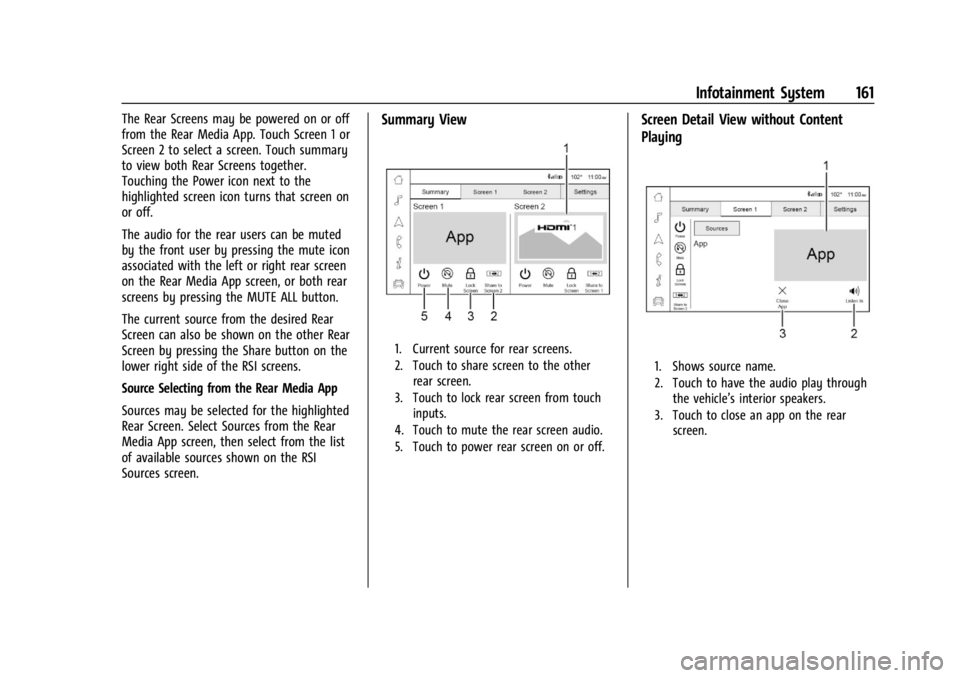
The Rear Screens may be powered on or off
from the Rear Media App. Touch Screen 1 or
Screen 2 to select a screen. Touch summary
to view both Rear Screens together.
Touching the Power icon next to the
highlighted screen icon turns that screen on
or off.
The audio for the rear users can be muted
by the front user by pressing the mute icon
associated with the left or right rear screen
on the Rear Media App screen, or both rear
screens by pressing the MUTE ALL button.
The current source from the desired Rear
Screen can also be shown on the other Rear
Screen by pressing the Share button on the
lower right side of the RSI screens.
Source Selecting from the Rear Media App
Sources may be selected for the highlighted
Rear Screen. Select Sources from the Rear
Media App screen, then select from the list
of available sources shown on the RSI
Sources screen.Summary View
1. Current source for rear screens.
2. Touch to share screen to the otherrear screen.
3. Touch to lock rear screen from touch inputs.
4. Touch to mute the rear screen audio.
5. Touch to power rear screen on or off.
Screen Detail View without Content
Playing
1. Shows source name.
2. Touch to have the audio play through the vehicle’s interior speakers.
3. Touch to close an app on the rear screen.
Page 163 of 422
GMC Yukon/Yukon XL/Denali Owner Manual (GMNA-Localizing-U.S./
Canada/Mexico-15555988) - 2022 - CRC - 12/3/21
162 Infotainment System
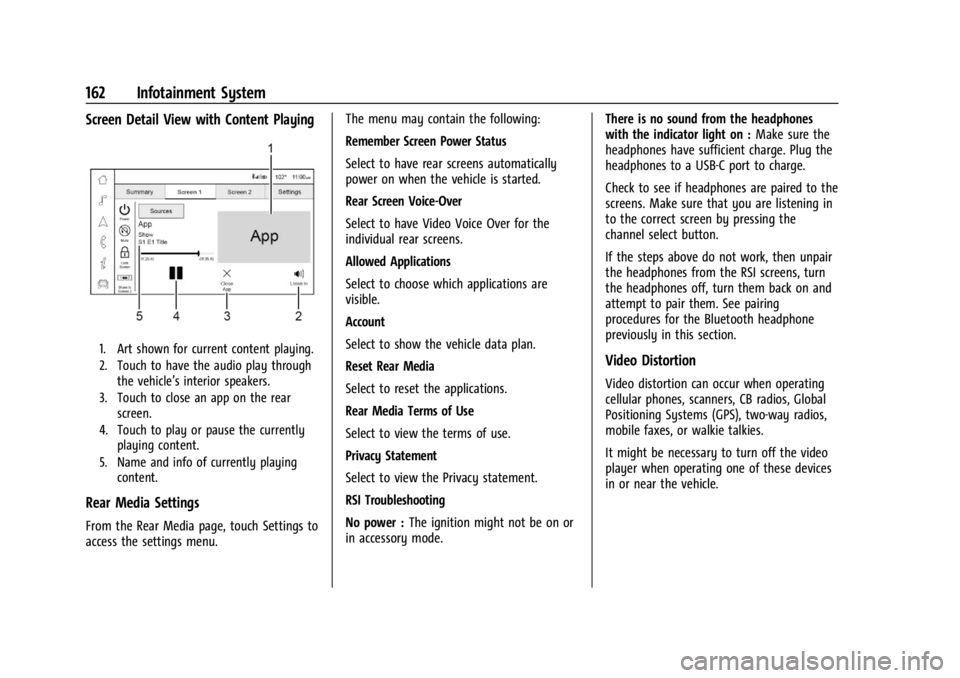
Screen Detail View with Content Playing
1. Art shown for current content playing.
2. Touch to have the audio play throughthe vehicle’s interior speakers.
3. Touch to close an app on the rear screen.
4. Touch to play or pause the currently playing content.
5. Name and info of currently playing content.
Rear Media Settings
From the Rear Media page, touch Settings to
access the settings menu. The menu may contain the following:
Remember Screen Power Status
Select to have rear screens automatically
power on when the vehicle is started.
Rear Screen Voice-Over
Select to have Video Voice Over for the
individual rear screens.
Allowed Applications
Select to choose which applications are
visible.
Account
Select to show the vehicle data plan.
Reset Rear Media
Select to reset the applications.
Rear Media Terms of Use
Select to view the terms of use.
Privacy Statement
Select to view the Privacy statement.
RSI Troubleshooting
No power :
The ignition might not be on or
in accessory mode. There is no sound from the headphones
with the indicator light on :
Make sure the
headphones have sufficient charge. Plug the
headphones to a USB-C port to charge.
Check to see if headphones are paired to the
screens. Make sure that you are listening in
to the correct screen by pressing the
channel select button.
If the steps above do not work, then unpair
the headphones from the RSI screens, turn
the headphones off, turn them back on and
attempt to pair them. See pairing
procedures for the Bluetooth headphone
previously in this section.
Video Distortion
Video distortion can occur when operating
cellular phones, scanners, CB radios, Global
Positioning Systems (GPS), two-way radios,
mobile faxes, or walkie talkies.
It might be necessary to turn off the video
player when operating one of these devices
in or near the vehicle.
Page 176 of 422

GMC Yukon/Yukon XL/Denali Owner Manual (GMNA-Localizing-U.S./
Canada/Mexico-15555988) - 2022 - CRC - 12/3/21
Infotainment System 175
Display
Touch and the following may display:
.Mode: This adjusts the appearance of the
navigation map view and any
downloaded apps optimized for day or
night time conditions. Set to Auto for the
display to automatically adjust based on
bright/dark conditions.
Touch Auto, Light, or Dark to adjust the
display.
.Turn Display Off: Touch to turn the
display off. Touch anywhere on the
infotainment display to turn the
display on.
Sounds
Touch and the following may display:
.Maximum Startup Volume: This feature
limits the volume of the infotainment
system when the vehicle is started. To set
the maximum startup volume, touch the
controls on the infotainment display to
increase or decrease.
.Audible Touch Feedback: This setting
determines if a sound plays when
touching the infotainment display or
radio controls. This feature can be turned
off or on.
Users
You can create multiple user profiles on the
vehicle. Most settings will be shared with
other user profiles on the vehicle. Settings
that are personalized to the user’s profile
include Accounts, Apps and Permissions,
Display, Google Settings (if applicable), and
various Vehicle settings. Between drive
cycles, the settings for the last logged in
user will remain active until a different user
profile is selected.
Touch and the following may display:
.You (Driver)
.Guest
Touch Add user to add another person to
the system.
Accounts
Touch to show Accounts for Driver and the
following may display:
.Accounts
.Automatically sync data: This feature can
be turned off or on.
Touch Add account to add a Google or
vehicle account and follow the on-screen
prompts.
Privacy
Touch and the following may display:
Location Services
.Location Services for Android: Touch to
show Recent Location Requests, App level
permissions, and Location Services.
.Location Services for OnStar: This feature
can be turned off or on.
App permissions
Activity controls
Autofill service from Google
Usage and diagnostics
GM Privacy Statement
Google legal
Storage
Touch to show the storage info for Music &
audio, Other apps, Files, and System.
Security
Touch and the following may display:
Choose a lock type
Touch and the following may display:
.None: Touch to have no screen lock.
Page 180 of 422
GMC Yukon/Yukon XL/Denali Owner Manual (GMNA-Localizing-U.S./
Canada/Mexico-15555988) - 2022 - CRC - 12/3/21
Infotainment System 179
.Enhanced Low Fuel Warning
(if equipped)–When the vehicle is low
on fuel, the low fuel light on the
instrument cluster flashes and the DIC
low fuel warning cannot be dismissed.
.Do not tow a trailer if equipped with
Automatic Emergency Braking.
Report Card
The vehicle owner must secure the driver’s
consent to record certain vehicle data when
the vehicle is driven with a registered Teen
Driver key. There is one Report Card per
vehicle. Data is only recorded when a
registered Teen Driver key is used to
operate the vehicle.
The Report Card data is collected from the
time Teen Driver is activated or the last
time the Report Card was reset. The
following items may be recorded:
.Distance Driven –the total distance
driven.
.Maximum Speed –the maximum vehicle
speed detected.
.Overspeed Warnings –the number of
times the speed warning setting was
exceeded.
.Wide Open Throttle –the number of
times the accelerator pedal was pressed
nearly all the way down.
.Forward Collision Alerts (if equipped) –
the number of times the driver was
notified when approaching a vehicle
ahead too quickly and at potential risk for
a crash.
.Forward Automatic Braking, also called
Automatic Emergency Braking (if
equipped) –the number of times the
vehicle detected that a forward collision
was imminent and applied the brakes.
.Reverse Automatic Braking (if equipped) –
the number of times the vehicle detected
that a rearward collision was imminent
and applied the brakes.
.Traction Control –the number of times
the Traction Control System activated to
reduce wheel spin or loss of traction.
.Stability Control –the number of events
which required the use of electronic
stability control.
.Antilock Braking System Active –The
number of Antilock Brake System
activations.
.Tailgating Alerts (if equipped) –the
number of times the driver was alerted
for following a vehicle ahead too closely.
Report Card Data
Cumulative Data is saved for all trips until
the Report Card is reset or until the
maximum count is exceeded. If the
maximum count is exceeded for a Report
Card line item, that item will no longer be
updated in the Report Card until it is reset.
Each item will report a maximum of
1,000 counts. The distance driven will report
a maximum of 64,374 km (40,000 mi).
To delete Report Card data, do one of the
following:
.From the Report Card display, touch
Reset.
.Touch Clear PIN and All Teen Driver Keys
from the Teen Driver menu. This will also
unregister any Teen Driver keys and
delete the PIN.
Forgotten PIN
See your dealer to reset the PIN.
Page 184 of 422
GMC Yukon/Yukon XL/Denali Owner Manual (GMNA-Localizing-U.S./
Canada/Mexico-15555988) - 2022 - CRC - 12/3/21
Climate Controls 183
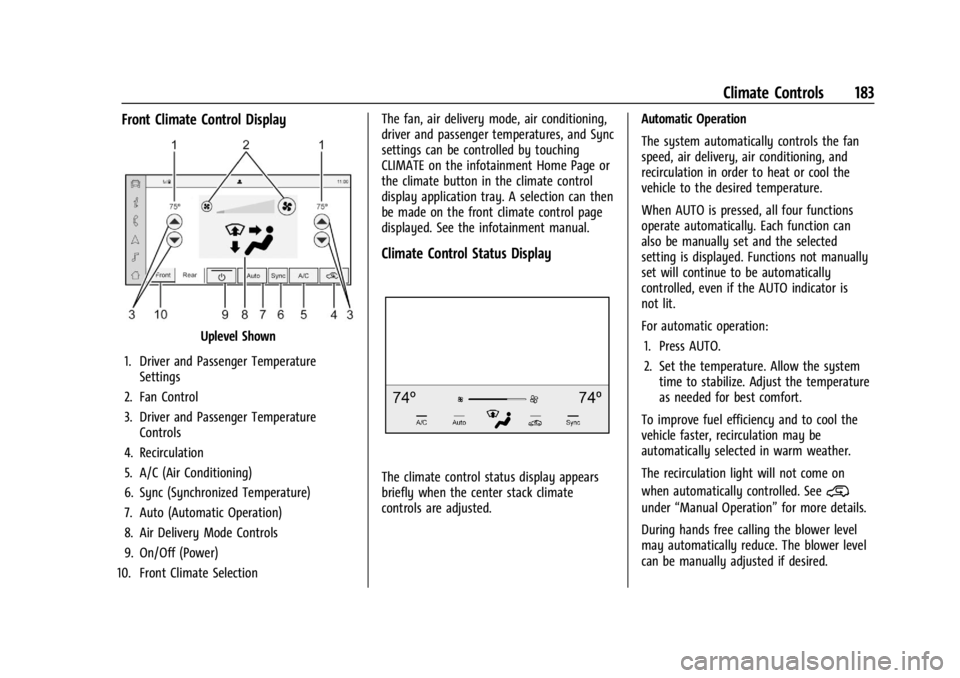
Front Climate Control Display
Uplevel Shown
1. Driver and Passenger Temperature Settings
2. Fan Control
3. Driver and Passenger Temperature Controls
4. Recirculation
5. A/C (Air Conditioning)
6. Sync (Synchronized Temperature)
7. Auto (Automatic Operation)
8. Air Delivery Mode Controls
9. On/Off (Power)
10. Front Climate Selection The fan, air delivery mode, air conditioning,
driver and passenger temperatures, and Sync
settings can be controlled by touching
CLIMATE on the infotainment Home Page or
the climate button in the climate control
display application tray. A selection can then
be made on the front climate control page
displayed. See the infotainment manual.
Climate Control Status Display
The climate control status display appears
briefly when the center stack climate
controls are adjusted.
Automatic Operation
The system automatically controls the fan
speed, air delivery, air conditioning, and
recirculation in order to heat or cool the
vehicle to the desired temperature.
When AUTO is pressed, all four functions
operate automatically. Each function can
also be manually set and the selected
setting is displayed. Functions not manually
set will continue to be automatically
controlled, even if the AUTO indicator is
not lit.
For automatic operation:
1. Press AUTO.
2. Set the temperature. Allow the system time to stabilize. Adjust the temperature
as needed for best comfort.
To improve fuel efficiency and to cool the
vehicle faster, recirculation may be
automatically selected in warm weather.
The recirculation light will not come on
when automatically controlled. See@
under “Manual Operation” for more details.
During hands free calling the blower level
may automatically reduce. The blower level
can be manually adjusted if desired.