instrument cluster GMC YUKON 2023 Owner's Manual
[x] Cancel search | Manufacturer: GMC, Model Year: 2023, Model line: YUKON, Model: GMC YUKON 2023Pages: 432, PDF Size: 9.3 MB
Page 138 of 432
GMC Yukon/Yukon XL/Denali Owner Manual (GMNA-Localizing-U.S./
Canada/Mexico-16417394) - 2023 - CRC - 4/26/22
Lighting 137
Replace any burned out bulbs. If a bulb is
not burned out, check the fuse. SeeFuses
and Circuit Breakers 0332.
Turn Signal On Chime
If the turn signal is left on for more than
1.2 km (0.75 mi), a chime sounds at each
flash of the turn signal. The message TURN
SIGNAL ON will also appear in the Driver
Information Center (DIC). To turn the chime
and message off, move the turn signal lever
to the off position.
Fog Lamps
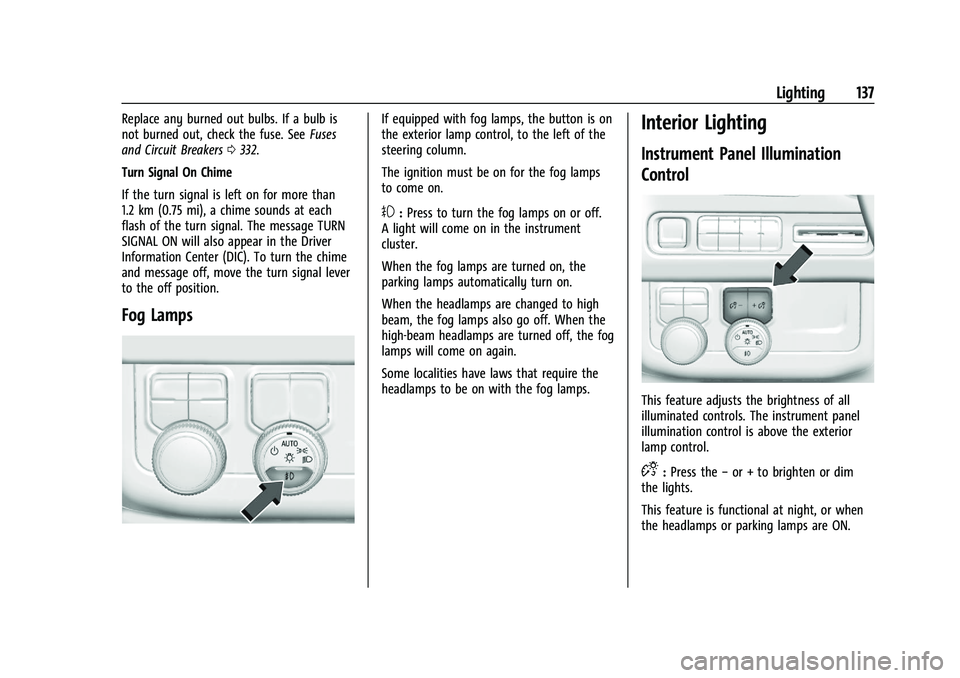
If equipped with fog lamps, the button is on
the exterior lamp control, to the left of the
steering column.
The ignition must be on for the fog lamps
to come on.
#: Press to turn the fog lamps on or off.
A light will come on in the instrument
cluster.
When the fog lamps are turned on, the
parking lamps automatically turn on.
When the headlamps are changed to high
beam, the fog lamps also go off. When the
high-beam headlamps are turned off, the fog
lamps will come on again.
Some localities have laws that require the
headlamps to be on with the fog lamps.
Interior Lighting
Instrument Panel Illumination
Control
This feature adjusts the brightness of all
illuminated controls. The instrument panel
illumination control is above the exterior
lamp control.
D: Press the −or + to brighten or dim
the lights.
This feature is functional at night, or when
the headlamps or parking lamps are ON.
Page 142 of 432
GMC Yukon/Yukon XL/Denali Owner Manual (GMNA-Localizing-U.S./
Canada/Mexico-16417394) - 2023 - CRC - 4/26/22
Infotainment System 141
Infotainment System
Introduction
Introduction . . . . . . . . . . . . . . . . . . . . . . . . . . . 141
Overview . . . . . . . . . . . . . . . . . . . . . . . . . . . . . . 142
Steering Wheel Controls . . . . . . . . . . . . . . . 143
Using the System . . . . . . . . . . . . . . . . . . . . . 144
Software Updates . . . . . . . . . . . . . . . . . . . . . 146
Radio
AM-FM Radio . . . . . . . . . . . . . . . . . . . . . . . . . . 146
Satellite Radio . . . . . . . . . . . . . . . . . . . . . . . . . 148
Radio Reception . . . . . . . . . . . . . . . . . . . . . . . 148
Multi-Band Antenna . . . . . . . . . . . . . . . . . . . 149
Audio Players
Avoiding Untrusted Media Devices . . . . 149
USB Port . . . . . . . . . . . . . . . . . . . . . . . . . . . . . . 149
Bluetooth Audio . . . . . . . . . . . . . . . . . . . . . . . 149
Rear Seat Infotainment
Rear Seat Infotainment (RSI)System . . . . . . . . . . . . . . . . . . . . . . . . . . . . . . 150
Navigation
Using the Navigation System . . . . . . . . . . 156
Maps . . . . . . . . . . . . . . . . . . . . . . . . . . . . . . . . . . 157
Navigation Symbols . . . . . . . . . . . . . . . . . . . . 157
Destination . . . . . . . . . . . . . . . . . . . . . . . . . . . . 158
Global Positioning System (GPS) . . . . . . . 158
Vehicle Positioning . . . . . . . . . . . . . . . . . . . . 159 Problems with Route Guidance . . . . . . . . 159
Voice Recognition
Voice Recognition . . . . . . . . . . . . . . . . . . . . . 160
Phone
Bluetooth (Overview) . . . . . . . . . . . . . . . . . . 161
Bluetooth (Pairing and Using a
Phone) . . . . . . . . . . . . . . . . . . . . . . . . . . . . . . . 162
Apple CarPlay and Android Auto . . . . . . 166
Settings
Settings . . . . . . . . . . . . . . . . . . . . . . . . . . . . . . . 167
Teen Driver . . . . . . . . . . . . . . . . . . . . . . . . . . . . 169
Trademarks and License Agreements
Trademarks and License Agreements . . . 172
Introduction
Read the following pages to become familiar
with the features.
{Warning
Taking your eyes off the road for too
long or too often while using any
infotainment feature can cause a crash.
You or others could be injured or killed.
Do not give extended attention to
infotainment tasks while driving. Limit
your glances at the vehicle displays and
focus your attention on driving. Use voice
commands whenever possible.
The infotainment system has built-in
features intended to help avoid distraction
by disabling some features when driving.
These features may gray out when they are
unavailable. Many infotainment features are
also available through the instrument cluster
and steering wheel controls.
Page 158 of 432
GMC Yukon/Yukon XL/Denali Owner Manual (GMNA-Localizing-U.S./
Canada/Mexico-16417394) - 2023 - CRC - 4/26/22
Infotainment System 157
Voice Assistant
If equipped, Google Maps can be controlled
by voice commands, see Google Assistant
underVoice Recognition 0160.
Language and Units
To change the language, see Settings0167.
To change the units, see Instrument Cluster
0 105.
Mute Settings
During active route guidance, Google Maps
can give audible voice directions, traffic
alerts, or can be muted. In the Google Maps
app, touch Settings, then Mute settings to
access the options. Alternatively, audible
voice directions and traffic alerts can be
muted by touching the sound icon on the
turn card during active navigation.
Compass
The Google Maps orientation can be
changed between the direction currently
traveling and pointing North. Touch the
compass to switch between these options.
To recenter the map to the current location,
touch the location icon.Maps
Auto-downloaded Maps
Google Maps downloads offline maps
automatically for use when not connected
to the Internet and for making map data
available to vehicle features regardless of
connectivity. These offline maps are only
available when the vehicle has a subscription
data plan.
To turn on auto-download: 1. Open Google Maps.
2. Touch Settings.
3. Touch Privacy Center, then select Offline maps.
4. Select Auto-download offline maps.
5. Check the Internet connection and wait for the download to finish.
Downloading Offline Maps 1. Open Google Maps.
2. Touch Settings, then Offline maps.
3. Touch the square with the Select your own map icon.
4. Adjust the map to cover the desired area to download.
5. Touch Download.
Navigation Symbols
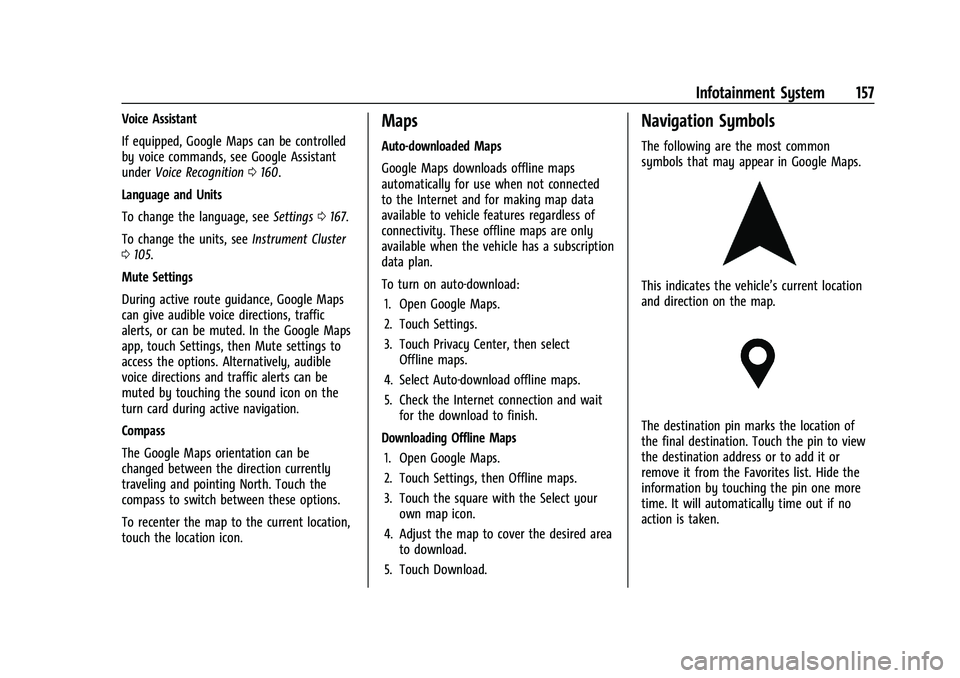
The following are the most common
symbols that may appear in Google Maps.
This indicates the vehicle’s current location
and direction on the map.
The destination pin marks the location of
the final destination. Touch the pin to view
the destination address or to add it or
remove it from the Favorites list. Hide the
information by touching the pin one more
time. It will automatically time out if no
action is taken.
Page 172 of 432
GMC Yukon/Yukon XL/Denali Owner Manual (GMNA-Localizing-U.S./
Canada/Mexico-16417394) - 2023 - CRC - 4/26/22
Infotainment System 171
or off and choose the desired speed warning
level. The speed warning does not limit the
speed of the vehicle. On some infotainment
systems, touch Set Teen Driver Speed
Warning to set the warning speed.
Set Teen Driver Speed Warning :Choose the
desired speed warning level. The speed
warning does not limit the speed of the
vehicle.
SiriusXM Explicit Content Filter : Allows the
SiriusXM Explicit Content Filter to be turned
ON or OFF. When ON, the teen driver will
not be able to listen to SiriusXM stations
that contain explicit content, and the Explicit
Content Filter selection in the Audio Settings
will be unavailable for change.
When Teen Driver is Active:
.If equipped, the radio will mute when the
driver seat belt, and in some vehicles the
front passenger seat belt, is not buckled.
The audio from any device paired to the
vehicle will also be muted.
.An object placed on the front passenger
seat, such as a briefcase, handbag,
grocery bag, laptop, or other electronic
device, could cause the passenger sensing
system to falsely sense an unbuckled
front passenger and mute the radio. If this happens, remove the object from
the seat. See
Passenger Sensing System
0 67.
.Some safety systems, such as Automatic
Emergency Braking, if equipped, cannot
be turned off.
.The gap setting for Adaptive Cruise
Control and alert timing for Forward
Collision Alert, if equipped, cannot be
changed.
.When trying to change a safety feature
that is not configurable in Teen Driver,
the feature may be grayed out or
removed from the infotainment menu,
or the DIC will display a message
indicating that Teen Driver is active and
the action is not available.
.Super Cruise, if equipped, is not available.
.Enhanced Low Fuel Warning
(if equipped) –When the vehicle is low
on fuel, the low fuel light on the
instrument cluster flashes and the DIC
low fuel warning cannot be dismissed.
.Do not tow a trailer if equipped with
Automatic Emergency Braking. Report Card
The vehicle owner must secure the driver’s
consent to record certain vehicle data when
the vehicle is driven with a registered Teen
Driver key. There is one Report Card per
vehicle. Data is only recorded when a
registered Teen Driver key is used to
operate the vehicle.
The Report Card data is collected from the
time Teen Driver is activated or the last
time the Report Card was reset. The
following items may be recorded:
.Distance Driven
–the total distance
driven.
.Maximum Speed –the maximum vehicle
speed detected.
.Overspeed Warnings –the number of
times the speed warning setting was
exceeded.
.Wide Open Throttle –the number of
times the accelerator pedal was pressed
nearly all the way down.
.Forward Collision Alerts (if equipped) –
the number of times the driver was
notified when approaching a vehicle
ahead too quickly and at potential risk for
a crash.
Page 209 of 432
GMC Yukon/Yukon XL/Denali Owner Manual (GMNA-Localizing-U.S./
Canada/Mexico-16417394) - 2023 - CRC - 5/16/22
208 Driving and Operating
Drive Systems
Four-Wheel Drive
If equipped, four-wheel drive engages the
front axle for extra traction.
Read the appropriate section for transfer
case operation before using.
Caution
Do not drive on clean, dry pavement in
4
mand 4n(if equipped) for an extended
period of time. These conditions may
cause premature wear on the vehicle’s
powertrain.
Driving on clean, dry pavement in 4
mor
4
nmay:
.Cause a vibration to be felt in the
steering system.
.Cause tires to wear faster.
{Warning
If equipped with four-wheel drive, the
vehicle will be free to roll if the transfer
case is in N (Neutral), even when the
transmission is in P (Park). You or (Continued)
Warning (Continued)
someone else could be seriously injured.
Be sure the transfer case is in a drive
gear—2
m, 4m, or 4n—or set the
parking brake before placing the transfer
case in N (Neutral). See Shifting Into Park
0 201.
Caution
Extended high-speed operation in 4n
may damage or shorten the life of the
drivetrain.
An engagement noise and bump is normal
when shifting between 4
nand 4mor
N (Neutral), with the engine running.
Shifting into 4
nwill turn Traction Control
and StabiliTrak/Electronic Stability Control
(ESC) off. See Traction Control/Electronic
Stability Control 0214.
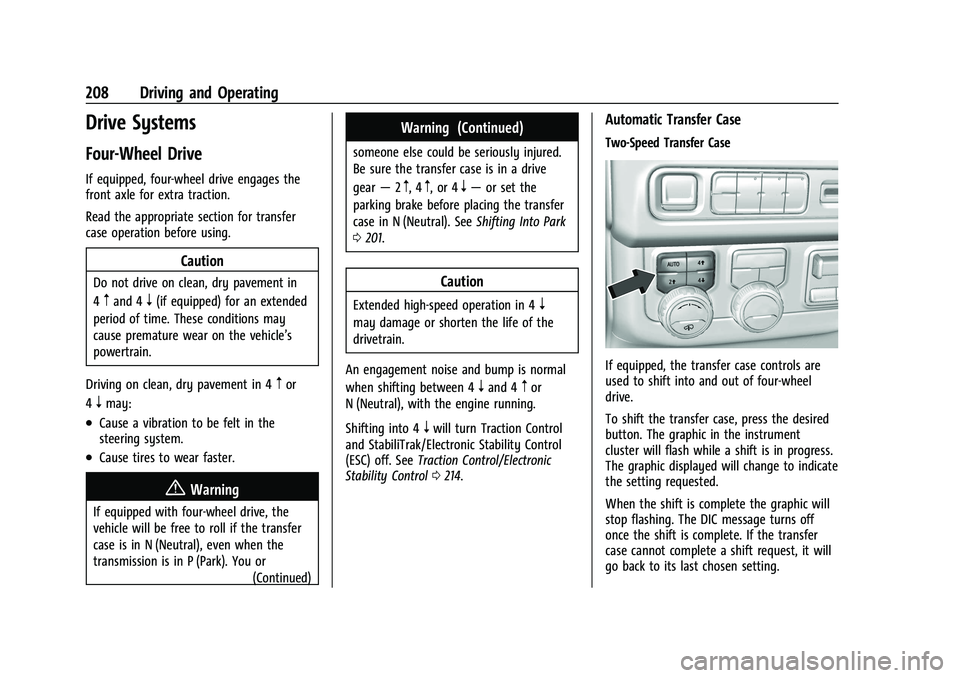
Automatic Transfer Case
Two-Speed Transfer Case
If equipped, the transfer case controls are
used to shift into and out of four-wheel
drive.
To shift the transfer case, press the desired
button. The graphic in the instrument
cluster will flash while a shift is in progress.
The graphic displayed will change to indicate
the setting requested.
When the shift is complete the graphic will
stop flashing. The DIC message turns off
once the shift is complete. If the transfer
case cannot complete a shift request, it will
go back to its last chosen setting.
Page 211 of 432
GMC Yukon/Yukon XL/Denali Owner Manual (GMNA-Localizing-U.S./
Canada/Mexico-16417394) - 2023 - CRC - 5/16/22
210 Driving and Operating
for the shift to occur. After this time, a
graphic in the instrument cluster will
indicate that the transfer case is in 4
n.
Caution
Shifting the transmission into gear before
the requested mode indicator light has
stopped flashing could damage the
transfer case.
If the transmission is not shifted into
N (Neutral) or the vehicle has not slowed to
5 km/h (3 mph) within 20 seconds, the
transfer case will remain in its original state.
This will be indicated in the instrument
cluster.
With the vehicle moving less than
5 km/h (3 mph) and the transmission in
N (Neutral), attempt the shift again.
Shifting Out of 4
n
1. The vehicle must be stopped or moving less than 5 km/h (3 mph) with the
transmission in N (Neutral) and the
ignition on. It is best for the vehicle to
be moving 1.6 to 3.2 km/h (1 to 2 mph).
2. Press 4
m, AUTO, or 2m. The actual 4x4
shift request is only made after the
button is released. The 4x4 graphic will remain flashing until the shift request
has completed. A DIC message displays
to indicate the state of the request.
Once the 4x4 shift has completed, the
DIC message disappears, the 4x4 graphic
stops flashing, and the current setting is
indicated.
If vehicle speed is higher when shift
request occurs, a DIC message displays.
Reduce vehicle speed.
If the transmission is not in N (Neutral)
when shift request occurs, DIC messages will
display. The vehicle will allow 20 seconds for
this shift to occur. After this time, a graphic
in the instrument cluster will indicate that
the transfer case is in 4
n.
Caution
Shifting the transmission into gear before
the requested mode indicator light has
stopped flashing could damage the
transfer case.
If the transmission is not shifted into
N (Neutral) or the vehicle has not slowed to
5 km/h (3 mph) within 20 seconds, the
transfer case will remain in its original state.
This will be indicated in the instrument
cluster. With the vehicle moving less than 5 km/h
(3 mph), and the transmission in N (Neutral),
attempt the shift again.
Shifting Into N (Neutral)
To shift into N (Neutral):
1. Start the vehicle.
2. Shift the transmission to N (Neutral).
3. Shift the transfer case to 2
m.
4. Apply the parking brake and/or brake pedal.
5. Press 2
mfive times in 10 seconds until
the N (Neutral) graphic starts flashing in
the instrument cluster. When the shift is
complete, the graphic stops flashing.
If the parking brake and/or brake pedal
is not applied within 20 seconds, the
transfer case will remain in the original
state.
6. If the transmission is not shifted into N (Neutral) or the vehicle has not slowed
to 5 km/h (3 mph) within 20 seconds,
the transfer case will remain in its
original state. This will be indicated in
the instrument cluster.
Page 212 of 432
GMC Yukon/Yukon XL/Denali Owner Manual (GMNA-Localizing-U.S./
Canada/Mexico-16417394) - 2023 - CRC - 5/16/22
Driving and Operating 211
Shifting Out of N (Neutral)
To shift out of N (Neutral):1. Turn the ignition on with the engine off. See Ignition Positions 0198.
2. Set the parking brake. See Electric
Parking Brake 0212.
3. Shift the transmission to N (Neutral).
4. Shift the transfer case to 2
m. Transfer
case shifts out of N (Neutral) can only be
made into 2
m. When the shift to 2mis
complete, the graphic in the instrument
cluster will stop flashing. If the transfer
case cannot complete a shift, the graphic
will return to the previously selected
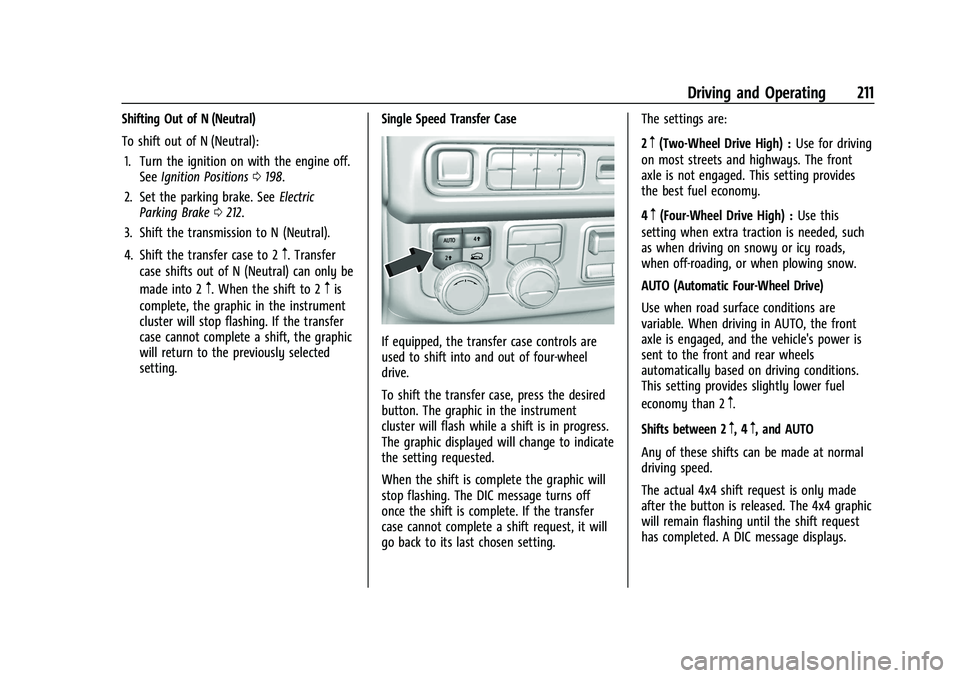
setting. Single Speed Transfer Case
If equipped, the transfer case controls are
used to shift into and out of four-wheel
drive.
To shift the transfer case, press the desired
button. The graphic in the instrument
cluster will flash while a shift is in progress.
The graphic displayed will change to indicate
the setting requested.
When the shift is complete the graphic will
stop flashing. The DIC message turns off
once the shift is complete. If the transfer
case cannot complete a shift request, it will
go back to its last chosen setting. The settings are:
2
m(Two-Wheel Drive High) :
Use for driving
on most streets and highways. The front
axle is not engaged. This setting provides
the best fuel economy.
4
m(Four-Wheel Drive High) : Use this
setting when extra traction is needed, such
as when driving on snowy or icy roads,
when off-roading, or when plowing snow.
AUTO (Automatic Four-Wheel Drive)
Use when road surface conditions are
variable. When driving in AUTO, the front
axle is engaged, and the vehicle's power is
sent to the front and rear wheels
automatically based on driving conditions.
This setting provides slightly lower fuel
economy than 2
m.
Shifts between 2
m, 4m, and AUTO
Any of these shifts can be made at normal
driving speed.
The actual 4x4 shift request is only made
after the button is released. The 4x4 graphic
will remain flashing until the shift request
has completed. A DIC message displays.
Page 216 of 432
GMC Yukon/Yukon XL/Denali Owner Manual (GMNA-Localizing-U.S./
Canada/Mexico-16417394) - 2023 - CRC - 5/16/22
Driving and Operating 215
stuck in sand, mud, ice, or snow. SeeIf the
Vehicle Is Stuck 0193 and “Turning the
Systems Off and On” later in this section.
When the transfer case (if equipped) is in
Four-Wheel Drive Low, the TCS and
StabiliTrak/ESC are automatically disabled,
g
comes on, and the appropriate message will
appear on the Driver Information
Center (DIC).
The indicator light for both systems is in the
instrument cluster. This light will:
.Flash when TCS is limiting wheel spin.
.Flash when StabiliTrak/ESC is activated.
.Turn on and stay on when either system
is not working.
See Traction Control System (TCS)/StabiliTrak
Light 0118.
If either system fails to turn on or to
activate, a message displays in the DIC, and
dcomes on and stays on to indicate that
the system is inactive and is not assisting the driver in maintaining control. Without
the assistance of properly functioning
StabiliTrak/ESC the possibility of rollover is
increased. Adjust driving accordingly.
If
dcomes on and stays on:
1. Stop the vehicle.
2. Turn the engine off and wait 15 seconds.
3. Start the engine.
Drive the vehicle. If
dcomes on and stays
on, see your dealer.
Turning the Systems Off and On
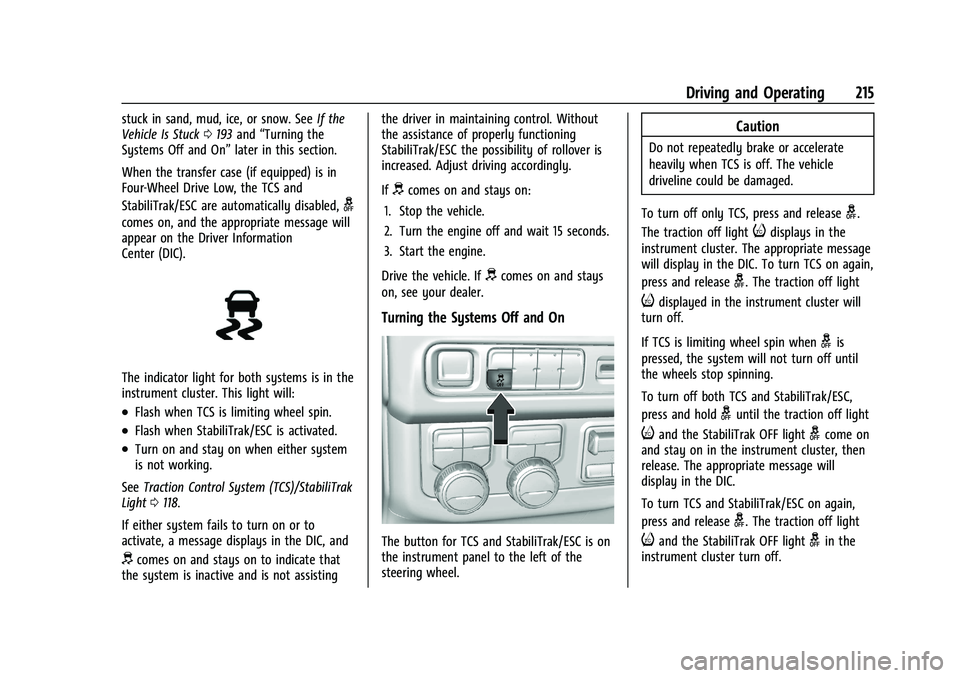
The button for TCS and StabiliTrak/ESC is on
the instrument panel to the left of the
steering wheel.
Caution
Do not repeatedly brake or accelerate
heavily when TCS is off. The vehicle
driveline could be damaged.
To turn off only TCS, press and release
g.
The traction off light
idisplays in the
instrument cluster. The appropriate message
will display in the DIC. To turn TCS on again,
press and release
g. The traction off light
idisplayed in the instrument cluster will
turn off.
If TCS is limiting wheel spin when
gis
pressed, the system will not turn off until
the wheels stop spinning.
To turn off both TCS and StabiliTrak/ESC,
press and hold
guntil the traction off light
iand the StabiliTrak OFF lightgcome on
and stay on in the instrument cluster, then
release. The appropriate message will
display in the DIC.
To turn TCS and StabiliTrak/ESC on again,
press and release
g. The traction off light
iand the StabiliTrak OFF lightgin the
instrument cluster turn off.
Page 217 of 432
GMC Yukon/Yukon XL/Denali Owner Manual (GMNA-Localizing-U.S./
Canada/Mexico-16417394) - 2023 - CRC - 5/16/22
216 Driving and Operating
For vehicles without four corner air
suspension StabiliTrak/ESC will automatically
turn on if the vehicle exceeds 56 km/h
(35 mph). Traction control will remain off.
For vehicles with four corner air suspension
StabiliTrak/ESC will automatically turn on if
the vehicle exceeds 32 km/h (20 mph).
The vehicle has a Trailer Sway Control (TSC)
feature and a Hill Start Assist (HSA) feature.
SeeTrailer Sway Control (TSC) 0294 or
Hill Start Assist (HSA) 0214.
Adding accessories can affect the vehicle
performance. See Accessories and
Modifications 0308.
Hill Descent Control (HDC)
If equipped, Hill Descent Control (HDC) sets
and maintains vehicle speed while driving
down steep grades in a forward or reverse
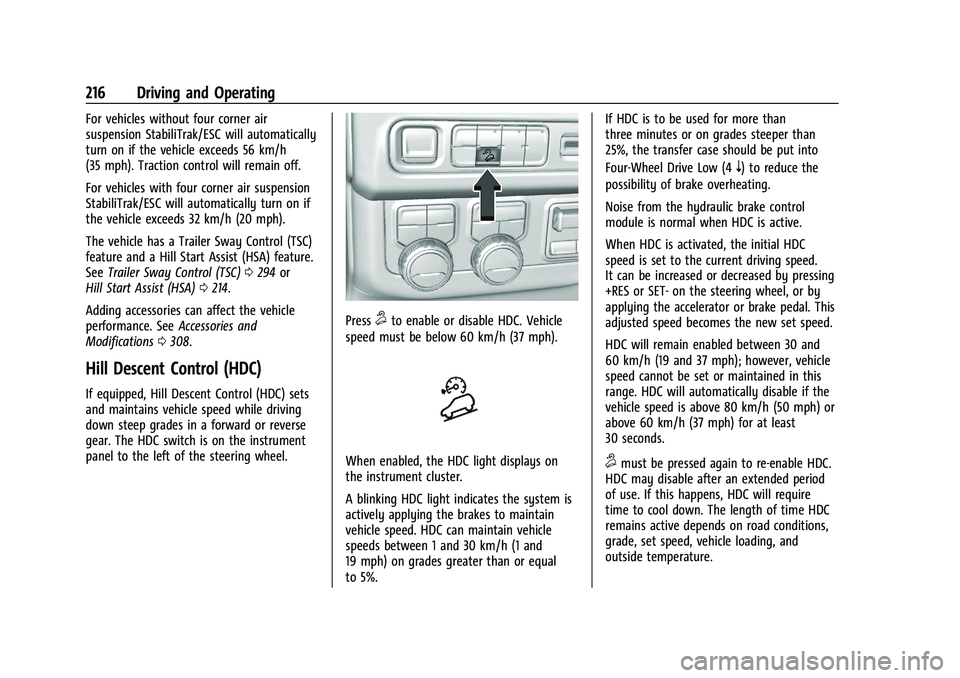
gear. The HDC switch is on the instrument
panel to the left of the steering wheel.
Press5to enable or disable HDC. Vehicle
speed must be below 60 km/h (37 mph).
When enabled, the HDC light displays on
the instrument cluster.
A blinking HDC light indicates the system is
actively applying the brakes to maintain
vehicle speed. HDC can maintain vehicle
speeds between 1 and 30 km/h (1 and
19 mph) on grades greater than or equal
to 5%. If HDC is to be used for more than
three minutes or on grades steeper than
25%, the transfer case should be put into
Four-Wheel Drive Low (4
n) to reduce the
possibility of brake overheating.
Noise from the hydraulic brake control
module is normal when HDC is active.
When HDC is activated, the initial HDC
speed is set to the current driving speed.
It can be increased or decreased by pressing
+RES or SET- on the steering wheel, or by
applying the accelerator or brake pedal. This
adjusted speed becomes the new set speed.
HDC will remain enabled between 30 and
60 km/h (19 and 37 mph); however, vehicle
speed cannot be set or maintained in this
range. HDC will automatically disable if the
vehicle speed is above 80 km/h (50 mph) or
above 60 km/h (37 mph) for at least
30 seconds.
5must be pressed again to re-enable HDC.
HDC may disable after an extended period
of use. If this happens, HDC will require
time to cool down. The length of time HDC
remains active depends on road conditions,
grade, set speed, vehicle loading, and
outside temperature.
Page 218 of 432
GMC Yukon/Yukon XL/Denali Owner Manual (GMNA-Localizing-U.S./
Canada/Mexico-16417394) - 2023 - CRC - 5/16/22
Driving and Operating 217
When enabled, if the vehicle speed is above
30 km/h (19 mph) and below 60 km/h
(37 mph), a DIC message will display.
Driver Mode Control
Driver Mode Control (DMC) allows the driver
to adjust the overall driving experience to
better suit preference by adjusting multiple
subsystems simultaneously. Drive Mode
availability and affected vehicle subsystems
are dependent upon vehicle trim level,
region, and optional features.
Normal Mode is the default mode every
time the vehicle is started. A unique and
persistent indicator is displayed in the
instrument cluster for each mode.
Depending on trim level, Normal, Sport,
Snow/Ice, Off-Road, Tow/Haul, and Terrain
modes may be available.
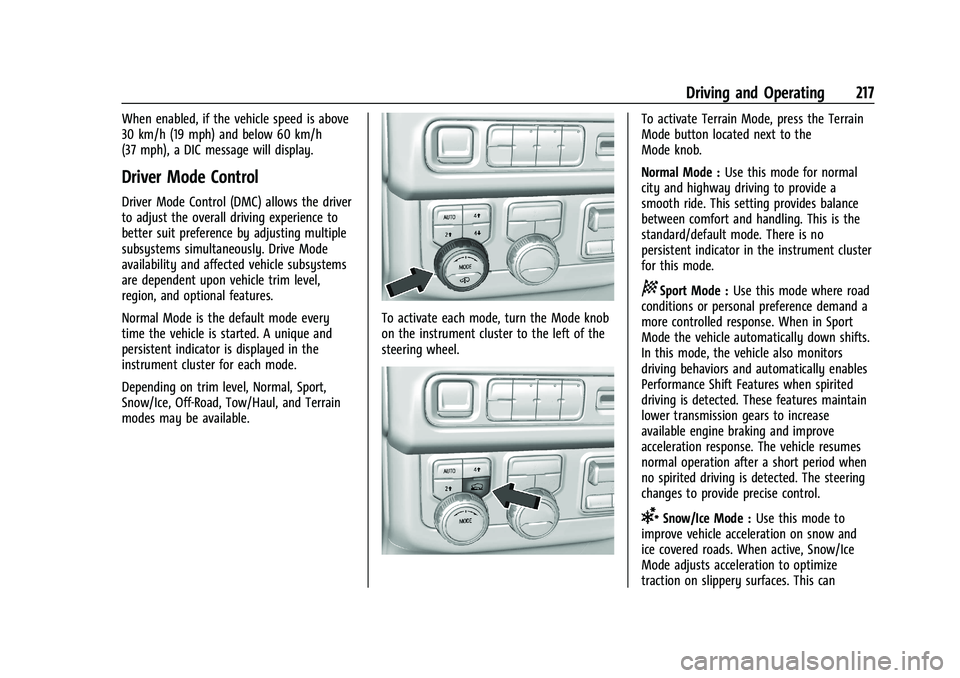
To activate each mode, turn the Mode knob
on the instrument cluster to the left of the
steering wheel.
To activate Terrain Mode, press the Terrain
Mode button located next to the
Mode knob.
Normal Mode :Use this mode for normal
city and highway driving to provide a
smooth ride. This setting provides balance
between comfort and handling. This is the
standard/default mode. There is no
persistent indicator in the instrument cluster
for this mode.
8Sport Mode : Use this mode where road
conditions or personal preference demand a
more controlled response. When in Sport
Mode the vehicle automatically down shifts.
In this mode, the vehicle also monitors
driving behaviors and automatically enables
Performance Shift Features when spirited
driving is detected. These features maintain
lower transmission gears to increase
available engine braking and improve
acceleration response. The vehicle resumes
normal operation after a short period when
no spirited driving is detected. The steering
changes to provide precise control.
6Snow/Ice Mode : Use this mode to
improve vehicle acceleration on snow and
ice covered roads. When active, Snow/Ice
Mode adjusts acceleration to optimize
traction on slippery surfaces. This can