change time GMC YUKON DENALI 2003 User Guide
[x] Cancel search | Manufacturer: GMC, Model Year: 2003, Model line: YUKON DENALI, Model: GMC YUKON DENALI 2003Pages: 447, PDF Size: 21.97 MB
Page 186 of 447
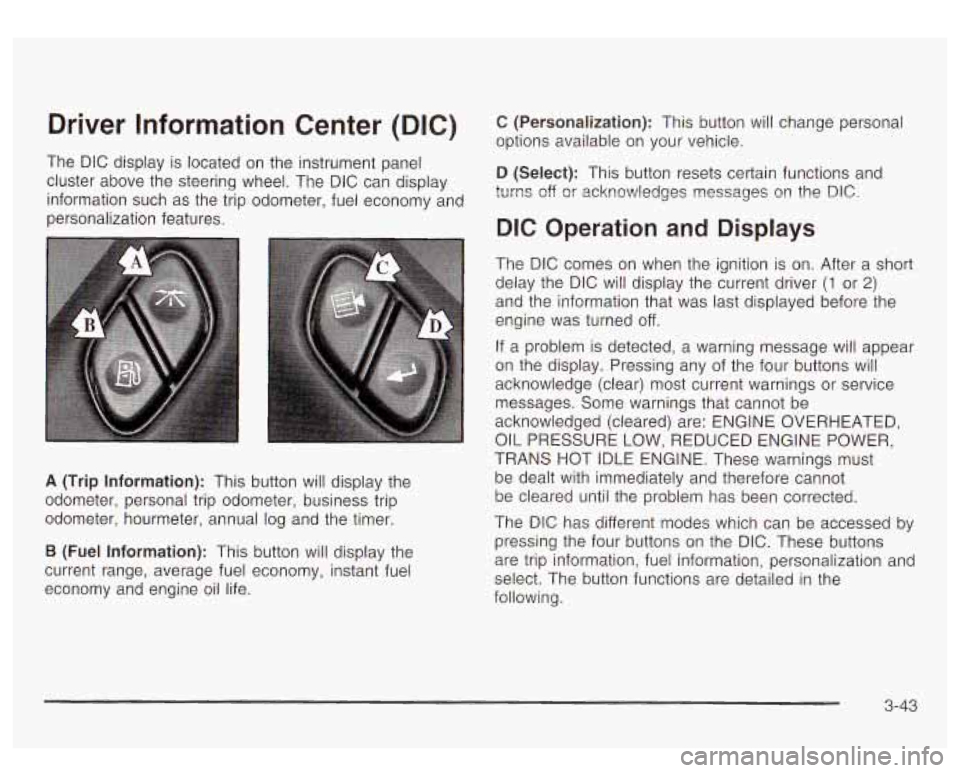
Driver Information Center (DIC)
The DIC display is located on the instrument panel
cluster above the steering wheel. The DIC can display
information such as the trip odometer, fuel economy and
personalization features.
A (Trip Information): This button will display the
odometer, personal trip odometer, business trip
odometer, hourmeter, annual log and the timer.
B (Fuel Information): This button will display the
current range, average fuel economy, instant fuel
economy and engine oil life.
C (Personalization): This button will change personal
options available on your vehicle.
D (Select): This button resets certain functions and
turns off
or acknowledges nessages on the DIC.
DIC Operation and Displays
The DIC comes on when the ignition is on. After a short
delay the DIC will display the current driver
(1 or 2)
and the information that was last displayed before the
engine was turned off.
If a problem is detected, a warning message will appear
on the display. Pressing any of the four buttons will
acknowledge (clear) most current warnings or service
messages. Some warnings that cannot be
acknowledged (cleared) are: ENGINE OVERHEATED,
OIL PRESSURE LOW, REDUCED ENGINE POWER,
TRANS HOT IDLE ENGINE. These warnings must
be dealt with immediately and therefore cannot
be cleared until the problem has been corrected.
The DIC has different modes which can be accessed
by
pressing the four buttons on the DIC. These buttons
are trip information, fuel information, personalization and
select. The button functions are detailed in the
following.
3-43
Page 189 of 447
Fuel Range GM Oil Life System
Press the fuel information button until RANGE appears
to display the remaining distance you can drive
without refueling. It’s based on fuel economy and the
fuel remaining in the tank. The display will show LOW
if
the fuel level is low.
The fuel economy data used
to determine fuel range is
an average of recent driving conditions. As your
driving conditions change, this data is gradually updated. Fuel range cannot be reset.
Average Fuel Economy
Press the fuel information button until AVG ECON
appears in the display. Average fuel economy is how
many miles per gallon your vehicle is getting based on
current and past driving conditions.
Press and hold the select button for two seconds while
AVG ECON is displayed to reset the average fuel
economy. Average fuel economy will then be calculated
starting from that point. If the average fuel economy is not
reset, it will be continually updated each time you drive.
Instant Fuel Economy
Press the fuel information button until INST ECON
appears in the display. Instant fuel economy is how
many miles per gallon your vehicle is getting at
the particular moment in time. The instant fuel economy
cannot be reset. Press the fuel information button until
ENGINE OIL LIFE
appears in the display. The GM Oil Life System shows
an estimate of the oil’s remaining useful life.
It will show
100% when the system is reset after an oil change.
It will alert you to change your oil on a schedule
consistent with your driving conditions.
Always reset the engine oil life after an oil change.
To reset the Oil Life System press and hold the select
button for five seconds while ENGINE OIL LIFE is
displayed. OIL LIFE RESET will appear on the display
for
10 seconds to let you know the system is reset.
The DIC does not replace the need
to maintain
your vehicle as recommended in the Maintenance
Schedule in this manual.
Also, the oil change reminder
will not detect dusty conditions or engine malfunctions
that may affect the oil.
Also, the oil change reminder
does not measure how much oil you have in your
engine.
So, be sure to check your oil level often.
See
Engine Oil on page 5- 13.
3-46
Page 195 of 447
If you choose English, all information will be displayed
in English units. For example, distance in miles and fuel
economy in miles per gallon.
Choose one of the two options and press the
personalization button while it is displayed on the DIC
to
select it and move on to the next feature.
Display Language
To select your personalization for display language,
press the select button while DISPLAY LANGUAGE is
displayed on the DIC. Pressing the select button
will scroll through the following languages:
English
French
Spanish
Choose one of the three options and press the
personalization button while it is displayed on the DIC
to
select it.
If you accidentally choose a language that you don’t
want or understand, press and hold the personalization
button and the trip information button at the same
time. The DIC will begin scrolling through the languages
in their particular language. English will be in English,
French will be in French and
so on. When you see
the language that you would like, release both buttons.
The
DIC will then display the information in the
language you chose. You can also scroll
through the different languages by
pressing and holding the trip reset stem for four seconds,
as long as you are in the season odometer mode.
DIC Warnings and Messages
Warning messages are displayed on the DIC to notify
the driver that the status of the vehicle has changed and
that some action may be needed by the driver
to
correct the condition. If there is more than one message
that needs to be displayed they will appear one after
another. Some messages may not require immediate
action but you should press the select button to
acknowledge that you received the message and clear it
from the display. Some messages cannot be cleared
from the display because they are more urgent;
these messages require action before they can be
removed from the DIC display. The following are the
possible messages that can be displayed and some
information about them.
CHANGE ENGINE OIL
This message is displayed when the engine oil needs to
be changed. See GM Oil Life System previously in
this section for information on how
to reset the message.
This message will clear itself after
10 seconds until
the next igntion cycle.
3-52
Page 203 of 447
Playing the Radio
PWR (Power): Press this knob to turn the system on
and
off.
VOL (Volume): Turn this knob to increase or to
decrease volume.
AUTO VOL (Automatic Volume): With automatic
volume, your audio system adjusts automatically
to make up for road and wind noise as you drive.
Set the volume at the desired level. Press this button
until AVOL ON appears on the display. Then as
you drive, automatic volume increases the volume as
necessary to overcome noise at any speed. The volume
level should always sound the same
to you as you
drive. To turn automatic volume
off, press this button
until AVOL OFF appears on the display.
DlSP (Display): Push this knob to switch the display
between radio station frequency and time. Time display
is available with the ignition turned
off.
For RDS, push this knob to change what appears on
the display while using
RDS. The display options
are station name,
RDS station frequency, PTY and the
name of the program
(if available).
For XMTM
(USA only, if your radio is equipped with
XMTM Satellite Radio Service), push this knob while in
XM mode to retrieve various pieces of information
related to the current song or channel. By pressing and
releasing this knob, you may retrieve four different
categories of information: Artist, Song Title, Category or
PTY, Channel Number/Channel Name.
To change the default on the display, push this knob
until you see the display you want, then hold the knob
for two seconds. The radio will produce one beep
and selected display will now be the default.
3-60
Page 214 of 447
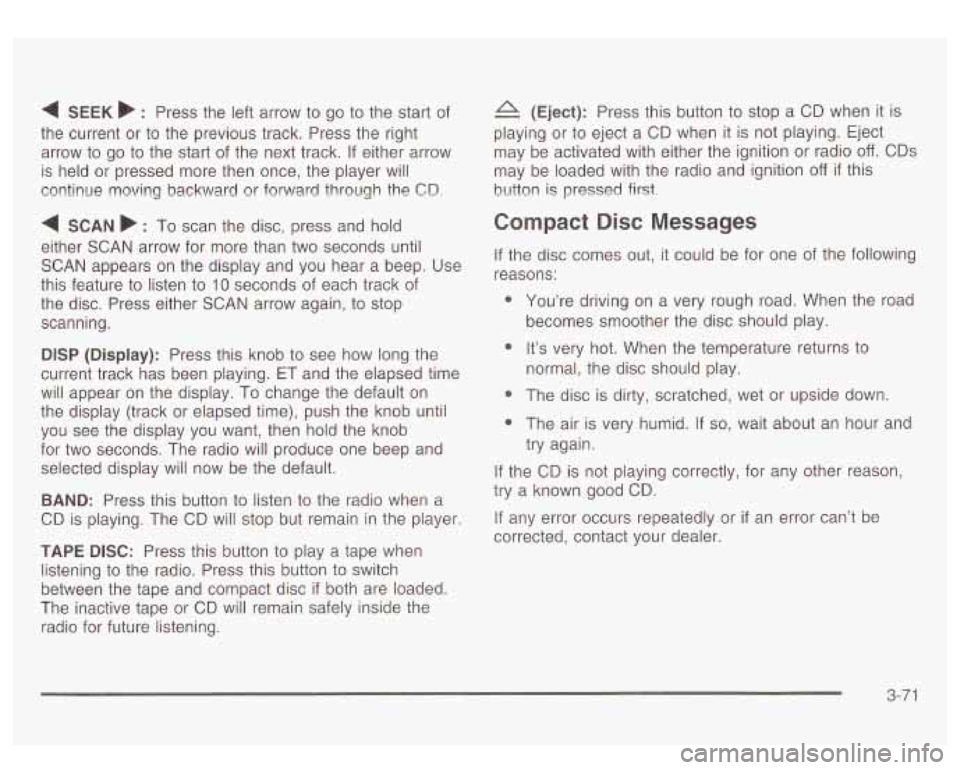
4 SEEK b : Press the left arrow to go to the start of
the current or to the previous track. Press the right
arrow to go
to the start of the next track. If either arrow
is held or pressed more then once, the player will
continue moving backward or forward through the
CD.
4 SCAN b : To scan the disc, press and hold
either SCAN arrow for more than two seconds until
SCAN appears on the display and you hear a beep. Use
this feature
to listen to 10 seconds of each track of
the disc. Press either SCAN arrow again,
to stop
scanning.
DlSP (Display): Press this knob to see how long the
current track has been playing. ET and the elapsed time
will appear on the display.
To change the default on
the display (track or elapsed time), push the knob until
you see the display you want, then hold the knob
for two seconds. The radio will produce one beep and
selected display will now be the default.
BAND: Press this button to listen to the radio when a
CD is playing. The CD will stop but remain in the player.
TAPE DISC: Press this button to play a tape when
listening to the radio. Press this button to switch
between the tape and compact disc
if both are loaded.
The inactive tape or CD will remain safely inside the
radio for future listening.
(Eject): Press this button to stop a CD when it is
playing or
to eject a CD when it is not playing. Eject
may be activated with either the ignition or radio
off. CDs
may be loaded with the radio and ignition
off if this
hL!tton
is pressed first:
Compact Disc Messages
If the disc comes out, it could be for one of the following
reasons:
0 You’re driving on a very rough road. When the road
0 It’s very hot. When the temperature returns to
* The disc is dirty, scratched, wet or upside down.
* The air is very humid. If so, wait about an hour and
becomes smoother
the disc should play.
normal, the disc should play.
try again.
If the CD is not playing correctly,
try a known good CD.
If any error occurs repeatedly or
corrected, contact your dealer. for
any other reason, if an error can’t be
3-71
Page 220 of 447
Battery Replacement
To change the batteries, do the following:
1.
2.
3.
Remove the battery compartment door located on
the bottom of
the remote control.
Replace the two AA batteries in the compartment.
Make sure that they are installed correctly.
Close the battery door securely.
Notice: Do not store the remote control in heat or
direct sunlight. This could damage the remote
control and it would not be covered by your vehicles
warranty. Keep the remote control stored in a
cool, dry place.
If the remote control is to be stored for a long period of
time, remove the batteries and keep them in a cool,
dry place.
Headphones
The RSE system includes two sets of wireless infrared
headphones.
Each set
of headphones has an OWOFF control. An
indicator light will illuminate
on the headphones
when they are on. If the light does
not illuminate, the
batteries may need
to be replaced. See “Battery
Replacement” later in this section for more information.
To turn the headphones OFF activate the ON/OFF
control. Each
set of headphones has a volume knob. To adjust
the volume, adjust this knob.
The headphones will automatically turn
off if they lose
the infrared signal from the system after approximately
four minutes in order
to preserve their battery power.
The signal may be
lost if the system is turned off or if the
headphones are out
of range of the infrared signal
transmitters that are located below the video display screen.
Battery Replacement
To change the batteries, do the following:
1. Loosen the screw on the battery compartment door
located on the left side of the headphone earpiece.
2. Replace the two AAA batteries in the compartment.
3. Tighten the screws to close the compartment door.
Make sure that they are installed correctly.
Notice: Do not store the
headphones in heat or
direct sunlight. This could damage the headphones
and would not be covered by your warranty.
Keep the headphones stored in a cool place.
If the headphones are to be stored for a long period of
time, remove the batteries and keep them in a cool,
dry place.
3-77
Page 223 of 447
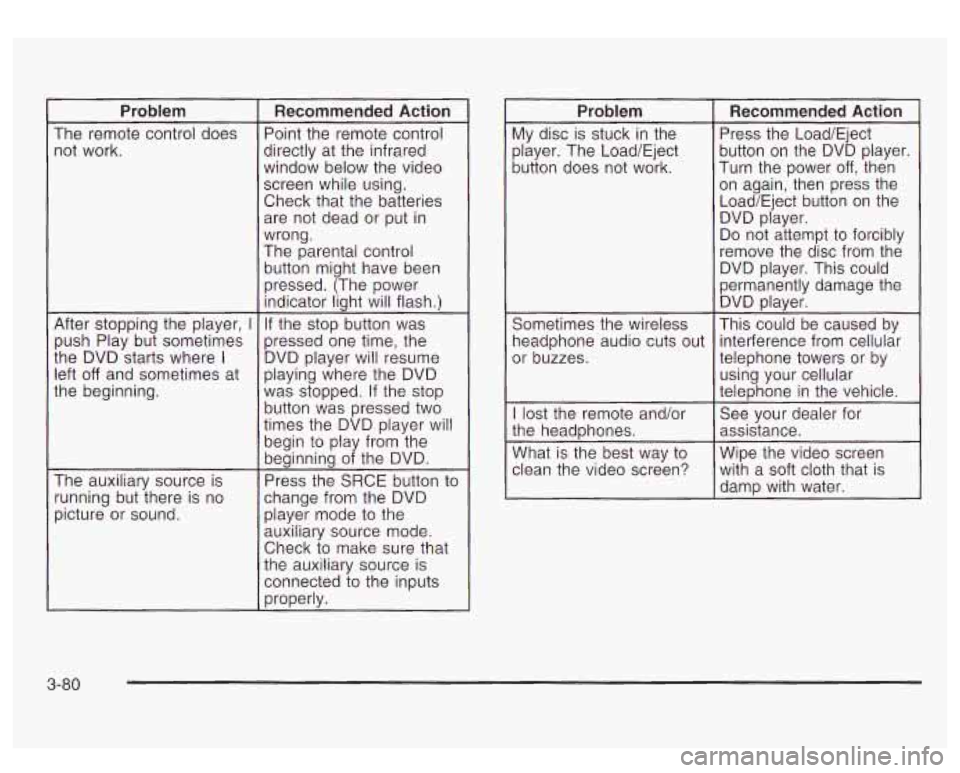
Problem
The remote control does not work.
After stopping the player,
I
push Play but sometimes
the DVD starts where
I
left off and sometimes at
the beginning.
The auxiliary source is
running but there is no
picture or sound.
Recommended Action
Point the remote control
directly at the infrared
window below the video
screen while using.
Check that the batteries are not dead or put in
wrong.
The parental control
button might have been
pressed. (The power indicator light will flash.)
If the stop button was
pressed one time, the
DVD player will resume
playing where the DVD
was stopped. If the stop
button was pressed two
times the DVD player will
begin to play from the
beginning of the DVD.
Press the SRCE button to
change from the DVD player mode
to the
auxiliary source mode.
Check to make sure that
the auxiliary source is
connected to the inputs
properly.
Problem
My disc is stuck in the
player. The Load/Eject
button does not work.
Sometimes the wireless
headphone audio cuts out
or buzzes.
I lost the remote and/or
the headphones.
What is the best way
to
clean the video screen?
Recommended Action
Press the Load/Eject
button on the DVD player.
Turn the power
off, then
on again, then press the
Load/Eject button on the DVD player.
Do not attempt
to forcibly
remove the disc from the
DVD player. This could
permanently damage the DVD player.
This could be caused by
interference from cellular
telephone towers or by
using your cellular
telephone in the vehicle.
See your dealer for
assistance.
Wipe the video screen with a soft cloth that
is
damp with water.
3-80
Page 226 of 447
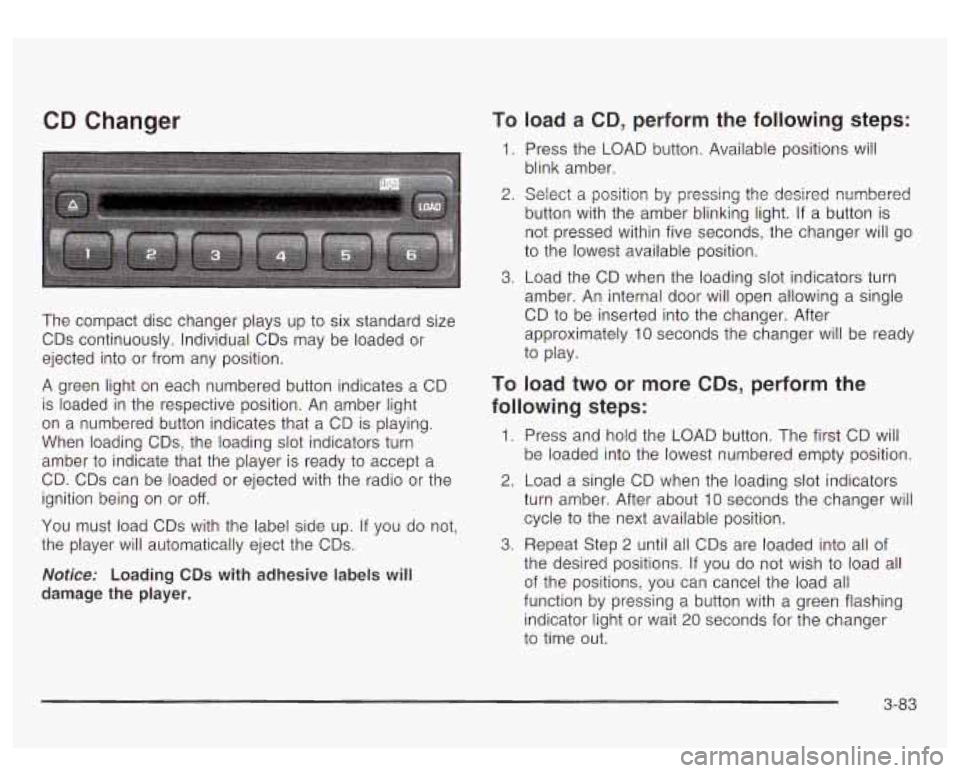
CD Changer
The compact disc changer plays up to six standard size
CDs continuously. Individual CDs may be loaded or
ejected into or from any position.
A green light on each numbered button indicates a CD
is loaded in the respective position. An amber light
on a numbered button indicates that a CD is playing.
When loading CDs, the loading slot indicators turn
amber to indicate that the player is ready
to accept a
CD. CDs can be loaded or ejected with the radio or the
ignition being on or
off.
You must load CDs with the label side up. If you do not,
the player will automatically eject the CDs.
Notice: Loading CDs with adhesive labels will
damage the player.
To load a CD, perform the following steps:
1. Press the LOAD button. Available positions Will
blink amber.
2. Select a position by pressing the desired numbered
button with the amber blinking light.
If a button is
not pressed within five seconds, the changer will go
to the lowest available position.
3. Load the CD when the loading slot indicators turn
amber. An internal door will open allowing a single
CD
to be inserted into the changer. After
approximately 10 seconds the changer will be ready
to play.
TO load two or more CDs, perform the
following steps:
1. Press and hold the LOAD button. The first CD will
be loaded into the lowest numbered empty position.
2. Load a single CD when the loading slot indicators
turn amber. After about 10 seconds the changer will
cycle to the next available position.
the desired positions.
If you do not wish to load all
of the positions, you can cancel the load all
function by pressing a button with a green flashing
indicator light or wait 20 seconds for the changer
to time out.
3. Repeat Step 2 until all CDs are loaded into all of
3-83
Page 231 of 447
For best results, use a scrubbing action, non-abrasive
cleaning cassette with pads which scrub the tape
head as the hubs of the cleaner cassette turn. The
recommended cleaning cassette is available through
your dealer
(GM Part No. 12344789).
The cut tape detection feature of your cassette tape
player may identify the cleaning cassette as a damaged
tape, in error. To prevent the cleaning cassette from
being ejected, use the following steps:
1.
2.
3.
4.
5.
Turn the ignition on.
Turn the radio
off.
Press and hold the CD TAPE button for five
seconds. The tape symbol on the display will flash
for two seconds.
Insert the scrubbing action cleaning cassette.
Eject the cleaning cassette after the manufacturer’s
recommended cleaning time.
After the cleaning cassette is ejected, the cut tape detection feature will be active again.
You may also choose a non-scrubbing action, wet-type
cleaner which uses a cassette with a fabric belt
to
clean the tape head. This type of cleaning cassette will
not eject on its own. A non-scrubbing action cleaner
may not clean as thoroughly as the scrubbing type
cleaner. The use of a non-scrubbing action, dry-type
cleaning cassette is not recommended. After
you clean the player, press and hold the EJECT
button for five seconds to reset the CLN indicator.
The radio will display
--- to show the indicator was reset.
Cassettes are subject
to wear and the sound quality
may degrade over time. Always make sure the cassette
tape is in good condition before you have your tape
player serviced.
Care of Your CDs and DVDs
Handle discs carefully. Store them in their original cases
or other protective cases and away from direct sunlight
and dust. If the surface of a disc is soiled, dampen
a clean, soft cloth in a mild, neutral detergent solution
and clean it, wiping from the center to the edge.
Be sure never
to touch the side without writing when
handling discs. Pick up discs by grasping the outer
edges or the edge of the hole and the outer edge.
Care of Your CD Changer
The use of CD lens cleaner discs is not advised, due to
the risk of contaminating the lens
of the CD optics
with lubricants internal
to the CD mechanism.
3-88
Page 247 of 447
0 Do not get too close to the vehicle you want to
pass while you’re awaiting an opportunity. For
one thing, following
too closely reduces your area
of vision, especially if you’re following a larger
vehicle.
Also, you won’t have adequate space if the
vehicle ahead suddenly slows or stops. Keep
back a reasonable distance.
When it looks like a chance to pass is coming up,
start
to accelerate but stay in the right lane and
don’t get
too close. Time your move so you will be
increasing speed as the time comes
to move
into the other lane. If the way is clear
to pass, you
will have a “running start” that more than makes
up for the distance you would lose by dropping
back. And
if something happens to cause you to
cancel your pass, you need only slow down
and drop back again and wait for another
opportunity.
If other vehicles are lined up to pass a slow vehicle.
wait your turn. But take care that someone isn’t
trying
to pass you as you pull out to pass the slow
vehicle. Remember to glance over your shoulder
and check the blind spot.
Check your mirrors, glance over your shoulder and
start your left lane change signal before moving out
of the right lane
to pass. When you are far
enough ahead of the passed vehicle
to see its front
in your inside mirror, activate your right lane
change signal and move back into the right lane.
(Remember that
if your right outside mirror is
convex, the vehicle you just passed may seem
to
be farther away from you than it really is.)
- Try not to pass more than one vehicle at a time on
two-lane roads. Reconsider before passing the
next vehicle.
Don’t overtake a slowly moving vehicle too rapidly.
Even though the brake lamps are not flashing,
it
may be slowing down or starting to turn.
If you’re being passed, make it easy for the
following driver
to get ahead of you. Perhaps you
can ease a little to the right.
4-1 4