CD changer GMC YUKON DENALI 2003 Owners Manual
[x] Cancel search | Manufacturer: GMC, Model Year: 2003, Model line: YUKON DENALI, Model: GMC YUKON DENALI 2003Pages: 447, PDF Size: 21.97 MB
Page 145 of 447
Section 3 Instrument Panel
Driver Information Center (DIC) ................... 3.43
DIC Operation and Displays
....................... 3.43
DIC Warnings and Messages
..................... 3.52
Audio
System(s) ............................................. 3.58
Setting the Time
........................................... 3.58
Radio with Cassette and CD
.......................... 3-59
Rear Seat Entertainment System
.................... 3-72
Rear Seat Audio (RSA)
................................. 3.81
CD Changer
................................................ 3.83
Theft-Deterrent Feature
.................................. 3-85
~ ~~ ~~~
Audio Steering Wheel Controls ........ ....... 3.86
DVD Distortion
............................................. 3.86
Understanding Radio Reception
...................... 3.87
Care
of Your CDs and DVDs ......................... 3-88
Care
of Your
Cassette Tape Player ................. 3-87
Care
of Your CD Changer ............................. 3-88
Care
of Your CD and DVD Player ................... 3-89
Cleaning the Video Screen
............................. 3-89
Fixed Mast Antenna
.................................. 3-89
XMTM Satellite Radio Antenna System ......... 3-89
3-2
Page 148 of 447
The main components of your instrument panel
are the following:
A. Air Outlets
€3. Exterior Lamps Contro!
C. Turn SignaVMultifunction Lever
D. Onstar@ and Radio Steering Wheel Buttons
E. Instrument Panel Cluster
F. Shift Lever/Tow/Haul Selector Button
G. Audio System
H. Dome Override Button
I. Rear Wiper Washer
J. Fog Lamps Button
K. Driver Information Center (DIC) Buttons
L. Parking Brake Release
M. Tilt Lever
N. Comfort Control System
0. Storage Area
P. Compact Disc Changer
Q. Accessory Power Outlet
R. StabiliTrak@ Button
S. Glove Box
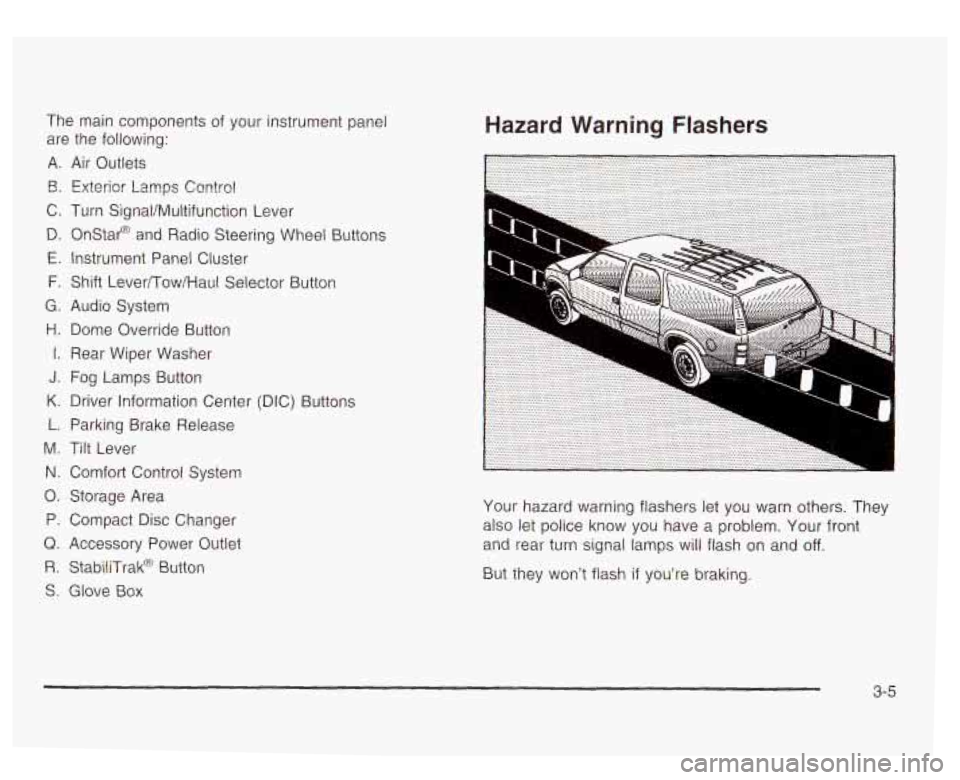
Hazard Warning Flashers
Your hazard warning flashers let you warn others. They
also let police know you have a problem, Your front
and rear turn signal
lamps will flash on and off.
But they won’t flash if you’re braking.
3-5
Page 150 of 447
Turn SignaVMultifunction Lever
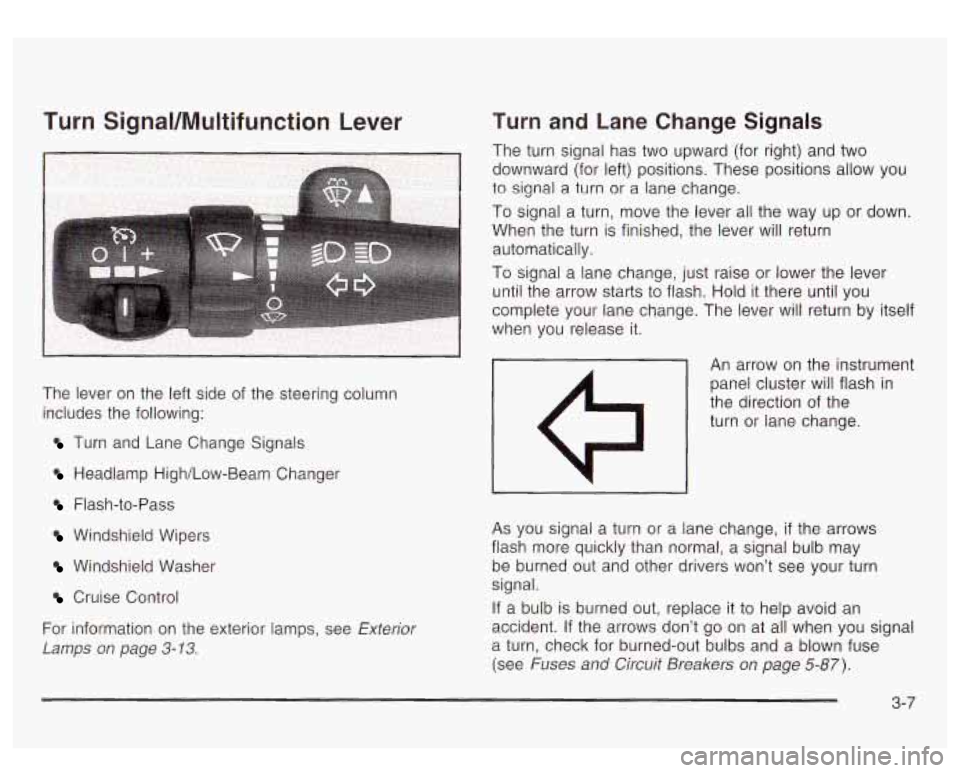
The lever on the left side of the steering column
includes the following:
Turn and Lane Change Signals
Headlamp High/Low-Beam Changer
Flash-to-Pass
Windshield Wipers
Windshield Washer
Cruise Control
For information on the exterior lamps, see Exterior
Lamps
on page 3-13.
Turn and Lane Change Signals
The turn signal has two upward (for right) and two
downward (for left) positions. These positions allow you
to signal a turn or a lane change.
To signal a turn, move the lever all the way up or down.
When the turn is finished, the lever will return automatically.
To signal a lane change, just raise
or lower the lever
until the arrow starts to flash. Hold it there until you
complete your lane change. The lever will return by itself
when you release it.
An arrow on the instrument
panel cluster will flash in
the direction of the
turn or lane change.
As you signal a turn or a lane change, if the arrows
flash more quickly than normal, a signal bulb may be burned out and other drivers won’t see your turn
signal.
If a bulb is burned out, replace it to help avoid an
accident. If the arrows don’t go on at all when you signal
a turn, check for burned-out bulbs and a blown fuse
(see Fuses
and Circuit Breakers on page 5-87).
3-7
Page 151 of 447
Turn Signal On Chime
If your turn signal is left on for more than 3/4 of a mile
(1.2 km), a chime will sound at each flash of the
turn signal and the message TURN SIGNAL ON will
also appear in the
DIC. To turn the chime and message
off, move the turn signal lever td the off position.
Headlamp High/Low-Beam Changer
$0 io (Headlamp High/Low Beam Changer): To
change the headlamps from low
to high beam, push the
lever toward the instrument panel. To return
to
low-beam headlamps, pull the multifunction lever toward
you. Then release
it.
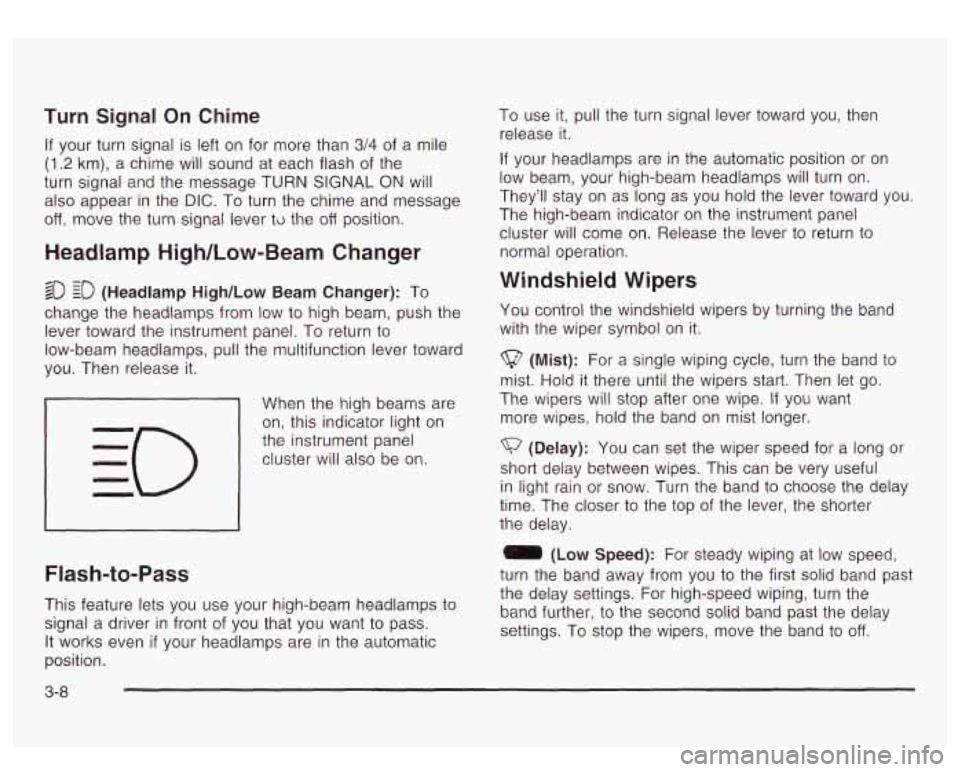
When the high beams are
on, this indicator light on
the instrument panel
cluster will also be on.
I I
Flash-to-Pass
This feature lets you use your high-beam headlamps to
signal a driver in front of you that you want to pass.
It works even if your headlamps are in the automatic
position. To
use it, pull the turn signal lever toward you, then
release it.
If your headlamps are in the automatic position or on
low beam, your high-beam headlamps will turn on.
They’ll stay on
as long as you hold the lever toward you.
The high-beam indicator
on the instrument panel
cluster will come on. Release the lever
to return to
normal operation.
Windshield Wipers
You control the windshield wipers by turning the band
with the wiper symbol on it.
(Mist): For a single wiping cycle, turn the band to
mist. Hold it there until the wipers start. Then let go.
The wipers will stop after one wipe.
If you want
more wipes, hold the band on mist longer.
(Delay): You can set the wiper speed for a long or
short delay between wipes. This can be very useful
in light rain or snow. Turn the band to choose the delay
time. The closer
to the top of the lever, the shorter
the delay.
0 (Low Speed): For steady wiping at low speed,
turn the band away from you
to the first solid band past
the delay settings. For high-speed wiping, turn the
band further, to the second solid band past the delay
settings. To stop the wipers, move the band
to off.
3-8
Page 225 of 447
-I (Volume): Turn the knob to increase or to decrease
volume. The left knob controls the left headphone and
the right knob controls the right headphone.
SRC (Source): Press this button to select an audio
source: radio, cassette tapes,
CDs, DVDs, XM
(if equipped), depending on your vehicles options.
v SEEK A : While listening to AM, FMI or FM2, XM1
or XM2, press the up or the down arrow
to tune to
the next or to the previous station and stay there. If the
front radio is in use, you cannot seek through different
stations.
While listening
to a cassette tape, press the up or the
down arrow
to hear the next or the previous selection.
If the cassette tape on the front radio is in use, you
cannot seek through different selections on a tape. While listening
to a
CD, press the up arrow to hear the
next track on the CD. Press the down arrow to go
back to the start
of the current track if more than eight
seconds have played. If the CD player on the front radio
is in use, you cannot seek through different tracks.
PROG (Program): The front passengers must
be listening
to something different for each of these
functions
to work:
e
Press this button to go to the preset radio stations
set on the pushbuttons on the main radio.
When a cassette tape is playing, press this button
to go to the other side of the tape.
When a CD is playing in the radio, press this button
to go back to the beginning of the CD.
When a
CD is playing in the CD changer, press this
button
to select a disc.
3-82
Page 226 of 447
CD Changer
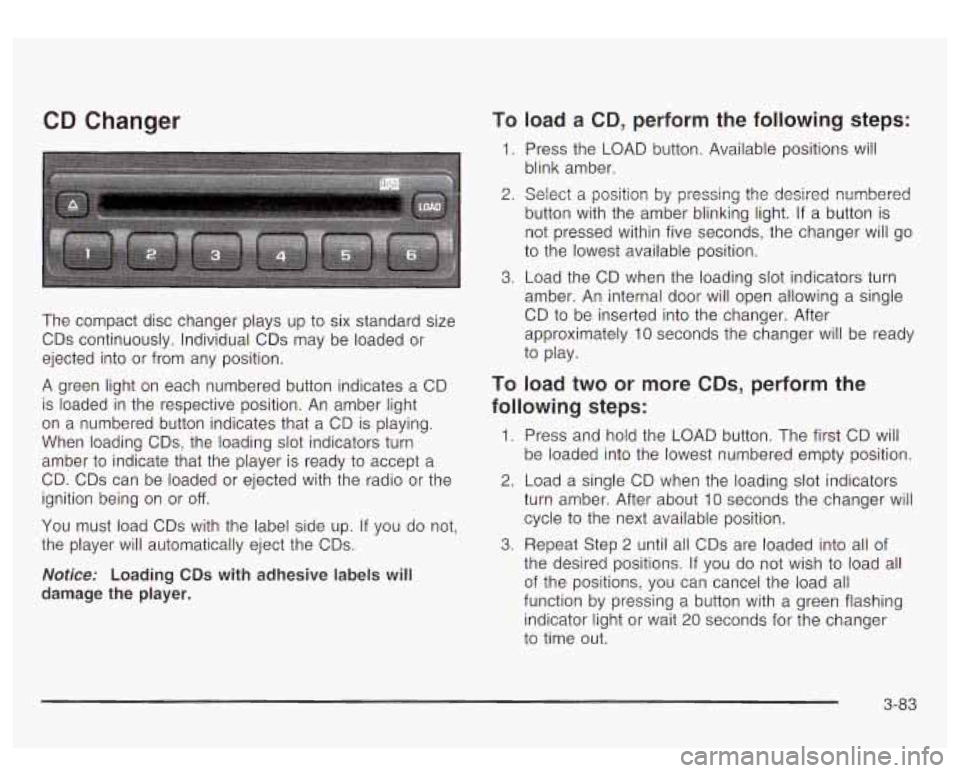
The compact disc changer plays up to six standard size
CDs continuously. Individual CDs may be loaded or
ejected into or from any position.
A green light on each numbered button indicates a CD
is loaded in the respective position. An amber light
on a numbered button indicates that a CD is playing.
When loading CDs, the loading slot indicators turn
amber to indicate that the player is ready
to accept a
CD. CDs can be loaded or ejected with the radio or the
ignition being on or
off.
You must load CDs with the label side up. If you do not,
the player will automatically eject the CDs.
Notice: Loading CDs with adhesive labels will
damage the player.
To load a CD, perform the following steps:
1. Press the LOAD button. Available positions Will
blink amber.
2. Select a position by pressing the desired numbered
button with the amber blinking light.
If a button is
not pressed within five seconds, the changer will go
to the lowest available position.
3. Load the CD when the loading slot indicators turn
amber. An internal door will open allowing a single
CD
to be inserted into the changer. After
approximately 10 seconds the changer will be ready
to play.
TO load two or more CDs, perform the
following steps:
1. Press and hold the LOAD button. The first CD will
be loaded into the lowest numbered empty position.
2. Load a single CD when the loading slot indicators
turn amber. After about 10 seconds the changer will
cycle to the next available position.
the desired positions.
If you do not wish to load all
of the positions, you can cancel the load all
function by pressing a button with a green flashing
indicator light or wait 20 seconds for the changer
to time out.
3. Repeat Step 2 until all CDs are loaded into all of
3-83
Page 227 of 447
To eject a single CD, perform the following
steps:
1. Press the eject button (upward pointing arrow).
The buttons with loaded CDs will blink amber.
2. Press one of the amber blinking buttons to select
the location of the CD you want to eject. The
changer will move to that location and eject the CD.
If you do not remove the CD from the player
CD Functions
1 PREV (Previous): Press this pushbutton to go to the
previous track
if the current track has been playing
for less than eight seconds. If pressed when the current
track has been playing for more than eight seconds,
it will go
to the beginning of the current track. If you hold
or press this pushbutton more than once, the player
will continue moving back through the CD.
within
10 seconds, it will be reloaded. If the eject
button is pressed and a numbered location button is not pressed within five seconds, the current or
last played CD will be ejected. 2 NEXT: Press this pushbutton to go to the next track.
If you hold this pushbutton or press it more than
once, the player will continue moving forward through
the CD.
To eject all CDs, press and hold the eject button.
There are two ways to play a CD. Perform
one of the following:
With the radio on, press the desired numberea
button with a green indicator light on the CD
changer.
changer will go
to its last played position.
Press the TAPE DISC button on the radio. The CD
3 REV (Reverse): Press and hold this pushbutton to
reverse quickly through a track. Release it to resume
playing.
4 FWD (Forward): Press and hold this pushbutton to
advance quickly through
a track. Release it to resume
playing.
5 0: Press this pushbutton to select a CD. The CD
number and track number will be displayed.
3-84
Page 228 of 447
6 RDM (Random): Press this button to hear the tracks
in random, rather than sequential, order. RDM ALL
will appear on the radio display, which will randomly play
all of the loaded CDs. Press and hold this button until
you hear a beep and the radio will display
HDM
ONE, which will randomly play the tracks on the current
CD. Press this button again to turn
off random play,
RDM OFF will appear on the radio display.
4 SEEK b : Press the right or the left SEEK arrow to
go to the next or to the previous track on the CD.
BAND: Press BAND to listen to the radio when a CD is
playing.
TAPE DISC: Press this button if you have a CD loaded
in the changer and the radio is turned on, to play a
CD. Press this button to switch between playing a tape
and the CD changer
if all are loaded.
Compact Disc Changer Errors
CHK CD (Check): If this message appears on the
display,
it could be for one of the following reasons:
0 You are driving on a very rough road. The CD
should play when the road gets smoother.
0 A CD is upside down.
It is dirty, scratched or wet.
9 It is very humid. If so, wait about an hour and try
0 The CD player is very hot.
again.
If any
error occurs repeatedly or if an error cannot be
corrected, contact your dealership.
Theft-Deterrent Feature
THEFTLOCK@ is designed to discourage theft of your
radio. The feature works automatically by learning
a portion of the Vehicle Identification Number (VIN). If
the radio is moved to a different vehicle, it will not
operate and LOCKED will be displayed.
When the radio and vehicle are turned off, the blinking
red light indicates that THEFTLOCK@ is armed.
With THEFTLOCK@ activated, your radio will not operate
if stolen.
3-85
Page 229 of 447
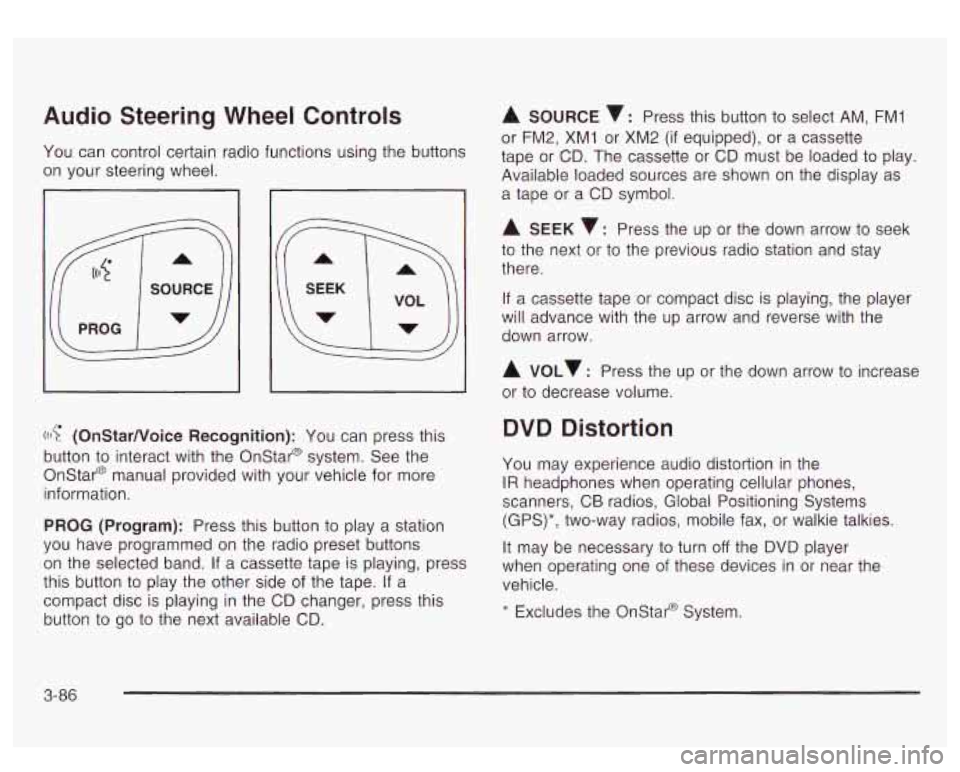
Audio Steering Wheel Controls
You can control certain radio functions using the buttons
on your steering wheel.
I
((I? (OnStarNoice Recognition): You can press this
button
to interact with the Onstar@ system. See the
Onstar@ manual provided with your vehicle for more
information.
PROG (Program): Press this button to play a station
you have programmed on the radio preset buttons
on the selected band. If a cassette tape is playing, press
this button to play the other side of the tape. If a
compact disc is playing
in the CD changer, press this
button to
go to the next available CD.
A SOURCE v: Press this button to select AM, FMI
or FM2, XM1 or XM2 (if equipped), or a cassette
tape or CD. The cassette or CD must be loaded to play.
Available loaded sources are shown on the display as
a tape or a CD symbol.
A SEEK 7: Press the up or the down arrow to seek
to the next or
to the previous radio station and stay
there.
If a cassette tape or compact disc is playing, the player
will advance with the up arrow and reverse with the
down arrow.
A VOLv : Press the up or the down arrow to increase
or to decrease volume.
DVD Distortion
You may experience audio distortion in the
IR headphones when operating cellular phones,
scanners, CB radios, Global Positioning Systems
(GPS)*, two-way radios, mobile fax, or walkie talkies.
It may be necessary to turn
off the DVD player
when operating one of these devices in or near the
vehicle.
* Excludes the Onstat-@ System.
3-86
Page 231 of 447
For best results, use a scrubbing action, non-abrasive
cleaning cassette with pads which scrub the tape
head as the hubs of the cleaner cassette turn. The
recommended cleaning cassette is available through
your dealer
(GM Part No. 12344789).
The cut tape detection feature of your cassette tape
player may identify the cleaning cassette as a damaged
tape, in error. To prevent the cleaning cassette from
being ejected, use the following steps:
1.
2.
3.
4.
5.
Turn the ignition on.
Turn the radio
off.
Press and hold the CD TAPE button for five
seconds. The tape symbol on the display will flash
for two seconds.
Insert the scrubbing action cleaning cassette.
Eject the cleaning cassette after the manufacturer’s
recommended cleaning time.
After the cleaning cassette is ejected, the cut tape detection feature will be active again.
You may also choose a non-scrubbing action, wet-type
cleaner which uses a cassette with a fabric belt
to
clean the tape head. This type of cleaning cassette will
not eject on its own. A non-scrubbing action cleaner
may not clean as thoroughly as the scrubbing type
cleaner. The use of a non-scrubbing action, dry-type
cleaning cassette is not recommended. After
you clean the player, press and hold the EJECT
button for five seconds to reset the CLN indicator.
The radio will display
--- to show the indicator was reset.
Cassettes are subject
to wear and the sound quality
may degrade over time. Always make sure the cassette
tape is in good condition before you have your tape
player serviced.
Care of Your CDs and DVDs
Handle discs carefully. Store them in their original cases
or other protective cases and away from direct sunlight
and dust. If the surface of a disc is soiled, dampen
a clean, soft cloth in a mild, neutral detergent solution
and clean it, wiping from the center to the edge.
Be sure never
to touch the side without writing when
handling discs. Pick up discs by grasping the outer
edges or the edge of the hole and the outer edge.
Care of Your CD Changer
The use of CD lens cleaner discs is not advised, due to
the risk of contaminating the lens
of the CD optics
with lubricants internal
to the CD mechanism.
3-88