lock GMC YUKON DENALI 2005 Repair Manual
[x] Cancel search | Manufacturer: GMC, Model Year: 2005, Model line: YUKON DENALI, Model: GMC YUKON DENALI 2005Pages: 468, PDF Size: 2.67 MB
Page 205 of 468
Lock Feedback
Press the customization button until LOCK FEEDBACK
appears in the display. To select your preference for
the feedback you receive when locking the vehicle with
the remote keyless entry transmitter, press the select
button while LOCK FEEDBACK is displayed on the DIC.
Pressing the select button will scroll through the
following choices:
LOCK FEEDBACK: BOTH (default):The parking
lamps will ash each time you press the button with the
lock symbol on the remote keyless entry transmitter
and the horn will chirp the second time you press the
lock button.
LOCK FEEDBACK: LAMPS:The parking lamps will
ash each time you press the button with the lock
symbol on the remote keyless entry transmitter.
LOCK FEEDBACK: HORN:The horn will chirp the
second time you press the button with the lock symbol
on the remote keyless entry transmitter.
LOCK FEEDBACK: OFF:There will be no feedback
when locking the vehicle.
Choose one of the available options and press the
customization button while it is displayed on the DIC
to select it and move on to the next feature.
Unlock Feedback
Press the customization button until UNLOCK
FEEDBACK appears in the display. To select your
preference for the feedback you will receive when
unlocking the vehicle with the remote keyless entry
transmitter, press the select button while UNLOCK
FEEDBACK is displayed on the DIC. Pressing the select
button will scroll through the following choices:
UNLOCK FEEDBACK: LAMPS (default):The parking
lamps will ash each time you press the button with the
unlock symbol on the remote keyless entry transmitter.
UNLOCK FEEDBACK: HORN:The horn will chirp the
second time you press the button with the unlock
symbol on the remote keyless entry transmitter.
UNLOCK FEEDBACK: BOTH:The parking lamps will
ash each time you press the button with the unlock
symbol on the remote keyless entry transmitter and the
horn will chirp the second time you press the unlock
button.
UNLOCK FEEDBACK: OFF:There will be no feedback
when unlocking the vehicle.
Choose one of the available options and press the
customization button while it is displayed on the DIC
to select it and move on to the next feature.
3-63
Page 206 of 468
Headlamp Delay
Press the customization button until HEADLAMP
DELAY appears in the display. To select your
preference for how long the headlamps will stay on
when you turn off the vehicle, press the select button
while HEADLAMP DELAY is displayed on the DIC.
Pressing the select button will scroll through the
following choices:
HEADLAMP DELAY: 10 SEC (default)
HEADLAMP DELAY: 20 SEC
HEADLAMP DELAY: 40 SEC
HEADLAMP DELAY: 1 MIN
HEADLAMP DELAY: 2 MIN
HEADLAMP DELAY: 3 MIN
HEADLAMP DELAY: OFF
The amount of time you choose will be the amount of
time that the headlamps stay on after you turn off
the vehicle. If you choose off, the headlamps will turn
off as soon as you turn off the vehicle.
Choose one of the available options and press the
customization button while it is displayed on the DIC to
select it and move on to the next feature.
Perimeter Lights
Press the customization button until PERIMETER
LIGHTS appears in the display. To select your preference
for perimeter lighting, press the select button while
PERIMETER LIGHTS is displayed on the DIC. Pressing
the select button will scroll through the following choices:
PERIMETER LIGHTS: ON (default):The headlamps
and back-up lamps will come on for 40 seconds, if
it is dark enough outside, when you unlock the vehicle
with the remote keyless entry transmitter.
PERIMETER LIGHTS: OFF:The perimeter lights will
not come on when you unlock the vehicle with the
remote keyless entry transmitter.
Choose one of the available options and press the
customization button while it is displayed on the DIC to
select it and move on to the next feature.
3-64
Page 216 of 468
RDS Messages
INFO (Information):If the current station has a
message, the information symbol will appear on the
display. Press this button to see the message. The
message may display the artist, song title, call in phone
numbers, etc.
If the entire message is not displayed, parts of the
message will appear every three seconds. To scroll
through the message, press and release the INFO
button. A new group of words will appear on the display
after every press of the button. Once the complete
message has been displayed, the information symbol
will disappear from the display until another new
message is received. The last message can be
displayed by pressing the INFO button. You can view
the last message until a new message is received
or a different station is tuned to.
Radio Messages
CAL ERR (Calibration Error):The audio system has
been calibrated for your vehicle from the factory. If
CAL ERR appears on the display, it means that the radio
has not been congured properly for the vehicle and
must be returned to your GM dealer for service.
LOCKED:This message is displayed when the
THEFTLOCK
®system has locked up. Take the vehicle
to your GM dealer for service.
If any error occurs repeatedly, or if an error cannot be
corrected, contact your GM dealer.
3-74
Page 217 of 468
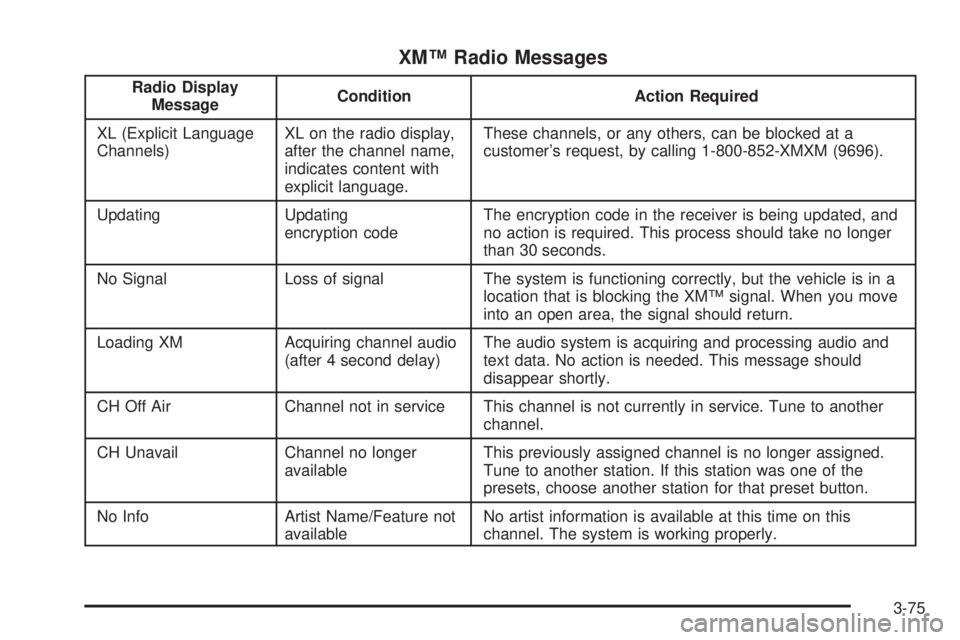
XM™ Radio Messages
Radio Display
MessageCondition Action Required
XL (Explicit Language
Channels)XL on the radio display,
after the channel name,
indicates content with
explicit language.These channels, or any others, can be blocked at a
customer’s request, by calling 1-800-852-XMXM (9696).
Updating Updating
encryption codeThe encryption code in the receiver is being updated, and
no action is required. This process should take no longer
than 30 seconds.
No Signal Loss of signal The system is functioning correctly, but the vehicle is in a
location that is blocking the XM™ signal. When you move
into an open area, the signal should return.
Loading XM Acquiring channel audio
(after 4 second delay)The audio system is acquiring and processing audio and
text data. No action is needed. This message should
disappear shortly.
CH Off Air Channel not in service This channel is not currently in service. Tune to another
channel.
CH Unavail Channel no longer
availableThis previously assigned channel is no longer assigned.
Tune to another station. If this station was one of the
presets, choose another station for that preset button.
No Info Artist Name/Feature not
availableNo artist information is available at this time on this
channel. The system is working properly.
3-75
Page 218 of 468
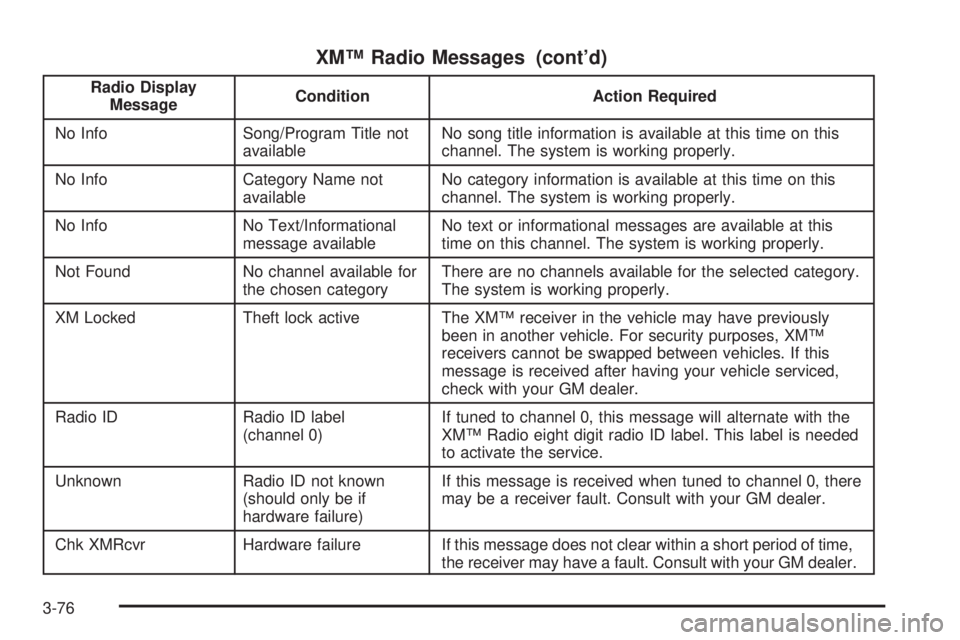
XM™ Radio Messages (cont’d)
Radio Display
MessageCondition Action Required
No Info Song/Program Title not
availableNo song title information is available at this time on this
channel. The system is working properly.
No Info Category Name not
availableNo category information is available at this time on this
channel. The system is working properly.
No Info No Text/Informational
message availableNo text or informational messages are available at this
time on this channel. The system is working properly.
Not Found No channel available for
the chosen categoryThere are no channels available for the selected category.
The system is working properly.
XM Locked Theft lock active The XM™ receiver in the vehicle may have previously
been in another vehicle. For security purposes, XM™
receivers cannot be swapped between vehicles. If this
message is received after having your vehicle serviced,
check with your GM dealer.
Radio ID Radio ID label
(channel 0)If tuned to channel 0, this message will alternate with the
XM™ Radio eight digit radio ID label. This label is needed
to activate the service.
Unknown Radio ID not known
(should only be if
hardware failure)If this message is received when tuned to channel 0, there
may be a receiver fault. Consult with your GM dealer.
Chk XMRcvr Hardware failure If this message does not clear within a short period of time,
the receiver may have a fault. Consult with your GM dealer.
3-76
Page 221 of 468
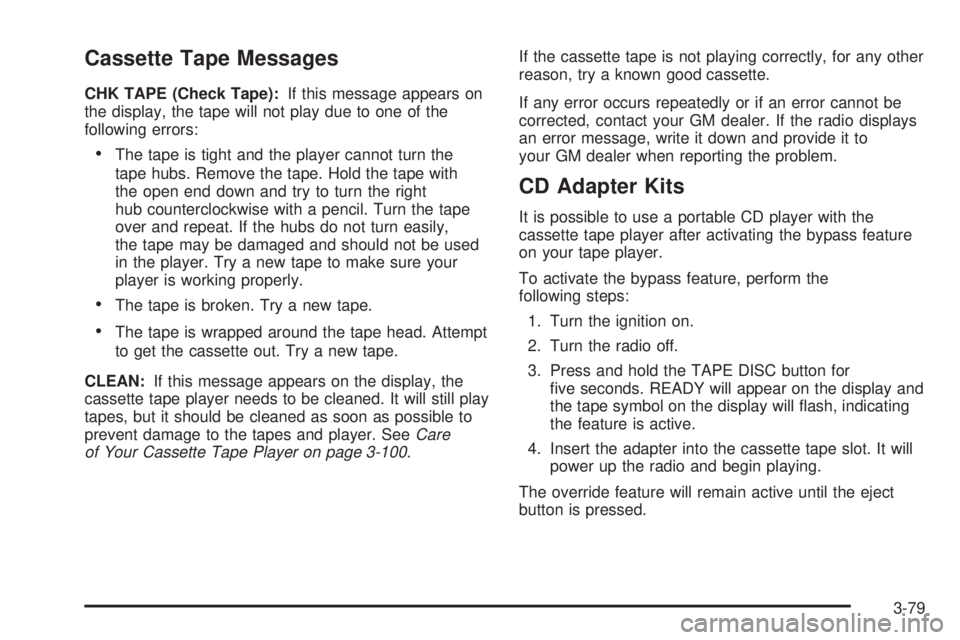
Cassette Tape Messages
CHK TAPE (Check Tape):If this message appears on
the display, the tape will not play due to one of the
following errors:
The tape is tight and the player cannot turn the
tape hubs. Remove the tape. Hold the tape with
the open end down and try to turn the right
hub counterclockwise with a pencil. Turn the tape
over and repeat. If the hubs do not turn easily,
the tape may be damaged and should not be used
in the player. Try a new tape to make sure your
player is working properly.
The tape is broken. Try a new tape.
The tape is wrapped around the tape head. Attempt
to get the cassette out. Try a new tape.
CLEAN:If this message appears on the display, the
cassette tape player needs to be cleaned. It will still play
tapes, but it should be cleaned as soon as possible to
prevent damage to the tapes and player. SeeCare
of Your Cassette Tape Player on page 3-100.If the cassette tape is not playing correctly, for any other
reason, try a known good cassette.
If any error occurs repeatedly or if an error cannot be
corrected, contact your GM dealer. If the radio displays
an error message, write it down and provide it to
your GM dealer when reporting the problem.
CD Adapter Kits
It is possible to use a portable CD player with the
cassette tape player after activating the bypass feature
on your tape player.
To activate the bypass feature, perform the
following steps:
1. Turn the ignition on.
2. Turn the radio off.
3. Press and hold the TAPE DISC button for
ve seconds. READY will appear on the display and
the tape symbol on the display will ash, indicating
the feature is active.
4. Insert the adapter into the cassette tape slot. It will
power up the radio and begin playing.
The override feature will remain active until the eject
button is pressed.
3-79
Page 230 of 468
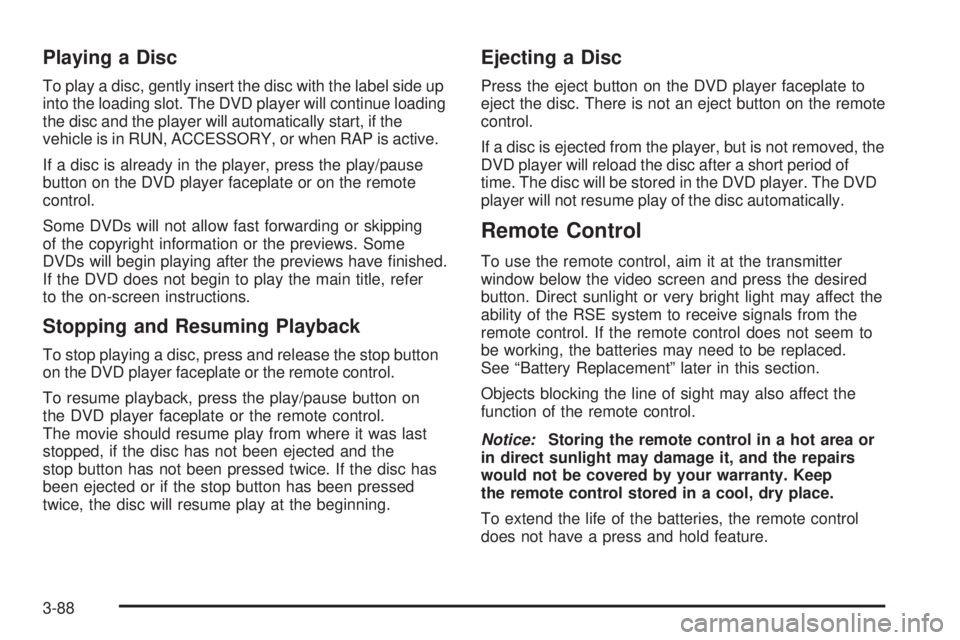
Playing a Disc
To play a disc, gently insert the disc with the label side up
into the loading slot. The DVD player will continue loading
the disc and the player will automatically start, if the
vehicle is in RUN, ACCESSORY, or when RAP is active.
If a disc is already in the player, press the play/pause
button on the DVD player faceplate or on the remote
control.
Some DVDs will not allow fast forwarding or skipping
of the copyright information or the previews. Some
DVDs will begin playing after the previews have nished.
If the DVD does not begin to play the main title, refer
to the on-screen instructions.
Stopping and Resuming Playback
To stop playing a disc, press and release the stop button
on the DVD player faceplate or the remote control.
To resume playback, press the play/pause button on
the DVD player faceplate or the remote control.
The movie should resume play from where it was last
stopped, if the disc has not been ejected and the
stop button has not been pressed twice. If the disc has
been ejected or if the stop button has been pressed
twice, the disc will resume play at the beginning.
Ejecting a Disc
Press the eject button on the DVD player faceplate to
eject the disc. There is not an eject button on the remote
control.
If a disc is ejected from the player, but is not removed, the
DVD player will reload the disc after a short period of
time. The disc will be stored in the DVD player. The DVD
player will not resume play of the disc automatically.
Remote Control
To use the remote control, aim it at the transmitter
window below the video screen and press the desired
button. Direct sunlight or very bright light may affect the
ability of the RSE system to receive signals from the
remote control. If the remote control does not seem to
be working, the batteries may need to be replaced.
See “Battery Replacement” later in this section.
Objects blocking the line of sight may also affect the
function of the remote control.
Notice:Storing the remote control in a hot area or
in direct sunlight may damage it, and the repairs
would not be covered by your warranty. Keep
the remote control stored in a cool, dry place.
To extend the life of the batteries, the remote control
does not have a press and hold feature.
3-88
Page 241 of 468
Theft-Deterrent Feature
THEFTLOCK®is designed to discourage theft of your
vehicle’s radio. The feature works automatically by
learning a portion of the Vehicle Identication Number
(VIN). If the radio is moved to a different vehicle, it
will not operate and LOCKED will appear on the display.
When the radio and vehicle are turned off, the blinking
red light indicates that THEFTLOCK
®is armed.
With THEFTLOCK
®activated, the radio will not operate
if stolen.
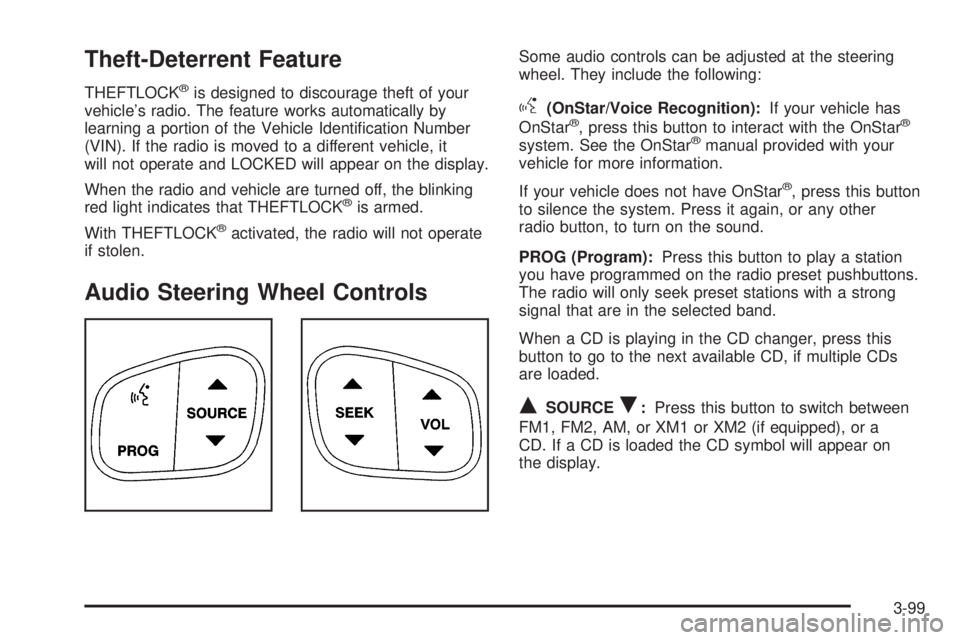
Audio Steering Wheel Controls
Some audio controls can be adjusted at the steering
wheel. They include the following:
g(OnStar/Voice Recognition):If your vehicle has
OnStar®, press this button to interact with the OnStar®
system. See the OnStar®manual provided with your
vehicle for more information.
If your vehicle does not have OnStar
®, press this button
to silence the system. Press it again, or any other
radio button, to turn on the sound.
PROG (Program):Press this button to play a station
you have programmed on the radio preset pushbuttons.
The radio will only seek preset stations with a strong
signal that are in the selected band.
When a CD is playing in the CD changer, press this
button to go to the next available CD, if multiple CDs
are loaded.
QSOURCER:Press this button to switch between
FM1, FM2, AM, or XM1 or XM2 (if equipped), or a
CD. If a CD is loaded the CD symbol will appear on
the display.
3-99
Page 245 of 468
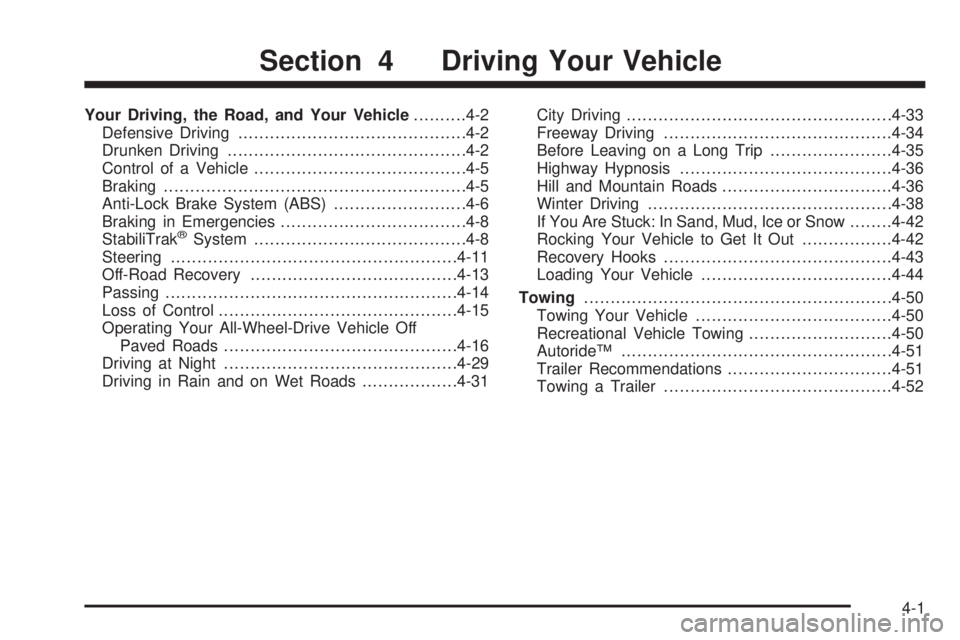
Your Driving, the Road, and Your Vehicle..........4-2
Defensive Driving...........................................4-2
Drunken Driving.............................................4-2
Control of a Vehicle........................................4-5
Braking.........................................................4-5
Anti-Lock Brake System (ABS).........................4-6
Braking in Emergencies...................................4-8
StabiliTrak
®System........................................4-8
Steering......................................................4-11
Off-Road Recovery.......................................4-13
Passing.......................................................4-14
Loss of Control.............................................4-15
Operating Your All-Wheel-Drive Vehicle Off
Paved Roads............................................4-16
Driving at Night............................................4-29
Driving in Rain and on Wet Roads..................4-31City Driving..................................................4-33
Freeway Driving...........................................4-34
Before Leaving on a Long Trip.......................4-35
Highway Hypnosis........................................4-36
Hill and Mountain Roads................................4-36
Winter Driving..............................................4-38
If You Are Stuck: In Sand, Mud, Ice or Snow........4-42
Rocking Your Vehicle to Get It Out.................4-42
Recovery Hooks...........................................4-43
Loading Your Vehicle....................................4-44
Towing..........................................................4-50
Towing Your Vehicle.....................................4-50
Recreational Vehicle Towing...........................4-50
Autoride™...................................................4-51
Trailer Recommendations...............................4-51
Towing a Trailer...........................................4-52
Section 4 Driving Your Vehicle
4-1
Page 250 of 468
Avoid needless heavy braking. Some people drive in
spurts — heavy acceleration followed by heavy
braking — rather than keeping pace with traffic. This is
a mistake. Your brakes may not have time to cool
between hard stops. Your brakes will wear out much
faster if you do a lot of heavy braking. If you keep pace
with the traffic and allow realistic following distances,
you will eliminate a lot of unnecessary braking.
That means better braking and longer brake life.
If your engine ever stops while you are driving, brake
normally but do not pump your brakes. If you do,
the pedal may get harder to push down. If your engine
stops, you will still have some power brake assist.
But you will use it when you brake. Once the power
assist is used up, it may take longer to stop and
the brake pedal will be harder to push.Anti-Lock Brake System (ABS)
Your vehicle has anti-lock brakes. ABS is an advanced
electronic braking system that will help prevent a
braking skid.
When you start your engine and begin to drive away,
your anti-lock brake system will check itself. You
may hear a momentary motor or clicking noise while
this test is going on. This is normal.
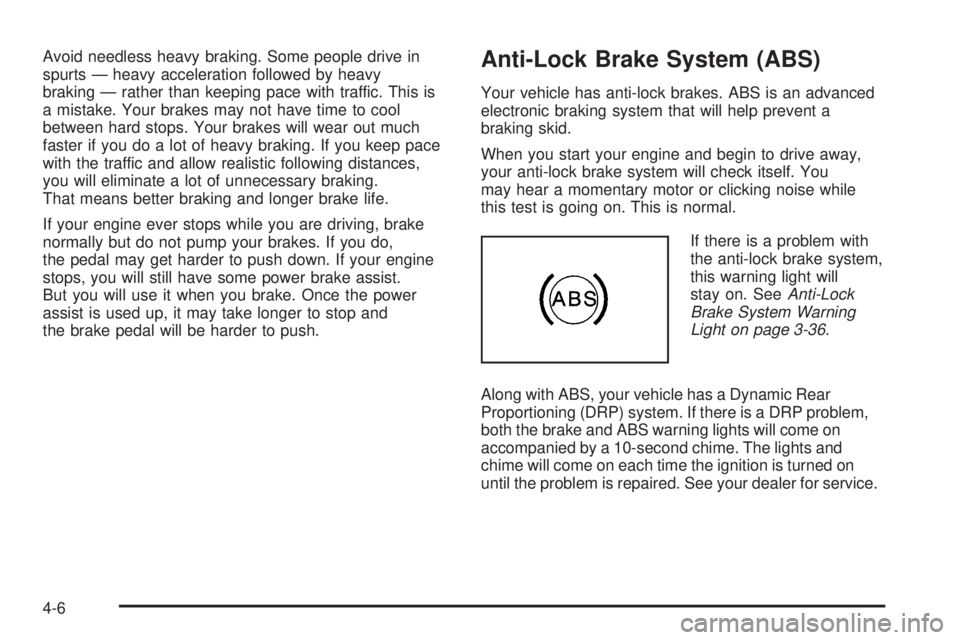
If there is a problem with
the anti-lock brake system,
this warning light will
stay on. SeeAnti-Lock
Brake System Warning
Light on page 3-36.
Along with ABS, your vehicle has a Dynamic Rear
Proportioning (DRP) system. If there is a DRP problem,
both the brake and ABS warning lights will come on
accompanied by a 10-second chime. The lights and
chime will come on each time the ignition is turned on
until the problem is repaired. See your dealer for service.
4-6