change time GMC YUKON DENALI 2008 User Guide
[x] Cancel search | Manufacturer: GMC, Model Year: 2008, Model line: YUKON DENALI, Model: GMC YUKON DENALI 2008Pages: 502, PDF Size: 6.18 MB
Page 213 of 502
Trip Odometer
Press the trip/fuel button until TRIP displays. This
display shows the current distance traveled in either
miles (mi) or kilometers (km) since the last reset for the
trip odometer. Pressing the trip odometer reset stem
will also display the trip odometer.
The trip odometer can be reset to zero by pressing the
set/reset button while the trip odometer is displayed.
You can also reset the trip odometer while it is displayed
by pressing and holding the trip odometer reset stem.
The trip odometer has a feature called the retro-active
reset. This can be used to set the trip odometer to
the number of miles (kilometers) driven since the ignition
was last turned on. This can be used if the trip
odometer is not reset at the beginning of the trip.
To use the retro-active reset feature, press and hold the
set/reset button for at least four seconds. The trip
odometer will display the number of miles (mi) or
kilometers (km) driven since the ignition was last turned
on and the vehicle was moving. Once the vehicle
begins moving, the trip odometer will accumulate
mileage. For example, if the vehicle was driven 5 miles
(8 km) before it is started again, and then the
retro-active reset feature is activated, the display will
show 5 miles (8 km). As the vehicle begins moving, the
display will then increase to 5.1 miles (8.2 km),
5.2 miles (8.4 km), etc.
Fuel Range
Press the trip/fuel button until FUEL RANGE displays.
This display shows the approximate number of
remaining miles (mi) or kilometers (km) the vehicle can
be driven without refueling. The display will show
LOW if the fuel level is low.
The fuel range estimate is based on an average of the
vehicle’s fuel economy over recent driving history
and the amount of fuel remaining in the fuel tank. This
estimate will change if driving conditions change.
For example, if driving in traffic and making frequent
stops, this display may read one number, but if
the vehicle is driven on a freeway, the number may
change even though the same amount of fuel is in the
fuel tank. This is because different driving conditions
produce different fuel economies. Generally, freeway
driving produces better fuel economy than city driving.
Fuel range cannot be reset.
Average Economy
Press the trip/fuel button until AVG ECONOMY displays.
This display shows the approximate average miles
per gallon (mpg) or liters per 100 kilometers (L/100 km).
This number is calculated based on the number of
mpg (L/100 km) recorded since the last time this menu
item was reset. To reset AVG ECONOMY, press
and hold the set/reset button.
3-51
Page 214 of 502
Fuel Used
Press the trip/fuel button until FUEL USED displays.
This display shows the number of gallons (gal) or
liters (L) of fuel used since the last reset of this menu
item. To reset the fuel used information, press and hold
the set/reset button while FUEL USED is displayed.
Timer
Press the trip/fuel button until TIMER displays. This
display can be used as a timer.
To start the timer, press the set/reset button while
TIMER is displayed. The display will show the amount
of time that has passed since the timer was last
reset, not including time the ignition is off. Time will
continue to be counted as long as the ignition is
on, even if another display is being shown on the DIC.
The timer will record up to 99 hours, 59 minutes
and 59 seconds (99:59:59) after which the display will
return to zero.
To stop the timer, press the set/reset button briey while
TIMER is displayed.
To reset the timer to zero, press and hold the set/reset
button while TIMER is displayed.
Transmission Temperature
Press the trip/fuel button until TRANS TEMP displays.
This display shows the temperature of the automatic
transmission uid in either degrees Fahrenheit (°F) or
degrees Celsius (°C).
Blank Display
This display shows no information.
Vehicle Information Menu Items
T
(Vehicle Information):Press this button to scroll
through the following menu items:
Oil Life
Press the vehicle information button until OIL LIFE
REMAINING displays. This display shows an estimate
of the oil’s remaining useful life. If you see 99% OIL LIFE
REMAINING on the display, that means 99% of the
current oil life remains. The engine oil life system
will alert you to change the oil on a schedule consistent
with your driving conditions.
3-52
Page 215 of 502
When the remaining oil life is low, the CHANGE
ENGINE OIL SOON message will appear on the display.
See “CHANGE ENGINE OIL SOON” underDIC
Warnings and Messages on page 3-56. You should
change the oil as soon as you can. SeeEngine Oil on
page 5-13. In addition to the engine oil life system
monitoring the oil life, additional maintenance is
recommended in the Maintenance Schedule in this
manual. SeeScheduled Maintenance on page 6-4for
more information.
Remember, you must reset the OIL LIFE display
yourself after each oil change. It will not reset itself.
Also, be careful not to reset the OIL LIFE display
accidentally at any time other than when the oil has just
been changed. It cannot be reset accurately until the
next oil change. To reset the engine oil life system, see
Engine Oil Life System on page 5-16.
Units
Press the vehicle information button until UNITS
displays. This display allows you to select between
English or Metric units of measurement. Once in this
display, press the set/reset button to select between
ENGLISH or METRIC units. All of the vehicle information
will then be displayed in the unit of measurement
selected.
Tire Pressure
The pressure for each tire can be viewed in the DIC.
The tire pressure will be shown in either pounds
per square inch (psi) or kilopascals (kPa). Press the
vehicle information button until the DIC displays FRONT
TIRES PSI (kPa) LEFT ## RIGHT ##. Press the
vehicle information button again until the DIC displays
REAR TIRES PSI (kPa) LEFT ## RIGHT ##.
If a low or high tire pressure condition is detected by the
system while driving, a message advising you to
check the pressure in a specic tire will appear in the
display. SeeInflation - Tire Pressure on page 5-60and
DIC Warnings and Messages on page 3-56for more
information.
If the tire pressure display shows dashes instead of a
value, there may be a problem with your vehicle. If this
consistently occurs, see your dealer/retailer for service.
Engine Hours
Press the vehicle information button until ENGINE
HOURS displays. This display shows the total number
of hours the engine has run.
3-53
Page 218 of 502
DIC Warnings and Messages
Messages are displayed on the DIC to notify the driver
that the status of the vehicle has changed and that
some action may be needed by the driver to correct the
condition. Multiple messages may appear one after
another.
Some messages may not require immediate action, but
you can press any of the DIC buttons on the instrument
panel or the trip odometer reset stem on the instrument
panel cluster to acknowledge that you received the
messages and to clear them from the display.
Some messages cannot be cleared from the DIC
display because they are more urgent. These messages
require action before they can be cleared. You should
take any messages that appear on the display seriously
and remember that clearing the messages will only
make the messages disappear, not correct the problem.
The following are the possible messages that can be
displayed and some information about them.
CHANGE ENGINE OIL SOON
This message displays when the engine oil needs to be
changed. When you change the engine oil, be sure
to reset the CHANGE ENGINE OIL SOON message.
SeeEngine Oil Life System on page 5-16for information
on how to reset the message. SeeEngine Oil on
page 5-13andScheduled Maintenance on page 6-4for
more information.
CHECK TIRE PRESSURE
This message displays when the pressure in one or
more of the vehicle’s tires needs to be checked.
This message also displays LEFT FRONT, RIGHT
FRONT, LEFT REAR, or RIGHT REAR to indicate which
tire needs to be checked. You can receive more than
one tire pressure message at a time. To read the other
messages that may have been sent at the same
time, press the set/reset button or the trip odometer
reset stem. If a tire pressure message appears on the
DIC, stop as soon as you can. Have the tire pressures
checked and set to those shown on the Tire Loading
Information label. SeeTires on page 5-55,Loading Your
Vehicle on page 4-34, andInflation - Tire Pressure on
page 5-60. The DIC also shows the tire pressure values.
See “DIC Operation and Displays (Using DIC Buttons)”
earlier in this section. If the tire pressure is low, the
low tire pressure warning light comes on. SeeTire
Pressure Light on page 3-41.
3-56
Page 230 of 502
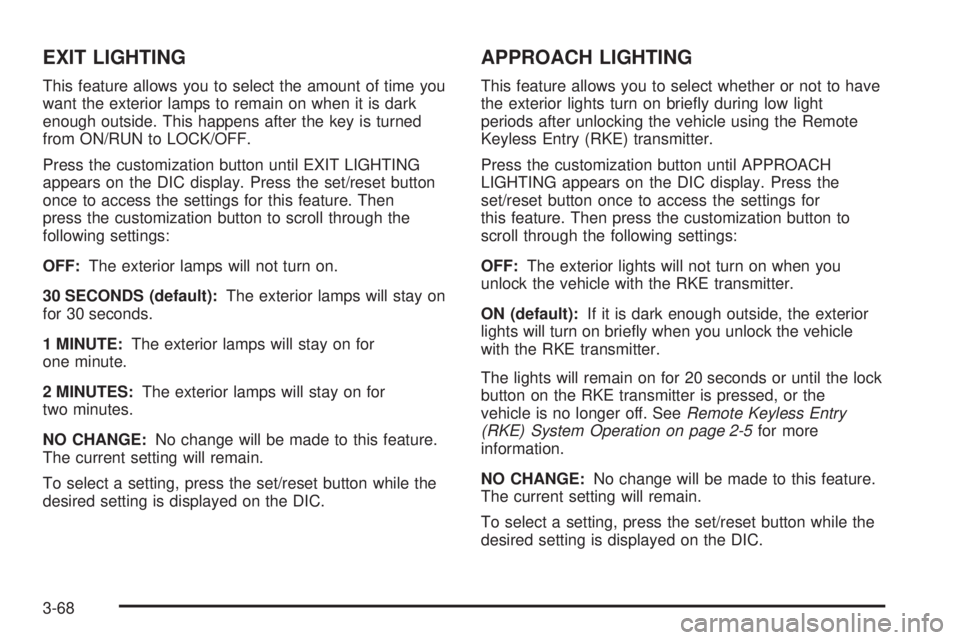
EXIT LIGHTING
This feature allows you to select the amount of time you
want the exterior lamps to remain on when it is dark
enough outside. This happens after the key is turned
from ON/RUN to LOCK/OFF.
Press the customization button until EXIT LIGHTING
appears on the DIC display. Press the set/reset button
once to access the settings for this feature. Then
press the customization button to scroll through the
following settings:
OFF:The exterior lamps will not turn on.
30 SECONDS (default):The exterior lamps will stay on
for 30 seconds.
1 MINUTE:The exterior lamps will stay on for
one minute.
2 MINUTES:The exterior lamps will stay on for
two minutes.
NO CHANGE:No change will be made to this feature.
The current setting will remain.
To select a setting, press the set/reset button while the
desired setting is displayed on the DIC.
APPROACH LIGHTING
This feature allows you to select whether or not to have
the exterior lights turn on briey during low light
periods after unlocking the vehicle using the Remote
Keyless Entry (RKE) transmitter.
Press the customization button until APPROACH
LIGHTING appears on the DIC display. Press the
set/reset button once to access the settings for
this feature. Then press the customization button to
scroll through the following settings:
OFF:The exterior lights will not turn on when you
unlock the vehicle with the RKE transmitter.
ON (default):If it is dark enough outside, the exterior
lights will turn on briey when you unlock the vehicle
with the RKE transmitter.
The lights will remain on for 20 seconds or until the lock
button on the RKE transmitter is pressed, or the
vehicle is no longer off. SeeRemote Keyless Entry
(RKE) System Operation on page 2-5for more
information.
NO CHANGE:No change will be made to this feature.
The current setting will remain.
To select a setting, press the set/reset button while the
desired setting is displayed on the DIC.
3-68
Page 232 of 502
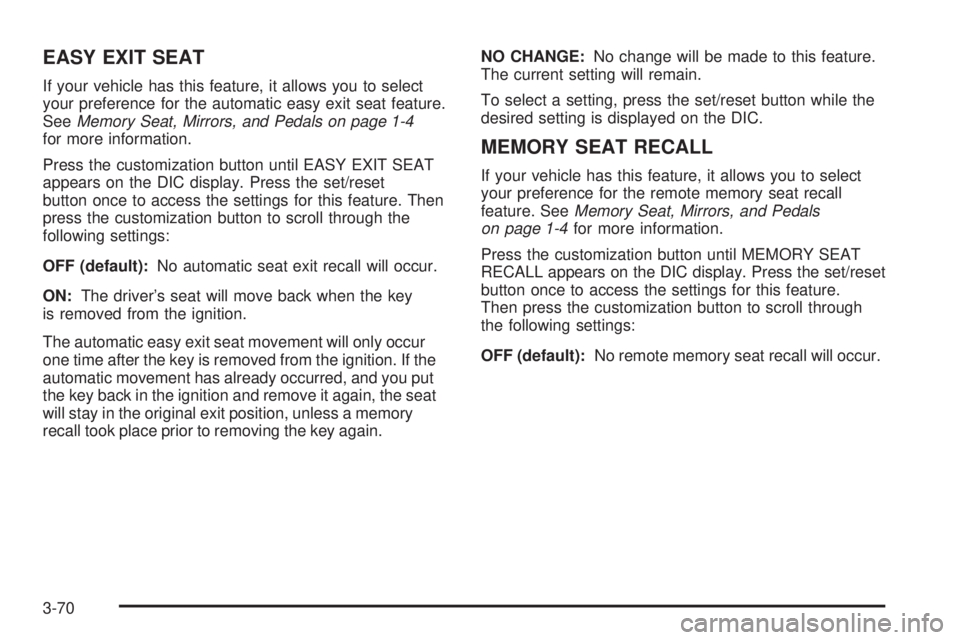
EASY EXIT SEAT
If your vehicle has this feature, it allows you to select
your preference for the automatic easy exit seat feature.
SeeMemory Seat, Mirrors, and Pedals on page 1-4
for more information.
Press the customization button until EASY EXIT SEAT
appears on the DIC display. Press the set/reset
button once to access the settings for this feature. Then
press the customization button to scroll through the
following settings:
OFF (default):No automatic seat exit recall will occur.
ON:The driver’s seat will move back when the key
is removed from the ignition.
The automatic easy exit seat movement will only occur
one time after the key is removed from the ignition. If the
automatic movement has already occurred, and you put
the key back in the ignition and remove it again, the seat
will stay in the original exit position, unless a memory
recall took place prior to removing the key again.NO CHANGE:No change will be made to this feature.
The current setting will remain.
To select a setting, press the set/reset button while the
desired setting is displayed on the DIC.
MEMORY SEAT RECALL
If your vehicle has this feature, it allows you to select
your preference for the remote memory seat recall
feature. SeeMemory Seat, Mirrors, and Pedals
on page 1-4for more information.
Press the customization button until MEMORY SEAT
RECALL appears on the DIC display. Press the set/reset
button once to access the settings for this feature.
Then press the customization button to scroll through
the following settings:
OFF (default):No remote memory seat recall will occur.
3-70
Page 234 of 502
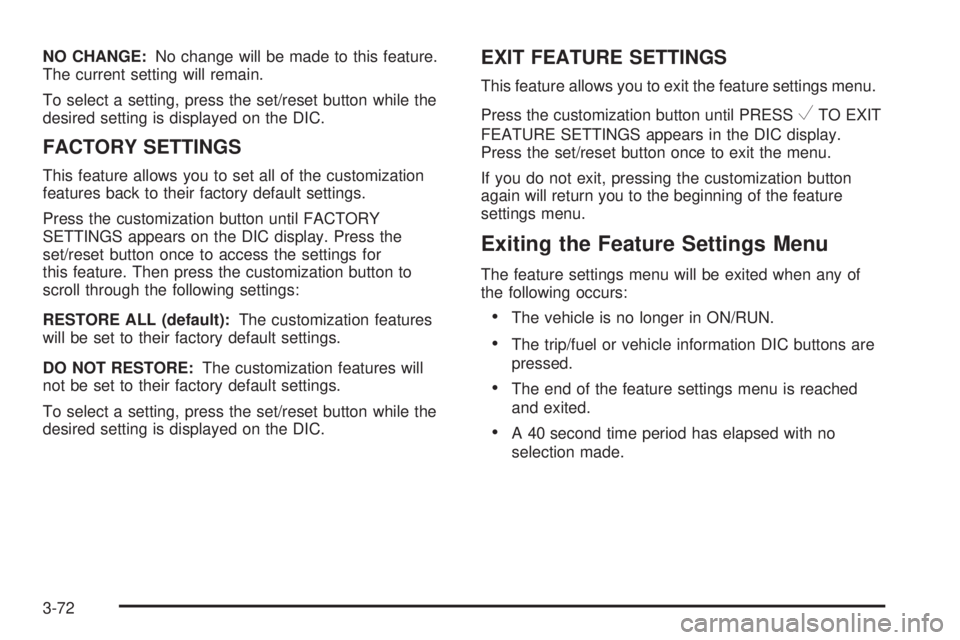
NO CHANGE:No change will be made to this feature.
The current setting will remain.
To select a setting, press the set/reset button while the
desired setting is displayed on the DIC.
FACTORY SETTINGS
This feature allows you to set all of the customization
features back to their factory default settings.
Press the customization button until FACTORY
SETTINGS appears on the DIC display. Press the
set/reset button once to access the settings for
this feature. Then press the customization button to
scroll through the following settings:
RESTORE ALL (default):The customization features
will be set to their factory default settings.
DO NOT RESTORE:The customization features will
not be set to their factory default settings.
To select a setting, press the set/reset button while the
desired setting is displayed on the DIC.
EXIT FEATURE SETTINGS
This feature allows you to exit the feature settings menu.
Press the customization button until PRESS
VTO EXIT
FEATURE SETTINGS appears in the DIC display.
Press the set/reset button once to exit the menu.
If you do not exit, pressing the customization button
again will return you to the beginning of the feature
settings menu.
Exiting the Feature Settings Menu
The feature settings menu will be exited when any of
the following occurs:
The vehicle is no longer in ON/RUN.
The trip/fuel or vehicle information DIC buttons are
pressed.
The end of the feature settings menu is reached
and exited.
A 40 second time period has elapsed with no
selection made.
3-72
Page 236 of 502
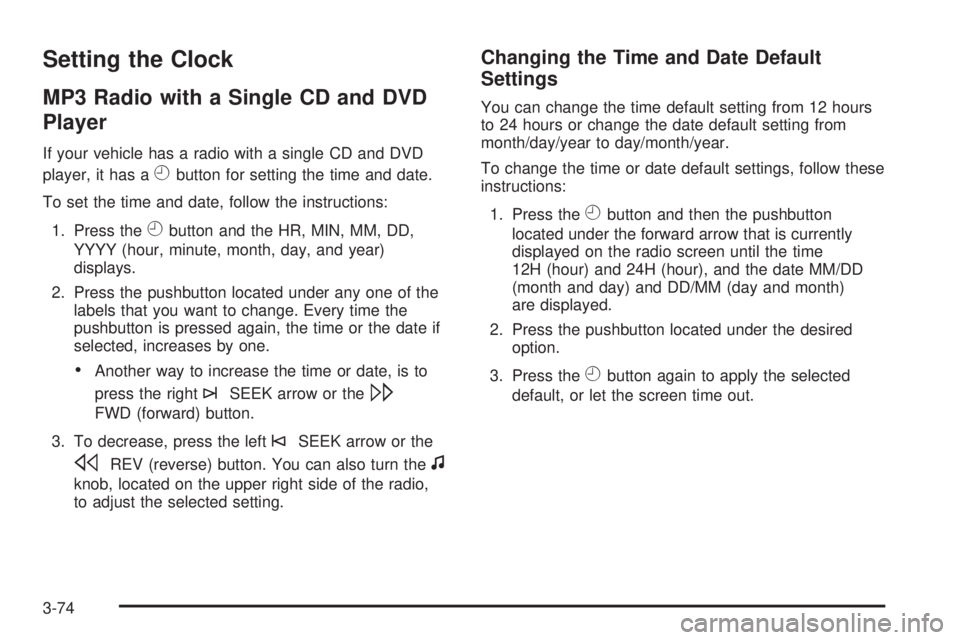
Setting the Clock
MP3 Radio with a Single CD and DVD
Player
If your vehicle has a radio with a single CD and DVD
player, it has a
Hbutton for setting the time and date.
To set the time and date, follow the instructions:
1. Press the
Hbutton and the HR, MIN, MM, DD,
YYYY (hour, minute, month, day, and year)
displays.
2. Press the pushbutton located under any one of the
labels that you want to change. Every time the
pushbutton is pressed again, the time or the date if
selected, increases by one.
Another way to increase the time or date, is to
press the right
¨SEEK arrow or the\
FWD (forward) button.
3. To decrease, press the left
©SEEK arrow or the
sREV (reverse) button. You can also turn thef
knob, located on the upper right side of the radio,
to adjust the selected setting.
Changing the Time and Date Default
Settings
You can change the time default setting from 12 hours
to 24 hours or change the date default setting from
month/day/year to day/month/year.
To change the time or date default settings, follow these
instructions:
1. Press the
Hbutton and then the pushbutton
located under the forward arrow that is currently
displayed on the radio screen until the time
12H (hour) and 24H (hour), and the date MM/DD
(month and day) and DD/MM (day and month)
are displayed.
2. Press the pushbutton located under the desired
option.
3. Press the
Hbutton again to apply the selected
default, or let the screen time out.
3-74
Page 237 of 502
MP3 Radio with a Six-Disc CD Player
If your vehicle has a radio with a six-disc CD player, it
has a MENU button instead of the
Hbutton to set
the time and date.
To set the time and date, follow these instructions:
1. Press the MENU button. Once the
Hoption
displays, press the pushbutton located under
that label. The HR, MIN, MM, DD, YYYY (hour,
minute, month, day, and year) displays.
2. Press the pushbutton located under any one of the
labels that you want to change. Every time the
pushbutton is pressed again, the time or the date if
selected, increases by one.
Another way to increase the time or date, is to
press the right
¨SEEK arrow or the\
FWD (forward) button.
To decrease, press the left©SEEK arrow or
the
sREV (reverse) button. You can also
turn the
fknob, located on the upper right side
of the radio, to adjust the selected setting.
Changing the Time and Date Default
Settings
You can change the time default setting from 12 hours
to 24 hours or change the date default setting from
month/day/year to day/month/year.
To change the time or date default settings, follow these
instructions:
1. Press the MENU button. Once the
Hoption
displays, press the pushbutton located under
the forward arrow that is currently displayed on the
radio screen until the 12H (hour) and 24H (hour),
and the date MM/DD (month and day) and DD/MM
(day and month) displays.
2. Press the pushbutton located under the desired
option.
3. Press the MENU button again to apply the selected
default, or let the screen time out.
3-75
Page 251 of 502
O(Power):Press to turn the radio on or off. Turn
clockwise or counterclockwise to increase or decrease
the volume. Press and hold for more than two seconds
to turn off the entire radio and Rear Seat Entertainment
(RSE) system and to start the parental control feature.
Parental control prevents the rear seat occupant
from operating the Rear Seat Audio (RSA) system or
remote control.
A lock symbol displays next to the clock display. The
parental control feature remains on until you press and
hold this knob for more than two seconds again, or
until the driver turns the ignition off and exits the vehicle.
f(Tune):Turn to change tracks on a CD or DVD, to
manually tune a radio station, or to change clock or date
settings, while in the clock or date setting mode. See
the information given earlier in this section specic to the
radio, CD, and the DVD. Also, see “Setting the Clock”
in the index, for setting the clock and date.
©SEEK (Previous Track/Chapter):Press the left
arrow to return to the start of the current track or
chapter. Press the left arrow again to go to the previous
track or chapter. This button might not work when the
DVD is playing the copyright information or the previews.SEEK
¨(Next Track/Chapter):Press the right arrow
to go to the next track or chapter. This button might
not work when the DVD is playing the copyright
information or the previews.
sREV (Fast Reverse):Press to quickly reverse the
CD or DVD at ve times the normal speed. The radio
displays the elapsed time while in fast reverse. To stop
fast reversing, press again. This button might not
work when the DVD is playing the copyright information
or the previews.
\FWD (Fast Forward):Press to fast forward the
CD or DVD. The radio displays the elapsed time and fast
forwards ve times the normal speed. To stop fast
forwarding, press again. This button might not work
when the DVD is playing the copyright information or the
previews.
Z(Eject):Press to eject a CD or DVD. If a CD or
DVD is ejected, but not removed, the player
automatically pulls it back in after 15 seconds.
If loading and reading of a CD cannot be completed,
because of an unknown format, etc., and the disc fails to
eject, press and hold for more than ve seconds to
force the disc to eject.
3-89