audio volume GMC YUKON DENALI 2008 Owners Manual
[x] Cancel search | Manufacturer: GMC, Model Year: 2008, Model line: YUKON DENALI, Model: GMC YUKON DENALI 2008Pages: 502, PDF Size: 6.18 MB
Page 239 of 502
Radios with CD and DVD
Radios with CD and DVD have a Bose®Surround
Sound System. Some of its features are explained later
in this section under, “Adjusting the Speakers
(Balance/Fade)”.
If your vehicle has a Rear Seat Entertainment (RSE)
system, it has a CD/DVD radio. SeeRear Seat
Entertainment (RSE) System on page 3-105for more
information on the vehicle’s RSE system.
The DVD player is the top slot on the radio faceplate.
The player is capable of reading the DTS programmed
DVD Audio or DVD Video media, (DTS and DTS
Digital Surround are registered trademarks of Digital
Theater Systems, Inc.).
Manufactured under license from Dolby
®Laboratories.
Dolby®and the double-D symbol are trademarks of
Dolby®Laboratories.
Radio Data System (RDS)
The audio system has a Radio Data System (RDS). The
RDS feature is available for use only on FM stations
that broadcast RDS information. This system relies upon
receiving specic information from these stations and
only works when the information is available.While the radio is tuned to an FM-RDS station, the
station name or call letters displays. In rare cases, a
radio station could broadcast incorrect information
that causes the radio features to work improperly. If this
happens, contact the radio station.
Playing the Radio
O
(Power/Volume):Press to turn the system on
and off.
Turn clockwise or counterclockwise to increase or
decrease the volume.
Noise Compensation Technology:Your vehicle has a
Bose
®Audio System. It includes Bose AudioPilot®noise
compensation technology. When turned on, AudioPilot®
continuously adjusts the audio system equalization, to
compensate for background noise, so that music always
sounds the same at the set volume level.
This feature is most effective at lower radio volume
settings where background noise can affect how well the
music is heard. At higher volume settings, where the
music is much louder than the background noise, there
might be little or no adjustments by AudioPilot
®.
3-77
Page 240 of 502
To activate:
1. Set the radio volume to the desired level.
2. Press the MENU button to display the radio
setup menu.
3. Press the pushbutton under the AUTO VOLUM
label on the radio display.
4. Press the pushbutton under the ON label. The
display times out after approximately 10 seconds.
For additional information on AudioPilot
®, please visit
www.bose.com/audiopilot.
Finding a Station
BAND:Press to switch between AM, FM, or XM™
(if equipped). The selection displays.
f(Tune):Turn to select radio stations.
©SEEK¨:Press either arrow to go to the previous
or to the next station and stay there.
To scan stations, press and hold either arrow for a few
seconds until a beep sounds. The radio goes to a
station, plays for a few seconds, then goes to the next
station. Press either arrow again to stop scanning.
The radio only seeks and scans stations with a strong
signal that are in the selected band.
4(Information) (XM™ Satellite Radio Service, MP3,
and RDS Features):Press to display additional text
information related to the current FM-RDS or XM™
station, or MP3 song. A choice of additional information
such as: Channel, Song, Artist, and CAT (category) can
display. Continue pressing to highlight the desired label,
or press the pushbutton positioned under any one of the
labels and the information about that label displays.
When information is not available, No Info displays.
Storing a Radio Station as a Favorite
Drivers are encouraged to set up their radio station
favorites while the vehicle is parked. Tune to your
favorite stations using the presets, favorites button, and
steering wheel controls, if the vehicle has this feature.
SeeDefensive Driving on page 4-2.
FAV (Favorites):A maximum of 36 stations can be
programmed as favorites using the six pushbuttons
positioned below the radio station frequency labels and
by using the radio favorites page button (FAV button).
Press the FAV button to go through up to six pages
of favorites, each having six favorite stations available
per page. Each page of favorites can contain any
combination of AM, FM, or XM™ (if equipped) stations.
The balance/fade and tone settings that were
previously adjusted, are stored with the favorite stations.
3-78
Page 247 of 502
sREV (Reverse):Press and hold to reverse
playback quickly within a track. You will hear sound at a
reduced volume. Release to resume playing the
track. The elapsed time of the track displays.
\FWD (Fast Forward):Press and hold to advance
playback quickly within a track. You will hear sound
at a reduced volume. Release to resume playing
the track. The elapsed time of the track displays.
RDM (Random):With the random setting, the tracks
can be listened to in random, rather than sequential
order, on one CD or all CDs in a six-disc CD player.
To use random, do one of the following:
Press the CD/AUX button, or press and hold the
^button. A beep sounds and Load All Discs
displays. Insert one or more discs partway into the
slot of the CD player.
To play tracks from all CDs loaded in a six-disc CD
player in random order, press the pushbutton
positioned under the RDM label until Randomize All
Discs displays. Press the same pushbutton again
to turn off random play.To play the tracks from a CD loaded in the radio
with CD and DVD, press the DVD/CD AUX
button when not sourced to the CD, or insert a disc
partway into the slot. A RDM label displays.
To play tracks from a single CD in random order,
press the pushbutton positioned under the RDM
label until Random Current Disc displays. Press the
pushbutton again to turn off random play.
BAND:Press to listen to the radio when a CD is
playing. The CD remains inside the radio for future
listening.
For the radio with CD and DVD, press to listen to the
radio when a CD or DVD is playing. The CD or
DVD remains inside the radio for future listening or for
viewing entertainment.
CD/AUX (CD/Auxiliary):Press this button to play a CD
when listening to the radio. The CD icon and a
message showing the disc and/or track number displays
when a CD is in the player. Press this button again
and the system automatically searches for an auxiliary
input device, such as a portable audio player. If a
portable audio player is not connected, “No Input Device
Found” displays.
3-85
Page 251 of 502
O(Power):Press to turn the radio on or off. Turn
clockwise or counterclockwise to increase or decrease
the volume. Press and hold for more than two seconds
to turn off the entire radio and Rear Seat Entertainment
(RSE) system and to start the parental control feature.
Parental control prevents the rear seat occupant
from operating the Rear Seat Audio (RSA) system or
remote control.
A lock symbol displays next to the clock display. The
parental control feature remains on until you press and
hold this knob for more than two seconds again, or
until the driver turns the ignition off and exits the vehicle.
f(Tune):Turn to change tracks on a CD or DVD, to
manually tune a radio station, or to change clock or date
settings, while in the clock or date setting mode. See
the information given earlier in this section specic to the
radio, CD, and the DVD. Also, see “Setting the Clock”
in the index, for setting the clock and date.
©SEEK (Previous Track/Chapter):Press the left
arrow to return to the start of the current track or
chapter. Press the left arrow again to go to the previous
track or chapter. This button might not work when the
DVD is playing the copyright information or the previews.SEEK
¨(Next Track/Chapter):Press the right arrow
to go to the next track or chapter. This button might
not work when the DVD is playing the copyright
information or the previews.
sREV (Fast Reverse):Press to quickly reverse the
CD or DVD at ve times the normal speed. The radio
displays the elapsed time while in fast reverse. To stop
fast reversing, press again. This button might not
work when the DVD is playing the copyright information
or the previews.
\FWD (Fast Forward):Press to fast forward the
CD or DVD. The radio displays the elapsed time and fast
forwards ve times the normal speed. To stop fast
forwarding, press again. This button might not work
when the DVD is playing the copyright information or the
previews.
Z(Eject):Press to eject a CD or DVD. If a CD or
DVD is ejected, but not removed, the player
automatically pulls it back in after 15 seconds.
If loading and reading of a CD cannot be completed,
because of an unknown format, etc., and the disc fails to
eject, press and hold for more than ve seconds to
force the disc to eject.
3-89
Page 255 of 502
Drivers are encouraged to set up any auxiliary device
while the vehicle is in PARK (P). SeeDefensive Driving
on page 4-2for more information on driver distraction.
To use a portable audio player, connect a 3.5 mm
(1/8 inch) cable to the radio’s front auxiliary input jack.
When a device is connected, press the radio CD/AUX
button to begin playing audio from the device over
the vehicle speakers.
For optimal sound quality, increase the portable audio
device’s volume to the loudest level.
It is always best to power your portable audio device
through its own battery while playing.
O(Power/Volume):Turn clockwise or
counterclockwise to increase or decrease the volume of
the portable player. Additional volume adjustments
might have to be made from the portable device if the
volume is not loud or soft enough.
BAND:Press to listen to the radio when a portable
audio device is playing. The portable audio device
continues playing, so you might want to stop it or turn
it off.CD/AUX (CD/Auxiliary):Press to play a CD when a
portable audio device is playing. Press again and
the system begins playing audio from the connected
portable audio player. If a portable audio player is
not connected, “No Input Device Found” displays.
DVD/CD AUX (CD/Auxiliary):Press to cycle through
DVD, CD, or Auxiliary when listening to the radio.
The DVD/CD text label and a message showing track or
chapter number displays when a disc is in either slot.
Press again and the system automatically searches
for an auxiliary input device, such as a portable audio
player. If a portable audio player is not connected,
“No Aux Input Device” displays. If a disc is in both the
DVD slot and the CD slot the DVD/CD AUX button
cycles between the two sources and not indicate “No
Aux Input Device”. If a front auxiliary device is
connected, the DVD/CD AUX button cycles through all
available options, such as: DVD slot, CD slot, Front
Auxiliary, and Rear Auxiliary (if available). See “Using
the Auxiliary Input Jack(s)” later in this section, or
“Audio/Video (A/V) Jacks” under,Rear Seat
Entertainment (RSE) System on page 3-105for more
information.
3-93
Page 259 of 502
Playing an MP3
Wait for the message to insert a disc, label side up. The
player pulls it in, and the CD-R or CD-RW should
begin playing.
If you turn off the ignition or radio with a CD-R or CD-RW
in the player it stays in the player. When you turn on the
ignition or radio, the CD-R or CD-RW starts to play where
it stopped, if it was the last selected audio source.
As each new track starts to play, the track number and
song title displays.
ZEJECT:Press this button to eject CD-R(s) or
CD-RW(s). To eject the CD-R or CD-RW that is currently
playing, press and release this button. A beep sounds
and Ejecting Disc displays. Once the disc is ejected,
Remove Disc displays. The CD-R can be removed. If the
CD-R or CD-RW is not removed, after several seconds,
the CD-R or CD-RW automatically pulls back into the
player and begins playing. For multiple discs, press and
hold this button for two seconds to eject all discs.
f(Tune):Turn this knob to select MP3 les on the
CD-R or CD-RW currently playing.
©SEEK¨:Press the left SEEK arrow to go to the
start of the current MP3 le, if more than ten seconds
have played. Press the right SEEK arrow to go to
the next MP3 le. If either SEEK arrow is held or
pressed multiple times, the player continues moving
backward or forward through MP3 les on the CD.
Sc(Previous Folder):Press the pushbutton
positioned under the Folder label to go to the rst track
in the previous folder.
cT(Next Folder):Press the pushbutton positioned
under the Folder label to go to the rst track in the
next folder.
sREV (Reverse):Press and hold this button to
reverse playback quickly within an MP3 le. Sound is
heard at a reduced volume. Release this button to
resume playing the le. The elapsed time of the
le displays.
3-97
Page 269 of 502
Push the power button to turn on the headphones.
An indicator light located on the headphones comes on.
If the light comes on but, there is intermittent sound
and/or static on the headphones, or if the indicator light
does not come on, the batteries might need to be
replaced. See “Battery Replacement” later in this section
for more information. Switch the headphones to Off
when not in use.
Infrared transmitters are located at the rear of the RSE
overhead console. The headphones shut off
automatically to save the battery power if the RSE
system and RSA are shut off or if the headphones are
out of range of the transmitters for more than
three minutes. If you move too far forward or step out of
the vehicle, the headphones lose the audio signal.
The headphones automatically turn off after four hours
of continuous use.
To adjust the volume on the headphones, use the
volume control located on the right side.
For optimal audio performance, the headphones must
be worn correctly. The symbol L (Left) appears on
the upper left side, above the ear pad and should be
positioned on the left ear. The symbol R (Right) appears
on the upper right side, above the ear pad and should
be positioned on the right ear.Notice:Do not store the headphones in heat or
direct sunlight. This could damage the headphones
and repairs will not be covered by your warranty.
Storage in extreme cold can weaken the batteries.
Keep the headphones stored in a cool, dry place.
If the foam ear pads attached to the headphones
become worn or damaged, the pads can be replaced
separately from the headphone set. Refer to your
dealer/retailer for more information.
Battery Replacement
To change the batteries on the headphones, do the
following:
1. Turn the screw to loosen the battery door located
on the left side of the headphones. Slide the
battery door open.
2. Replace the two batteries in the compartment.
Make sure that they are installed correctly, using
the diagram on the inside of the battery
compartment.
3. Replace the battery door and tighten the
door screw.
If the headphones are to be stored for a long period of
time, remove the batteries and keep them in a cool,
dry place.
3-107
Page 277 of 502
Rear Seat Audio (RSA)
This feature allows rear seat passengers to listen to and
control any of the music sources: radio, CDs, DVDs, or
other auxiliary sources. However, the rear seat
passengers can only control the music sources the front
seat passengers are not listening to (except on some
radios where dual control is allowed). For example, rear
seat passengers can control and listen to a CD through
the headphones, while the driver listens to the radio
through the speakers. The rear seat passengers have
control of the volume for each set of wired headphones.
You can operate the RSA functions even when the
main radio is off. The front audio system will display the
headphone icon when the RSA is on, and will
disappear from the display when it is off.
Audio can be heard through wired headphones (not
included) plugged into the jacks on the RSA. If
your vehicle has this feature, audio can also be heard
on Channel 2 of the wireless headphones.
The front audio system displays the headphone icon
when the RSA is on and the headphone icon disappears
from the display when it is off.
To listen to an iPod or portable audio device through
the RSA, attach the iPod or portable audio device to the
front auxiliary input (if available), on the front audio
system. Turn the iPod on, then choose the front auxiliary
input with the RSA SRCE button.
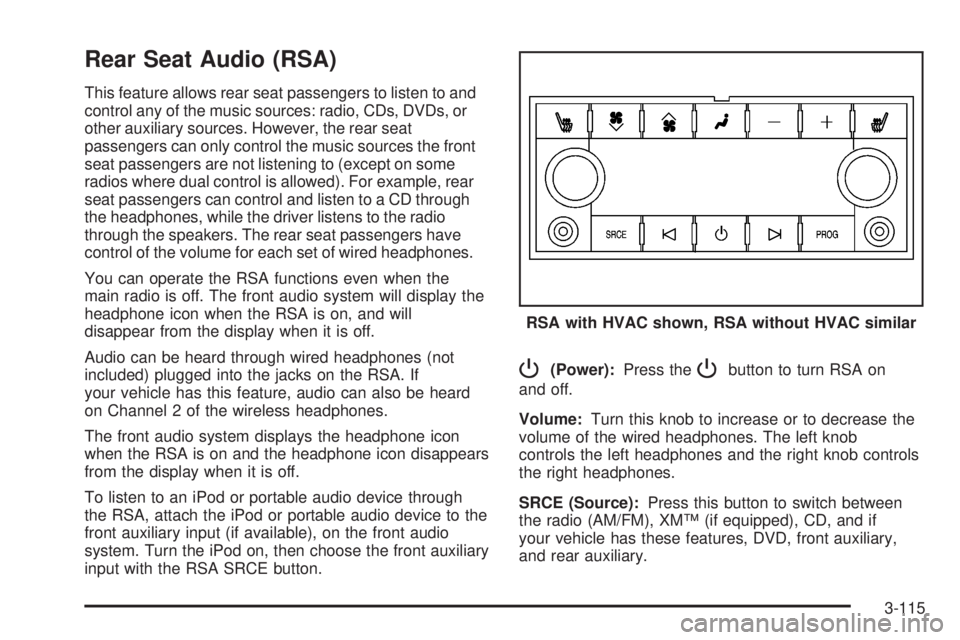
P(Power):Press thePbutton to turn RSA on
and off.
Volume:Turn this knob to increase or to decrease the
volume of the wired headphones. The left knob
controls the left headphones and the right knob controls
the right headphones.
SRCE (Source):Press this button to switch between
the radio (AM/FM), XM™ (if equipped), CD, and if
your vehicle has these features, DVD, front auxiliary,
and rear auxiliary.RSA with HVAC shown, RSA without HVAC similar
3-115
Page 279 of 502
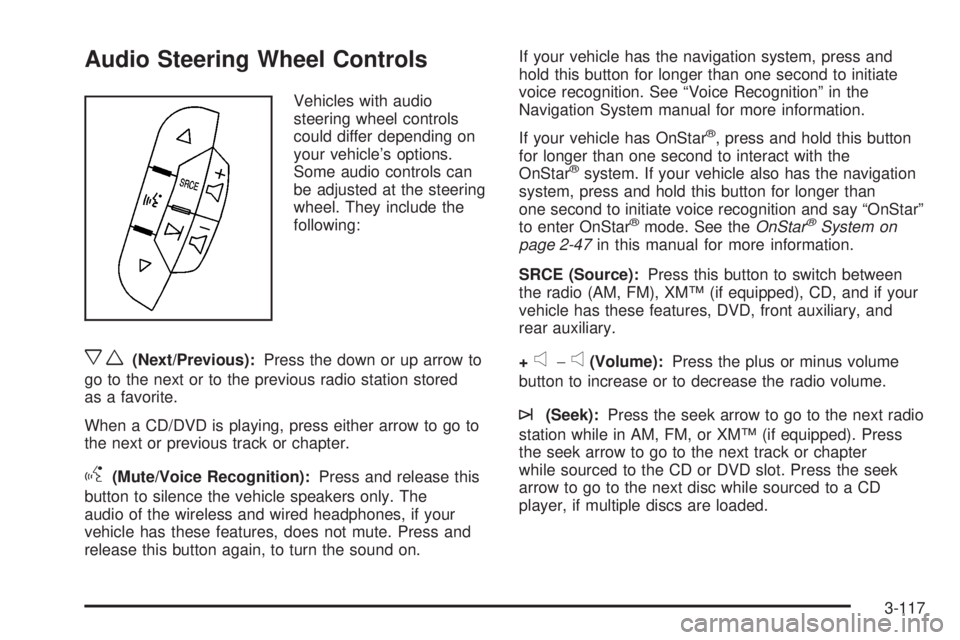
Audio Steering Wheel Controls
Vehicles with audio
steering wheel controls
could differ depending on
your vehicle’s options.
Some audio controls can
be adjusted at the steering
wheel. They include the
following:
xw(Next/Previous):Press the down or up arrow to
go to the next or to the previous radio station stored
as a favorite.
When a CD/DVD is playing, press either arrow to go to
the next or previous track or chapter.
g(Mute/Voice Recognition):Press and release this
button to silence the vehicle speakers only. The
audio of the wireless and wired headphones, if your
vehicle has these features, does not mute. Press and
release this button again, to turn the sound on.If your vehicle has the navigation system, press and
hold this button for longer than one second to initiate
voice recognition. See “Voice Recognition” in the
Navigation System manual for more information.
If your vehicle has OnStar
®, press and hold this button
for longer than one second to interact with the
OnStar
®system. If your vehicle also has the navigation
system, press and hold this button for longer than
one second to initiate voice recognition and say “OnStar”
to enter OnStar
®mode. See theOnStar®System on
page 2-47in this manual for more information.
SRCE (Source):Press this button to switch between
the radio (AM, FM), XM™ (if equipped), CD, and if your
vehicle has these features, DVD, front auxiliary, and
rear auxiliary.
+
e−e(Volume):Press the plus or minus volume
button to increase or to decrease the radio volume.
¨(Seek):Press the seek arrow to go to the next radio
station while in AM, FM, or XM™ (if equipped). Press
the seek arrow to go to the next track or chapter
while sourced to the CD or DVD slot. Press the seek
arrow to go to the next disc while sourced to a CD
player, if multiple discs are loaded.
3-117