CD player GMC YUKON DENALI 2009 User Guide
[x] Cancel search | Manufacturer: GMC, Model Year: 2009, Model line: YUKON DENALI, Model: GMC YUKON DENALI 2009Pages: 100, PDF Size: 1.41 MB
Page 83 of 100
DVD Player
The player can be used for DVD audio and DVD video.
With the ignition on, insert a DVD partway into the top
visible slot, label side up. The player will pull it in and the
DVD should begin playing. While playing a DVD, the
navigation system is available. If you insert a DVD with
the system off and the ignition on, it will start to play.
This feature will not operate on the navigation screen
unless the vehicle is in PARK (P).
The Rear Seat Entertainment (RSE) video screen will
start play of the DVD when a DVD has been inserted into
the navigation system. See “Rear Seat Entertainment
System” in the Index of your vehicle’s owner manual for
more information.
The DVD player is only compatible with DVDs of the
appropriate region code that is printed on the jacket of
most DVDs.
The DVD slot is compatible with most audio CDs,
CD-R, CD-RW, DVD-Video, DVD-Audio, DVD-R/RW,
DVD+R/RW media along with MP3 and WMA
“un-protected” formats.
If an error appears on the display, see “DVD Messages”
later in this section.
Rear Seat Entertainment (RSE)
If the Rear Seat Entertainment (RSE) video screen is
playing a DVD movie and the ignition is turned to LOCK
and then back to ACCESSORY, RUN, or START, the
RSE screen will not turn back on automatically. To view
the movie on the RSE video screen:
Press the remote controlO(power) button, then
the
r(play) button, which will continue the
movie from where it was stopped.
Press ther(play) screen button on the navigation
screen, which will continue the movie from where it
was stopped.
Eject and replace the DVD movie from the
navigation system, which will start the movie from
the beginning.
3-17
Page 84 of 100
Playing a DVD
There are three ways to play a DVD:
Once a DVD is inserted, the system will
automatically start play of the DVD.
If you are on a map screen, touch the DVD screen
button.
Press the AUDIO hard key, then touch the DVD
screen button.
When a DVD is loaded in the DVD player, the rear seat
operator can power on the RSE video screen and
use the remote control to navigate through the DVD.
O(Power/Volume):Press this knob to turn the system
on and off. Turn the knob to increase or decrease the
volume of the audio system.
Press and hold this knob for more than two seconds to
turn the navigation system, RSE, and RSA off.
DVD Menu Options
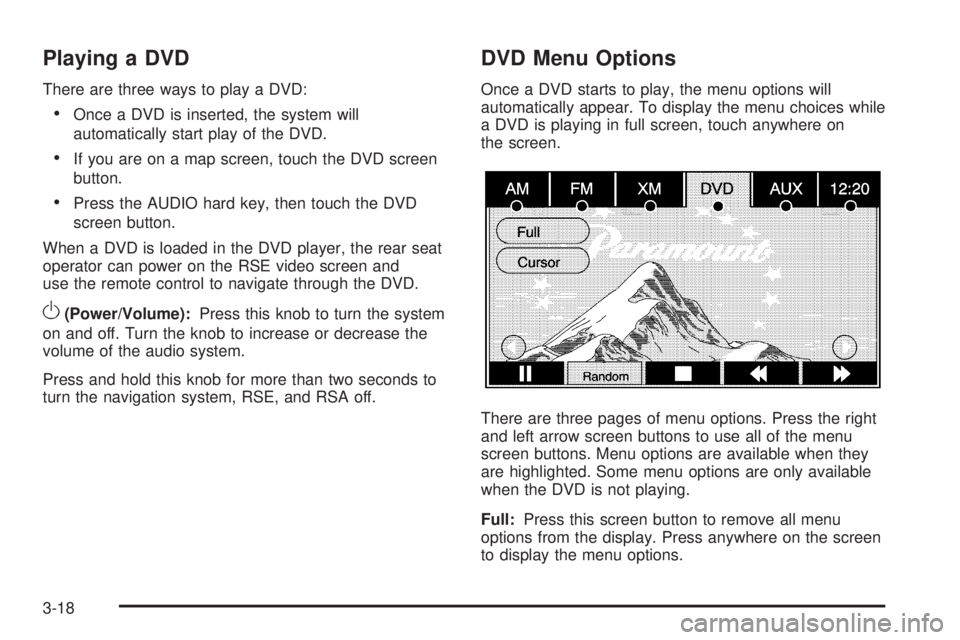
Once a DVD starts to play, the menu options will
automatically appear. To display the menu choices while
a DVD is playing in full screen, touch anywhere on
the screen.
There are three pages of menu options. Press the right
and left arrow screen buttons to use all of the menu
screen buttons. Menu options are available when they
are highlighted. Some menu options are only available
when the DVD is not playing.
Full:Press this screen button to remove all menu
options from the display. Press anywhere on the screen
to display the menu options.
3-18
Page 88 of 100
DVD Messages
If Disc Read Error appears on the display and/or the
DVD comes out, it could be for one of the following
reasons:
If a disc was inserted with an invalid or unknown
format.
If the disc is not from a correct region.
If the map DVD disc was installed into the DVD
audio/video slot. See “Installing the Map DVD”
underMaps on page 2-4for more information.
It is very hot. When the temperature returns to
normal, the DVD should play.
You are driving on a very rough road. When the
road becomes smoother, the DVD should play.
The DVD is dirty, scratched, wet, or upside down.
The air is very humid. If so, wait about an hour
and try again.
There may have been a problem while burning
the DVD.
The label may be caught in the DVD player.
If the DVD is not playing correctly, for any other reason,
try a known good DVD.
If any error occurs repeatedly or if an error cannot be
corrected, contact your dealer/retailer.
Care of Your CDs and DVDs
If playing recorded media such as a CD or DVD, the
sound quality may be reduced due to CD or DVD quality,
the method of recording, the quality of the music that has
been recorded, recording speed, max media recording
speed, and the way the CD or DVD has been handled.
There may be an increase in skipping, difficulty in nding
tracks, and/or difficulty in loading and ejecting. If these
problems occur, check the bottom surface of the CD or
DVD. If the surface is damaged, such as cracked, broken,
or scratched, it will not play properly. If the surface is
soiled, see “Care of Your CDs and DVDs” in the Index
of the vehicle’s owner manual.
If there is no apparent damage, try a known good CD
or DVD.
Notice:If a label is added to a CD or DVD, or more
than one CD or DVD is inserted into the slot at a
time, or an attempt is made to play scratched
or damaged CDs or DVDs, the player could be
damaged. While using the CD or DVD player, use
only CDs or DVDs in good condition without
any label, load one CD or DVD at a time, and keep
the player and the loading slot free of foreign
materials, liquids, and debris.
3-22
Page 89 of 100
Do not add any label to a CD or DVD, it could get
caught in the player. If a CD or DVD is recorded on a
personal computer and a description label is needed,
try labeling the top of the recorded CD or DVD with
a soft marker.
Auxiliary Devices
The navigation system has an auxiliary input jack
located in the upper right corner of the faceplate.
This is not an audio output; do not plug the headphone
set into the front auxiliary input jack. You can however,
connect an external audio device such as an iPod,
laptop computer, MP3 player, CD changer, or cassette
tape player, etc. to the auxiliary input jack for use
as another source for audio listening.
Drivers are encouraged to set up any auxiliary device
while the vehicle is in PARK (P). See “Defensive Driving”
in the Index of your vehicles owner manual for more
information on driver distraction.If your vehicle has rear audio/video input jacks, located
in the rear of the center console, they can be used
as another source for audio/video listening.
To use a portable audio player, connect a 3.5 mm
(1/8 inch) cable to the auxiliary input jack. When a
device is connected, the system will detect and
automatically begin playing audio from the device over
the vehicle’s speakers.
If a device is connected and you are listening to another
source (FM, CD, MP3, etc.), press the AUDIO key
then press the AUDIO key repeatedly until AUX is
selected or touch the AUX screen button. An auxiliary
device must be connected for the AUX screen button
to appear as an option to select or the vehicle must have
rear auxiliary jacks. See “Rear Seat Entertainment
System” in the Index of your vehicle’s owner manual for
more information on the rear auxiliary jacks.
3-23
Page 97 of 100
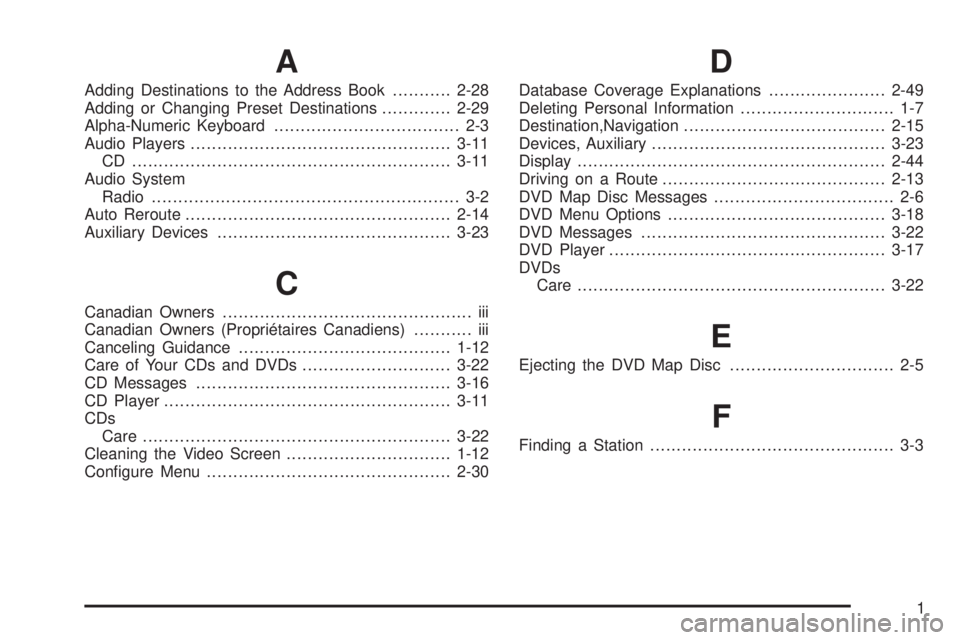
A
Adding Destinations to the Address Book...........2-28
Adding or Changing Preset Destinations.............2-29
Alpha-Numeric Keyboard................................... 2-3
Audio Players.................................................3-11
CD ............................................................3-11
Audio System
Radio.......................................................... 3-2
Auto Reroute..................................................2-14
Auxiliary Devices............................................3-23
C
Canadian Owners............................................... iii
Canadian Owners (Propriétaires Canadiens)........... iii
Canceling Guidance........................................1-12
Care of Your CDs and DVDs ............................3-22
CD Messages................................................3-16
CD Player......................................................3-11
CDs
Care ..........................................................3-22
Cleaning the Video Screen...............................1-12
Congure Menu..............................................2-30
D
Database Coverage Explanations......................2-49
Deleting Personal Information............................. 1-7
Destination,Navigation......................................2-15
Devices, Auxiliary............................................3-23
Display..........................................................2-44
Driving on a Route..........................................2-13
DVD Map Disc Messages.................................. 2-6
DVD Menu Options.........................................3-18
DVD Messages..............................................3-22
DVD Player....................................................3-17
DVDs
Care ..........................................................3-22
E
Ejecting the DVD Map Disc............................... 2-5
F
Finding a Station.............................................. 3-3
1