display GMC YUKON DENALI 2009 Service Manual
[x] Cancel search | Manufacturer: GMC, Model Year: 2009, Model line: YUKON DENALI, Model: GMC YUKON DENALI 2009Pages: 100, PDF Size: 1.41 MB
Page 60 of 100
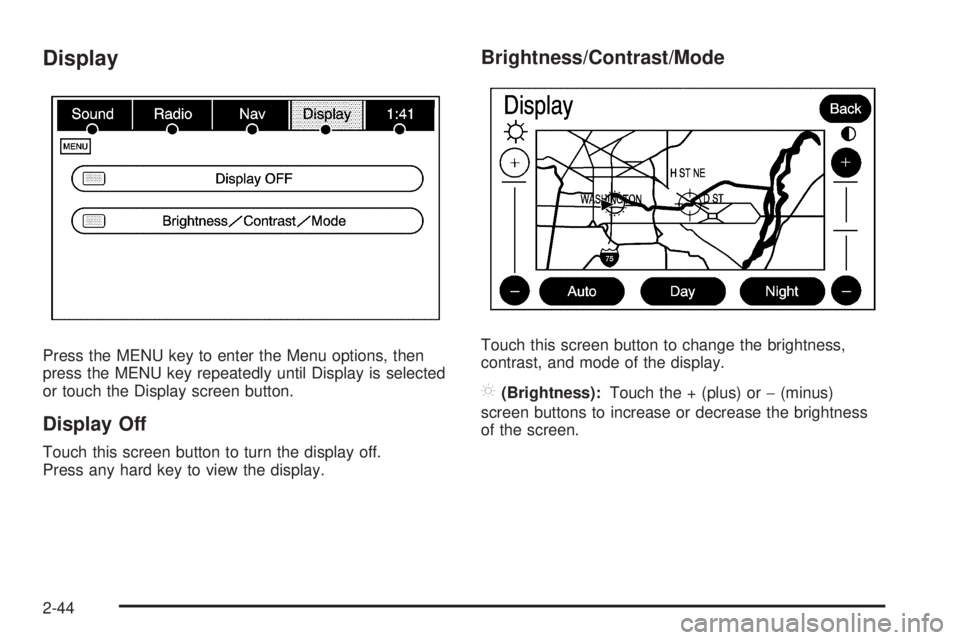
Display
Press the MENU key to enter the Menu options, then
press the MENU key repeatedly until Display is selected
or touch the Display screen button.
Display Off
Touch this screen button to turn the display off.
Press any hard key to view the display.
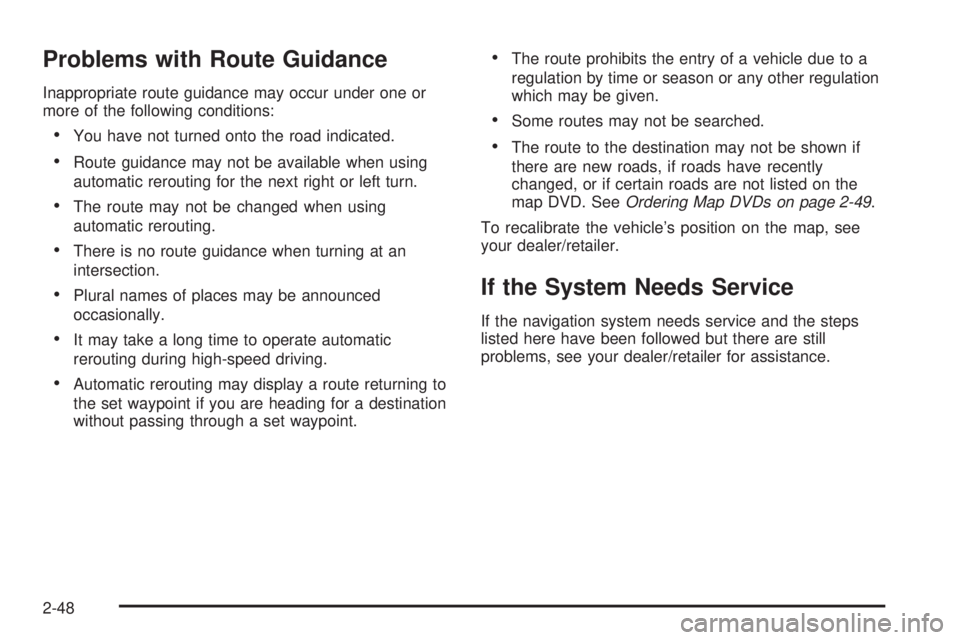
Brightness/Contrast/Mode
Touch this screen button to change the brightness,
contrast, and mode of the display.
](Brightness):Touch the + (plus) or−(minus)
screen buttons to increase or decrease the brightness
of the screen.
2-44
Page 64 of 100
Problems with Route Guidance
Inappropriate route guidance may occur under one or
more of the following conditions:
You have not turned onto the road indicated.
Route guidance may not be available when using
automatic rerouting for the next right or left turn.
The route may not be changed when using
automatic rerouting.
There is no route guidance when turning at an
intersection.
Plural names of places may be announced
occasionally.
It may take a long time to operate automatic
rerouting during high-speed driving.
Automatic rerouting may display a route returning to
the set waypoint if you are heading for a destination
without passing through a set waypoint.
The route prohibits the entry of a vehicle due to a
regulation by time or season or any other regulation
which may be given.
Some routes may not be searched.
The route to the destination may not be shown if
there are new roads, if roads have recently
changed, or if certain roads are not listed on the
map DVD. SeeOrdering Map DVDs on page 2-49.
To recalibrate the vehicle’s position on the map, see
your dealer/retailer.
If the System Needs Service
If the navigation system needs service and the steps
listed here have been followed but there are still
problems, see your dealer/retailer for assistance.
2-48
Page 68 of 100
Navigation Audio System
Notice:Before adding any sound equipment to
the vehicle, such as an audio system, CD player,
CB radio, mobile telephone, or two-way radio,
make sure that it can be added by checking with
your dealer/retailer. Also, check federal rules
covering mobile radio and telephone units. If sound
equipment can be added, it is very important to
do it properly. Added sound equipment can interfere
with the operation of the vehicle’s engine, radio,
or other systems, and even damage them.
The vehicle’s systems can interfere with the
operation of sound equipment that has been added.
Notice:The chime signals related to safety belts,
parking brake, and other functions of the vehicle
operate through the navigation system. If that
equipment is replaced or additional equipment is
added to the vehicle, the chimes may not work.
Make sure that replacement or additional equipment
is compatible with the vehicle before installing it.
See “Accessories and Modications” in the Index of
the vehicle’s owner manual.
Playing the Radio
O
(Power/Volume):Press this knob to turn the audio
system on and off. Turn the knob to increase or to
decrease the volume.
f(Tuning/Sound Knob):Turn this knob to go to the
next or previous frequency.
Press this knob to display the Sound menu. See “Sound
Menu” later in this section.
AUDIO:Press this key to display the audio screen.
Press the key to switch between AM, FM, or XM,
if equipped, DISC, or AUX (Auxiliary), or touch the
screen button. SeeCD Player on page 3-11,DVD
Player on page 3-17, andAuxiliary Devices on
page 3-23for more information.
3-2
Page 69 of 100
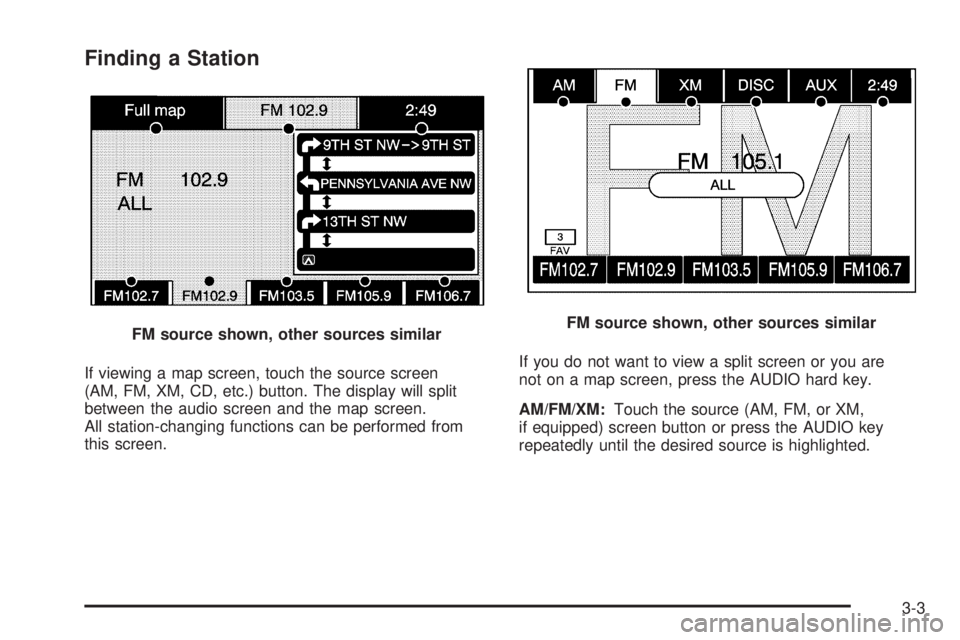
Finding a Station
If viewing a map screen, touch the source screen
(AM, FM, XM, CD, etc.) button. The display will split
between the audio screen and the map screen.
All station-changing functions can be performed from
this screen.If you do not want to view a split screen or you are
not on a map screen, press the AUDIO hard key.
AM/FM/XM:Touch the source (AM, FM, or XM,
if equipped) screen button or press the AUDIO key
repeatedly until the desired source is highlighted. FM source shown, other sources similar
FM source shown, other sources similar
3-3
Page 70 of 100
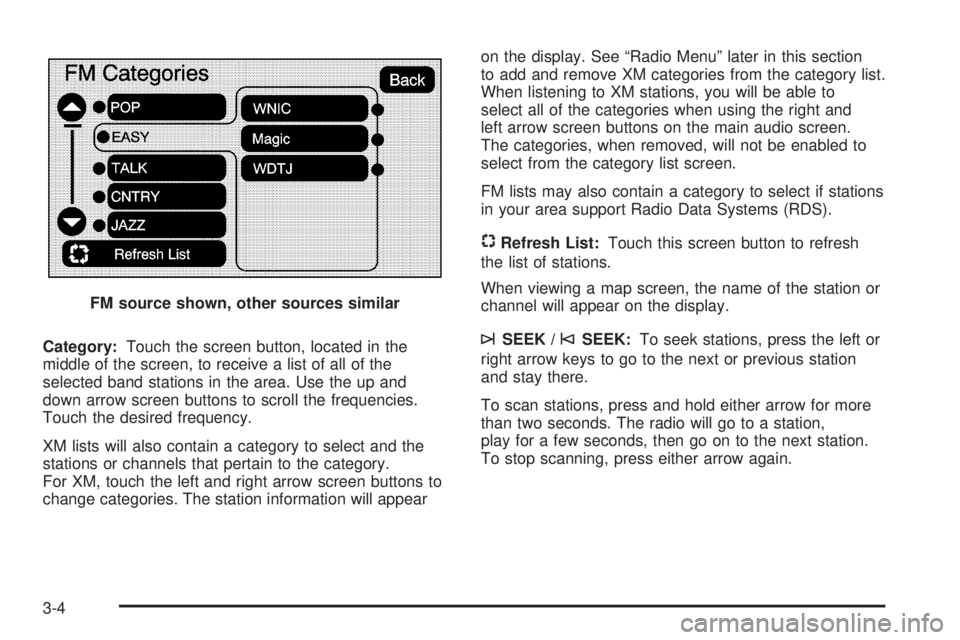
Category:Touch the screen button, located in the
middle of the screen, to receive a list of all of the
selected band stations in the area. Use the up and
down arrow screen buttons to scroll the frequencies.
Touch the desired frequency.
XM lists will also contain a category to select and the
stations or channels that pertain to the category.
For XM, touch the left and right arrow screen buttons to
change categories. The station information will appearon the display. See “Radio Menu” later in this section
to add and remove XM categories from the category list.
When listening to XM stations, you will be able to
select all of the categories when using the right and
left arrow screen buttons on the main audio screen.
The categories, when removed, will not be enabled to
select from the category list screen.
FM lists may also contain a category to select if stations
in your area support Radio Data Systems (RDS).
$Refresh List:Touch this screen button to refresh
the list of stations.
When viewing a map screen, the name of the station or
channel will appear on the display.
¨SEEK /©SEEK:To seek stations, press the left or
right arrow keys to go to the next or previous station
and stay there.
To scan stations, press and hold either arrow for more
than two seconds. The radio will go to a station,
play for a few seconds, then go on to the next station.
To stop scanning, press either arrow again. FM source shown, other sources similar
3-4
Page 72 of 100
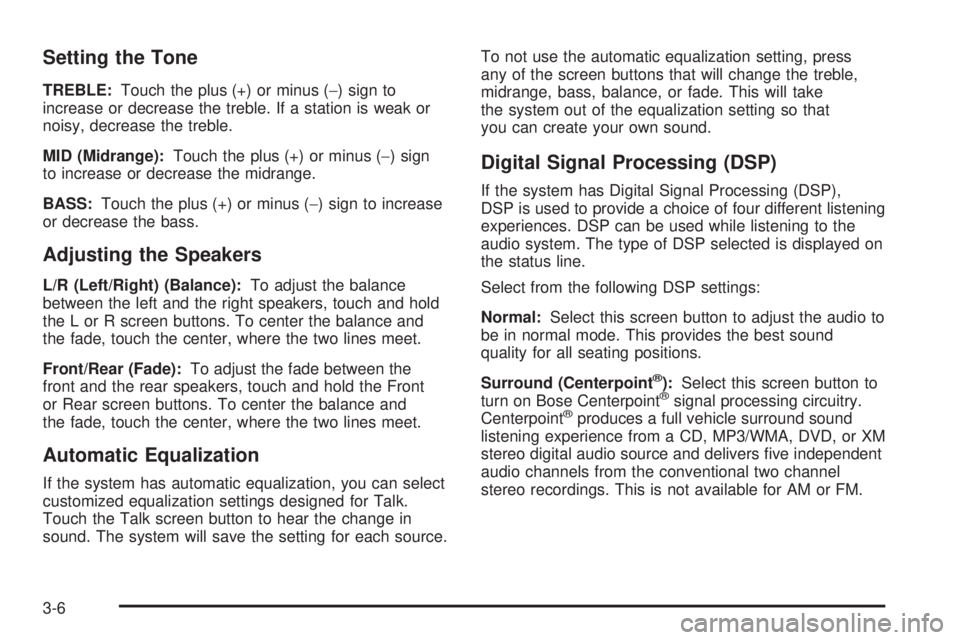
Setting the Tone
TREBLE:Touch the plus (+) or minus (−) sign to
increase or decrease the treble. If a station is weak or
noisy, decrease the treble.
MID (Midrange):Touch the plus (+) or minus (−) sign
to increase or decrease the midrange.
BASS:Touch the plus (+) or minus (−) sign to increase
or decrease the bass.
Adjusting the Speakers
L/R (Left/Right) (Balance):To adjust the balance
between the left and the right speakers, touch and hold
the L or R screen buttons. To center the balance and
the fade, touch the center, where the two lines meet.
Front/Rear (Fade):To adjust the fade between the
front and the rear speakers, touch and hold the Front
or Rear screen buttons. To center the balance and
the fade, touch the center, where the two lines meet.
Automatic Equalization
If the system has automatic equalization, you can select
customized equalization settings designed for Talk.
Touch the Talk screen button to hear the change in
sound. The system will save the setting for each source.To not use the automatic equalization setting, press
any of the screen buttons that will change the treble,
midrange, bass, balance, or fade. This will take
the system out of the equalization setting so that
you can create your own sound.
Digital Signal Processing (DSP)
If the system has Digital Signal Processing (DSP),
DSP is used to provide a choice of four different listening
experiences. DSP can be used while listening to the
audio system. The type of DSP selected is displayed on
the status line.
Select from the following DSP settings:
Normal:Select this screen button to adjust the audio to
be in normal mode. This provides the best sound
quality for all seating positions.
Surround (Centerpoint
®):Select this screen button to
turn on Bose Centerpoint®signal processing circuitry.
Centerpoint®produces a full vehicle surround sound
listening experience from a CD, MP3/WMA, DVD, or XM
stereo digital audio source and delivers ve independent
audio channels from the conventional two channel
stereo recordings. This is not available for AM or FM.
3-6
Page 73 of 100
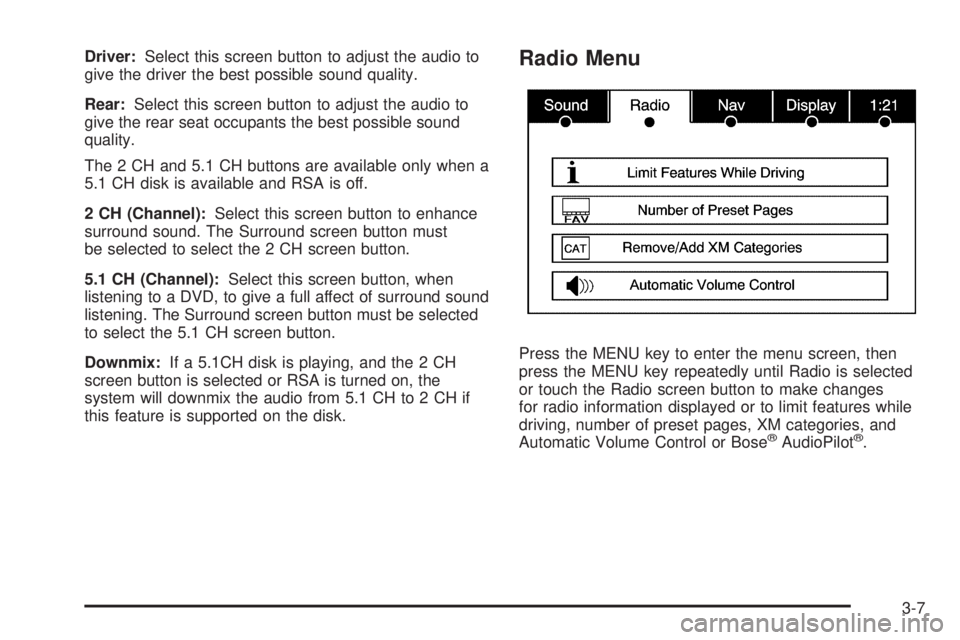
Driver:Select this screen button to adjust the audio to
give the driver the best possible sound quality.
Rear:Select this screen button to adjust the audio to
give the rear seat occupants the best possible sound
quality.
The 2 CH and 5.1 CH buttons are available only when a
5.1 CH disk is available and RSA is off.
2 CH (Channel):Select this screen button to enhance
surround sound. The Surround screen button must
be selected to select the 2 CH screen button.
5.1 CH (Channel):Select this screen button, when
listening to a DVD, to give a full affect of surround sound
listening. The Surround screen button must be selected
to select the 5.1 CH screen button.
Downmix:If a 5.1CH disk is playing, and the 2 CH
screen button is selected or RSA is turned on, the
system will downmix the audio from 5.1 CH to 2 CH if
this feature is supported on the disk.Radio Menu
Press the MENU key to enter the menu screen, then
press the MENU key repeatedly until Radio is selected
or touch the Radio screen button to make changes
for radio information displayed or to limit features while
driving, number of preset pages, XM categories, and
Automatic Volume Control or Bose
®AudioPilot®.
3-7
Page 74 of 100
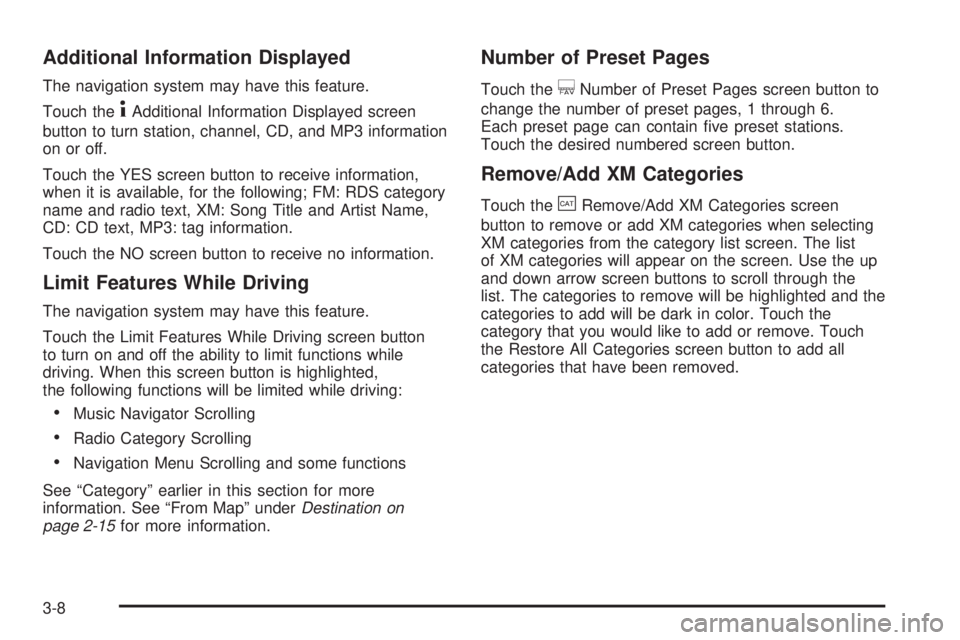
Additional Information Displayed
The navigation system may have this feature.
Touch the
4Additional Information Displayed screen
button to turn station, channel, CD, and MP3 information
on or off.
Touch the YES screen button to receive information,
when it is available, for the following; FM: RDS category
name and radio text, XM: Song Title and Artist Name,
CD: CD text, MP3: tag information.
Touch the NO screen button to receive no information.
Limit Features While Driving
The navigation system may have this feature.
Touch the Limit Features While Driving screen button
to turn on and off the ability to limit functions while
driving. When this screen button is highlighted,
the following functions will be limited while driving:
Music Navigator Scrolling
Radio Category Scrolling
Navigation Menu Scrolling and some functions
See “Category” earlier in this section for more
information. See “From Map” underDestination on
page 2-15for more information.
Number of Preset Pages
Touch the/Number of Preset Pages screen button to
change the number of preset pages, 1 through 6.
Each preset page can contain ve preset stations.
Touch the desired numbered screen button.
Remove/Add XM Categories
Touch the&Remove/Add XM Categories screen
button to remove or add XM categories when selecting
XM categories from the category list screen. The list
of XM categories will appear on the screen. Use the up
and down arrow screen buttons to scroll through the
list. The categories to remove will be highlighted and the
categories to add will be dark in color. Touch the
category that you would like to add or remove. Touch
the Restore All Categories screen button to add all
categories that have been removed.
3-8
Page 76 of 100
Radio Data System (RDS)
The audio system has a Radio Data System (RDS).
RDS features are available for use only on FM stations
that broadcast RDS information. With RDS, the radio
can do the following:
Seek to stations broadcasting the selected type of
programming
Receive announcements concerning local and
national emergencies
Display messages from radio stations
This system relies on receiving specic information from
these stations and will only work when the information
is available. In rare cases, a radio station may broadcast
incorrect information that will cause the radio features
to work improperly. If this happens, contact the
radio station.
The RDS system is always on. When information is
broadcast from the FM station you are listening to, the
station name or call letters will be displayed on the
audio screen. RDS may provide a program type (PTY)
for current programming and the name of the program
being broadcasted.
XM™ Satellite Radio Service
XM™ is a satellite radio service that is based in the
48 contiguous United States and 10 Canadian provinces.
XM Satellite Radio has a wide variety of programming
and commercial-free music, coast-to-coast, and in
digital-quality sound. During your trial or when you
subscribe, you will get unlimited access to XM Radio
Online for when you are not in the vehicle. A service
fee is required to receive the XM service. For more
information, contact XM at xmradio.com or call
1-800-929-2100 in the U.S. and xmradio.ca or
call 1-877-438-9677 in Canada.
When XM™ is active, the channel name and number,
song title, and artist will display on the screen.
XM™ Radio Messages
See “XM™ Radio Messages” in the vehicle’s owner
manual” for a list of possible XM messages.
3-10
Page 77 of 100
CD Player
The player can be used for CD and MP3. If your vehicle
has RSE, the player can be used for CD, MP3, DVD
audio, and as a DVD video player. SeeDVD Player on
page 3-17for more information about DVD audio
and video.
With the ignition on, insert a CD partway into the slot,
label side up. The player will pull it in and the CD should
begin playing. While playing a CD, the navigation
system is available. If you insert a CD with the system
off and the ignition on, it will start to play.
When you insert a CD, the CD tab will display.
If you turn off the ignition or radio with a CD in the
player, it will stay in the player. When you turn on the
ignition or radio, the CD will start playing where it
stopped, if it was the last selected audio source.As each new track starts to play, the track number will
appear on the display.
The CD player can play the smaller 3 inch (8cm)
single CDs with an adapter ring. Full-size CDs and the
smaller CDs are loaded in the same manner.
If an error appears on the display, see “CD Messages”
later in this section.
If viewing a map screen, touch the CD screen button.
The display will split between the audio screen and
the map screen. If you do not want to view a split screen
or you are not on a map screen, press the AUDIO
key then press the AUDIO key until CD is selected or
touch the CD screen button.
3-11