ignition GMC YUKON DENALI 2009 Owners Manual
[x] Cancel search | Manufacturer: GMC, Model Year: 2009, Model line: YUKON DENALI, Model: GMC YUKON DENALI 2009Pages: 100, PDF Size: 1.41 MB
Page 20 of 100
If a name does not display after entry, it may need to be
entered differently, the map DVD disc may not contain
that information, or the correct search area has not been
selected. SeeDatabase Coverage Explanations on
page 2-49for more information orDestination on
page 2-15to change the search area.
Maps
This section includes basic information needed to know
about the map database.
Map Coverage
The maps are stored on a DVD. The 48 contiguous
United States, along with Hawaii, Alaska, and portions
of Canada are contained on one disc.
Refer to the “Navigation System Map Disc” manual to
view a detailed explanation of map coverage and
detailed city lists in each region. This manual will be in
the map DVD case when the vehicle is delivered
from the factory.
Installing the DVD Map Disc
When a DVD Map Disc is installed, noise from the disc
may occur, this is normal system operation.
The navigation system in this vehicle uses a DVD to
store map information. When the system loads data from
the disc, you may hear a very slight buzz sound from
the navigation system. The sound is similar to that of a
CD player seeking through different tracks. This is
normal operation and may occur more frequently with
the use of XM NavTraffic.
Your dealer/retailer may have installed the map DVD.
If the map DVD was not installed, do the following
to load it:
1. Turn the ignition on.
2. Press the
O(power) knob to turn the navigation
system on or press the NAV, DEST, or MENU
hard keys. If the MENU hard key is selected, press
and hold until the NAV screen is active, or select
the NAV tab manually.
3. Touch the OK screen button to agree to the
Caution screen, if it appears. If the map is in
split screen mode, you must push the NAV tab
button to get the full map screen.
2-4
Page 77 of 100
CD Player
The player can be used for CD and MP3. If your vehicle
has RSE, the player can be used for CD, MP3, DVD
audio, and as a DVD video player. SeeDVD Player on
page 3-17for more information about DVD audio
and video.
With the ignition on, insert a CD partway into the slot,
label side up. The player will pull it in and the CD should
begin playing. While playing a CD, the navigation
system is available. If you insert a CD with the system
off and the ignition on, it will start to play.
When you insert a CD, the CD tab will display.
If you turn off the ignition or radio with a CD in the
player, it will stay in the player. When you turn on the
ignition or radio, the CD will start playing where it
stopped, if it was the last selected audio source.As each new track starts to play, the track number will
appear on the display.
The CD player can play the smaller 3 inch (8cm)
single CDs with an adapter ring. Full-size CDs and the
smaller CDs are loaded in the same manner.
If an error appears on the display, see “CD Messages”
later in this section.
If viewing a map screen, touch the CD screen button.
The display will split between the audio screen and
the map screen. If you do not want to view a split screen
or you are not on a map screen, press the AUDIO
key then press the AUDIO key until CD is selected or
touch the CD screen button.
3-11
Page 81 of 100
Playing an MP3
With the ignition on, insert a CD partway into the slot,
label side up. The player will pull it in. The system may
take some time to read the MP3 disc. While playing
a CD, the navigation system is available. If you insert a
CD with the system off and the ignition on, it will start
to play.
When you insert a CD, the CD tab will display.
If you turn off the ignition or radio with a CD in the
player, it will stay in the player. When you turn on the
ignition or radio, the CD will start playing where it
stopped, if it was the last selected audio source.
As each new track starts to play, the track number will
appear on the display.
If an error appears on the display, see “CD Messages”
later in this section.
If viewing a map screen, touch the CD screen button.
The display will split between the audio screen and
the map screen. If you do not want to view a split screen
or you are not on a map screen, press the AUDIO
key, then press the AUDIO key until CD is selected or
touch the CD screen button.
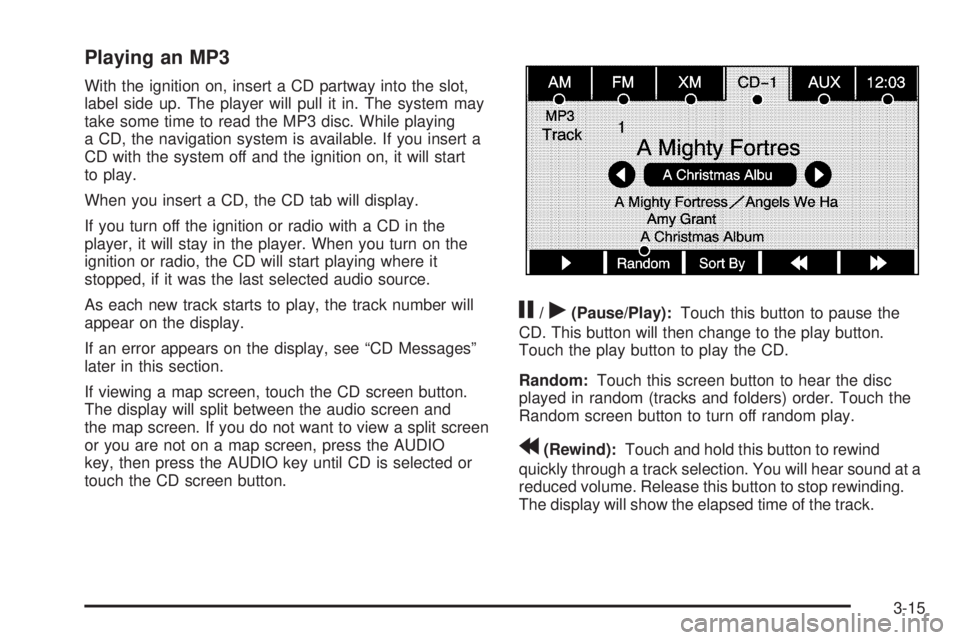
j/r(Pause/Play):Touch this button to pause the
CD. This button will then change to the play button.
Touch the play button to play the CD.
Random:Touch this screen button to hear the disc
played in random (tracks and folders) order. Touch the
Random screen button to turn off random play.
r(Rewind):Touch and hold this button to rewind
quickly through a track selection. You will hear sound at a
reduced volume. Release this button to stop rewinding.
The display will show the elapsed time of the track.
3-15
Page 83 of 100
DVD Player
The player can be used for DVD audio and DVD video.
With the ignition on, insert a DVD partway into the top
visible slot, label side up. The player will pull it in and the
DVD should begin playing. While playing a DVD, the
navigation system is available. If you insert a DVD with
the system off and the ignition on, it will start to play.
This feature will not operate on the navigation screen
unless the vehicle is in PARK (P).
The Rear Seat Entertainment (RSE) video screen will
start play of the DVD when a DVD has been inserted into
the navigation system. See “Rear Seat Entertainment
System” in the Index of your vehicle’s owner manual for
more information.
The DVD player is only compatible with DVDs of the
appropriate region code that is printed on the jacket of
most DVDs.
The DVD slot is compatible with most audio CDs,
CD-R, CD-RW, DVD-Video, DVD-Audio, DVD-R/RW,
DVD+R/RW media along with MP3 and WMA
“un-protected” formats.
If an error appears on the display, see “DVD Messages”
later in this section.
Rear Seat Entertainment (RSE)
If the Rear Seat Entertainment (RSE) video screen is
playing a DVD movie and the ignition is turned to LOCK
and then back to ACCESSORY, RUN, or START, the
RSE screen will not turn back on automatically. To view
the movie on the RSE video screen:
Press the remote controlO(power) button, then
the
r(play) button, which will continue the
movie from where it was stopped.
Press ther(play) screen button on the navigation
screen, which will continue the movie from where it
was stopped.
Eject and replace the DVD movie from the
navigation system, which will start the movie from
the beginning.
3-17
Page 92 of 100
Voice Recognition
The navigation system’s voice recognition allows for
hands-free operation of the navigation system,
audio system, and OnStar
®features. The DVD map
disc must be installed in the navigation system for voice
recognition to work. See “Installing the DVD Map
Disc” underMaps on page 2-4. Voice recognition can
be used when the ignition is on or when Retained
Accessory Power (RAP) is active. See “Retained
Accessory Power (RAP)” in the Index of your vehicle’s
owner manual and for more information.
To use voice recognition, do the following:
1. Push and hold the SRCE (source) steering wheel
control until you hear a beep. The audio system,
if on, will mute.
2. Clearly state one of the commands listed on the
following pages.
Helpful Hints for Stating Commands
When a multiple command is available, choose the
command that best works for you.
Words that are in brackets are optional. For example,
for the command Radio [band] [select] FM, stating
Radio FM or Radio select FM are both valid
commands.
When the system recognizes the command the
system will:
either perform the function
ask you to conrm your choice by clearly
stating “yes or no”
issue an error message such as “System does
not recognize this command” or direct you to
“Please start speaking after the beep”
If the system is not yet ready, the system may state
“System is checking the disc. Please wait”.
To cancel a command or if the system response
does not match your verbal command, press and
hold the talk symbol button. The system will reply,
“System will cancel the voice recognition”.
4-2