phone GMC YUKON DENALI 2009 Owners Manual
[x] Cancel search | Manufacturer: GMC, Model Year: 2009, Model line: YUKON DENALI, Model: GMC YUKON DENALI 2009Pages: 100, PDF Size: 1.41 MB
Page 8 of 100
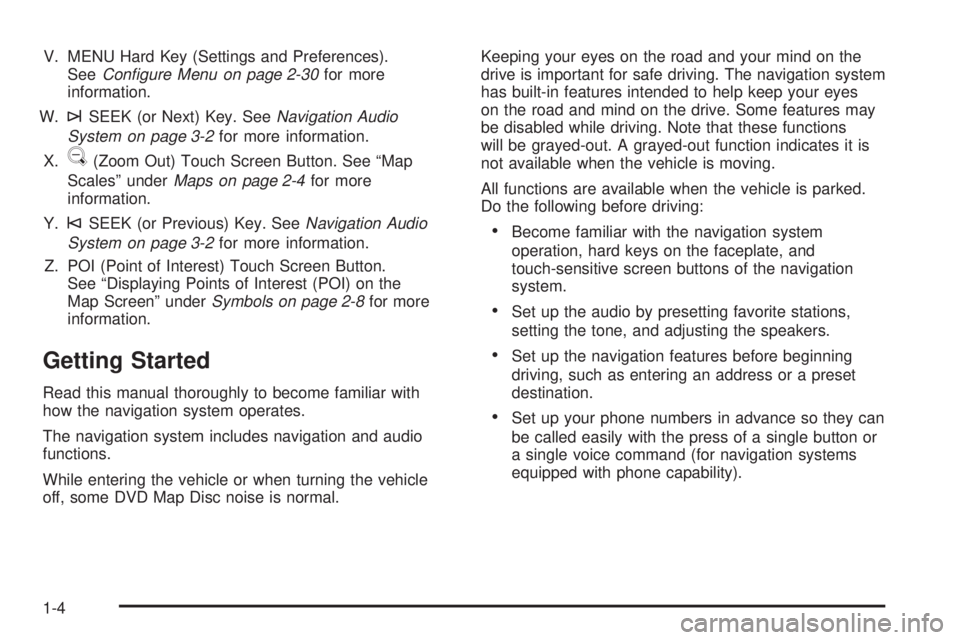
V. MENU Hard Key (Settings and Preferences).
SeeConfigure Menu on page 2-30for more
information.
W.
¨SEEK (or Next) Key. SeeNavigation Audio
System on page 3-2for more information.
X.
U(Zoom Out) Touch Screen Button. See “Map
Scales” underMaps on page 2-4for more
information.
Y.
©SEEK (or Previous) Key. SeeNavigation Audio
System on page 3-2for more information.
Z. POI (Point of Interest) Touch Screen Button.
See “Displaying Points of Interest (POI) on the
Map Screen” underSymbols on page 2-8for more
information.
Getting Started
Read this manual thoroughly to become familiar with
how the navigation system operates.
The navigation system includes navigation and audio
functions.
While entering the vehicle or when turning the vehicle
off, some DVD Map Disc noise is normal.Keeping your eyes on the road and your mind on the
drive is important for safe driving. The navigation system
has built-in features intended to help keep your eyes
on the road and mind on the drive. Some features may
be disabled while driving. Note that these functions
will be grayed-out. A grayed-out function indicates it is
not available when the vehicle is moving.
All functions are available when the vehicle is parked.
Do the following before driving:
Become familiar with the navigation system
operation, hard keys on the faceplate, and
touch-sensitive screen buttons of the navigation
system.
Set up the audio by presetting favorite stations,
setting the tone, and adjusting the speakers.
Set up the navigation features before beginning
driving, such as entering an address or a preset
destination.
Set up your phone numbers in advance so they can
be called easily with the press of a single button or
a single voice command (for navigation systems
equipped with phone capability).
1-4
Page 38 of 100
OnStar®Destination Download
OnStar®Destination Download (if equipped) is a service
available for OnStar* subscribers that makes operating
your navigation system much simpler. It allows
subscribers to request and receive navigation assistance
on-the-go.
Using OnStar®Destination Download
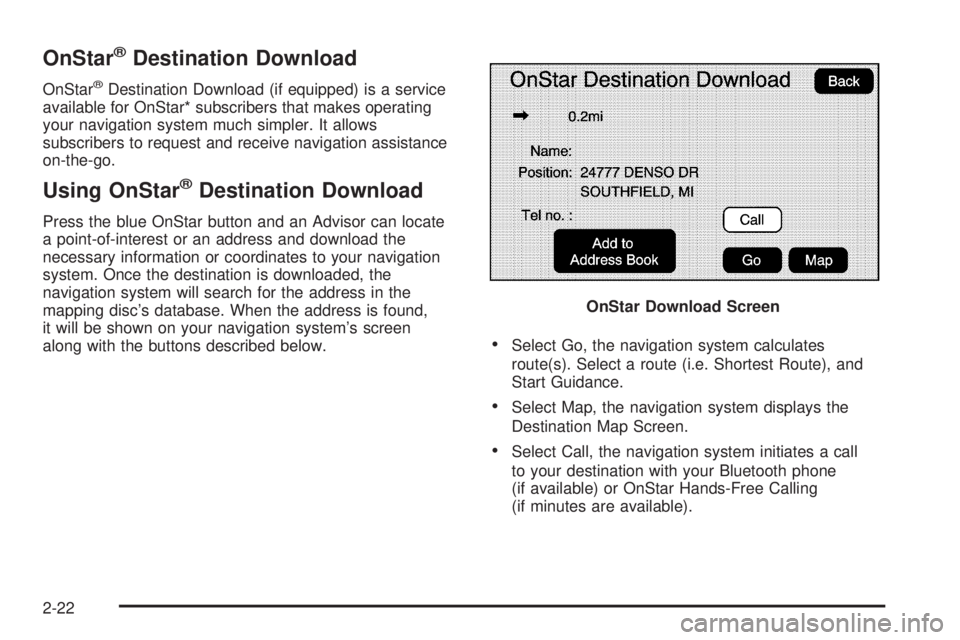
Press the blue OnStar button and an Advisor can locate
a point-of-interest or an address and download the
necessary information or coordinates to your navigation
system. Once the destination is downloaded, the
navigation system will search for the address in the
mapping disc’s database. When the address is found,
it will be shown on your navigation system’s screen
along with the buttons described below.
Select Go, the navigation system calculates
route(s). Select a route (i.e. Shortest Route), and
Start Guidance.
Select Map, the navigation system displays the
Destination Map Screen.
Select Call, the navigation system initiates a call
to your destination with your Bluetooth phone
(if available) or OnStar Hands-Free Calling
(if minutes are available).OnStar Download Screen
2-22
Page 40 of 100
Important Notes regarding OnStar Destination Download:
The map disc must be installed in the radio for
OnStar Destination Download to function.
If the navigation system is turned off when the
destination download is attempted, the navigation
system will automatically turn on and display the
OnStar Destination Download Screen. The radio will
remain on after the download occurs.
If the navigation system is turned off when the
destination download is attempted, the navigation
system will automatically turn on and display the
OnStar Destination Download Screen. The radio
remains on after the download occurs.
If OnStar downloads a destination and the address is
not found in the mapping disc’s database and routing
by coordinates is not available, the Go and Map
buttons gray out and routing will not be available.
Press the blue OnStar button for further assistance.
The Call button grays out when there is no phone
number available for your destination and while
connected to OnStar.
Map Destination Screen Functions
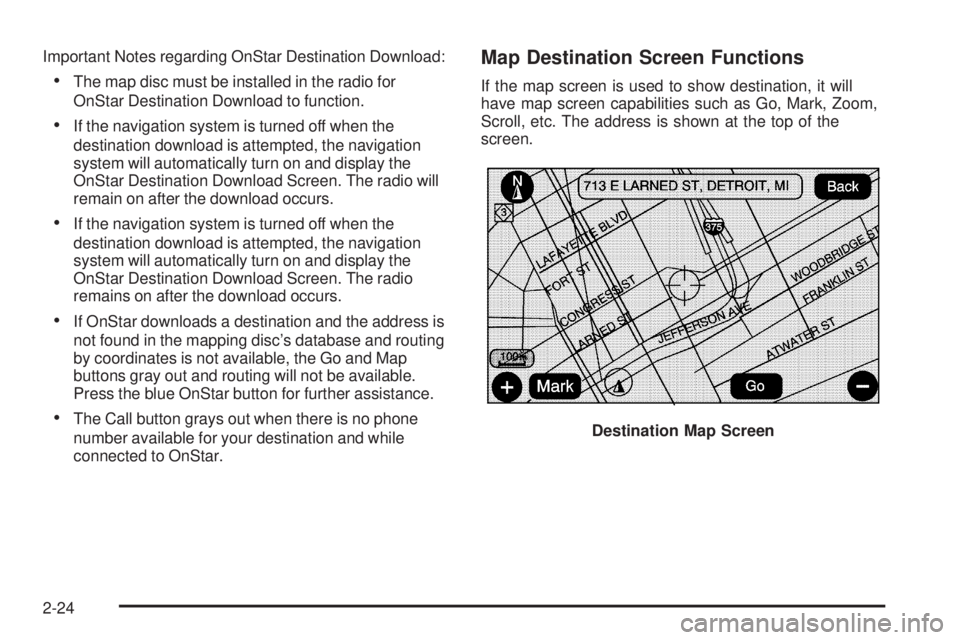
If the map screen is used to show destination, it will
have map screen capabilities such as Go, Mark, Zoom,
Scroll, etc. The address is shown at the top of the
screen.
Destination Map Screen
2-24
Page 48 of 100
Edit Address Book — How to Add
To add an address to the address book, see “Adding
Destinations to the Address Book” underDestination
on page 2-15.
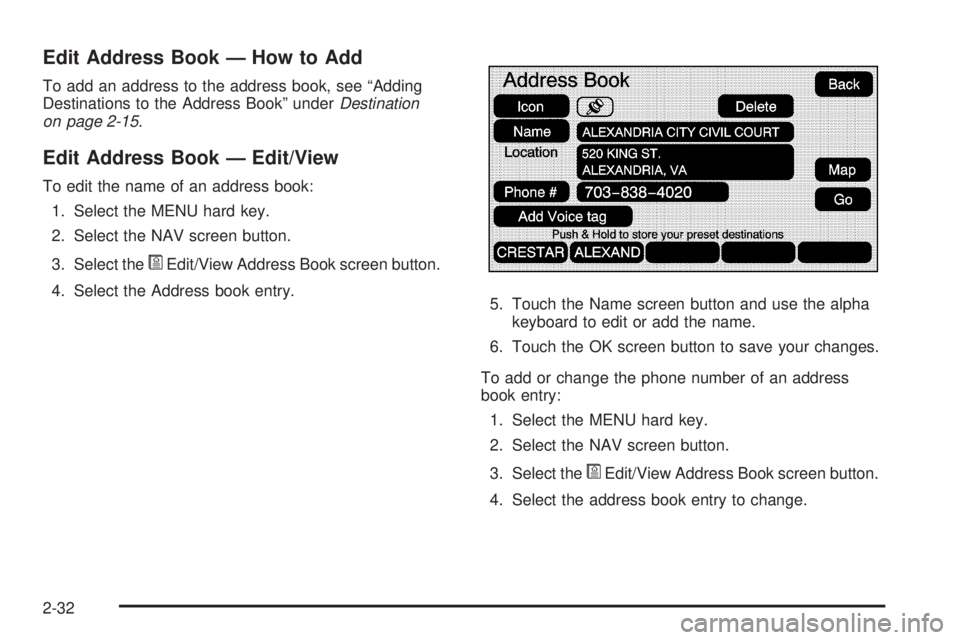
Edit Address Book — Edit/View
To edit the name of an address book:
1. Select the MENU hard key.
2. Select the NAV screen button.
3. Select the
*Edit/View Address Book screen button.
4. Select the Address book entry.
5. Touch the Name screen button and use the alpha
keyboard to edit or add the name.
6. Touch the OK screen button to save your changes.
To add or change the phone number of an address
book entry:
1. Select the MENU hard key.
2. Select the NAV screen button.
3. Select the
*Edit/View Address Book screen button.
4. Select the address book entry to change.
2-32
Page 49 of 100
5. Touch the Phone # screen button and use the
numeric keyboard to input or change the phone
number.
6. Touch the OK screen button to save your changes.
To change the map icon of an address book entry:
1. Select the MENU hard key.
2. Select the NAV screen button.
3. Select the
*Edit/View Address Book screen button.
4. Select the address book entry to change.
5. Select the Icon screen button.
6. Select an icon from the list.
To add a voice tag to an address book entry:
1. Select the MENU hard key.
2. Select the NAV screen button.
3. Select the
*Edit/View Address Book screen button.
4. Select the Add Voice tag screen button.
5. The system will ask for you to state the name.
You will have ve seconds to state the name.
The system will respond back with the name.To delete an address book entry:
1. Select the MENU hard key.
2. Select the NAV screen button.
3. Select the
*Edit/View Address Book screen button.
4. Select the address book entry to delete.
5. Press the Delete screen button to delete the
address book entry.
To delete the entire address book:
1. Select the MENU hard key.
2. Select the NAV screen button.
3. Select the
*Edit/View Address Book screen button.
4. Select the address book entry to delete.
5. Press and hold the Delete screen button until the
delete all address book entries pop-up conrmation
displays. Select Yes to delete; select No to cancel
the operation.
2-33
Page 65 of 100
Ordering Map DVDs
The map DVD in the vehicle is the most up-to-date
information available when the vehicle was produced.
The map DVD is updated periodically, provided that the
map information has changed.
For any questions about the operation of the navigation
system or the update process, contact the GM Nav
Disc Center toll-free phone number, 1-877-NAV-DISC
(1-877-628-3472) or go to the center’s website,
gmnavdisc.com. For any updates or replacements,
call the GM Nav Disc Center or order a new disc online.
Have the Vehicle Identication Number (VIN) available
when ordering to ensure the correct and most up-to-date
DVD map disc for the vehicle is sent. See “Vehicle
Identication Number (VIN)” in the Index of the vehicle’s
owner manual for more information.After receiving the updated disc, replace the old disc in
the navigation system. See “Installing the DVD Map
Disc” and “Ejecting the DVD Map Disc” underMaps on
page 2-4. Dispose of the old disc to avoid confusion
about which disc is the most current.
Database Coverage Explanations
Coverage area depends upon the map detail available.
Some areas have greater map detail than others.
The navigation system works only as well as the
information provided on the map disc. SeeOrdering
Map DVDs on page 2-49on how to obtain updated
map information.
2-49
Page 68 of 100
Navigation Audio System
Notice:Before adding any sound equipment to
the vehicle, such as an audio system, CD player,
CB radio, mobile telephone, or two-way radio,
make sure that it can be added by checking with
your dealer/retailer. Also, check federal rules
covering mobile radio and telephone units. If sound
equipment can be added, it is very important to
do it properly. Added sound equipment can interfere
with the operation of the vehicle’s engine, radio,
or other systems, and even damage them.
The vehicle’s systems can interfere with the
operation of sound equipment that has been added.
Notice:The chime signals related to safety belts,
parking brake, and other functions of the vehicle
operate through the navigation system. If that
equipment is replaced or additional equipment is
added to the vehicle, the chimes may not work.
Make sure that replacement or additional equipment
is compatible with the vehicle before installing it.
See “Accessories and Modications” in the Index of
the vehicle’s owner manual.
Playing the Radio
O
(Power/Volume):Press this knob to turn the audio
system on and off. Turn the knob to increase or to
decrease the volume.
f(Tuning/Sound Knob):Turn this knob to go to the
next or previous frequency.
Press this knob to display the Sound menu. See “Sound
Menu” later in this section.
AUDIO:Press this key to display the audio screen.
Press the key to switch between AM, FM, or XM,
if equipped, DISC, or AUX (Auxiliary), or touch the
screen button. SeeCD Player on page 3-11,DVD
Player on page 3-17, andAuxiliary Devices on
page 3-23for more information.
3-2
Page 89 of 100
Do not add any label to a CD or DVD, it could get
caught in the player. If a CD or DVD is recorded on a
personal computer and a description label is needed,
try labeling the top of the recorded CD or DVD with
a soft marker.
Auxiliary Devices
The navigation system has an auxiliary input jack
located in the upper right corner of the faceplate.
This is not an audio output; do not plug the headphone
set into the front auxiliary input jack. You can however,
connect an external audio device such as an iPod,
laptop computer, MP3 player, CD changer, or cassette
tape player, etc. to the auxiliary input jack for use
as another source for audio listening.
Drivers are encouraged to set up any auxiliary device
while the vehicle is in PARK (P). See “Defensive Driving”
in the Index of your vehicles owner manual for more
information on driver distraction.If your vehicle has rear audio/video input jacks, located
in the rear of the center console, they can be used
as another source for audio/video listening.
To use a portable audio player, connect a 3.5 mm
(1/8 inch) cable to the auxiliary input jack. When a
device is connected, the system will detect and
automatically begin playing audio from the device over
the vehicle’s speakers.
If a device is connected and you are listening to another
source (FM, CD, MP3, etc.), press the AUDIO key
then press the AUDIO key repeatedly until AUX is
selected or touch the AUX screen button. An auxiliary
device must be connected for the AUX screen button
to appear as an option to select or the vehicle must have
rear auxiliary jacks. See “Rear Seat Entertainment
System” in the Index of your vehicle’s owner manual for
more information on the rear auxiliary jacks.
3-23