buttons GMC YUKON DENALI 2016 User Guide
[x] Cancel search | Manufacturer: GMC, Model Year: 2016, Model line: YUKON DENALI, Model: GMC YUKON DENALI 2016Pages: 396, PDF Size: 5.5 MB
Page 64 of 396
GMC Yukon Denali/Yukon XL Denali Owner Manual (GMNA-Localizing-U.S./
Canada/Mexico-9159308) - 2016 - crc - 6/2/15
Seats and Restraints 63
The left button folds the left
seatback, and the right button
folds the right seatback.
3. Press the button again to release the rear of the seat
from the floor. The seat will
tumble forward.
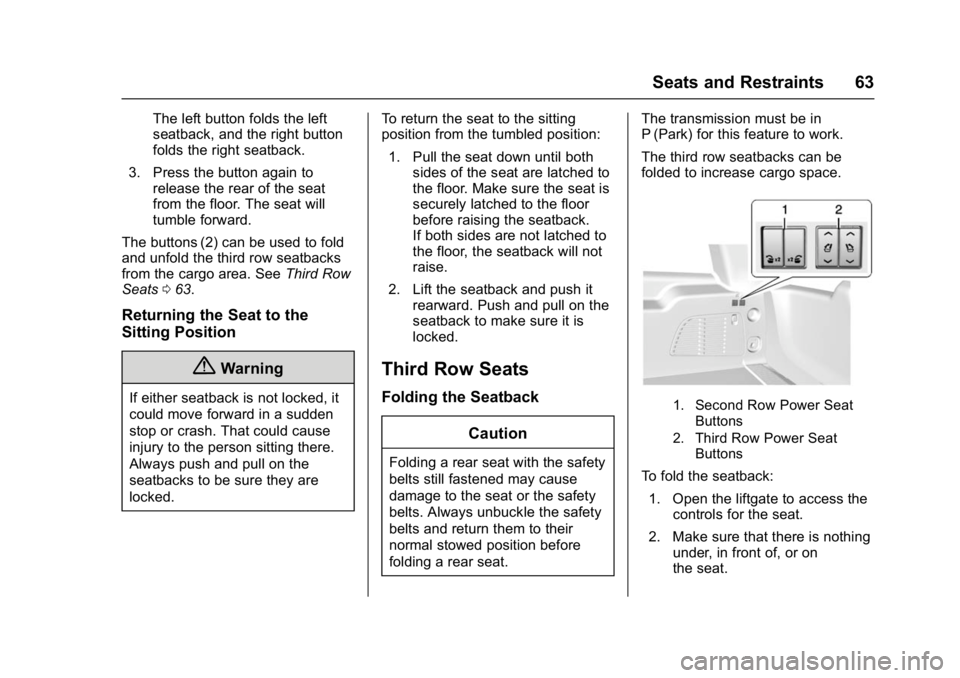
The buttons (2) can be used to fold
and unfold the third row seatbacks
from the cargo area. See Third Row
Seats 063.
Returning the Seat to the
Sitting Position
{Warning
If either seatback is not locked, it
could move forward in a sudden
stop or crash. That could cause
injury to the person sitting there.
Always push and pull on the
seatbacks to be sure they are
locked. To return the seat to the sitting
position from the tumbled position:
1. Pull the seat down until both sides of the seat are latched to
the floor. Make sure the seat is
securely latched to the floor
before raising the seatback.
If both sides are not latched to
the floor, the seatback will not
raise.
2. Lift the seatback and push it rearward. Push and pull on the
seatback to make sure it is
locked.
Third Row Seats
Folding the Seatback
Caution
Folding a rear seat with the safety
belts still fastened may cause
damage to the seat or the safety
belts. Always unbuckle the safety
belts and return them to their
normal stowed position before
folding a rear seat. The transmission must be in
P (Park) for this feature to work.
The third row seatbacks can be
folded to increase cargo space.
1. Second Row Power Seat
Buttons
2. Third Row Power Seat Buttons
To fold the seatback:
1. Open the liftgate to access the controls for the seat.
2. Make sure that there is nothing under, in front of, or on
the seat.
Page 65 of 396
GMC Yukon Denali/Yukon XL Denali Owner Manual (GMNA-Localizing-U.S./
Canada/Mexico-9159308) - 2016 - crc - 6/2/15
64 Seats and Restraints
3. Fully lower the head restraints.See Head Restraints 052. Put
the second row seatback in the
upright position. See Second
Row Seats 059.
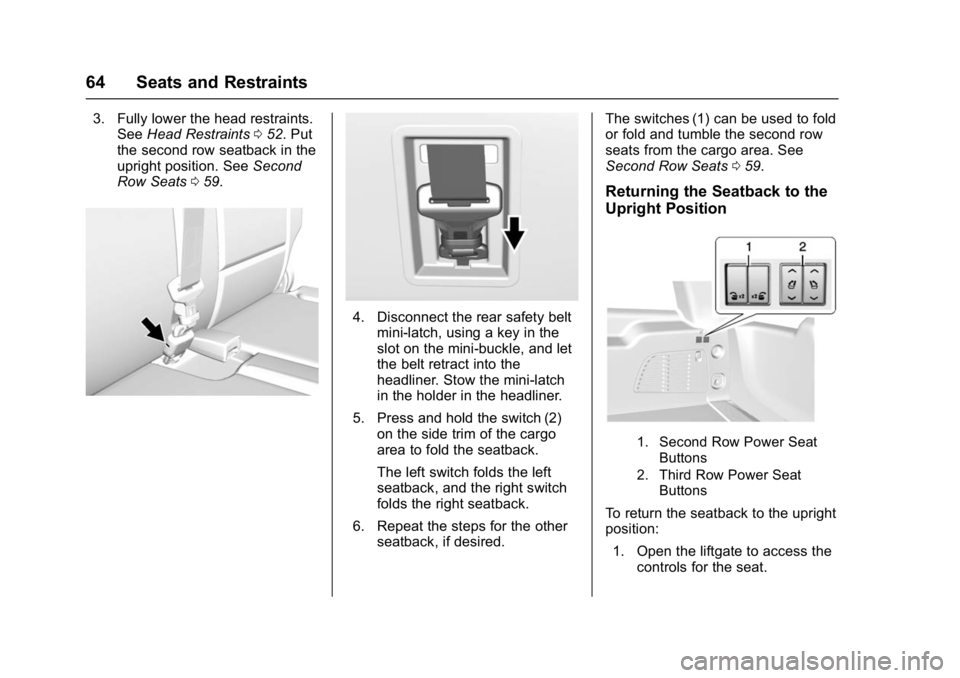
4. Disconnect the rear safety belt
mini-latch, using a key in the
slot on the mini-buckle, and let
the belt retract into the
headliner. Stow the mini-latch
in the holder in the headliner.
5. Press and hold the switch (2) on the side trim of the cargo
area to fold the seatback.
The left switch folds the left
seatback, and the right switch
folds the right seatback.
6. Repeat the steps for the other seatback, if desired. The switches (1) can be used to fold
or fold and tumble the second row
seats from the cargo area. See
Second Row Seats
059.
Returning the Seatback to the
Upright Position
1. Second Row Power Seat
Buttons
2. Third Row Power Seat Buttons
To return the seatback to the upright
position:
1. Open the liftgate to access the controls for the seat.
Page 100 of 396
GMC Yukon Denali/Yukon XL Denali Owner Manual (GMNA-Localizing-U.S./
Canada/Mexico-9159308) - 2016 - crc - 6/2/15
Seats and Restraints 99
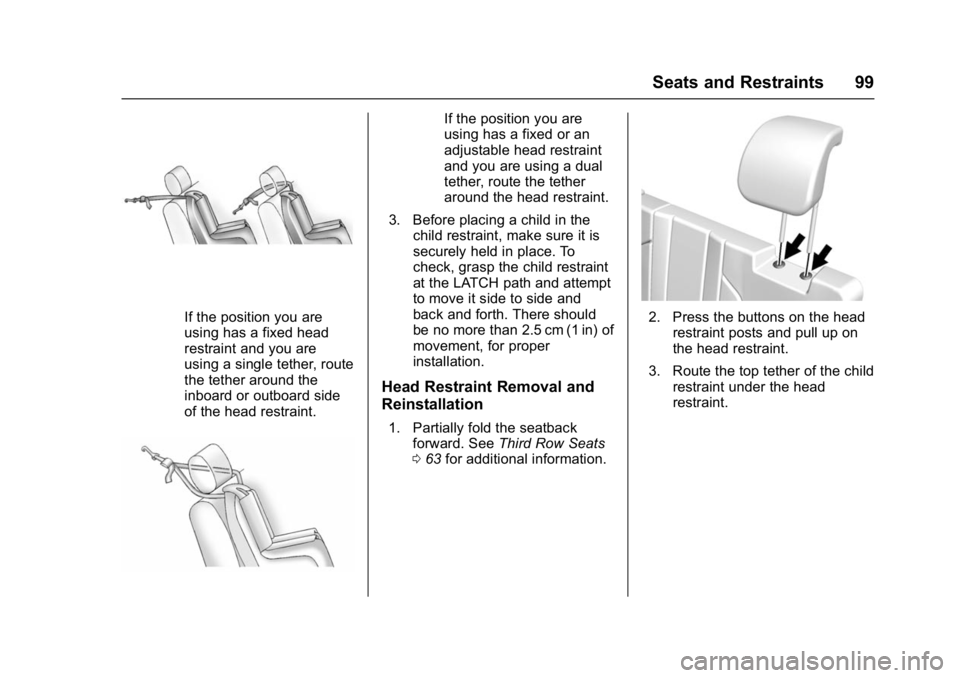
If the position you are
using has a fixed head
restraint and you are
using a single tether, route
the tether around the
inboard or outboard side
of the head restraint.
If the position you are
using has a fixed or an
adjustable head restraint
and you are using a dual
tether, route the tether
around the head restraint.
3. Before placing a child in the child restraint, make sure it is
securely held in place. To
check, grasp the child restraint
at the LATCH path and attempt
to move it side to side and
back and forth. There should
be no more than 2.5 cm (1 in) of
movement, for proper
installation.
Head Restraint Removal and
Reinstallation
1. Partially fold the seatbackforward. See Third Row Seats
0 63 for additional information.
2. Press the buttons on the head
restraint posts and pull up on
the head restraint.
3. Route the top tether of the child restraint under the head
restraint.
Page 163 of 396
GMC Yukon Denali/Yukon XL Denali Owner Manual (GMNA-Localizing-U.S./
Canada/Mexico-9159308) - 2016 - crc - 6/2/15
162 Instruments and Controls
Universal Remote
System
SeeRadio Frequency Statement
0 370.
Universal Remote System
Programming
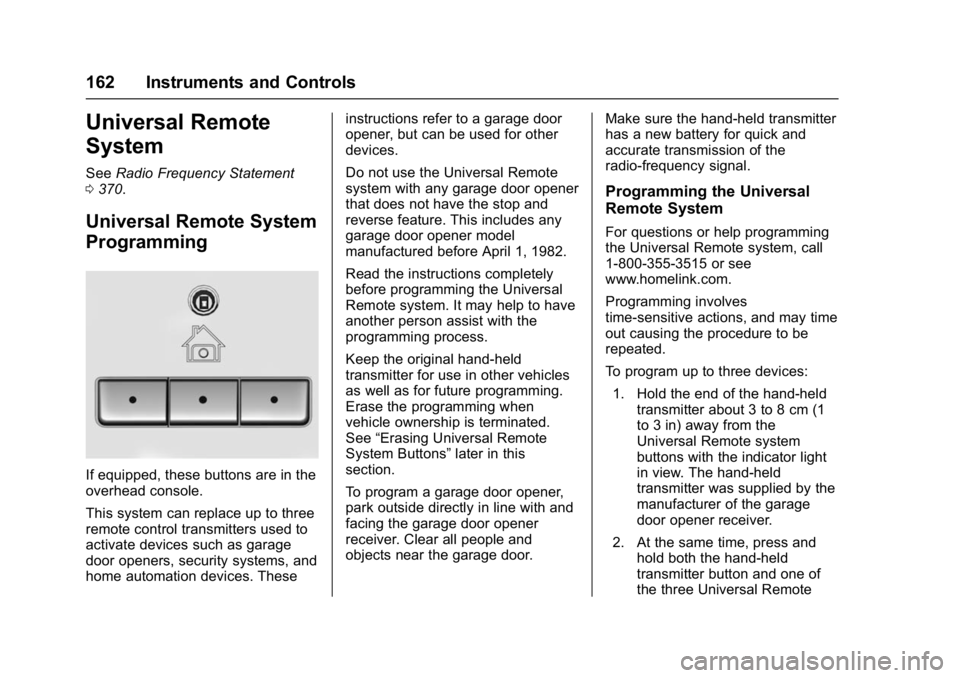
If equipped, these buttons are in the
overhead console.
This system can replace up to three
remote control transmitters used to
activate devices such as garage
door openers, security systems, and
home automation devices. These instructions refer to a garage door
opener, but can be used for other
devices.
Do not use the Universal Remote
system with any garage door opener
that does not have the stop and
reverse feature. This includes any
garage door opener model
manufactured before April 1, 1982.
Read the instructions completely
before programming the Universal
Remote system. It may help to have
another person assist with the
programming process.
Keep the original hand-held
transmitter for use in other vehicles
as well as for future programming.
Erase the programming when
vehicle ownership is terminated.
See
“Erasing Universal Remote
System Buttons” later in this
section.
To program a garage door opener,
park outside directly in line with and
facing the garage door opener
receiver. Clear all people and
objects near the garage door. Make sure the hand-held transmitter
has a new battery for quick and
accurate transmission of the
radio-frequency signal.
Programming the Universal
Remote System
For questions or help programming
the Universal Remote system, call
1-800-355-3515 or see
www.homelink.com.
Programming involves
time-sensitive actions, and may time
out causing the procedure to be
repeated.
To program up to three devices:
1. Hold the end of the hand-held transmitter about 3 to 8 cm (1
to 3 in) away from the
Universal Remote system
buttons with the indicator light
in view. The hand-held
transmitter was supplied by the
manufacturer of the garage
door opener receiver.
2. At the same time, press and hold both the hand-held
transmitter button and one of
the three Universal Remote
Page 164 of 396
GMC Yukon Denali/Yukon XL Denali Owner Manual (GMNA-Localizing-U.S./
Canada/Mexico-9159308) - 2016 - crc - 6/2/15
Instruments and Controls 163
system buttons to be used to
operate the garage door. Do
not release either button until
the indicator light goes from a
slow to a rapid flashing light.
Then release both buttons.
Some garage door openers
may require substitution of
Step 2 with the procedure
under“Radio Signals for
Canada and Some Gate
Operators” later in this section.
3. Press and hold the newly programmed Universal Remote
system button for five seconds
while watching the indicator
light and garage door
activation.
.If the indicator light stays on
continuously or the garage
door moves when the
button is pressed, then
programming is complete.
There is no need to
complete Steps 4–6.
. If the indicator light does
not come on or the garage
door does not move, a
second button press may be required. For a second
time, press and hold the
newly programmed button
for five seconds. If the light
stays on or the garage door
moves, programming is
complete.
. If the indicator light blinks
rapidly for two seconds,
then changes to a solid light
and the garage door does
not move, continue with
programming Steps 4–6.
Learn or Smart Button
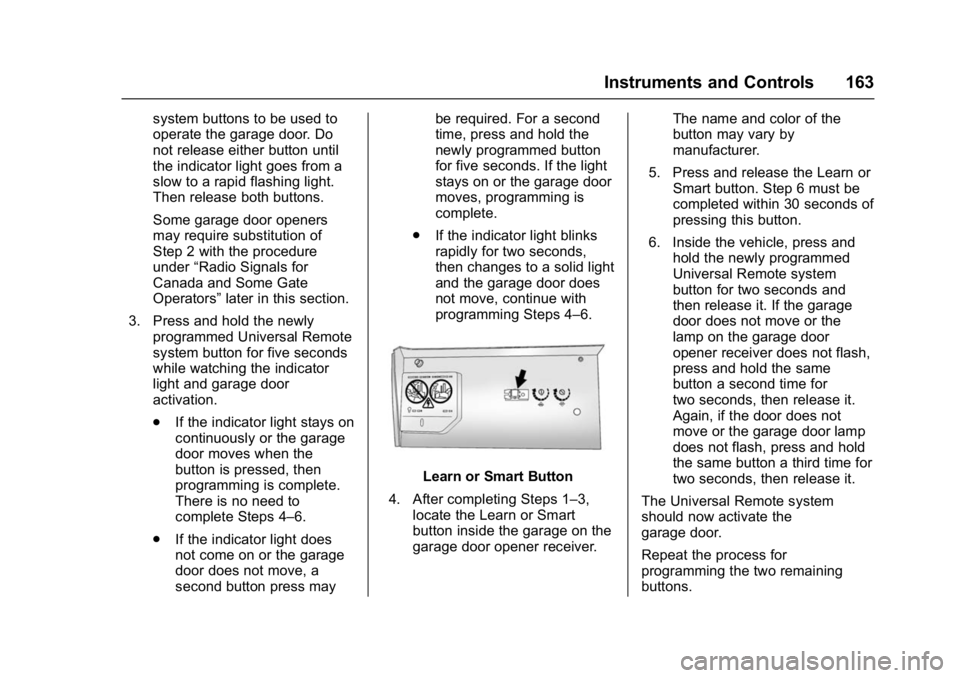
4. After completing Steps 1–3, locate the Learn or Smart
button inside the garage on the
garage door opener receiver. The name and color of the
button may vary by
manufacturer.
5. Press and release the Learn or Smart button. Step 6 must be
completed within 30 seconds of
pressing this button.
6. Inside the vehicle, press and hold the newly programmed
Universal Remote system
button for two seconds and
then release it. If the garage
door does not move or the
lamp on the garage door
opener receiver does not flash,
press and hold the same
button a second time for
two seconds, then release it.
Again, if the door does not
move or the garage door lamp
does not flash, press and hold
the same button a third time for
two seconds, then release it.
The Universal Remote system
should now activate the
garage door.
Repeat the process for
programming the two remaining
buttons.
Page 165 of 396
GMC Yukon Denali/Yukon XL Denali Owner Manual (GMNA-Localizing-U.S./
Canada/Mexico-9159308) - 2016 - crc - 6/2/15
164 Instruments and Controls
Radio Signals for Canada and
Some Gate Operators
For questions or programming help,
call 1-800-355-3515 or see
www.homelink.com.
Canadian radio-frequency laws and
some U.S. gate operators require
transmitter signals to time out or quit
after several seconds of
transmission. This may not be long
enough for the Universal Remote
system to pick up the signal during
programming.
If the programming did not work,
replace Step 2 under“Programming
the Universal Remote System” with
the following:
Press and hold the Universal
Remote system button while
pressing and releasing the
hand-held transmitter button every
two seconds until the signal has
been successfully accepted by the
Universal Remote system. The
Universal Remote system indicator
light will flash slowly at first and then
rapidly. Proceed with Step 3 under
“Programming the Universal Remote
System” to complete.
Universal Remote System
Operation
Using the Universal Remote
System
Press and hold the appropriate
Universal Remote system button for
at least one-half second. The
indicator light will come on while the
signal is being transmitted.
Erasing Universal Remote
System Buttons
Erase all programmed buttons when
vehicle ownership is terminated.
To erase:
1. Press and hold the two outside buttons until the indicator light
begins to flash. This should
take about 10 seconds.
2. Release both buttons.
Reprogramming a Single
Universal Remote System
Button
To reprogram any of the system
buttons: 1. Press and hold any one of the buttons. Do not release the
button.
2. The indicator light will begin to flash after 20 seconds. Without
releasing the button, proceed
with Step 1 under
“Programming the Universal
Remote System.”
Page 211 of 396
GMC Yukon Denali/Yukon XL Denali Owner Manual (GMNA-Localizing-U.S./
Canada/Mexico-9159308) - 2016 - crc - 6/2/15
210 Driving and Operating
To use this feature:1. Move the shift lever to M (Manual Mode).
2. Tap the plus/minus buttons on the shift lever to select the
desired range of gears for
current driving conditions.
Hold the plus/minus buttons on the
shift lever to select the highest or
lowest range available for the
current vehicle speed.
When the shift lever is moved from
D (Drive) to M (Manual Mode), a
number displays next to the M,
indicating the current transmission
range.
This number is the highest gear that
the transmission will command while
operating in M (Manual Mode). All
gears below that number are
available. As driving conditions
change, the transmission can
automatically shift to lower gears. For example, when 5 (Fifth) is
selected, 1 (First) through 5 (Fifth)
gears are automatically shifted by
the transmission, but 6 (Sixth)
cannot be used until the plus/minus
button on the shift lever is used to
change to the range.
In vehicles with gasoline engines,
when the shift lever is moved from
D (Drive) to M (Manual Mode), a
downshift may occur. The gear that
the transmission is operating in
when the shift lever is moved from
D (Drive) to M (Manual Mode)
determines if a downshift occurs.
See the following chart.
Page 256 of 396
GMC Yukon Denali/Yukon XL Denali Owner Manual (GMNA-Localizing-U.S./
Canada/Mexico-9159308) - 2016 - crc - 6/2/15
Driving and Operating 255
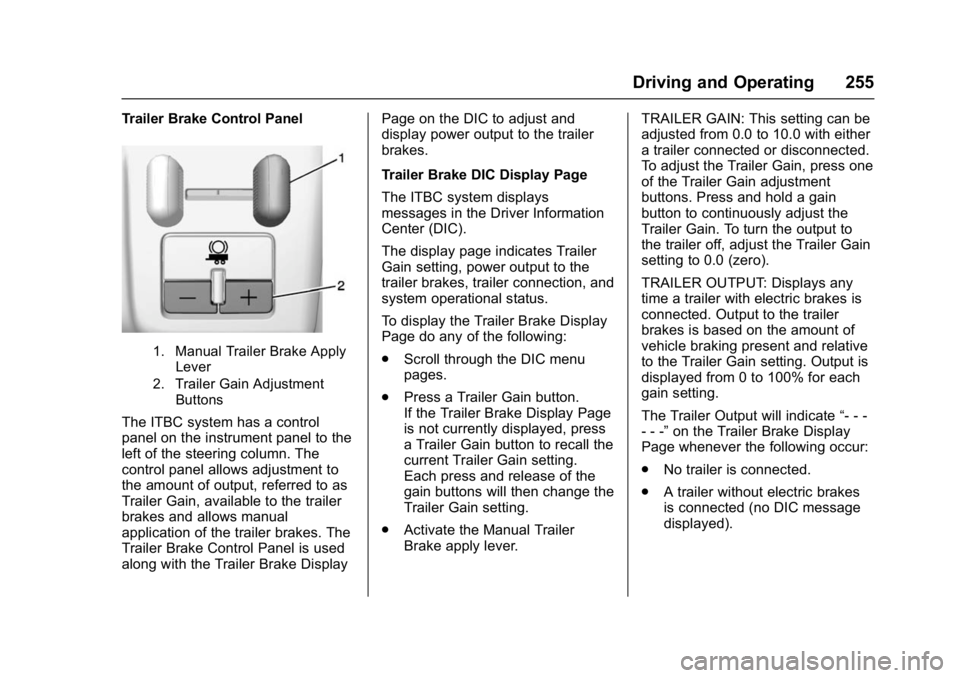
Trailer Brake Control Panel
1. Manual Trailer Brake ApplyLever
2. Trailer Gain Adjustment Buttons
The ITBC system has a control
panel on the instrument panel to the
left of the steering column. The
control panel allows adjustment to
the amount of output, referred to as
Trailer Gain, available to the trailer
brakes and allows manual
application of the trailer brakes. The
Trailer Brake Control Panel is used
along with the Trailer Brake Display Page on the DIC to adjust and
display power output to the trailer
brakes.
Trailer Brake DIC Display Page
The ITBC system displays
messages in the Driver Information
Center (DIC).
The display page indicates Trailer
Gain setting, power output to the
trailer brakes, trailer connection, and
system operational status.
To display the Trailer Brake Display
Page do any of the following:
.
Scroll through the DIC menu
pages.
. Press a Trailer Gain button.
If the Trailer Brake Display Page
is not currently displayed, press
a Trailer Gain button to recall the
current Trailer Gain setting.
Each press and release of the
gain buttons will then change the
Trailer Gain setting.
. Activate the Manual Trailer
Brake apply lever. TRAILER GAIN: This setting can be
adjusted from 0.0 to 10.0 with either
a trailer connected or disconnected.
To adjust the Trailer Gain, press one
of the Trailer Gain adjustment
buttons. Press and hold a gain
button to continuously adjust the
Trailer Gain. To turn the output to
the trailer off, adjust the Trailer Gain
setting to 0.0 (zero).
TRAILER OUTPUT: Displays any
time a trailer with electric brakes is
connected. Output to the trailer
brakes is based on the amount of
vehicle braking present and relative
to the Trailer Gain setting. Output is
displayed from 0 to 100% for each
gain setting.
The Trailer Output will indicate
“- - -
- - -” on the Trailer Brake Display
Page whenever the following occur:
. No trailer is connected.
. A trailer without electric brakes
is connected (no DIC message
displayed).
Page 257 of 396
GMC Yukon Denali/Yukon XL Denali Owner Manual (GMNA-Localizing-U.S./
Canada/Mexico-9159308) - 2016 - crc - 6/2/15
256 Driving and Operating
.A trailer with electric brakes has
become disconnected (a
CHECK TRAILER WIRING
message will also display on
the DIC).
. There is a fault present in the
wiring to the trailer brakes (a
CHECK TRAILER WIRING
message will also display on
the DIC).
. The ITBC system is not working
due to a fault (a SERVICE
TRAILER BRAKE SYSTEM
message will also display in
the DIC).
Manual Trailer Brake Apply
The Manual Trailer Brake Apply
Lever is used to apply the trailer ’s
electric brakes independent of the
vehicle’s brakes. Sliding the lever to
the left will apply only the trailer
brakes. Use this lever to adjust
Trailer Gain to properly adjust the
power output to the trailer brakes.
The trailer's and the vehicle's brake
lamps will come on when either
vehicle brakes or manual trailer
brakes are applied. Trailer Gain Adjustment Procedure
Trailer Gain should be set for a
specific trailering condition and must
be adjusted any time vehicle
loading, trailer loading, or road
surface conditions change.
{Warning
Trailer brakes that are
over-gained or under-gained may
not stop the vehicle and the trailer
as intended and can result in a
crash. Always follow the
instructions to set the Trailer Gain
for the proper trailer stopping
performance.
Use the following to adjust Trailer
Gain for each towing condition: 1. Drive the vehicle with the trailer attached on a level road
surface representative of the
towing condition and free of
traffic at about 32 to 40 km/h
(20 to 25 mph) and fully apply
the Manual Trailer Brake apply
lever. Adjusting Trailer Gain at
speeds lower than 32 to
40 km/h (20 to 25 mph) may
result in an incorrect gain
setting.
2. Adjust the Trailer Gain, using the Trailer Gain adjustment
buttons, to just below the point
of trailer wheel lock-up,
indicated by trailer wheel
squeal or tire smoke when a
trailer wheel locks.
Trailer wheel lock-up may not
occur if towing a heavily loaded
trailer. In this case, adjust the
Trailer Gain to the highest
allowable setting for the towing
condition.
3. Readjust Trailer Gain any time vehicle loading, trailer loading,
or road surface conditions
change or if trailer wheel
lock-up is noticed at any time
while towing.
Page 308 of 396

GMC Yukon Denali/Yukon XL Denali Owner Manual (GMNA-Localizing-U.S./
Canada/Mexico-9159308) - 2016 - crc - 6/2/15
Vehicle Care 307
shown on the Tire and Loading
Information label. SeeVehicle Load
Limits 0194.
A message to check the pressure in
a specific tire displays in the Driver
Information Center (DIC). The low
tire pressure warning light and the
DIC warning message come on at
each ignition cycle until the tires are
inflated to the correct inflation
pressure. If the vehicle has DIC
buttons, tire pressure levels can be
viewed. For additional information
and details about the DIC operation
and displays, see Driver Information
Center (DIC) 0137 andTire
Messages 0152.
The low tire pressure warning light
may come on in cool weather when
the vehicle is first started, and then
turn off as the vehicle is driven. This
could be an early indicator that the
air pressure is getting low and
needs to be inflated to the proper
pressure.
A Tire and Loading Information label
shows the size of the original
equipment tires and the correct
inflation pressure for the tires when they are cold. See
Vehicle Load
Limits 0194, for an example of the
Tire and Loading Information label
and its location. Also see Tire
Pressure 0303.
The TPMS can warn about a low
tire pressure condition but it does
not replace normal tire
maintenance. See Tire Inspection
0 309, Tire Rotation 0309 andTires
0 297.
Caution
Tire sealant materials are not all
the same. A non-approved tire
sealant could damage the TPMS
sensors. TPMS sensor damage
caused by using an incorrect tire
sealant is not covered by the
vehicle warranty. Always use only
the GM approved tire sealant
available through your dealer or
included in the vehicle.
TPMS Malfunction Light and
Message
The TPMS will not function properly
if one or more of the TPMS sensors
are missing or inoperable. When the
system detects a malfunction, the
low tire pressure warning light
flashes for about one minute and
then stays on for the remainder of
the ignition cycle. A DIC warning
message also displays. The
malfunction light and DIC warning
message come on at each ignition
cycle until the problem is corrected.
Some of the conditions that can
cause these to come on are:
.
One of the road tires has been
replaced with the spare tire. The
spare tire does not have a
TPMS sensor. The malfunction
light and the DIC message
should go off after the road tire
is replaced and the sensor
matching process is performed
successfully. See "TPMS Sensor
Matching Process" later in this
section.