phone GMC YUKON XL 2007 User Guide
[x] Cancel search | Manufacturer: GMC, Model Year: 2007, Model line: YUKON XL, Model: GMC YUKON XL 2007Pages: 608, PDF Size: 3.01 MB
Page 326 of 608
How to Change the Video Format When in
the Auxiliary Mode
The auxiliary input video format is preset to NTSC.
In some countries, the video format may be
PAL. To change the video format, perform the
following:
1. Press the display menu button on the remote
control.
2. Select screen option and press enter to
select.
3. Press the up or down arrow buttons to select
the video format option and press enter to set
the format.
Audio Output
Audio from the DVD player or auxiliary inputs may
be heard through the following possible sources:
Wireless Headphones
Vehicle Speakers
Vehicle wired headphone jacks on the rear
seat audio system, if your vehicle has this
feature.The RSE system will always transmit the audio
signal to the wireless headphones, if there is audio
available. See “Headphones” earlier in this
section for more information.
The DVD player is capable of outputting audio to
the wired headphone jacks on the RSA system,
if your vehicle has this feature. The DVD
player may be selected as an audio source on the
RSA system. SeeRear Seat Audio (RSA) on
page 332for more information.
When a device is connected to the A/V jacks the
rear seat passengers will be able to hear audio
from the auxiliary device through the wireless or
wired headphones. The front seat passengers
will be able to listen to playback from this device
through the vehicle speakers by selecting AUX
as the source on the radio.
If a playback device is plugged into the radio’s
auxiliary input jack, the front seat passengers will
be able to listen to playback from this device
through the vehicle speakers by selecting AUX as
the source on the radio.
326
Page 327 of 608
Video Screen
The video screen is located in the RSE overhead
console.
To use the video screen, do the following:
1. Push the release button located on the RSE
overhead console.
2. Rotate the screen to the desired position.
When the video screen is not in use, push it up
into its locked position.
If a DVD is playing and the screen is raised to its
locked position, the screen will remain on, this
is normal, and the DVD will continue to play
through the previous audio source.
The RSE overhead console contains the IR
transmitters for the wireless headphones and the
IR receivers for the remote control. They are
located at the rear of the console.
Notice:Avoid directly touching the video
screen, as damage may occur. See “Cleaning
the Video Screen” later in this section for
more information.
Remote Control
To use the remote control, aim it at the transmitter
window at the rear of the RSE overhead console
and press the desired button. Direct sunlight
or very bright light may affect the ability of the RSE
transmitter to receive signals from the remote
control. If the remote control does not seem to be
working, the batteries may need to be replaced.
See “Battery Replacement” later in this section.
Objects blocking the line of sight may also affect
the function of the remote control.
If a CD or DVD is in the Radio DVD slot, the
remote control power button can be used to turn
on the video screen display and start the disc.
The radio can also turn on the video screen
display. SeeRadio with CD and DVD (MP3) on
page 295for more information.
Notice:Storing the remote control in a hot
area or in direct sunlight may damage it,
and the repairs will not be covered by your
warranty. Keep the remote control stored in a
cool, dry place.
327
Page 331 of 608
DVD Display Error Messages
The DVD display error message depends on
which radio you have. The video screen may
display one of the following:
Disc Load/Eject Error:This message is
displayed when there are disc load or eject
problems.
Disc Format Error:This message will be
displayed, if the disc is inserted with the disc label
wrong side up, or if the disc is damaged.
Disc Region Error:This message will be
displayed, if the disc is not from a correct region.
No Disc Inserted:This message will be
displayed, if no disc is present when the EJECT or
DVD/AUX button is pressed on the radio.
DVD Distortion
Video distortion may occur when operating cellular
phones, scanners, CB radios, Global Position
Systems (GPS)*, two-way radios, mobile fax, or
walkie talkies.
It may be necessary to turn off the DVD player
when operating one of these devices in or near the
vehicle.
*Excludes the OnStar
®System.
Cleaning the RSE Overhead Console
When cleaning the RSE overhead console surface,
use only a clean cloth dampened with clean
water.
Cleaning the Video Screen
When cleaning the video screen, use only a clean
cloth dampened with clean water. Use care
when directly touching or cleaning the screen, as
damage may result.
331
Page 332 of 608
Rear Seat Audio (RSA)
This feature allows rear seat passengers to listen
to and control any of the music sources: radio,
CDs, DVDs, or other auxiliary sources. However,
the rear seat passengers can only control the
music sources the front seat passengers are not
listening to (except on some radios where
dual control is allowed). For example, rear seat
passengers can listen to and control a CD through
the headphones, while the driver listens to the
radio through the front speakers. The rear
seat passengers have control of the volume for
each set of headphones.
You can operate the RSA functions even when
the main radio is off.
Audio can be heard through wired headphones
(not included) plugged into the jacks on the RSA.
If your vehicle has this feature, audio can also
be heard on Channel 2 of the wireless
headphones.
The audio system mutes the rear speakers when
the RSA audio is active through the headphones.
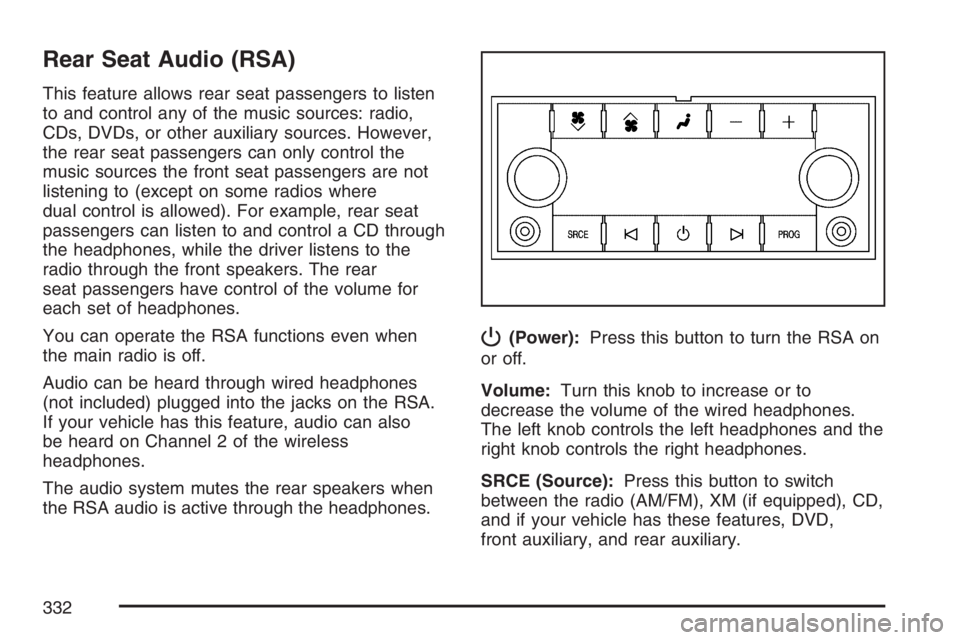
P(Power):Press this button to turn the RSA on
or off.
Volume:Turn this knob to increase or to
decrease the volume of the wired headphones.
The left knob controls the left headphones and the
right knob controls the right headphones.
SRCE (Source):Press this button to switch
between the radio (AM/FM), XM (if equipped), CD,
and if your vehicle has these features, DVD,
front auxiliary, and rear auxiliary.
332
Page 335 of 608
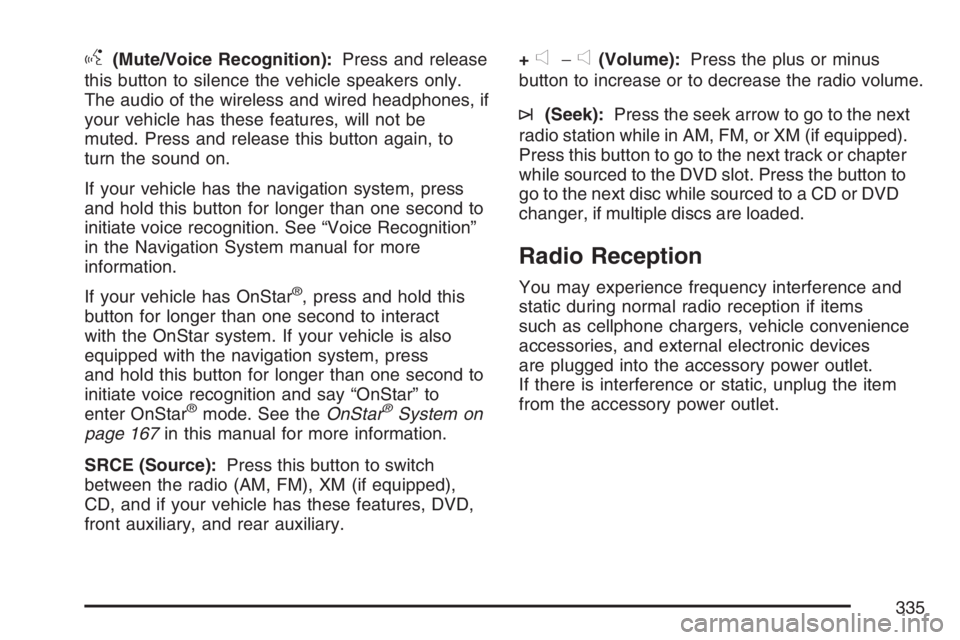
g(Mute/Voice Recognition):Press and release
this button to silence the vehicle speakers only.
The audio of the wireless and wired headphones, if
your vehicle has these features, will not be
muted. Press and release this button again, to
turn the sound on.
If your vehicle has the navigation system, press
and hold this button for longer than one second to
initiate voice recognition. See “Voice Recognition”
in the Navigation System manual for more
information.
If your vehicle has OnStar
®, press and hold this
button for longer than one second to interact
with the OnStar system. If your vehicle is also
equipped with the navigation system, press
and hold this button for longer than one second to
initiate voice recognition and say “OnStar” to
enter OnStar
®mode. See theOnStar®System on
page 167in this manual for more information.
SRCE (Source):Press this button to switch
between the radio (AM, FM), XM (if equipped),
CD, and if your vehicle has these features, DVD,
front auxiliary, and rear auxiliary.+
e−e(Volume):Press the plus or minus
button to increase or to decrease the radio volume.
¨(Seek):Press the seek arrow to go to the next
radio station while in AM, FM, or XM (if equipped).
Press this button to go to the next track or chapter
while sourced to the DVD slot. Press the button to
go to the next disc while sourced to a CD or DVD
changer, if multiple discs are loaded.
Radio Reception
You may experience frequency interference and
static during normal radio reception if items
such as cellphone chargers, vehicle convenience
accessories, and external electronic devices
are plugged into the accessory power outlet.
If there is interference or static, unplug the item
from the accessory power outlet.
335
Page 337 of 608
Care of the CD and DVD Player
The use of CD lens cleaners for CDs is not
advised, due to the risk of contaminating the lens
of the CD optics with lubricants internal to the
CD mechanism.
Rear Side Window Antenna
Your AM-FM antenna is located in the passenger
rear side windows. Be sure that the inside
surfaces of the rear side windows are not
scratched and that the lines on the glass are not
damaged. If the inside surfaces are damaged, they
could interfere with radio reception.
Notice:Using a razor blade or sharp object to
clear the inside of the rear side windows
may affect radio reception or damage the rear
window defogger. Repairs would not be
covered by your warranty. Do not clear the
inside of the rear side windows with sharp
objects.
Notice:Do not apply aftermarket glass tinting
with metallic lm. The metallic lm in some
tinting materials will interfere with or distort the
incoming radio reception. Any damage caused
to your antenna due to metallic tinting materials
will not be covered by your warranty.Because this antenna is built into your rear side
window, there is a reduced risk of damage caused
by car washes and vandals.
If you choose to add an aftermarket cellular
telephone to your vehicle, and the antenna needs
to be attached to the glass, be sure that you
do not damage the grid lines for the AM-FM
antennas or place the cellular telephone antenna
over the grid lines.
XM™ Satellite Radio Antenna
System
The XM™ Satellite Radio antenna is located on
the roof of your vehicle. Keep this antenna clear of
snow and ice build up for clear radio reception.
The performance of the XM™ system may
be affected if the sunroof is open.
Loading items onto the roof of your vehicle can
interfere with the performance of the XM™ system.
Make sure that the XM™ satellite antenna is not
obstructed.
337
Page 376 of 608
{CAUTION:
Wet brakes can cause accidents. They will
not work as well in a quick stop and may
cause pulling to one side. You could lose
control of the vehicle.
After driving through a large puddle of
water or a car wash, apply your brake
pedal lightly until your brakes work
normally.
Driving too fast through large water puddles or
even going through some car washes can cause
problems, too. The water may affect your
brakes. Try to avoid puddles. But if you cannot, try
to slow down before you hit them.
Hydroplaning
Hydroplaning is dangerous. So much water can
build up under your tires that they can actually ride
on the water. This can happen if the road is wet
enough and you are going fast enough. When your
vehicle is hydroplaning, it has little or no contact
with the road.
Hydroplaning does not happen often. But it can if
your tires do not have much tread or if the
pressure in one or more is low. It can happen if a
lot of water is standing on the road. If you can
see reections from trees, telephone poles,
or other vehicles, and raindrops dimple the water’s
surface, there could be hydroplaning.
Hydroplaning usually happens at higher speeds.
There just is not a hard and fast rule about
hydroplaning. The best advice is to slow down
when it is raining.
376
Page 571 of 608
Customer Assistance and Information........572
Customer Satisfaction Procedure................572
Online Owner Center..................................574
Customer Assistance for Text
Telephone (TTY) Users...........................575
Customer Assistance Offices......................575
GM Mobility Reimbursement Program.........577
Roadside Assistance Program....................577
Courtesy Transportation..............................581
Vehicle Data Collection and Event Data
Recorders...............................................583
Collision Damage Repair............................584Reporting Safety Defects.............................588
Reporting Safety Defects to the United
States Government.................................588
Reporting Safety Defects to the Canadian
Government............................................589
Reporting Safety Defects to General
Motors....................................................589
Service Publications Ordering Information ...590
Section 7 Customer Assistance Information
571
Page 573 of 608
STEP THREE — U.S. Owners:Both General
Motors and your dealer are committed to making
sure you are completely satised with your
new vehicle. However, if you continue to remain
unsatised after following the procedure outlined in
Steps One and Two, you should le with the
BBB Auto Line Program to enforce your rights.
The BBB Auto Line Program is an out of
court program administered by the Council of
Better Business Bureaus to settle automotive
disputes regarding vehicle repairs or the
interpretation of the New Vehicle Limited Warranty.
Although you may be required to resort to this
informal dispute resolution program prior to lling
out a court action, use of the program is free
of charge and your case will generally be heard
within 40 days. If you do not agree with the
decision given in your case, you may reject it and
proceed with any other venue for relief available
to you.You may contact the BBB Auto Line Program
using the toll-free telephone number or write them
at the following address:
BBB Auto Line Program
Council of Better Business Bureaus, Inc.
4200 Wilson Boulevard
Suite 800
Arlington, VA 22203-1838
Telephone: 1-800-955-5100
This program is available in all 50 states and the
District of Columbia. Eligibility is limited by
vehicle age, mileage, and other factors. General
Motors reserves the right to change eligibility
limitations and/or discontinue its participation in
this program.
573
Page 575 of 608
Keep track of your vehicle’s service history
and maintenance schedule.
Find GM dealers for service nationwide.
Receive special promotions and privileges
only available to members (United
States only).
Refer to the web for updated information.
To register your vehicle, visit www.MyGMLink.com
(United States) or My GM Canada within
www.gmcanada.com (Canada).
Customer Assistance for Text
Telephone (TTY) Users
To assist customers who are deaf, hard of
hearing, or speech-impaired and who use the Text
Telephones (TTYs), GMC has TTY equipment
available at its Customer Assistance Center. Any
TTY user can communicate with GMC by
dialing: 1-800-GMC-8583 (462-8583). (TTY users
in Canada can dial 1-800-263-3830.)
Customer Assistance Offices
GMC encourages customers to call the toll-free
number for assistance. However, if a customer
wishes to write or e-mail GMC, the letter should be
addressed to:
United States
GMC Customer Assistance Center
P.O. Box 33172
Detroit, MI 48232-5172
www.GMC.com
1-800-GMC-8782 (462-8782)
1-800-GMC-8583 (462-8583)
(For Text Telephone devices (TTYs))
Roadside Assistance: 1-800-GMC-8782
(462-8782)
Fax Number: 313-381-0022
From Puerto Rico
1-800-496-9992 (English)
1-800-496-9993 (Spanish)
Fax Number: 313-381-0022
U.S. Virgin Islands:
1-800-496-9994
Fax Number: 313-381-0022
575