battery GMC YUKON XL 2008 Owner's Manual
[x] Cancel search | Manufacturer: GMC, Model Year: 2008, Model line: YUKON XL, Model: GMC YUKON XL 2008Pages: 546, PDF Size: 6.37 MB
Page 243 of 546
SERVICE AIR BAG
This message displays if there is a problem with the
airbag system. Have your dealer/retailer inspect
the system for problems. SeeAirbag Readiness Light
on page 3-40andAirbag System on page 1-76for more
information.
SERVICE BATTERY CHARGING
SYSTEM
On some vehicles, this message displays if there is a
problem with the battery charging system. Under certain
conditions, the charging system light may also turn
on in the instrument panel cluster. SeeCharging System
Light on page 3-43. Driving with this problem could
drain the battery. Turn off all unnecessary accessories.
Have the electrical system checked as soon as
possible. See your dealer/retailer.
SERVICE BRAKE SYSTEM
This message displays along with the brake system
warning light if there is a problem with the brake system.
SeeBrake System Warning Light on page 3-44. If this
message appears, stop as soon as possible and turn off
the vehicle. Restart the vehicle and check for the
message on the DIC display. If the message is still
displayed or appears again when you begin driving, the
brake system needs service as soon as possible.
See your dealer/retailer.
SERVICE BRAKES SOON
This message displays if there is a problem with the
brake system. If this message appears, stop as soon as
possible and turn off the vehicle. Restart the vehicle
and check for the message on the DIC display. If
the message is still displayed or appears again when
you begin driving, the brake system needs service. See
your dealer/retailer.
SERVICE PARK ASSIST
If your vehicle has the Ultrasonic Rear Parking Assist
(URPA) system, this message displays if there is a
problem with the URPA system. Do not use this system
to help you park. SeeUltrasonic Rear Parking Assist
(URPA) on page 2-58for more information. See
your dealer/retailer for service.
SERVICE STABILITRAK
If your vehicle has StabiliTrak®and this message
displays, it means there may be a problem with the
StabiliTrak
®system. If you see this message, try to reset
the system. Stop; turn off the engine for at least
15 seconds; then start the engine again. If this message
still comes on, it means there is a problem. You
should see your dealer/retailer for service. The vehicle
is safe to drive, however, you do not have the benet
of StabiliTrak
®, so reduce your speed and drive
accordingly.
3-69
Page 247 of 546
Entering the Feature Settings Menu
1. Turn the ignition on and place the vehicle in
PARK (P).
To avoid excessive drain on the battery, it is
recommended that the headlamps are turned off.
2. Press the customization button to scroll through the
available customizable options.
Feature Settings Menu Items
The following are customization features that allow you
to program settings to the vehicle:
DISPLAY IN ENGLISH
This feature will only display if a language other than
English has been set. This feature allows you to change
the language in which the DIC messages appear to
English.
Press the customization button until the PRESS
VTO
DISPLAY IN ENGLISH screen appears on the DIC
display. Press the set/reset button once to display all
DIC messages in English.
DISPLAY LANGUAGE
This feature allows you to select the language in which
the DIC messages will appear.
Press the customization button until the DISPLAY
LANGUAGE screen appears on the DIC display. Press
the set/reset button once to access the settings for
this feature. Then press the customization button
to scroll through the following settings:
ENGLISH (default):All messages will appear in
English.
FRANCAIS:All messages will appear in French.
ESPANOL:All messages will appear in Spanish.
NO CHANGE:No change will be made to this feature.
The current setting will remain.
To select a setting, press the set/reset button while the
desired setting is displayed on the DIC.
You can also change the language by pressing the trip
odometer reset stem. See “Language” under DIC
Operation and Displays (Without DIC Buttons) earlier in
this section for more information.
3-73
Page 276 of 546
Using the Auxiliary Input Jack
The radio system has an auxiliary input jack located on
the lower right side of the faceplate. This is not an
audio output; do not plug the headphone set into the
front auxiliary input jack. An external audio device such
as an iPod, laptop computer, MP3 player, CD player,
or cassette tape player, etc. can be connected to
the auxiliary input jack for use as another audio source.
Drivers are encouraged to set up any auxiliary device
while the vehicle is in PARK (P). SeeDefensive Driving
on page 4-2for more information on driver distraction.
To use a portable audio player, connect a 3.5 mm
(1/8 inch) cable to the radio’s front auxiliary input jack.
When a device is connected, press the radio CD/AUX
button to begin playing audio from the device over
the vehicle speakers.
For optimal sound quality, increase the portable audio
device’s volume to the loudest level.
It is always best to power your portable audio device
through its own battery while playing.
O(Power/Volume):Turn clockwise or
counterclockwise to increase or decrease the volume of
the portable player. Additional volume adjustments
might have to be made from the portable device if the
volume is not loud or soft enough.BAND:Press to listen to the radio when a portable audio
device is playing. The portable audio device continues
playing, so you might want to stop it or turn it off.
CD/AUX (CD/Auxiliary):Press to play a CD when a
portable audio device is playing. Press again and
the system begins playing audio from the connected
portable audio player. If a portable audio player is
not connected, “No Input Device Found” displays.
DVD/CD AUX (CD/Auxiliary):Press this button to cycle
through DVD, CD, or Auxiliary when listening to the
radio. The DVD/CD text label and a message showing
track or chapter number displays when a disc is in
either slot. Press this button again and the system
automatically searches for an auxiliary input device,
such as a portable audio player. If a portable audio
player is not connected, “No Aux Input Device” displays.
If a disc is in both the DVD slot and the CD slot the
DVD/CD AUX button cycles between the two sources
and does not indicate “No Aux Input Device”. If a
front auxiliary device is connected, the DVD/CD AUX
button cycles through all available options, such
as: DVD slot, CD slot, Front Auxiliary, and Rear Auxiliary
(if available). See “Using the Auxiliary Input Jack(s)”
later in this section, or “Audio/Video (A/V) Jacks” under,
Rear Seat Entertainment (RSE) System on page 3-115
for more information.
3-102
Page 290 of 546
Headphones
The RSE includes two 2-channel wireless headphones
that are dedicated to this system. Channel 1 is
dedicated to the DVD player, while Channel 2 is
dedicated to RSA selections. These headphones are
used to listen to media such as CDs, DVDs, MP3s,
DVDAs, radio, any auxiliary source connected to A/V
jacks, or the auxiliary input jack, if your vehicle has this
feature. The wireless headphones have an On/Off
button, channel 1/2 switch, and a volume control.If your vehicle has a third row video screen display,
it has two additional headphones.
Push the power button to turn on the headphones.
An indicator light located on the headphones comes on.
If the light comes on but there is intermittent sound
and/or static on the headphones, or if the indicator light
does not come on, the batteries might need to be
replaced. See “Battery Replacement” later in this section
for more information. Switch the headphones to Off
when not in use.
Infrared transmitters are located at the rear of the RSE
overhead console. The headphones shut off
automatically to save the battery power if the RSE
system and RSA are shut off or if the headphones are
out of range of the transmitters for more than
three minutes. If you move too far forward or step out of
the vehicle, the headphones lose the audio signal.
3-116
Page 291 of 546
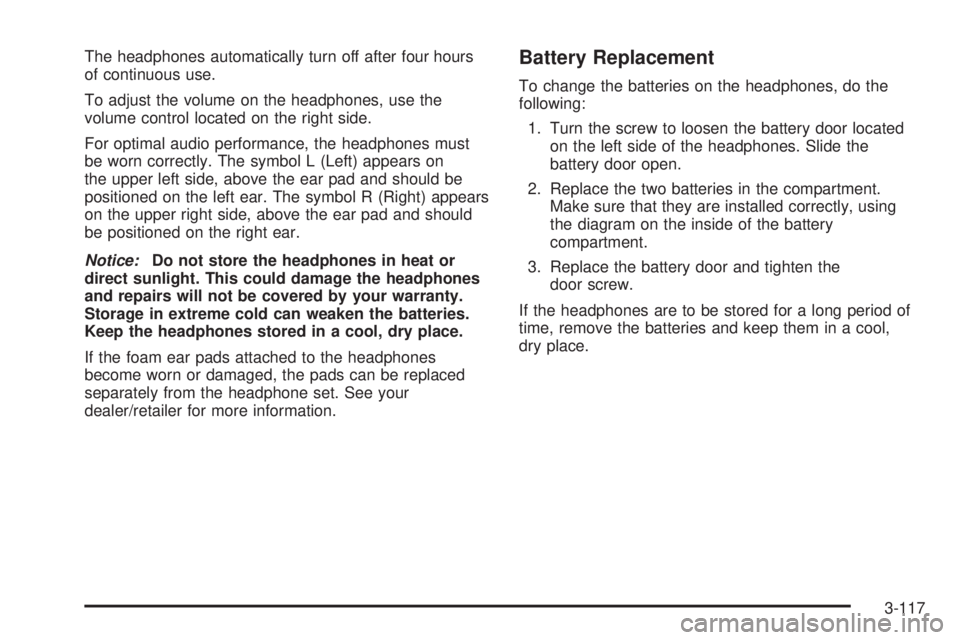
The headphones automatically turn off after four hours
of continuous use.
To adjust the volume on the headphones, use the
volume control located on the right side.
For optimal audio performance, the headphones must
be worn correctly. The symbol L (Left) appears on
the upper left side, above the ear pad and should be
positioned on the left ear. The symbol R (Right) appears
on the upper right side, above the ear pad and should
be positioned on the right ear.
Notice:Do not store the headphones in heat or
direct sunlight. This could damage the headphones
and repairs will not be covered by your warranty.
Storage in extreme cold can weaken the batteries.
Keep the headphones stored in a cool, dry place.
If the foam ear pads attached to the headphones
become worn or damaged, the pads can be replaced
separately from the headphone set. See your
dealer/retailer for more information.Battery Replacement
To change the batteries on the headphones, do the
following:
1. Turn the screw to loosen the battery door located
on the left side of the headphones. Slide the
battery door open.
2. Replace the two batteries in the compartment.
Make sure that they are installed correctly, using
the diagram on the inside of the battery
compartment.
3. Replace the battery door and tighten the
door screw.
If the headphones are to be stored for a long period of
time, remove the batteries and keep them in a cool,
dry place.
3-117
Page 294 of 546
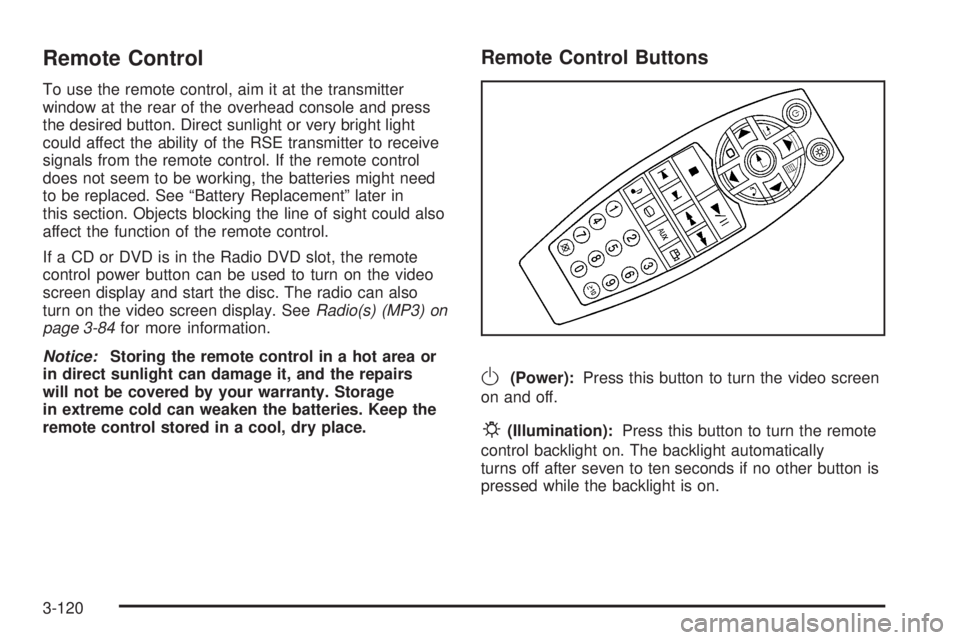
Remote Control
To use the remote control, aim it at the transmitter
window at the rear of the overhead console and press
the desired button. Direct sunlight or very bright light
could affect the ability of the RSE transmitter to receive
signals from the remote control. If the remote control
does not seem to be working, the batteries might need
to be replaced. See “Battery Replacement” later in
this section. Objects blocking the line of sight could also
affect the function of the remote control.
If a CD or DVD is in the Radio DVD slot, the remote
control power button can be used to turn on the video
screen display and start the disc. The radio can also
turn on the video screen display. SeeRadio(s) (MP3) on
page 3-84for more information.
Notice:Storing the remote control in a hot area or
in direct sunlight can damage it, and the repairs
will not be covered by your warranty. Storage
in extreme cold can weaken the batteries. Keep the
remote control stored in a cool, dry place.
Remote Control Buttons
O(Power):Press this button to turn the video screen
on and off.
P(Illumination):Press this button to turn the remote
control backlight on. The backlight automatically
turns off after seven to ten seconds if no other button is
pressed while the backlight is on.
3-120
Page 297 of 546
Battery Replacement
To change the remote control batteries, do the following:
1. Slide the rear cover back on to the remote control.
2. Replace the two batteries in the compartment.
Make sure that they are installed correctly, using
the diagram on the inside of the battery
compartment.
3. Replace the battery cover.
If the remote control is to be stored for a long period of
time, remove the batteries and keep them in a cool,
dry place.
Problem Recommended Action
No power. The ignition might not be
turned ON/RUN or in
ACC/ACCESSORY.
The picture does not ll
the screen. There are
black borders on the
top and bottom or on
both sides or it looks
stretched out.Check the display mode
settings in the setup menu
by pressing the display
menu button on the
remote control.
Problem Recommended Action
In auxiliary mode, the
picture moves or scrolls.Check the auxiliary input
connections at both
devices.
The remote control does
not work.Check to make sure there
is no obstruction between
the remote control and the
transmitter window.
Check the batteries to
make sure they are not
dead or installed
incorrectly.
After stopping the player,
I push Play but sometimes
the DVD starts where I left
off and sometimes at the
beginning.If the stop button was
pressed one time, the
DVD player resumes
playing where the DVD
was stopped. If the stop
button was pressed two
times the DVD player
begins to play from the
beginning of the DVD.
3-123
Page 336 of 546
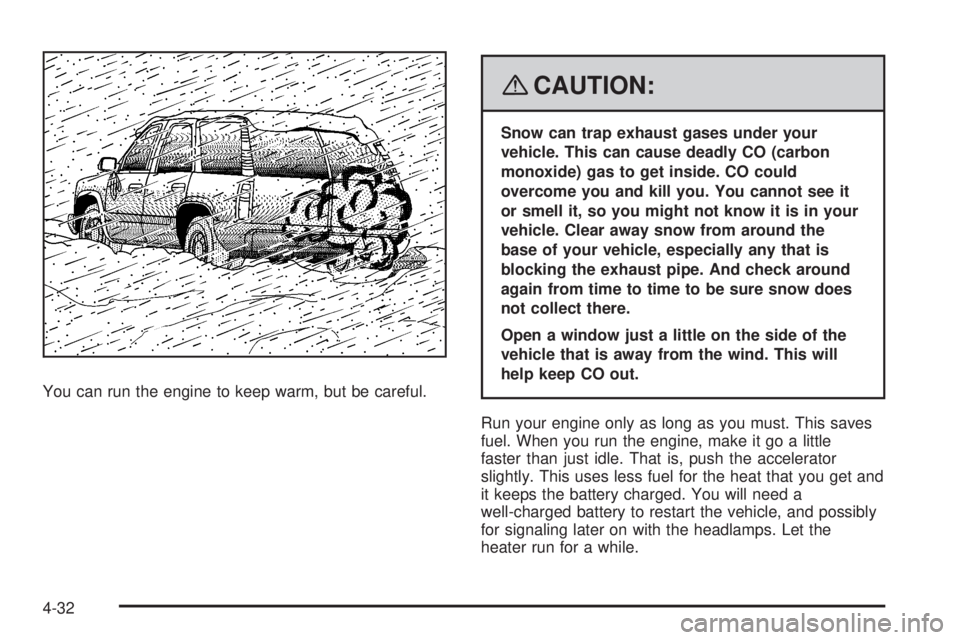
You can run the engine to keep warm, but be careful.
{CAUTION:
Snow can trap exhaust gases under your
vehicle. This can cause deadly CO (carbon
monoxide) gas to get inside. CO could
overcome you and kill you. You cannot see it
or smell it, so you might not know it is in your
vehicle. Clear away snow from around the
base of your vehicle, especially any that is
blocking the exhaust pipe. And check around
again from time to time to be sure snow does
not collect there.
Open a window just a little on the side of the
vehicle that is away from the wind. This will
help keep CO out.
Run your engine only as long as you must. This saves
fuel. When you run the engine, make it go a little
faster than just idle. That is, push the accelerator
slightly. This uses less fuel for the heat that you get and
it keeps the battery charged. You will need a
well-charged battery to restart the vehicle, and possibly
for signaling later on with the headlamps. Let the
heater run for a while.
4-32
Page 355 of 546
Tow/Haul Mode
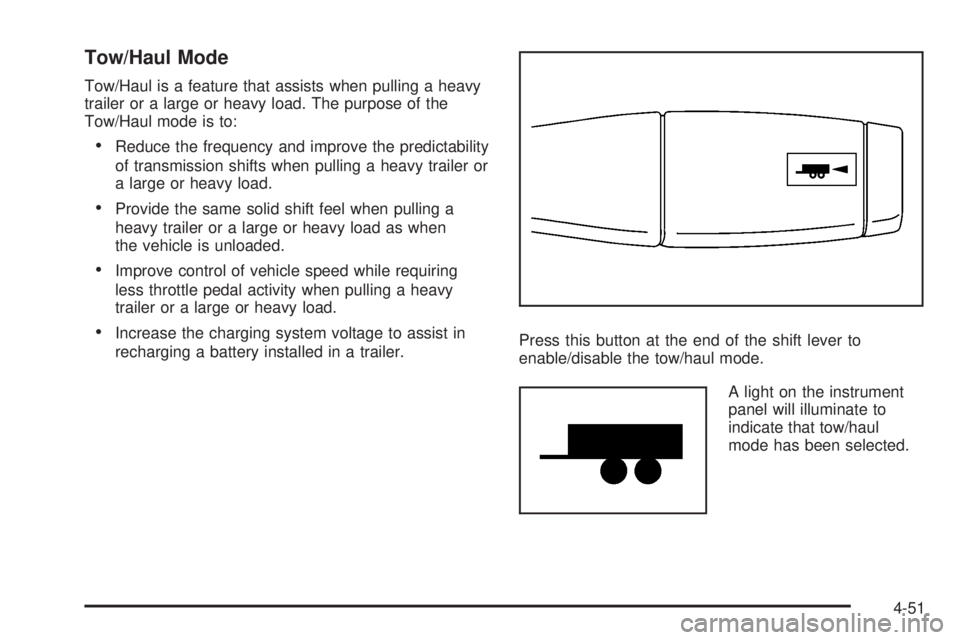
Tow/Haul is a feature that assists when pulling a heavy
trailer or a large or heavy load. The purpose of the
Tow/Haul mode is to:
Reduce the frequency and improve the predictability
of transmission shifts when pulling a heavy trailer or
a large or heavy load.
Provide the same solid shift feel when pulling a
heavy trailer or a large or heavy load as when
the vehicle is unloaded.
Improve control of vehicle speed while requiring
less throttle pedal activity when pulling a heavy
trailer or a large or heavy load.
Increase the charging system voltage to assist in
recharging a battery installed in a trailer.Press this button at the end of the shift lever to
enable/disable the tow/haul mode.
A light on the instrument
panel will illuminate to
indicate that tow/haul
mode has been selected.
4-51
Page 366 of 546
Trailer Wiring Harness
Your vehicle is equipped with the following wiring
harnesses for towing a trailer.
Basic Trailer Wiring
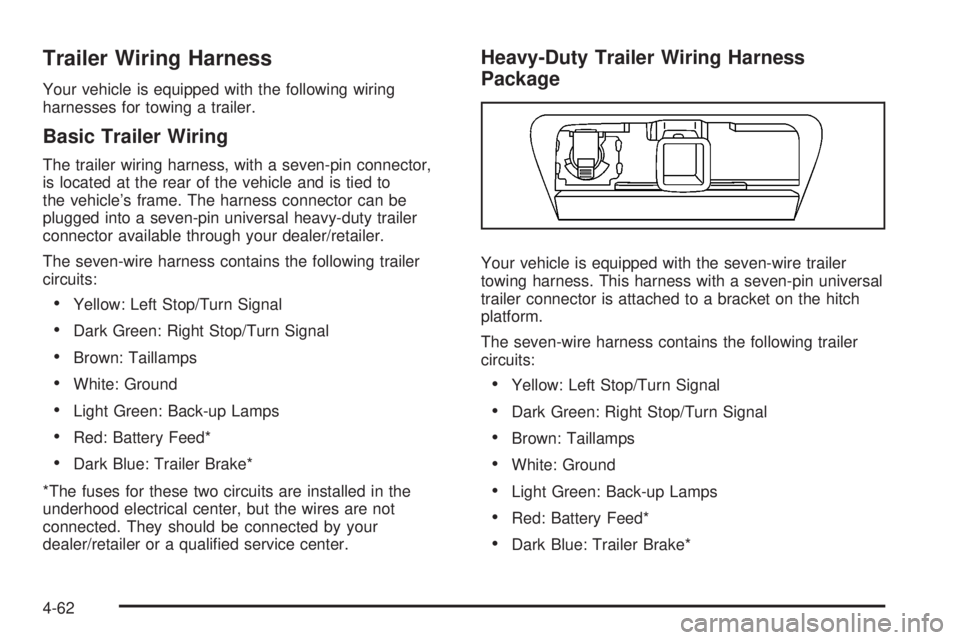
The trailer wiring harness, with a seven-pin connector,
is located at the rear of the vehicle and is tied to
the vehicle’s frame. The harness connector can be
plugged into a seven-pin universal heavy-duty trailer
connector available through your dealer/retailer.
The seven-wire harness contains the following trailer
circuits:
Yellow: Left Stop/Turn Signal
Dark Green: Right Stop/Turn Signal
Brown: Taillamps
White: Ground
Light Green: Back-up Lamps
Red: Battery Feed*
Dark Blue: Trailer Brake*
*The fuses for these two circuits are installed in the
underhood electrical center, but the wires are not
connected. They should be connected by your
dealer/retailer or a qualied service center.
Heavy-Duty Trailer Wiring Harness
Package
Your vehicle is equipped with the seven-wire trailer
towing harness. This harness with a seven-pin universal
trailer connector is attached to a bracket on the hitch
platform.
The seven-wire harness contains the following trailer
circuits:
Yellow: Left Stop/Turn Signal
Dark Green: Right Stop/Turn Signal
Brown: Taillamps
White: Ground
Light Green: Back-up Lamps
Red: Battery Feed*
Dark Blue: Trailer Brake*
4-62