display GMC YUKON XL 2018 Owners Manual
[x] Cancel search | Manufacturer: GMC, Model Year: 2018, Model line: YUKON XL, Model: GMC YUKON XL 2018Pages: 425, PDF Size: 7.37 MB
Page 332 of 425
GMC Yukon/Yukon XL/Denali Owner Manual (GMNA-Localizing-U.S./
Canada/Mexico-11349262) - 2018 - crc - 6/20/17
Vehicle Care 331TPMS Malfunction Light and
Message The TPMS will not function properly
if one or more of the TPMS sensors
are missing or inoperable. When the
system detects a malfunction, the
low tire pressure warning light
flashes for about one minute and
then stays on for the remainder of
the ignition cycle. A DIC warning
message also displays. The
malfunction light and DIC warning
message come on at each ignition
cycle until the problem is corrected.
Some of the conditions that can
cause these to come on are:
.
One of the road tires has been
replaced with the spare tire. The
spare tire does not have a
TPMS sensor. The malfunction
light and the DIC message
should go off after the road tire
is replaced and the sensor
matching process is performed
successfully. See "TPMS Sensor
Matching Process" later in this
section. .
The TPMS sensor matching
process was not done or not
completed successfully after
rotating the tires. The
malfunction light and the DIC
message should go off after
successfully completing the
sensor matching process. See
"TPMS Sensor Matching
Process" later in this section.
.
One or more TPMS sensors are
missing or damaged. The
malfunction light and the DIC
message should go off when the
TPMS sensors are installed and
the sensor matching process is
performed successfully. See
your dealer for service.
.
Replacement tires or wheels do
not match the original equipment
tires or wheels. Tires and wheels
other than those recommended
could prevent the TPMS from
functioning properly. See Buying
New Tires 0 335 . .
Operating electronic devices or
being near facilities using radio
wave frequencies similar to the
TPMS could cause the TPMS
sensors to malfunction.
If the TPMS is not functioning
properly, it cannot detect or signal a
low tire pressure condition. See
your dealer for service if the TPMS
malfunction light and DIC message
come on and stay on.
Tire Fill Alert (If Equipped) This feature provides visual and
audible alerts outside the vehicle to
help when inflating an underinflated
tire to the recommended cold tire
pressure.
When the low tire pressure warning
light comes on:
1. Park the vehicle in a safe, level
place.
2. Set the parking brake firmly.
3. Place the vehicle in P (Park).
4. Add air to the tire that is
underinflated. The turn signal
lamp will flash.
Page 334 of 425
GMC Yukon/Yukon XL/Denali Owner Manual (GMNA-Localizing-U.S./
Canada/Mexico-11349262) - 2018 - crc - 6/20/17
Vehicle Care 333There are two minutes to match the
first tire/wheel position, and
five minutes overall to match all four
tire/wheel positions. If it takes
longer, the matching process stops
and must be restarted.
The TPMS sensor matching
process is:
1. Set the parking brake.
2. Turn the ignition on without
starting the vehicle or place the
vehicle in Service Mode.
See Ignition Positions (Key
Access) 0 207 or Ignition
Positions (Keyless Access)
0 205 .
3. Make sure the Tire Pressure
info page option is turned on.
The info pages on the DIC can
be turned on and off through
the Settings menu. See Driver
Information Center (DIC) 0 151 .
4. Use the DIC controls on the
right side of the steering wheel
to scroll to the Tire Pressure
screen under the DIC
info page. 5. Press and hold
V in the center
of the DIC controls.
The horn sounds twice to
signal the receiver is in relearn
mode and the TIRE
LEARNING ACTIVE message
displays on the DIC screen.
6. Start with the driver side
front tire.
7. Place the relearn tool against
the tire sidewall, near the valve
stem. Then press the button to
activate the TPMS sensor.
A horn chirp confirms that the
sensor identification code has
been matched to this tire and
wheel position.
8. Proceed to the passenger side
front tire, and repeat the
procedure in Step 7.
9. Proceed to the passenger side
rear tire, and repeat the
procedure in Step 7.
10. Proceed to the driver side rear
tire, and repeat the procedure
in Step 7. The horn sounds two
times to indicate the sensor
identification code has been matched to the driver side rear
tire, and the TPMS sensor
matching process is no longer
active. The TIRE LEARNING
ACTIVE message on the DIC
display screen goes off.
11. Turn the vehicle off.
12. Set all four tires to the
recommended air pressure
level as indicated on the Tire
and Loading Information label.
Tire Inspection We recommend that the tires,
including the spare tire, if the
vehicle has one, be inspected
for signs of wear or damage at
least once a month.
Replace the tire if: .
The indicators at three or
more places around the tire
can be seen.
.
There is cord or fabric
showing through the tire's
rubber.
Page 359 of 425
GMC Yukon/Yukon XL/Denali Owner Manual (GMNA-Localizing-U.S./
Canada/Mexico-11349262) - 2018 - crc - 6/20/17
358 Vehicle Care 5. Turn the ignition to ON/RUN
with the engine off. Shift the
transfer case out of N (Neutral)
to 2
m . See “ Shifting out of
N (Neutral) ” under Four-Wheel
Drive 0 222 . See your dealer if
the transfer case cannot be
shifted out of N (Neutral).
6. Check that the vehicle is in 2
mby starting the engine and
shifting the transmission to
R (Reverse) and then to D
(Drive). There should be
movement of the vehicle while
shifting.
7. Shift the transmission to
P (Park) and turn off the
ignition.
8. Disconnect the vehicle from the
tow vehicle.
9. Release the parking brake.
10. Reset any lost presets.
The outside temperature
display will default to 0 °C
(32 °F) but will reset with
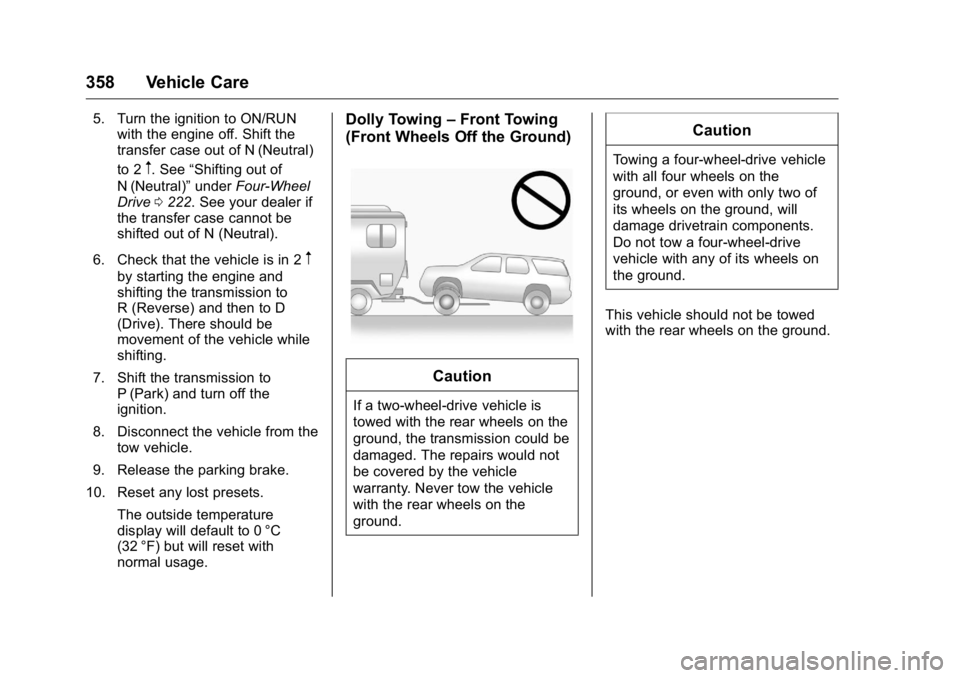
normal usage. Dolly Towing – Front Towing
(Front Wheels Off the Ground)
CautionIf a two-wheel-drive vehicle is
towed with the rear wheels on the
ground, the transmission could be
damaged. The repairs would not
be covered by the vehicle
warranty. Never tow the vehicle
with the rear wheels on the
ground. CautionTowing a four-wheel-drive vehicle
with all four wheels on the
ground, or even with only two of
its wheels on the ground, will
damage drivetrain components.
Do not tow a four-wheel-drive
vehicle with any of its wheels on
the ground.
This vehicle should not be towed
with the rear wheels on the ground.
Page 367 of 425
GMC Yukon/Yukon XL/Denali Owner Manual (GMNA-Localizing-U.S./
Canada/Mexico-11349262) - 2018 - crc - 6/20/17
366 Vehicle Care Fabric/Carpet/Suede Start by vacuuming the surface
using a soft brush attachment. If a
rotating vacuum brush attachment is
being used, only use it on the floor
carpet. Before cleaning, gently
remove as much of the soil as
possible:
.
Gently blot liquids with a paper
towel. Continue blotting until no
more soil can be removed.
.
For solid soils, remove as much
as possible prior to vacuuming.
To clean:
1. Saturate a clean, lint-free
colorfast cloth with water.
Microfiber cloth is
recommended to prevent lint
transfer to the fabric or carpet.
2. Remove excess moisture by
gently wringing until water does
not drip from the cleaning cloth.
3. Start on the outside edge of the
soil and gently rub toward the
center. Fold the cleaning cloth to a clean area frequently to
prevent forcing the soil in to the
fabric.
4. Continue gently rubbing the
soiled area until there is no
longer any color transfer from
the soil to the cleaning cloth.
5. If the soil is not completely
removed, use a mild soap
solution followed only by plain
water.
If the soil is not completely
removed, it may be necessary to
use a commercial upholstery
cleaner or spot lifter. Test a small
hidden area for colorfastness before
using a commercial upholstery
cleaner or spot lifter. If ring
formation occurs, clean the entire
fabric or carpet.
After cleaning, use a paper towel to
blot excess moisture.
Cleaning High Gloss Surfaces
and Vehicle Information and
Radio Displays
Use a microfiber cloth on high gloss
surfaces or vehicle displays. First,
use a soft bristle brush to remove dirt that can scratch the surface.
Then gently clean by rubbing with a
microfiber cloth. Never use window
cleaners or solvents. Periodically
hand wash the microfiber cloth
separately, using mild soap. Do not
use bleach or fabric softener. Rinse
thoroughly and air dry before
next use.
CautionDo not attach a device with a
suction cup to the display. This
may cause damage and would
not be covered by the vehicle
warranty.
Instrument Panel, Leather,
Vinyl, Other Plastic Surfaces,
Low Gloss Paint Surfaces, and
Natural Open Pore Wood
Surfaces
Use a soft microfiber cloth
dampened with water to remove
dust and loose dirt. For a more
thorough cleaning, use a soft
microfiber cloth dampened with a
mild soap solution.
Page 371 of 425
GMC Yukon/Yukon XL/Denali Owner Manual (GMNA-Localizing-U.S./
Canada/Mexico-11349262) - 2018 - crc - 6/20/17
370 Service and Maintenance have your dealer perform these
services every 12 000 km/7,500 mi.
Proper vehicle maintenance helps to
keep the vehicle in good working
condition, improves fuel economy,
and reduces vehicle emissions.
Because of the way people use
vehicles, maintenance needs vary.
There may need to be more
frequent checks and services. The
Additional Required Services -
Normal are for vehicles that:
.
Carry passengers and cargo
within recommended limits on
the Tire and Loading Information
label. See Vehicle Load Limits
0 200 .
.
Are driven on reasonable road
surfaces within legal driving
limits.
.
Use the recommended fuel. See
Fuel 0 254 .
Refer to the information in the
Maintenance Schedule Additional
Required Services - Normal chart.
The Additional Required Services -
Severe are for vehicles that are: .
Mainly driven in heavy city traffic
in hot weather
.
Mainly driven in hilly or
mountainous terrain
.
Frequently towing a trailer
.
Used for high speed or
competitive driving
.
Used for taxi, police, or delivery
service
Refer to the information in the
Maintenance Schedule Additional
Required Services - Severe chart.
{ WarningPerforming maintenance work can
be dangerous and can cause
serious injury. Perform
maintenance work only if the
required information, proper tools,
and equipment are available.
If they are not, see your dealer to
have a trained technician do the
work. See Doing Your Own
Service Work 0 278 .Maintenance
Schedule Owner Checks and Services At Each Fuel Stop
.
Check the engine oil level. See
Engine Oil 0 283 .
Once a Month
.
Check the tire inflation
pressures. See Tire Pressure
0 327 .
.
Inspect the tires for wear. See
Tire Inspection 0 333 .
.
Check the windshield washer
fluid level. See Washer Fluid
0 296 .
Engine Oil Change When the CHANGE ENGINE OIL
SOON message displays, have the
engine oil and filter changed within
the next 1 000 km/600 mi. If driven
under the best conditions, the
engine oil life system may not
indicate the need for vehicle service
for up to a year. The engine oil and
filter must be changed at least once
Page 401 of 425
GMC Yukon/Yukon XL/Denali Owner Manual (GMNA-Localizing-U.S./
Canada/Mexico-11349262) - 2018 - crc - 6/21/17
400 OnStar
OnStar OnStar Overview OnStar Overview . . . . . . . . . . . . . 400
OnStar Services Emergency . . . . . . . . . . . . . . . . . . . 401
Security . . . . . . . . . . . . . . . . . . . . . . 402
Navigation . . . . . . . . . . . . . . . . . . . . 402
Connections . . . . . . . . . . . . . . . . . . 403
Diagnostics . . . . . . . . . . . . . . . . . . 405
OnStar Additional Information OnStar Additional
Information . . . . . . . . . . . . . . . . . . 406 OnStar Overview
= Voice Command Button
Q Blue OnStar Button
> Red Emergency Button
This vehicle may be equipped with a
comprehensive, in-vehicle system
that can connect to an OnStar
Advisor for Emergency, Security,
Navigation, Connections, and
Diagnostics Services. OnStar
services may require a paid service
plan and data plan. OnStar requires
the vehicle battery and electrical
system, cellular service, and GPS
satellite signals to be available and
operating. OnStar acts as a link to
existing emergency service
providers. OnStar may collect
information about you and your
vehicle, including location
information. See OnStar User Terms, Privacy Statement, and
Software Terms for more details
including system limitations at
www.onstar.com (U.S.) or
www.onstar.ca (Canada).
The OnStar system status light is
next to the OnStar buttons. If the
status light is:
.
Solid Green: System is ready.
.
Flashing Green: On a call.
.
Red: Indicates a problem.
.
Off: System is active. Press
Q twice to speak with an OnStar
Advisor.
Press
Q or call 1-888-4ONSTAR
(1-888-466-7827) to speak to an
Advisor.
Functionality of the Voice Command
button may vary by vehicle and
region.
Press
= to:
.
Open the OnStar app on the
infotainment display. See the
infotainment manual for
information on how to use the
OnStar app.
Page 403 of 425
GMC Yukon/Yukon XL/Denali Owner Manual (GMNA-Localizing-U.S./
Canada/Mexico-11349262) - 2018 - crc - 6/21/17
402 OnStar
Security If equipped, OnStar provides these
services:
.
With Stolen Vehicle Assistance,
OnStar Advisors can use GPS to
pinpoint the vehicle and help
authorities quickly recover it.
.
With Remote Ignition Block,
if equipped, OnStar can block
the engine from being restarted.
.
With Stolen Vehicle Slowdown,
if equipped, OnStar can work
with law enforcement to
gradually slow the vehicle down.
Theft Alarm Notification If equipped, if the doors are locked
and the vehicle alarm sounds, a
notification by text, e-mail, or phone
call will be sent. If the vehicle is
stolen, an OnStar Advisor can work
with authorities to recover the
vehicle. Navigation OnStar navigation requires a
specific OnStar service plan.
Press
Q to receive Turn-by-Turn
directions or have them sent to the
vehicle ’ s navigation screen,
if equipped.
Turn-by-Turn Navigation 1. Press
Q to connect to an
Advisor.
2. Request directions to be
downloaded to the vehicle.
3. Follow the voice-guided
commands.
Using Voice Commands
During a Planned Route Functionality of the Voice Command
button may vary by vehicle and
region. For some vehicles, press
=to open the OnStar app on the
infotainment display. For other
vehicles press
= as follows. Cancel Route
1. Press
= . System responds:
“ OnStar ready, ” then a tone.
2. Say “ Cancel route. ” System
responds: “ Do you want to
cancel directions? ”
3. Say “ Yes. ” System responds:
“ OK, request completed, thank
you, goodbye. ”
Route Preview
1. Press
= . System responds:
“ OnStar ready, ” then a tone.
2. Say “ Route preview. ” System
responds with the next three
maneuvers.
Repeat
1. Press
= . System responds:
“ OnStar ready, ” then a tone.
2. Say “ Repeat. ” System
responds with the last direction
given, then responds with
“ OnStar ready, ” then a tone.
Page 404 of 425
GMC Yukon/Yukon XL/Denali Owner Manual (GMNA-Localizing-U.S./
Canada/Mexico-11349262) - 2018 - crc - 6/21/17
OnStar 403Get My Destination
1. Press
= . System responds:
“ OnStar ready, ” then a tone.
2. Say “ Get my destination. ”
System responds with the
address and distance to the
destination, then responds with
“ OnStar ready, ” then a tone.
Send Destination to Vehicle
Directions can be sent to the
vehicle ’ s navigation screen,
if equipped.
Press
Q , then ask the Advisor to
download directions to the vehicle ’ s
navigation system, if equipped. After
the call ends, the navigation screen
will provide prompts to begin driving
directions. Routes that are sent to
the navigation screen can only be
canceled through the navigation
system.
See www.onstar.com (U.S.) or
www.onstar.ca (Canada). Connections The following OnStar services help
with staying connected.
For coverage maps, see
www.onstar.com (U.S.) or
www.onstar.ca (Canada).
Ensuring Security
.
Change the default passwords
for the Wi-Fi hotspot and
myGMC mobile application.
Make these passwords different
from each other and use a
combination of letters, numbers,
and symbols to increase the
security.
.
Change the default name of the
SSID (Service Set Identifier).
This is your network ’ s name that
is visible to other wireless
devices. Choose a unique name
and avoid family names or
vehicle descriptions.
OnStar Wi-Fi Hotspot (If Equipped)
The vehicle may have a built-in
Wi-Fi hotspot that provides access
to the Internet and web content at
4G LTE speed. Up to seven mobile devices can be connected. A data
plan is required. Use the in-vehicle
controls only when it is safe to
do so.
1. To retrieve Wi-Fi hotspot
information, press
= to open
the OnStar app on the
infotainment display, then
select Wi-Fi Hotspot. On some
vehicles, touch Wi-Fi or Wi-Fi
Settings on the screen.
2. The Wi-Fi settings will display
the Wi-Fi hotspot name (SSID),
password, and on some
vehicles, the connection type
(no Internet connection, 3G,
4G, 4G LTE), and signal quality
(poor, good, excellent).
3. To change the SSID or
password, press
Q or call
1-888-4ONSTAR to connect
with an Advisor. On some
vehicles, the SSID and
password can be changed in
the Wi-Fi Hotspot menu.
After initial set-up, your vehicle ’ s
Wi-Fi hotspot will connect
automatically to your mobile
Page 405 of 425
GMC Yukon/Yukon XL/Denali Owner Manual (GMNA-Localizing-U.S./
Canada/Mexico-11349262) - 2018 - crc - 6/21/17
404 OnStar devices. Manage data usage by
turning Wi-Fi on or off on your
mobile device, using the myGMC
mobile app, or by contacting an
OnStar Advisor. On some vehicles,
Wi-Fi can also be managed from the
Wi-Fi Hotspot menu.
MyGMC Mobile App (If Available)
Download the myGMC mobile app
to compatible Apple and Android
smartphones. GMC users can
access the following services from a
smartphone:
.
Remotely start/stop the vehicle,
if factory-equipped.
.
Lock/unlock doors, if equipped
with automatic locks.
.
Activate the horn and lamps.
.
Check the vehicle ’ s fuel level, oil
life, or tire pressure,
if factory-equipped with the Tire
Pressure Monitor System.
.
Send destinations to the vehicle.
.
Locate the vehicle on a map
(U.S. market only). .
Turn the vehicle's Wi-Fi hotspot
on/off, manage settings, and
monitor data consumption,
if equipped.
.
Locate a dealer and schedule
service.
.
Request roadside assistance.
.
Set a parking reminder with pin
drop, take a photo, make a note,
and set a timer.
.
Connect with GMC on social
media.
For myGMC mobile app information
and compatibility, see my.gmc.com.
An active OnStar service,
compatible device, factory-installed
remote start, and power locks are
required. Data rates apply. See
onstar.com for details and system
limitations.
Remote Services
Contact an OnStar Advisor to
unlock the doors or sound the horn
and flash the lamps. OnStar AtYourService OnStar Advisors can provide offers
from restaurants and retailers on
your route, help locate hotels,
or book a room. These services
vary by market.
OnStar Hands-Free Calling Make and receive calls with the
built-in wireless calling service,
which requires available minutes.
Functionality of the Voice Command
button may vary by vehicle and
region. For some vehicles, press
=to open the OnStar app on the
infotainment display, then select
Hands-Free calling. For other
vehicles press
= as follows.
Make a Call
1. Press
= . System responds:
“ OnStar ready. ”
2. Say “ Call. ” System responds:
“ Call. Please say the name or
number to call. ”
Page 406 of 425
GMC Yukon/Yukon XL/Denali Owner Manual (GMNA-Localizing-U.S./
Canada/Mexico-11349262) - 2018 - crc - 6/21/17
OnStar 4053. Say the entire number without
pausing, including a “ 1 ” and the
area code. System responds:
“ OK, calling. ”
Calling 911 Emergency 1. Press
= . System responds:
“ OnStar ready. ”
2. Say “ Call. ” System responds:
“ Call. Please say the name or
number to call. ”
3. Say “ 911 ” without pausing.
System responds: “ 911. ”
4. Say “ Call. ” System responds:
“ OK, dialing 911. ”
Retrieve My Number 1. Press
= . System responds:
“ OnStar ready. ”
2. Say “ My number. ” System
responds: “ Your OnStar
Hands-Free Calling number is, ”
then says the number.
End a Call
Press
= . System responds: “ Call
ended. ” Verify Minutes and Expiration Press
= and say “ Minutes ” then
“ Verify ” to check how many minutes
remain and their expiration date.
Diagnostics By monitoring and reporting on the
vehicle ’ s key systems, OnStar
Advanced Diagnostics provides a
way to keep up on maintenance.
Capabilities vary by model. See
www.onstar.com for details and
system limitations. Message and
data rates may apply. Advanced
Diagnostics requires an active
OnStar paid service plan, e-mail
address on file, and enrollment in
Advanced Diagnostics.
Includes:
.
Diagnostic Alerts: Set
preferences to receive real-time
e-mails, texts, or monthly reports
of the vehicle ’ s health. Or
press
Q to have an Advisor
initiate a remote diagnostic
report. .
Proactive Alerts: Receive a
real-time e-mail or text message
regarding potential issues with
key vehicle components, such
as the battery, fuel system,
or starter system. Alerts for
potential issues appear on the
infotainment display. Proactive
Alerts are designed to help
predict specific types of issues
based on information collected
from the vehicle. Other factors
may affect vehicle performance.
Not all issues will deliver alerts.
In some cases, a dealer service
check may be required to
confirm the accuracy of the
alerts.
.
Dealer Maintenance Notification:
Have the vehicle notify your
preferred dealer when it is time
for maintenance. Your dealer will
then contact you to set up an
appointment.
To begin, press
Q to speak to an
Advisor, or see www.onstar.com.