display GMC YUKON XL 2018 Owner's Manual
[x] Cancel search | Manufacturer: GMC, Model Year: 2018, Model line: YUKON XL, Model: GMC YUKON XL 2018Pages: 425, PDF Size: 7.37 MB
Page 131 of 425
GMC Yukon/Yukon XL/Denali Owner Manual (GMNA-Localizing-U.S./
Canada/Mexico-11349262) - 2018 - crc - 6/20/17
130 Instruments and Controls To check for phone or other device
compatibility:
.
In the U.S., see my.gmc.com/
learn.
.
In Canada, see
gmtotalconnect.ca.
.
Or, see your dealer for details.
{ WarningWireless charging can affect the
operation of an implanted
pacemaker or other medical
devices. If you have one, it is
recommended to consult with
your doctor before using the
wireless charging system.
The vehicle must be on, in ACC/
ACCESSORY, or Retained
Accessory Power (RAP) must be
active. The wireless charging
feature may not correctly indicate
charging when the vehicle is in RAP.
See Retained Accessory Power
(RAP) 0 212 . The operating temperature is − 20 °C
( − 4 °F) to 60 °C (140 °F) for the
charging system and 0 °C (32 °F) to
35 °C (95 °F) for the phone.
{ WarningRemove all objects from the
charging pad before charging
your mobile device. Objects, such
as coins, keys, rings, paper clips,
or cards, between the phone and
charging pad will become very
hot. On the rare occasion that the
charging system does not detect
an object, and the object gets
wedged between the phone and
charger, remove the phone and
allow the object to cool before
removing it from the charging
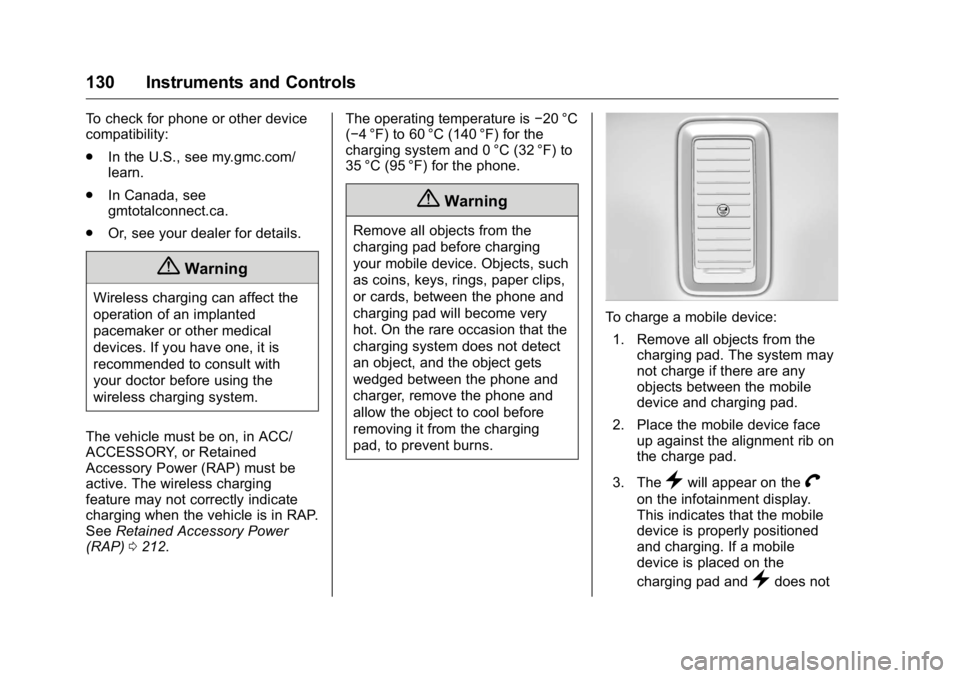
pad, to prevent burns. To charge a mobile device:
1. Remove all objects from the
charging pad. The system may
not charge if there are any
objects between the mobile
device and charging pad.
2. Place the mobile device face
up against the alignment rib on
the charge pad.
3. The
} will appear on the
V on the infotainment display.
This indicates that the mobile
device is properly positioned
and charging. If a mobile
device is placed on the
charging pad and
} does not
Page 132 of 425
GMC Yukon/Yukon XL/Denali Owner Manual (GMNA-Localizing-U.S./
Canada/Mexico-11349262) - 2018 - crc - 6/20/17
Instruments and Controls 131display, remove the mobile
device from the pad, turn it
180 degrees, and wait
three seconds before placing/
aligning the mobile device on
the pad again.
Software Acknowledgements
Certain Wireless Charging Module
product from LG Electronics, Inc.
("LGE") contains the open source
software detailed below. Refer to
the indicated open source licenses
(as are included following this
notice) for the terms and conditions
of their use.
OSS Notice Information
To obtain the source code that is
contained in this product, please
visit http://opensource.lge.com. In
addition to the source code, all
referred license terms, warranty
disclaimers and copyright notices
are available for download. LG
Electronics will also provide open
source code to you on CD-ROM for
a charge covering the cost of
performing such distribution (such
as the cost of media, shipping, and
handling) upon email request to [email protected]. This offer is
valid for three (3) years from the
date on which you purchased the
product.
Freescale-WCT library
Copyright (c) 2012-2014 Freescale
Semiconductor, Inc.. All rights
reserved.
1. Redistributions of source code
must retain the above copyright
notice, this list of conditions
and the following disclaimer.
2. Redistributions in binary form
must reproduce the above
copyright notice, this list of
conditions and the following
disclaimer in the
documentation and/or other
materials provided with the
distribution.
3. Neither the name of the
copyright holder nor the names
of its contributors may be used
to endorse or promote products
derived from this software
without specific prior written
permission. THIS SOFTWARE IS PROVIDED
BY THE COPYRIGHT HOLDERS
AND CONTRIBUTORS "AS IS"
AND ANY EXPRESS OR IMPLIED
WARRANTIES, INCLUDING, BUT
NOT LIMITED TO, THE IMPLIED
WARRANTIES OF
MERCHANTABILITY AND FITNESS
FOR A PARTICULAR PURPOSE
ARE DISCLAIMED. IN NO EVENT
SHALL THE COPYRIGHT HOLDER
OR CONTRIBUTORS BE LIABLE
FOR ANY DIRECT, INDIRECT,
INCIDENTAL, SPECIAL,
EXEMPLARY, OR
CONSEQUENTIAL DAMAGES
(INCLUDING, BUT NOT LIMITED
TO, PROCUREMENT OF
SUBSTITUTE GOODS OR
SERVICES; LOSS OF USE, DATA,
OR PROFITS; OR BUSINESS
INTERRUPTION) HOWEVER
CAUSED AND ON ANY THEORY
OF LIABILITY, WHETHER IN
CONTRACT, STRICT LIABILITY,
OR TORT (INCLUDING
NEGLIGENCE OR OTHERWISE)
ARISING IN ANY WAY OUT OF
THE USE OF THIS SOFTWARE,
EVEN IF ADVISED OF THE
POSSIBILITY OF SUCH DAMAGE.
Page 136 of 425
GMC Yukon/Yukon XL/Denali Owner Manual (GMNA-Localizing-U.S./
Canada/Mexico-11349262) - 2018 - crc - 6/20/17
Instruments and Controls 135Cluster Menu There is an interactive display area
in the center of the instrument
cluster.
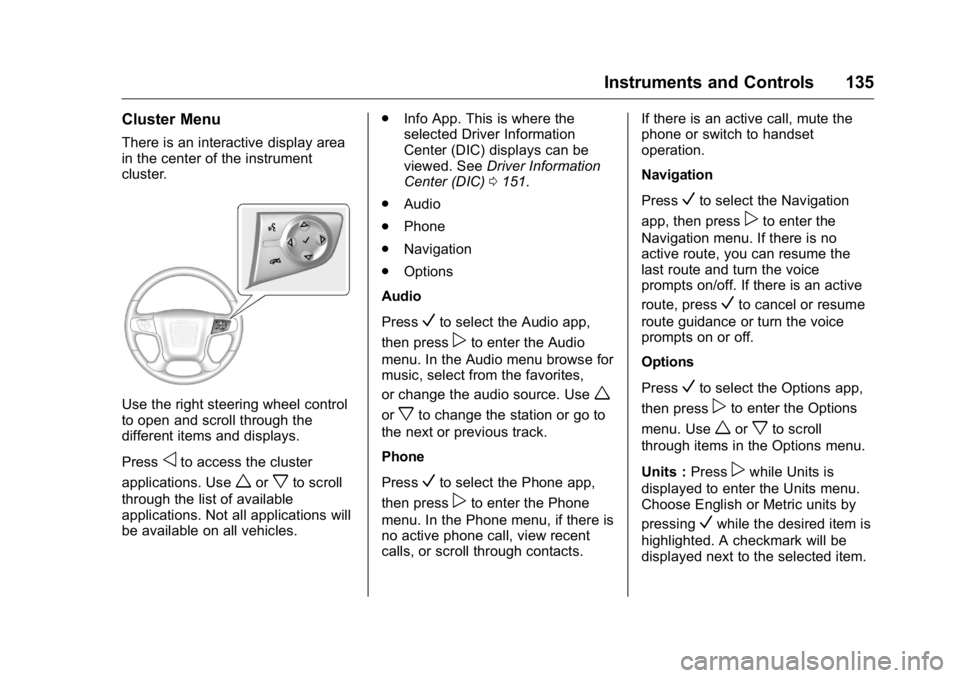
Use the right steering wheel control
to open and scroll through the
different items and displays.
Press
o to access the cluster
applications. Use
w or
x to scroll
through the list of available
applications. Not all applications will
be available on all vehicles. .
Info App. This is where the
selected Driver Information
Center (DIC) displays can be
viewed. See Driver Information
Center (DIC) 0 151 .
.
Audio
.
Phone
.
Navigation
.
Options
Audio
Press
V to select the Audio app,
then press
p to enter the Audio
menu. In the Audio menu browse for
music, select from the favorites,
or change the audio source. Use
wor
x to change the station or go to
the next or previous track.
Phone
Press
V to select the Phone app,
then press
p to enter the Phone
menu. In the Phone menu, if there is
no active phone call, view recent
calls, or scroll through contacts. If there is an active call, mute the
phone or switch to handset
operation.
Navigation
Press
V to select the Navigation
app, then press
p to enter the
Navigation menu. If there is no
active route, you can resume the
last route and turn the voice
prompts on/off. If there is an active
route, press
V to cancel or resume
route guidance or turn the voice
prompts on or off.
Options
Press
V to select the Options app,
then press
p to enter the Options
menu. Use
w or
x to scroll
through items in the Options menu.
Units : Press
p while Units is
displayed to enter the Units menu.
Choose English or Metric units by
pressing
V while the desired item is
highlighted. A checkmark will be
displayed next to the selected item.
Page 137 of 425
GMC Yukon/Yukon XL/Denali Owner Manual (GMNA-Localizing-U.S./
Canada/Mexico-11349262) - 2018 - crc - 6/20/17
136 Instruments and Controls Display Themes (Denali) : There
are three instrument cluster display
configurations to choose from:
Standard, Technology, and Media.
Info Pages : Press
p while Info
Pages is displayed to enter the Info
Pages menu and select the items to
be displayed in the Info app. See
Driver Information Center (DIC)
0 151 .
Head-up Display (HUD) Rotation :
If equipped, this feature allows for
adjusting the angle of the HUD
image. Press
p on the steering
wheel controls while Head-up
Display Rotation is highlighted to
enter Adjust Mode. Press
w or
xto adjust the angle of the HUD
display. Press
V to confirm and
save the setting. To cancel the
setting, press
o . The vehicle must
be in P (Park).
Speed Warning : The Speed
Warning display allows the driver to
set a speed that they do not want to
exceed. To set the Speed Warning,
press
p when Speed Warning is displayed. Enable the speed
warning and then use
w or
x to
adjust the value. Press
V to set the
speed. Once the speed is set, this
feature can be turned off by
pressing
V while viewing this page.
If the selected speed limit is
exceeded, a pop-up warning is
displayed with a chime.
Software Information : Displays
open source software information.
Speedometer The speedometer shows the
vehicle's speed in either kilometers
per hour (km/h) or miles per
hour (mph).
Odometer The odometer shows how far the
vehicle has been driven, in either
kilometers or miles. The odometer
displays on the Speed page of the
Driver Information Center (DIC). Trip Odometer The trip odometer shows how far
the vehicle has been driven since
the trip odometer was last reset.
The trip odometer is accessed and
reset through the Driver Information
Center (DIC). See Driver
Information Center (DIC) 0 151 .
Tachometer The tachometer displays the engine
speed in revolutions per
minute (rpm).
Page 139 of 425
GMC Yukon/Yukon XL/Denali Owner Manual (GMNA-Localizing-U.S./
Canada/Mexico-11349262) - 2018 - crc - 6/20/17
138 Instruments and Controls
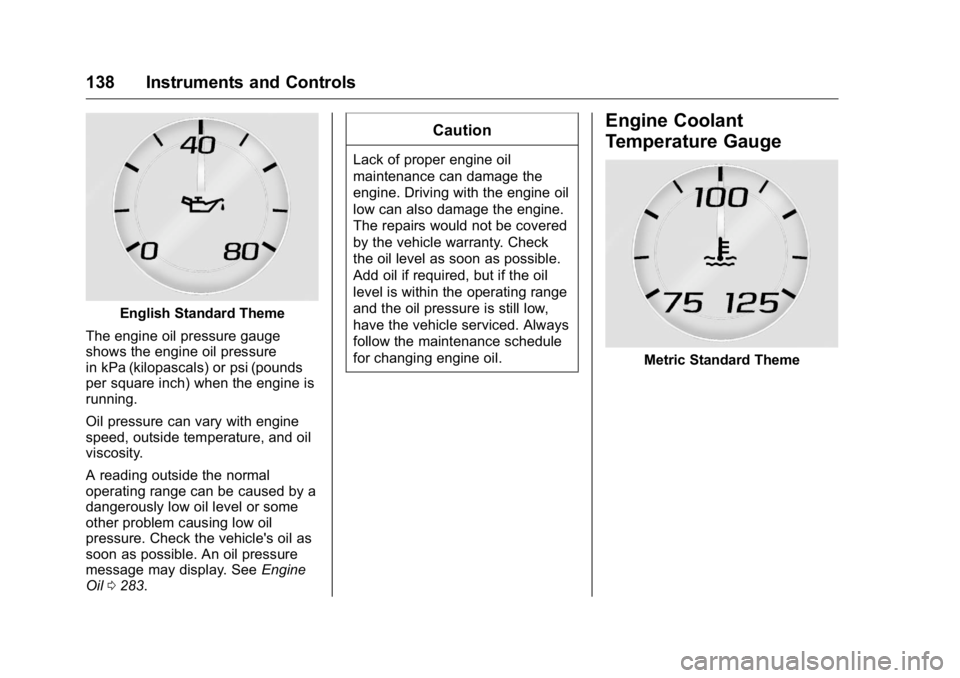
English Standard Theme
The engine oil pressure gauge
shows the engine oil pressure
in kPa (kilopascals) or psi (pounds
per square inch) when the engine is
running.
Oil pressure can vary with engine
speed, outside temperature, and oil
viscosity.
A reading outside the normal
operating range can be caused by a
dangerously low oil level or some
other problem causing low oil
pressure. Check the vehicle's oil as
soon as possible. An oil pressure
message may display. See Engine
Oil 0 283 . CautionLack of proper engine oil
maintenance can damage the
engine. Driving with the engine oil
low can also damage the engine.
The repairs would not be covered
by the vehicle warranty. Check
the oil level as soon as possible.
Add oil if required, but if the oil
level is within the operating range
and the oil pressure is still low,
have the vehicle serviced. Always
follow the maintenance schedule
for changing engine oil. Engine Coolant
Temperature Gauge
Metric Standard Theme
Page 144 of 425
GMC Yukon/Yukon XL/Denali Owner Manual (GMNA-Localizing-U.S./
Canada/Mexico-11349262) - 2018 - crc - 6/20/17
Instruments and Controls 143system. Have it checked by your
dealer. Driving while this light is on
could drain the battery.
When this light comes on, or is
flashing, the Driver Information
Center (DIC) also displays a
message.
If a short distance must be driven
with the light on, be sure to turn off
all accessories, such as the radio
and air conditioner.
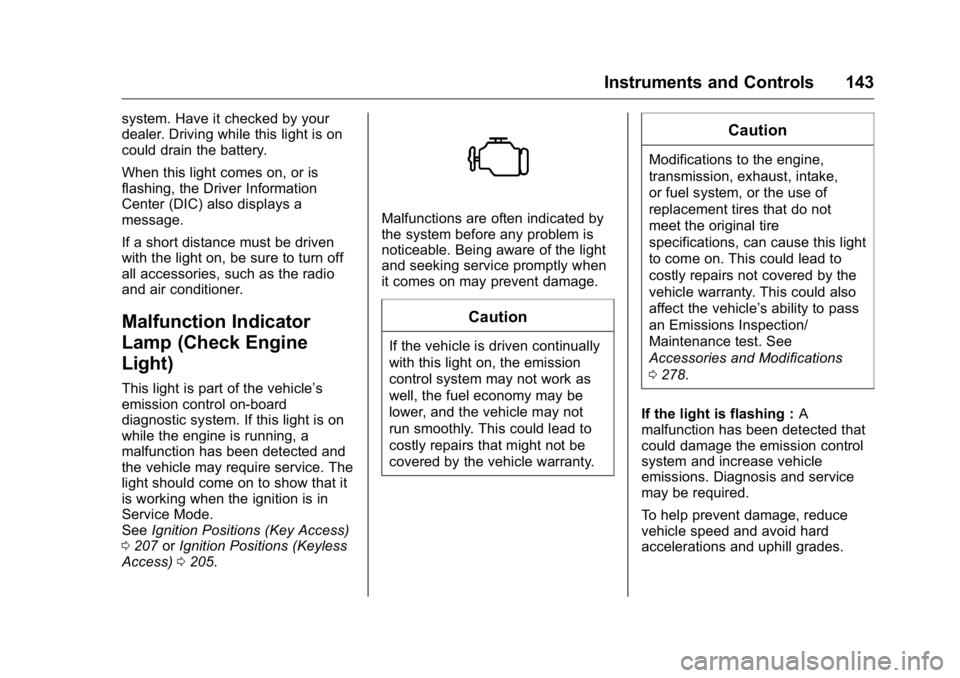
Malfunction Indicator
Lamp (Check Engine
Light) This light is part of the vehicle ’ s
emission control on-board
diagnostic system. If this light is on
while the engine is running, a
malfunction has been detected and
the vehicle may require service. The
light should come on to show that it
is working when the ignition is in
Service Mode.
See Ignition Positions (Key Access)
0 207 or Ignition Positions (Keyless
Access) 0 205 . Malfunctions are often indicated by
the system before any problem is
noticeable. Being aware of the light
and seeking service promptly when
it comes on may prevent damage.
CautionIf the vehicle is driven continually
with this light on, the emission
control system may not work as
well, the fuel economy may be
lower, and the vehicle may not
run smoothly. This could lead to
costly repairs that might not be
covered by the vehicle warranty. CautionModifications to the engine,
transmission, exhaust, intake,
or fuel system, or the use of
replacement tires that do not
meet the original tire
specifications, can cause this light
to come on. This could lead to
costly repairs not covered by the
vehicle warranty. This could also
affect the vehicle ’ s ability to pass
an Emissions Inspection/
Maintenance test. See
Accessories and Modifications
0 278 .
If the light is flashing : A
malfunction has been detected that
could damage the emission control
system and increase vehicle
emissions. Diagnosis and service
may be required.
To help prevent damage, reduce
vehicle speed and avoid hard
accelerations and uphill grades.
Page 147 of 425
GMC Yukon/Yukon XL/Denali Owner Manual (GMNA-Localizing-U.S./
Canada/Mexico-11349262) - 2018 - crc - 6/20/17
146 Instruments and Controls If both the ABS and the brake
system warning light are on, the
vehicle's antilock brakes are not
functioning and there is a problem
with the regular brakes. See your
dealer for service.
See Brake System Warning Light
0 145 .
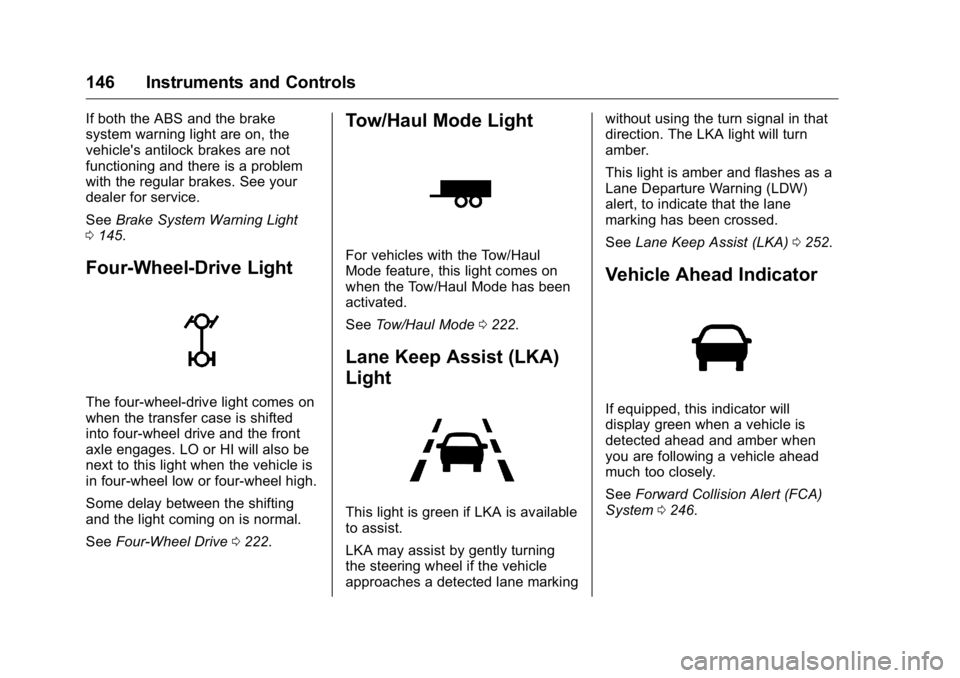
Four-Wheel-Drive Light
The four-wheel-drive light comes on
when the transfer case is shifted
into four-wheel drive and the front
axle engages. LO or HI will also be
next to this light when the vehicle is
in four-wheel low or four-wheel high.
Some delay between the shifting
and the light coming on is normal.
See Four-Wheel Drive 0 222 .Tow/Haul Mode Light For vehicles with the Tow/Haul
Mode feature, this light comes on
when the Tow/Haul Mode has been
activated.
See Tow/Haul Mode 0 222 .
Lane Keep Assist (LKA)
Light
This light is green if LKA is available
to assist.
LKA may assist by gently turning
the steering wheel if the vehicle
approaches a detected lane marking without using the turn signal in that
direction. The LKA light will turn
amber.
This light is amber and flashes as a
Lane Departure Warning (LDW)
alert, to indicate that the lane
marking has been crossed.
See Lane Keep Assist (LKA) 0 252 .
Vehicle Ahead Indicator
If equipped, this indicator will
display green when a vehicle is
detected ahead and amber when
you are following a vehicle ahead
much too closely.
See Forward Collision Alert (FCA)
System 0 246 .
Page 148 of 425
GMC Yukon/Yukon XL/Denali Owner Manual (GMNA-Localizing-U.S./
Canada/Mexico-11349262) - 2018 - crc - 6/20/17
Instruments and Controls 147
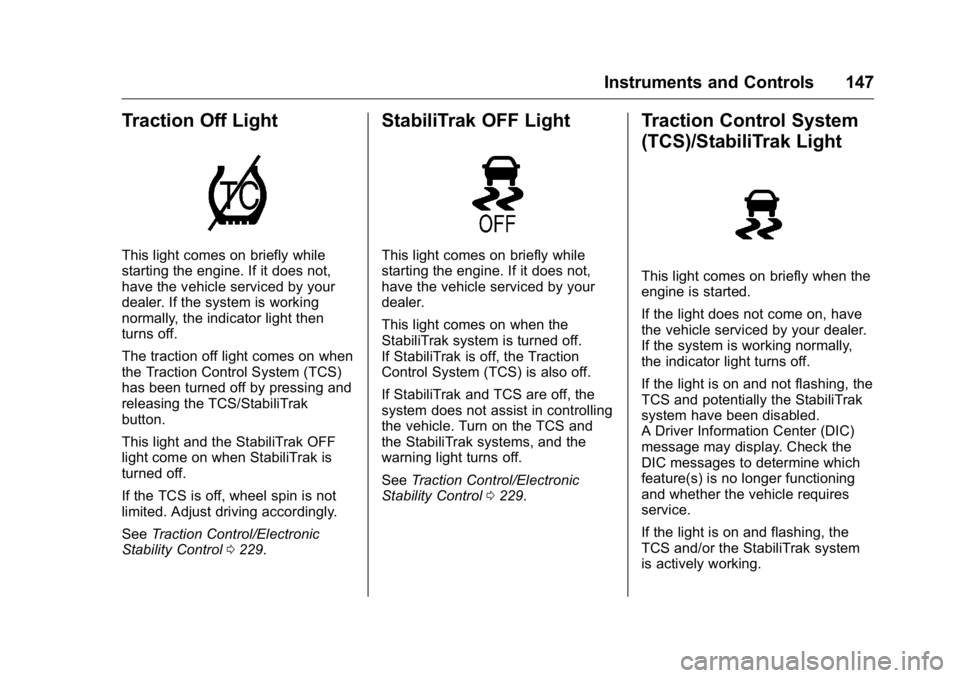
Traction Off Light This light comes on briefly while
starting the engine. If it does not,
have the vehicle serviced by your
dealer. If the system is working
normally, the indicator light then
turns off.
The traction off light comes on when
the Traction Control System (TCS)
has been turned off by pressing and
releasing the TCS/StabiliTrak
button.
This light and the StabiliTrak OFF
light come on when StabiliTrak is
turned off.
If the TCS is off, wheel spin is not
limited. Adjust driving accordingly.
See Traction Control/Electronic
Stability Control 0 229 . StabiliTrak OFF Light This light comes on briefly while
starting the engine. If it does not,
have the vehicle serviced by your
dealer.
This light comes on when the
StabiliTrak system is turned off.
If StabiliTrak is off, the Traction
Control System (TCS) is also off.
If StabiliTrak and TCS are off, the
system does not assist in controlling
the vehicle. Turn on the TCS and
the StabiliTrak systems, and the
warning light turns off.
See Traction Control/Electronic
Stability Control 0 229 .Traction Control System
(TCS)/StabiliTrak Light
This light comes on briefly when the
engine is started.
If the light does not come on, have
the vehicle serviced by your dealer.
If the system is working normally,
the indicator light turns off.
If the light is on and not flashing, the
TCS and potentially the StabiliTrak
system have been disabled.
A Driver Information Center (DIC)
message may display. Check the
DIC messages to determine which
feature(s) is no longer functioning
and whether the vehicle requires
service.
If the light is on and flashing, the
TCS and/or the StabiliTrak system
is actively working.
Page 149 of 425
GMC Yukon/Yukon XL/Denali Owner Manual (GMNA-Localizing-U.S./
Canada/Mexico-11349262) - 2018 - crc - 6/20/17
148 Instruments and Controls See Traction Control/Electronic
Stability Control 0 229 .
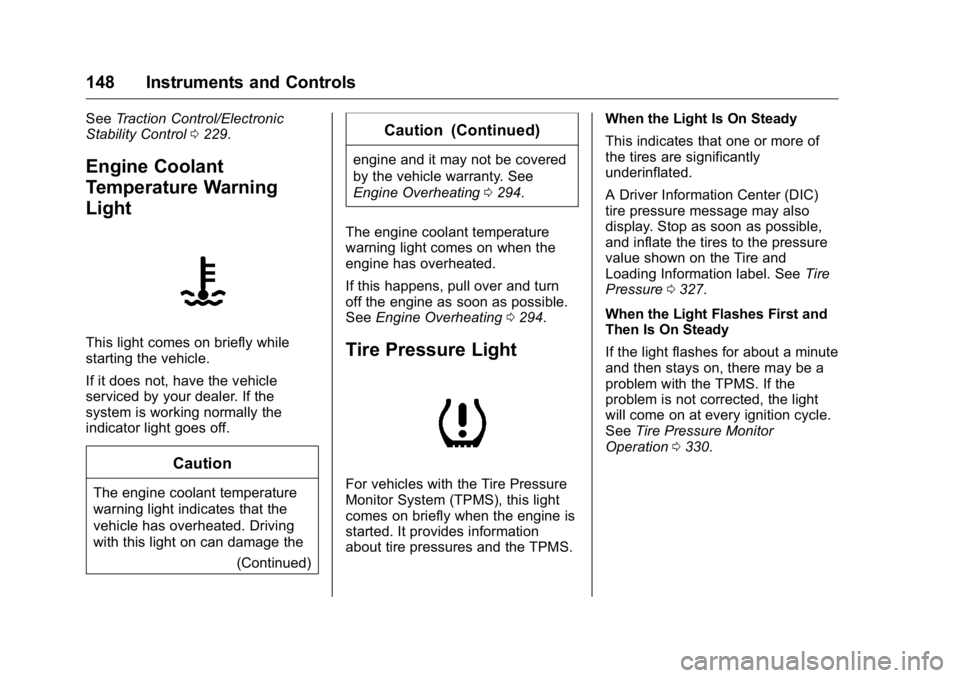
Engine Coolant
Temperature Warning
Light
This light comes on briefly while
starting the vehicle.
If it does not, have the vehicle
serviced by your dealer. If the
system is working normally the
indicator light goes off.
Caution
The engine coolant temperature
warning light indicates that the
vehicle has overheated. Driving
with this light on can damage the
(Continued) Caution (Continued) engine and it may not be covered
by the vehicle warranty. See
Engine Overheating 0 294 .
The engine coolant temperature
warning light comes on when the
engine has overheated.
If this happens, pull over and turn
off the engine as soon as possible.
See Engine Overheating 0 294 .
Tire Pressure Light
For vehicles with the Tire Pressure
Monitor System (TPMS), this light
comes on briefly when the engine is
started. It provides information
about tire pressures and the TPMS. When the Light Is On Steady
This indicates that one or more of
the tires are significantly
underinflated.
A Driver Information Center (DIC)
tire pressure message may also
display. Stop as soon as possible,
and inflate the tires to the pressure
value shown on the Tire and
Loading Information label. See Tire
Pressure 0 327 .
When the Light Flashes First and
Then Is On Steady
If the light flashes for about a minute
and then stays on, there may be a
problem with the TPMS. If the
problem is not corrected, the light
will come on at every ignition cycle.
See Tire Pressure Monitor
Operation 0 330 .
Page 152 of 425
GMC Yukon/Yukon XL/Denali Owner Manual (GMNA-Localizing-U.S./
Canada/Mexico-11349262) - 2018 - crc - 6/20/17
Instruments and Controls 151
Information Displays Driver Information
Center (DIC) The DIC displays are shown in the
center of the instrument cluster in
the Info app. See Instrument Cluster
0 133 . The displays show the status
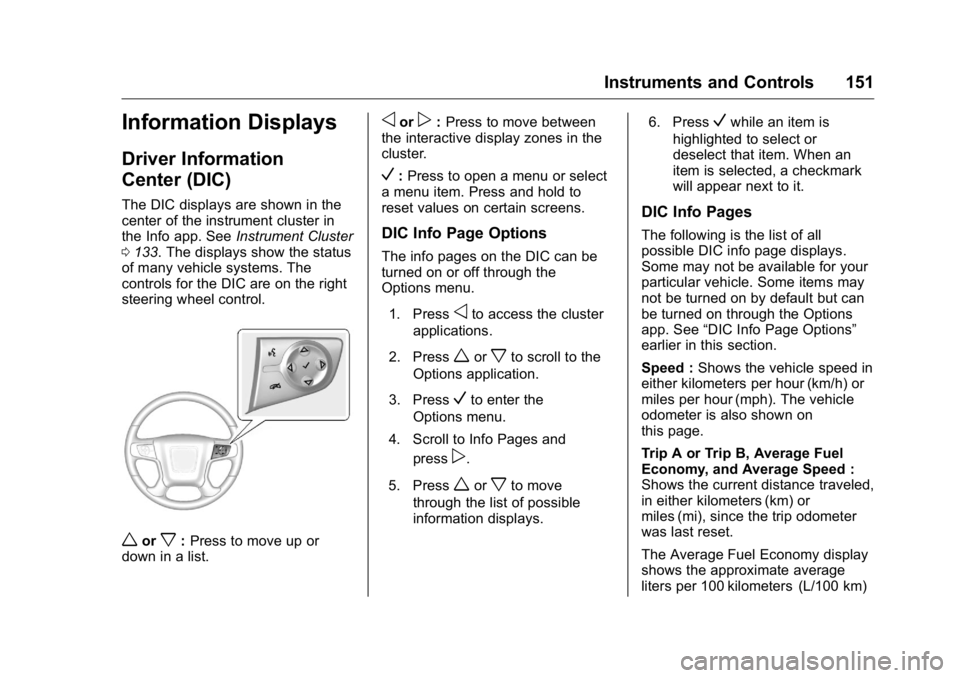
of many vehicle systems. The
controls for the DIC are on the right
steering wheel control.
w or
x : Press to move up or
down in a list. o or
p : Press to move between
the interactive display zones in the
cluster.
V : Press to open a menu or select
a menu item. Press and hold to
reset values on certain screens.
DIC Info Page Options The info pages on the DIC can be
turned on or off through the
Options menu.
1. Press
o to access the cluster
applications.
2. Press
w or
x to scroll to the
Options application.
3. Press
V to enter the
Options menu.
4. Scroll to Info Pages and
press
p .
5. Press
w or
x to move
through the list of possible
information displays. 6. Press
V while an item is
highlighted to select or
deselect that item. When an
item is selected, a checkmark
will appear next to it.
DIC Info Pages The following is the list of all
possible DIC info page displays.
Some may not be available for your
particular vehicle. Some items may
not be turned on by default but can
be turned on through the Options
app. See “ DIC Info Page Options ”
earlier in this section.
Speed : Shows the vehicle speed in
either kilometers per hour (km/h) or
miles per hour (mph). The vehicle
odometer is also shown on
this page.
Trip A or Trip B, Average Fuel
Economy, and Average Speed :
Shows the current distance traveled,
in either kilometers (km) or
miles (mi), since the trip odometer
was last reset.
The Average Fuel Economy display
shows the approximate average
liters per 100 kilometers (L/100 km)