ignition GMC YUKON XL DENALI 2004 Workshop Manual
[x] Cancel search | Manufacturer: GMC, Model Year: 2004, Model line: YUKON XL DENALI, Model: GMC YUKON XL DENALI 2004Pages: 468, PDF Size: 3.18 MB
Page 208 of 468
TURN SIGNAL ON
If a turn signal is left on for 3/4 of a mile (1.2 km), this
message will appear on the display and you will hear a
chime. Move the turn signal/multifunction lever to the
off position. Pressing the select button will acknowledge
this message and clear it from the DIC display.
TRACTION ACTIVE
When the traction control system has detected that any
of the vehicle's wheels are slipping, the traction
control system will activate and this message will appear
on the DIC. See
StabilitrakžSystem on page 4-9for
more information.
Audio System(s)
Notice:Before you add any sound equipment to
your vehicle ± like a tape player, CB radio, mobile
telephone or two-way radio ± be sure you can
add what you want. If you can, it's very important to
do it properly. Added sound equipment may
interfere with the operation of your vehicle's engine,
radio or other systems, and even damage them.
Your vehicle's systems may interfere with the
operation of sound equipment that has been added
improperly.
So, before adding sound equipment, check with
your dealer and be sure to check federal rules
covering mobile radio and telephone units.
Your audio system has been designed to operate easily
and to give years of listening pleasure. You will get
the most enjoyment out of it if you acquaint yourself with
it ®rst. Figure out which radio you have in your vehicle,
®nd out what your audio system can do and how to
operate all of its controls to be sure you're getting the
most out of the advanced engineering that went into it.
Your vehicle has a feature called Retained Accessory
Power (RAP). With RAP, you can play your audio
system even after the ignition is turned off. See
ªRetained Accessory Power (RAP)º under
Ignition
Positions on page 2-19.
3-64
Page 209 of 468
Setting the Time
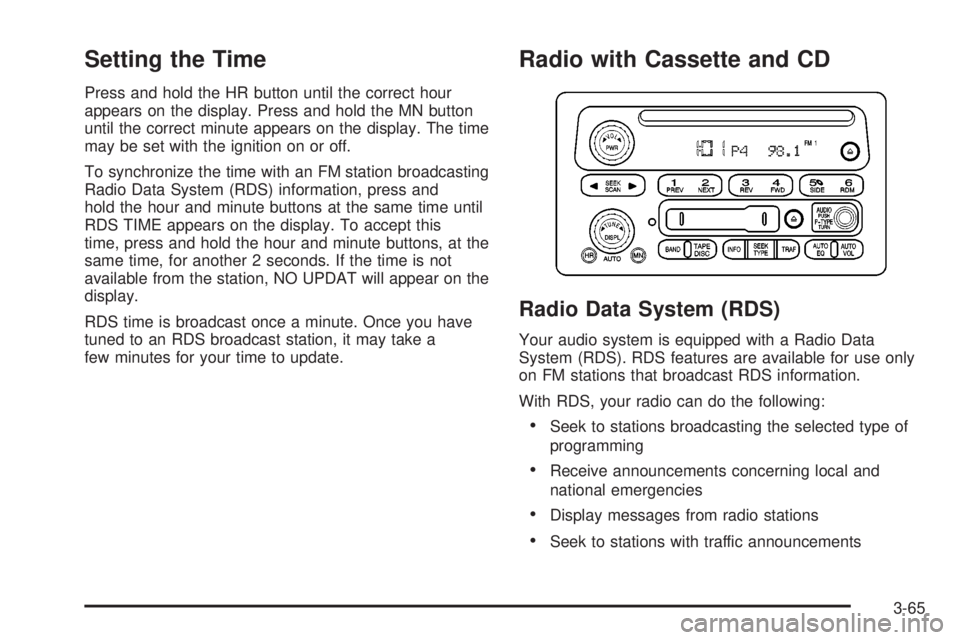
Press and hold the HR button until the correct hour
appears on the display. Press and hold the MN button
until the correct minute appears on the display. The time
may be set with the ignition on or off.
To synchronize the time with an FM station broadcasting
Radio Data System (RDS) information, press and
hold the hour and minute buttons at the same time until
RDS TIME appears on the display. To accept this
time, press and hold the hour and minute buttons, at the
same time, for another 2 seconds. If the time is not
available from the station, NO UPDAT will appear on the
display.
RDS time is broadcast once a minute. Once you have
tuned to an RDS broadcast station, it may take a
few minutes for your time to update.
Radio with Cassette and CD
Radio Data System (RDS)
Your audio system is equipped with a Radio Data
System (RDS). RDS features are available for use only
on FM stations that broadcast RDS information.
With RDS, your radio can do the following:
·Seek to stations broadcasting the selected type of
programming
·Receive announcements concerning local and
national emergencies
·Display messages from radio stations
·Seek to stations with traffic announcements
3-65
Page 211 of 468
DISPL (Display):Press this knob to switch the display
between the radio station frequency and the time.
Time display is available with the ignition turned off.
For RDS, press the DISPL knob to change what appears
on the display while using RDS. The display options
are station name, RDS station frequency, PTY, and the
name of the program (if available).
For XMŸ (48 contiguous US states, if equipped), press
the DISPL knob while in XM mode to retrieve four
different categories of information related to the current
song or channel: Artist, Song Title, Category or PTY,
Channel Number/Channel Name.
To change the default on the display, press the DISPL
knob until you see the display you want, then hold
the knob for two seconds. The radio will produce one
beep and the selected display will now be the default.Finding a Station
BAND:Press this button to switch between FM1, FM2,
AM, or XM1 or XM2 (48 contiguous US states, if
equipped). The display will show your selection.
TUNE:Turn this knob to select radio stations.
qSEEKr:Press the right or the left arrow to go to
the next or to the previous station and stay there.
The radio will seek only to stations that are in the
selected band and only to those with a strong signal.
qSCANr:Press and hold either arrow for
more than two seconds. SCAN will appear on the
display and you will hear a beep. The radio will go to a
station, play for a few seconds, then go on to the
next station. Press either arrow again to stop scanning.
To scan preset stations, press and hold either arrow
for more than four seconds. PSCN will appear on
the display and you will hear two beeps. The radio will
go to the ®rst preset station, play for a few seconds,
then go on to the next preset station. Press either arrow
again or one of the pushbuttons to stop scanning.
The radio will scan only to stations that are in the
selected band and only to those with a strong signal.
3-67
Page 219 of 468
Playing a Cassette Tape
Your tape player is built to work best with tapes that are
up to 30 to 45 minutes long on each side. Tapes
longer than that are so thin they may not work well in
this player. The longer side with the tape visible should
face to the right. If the ignition is on, but the radio is
off, the tape can be inserted and will begin playing. A
tape symbol will appear on the display whenever a tape
is inserted. If you hear nothing, or hear a garbled
sound, the tape may not be in squarely. Press the eject
button to remove the tape and start over.
While the tape is playing, use the VOL, AUDIO, and
SEEK controls just as you do for the radio. TAPE
will appear on the display and an arrow showing which
side of the tape is playing. The tape player automatically
begins playing the other side when it reaches the
end of the tape.
If you want to insert a tape while the ignition is off, ®rst
press the eject button or the DISPL knob. Cassette
tape adapter kits for portable CD players will work in
your cassette tape player.
Your tape bias is set automatically when a metal or
chrome tape is inserted.
If an error appears on the display, see ªCassette Tape
Messagesº later in this section.1 PREV (Previous):Your tape must have at least three
seconds of silence between each selection for previous
to work. Press this pushbutton to go to the previous
selection on the tape if the current selection has been
playing for less than three seconds. If pressed when the
current selection has been playing from 3 to 13 seconds,
it will go to the beginning of the previous selection or
the beginning of the current selection, depending upon
the position on the tape. If pressed when the current
selection has been playing for more than 13 seconds, it
will go to the beginning of the current selection.
SEEK and a negative number will appear on the display
while the cassette player is in the previous mode.
Pressing this pushbutton multiple times will increase the
number of selections to be searched back, up to -9.
2 NEXT:Your tape must have at least three seconds of
silence between each selection for next to work.
Press this pushbutton to go to the next selection on the
tape. If you press the pushbutton more than once,
the player will continue moving forward through the tape.
SEEK and a positive number will appear on the
display.
3 REV (Reverse):Press this pushbutton to reverse the
tape rapidly. Press this pushbutton again to return to
playing speed. The radio will play while the tape
reverses. The station frequency and REV will appear on
the display. You may select stations during reverse
operation by using TUNE and SEEK.
3-75
Page 221 of 468
CLEAN:If this message appears on the display, the
cassette tape player needs to be cleaned. It will still play
tapes, but you should clean it as soon as possible to
prevent damage to the tapes and player. See
Care
of Your Cassette Tape Player on page 3-97.
If any error occurs repeatedly or if an error cannot be
corrected, contact your dealer. If your radio displays an
error message, write it down and provide it to your
dealer when reporting the problem.
CD Adapter Kits
It is possible to use a portable CD player with your
cassette tape player after activating the bypass feature
on your tape player.
To activate the bypass feature, perform the
following steps:
1. Turn the ignition on.
2. Turn the radio off.
3. Press and hold the TAPE DISC button for ®ve
seconds. READY will appear on the display and
the tape symbol on the display will ¯ash, indicating
the feature is active.
4. Insert the adapter into the cassette tape slot. It will
power up the radio and begin playing.
The override feature will remain active until the eject
button is pressed.
Playing a CD
Insert a CD partway into the slot, label side up.
The player will pull it in and the CD should begin playing.
The CD symbol will appear on the display. If you want
to insert a CD with the ignition off, ®rst press the
eject button or the DISPL knob.
If you turn off the ignition or radio with the CD in the
player, it will stay in the player. When you turn on
the ignition or the radio, the CD will start playing, where
it stopped, if it was the last selected audio source.
As each new track starts to play, the track number will
appear on the display.
The CD player can play the smaller 8 cm single CDs
with an adapter ring. Full-size CDs and the smaller CDs
are loaded in the same manner.
If playing a CD-R the sound quality may be reduced
due to CD-R quality, the method of recording, the quality
of the music that has been recorded, and the way the
CD-R has been handled. You may experience an
increase in skipping, difficulty in ®nding tracks, and/or
difficulty in loading and ejecting. If these problems occur
try a known good CD.
Do not add paper labels to CDs, they could get caught
in the CD player.
Do not play 3 inch CDs without a standard adapter CD.
If an error appears on the display, see ªCD Messagesº
later in this section.
3-77
Page 223 of 468
BAND:Press this button to listen to the radio when a
cassette tape or CD is playing. The inactive tape or CD
will remain safely inside the radio for future listening
TAPE DISC:Press this button to play a cassette tape
or CD when listening to the radio. The inactive tape
or CD will remain safely inside the radio for future
listening.
Z(Eject):Press this button to stop a CD when it is
playing or to eject a CD when it is not playing. Eject
may be activated with either the ignition or radio off.
CDs may be loaded with the radio and ignition off if this
button is pressed ®rst.
CD Messages
If the CD comes out, it could be for one of the following
reasons:
·It is very hot. When the temperature returns to
normal, the CD should play.
·You are driving on a very rough road. When the
road becomes smoother, the CD should play.
·The CD is dirty, scratched, wet, or upside down.
·The air is very humid. If so, wait about an hour and
try again.
·There may have been a problem while burning
the CD.
·The label may be caught in the CD player.
If the CD is not playing correctly, for any other reason,
try a known good CD.
If any error occurs repeatedly or if an error cannot be
corrected, contact your dealer. If your radio displays an
error message, write it down and provide it to your
dealer when reporting the problem.
Listening to a DVD
If your vehicle has the Rear Seat Entertainment (RSE)
system and a DVD is playing, the DVD symbol will
appear on the radio display indicating that the DVD is
available and can be listened to through your vehicle's
speakers. To listen to the DVD, press the TAPE
DISC button until RSE appears on the radio display.
The current radio source will stop and the DVD sound
will come through the speakers. To stop listening to
the DVD, press the TAPE DISC button, if a cassette
tape or a CD is loaded, or press the BAND button
to select a different source.
When the RSE system is turned off, the DVD symbol
will go off of the radio display and the radio will display
RSE OFF. The radio will return to the last radio
source that you were listening to.
3-79
Page 224 of 468
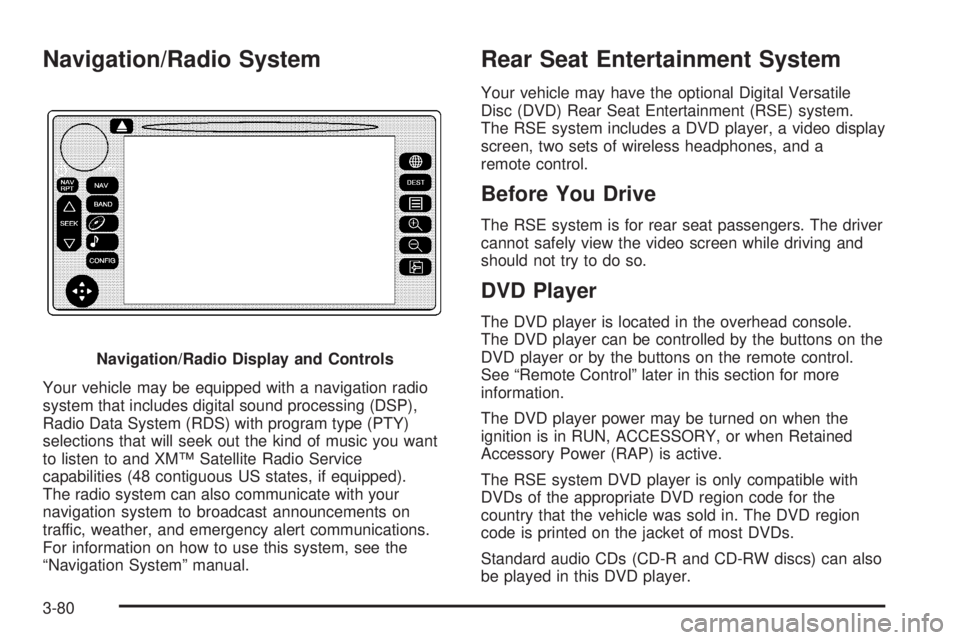
Navigation/Radio System
Your vehicle may be equipped with a navigation radio
system that includes digital sound processing (DSP),
Radio Data System (RDS) with program type (PTY)
selections that will seek out the kind of music you want
to listen to and XMŸ Satellite Radio Service
capabilities (48 contiguous US states, if equipped).
The radio system can also communicate with your
navigation system to broadcast announcements on
traffic, weather, and emergency alert communications.
For information on how to use this system, see the
ªNavigation Systemº manual.
Rear Seat Entertainment System
Your vehicle may have the optional Digital Versatile
Disc (DVD) Rear Seat Entertainment (RSE) system.
The RSE system includes a DVD player, a video display
screen, two sets of wireless headphones, and a
remote control.
Before You Drive
The RSE system is for rear seat passengers. The driver
cannot safely view the video screen while driving and
should not try to do so.
DVD Player
The DVD player is located in the overhead console.
The DVD player can be controlled by the buttons on the
DVD player or by the buttons on the remote control.
See ªRemote Controlº later in this section for more
information.
The DVD player power may be turned on when the
ignition is in RUN, ACCESSORY, or when Retained
Accessory Power (RAP) is active.
The RSE system DVD player is only compatible with
DVDs of the appropriate DVD region code for the
country that the vehicle was sold in. The DVD region
code is printed on the jacket of most DVDs.
Standard audio CDs (CD-R and CD-RW discs) can also
be played in this DVD player. Navigation/Radio Display and Controls
3-80
Page 226 of 468
n,q,p,o(Menu Navigation Arrows):Use the
arrow buttons to navigate through a menu.
r(Enter):Press this button to select the choices
that are highlighted in any menu.
Playing a Disc
To play a disc, gently insert the disc with the label side
up into the loading slot. The DVD player will continue
loading the disc and the player will automatically start, if
the vehicle ignition is in RUN, ACCESSORY, or when
RAP is active.
If a disc is already in the player, press the play/pause
button on the face of the DVD player or on the
remote control.
Some DVDs will not allow you to fast forward or skip
the copyright information or previews. Some DVDs will
begin playing after the previews have ®nished. If the
DVD does not begin to play the main title, refer to the
on-screen instructions, as the DVD may be displaying
its main title menu.
Stopping and Resuming Playback
To stop a disc, press and release the stop button on the
DVD player or the remote control. To resume playback,
press the play/pause button on the DVD player or
the remote control. As long as the disc has not been
ejected and the stop button has not been pressed twice,
the movie should resume play from where it was last
stopped. If the disc has been ejected, or if the stop
button has been pressed twice, the disc will resume play
at the beginning of the DVD or CD.
Ejecting a Disc
Press the eject button on the DVD player to eject
the disc.
If a disc is ejected from the player, but is not removed,
the DVD player will reload the disc after a short
period of time. The disc will then be stored in the DVD
player. The DVD player will not resume play of this
disc automatically.
There is not an eject button on the remote control.
3-82
Page 227 of 468
DVD Messages
The following errors may be displayed on the video
screen:
Disc Format Error:This message will be displayed if a
disc is inserted upside down, not readable, or the
format is not compatible with the DVD player.
Load/Eject Error:This message will be displayed if the
disc is not properly loaded or ejected.
Disc Play Error:This message will be displayed if the
DVD player cannot play the disc. Scratched or
damaged discs will cause this error.
Region Code Error:This message will be displayed if
the region code of the DVD is not compatible with
the region code of the DVD player.
No Disc:This message will be displayed if any of the
buttons on the DVD faceplate or remote control are
pressed and no disc is present in the DVD player.
Parental Control Button:This button is located behind
the video screen. Press this button while a DVD or
CD is playing to freeze the video and mute the audio.
The video screen will display Parental Control ON
and the power indicator light on the DVD player will¯ash. It will also disable all other button operations from
the remote control and the DVD player, with the
exception of the eject button. Press this button again to
restore operation of the DVD player.
This button may also be used to turn the DVD player
power on and automatically resume play if the ignition is
in RUN, ACCESSORY, or if RAP is active.
Video Screen
The video screen is located in the overhead console.
To use the video screen, push forward on the release
latch and the screen will fold down. Adjust the screen's
position as desired. When the video screen is not in
use, push it up into its latched position.
The DVD player and display will continue to operate
when the screen is in either the up or the down position.
The video screen contains the infrared transmitters for
the wireless headphones and the infrared receiver
for the remote control. If the screen is in the closed
position, the infrared signals will not be available for the
operation of the headphones or the remote control.
Notice:Directly touching the video screen
may damage it. Do not touch the screen. See
Cleaning the Video Screen on page 3-99for more
information.
3-83
Page 233 of 468
Problem Recommended Action
No power. The ignition might not be
in on or accessory.
Check to make sure the
parental control button
has not been activated.
(The power indicator light
will ¯ash if parental
control is active.)
Disc will not play. The system might be off.
Check to make sure the
parental control button
has not been activated.
(The power indicator light
will ¯ash if parental
control is active.)
The system might be in
auxiliary mode.
The disc is upside down
or is not compatible.
The picture does not ®ll
the screen. There are
black borders on the top
and bottom or on both
sides or it looks
stretched out.Check the display
mode settings in the
display menu.
The disc was ejected, but
it was pulled back into
the DVD player.The disc is being stored
in the DVD player. Press
the eject button again to
eject the disc.Problem Recommended Action
In auxiliary mode, the
picture moves or scrolls.Check the auxiliary input
connections at both
devices.
Change the Video
Format to PAL or NTSC.
The language in the
audio or on the screen is
wrong.Check the audio or
language selection in the
main DVD menu.
The remote control does
not work.Check to make sure
there is no obstruction
between the remote
control and the infrared
window located below the
video screen.
Check the batteries to
make sure they are not
dead or installed
incorrectly.
Check to make sure the
parental control button
has not been activated.
(The power indicator light
will ¯ash if parental
control is active.)
3-89