phone HONDA ACCORD 2008 8.G Navigation Manual
[x] Cancel search | Manufacturer: HONDA, Model Year: 2008, Model line: ACCORD, Model: HONDA ACCORD 2008 8.GPages: 148, PDF Size: 7.15 MB
Page 22 of 148
22Navigation System
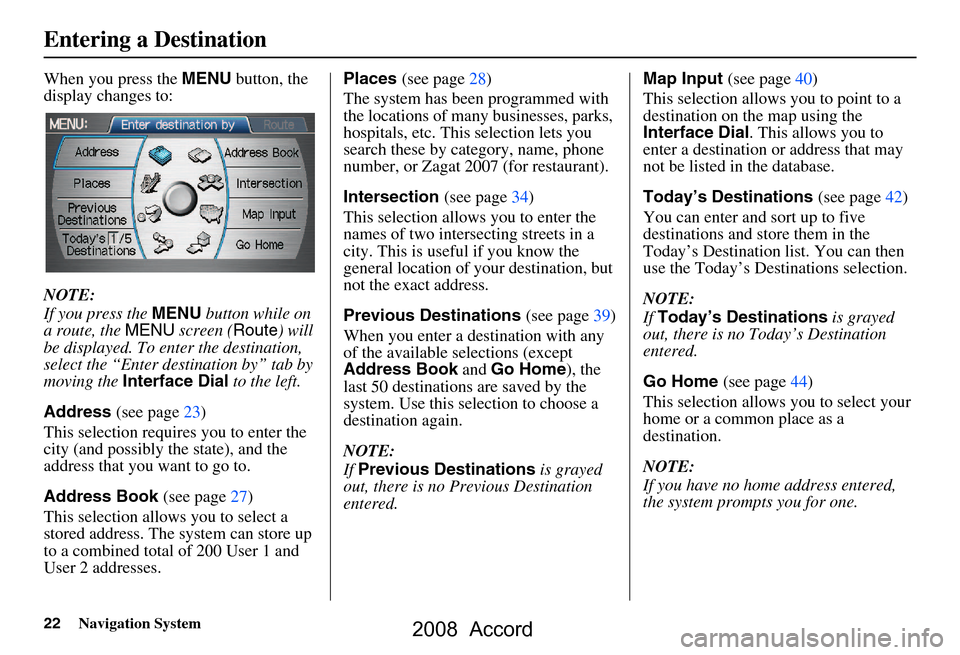
When you press the MENU button, the
display changes to:
NOTE:
If you press the MENU button while on
a route, the MENU screen ( Route) will
be displayed. To enter the destination,
select the “Enter destination by” tab by
moving the Interface Dial to the left.
Address (see page23)
This selection requires you to enter the
city (and possibly the state), and the
address that you want to go to.
Address Book (see page27)
This selection allows you to select a
stored address. The system can store up
to a combined total of 200 User 1 and
User 2 addresses. Places
(see page28)
The system has been programmed with
the locations of many businesses, parks,
hospitals, etc. This selection lets you
search these by category, name, phone
number, or Zagat 2007 (for restaurant).
Intersection (see page34)
This selection allows you to enter the
names of two intersecting streets in a
city. This is useful if you know the
general location of your destination, but
not the exact address.
Previous Destinations (see page39)
When you enter a destination with any
of the available se lections (except
Address Book and Go Home ), the
last 50 destinations are saved by the
system. Use this selection to choose a
destination again.
NOTE:
If Previous Destinations is grayed
out, there is no Previous Destination
entered. Map Input
(see page40)
This selection allows you to point to a
destination on the map using the
Interface Dial . This allows you to
enter a destination or address that may
not be listed in the database.
Today’s Destinations (see page42)
You can enter and sort up to five
destinations and store them in the
Today’s Destination list. You can then
use the Today’s Destinations selection.
NOTE:
If Today’s Destinations is grayed
out, there is no Today’s Destination
entered.
Go Home (see page44)
This selection allows you to select your
home or a common place as a
destination.
NOTE:
If you have no home address entered,
the system prompts you for one.
Entering a Destination
2008 Accord
Page 28 of 148
28Navigation System
The system then displays a list of the
places entered in your personal Address
Book. You can sort the displayed
addresses by Category: ALL,
BUSINESS, PERSONAL or by other
categories you may create.
Scroll through the lis t to find your
desired destination. After you select it,
the system then displays the Calculate
route to screen (see Driving to Your
Destination on page45).
Tip:
If you select New Address in the list,
you can store a new address in the
personal Address Book. For more
information on entering new addresses,
see Adding Addresses to the Personal
Address Book on page28.Adding Addresses to the
Personal Address Book
There are three ways to enter addresses
to the personal Address Book:
Selecting New Address on the
Select an address screen (see
page28).
Entering them in the personal Address Book feature in SETUP (see
page78).
Adding them in the Address Book directly from the Calculate route to
screen (see page45).
NOTE:
Destinations chosen from the Address Book do not show up in Previous
Destinations.
Prior to departure, you can set areas to avoid. The system then includes
them in its calculations for the
destination you have entered. See
Edit Avoid Area on page90.
For information on the available voice commands, see Voice
Command Index on page132.
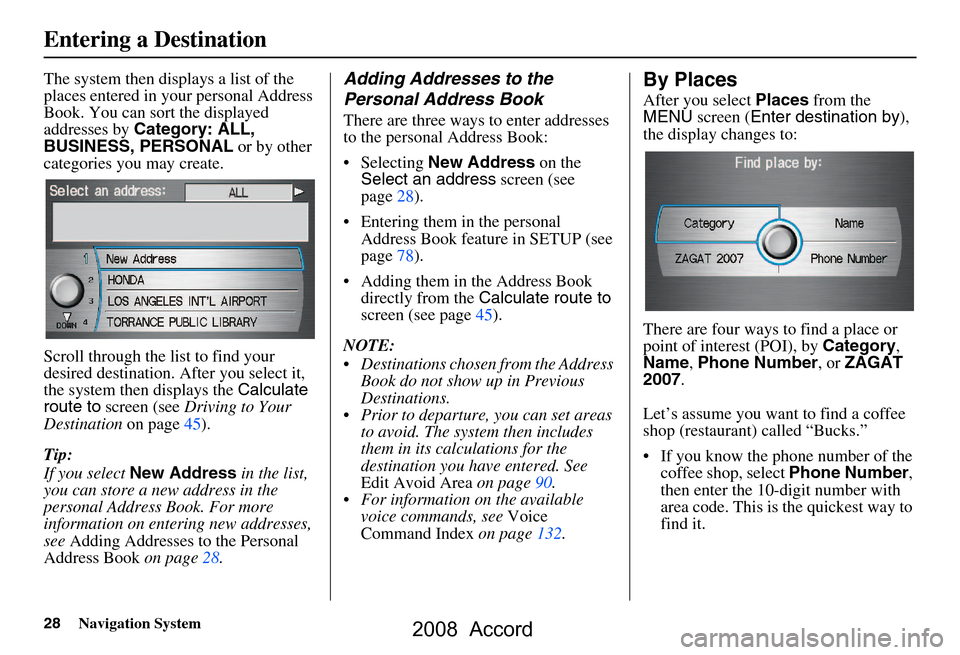
By Places
After you select Places from the
MENU screen ( Enter destination by ),
the display changes to:
There are four ways to find a place or
point of interest (POI), by Category,
Name , Phone Number , or ZAGAT
2007 .
Let’s assume you want to find a coffee
shop (restaurant) called “Bucks.”
If you know the phone number of the coffee shop, select Phone Number,
then enter the 10-digit number with
area code. This is the quickest way to
find it.
Entering a Destination
2008 Accord
Page 33 of 148
Navigation System33
City Vicinity
The system allows you to find points of
interest in the vicinity of the city you
entered. When you select this option,
the display changes to Enter city name
screen. Enter the name of the city using
the Interface Dial . If the system does
not find an exact match, select LIST
when you finish entering the name of
the city. Select a de sired city from the
list.
Once you have selected the city, the
display changes to Enter a place name
screen. Enter the name of the place
using the Interface Dial .
Once you select a place, the system then
displays the Calculate route to screen
(see Driving to Your Destination on
page45).
Place Name
When you select this option, the display
changes to Enter a place name screen.
Enter your selection, using the
Interface Dial .
Once you select a place, the system then
displays the Calculate route to screen
(see Driving to Your Destination on
page45).
Finding the Place by Name
The Name option allows you to enter
the name of a business, and then shows
you a list of businesses with the same or
similar names to select from. Use the
name option only if you know the exact
spelling of the place. If unsure, use the
Category option.
Finding the Place by Phone
Number
The Phone Number option allows
you to select a destination by its
telephone number. Only telephone
numbers stored in th e system under the
Places (of business) option are
recognized. The system does not contain
residential telephone numbers, or
numbers you may have entered in your
personal Address Book.
Tip:
If you know the phone number of a point
of interest (POI), its uniqueness makes it
the fastest entry method. When using the
voice control system, the entry should be
spoken as a continuous string of
numbers. For example, the telephone
number (310) 555-4000 should be
spoken as “Three, one, zero, five, five,
five, four, zero, zero, zero.”
Entering a Destination
2008 Accord
Page 62 of 148
62Navigation System
Driving to Your Destination
Viewing/Saving the Current
Location
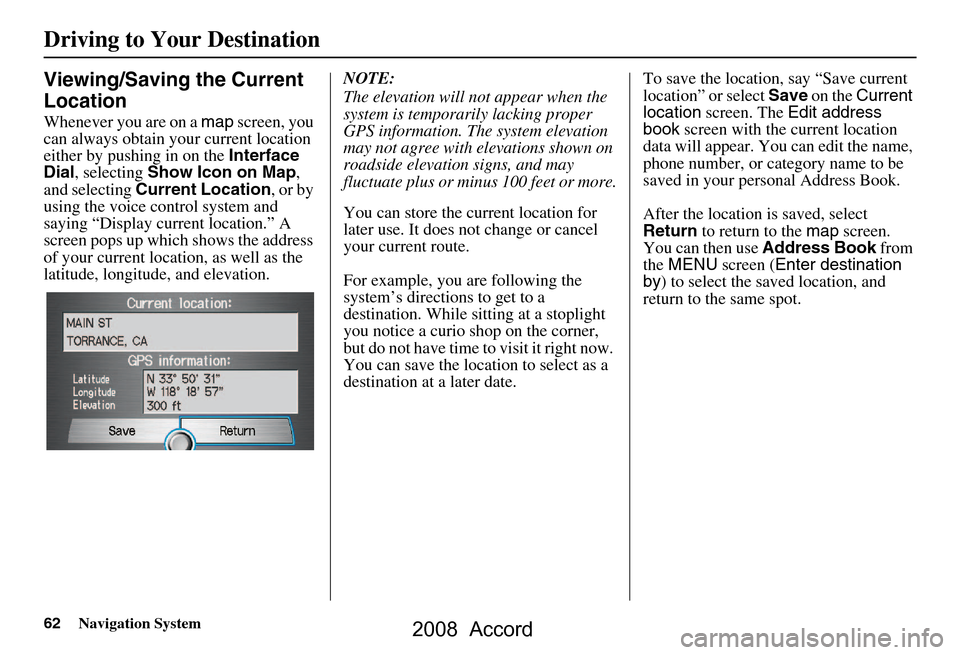
Whenever you are on a map screen, you
can always obtain your current location
either by pushing in on the Interface
Dial , selecting Show Icon on Map ,
and selecting Current Location , or by
using the voice control system and
saying “Display current location.” A
screen pops up which shows the address
of your current location, as well as the
latitude, longitude, and elevation. NOTE:
The elevation will not appear when the
system is temporarily lacking proper
GPS information. The system elevation
may not agree with elevations shown on
roadside elevation signs, and may
fluctuate plus or minus 100 feet or more.
You can store the current location for
later use. It does not change or cancel
your current route.
For example, you
are following the
system’s directions to get to a
destination. While sitting at a stoplight
you notice a curio shop on the corner,
but do not have time to visit it right now.
You can save the location to select as a
destination at a later date. To save the location, say “Save current
location” or select
Save on the Current
location screen. The Edit address
book screen with the current location
data will appear. You can edit the name,
phone number, or category name to be
saved in your personal Address Book.
After the location is saved, select
Return to return to the map screen.
You can then use Address Book from
the MENU screen ( Enter destination
by ) to select the saved location, and
return to the same spot.
2008 Accord
Page 69 of 148
Navigation System69
Information Features
Information Screen
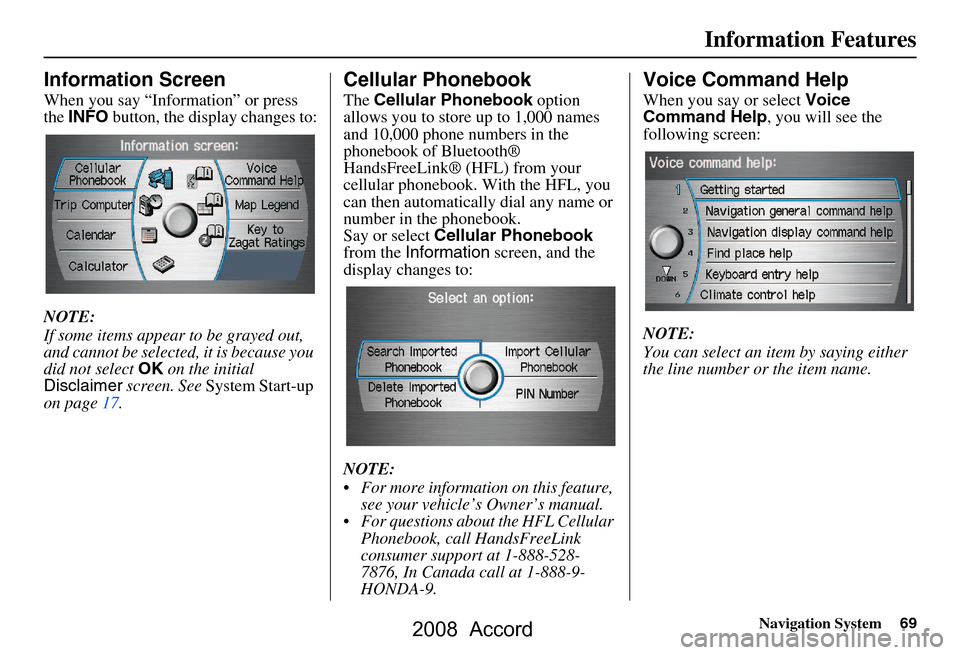
When you say “Information” or press
the INFO button, the display changes to:
NOTE:
If some items appear to be grayed out,
and cannot be selected, it is because you
did not select OK on the initial
Disclaimer screen. See System Start-up
on page17.
Cellular Phonebook
The Cellular Phonebook option
allows you to store up to 1,000 names
and 10,000 phone numbers in the
phonebook of Bluetooth®
HandsFreeLink® (HFL) from your
cellular phonebook. With the HFL, you
can then automatically dial any name or
number in the phonebook.
Say or select Cellular Phonebook
from the Information screen, and the
display changes to:
NOTE:
For more information on this feature, see your vehicle’s Owner’s manual.
For questions about the HFL Cellular Phonebook, call HandsFreeLink
consumer support at 1-888-528-
7876, In Canada call at 1-888-9-
HONDA-9.
Voice Command Help
When you say or select Voice
Command Help , you will see the
following screen:
NOTE:
You can select an item by saying either
the line number or the item name.
2008 Accord
Page 80 of 148
80Navigation System
System Set-up
Edit Address
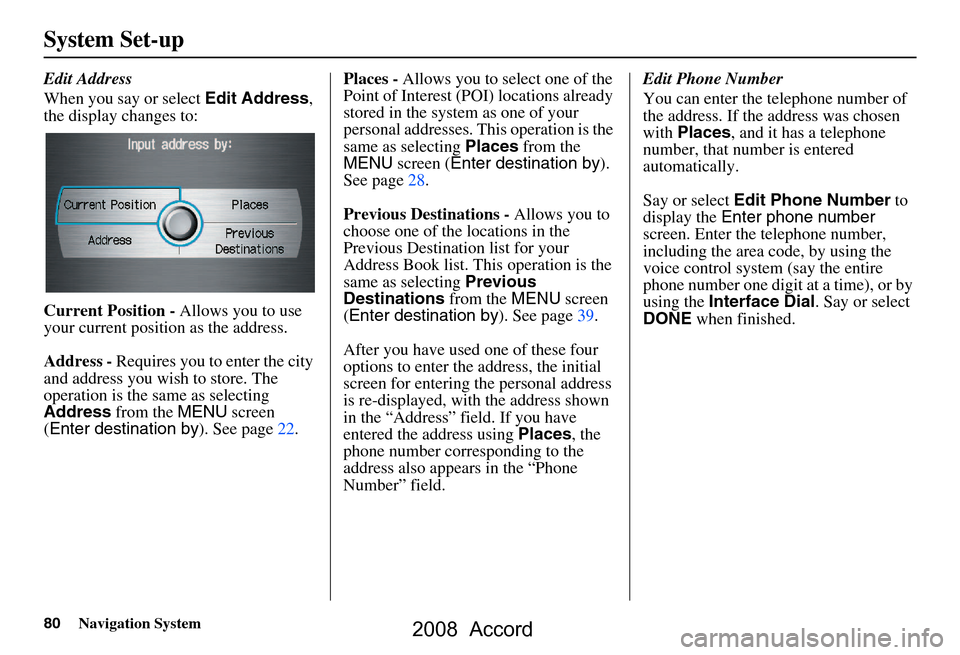
When you say or select Edit Address,
the display changes to:
Current Position - Allows you to use
your current position as the address.
Address - Requires you to enter the city
and address you wish to store. The
operation is the same as selecting
Address from the MENU screen
( Enter destination by ). See page22.Places -
Allows you to select one of the
Point of Interest (POI) locations already
stored in the system as one of your
personal addresses. This operation is the
same as selecting Places from the
MENU screen ( Enter destination by ).
See page28.
Previous Destinations - Allows you to
choose one of the locations in the
Previous Destination list for your
Address Book list. Th is operation is the
same as selecting Previous
Destinations from the MENU screen
( Enter destination by ). See page39.
After you have used one of these four
options to enter the address, the initial
screen for entering the personal address
is re-displayed, with the address shown
in the “Address” field. If you have
entered the address using Places, the
phone number corresponding to the
address also appears in the “Phone
Number” field. Edit Phone Number
You can enter the telephone number of
the address. If the
address was chosen
with Places , and it has a telephone
number, that number is entered
automatically.
Say or select Edit Phone Number to
display the Enter phone number
screen. Enter the telephone number,
including the area code, by using the
voice control system (say the entire
phone number one digit at a time), or by
using the Interface Dial . Say or select
DONE when finished.
2008 Accord
Page 82 of 148
82Navigation System
System Set-up
Home Address
This feature lets you return “Home”
from any location simply by saying “Go
home” at the map screen. Alternatively,
you can select Go Home on the MENU
screen ( Enter destination by ). See By
Go Home on page44.
Enter the Name, address, and phone
number in the same way as entering a
personal address, then say or select
Done . To leave the screen, press the
CANCEL button.
NOTE:
If your Home address cannot be found
in the system then, while located on the
street close to your home, select
“Current Position” when entering the
“Edit Address” field.
PIN Number
You can set a four-digit PIN (Personal
Identification Number) for accessing
and changing personal addresses and
your home address if desired. Once you
set the PIN on this screen, the system
asks you to enter the PIN when you
access a personal address or your home
address.
NOTE:
PINs are optional. If you choose to use a
PIN, make sure you remember it. If you
forget your PIN, the dealer will have to
reset it for you.
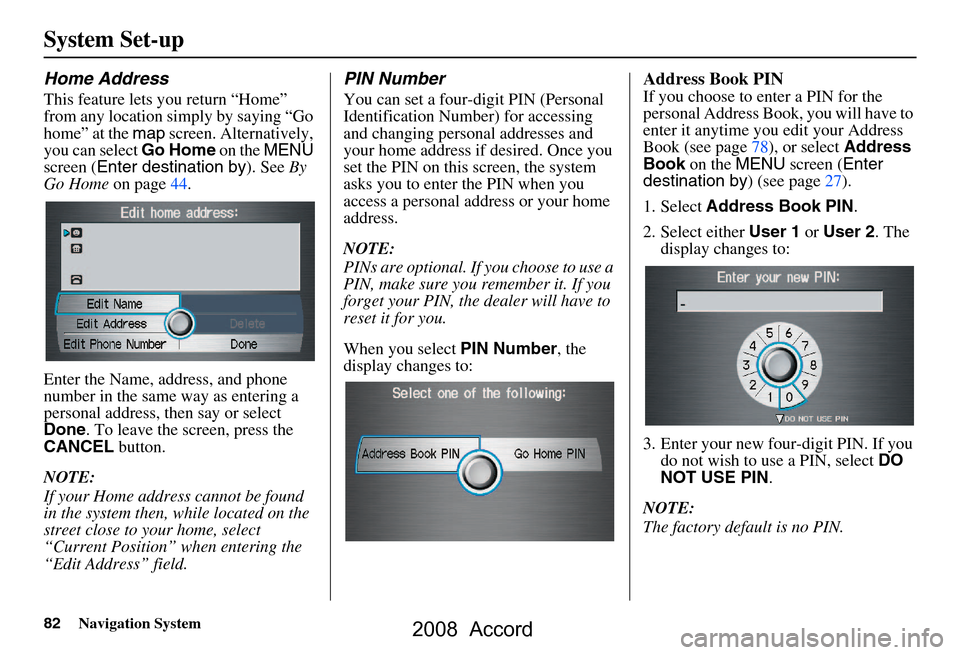
When you select PIN Number, the
display changes to:
Address Book PIN
If you choose to enter a PIN for the
personal Address Book, you will have to
enter it anytime you edit your Address
Book (see page78), or select Address
Book on the MENU screen ( Enter
destination by ) (see page27).
1. Select Address Book PIN .
2. Select either User 1 or User 2 . The
display changes to:
3. Enter your new four-digit PIN. If you do not wish to use a PIN, select DO
NOT USE PIN .
NOTE:
The factory default is no PIN.
2008 Accord
Page 102 of 148
102Navigation System
System Initialization
GPS Initialization
Depending on the length of time the
battery was disconnected, your system
may require GPS initialization. If it
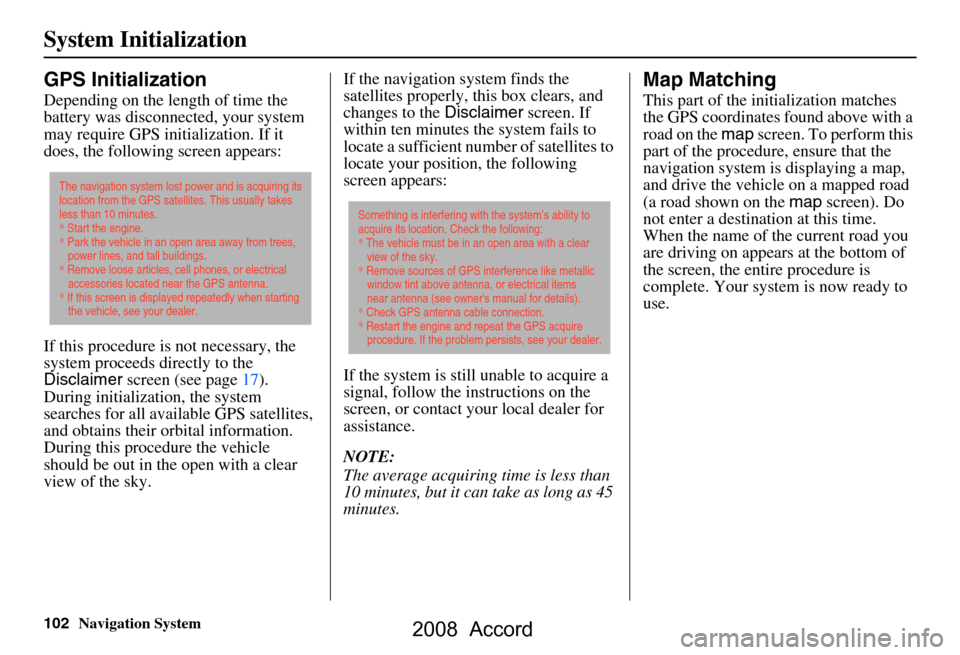
does, the following screen appears:
If this procedure is not necessary, the
system proceeds directly to the
Disclaimer screen (see page17).
During initialization, the system
searches for all available GPS satellites,
and obtains their orbital information.
During this procedure the vehicle
should be out in th e open with a clear
view of the sky. If the navigation system finds the
satellites properly, this box clears, and
changes to the
Disclaimer screen. If
within ten minutes the system fails to
locate a sufficient number of satellites to
locate your position, the following
screen appears:
If the system is still unable to acquire a
signal, follow the in structions on the
screen, or contact you r local dealer for
assistance.
NOTE:
The average acquiring time is less than
10 minutes, but it can take as long as 45
minutes.
Map Matching
This part of the initialization matches
the GPS coordinates found above with a
road on the map screen. To perform this
part of the procedure, ensure that the
navigation system is displaying a map,
and drive the vehicle on a mapped road
(a road shown on the map screen). Do
not enter a destina tion at this time.
When the name of the current road you
are driving on appears at the bottom of
the screen, the entire procedure is
complete. Your system is now ready to
use.
The navigation system lost power and is acquiring its
location from the GPS satellites. This usually takes
less than 10 minutes.
* Start the engine.
* Park the vehicle in an open area away from trees,
power lines, and tall buildings.
* Remove loose articles, cell phones, or electrical
accessories located near the GPS antenna.
* If this screen is displayed repeatedly when starting
the vehicle, see your dealer.
Something is interfering with the system’s ability to
acquire its location. Check the following:
* The vehicle must be in an open area with a clear
view of the sky.
* Remove sources of GPS interference like metallic
window tint above antenna, or electrical items
near antenna (see owner's manual for details).
* Check GPS antenna cable connection.
* Restart the engine and repeat the GPS acquire
procedure. If the problem persists, see your dealer.
2008 Accord
Page 103 of 148
Navigation System103
System Limitations
Although your navigation system is one
of the most highly sophisticated pieces
of equipment you will find in a modern
automobile, you may find during its use,
that it has certain limitations.
The system uses signals from the Global
Positioning System (GPS) to aid in
determining its current location. The
GPS is operated by the U.S.
Department of Defense. For security
reasons, there are certain inaccuracies
built into the GPS that the navigation
system must constantly compensate for.
This can cause occasional positioning
errors of up to several hundred feet.
For example, in urban areas where
streets are close together, this could
cause the system to show that you are
traveling on a street that parallels the
street you are actually on. The system
will, under most circumstances, correct
itself while you drive. Also, depending on your current view of
the sky and the position of the satellites,
the elevation may be shown incorrectly.
You may also notice some delay of the
vehicle position icon at intersections;
this is normal.
GPS Reception Issues
The signals received from the GPS
satellites are extremely weak (less than
a millionth of the strength of a local FM
station), and require an unobstructed
view of sky. The signal can easily be
interrupted or interfered with by the
following:
After-market metallic window tint
above or to the sides of the GPS
antenna (located on the right side of
the rear shelf)
Cell phones, PDAs, or other electronic devices docked in a cradle
or laying loose on the rear shelf
Radar detectors mounted on the rear shelf
Remote starters, or “hidden” vehicle location systems mounted near the
navigation unit Other after-market audio electronic
devices mounted near the navigation
unit
Trees, tall buildings, freeway overpasses, tunnels or overhead
electrical power wires
Although the system will direct you to
your desired destination, it may not
always generate what you consider to be
the most direct rout e. Try changing the
method of routing. See Changing the
Routing Method on page46. You may
also have Unverified Area Routing set
to “OFF.” See Unverified Area Routing
on page86.
Additionally, the mapping database
contains verified and unverified maps.
See Map Overview on page6.
A Disclaimer screen will warn you if
your route includes unverified streets.
Unverified streets may be missing from
the map, in the wrong location, or have
an incorrect name or address range.
Exercise addition al caution when
driving in these unverified areas.
2008 Accord
Page 107 of 148
Navigation System107
Customer Assistance
Reporting Errors
Occasionally, you may encounter
database errors.
If the error pertains to freeways and
main “verified” roads shown in black
on the map, then report it either
online at
http://update.navteq.com/ , or to
Honda Customer Services.
If the error involves a light brown “unverified” road, then do not report
it. These areas have not been verified,
and are provided for reference only
(see Map Overview on page6).
For errors in points of interest (POI), like a business that has changed their
name, do not report them. Keep in
mind that depending on when the data
was collected, and when your DVD
was purchased, the database can be
out of date. The business may have
not reported the change(s), or not be
in the database at all. Update
Navigation DVDs are available for
purchase, usually in the fall of each
year. If the error does not involve the
database, such as if the vehicle
position icon does not follow the
road, screen error messages, or other
GPS related errors, see Frequently
Asked Questions on page121, System
Limitations on page103, or
Troubleshooting on page128.
Honda Automobile
Customer Service
Telephone: (800) 999-1009
Fax: (310) 783-3273
Mail:
Honda Navi
America Honda Motor Co., Inc.
Honda Customer Service
MS 500-2N-7A
1919 Torrance Blvd.
Torrance, CA 90501-2746
2008 Accord