audio HONDA ACCORD 2014 9.G Owners Manual
[x] Cancel search | Manufacturer: HONDA, Model Year: 2014, Model line: ACCORD, Model: HONDA ACCORD 2014 9.GPages: 595
Page 408 of 595
Continued
407
uuBluetooth ® HandsFreeLink ®u HFL Menus
Features
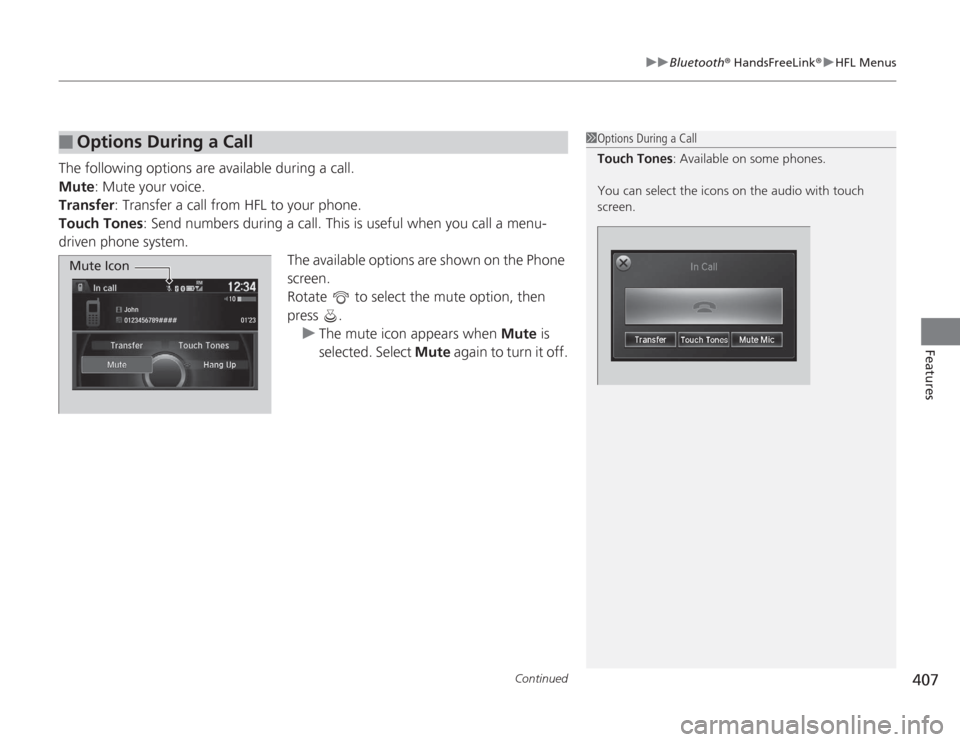
The following options are available during a call.
Mute : Mute your voice.
Transfer : Transfer a call from HFL to your phone.
Touch Tones : Send numbers during a call. This is useful when you call a menu-
driven phone system.
The available options are shown on the Phone
screen.
Rotate to select the mute option, then
press .u The mute icon appears when Mute is
selected. Select Mute again to turn it off.■
Options During a Call
1Options During a Call
Touch Tones : Available on some phones.
You can select the icons on the audio with touch
screen.
Mute Icon
Page 415 of 595
414Features
Compass
*
When you set the power mode to ON, the compass self-calibrates, and the compass
display appears.Compass CalibrationIf the compass indicates the wrong direction, or the CAL indicator blinks, you need
to manually calibrate the system.
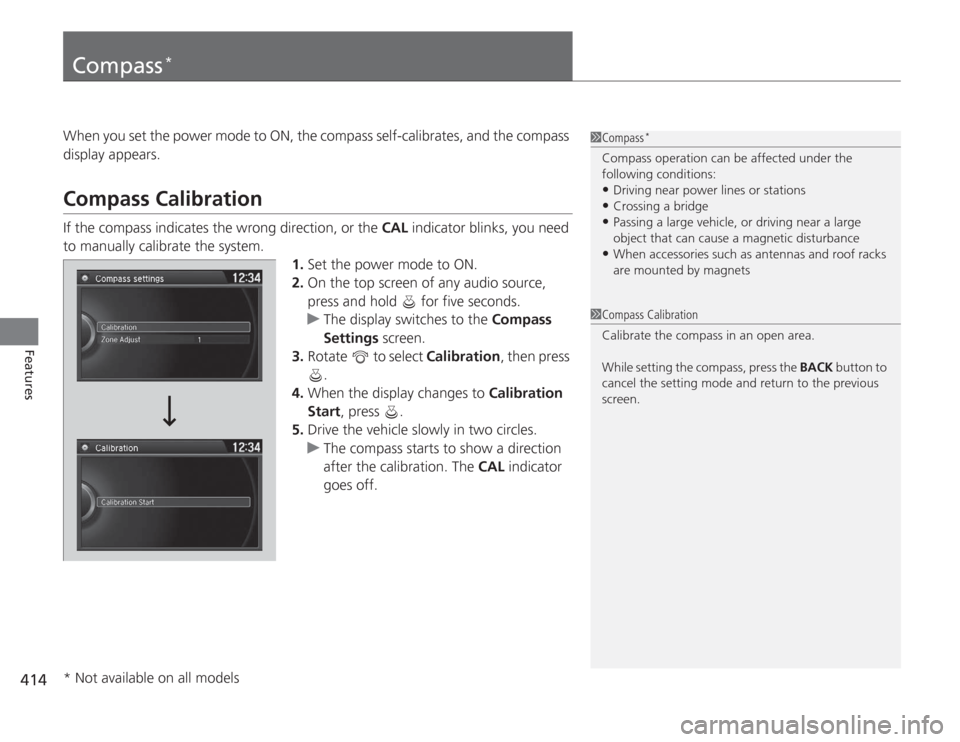
1.Set the power mode to ON.
2. On the top screen of any audio source,
press and hold for five seconds.
u The display switches to the Compass
Settings screen.
3. Rotate to select Calibration, then press
.
4. When the display changes to Calibration
Start, press .
5. Drive the vehicle slowly in two circles.
u The compass starts to show a direction
after the calibration. The CAL indicator
goes off.
1 Compass
*
Compass operation can be affected under the
following conditions:•Driving near power lines or stations•Crossing a bridge•Passing a large vehicle, or driving near a large
object that can cause a magnetic disturbance•When accessories such as antennas and roof racks
are mounted by magnets
1Compass Calibration
Calibrate the compass in an open area.
While setting the compass, press the BACK button to
cancel the setting mode and return to the previous
screen.
* Not available on all models
Page 416 of 595
415
uuCompass
*uCompass Zone Selection
Features
Compass Zone Selection
1. Set the power mode to ON.
2. On the top screen of any audio source,
press and hold for five seconds.
u The display switches to the Compass
Settings screen.
3. Rotate to select Zone Adjust, then
press .
u The display shows the current zone
number.
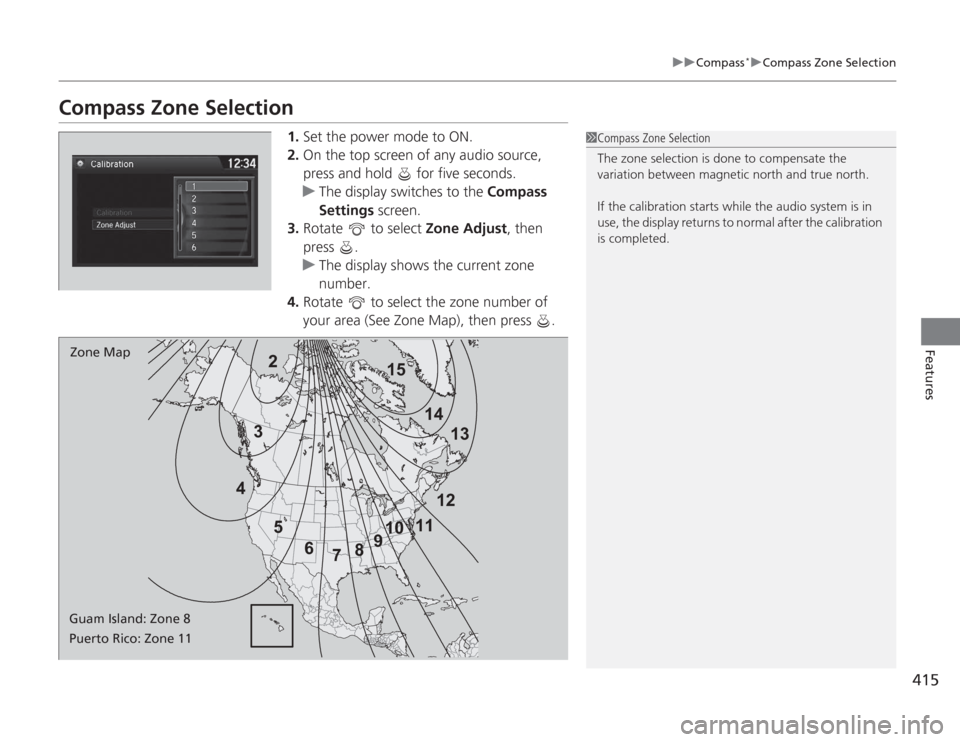
4. Rotate to select the zone number of
your area (See Zone Map), then press .
2
3
4 5678910
111213
14
15
Zone Map
Guam Island: Zone 8
Puerto Rico: Zone 11
1 Compass Zone Selection
The zone selection is done to compensate the
variation between magnetic north and true north.
If the calibration starts while the audio system is in
use, the display returns to no rmal after the calibration
is completed.
Page 469 of 595
468
uuWhen Driving uLaneWatch
TM*
Driving
LaneWatch
TM
*
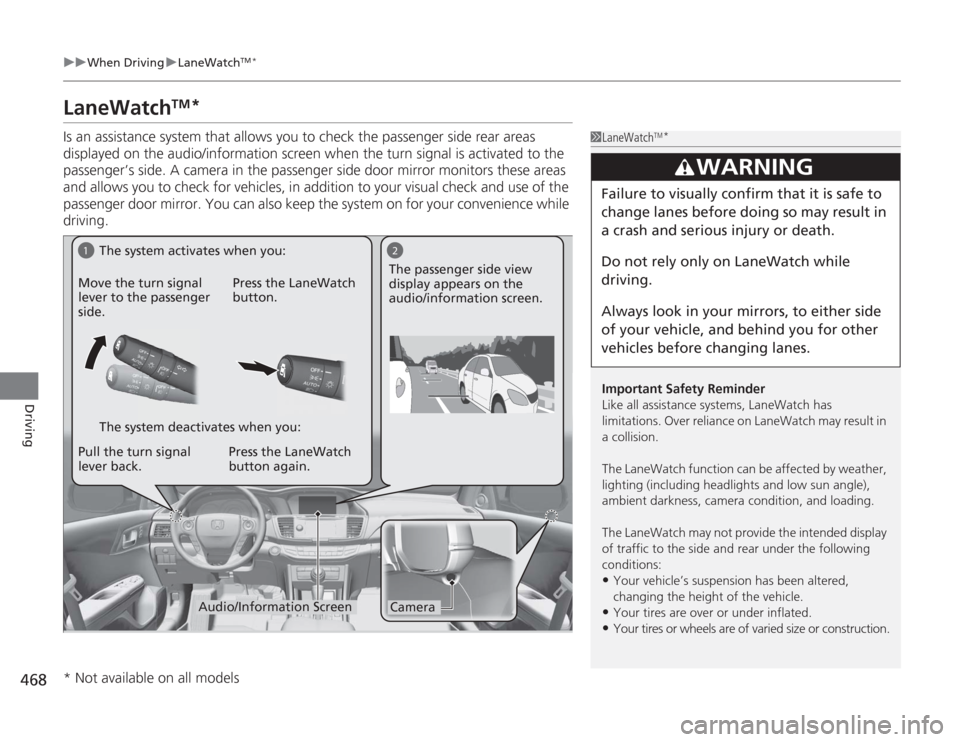
Is an assistance system that allows you to check the passenger side rear areas
displayed on the audio/information screen when the turn signal is activated to the
passenger’s side. A camera in the passenger side door mirror monitors these areas
and allows you to check for vehicles, in addition to your visual check and use of the
passenger door mirror. You can also keep the system on for your convenience while
driving.
1LaneWatch
TM*
Important Safety Reminder
Like all assistance systems, LaneWatch has
limitations. Over reliance on LaneWatch may result in
a collision.
The LaneWatch function can be af fected by weather,
lighting (including headlights and low sun angle),
ambient darkness, camera condition, and loading.
The LaneWatch may not provide the intended display
of traffic to the side and rear under the following
conditions:•Your vehicle’s suspension has been altered,
changing the height of the vehicle. •Your tires are over or under inflated.•Your tires or wheels are of varied size or construction.
3
WARNING
Failure to visually confirm that it is safe to
change lanes before doing so may result in
a crash and serious injury or death.
Do not rely only on LaneWatch while
driving.
Always look in your mirrors, to either side
of your vehicle, and behind you for other
vehicles before changing lanes.
1
2Camera
Audio/Information Screen
Move the turn signal
lever to the passenger
side.
Press the LaneWatch
button.
Pull the turn signal
lever back. Press the LaneWatch
button again. The passenger side view
display appears on the
audio/information screen.
The system activates when you:
The system deactivates when you:
* Not available on all models
Page 470 of 595
469
uuWhen Driving uLaneWatch
TM*
Driving
■
Customizing the LaneWatch settings
You can customize the following items using the audio/information screen.
• Show with Turn Signal : Selects whether LaneWatch monitor comes on when
you operate the turn signal light lever.
• Reference Lines : Selects whether the reference lines appear on the LaneWatch
monitor.
• Next Maneuver Pop up
*: Selects whether a turn direction screen of the
navigation system interrupts the LaneWatch display.
• Display : Adjusts display settings.
2Customized Features P. 299
■
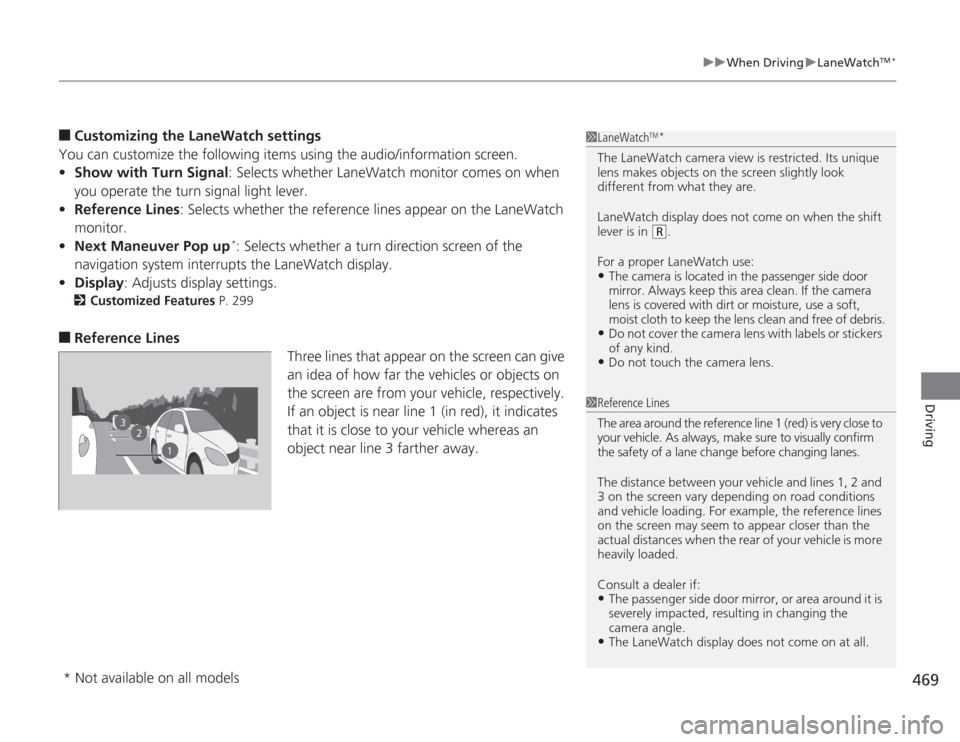
Reference Lines
Three lines that appear on the screen can give
an idea of how far the vehicles or objects on
the screen are from your vehicle, respectively.
If an object is near line 1 (in red), it indicates
that it is close to your vehicle whereas an
object near line 3 farther away.
1 LaneWatch
TM*
The LaneWatch camera view is restricted. Its unique
lens makes objects on the screen slightly look
different from what they are.
LaneWatch display does not come on when the shift
lever is in
(R
.
For a proper LaneWatch use:
•The camera is located in the passenger side door
mirror. Always keep this area clean. If the camera
lens is covered with dirt or moisture, use a soft,
moist cloth to keep the lens clean and free of debris.•Do not cover the camera lens with labels or stickers
of any kind.•Do not touch the camera lens.
2
3
1
1 Reference Lines
The area around the reference line 1 (red) is very close to
your vehicle. As always, make sure to visually confirm
the safety of a lane change before changing lanes.
The distance between your vehicle and lines 1, 2 and
3 on the screen vary depending on road conditions
and vehicle loading. For example, the reference lines
on the screen may seem to appear closer than the
actual distances when the rear of your vehicle is more
heavily loaded.
Consult a dealer if:•The passenger side door mirror, or area around it is
severely impacted, resulting in changing the
camera angle.•The LaneWatch display does not come on at all.
* Not available on all models
Page 472 of 595
471
uuWhen Driving uTPMS (Tire Pressure Monitoring System)
Driving
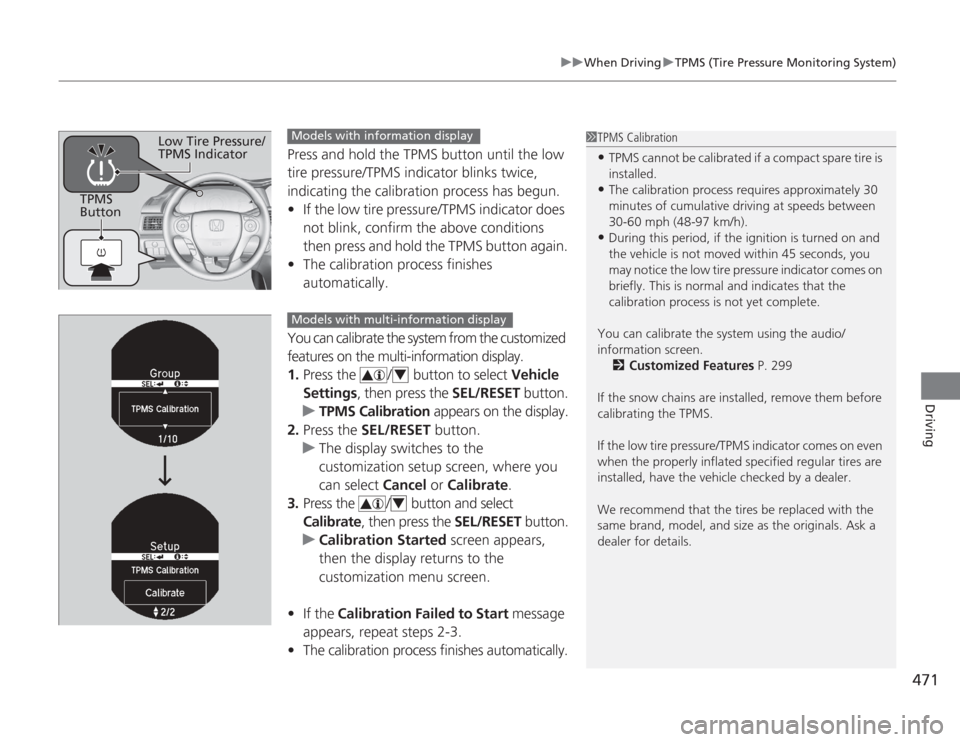
Press and hold the TPMS button until the low
tire pressure/TPMS indicator blinks twice,
indicating the calibration process has begun.
• If the low tire pressure/TPMS indicator does
not blink, confirm the above conditions
then press and hold the TPMS button again.
• The calibration process finishes
automatically.
You can calibrate the system from the customized
features on the multi-information display.
1. Press the / button to select Vehicle
Settings, then press the SEL/RESET button.
u TPMS Calibration appears on the display.
2. Press the SEL/RESET button.
u The display switches to the
customization setup screen, where you
can select Cancel or Calibrate .
3. Press the / button and select
Calibrate , then press the SEL/RESET button.
u Calibration Started screen appears,
then the display returns to the
customization menu screen.
• If the Calibration Failed to Start message
appears, repeat steps 2-3.
• The calibration process finishes automatically.
1TPMS Calibration•TPMS cannot be calibrated if a compact spare tire is
installed.•The calibration process requires approximately 30
minutes of cumulative driving at speeds between
30-60 mph (48-97 km/h).•During this period, if the ignition is turned on and
the vehicle is not moved within 45 seconds, you
may notice the low tire pressure indicator comes on
briefly. This is normal and indicates that the
calibration process is not yet complete.
You can cali brate the system using the audio/
information screen. 2 Customized Features P. 299
If the snow chains are installed, remove them before
calibrating the TPMS.
If the low tire pressure/TPMS indicator comes on even
when the properly inflated specified regular tires are
installed, have the vehicle checked by a dealer.
We recommend that the tires be replaced with the
same brand, model, and size as the originals. Ask a
dealer for details.
TPMS
Button
Low Tire Pressure/
TPMS Indicator
Models with information displayModels with multi-information display
44
Page 480 of 595
479
Driving
Multi-View Rear CameraAbout Your Multi-View Rear CameraThe audio/information screen can display your vehicle’s rear view. The display
automatically changes to the rear view when the shift lever is moved to
(R
.
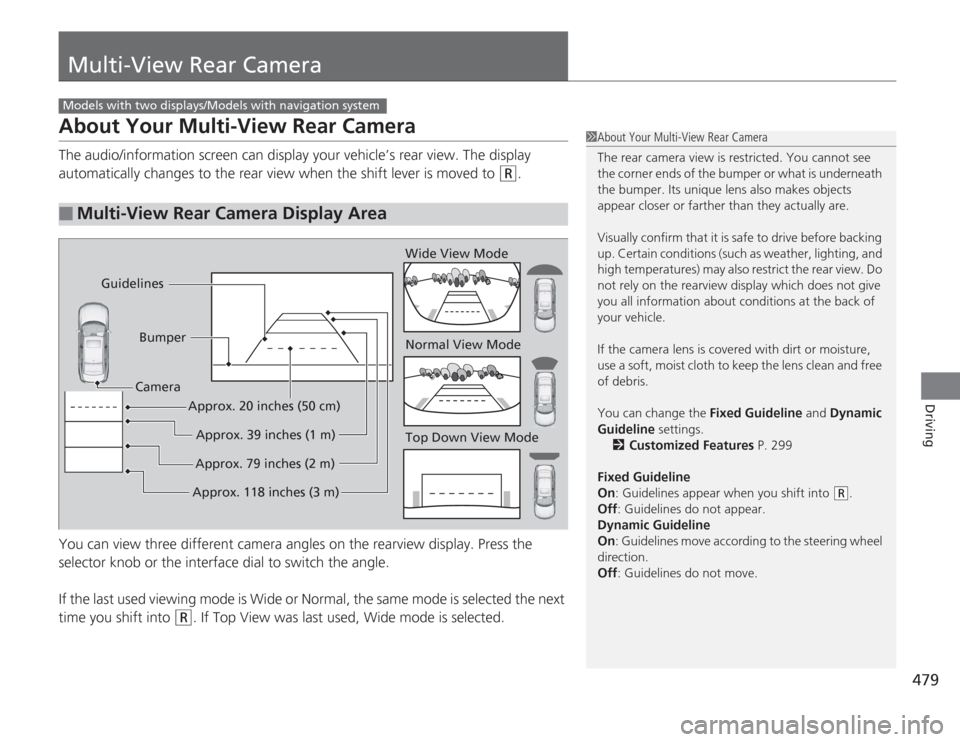
You can view three different camera angles on the rearview display. Press the
selector knob or the interface dial to switch the angle.
If the last used viewing mode is Wide or Normal, the same mode is selected the next
time you shift into
(R
. If Top View was last used, Wide mode is selected.
■
Multi-View Rear Camera Display Area
Models with two displays/Models with navigation system
1 About Your Multi-View Rear Camera
The rear camera view is restricted. You cannot see
the corner ends of the bumper or what is underneath
the bumper. Its unique lens also makes objects
appear closer or farther than they actually are.
Visually confirm that it is safe to drive before backing
up. Certain conditions (such as weather, lighting, and
high temperatures) may also restrict the rear view. Do
not rely on the rearview display which does not give
you all information about conditions at the back of
your vehicle.
If the camera lens is covered with dirt or moisture,
use a soft, moist cloth to keep the lens clean and free
of debris.
You can change the Fixed Guideline and Dynamic
Guideline settings. 2 Customized Features P. 299
Fixed Guideline
On : Guidelines appear when you shift into
(R
.
Off : Guidelines do not appear.
Dynamic Guideline
On : Guidelines move according to the steering wheel
direction.
Off : Guidelines do not move.
Top Down View Mode Normal View Mode Wide View Mode
Guidelines
Bumper
Camera
Approx. 118 inches (3 m)Approx. 79 inches (2 m)Approx. 39 inches (1 m)
Approx. 20 inches (50 cm)
Page 481 of 595
480Driving
Rearview CameraAbout Your Rearview CameraThe audio/information screen can display your vehicle’s rear view.
The display automatically changes to a rear view when the shift lever is moved to (R
.
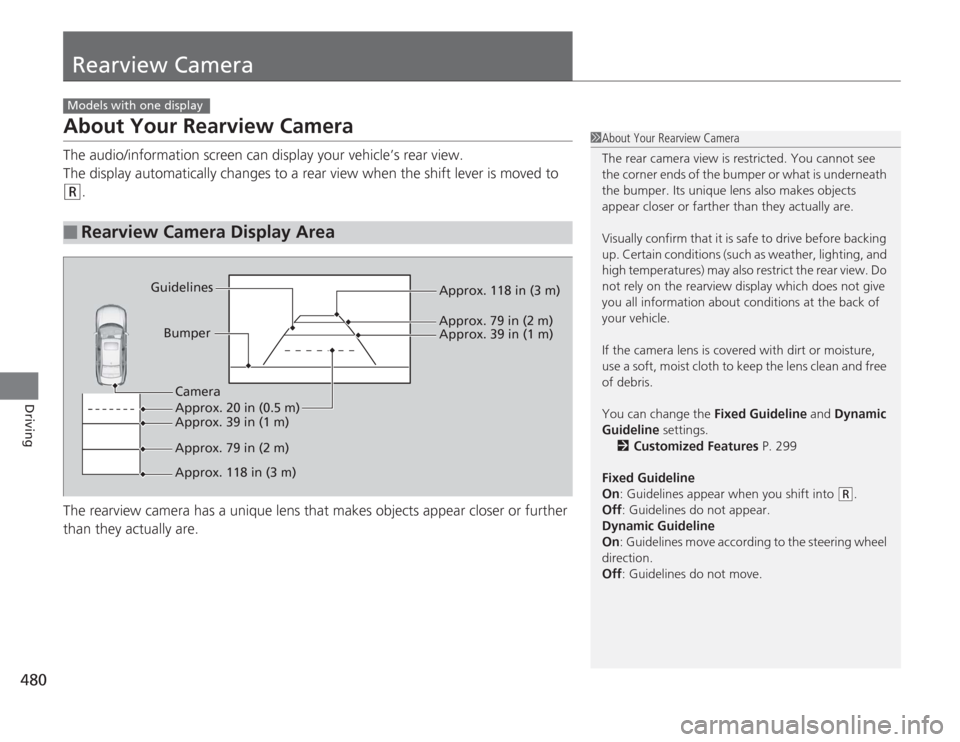
The rearview camera has a unique lens that makes objects appear closer or further
than they actually are.
■
Rearview Camera Display Area
Models with one display
1 About Your Rearview Camera
The rear camera view is restricted. You cannot see
the corner ends of the bumper or what is underneath
the bumper. Its unique lens also makes objects
appear closer or farther than they actually are.
Visually confirm that it is safe to drive before backing
up. Certain conditions (such as weather, lighting, and
high temperatures) may also restrict the rear view. Do
not rely on the rearview display which does not give
you all information about conditions at the back of
your vehicle.
If the camera lens is covered with dirt or moisture,
use a soft, moist cloth to keep the lens clean and free
of debris.
You can change the Fixed Guideline and Dynamic
Guideline settings. 2 Customized Features P. 299
Fixed Guideline
On : Guidelines appear when you shift into
(R
.
Off : Guidelines do not appear.
Dynamic Guideline
On : Guidelines move according to the steering wheel
direction.
Off : Guidelines do not move.
Bumper
Guidelines
Approx. 118 in (3 m)
Approx. 79 in (2 m) Approx. 39 in (1 m)
Approx. 20 in (0.5 m)
Approx. 118 in (3 m) Approx. 79 in (2 m) Approx. 39 in (1 m) Camera
Page 493 of 595
uuMaintenance Minder
TMuTo Use Maintenance Minder
TM
492Maintenance
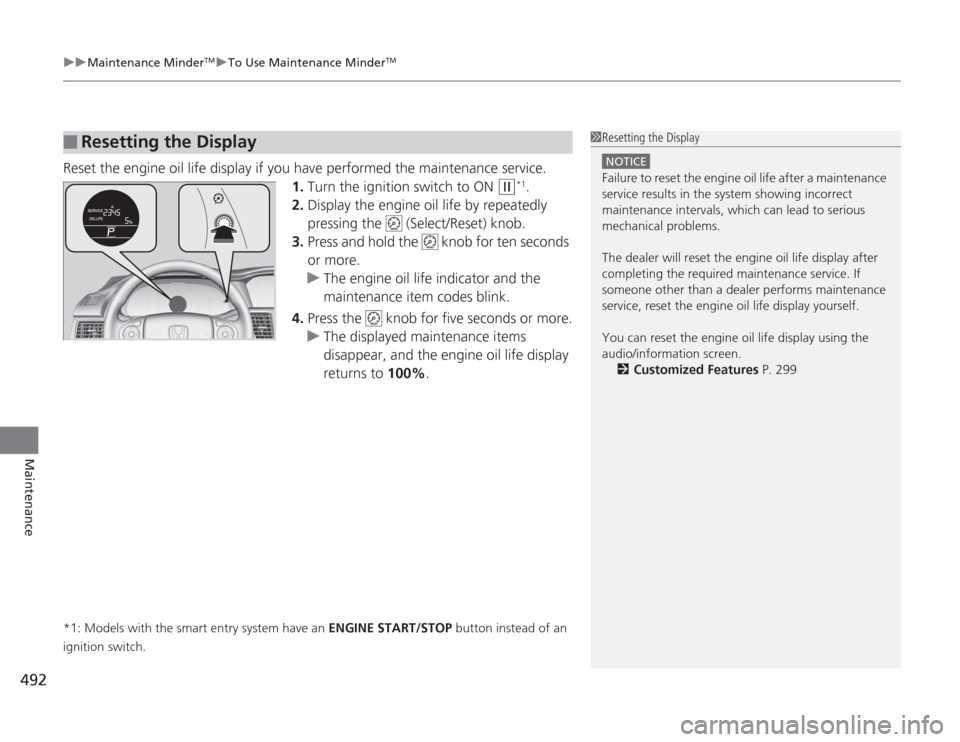
Reset the engine oil life display if you have performed the maintenance service.
1.Turn the ignition switch to ON
(w
*1.
2. Display the engine oil life by repeatedly
pressing the (Select/Reset) knob.
3. Press and hold the knob for ten seconds
or more.
u The engine oil life indicator and the
maintenance item codes blink.
4. Press the knob for five seconds or more.
u The displayed maintenance items
disappear, and the engine oil life display
returns to 100%.
*1: Models with the smart entry system have an ENGINE START/STOP button instead of an
ignition switch.■
Resetting the Display
1 Resetting the Display
NOTICEFailure to reset the engine oil life after a maintenance
service results in the system showing incorrect
maintenance intervals, which can lead to serious
mechanical problems.
The dealer will reset th e engine oil life display after
completing the required maintenance service. If
someone other than a dealer performs maintenance
service, reset the engine oil life display yourself.
You can reset the engine oil life display using the
audio/information screen. 2 Customized Features P. 299
Page 497 of 595
uuMaintenance Minder
TMuTo Use Maintenance Minder
TM
496Maintenance
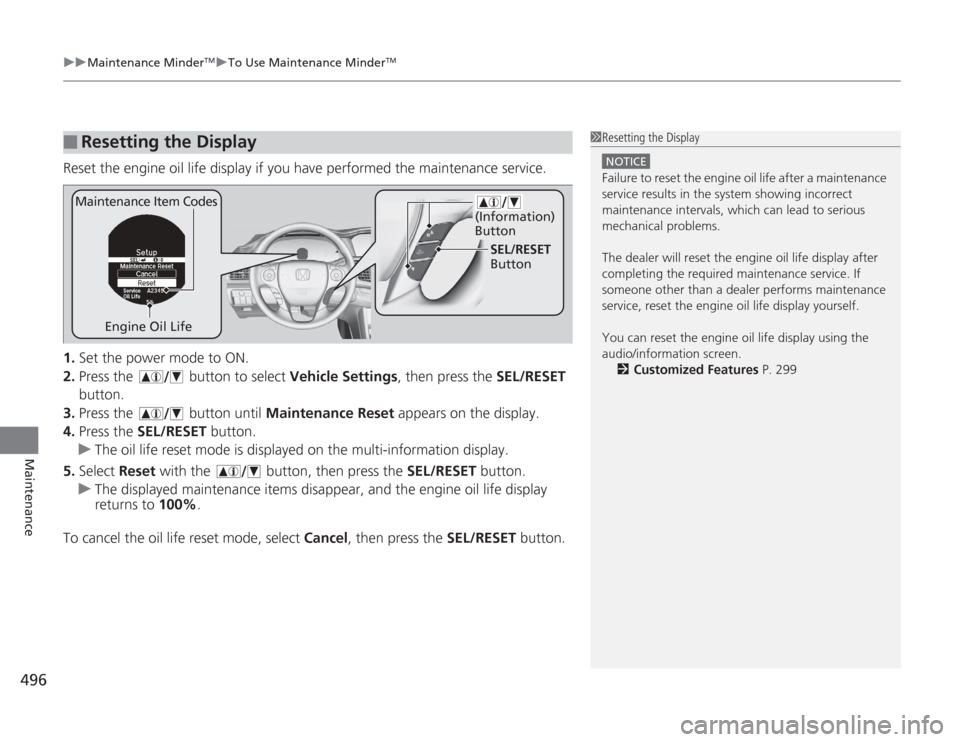
Reset the engine oil life display if you have performed the maintenance service.
1. Set the power mode to ON.
2. Press the button to select Vehicle Settings, then press the SEL/RESET
button.
3. Press the button until Maintenance Reset appears on the display.
4. Press the SEL/RESET button.
u The oil life reset mode is displayed on the multi-information display.
5. Select Reset with the button, then press the SEL/RESET button.
u The displayed maintenance items disappear, and the engine oil life display
returns to 100%.
To cancel the oil life reset mode, select Cancel, then press the SEL/RESET button.■
Resetting the Display
1Resetting the Display
NOTICEFailure to reset the engine oil life after a maintenance
service results in the system showing incorrect
maintenance intervals, which can lead to serious
mechanical problems.
The dealer will reset th e engine oil life display after
completing the required maintenance service. If
someone other than a dealer performs maintenance
service, reset the engine oil life display yourself.
You can reset the engine oil life display using the
audio/information screen. 2 Customized Features P. 299
Engine Oil Life SEL/RESET
Button
Maintenance Item Codes
(Information)
Button