Source audio HONDA ACCORD 2014 9.G Owner's Manual
[x] Cancel search | Manufacturer: HONDA, Model Year: 2014, Model line: ACCORD, Model: HONDA ACCORD 2014 9.GPages: 595
Page 235 of 595
234
uuAudio System Basic Operation uPlaying Bluetooth ® Audio
Features
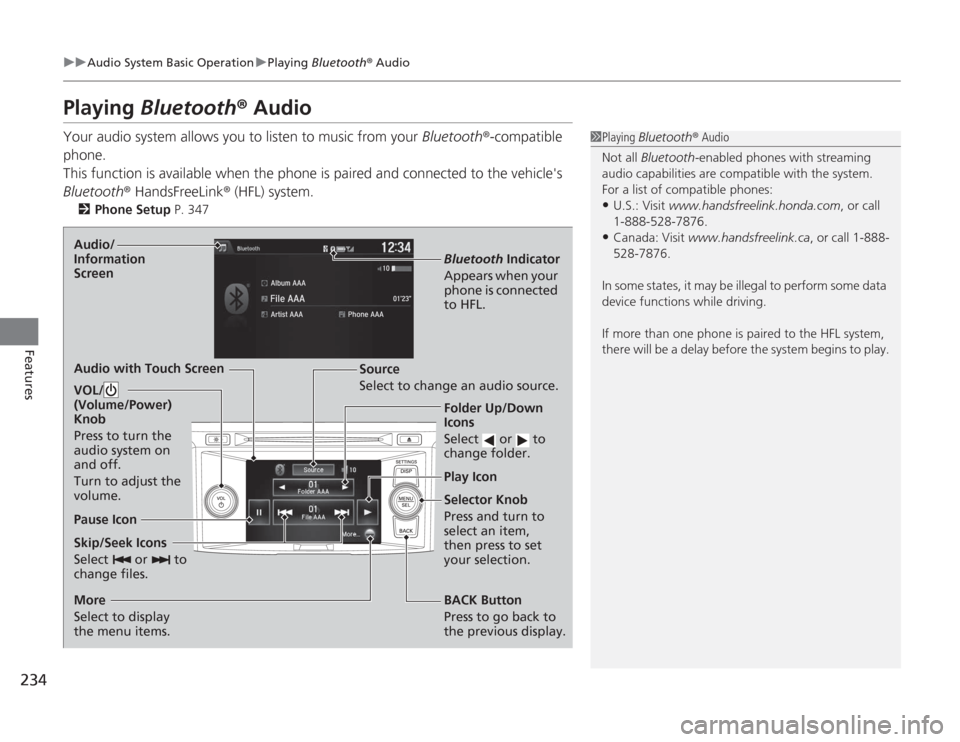
Playing Bluetooth® AudioYour audio system allows you to listen to music from your Bluetooth®-compatible
phone.
This function is available when the phone is paired and connected to the vehicle's
Bluetooth ® HandsFreeLink ® (HFL) system.
2 Phone Setup P. 347
1Playing Bluetooth ® Audio
Not all Bluetooth -enabled phones with streaming
audio capabilities are compatible with the system.
For a list of compatible phones:•U.S.: Visit www.handsfreelink.honda.com , or call
1-888-528-7876.•Canada: Visit www.handsfreelink.ca , or call 1-888-
528-7876.
In some states, it may be illegal to perform some data
device functions while driving.
If more than one phone is paired to the HFL system,
there will be a delay before the system begins to play.
Skip/Seek Icons
Select or to
change files.
Bluetooth Indicator
Appears when your
phone is connected
to HFL.
VOL/
(Volume/Power)
Knob
Press to turn the
audio system on
and off.
Turn to adjust the
volume.
Audio/
Information
ScreenAudio with Touch Screen
Play Icon
Pause Icon
BACK Button
Press to go back to
the previous display.
More
Select to display
the menu items. Selector Knob
Press and turn to
select an item,
then press to set
your selection.
Source
Select to change an audio source.
Folder Up/Down
Icons
Select or to
change folder.
Page 237 of 595
236Features
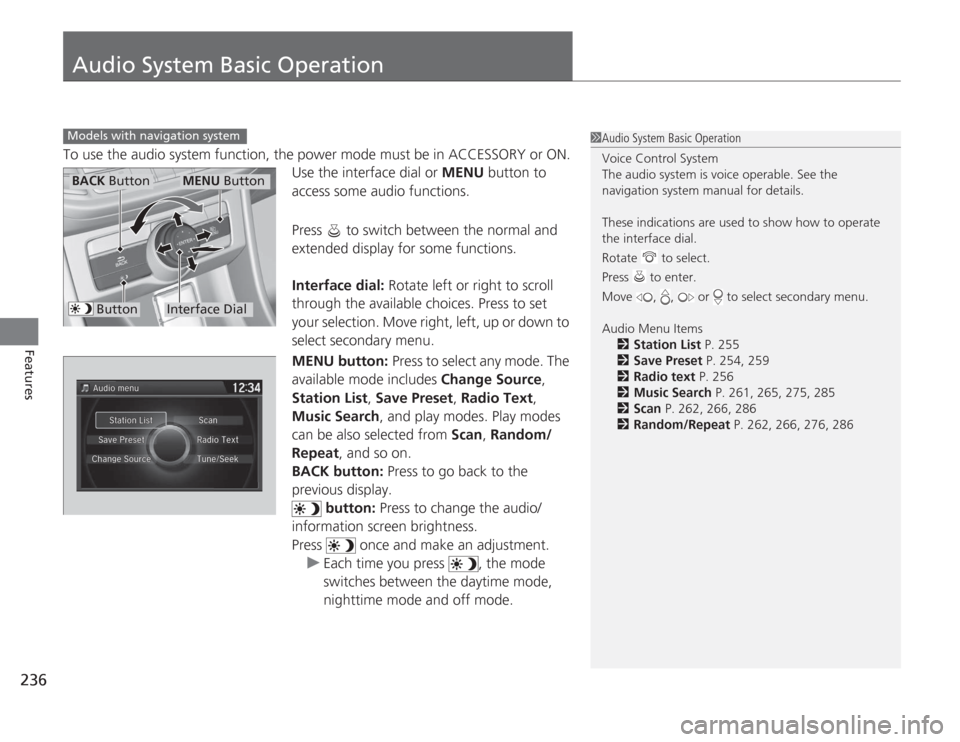
Audio System Basic OperationTo use the audio system function, the power mode must be in ACCESSORY or ON.Use the interface dial or MENU button to
access some audio functions.
Press to switch between the normal and
extended display for some functions.
Interface dial: Rotate left or right to scroll
through the available choices. Press to set
your selection. Move right, left, up or down to
select secondary menu.
MENU button: Press to select any mode. The
available mode includes Change Source,
Station List , Save Preset , Radio Text,
Music Search, and play modes. Play modes
can be also selected from Scan, Random/
Repeat , and so on.
BACK button: Press to go back to the
previous display. button: Press to change the audio/
information screen brightness.
Press once and make an adjustment.
u Each time you press , the mode
switches between the daytime mode,
nighttime mode and off mode.Models with navigation system
1Audio System Basic Operation
Voice Control System
The audio system is voice operable. See the
navigation system manual for details.
These indications are used to show how to operate
the interface dial.
Rotate to select.
Press to enter.
Move , , or to select secondary menu.
Audio Menu Items
2 Station List P. 255
2 Save Preset P. 254, 259
2 Radio text P. 256
2 Music Search P. 261, 265, 275, 285
2 Scan P. 262, 266, 286
2 Random/Repeat P. 262, 266, 276, 286
Interface Dial
MENU Button
BACK Button
Button
Page 238 of 595
237
uuAudio System Basic Operation uAudio with Touch Screen
Continued
Features
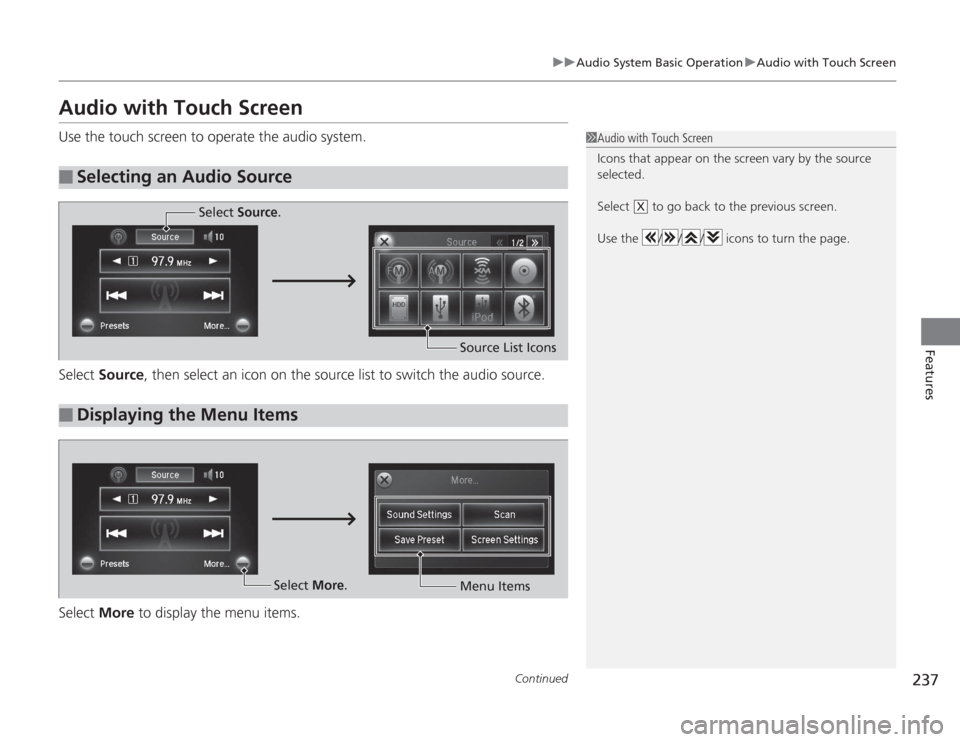
Audio with Touch ScreenUse the touch screen to operate the audio system.
Select Source , then select an icon on the source list to switch the audio source.
Select More to display the menu items.■
Selecting an Audio Source
1Audio with Touch Screen
Icons that appear on the screen vary by the source
selected.
Select to go back to the previous screen.
Use the / / / icons to turn the page.
X
■
Displaying the Menu Items
Select Source .
Source List Icons
Select More.
Menu Items
Page 254 of 595
253
uuAudio System Basic Operation uPlaying AM/FM Radio
Continued
Features
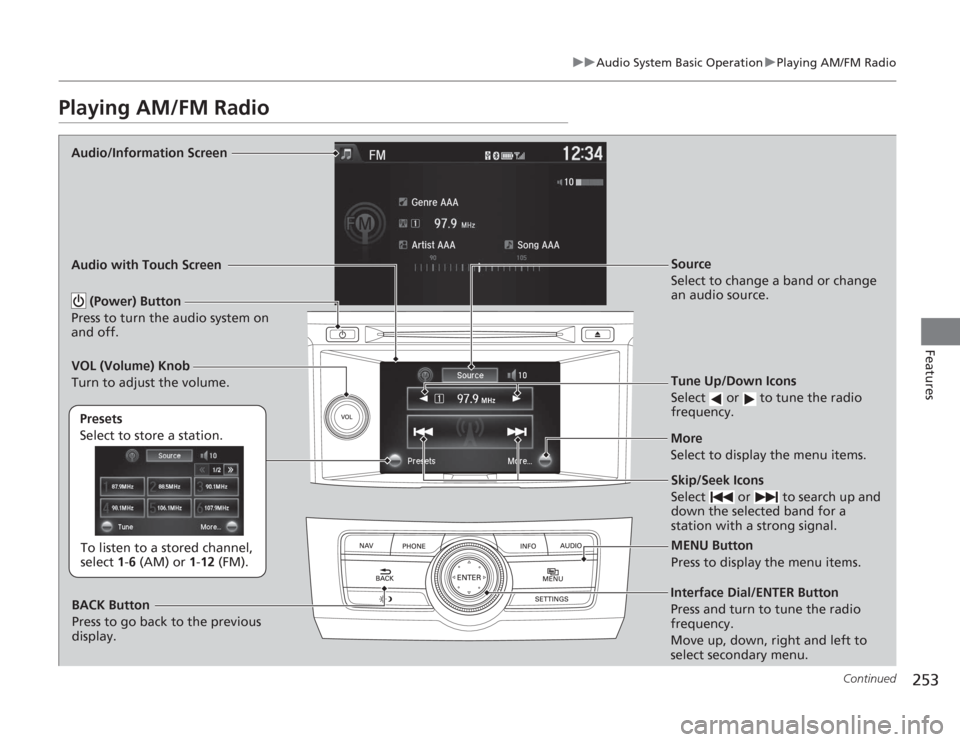
Playing AM/FM Radio
Audio/Information Screen
Audio with Touch Screen
Tune Up/Down Icons
Select or to tune the radio
frequency.
MENU Button
Press to display the menu items.
(Power) Button
Press to turn the audio system on
and off.
Source
Select to change a band or change
an audio source.
To listen to a stored channel,
select 1-6 (AM) or 1- 12 (FM).
Presets
Select to store a station.
Skip/Seek Icons
Select or to search up and
down the selected band for a
station with a strong signal.
More
Select to display the menu items.
BACK Button
Press to go back to the previous
display.
VOL (Volume) Knob
Turn to adjust the volume.Interface Dial/ENTER Button
Press and turn to tune the radio
frequency.
Move up, down, right and left to
select secondary menu.
Page 255 of 595
uuAudio System Basic Operation uPlaying AM/FM Radio
254Features
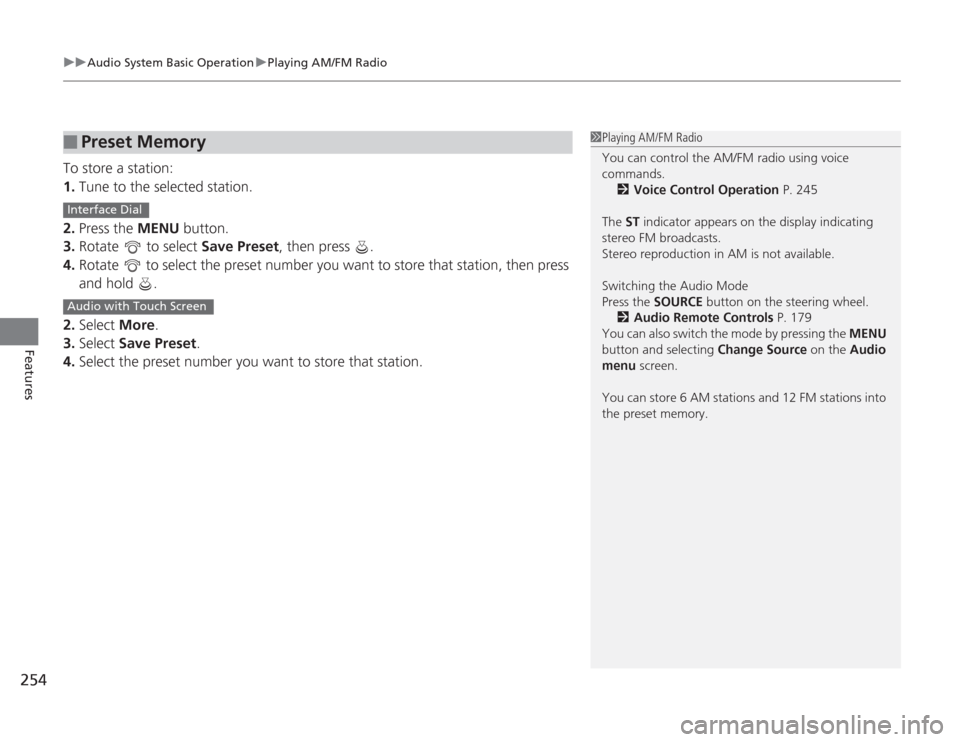
To store a station:
1. Tune to the selected station.
2. Press the MENU button.
3. Rotate to select Save Preset, then press .
4. Rotate to select the preset number you want to store that station, then press \
and hold .
2. Select More.
3. Select Save Preset .
4. Select the preset number you want to store that station.■
Preset Memory
1Playing AM/FM Radio
You can control the AM/FM radio using voice
commands.
2 Voice Control Operation P. 245
The ST indicator appears on the display indicating
stereo FM broadcasts.
Stereo reproduction in AM is not available.
Switching the Audio Mode
Press the SOURCE button on the steering wheel.
2 Audio Remote Controls P. 179
You can also switch the mode by pressing the MENU
button and selecting Change Source on the Audio
menu screen.
You can store 6 AM stations and 12 FM stations into
the preset memory.
Interface DialAudio with Touch Screen
Page 258 of 595
257
uuAudio System Basic Operation uPlaying XM ® Radio
Continued
Features
Playing XM ® Radio
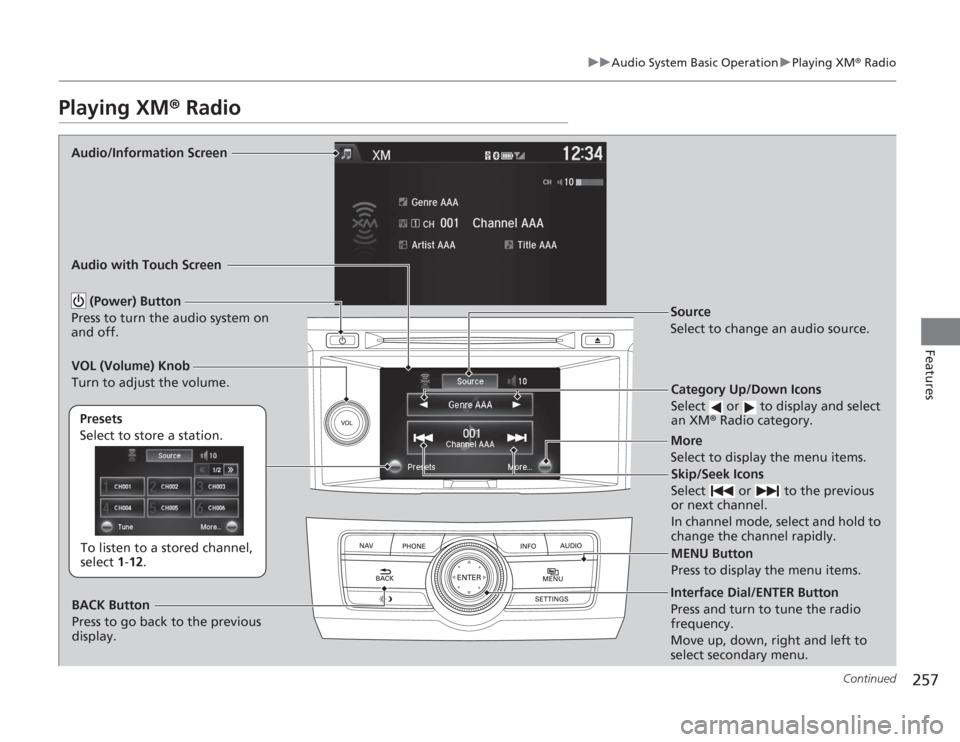
Audio/Information Screen
Audio with Touch Screen
Category Up/Down Icons
Select or to display and select
an XM® Radio category.
MENU Button
Press to display the menu items.
(Power) Button
Press to turn the audio system on
and off.
Source
Select to change an audio source.
To listen to a stored channel,
select 1-12.
Presets
Select to store a station.
Skip/Seek Icons
Select or to the previous
or next channel.
In channel mode, select and hold to
change the channel rapidly.More
Select to display the menu items.
BACK Button
Press to go back to the previous
display.
VOL (Volume) Knob
Turn to adjust the volume.Interface Dial/ENTER Button
Press and turn to tune the radio
frequency.
Move up, down, right and left to
select secondary menu.
Page 261 of 595
260
uuAudio System Basic Operation uPlaying a CD
Features
Playing a CDYour audio system supports audio CDs, CD-Rs and CD-RWs in either MP3, WMA, or
AAC
*1 format. With the CD loaded, select the CD mode.
*1:Only AAC format files recorded with iTunes ® are playable on this unit.
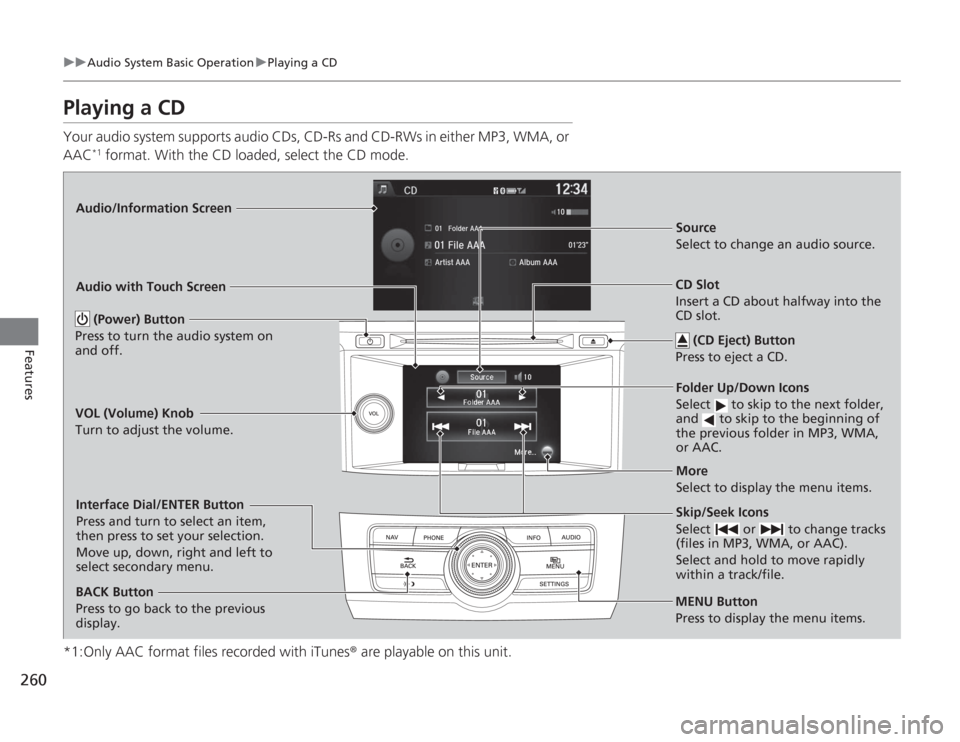
Audio/Information Screen
Audio with Touch Screen
MENU Button
Press to display the menu items.
CD Slot
Insert a CD about halfway into the
CD slot. (CD Eject) Button
Press to eject a CD.Folder Up/Down Icons
Select to skip to the next folder,
and to skip to the beginning of
the previous folder in MP3, WMA,
or AAC.Source
Select to change an audio source.
Skip/Seek Icons
Select or to change tracks
(files in MP3, WMA, or AAC).
Select and hold to move rapidly
within a track/file.More
Select to display the menu items.
(Power) Button
Press to turn the audio system on
and off.
BACK Button
Press to go back to the previous
display.
VOL (Volume) Knob
Turn to adjust the volume.Interface Dial/ENTER Button
Press and turn to select an item,
then press to set your selection.
Move up, down, right and left to
select secondary menu.
Page 264 of 595
263
uuAudio System Basic Operation uPlaying Hard Disc Drive (HDD) Audio
Continued
Features
Playing Hard Disc Drive (HDD) AudioThe Hard Disc Drive (HDD) Audio function plays tracks from music CDs that have
been recorded onto the built-in HDD. You can arrange the tracks in playlists or play
the tracks using various search methods.
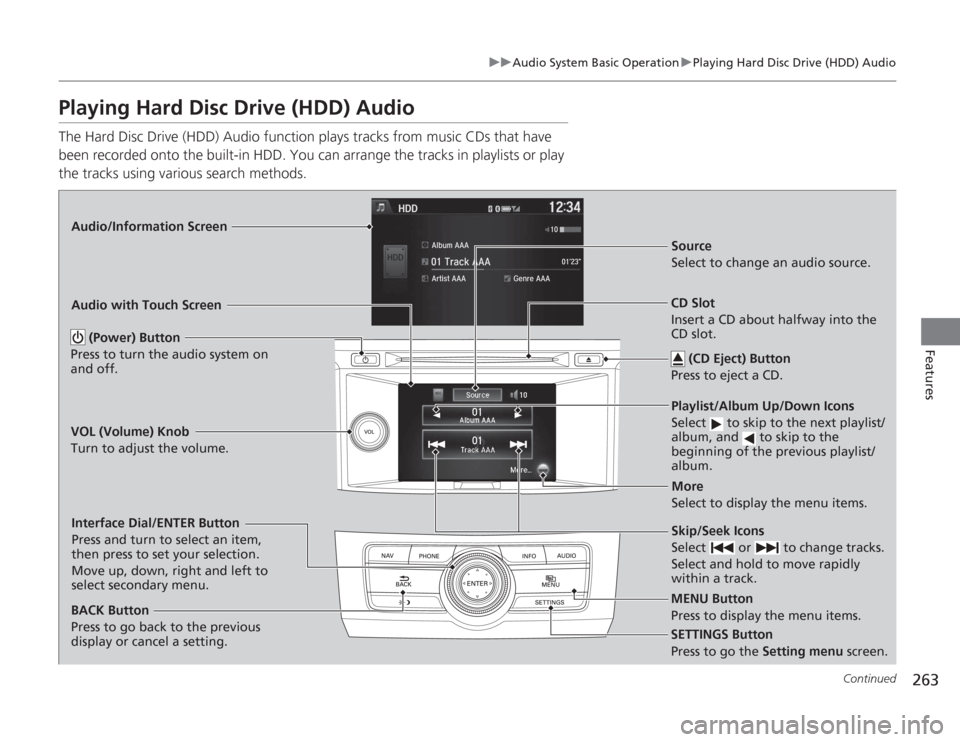
Audio/Information Screen
Audio with Touch Screen
MENU Button
Press to display the menu items.
CD Slot
Insert a CD about halfway into the
CD slot. (CD Eject) Button
Press to eject a CD.Playlist/Album Up/Down Icons
Select to skip to the next playlist/
album, and to skip to the
beginning of the previous playlist/
album.Source
Select to change an audio source.
Skip/Seek Icons
Select or to change tracks.
Select and hold to move rapidly
within a track.More
Select to display the menu items.
(Power) Button
Press to turn the audio system on
and off.
BACK Button
Press to go back to the previous
display or cancel a setting.
VOL (Volume) Knob
Turn to adjust the volume.Interface Dial/ENTER Button
Press and turn to select an item,
then press to set your selection.
Move up, down, right and left to
select secondary menu.
SETTINGS Button
Press to go the
Setting menu screen.
Page 265 of 595
uuAudio System Basic Operation uPlaying Hard Disc Drive (HDD) Audio
264Features
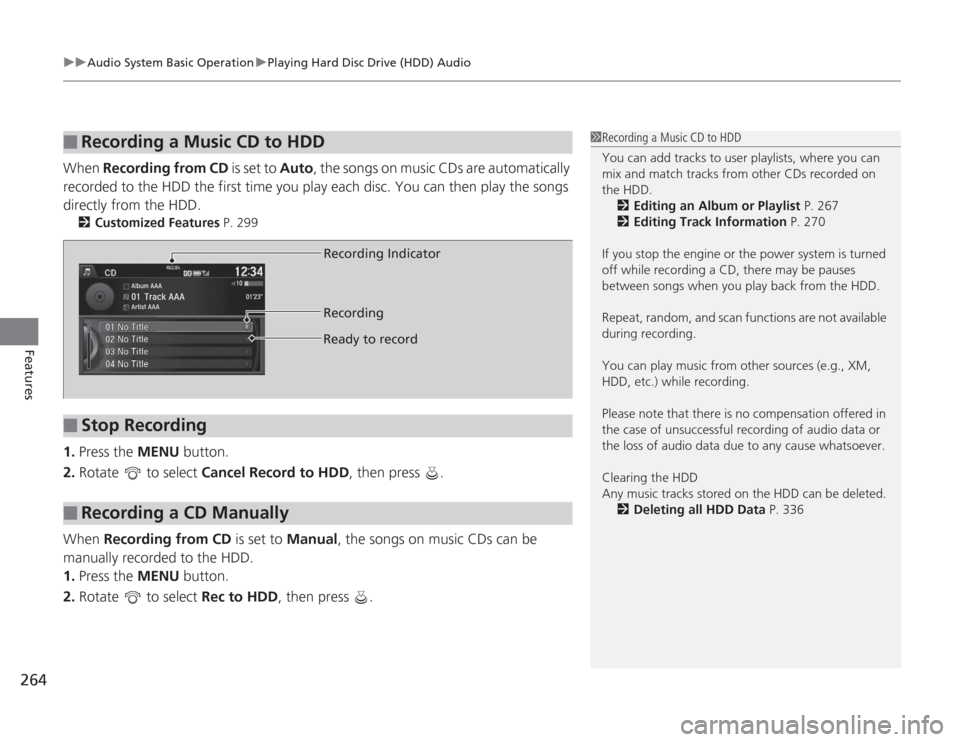
When Recording from CD is set to Auto, the songs on music CDs are automatically
recorded to the HDD the first time you play each disc. You can then play the songs
directly from the HDD.
2 Customized Features P. 299
1.Press the MENU button.
2. Rotate to select Cancel Record to HDD , then press .
When Recording from CD is set to Manual, the songs on music CDs can be
manually recorded to the HDD.
1. Press the MENU button.
2. Rotate to select Rec to HDD, then press .■
Recording a Music CD to HDD
1Recording a Music CD to HDD
You can add tracks to user playlists, where you can
mix and match tracks from other CDs recorded on
the HDD.
2 Editing an Album or Playlist P. 267
2 Editing Track Information P. 270
If you stop the engine or the power system is turned
off while recording a CD, there may be pauses
between songs when you play back from the HDD.
Repeat, random, and scan functions are not available
during recording.
You can play music from other sources (e.g., XM,
HDD, etc.) while recording.
Please note that there is no compensation offered in
the case of unsuccessful recording of audio data or
the loss of audio data due to any cause whatsoever.
Clearing the HDD
Any music tracks stored on the HDD can be deleted. 2 Deleting all HDD Data P. 336
■
Stop Recording
■
Recording a CD Manually
Recording Indicator
Recording
Ready to record
Page 274 of 595
273
uuAudio System Basic Operation uPlaying an iPod ®
Continued
Features
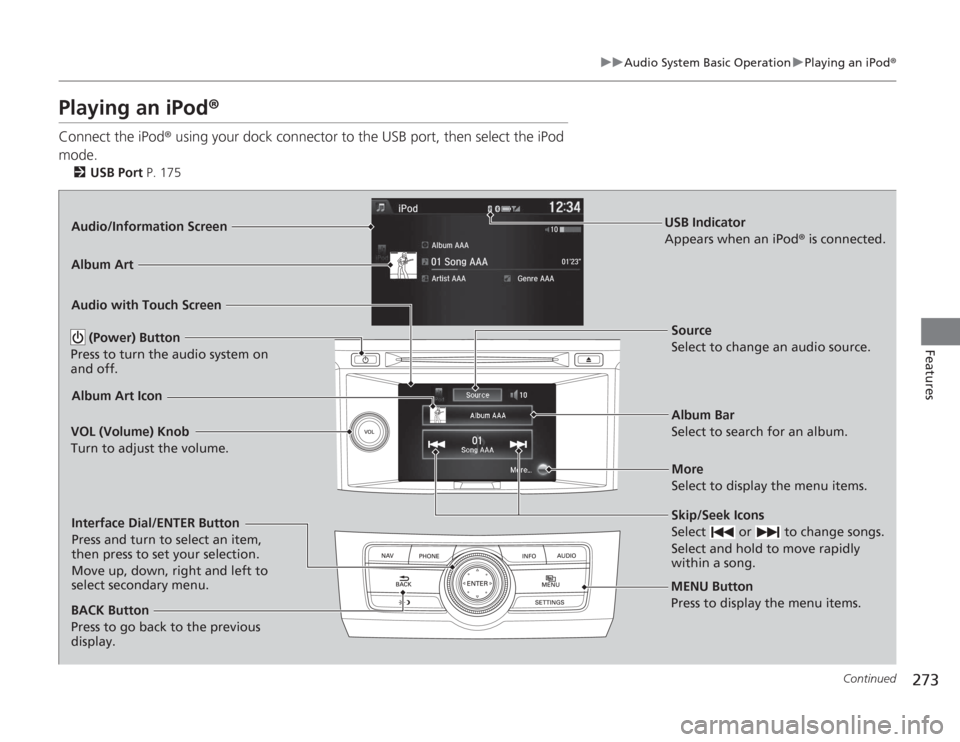
Playing an iPod ®Connect the iPod ® using your dock connector to the USB port, then select the iPod
mode.
2 USB Port P. 175Audio/Information Screen
Audio with Touch Screen
MENU Button
Press to display the menu items.
Album Bar
Select to search for an album. Source
Select to change an audio source.
Skip/Seek Icons
Select or to change songs.
Select and hold to move rapidly
within a song.More
Select to display the menu items.
(Power) Button
Press to turn the audio system on
and off.
BACK Button
Press to go back to the previous
display.
VOL (Volume) Knob
Turn to adjust the volume.Interface Dial/ENTER Button
Press and turn to select an item,
then press to set your selection.
Move up, down, right and left to
select secondary menu.
USB Indicator
Appears when an iPod
® is connected.
Album ArtAlbum Art Icon